Flux is the most talked-about image generation model of the past two years, and for good reason. Unlike models that produce images with an obvious "AI look," Flux outputs images that photographers, designers, and content creators regularly mistake for real photographs. If you've been watching AI image generation from the sidelines and wondering where to actually start, this is the model worth your attention.
What Flux Actually Is
Flux is an open-weights image generation model created by Black Forest Labs, a team founded by former Stability AI researchers. Released in August 2024, it immediately set a new standard for text-to-image quality, particularly in areas where previous models struggled: accurate text rendering, realistic human anatomy, and faithful adherence to complex prompts.
The core architecture uses a diffusion transformer (DiT) approach, a significant evolution from the U-Net backbone used in older models like Stable Diffusion. This design gives Flux its signature ability to maintain structural coherence across an entire image, something that previously required additional tools like ControlNet.
Why It Stands Apart
What makes Flux different isn't just raw visual quality. Three things define its reputation:
- Prompt fidelity: Flux follows complex, multi-condition prompts with unusual precision. Write "a red bicycle leaning against a blue wall with a cat sleeping on the seat in soft afternoon light" and Flux will render all of those details correctly.
- Text rendering: Previous models consistently garbled text within images. Flux handles short to medium text strings reliably, which matters enormously for social media graphics, mockups, and visual storytelling.
- Human anatomy: Hands, fingers, and facial proportions have historically been the Achilles heel of AI image models. Flux produces anatomically plausible results at a rate that is simply better than its predecessors.
The Team Behind It
Black Forest Labs was founded in 2024 by Robin Rombach, Andreas Blattmann, and colleagues who built the original Stable Diffusion architecture. That pedigree explains a lot about Flux's quality. These are not newcomers: they designed the foundational pipeline that most image models still use today, and Flux reflects years of accumulated research applied to an entirely new architecture.

The Flux Model Family
Black Forest Labs released Flux in multiple tiers. Choosing the right one depends on what you're building and how much control you need.
Schnell, Dev, and Pro Compared
| Model | Speed | Quality | Best For |
|---|
| Flux Schnell | Very Fast | Good | Rapid prototyping, bulk generation |
| Flux Dev | Moderate | Excellent | Creative projects, detailed scenes |
| Flux Pro | Slower | Best | Final outputs, professional use |
Flux Schnell is the speed-optimized version. It generates images in roughly 1 to 4 steps, making it suitable for rapid iteration when you need to test dozens of prompt variations quickly. Quality is noticeably below the other tiers but still far above most competing fast models.
Flux Dev sits in the middle and is arguably the most popular version among hobbyists and professionals alike. It balances generation speed with excellent output quality, and its open weights mean the community has built an enormous ecosystem of LoRA fine-tunes around it.
Flux Pro is the flagship. Closed weights, API-only access, and the highest quality outputs in the family. When you need a final image for a campaign, product page, or editorial piece, this is the version to use.
Flux 1.1 Pro Ultra for Maximum Detail
Flux 1.1 Pro Ultra is an upgraded version of Flux Pro with native support for 4-megapixel output. At 4MP, details that would normally soften at large sizes stay crisp: fabric weave patterns, distant architectural elements, individual strands of hair in mid-distance shots.
💡 When to use Ultra: If you're producing images for print, large-format display, or any use case where the image will be viewed at high resolution, the Ultra tier is worth the additional inference cost.
Flux 2: The Next Generation
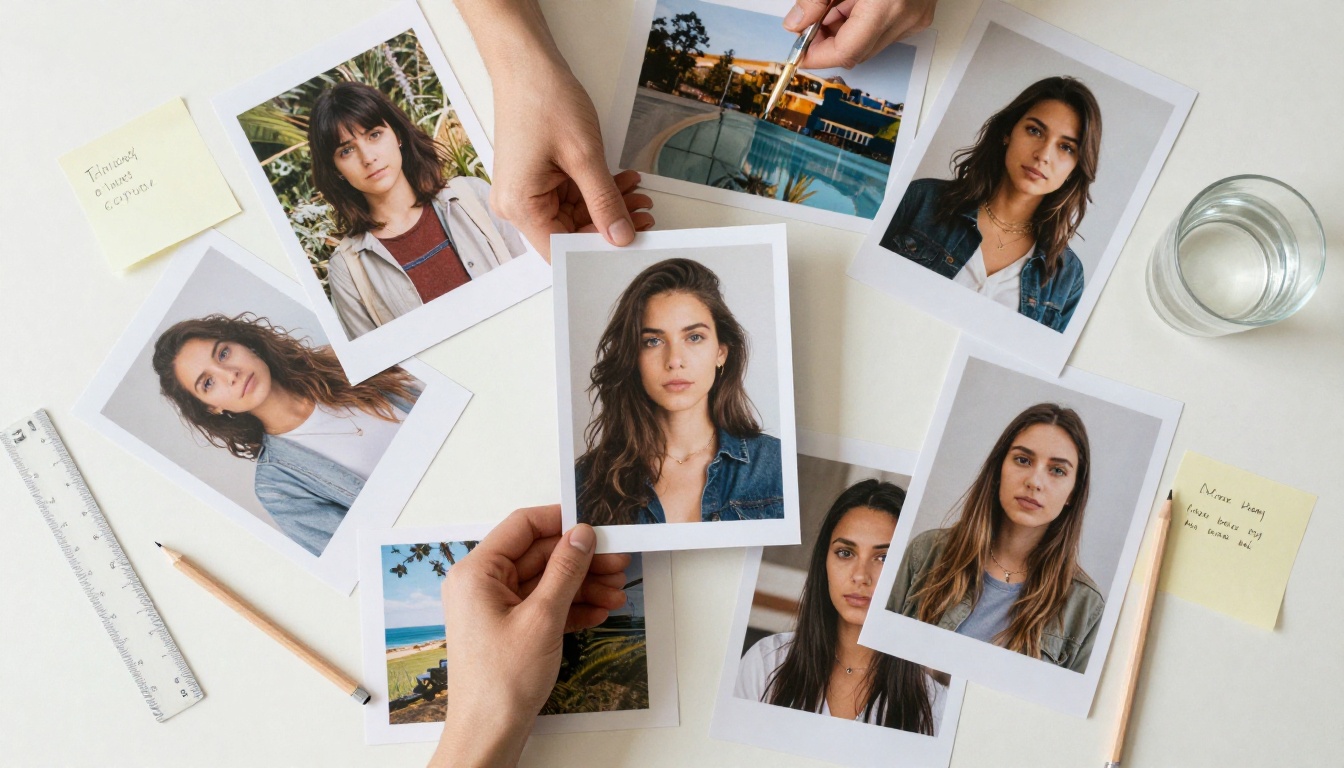
Flux 2 Pro and Flux 2 Dev continue the lineage with improved image-to-image capabilities alongside text-to-image generation. You can provide a reference photo and a text prompt, and Flux 2 synthesizes both inputs into a coherent output. This opens entirely new workflows for product photography, character consistency, and scene adaptation.
Flux 2 Max pushes output resolution even further, producing 4MP images with the additional creative latitude of the Flux 2 architecture. For commercial work where image-to-image input is part of the brief, this is the current top of the line.
What Makes Flux Images So Good
The quality gap between Flux and older models is real, but understanding why it exists helps you use it more effectively.
Text Rendering That Actually Works
Rendering legible text inside images was, for years, considered nearly impossible for diffusion models. Flux changed this through a combination of architecture changes and training on a dataset with richer captioning. Short phrases, single words, and even simple sentences placed on signs, storefronts, or product packaging come out correctly in Flux at a rate that makes it genuinely useful for mockup work.
The practical implication: you can write prompts like a coffee shop window with "OPEN" painted in white letters and get exactly that. You are no longer limited to treating in-image text as decorative noise.
Prompt Adherence at the Detail Level
Most image models treat long prompts as probability distributions, favoring the most statistically likely interpretation. Flux holds more conditions simultaneously. A prompt specifying three distinct lighting sources, a specific fabric texture, and a particular emotional expression in a subject will produce an image where all three are genuinely present rather than averaged away.
This does not mean longer is always better. Flux still benefits from precise, structured prompts. The difference is that the ceiling for complexity is much higher.

How to Use Flux on PicassoIA
PicassoIA gives you access to every Flux model through a simple interface, no API keys or local setup required. Here is how to go from zero to your first image.
Step 1: Pick Your Model
Go to Flux Dev if you are just starting out. It offers the best quality-to-speed ratio and is forgiving with prompt experimentation. If you need speed for iteration, switch to Flux Schnell. For final outputs, use Flux Pro or Flux 1.1 Pro Ultra.
Step 2: Write a Structured Prompt
Flux prompts work best when they follow a clear structure:
- Subject and action: What is in the image and what is it doing?
- Environment: Where is it? What does the setting look like?
- Lighting: Direction, quality, and color of light.
- Camera and lens: Focal length, aperture, shooting angle.
- Style and mood: The overall feeling the image should convey.
A mediocre prompt: a woman in a garden
A strong prompt: a woman in her 30s sitting on a wooden bench in an overgrown English cottage garden, dappled morning light filtering through apple tree branches overhead, 85mm f/1.8 portrait lens, warm golden tones, natural expression, film grain
The second prompt gives Flux all the conditions it needs to make real decisions. The first one leaves everything to chance.
Step 3: Adjust the Parameters
PicassoIA exposes the parameters that matter most:
- Aspect ratio: 16:9 for landscape, 9:16 for vertical social content, 1:1 for square formats.
- Steps (Flux Dev): Higher steps (28 to 50) improve coherence and detail. Lower steps (10 to 20) are faster but softer.
- Guidance scale: Controls how strictly the model follows your prompt. Values between 3.5 and 7 work well for most use cases.
- Seed: Set a fixed seed to reproduce results or iterate on a composition you like.
💡 Pro tip: Start with a guidance scale around 3.5 and increase it gradually if the model is not capturing specific details from your prompt. Going above 7 often introduces over-saturation and stiffness.
Flux for Image Editing
The Flux family extends well beyond text-to-image generation. Several models are specifically built for editing existing photographs.
Edit Without Losing the Original
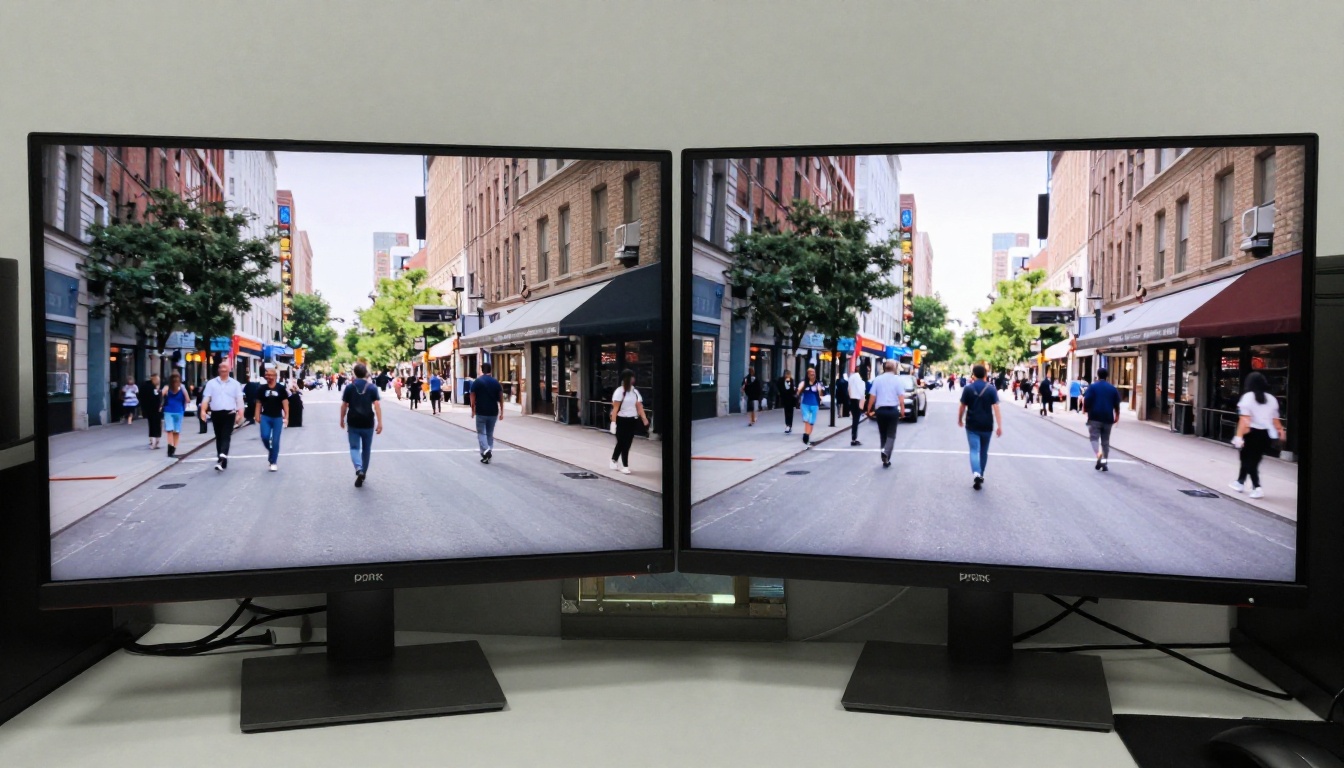
Flux Kontext Pro and Flux Kontext Max are instruction-based editing models. You provide an existing image and a text instruction, and the model changes only what you specify while preserving everything else. Want to change a shirt color, add an object to a scene, or relight a portrait? These models handle it with a precision that traditional inpainting workflows cannot match.
Flux Kontext Fast offers the same instruction-based editing at significantly higher speed, making it practical for workflows that require multiple iterative edits without long wait times.
Inpainting and Outpainting
Flux Fill Pro and Flux Fill Dev handle inpainting and outpainting tasks. Inpainting lets you mask a region of an image and replace it with generated content that matches the surrounding context. Outpainting extends the canvas beyond the original frame. Both operations maintain lighting consistency, perspective, and texture quality that make the edits convincing.

Depth and Structure Control
Flux Depth Pro and Flux Canny Pro bring ControlNet-style functionality into the Flux ecosystem. Depth Pro uses depth maps to constrain 3D structure during generation, ensuring spatial relationships in the output match the reference. Canny Pro uses edge detection to preserve compositional structure while changing style or content. These tools are essential when you need consistent output across a series of related images.
Flux LoRA Models for Custom Styles
Flux Dev LoRA and Flux Schnell LoRA let you apply fine-tuned style weights on top of the base Flux models. LoRA (Low-Rank Adaptation) files are small neural network additions that push the model toward a specific visual style, subject, or aesthetic without retraining the entire model.
What LoRA Does to Your Output
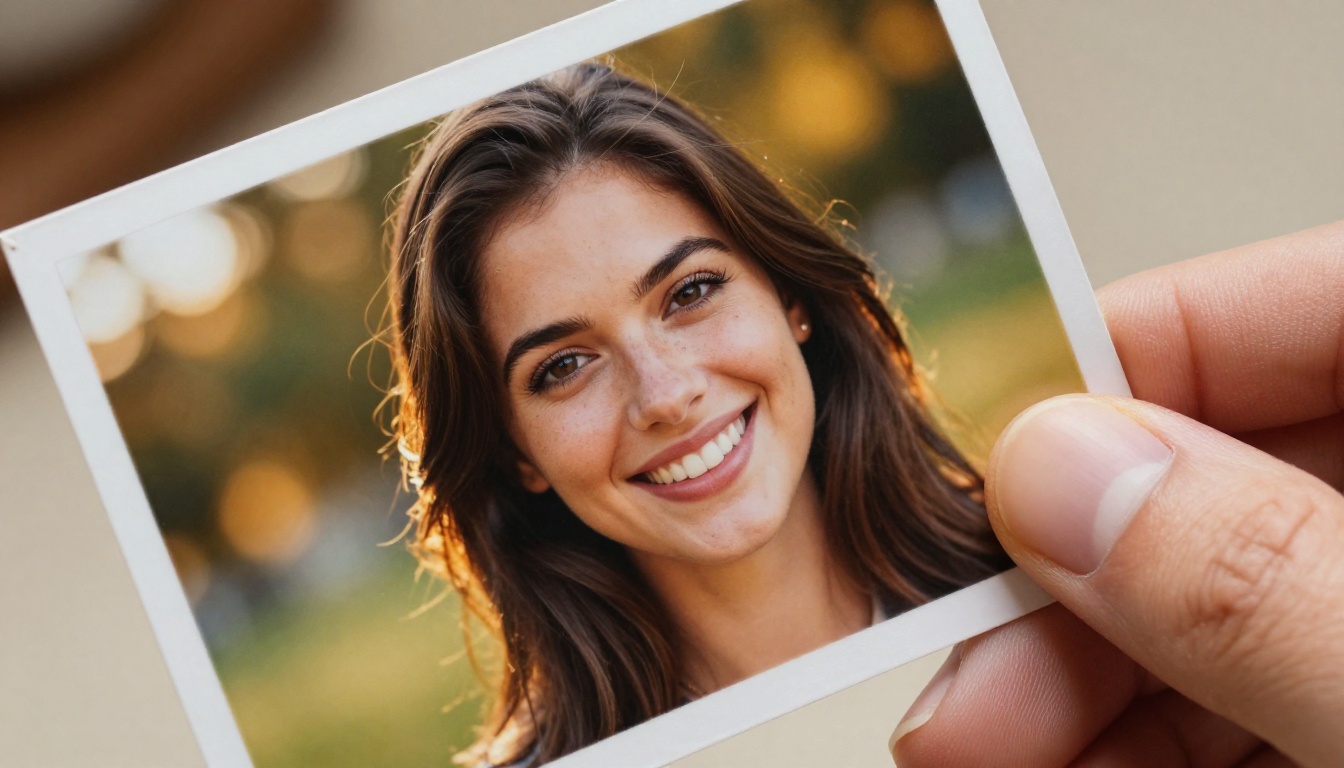
A LoRA trained on fashion photography pushes Flux toward that lighting style, body posture framing, and color palette without you needing to describe it in every prompt. A character LoRA maintains a consistent face across multiple generations. The practical result is a dramatic reduction in prompt complexity once you find a LoRA that matches your creative direction.
Training Your Own
P Image Trainer on PicassoIA allows you to train custom LoRA weights directly in the browser. Upload 10 to 20 reference images, set a trigger word, and the trainer fine-tunes a Flux LoRA on your specific subject or style. The resulting weights can then be applied through Flux Dev LoRA for all subsequent generation.
3 Common Mistakes with Flux Prompts
Even with a high-quality model, prompting errors will consistently produce disappointing results.
Overloading with Abstract Adjectives
Phrases like "beautiful," "stunning," "amazing," or "incredible" convey no specific visual information. Flux cannot render "beautiful" without knowing what that looks like in your context. Replace every abstract adjective with a concrete visual descriptor.
Instead of: "a beautiful portrait of a woman"
Try: "a portrait of a woman, soft diffused window light from the left, 85mm lens, slight smile, loose linen shirt, muted sage green background"
Wrong Model for the Task
Using Flux Schnell for final outputs, or Flux Pro for bulk iteration, is a resource mismatch. Match the model tier to the phase of your workflow. Prototype with Schnell, refine with Dev, finalize with Pro.
Ignoring Negative Space
Flux respects compositional instructions. If you want the subject to occupy a specific area of the frame, say so. "Subject in the left third of the frame, large negative space to the right" will consistently produce better-composed results than hoping the model chooses a good crop.
Flux for Image Variations
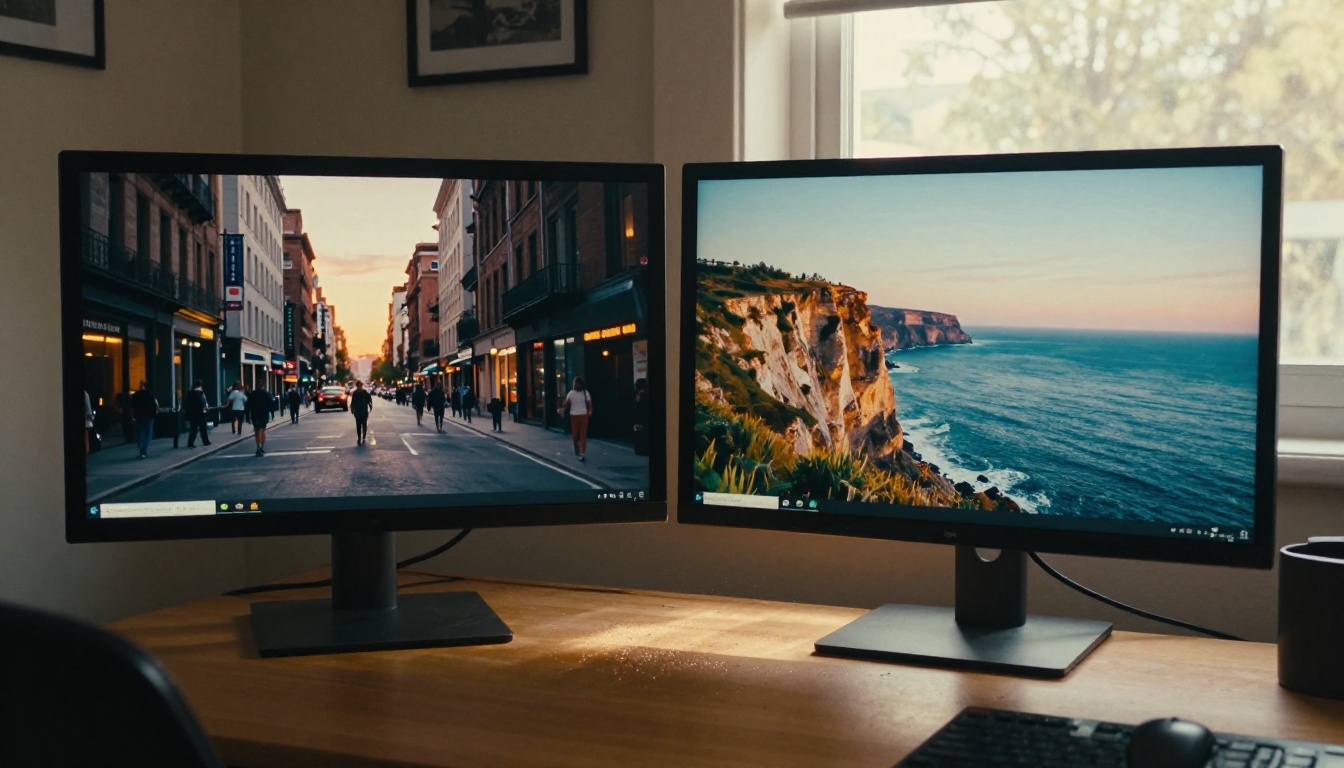
Flux Redux Dev and Flux Redux Schnell solve a specific workflow problem: generating variations of an existing image while maintaining its core visual identity. Provide a source image, and Redux generates new versions with different compositions, color palettes, or lighting, all while preserving the subject's identity and the scene's general character.
This is particularly valuable for product photography, where you need multiple angles or contexts of the same object without a full photoshoot. It is also useful for character consistency across a series of illustrations or social media posts.
💡 Redux tip: The closer the guidance scale is to the default, the more freedom Redux has to reinterpret the composition. Lower values produce tighter variations; higher values produce looser ones.

Start Creating with Flux Today
Every model in the Flux family is available directly on PicassoIA, with no software installation, no API configuration, and no hardware requirements. You write a prompt and you get an image. That is genuinely all the setup that exists.
For a first experiment, go to Flux Dev and write a prompt that describes something specific from your own life or work. A product you sell, a place you know, a person you want to visualize. The specificity of personal prompts makes early experimentation significantly more rewarding than generic test prompts.
When you are ready to move beyond single images, Flux Redux Dev gives you variations from a single reference image. Flux Kontext Pro lets you edit existing photos with a simple text instruction. Flux Fill Pro extends or repairs any image without visible seams.
The full Flux ecosystem on PicassoIA represents the most capable publicly accessible image generation toolset available right now. The only way to develop real intuition for what Flux does well is to use it. Start with one prompt today, and the results will tell you more than any article can.