Google's Veo 3.1 did something the AI video space had been promising for two years: it made audio part of the generation process rather than an afterthought. Instead of producing silent clips that you patch with stock music or crude sound effects, Veo 3.1 outputs synchronized audio, dialogue, and ambient sound as part of a single inference pass. That changes the production workflow substantially, and it changes what you can reasonably expect from a one-prompt video session.
What Veo 3.1 Actually Is
Veo 3.1 is Google DeepMind's third major iteration of the Veo text-to-video architecture, released in 2025. It builds on the audiovisual foundation introduced in Veo 3, adding improved motion coherence, sharper 1080p output, and better semantic adherence to long, complex prompts.
The model falls into the category of diffusion-based generative video models, which means it progressively refines noise into coherent visual and audio data guided by your text input. What separates Veo 3.1 from earlier diffusion video approaches is the scale of the training corpus and the tight integration between the visual and audio decoders.
From Veo 2 to Veo 3.1
Veo 2 was the benchmark setter for realistic motion in 2024. Shots produced by Veo 2 showed noticeably better physics simulation than competitors: water behaved like water, fabrics moved with inertia, and camera pans tracked subjects cleanly. But Veo 2 had no audio output whatsoever.
Veo 3 introduced native audio, and the industry took notice immediately. You could write a prompt describing a scene and receive a clip where ambient sound, background music, and even spoken dialogue matched the visual content without post-production alignment work. Veo 3.1 refines that output with stronger visual fidelity and more predictable results at 1080p resolution.
The Audio Architecture Difference
The reason Veo 3.1 audio sounds natural rather than stitched-together is architectural. Most competing models generate video and then apply a separate audio model to overlay sound. Veo 3.1 trains the visual and audio streams jointly, so the model learns the relationship between what something looks like and what it sounds like at a fundamental level.
This produces specifics that matter in practice: footsteps that land at the correct frame, crowd noise that responds to camera distance, and voiceover that matches a speaker's lip movements without manual alignment.
1080p Output with Synchronized Sound
The core output specification for Veo 3.1 is 1080p at up to 24 frames per second with a default clip length of 8 seconds. That sounds modest until you watch the output: 8 seconds of dense, photorealistic motion with spatially aware audio is enough for the majority of short-form social content, product demos, and storytelling vignettes.
Resolution and Frame Rate
At 1080p, Veo 3.1 outputs have enough detail to hold up on modern displays without the soft, painterly quality that plagued earlier AI video models. You can zoom into backgrounds without immediately seeing artificial blurring or repeating texture artifacts. The frame rate keeps motion natural: 24fps matches cinematic convention, avoiding the uncanny smoothness that higher frame rates sometimes produce.
Tip: If your use case is social video (Reels, TikToks, YouTube Shorts), the 8-second clip length is actually an advantage. It forces tight, high-impact content rather than filler.
Audio Without Extra Steps
When you write a Veo 3.1 prompt that describes dialogue, music, or ambient sound, the model generates those elements inline. A prompt describing "a barista behind a counter explaining the day's specials" will produce a clip with a voice that matches the described character, background cafe sounds, and natural room reverb. None of that requires separate passes or post-production layering.
The trade-off is that audio control is currently prompt-driven only. You cannot upload a reference audio file or specify a voice ID. What you describe is what the model interprets.
The Three Veo 3.1 Variants
PicassoIA gives you access to three versions of Veo 3.1, each optimized for different priorities. Knowing which to use before you start saves both time and credits.
Veo 3.1, Fast, and Lite Compared
| Model | Resolution | Speed | Audio | Best For |
|---|
| Veo 3.1 | 1080p | Standard | Yes | Final-quality output |
| Veo 3.1 Fast | 1080p | Faster | Yes | Rapid iteration |
| Veo 3.1 Lite | 720p | Fastest | Yes | Drafts and testing |
Veo 3.1 is the full-fidelity model. Use it when the output goes directly into a deliverable: a client presentation, a published post, or a video portfolio. Generation takes longer but the visual consistency, edge detail, and audio synchronization are at peak quality.
Veo 3.1 Fast runs at 1080p with reduced processing time by compressing some intermediate diffusion steps. For most practical use cases, the output quality difference from the full model is not visible without side-by-side comparison. This is the sweet spot for iterating on prompt variations quickly.
Veo 3.1 Lite is 720p and generates significantly faster, making it the right pick for testing scene compositions, checking whether a prompt produces the intended motion, or running high-volume batch iterations before committing to full-resolution generations.
Which One Fits Your Workflow
If you are new to Veo 3.1, start with Veo 3.1 Lite. Run your first five or six prompts there, refine the descriptions, and only move to Veo 3.1 or Veo 3.1 Fast once you have a prompt structure that reliably produces what you want.
Writing Prompts That Work
Prompt structure is the single biggest variable in output quality. Two prompts describing the same scene can produce dramatically different results depending on how the information is ordered and how specific the descriptors are.
Structure of an Effective Prompt
The most reliable prompt structure follows this order:
- Subject and action - Who or what is doing something, and what specifically
- Environment and context - Where the action takes place and the surrounding details
- Camera and motion - Shot type, angle, and any camera movement
- Lighting - Direction, quality, and color temperature
- Audio - What sounds should be present, including ambient, musical, or spoken
A weak prompt: "a man walking in a city at night"
A strong prompt: "A businessman in a dark overcoat walking briskly along a rain-soaked sidewalk in downtown New York at midnight, shot from a low-angle tracking shot following from behind at waist height, blue-white street lamp light reflecting in puddles ahead, distant siren and traffic noise, shoes clicking rhythmically on wet pavement"
The second version gives the model specific anchors at every layer of the generation process. The motion is defined (tracking shot, waist height), the audio is described (sirens, traffic, footsteps), and the lighting has a color temperature (blue-white). Each additional anchor reduces the model's uncertainty and improves output consistency.
Common Mistakes to Avoid
Over-abstracting: Prompts like "a beautiful landscape" give the model too much freedom. The output will be technically correct but unlikely to match your intent.
Stacking conflicting instructions: If you write "static shot" and "camera dollies forward" in the same prompt, the model will attempt to reconcile the contradiction, usually producing awkward motion.
Ignoring audio in the prompt: Since Veo 3.1 generates audio natively, leaving the audio description blank means the model invents it. Sometimes that works. More often, the invented audio does not match the mood or content of the scene. Describe the sound explicitly.
Over-specifying subject count: Veo 3.1 handles individual subjects and small groups well. Prompts asking for crowds of 50 or more people tend to produce blurry, inconsistent background figures.
Tip: Write your camera description using film terminology. "Dolly shot," "Dutch angle," "over-the-shoulder," and "close-up" all produce more predictable framing than vague directional language like "from the side" or "zoomed in."
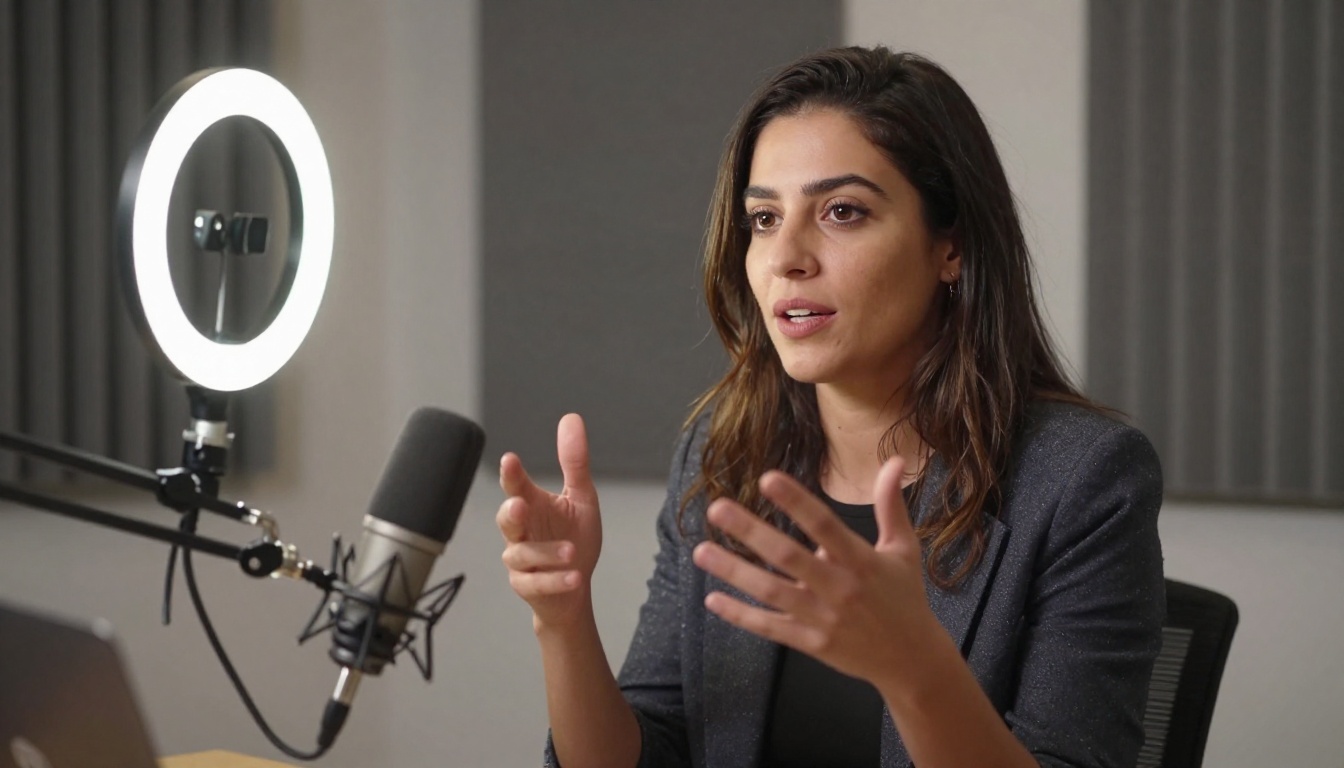
How to Use Veo 3.1 on PicassoIA
PicassoIA provides direct access to all three Veo 3.1 variants without API keys, waitlists, or technical setup. Here is the full process from blank input to finished video.
Step-by-Step: Prompt to Video
Step 1: Open the model page
Navigate to Veo 3.1 on PicassoIA. For draft testing, open Veo 3.1 Lite instead.
Step 2: Write your prompt
Use the structure outlined above: subject and action, environment, camera and motion, lighting, audio. Aim for 40 to 80 words. Below 25 words tends to produce generic results; above 120 words can introduce conflicting information.
Step 3: Set duration if available
PicassoIA exposes duration controls where the underlying API allows it. 5 to 8 seconds is the recommended range for most content types.
Step 4: Run the generation
Submit the prompt. Veo 3.1 Lite typically returns in under 30 seconds. The standard Veo 3.1 takes 1 to 3 minutes depending on server load.
Step 5: Review and iterate
Watch the full clip with audio. If the visual composition is right but the audio is off, revise the audio description in the prompt and re-run. If the motion is wrong, revise the camera and action descriptors. Avoid changing everything at once as it makes diagnosing the issue harder.
Tips for Consistent Results
- Use Veo 3.1 Fast for A/B testing prompts before committing to standard-quality generations.
- Save prompts that work in a plain text file. Small edits to a successful prompt often yield better variation than writing from scratch.
- Match audio description to visual mood: a tense scene with "upbeat jazz music" in the audio description produces jarring output. Keep audio and visual tone aligned.
- Be specific about motion speed: "slowly walking" versus "brisk stride" produces measurably different output. Quantify where you can.

Veo 3.1 vs Other Video Models
Veo 3.1 is not the only strong text-to-video model available, and knowing where it sits relative to the alternatives helps you pick the right tool for each project.
Side-by-Side Comparison
When to Pick Alternatives
Use Sora 2 when you need clips longer than 8 seconds. Sora 2 can produce up to 20 seconds of video with audio, making it the better option for narrative sequences or music video segments that require more time.
Use Kling v3 Video when you need precise control over motion style and character consistency across shots. Kling's motion control toolset is stronger than Veo's for scripted character animation.
Use Seedance 2.0 when your workflow involves animating existing images rather than pure text prompts. Seedance handles image-to-video animation with built-in audio.
Veo 3.1 holds its own when prompt adherence, audio quality, and 1080p realism are the primary criteria. The difference in output fidelity is most visible in prompts with complex lighting conditions, detailed environments, or spoken dialogue.
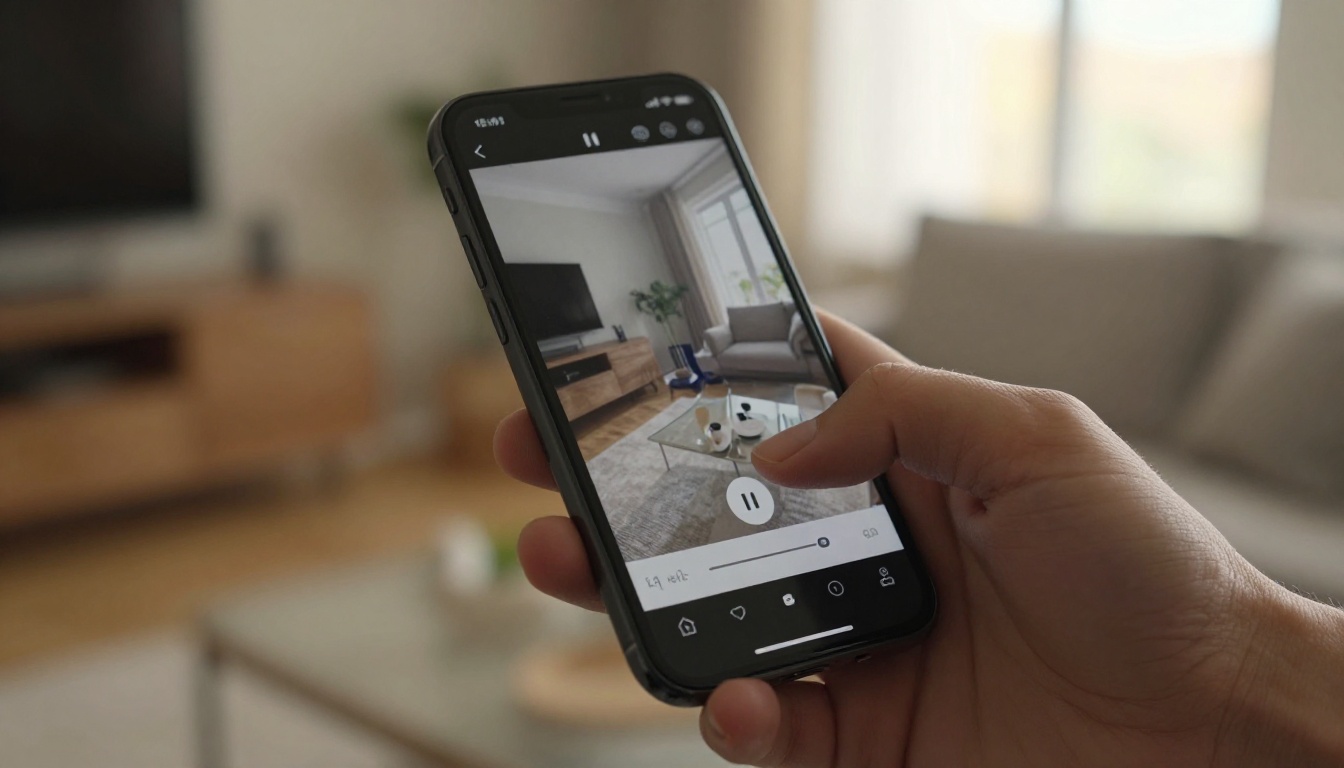
What You Can Build
Veo 3.1 is not limited to a single content category. The 1080p output with native audio opens up practical use cases that were previously either impossible or required professional production setups.
Short-Form Social Content
The 8-second clip length is a natural fit for social video formats. A single Veo 3.1 generation can produce a finished Instagram Reel vignette, a TikTok scene, or a YouTube Shorts segment. The audio output means the clip is ready to publish without additional post-production, which collapses the time from concept to posted content from hours to minutes.
For creators producing daily or high-frequency content, this represents a real operational change. A concept that used to require location scouting, filming, and audio mixing now needs only a well-written prompt.
Product Showcases and Demos
Product teams have found Veo 3.1 particularly useful for visualizing products in context before they physically exist. A furniture company can prompt a table in a specific interior, under specific lighting, with ambient sound, and share it with clients for feedback weeks before a prototype is built.
The photorealistic output quality means these previsualization clips are credible in professional settings, not obviously synthetic placeholders.

Storytelling and Narrative Work
Independent filmmakers and writers have begun using Veo 3.1 for visual development: testing whether a scene concept works visually before committing to production planning. An 8-second clip showing a specific emotional beat in a specific location tells a director more than a written description or a static storyboard.
For training data applications, organizations can use Veo 3.1 to generate controlled scenarios that are impractical to film: specific weather conditions, demographic combinations, or rare events. The audio output makes these synthetic clips more representative of real-world conditions.
Tip: When building prompt libraries for consistent synthetic data generation, separate the variable elements (lighting condition, camera angle, subject) from the fixed elements (environment, action type). This makes systematic variation far easier to manage across large batches.

Try Veo 3.1 Right Now
The fastest way to see what Veo 3.1 actually does is to run a generation yourself. PicassoIA puts Veo 3.1, Veo 3.1 Fast, and Veo 3.1 Lite alongside 100+ other video models in one interface, so you can compare outputs across models using the same prompt without switching between platforms.
Start with Veo 3.1 Lite using a 50-word prompt that describes a specific scene, camera position, and at least one audio element. Run the same prompt through Veo 3.1 Fast and compare the results side by side. That single exercise will show you more about where the model excels than any written description.
When you are ready for publication-quality output, switch to Veo 3.1. The fidelity difference at that stage is visible, and the audio synchronization at 1080p is where the model's real capability shows itself most clearly.
The platform also gives you immediate access to alternatives like Sora 2, Kling v3 Video, and Seedance 2.0 under the same workflow, so picking the right model for any given project becomes a matter of one click rather than a separate subscription.