You have a photo of a steaming coffee cup, a sunset, or your product on a table, and you want it to move. Not a full video, just two or three seconds of looping motion that works in a chat, a newsletter, or a landing page. That is exactly what a GIF creator AI does. You describe the motion, or hand over a still image, and a video model returns a short clip that you can trim, loop, and export as a GIF.
The good news: you no longer need After Effects, a frame-by-frame workflow, or a paid subscription to get there. Several free online tools can produce clean loops in under a minute. The less obvious news is that the quality of your result depends far more on your prompt and your source image than on the tool itself. This article shows you both sides, with copy-ready prompts and real examples.
What a GIF Creator AI Actually Does

Text prompt in, short clip out
A modern AI GIF generator is really a short-form video model with an export step bolted on. You type something like "steam rises slowly from an espresso cup, camera holds still", and the model predicts a sequence of frames that match your description. Those frames come back as an MP4 clip, usually between three and ten seconds long. A converter then turns that clip into the GIF format.
Two input modes matter:
- Text to video: you write the whole scene from scratch. Great for ideas, less predictable for brand assets.
- Image to video: you upload a photo and describe only the motion. This is the best route for loops, because the first frame is locked and the model only has to invent movement.
💡 Quick rule: If you need the result to look like a specific product, face, or place, start from an image. If you just need a mood or an abstract background, text to video is faster.
Why GIFs still matter
MP4 is smaller and sharper, so why bother with GIF at all? Because GIF plays everywhere without a click. It autoplays inside email clients, support chats, documentation, and forums that block video embeds. It also has an attitude that video lacks: a looping reaction, a sticker, or a tiny product demo that repeats forever.
The format has real limits. A GIF holds a maximum of 256 colors per frame, which is why gradients can look banded and photos can look grainy. That is a reason to keep your clips short and your motion simple, and it shapes every prompt tip below.
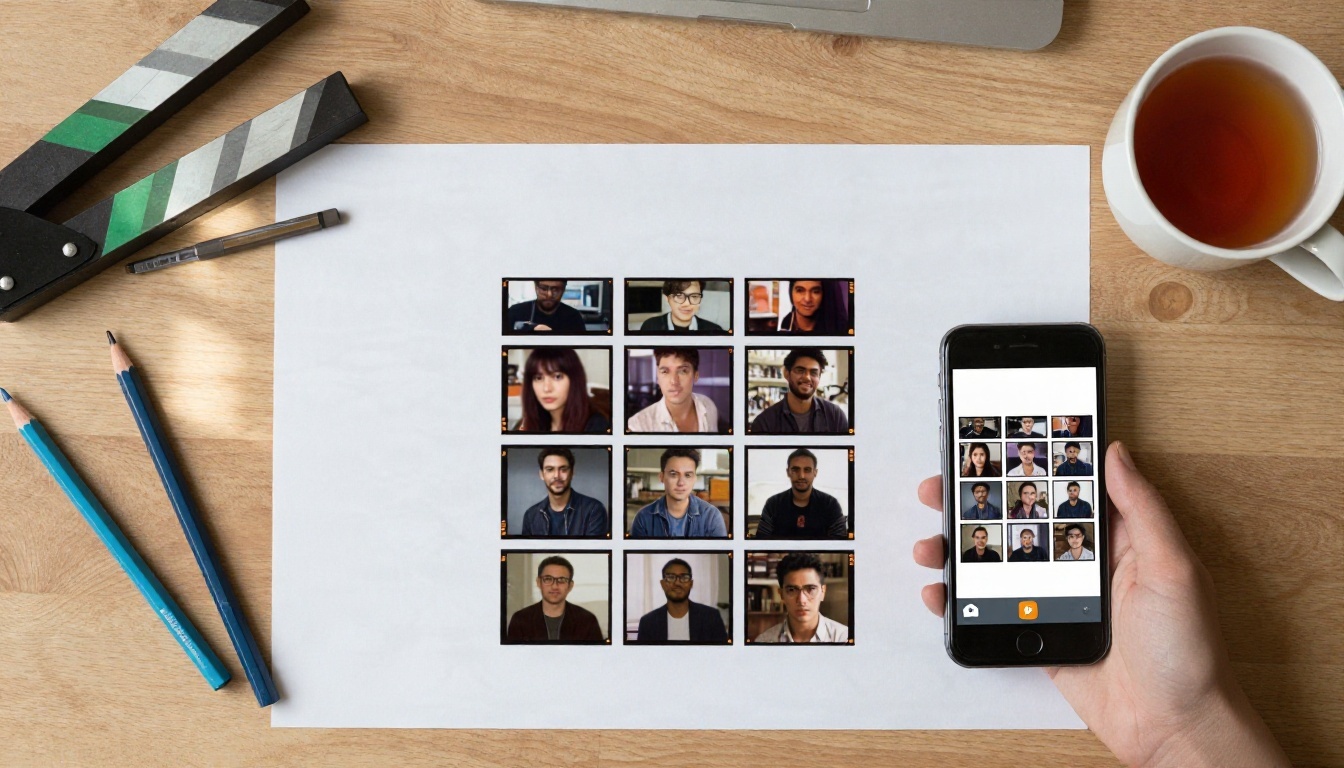
Image to video models for loops
On PicassoIA, the models below are the most useful for building loop-ready clips. They all output video, so the GIF step happens afterward with any converter.
- Seedance 2.5 Lite is listed as a free and unlimited generator with clips up to 10 seconds, which gives you plenty of room to trim a clean loop.
- PicassoIA Video generates from text or from an image and is positioned as free and unlimited.
- Wan 2.5 I2V Fast animates any still image quickly, which suits rapid testing.
- Hailuo 2.3 Fast turns photos into short video and handles natural motion like hair and fabric well.
- LTX 2.5 Fast generates in seconds, useful when you want ten variations before choosing one.
- Wan 2.7 I2V is another image-to-video option when you want a newer Wan generation.
For the source stills themselves, Seedream 4.5, Nano Banana, and Flux 2 Klein 4B Base are solid picks for a sharp, realistic first frame.
What "free" usually means
Free is rarely free in the same way twice. Before you commit to a tool, check these four things:
| Question | Why it matters |
|---|
| Is there a daily or monthly cap? | Loops need retries. Five attempts per day is not much. |
| Does the clip carry a watermark? | A watermark makes the GIF unusable for work. |
| What is the maximum length? | You want at least 4 seconds so you can trim a clean loop. |
| Can you start from your own image? | Without this, brand consistency is nearly impossible. |
💡 Tip: Generate three to five takes of the same prompt. Loops are a lottery at the edges, and the best take is often the third one.
How to Make a GIF Step by Step

The workflow below uses Seedance 2.5 Lite, but the same logic applies to any image-to-video model in the list above.
Start with a strong still
Your first frame decides everything. Pick or generate an image with these traits:
- A clear subject in the middle third, not touching the edges.
- Natural, directional light, so shadows can move believably.
- A background with depth, like blurred foliage or a window, rather than a flat wall.
- No text or logos inside the frame, because AI motion tends to warp letters.
If you do not have a photo, generate one first with a text-to-image model and ask for a realistic, uncluttered composition. A single sentence about lens and light, such as "85mm lens, soft window light from the left", gives video models a stable base.
Write a motion prompt
Open the model page, upload your image, and write only what should move. Do not re-describe the image. A reliable structure looks like this:
[Subject] + [one small motion] + [camera behavior] + [loop hint]
For example: "Steam curls upward from the cup, the camera holds perfectly still, the motion is slow and repeating."
Parameter tips that apply across most models:
- Duration: pick the shortest option that still shows a full motion cycle, usually 4 to 6 seconds.
- Camera: choose "static" or write "camera holds still". Camera moves make seamless loops much harder.
- Aspect ratio: match your destination. Square for social posts, 16:9 for web banners.
- Resolution: 720p is plenty for a GIF, since the format cannot hold more detail anyway.
Convert the MP4 to GIF
Download the clip, then trim it to the section where the motion starts and ends in a similar position. Any free online video-to-GIF converter will do the job. Set the width between 480 and 640 pixels and the frame rate to 12 to 15 fps. That combination keeps motion smooth while keeping the file small enough for email and chat.
Prompts That Produce Clean Loops
The four-part formula
Loops fail when the model invents too much. Keep your prompt narrow:
- Subject: what is in the frame.
- Single action: one repeating motion, not three.
- Camera: static, or a very slow push.
- Rhythm: words like "slow", "steady", "continuous", "gentle", "repeating".
Avoid verbs that imply an ending: "arrives", "finishes", "lands", "explodes". They create a start and an end, which is the opposite of a loop. Prefer verbs of continuous motion: "drifts", "sways", "ripples", "flickers", "pours", "spins".
Ten prompts to copy
These work well as motion prompts on top of an uploaded still. Swap the subject for your own.
| # | Scene | Motion prompt |
|---|
| 1 | Coffee cup | Steam curls slowly upward, camera static, soft steady light |
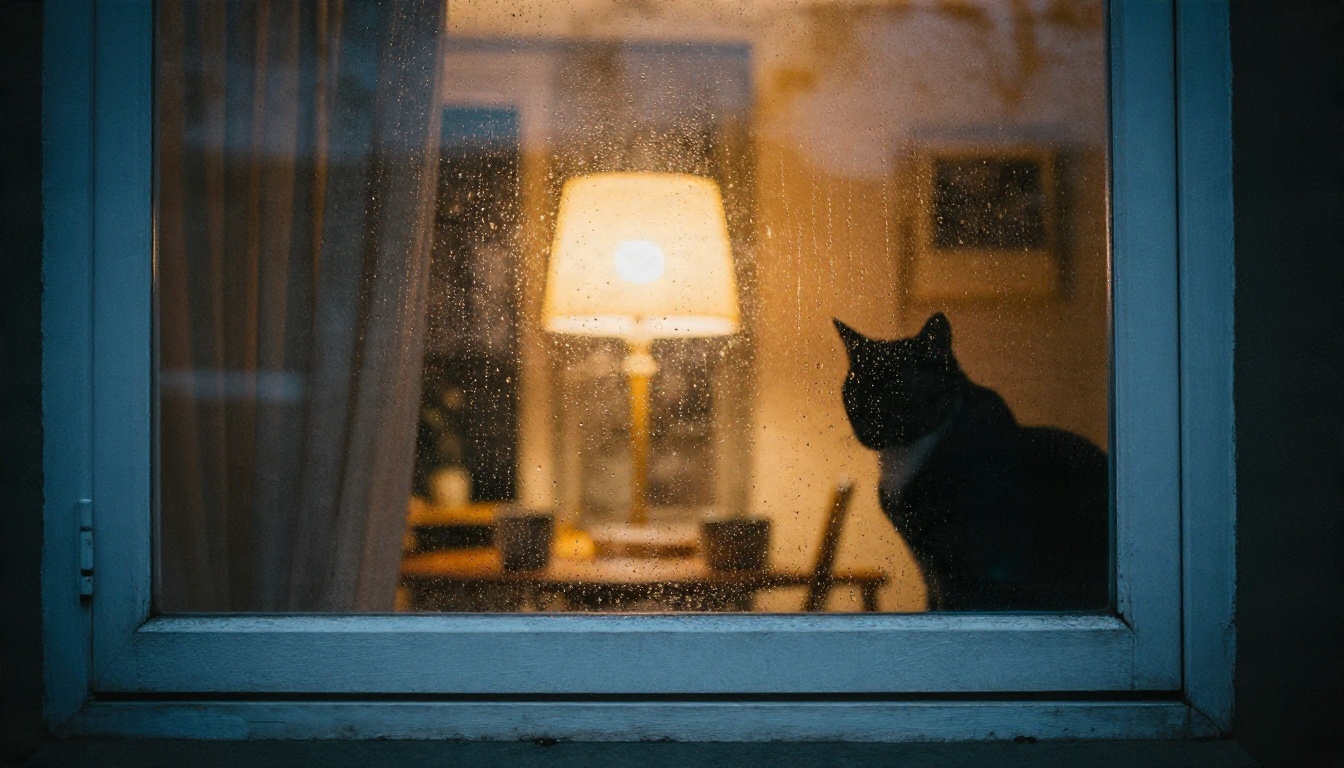
| 2 | Rainy window | Raindrops slide down the glass at a slow steady pace, camera static |
| 3 | Meadow portrait | Wind gently moves the hair and tall grass, camera holds still |
| 4 | Candle | The flame flickers softly, warm light pulses faintly on the wall |
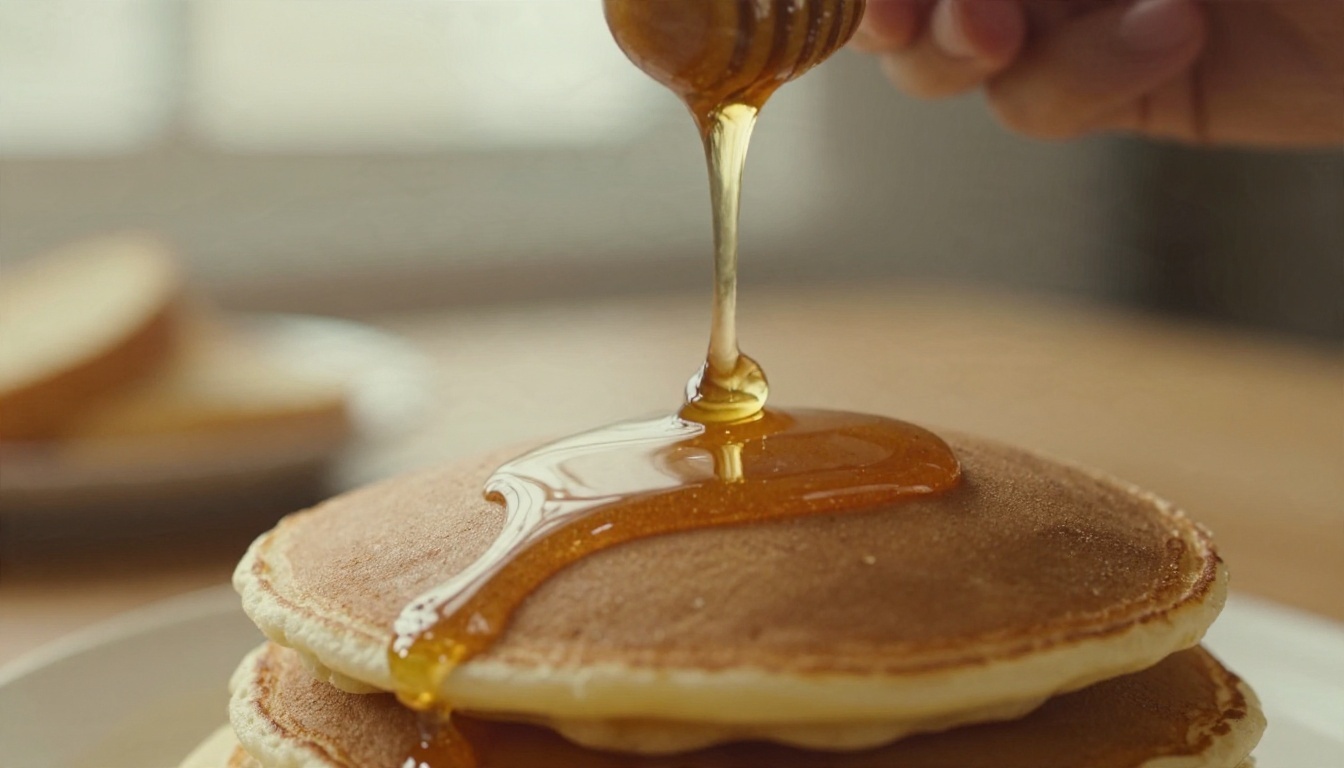
| 5 | Honey pour | Honey flows in a thick continuous stream onto the pancakes |
| 6 | Ocean | Small waves roll toward shore in a steady rhythm, camera static |
| 7 | Plant by window | Leaves sway slightly in a light breeze, sunlight shifts subtly |
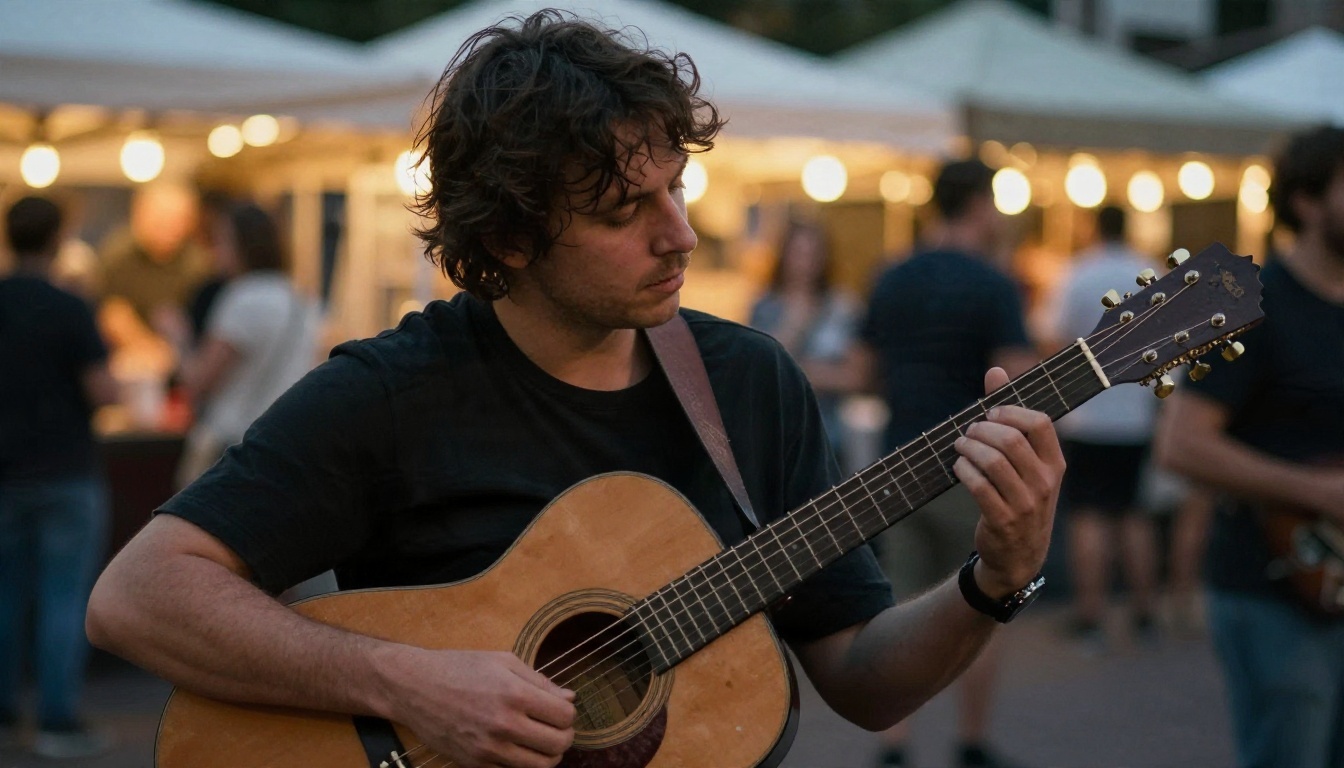
| 8 | Guitar hands | Fingers pluck the strings in a steady rhythm, lights glow behind |
| 9 | Product on table | Slow, tiny rotation of the product on a turntable, static camera |
| 10 | Fireplace | Embers glow and flames dance gently, no camera movement |
💡 Pro move: Add the phrase "seamless loop, the last frame matches the first frame". Models do not always obey, but it nudges them toward repeating motion rather than a one-way event.
Real Examples You Can Recreate
Ambient loops that never tire
The photo above is a textbook loop candidate. Water drops move downward at a constant pace, the cat stays still, the light is stable. When you send a still like this to an image-to-video model, ask only for "raindrops sliding down the glass, camera static", and you will get a calm clip that loops almost without trimming.
The same logic applies to nature scenes. Here is a meadow at sunrise where wind drives the only motion:
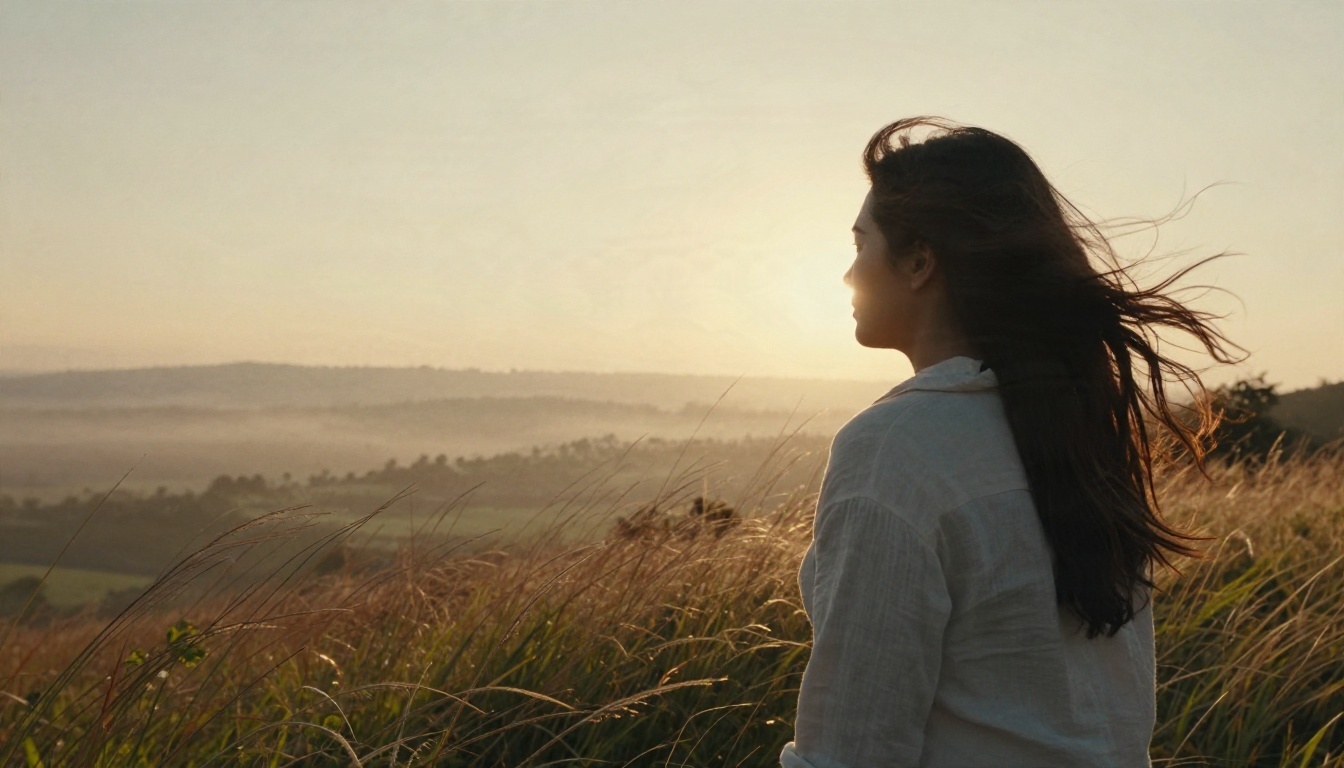
A prompt like "wind moves the hair and the tall grass gently, the camera does not move" is enough. Resist the urge to add birds, clouds, and a sun that rises. Every extra moving element is another chance for the loop to break.
Small business loops
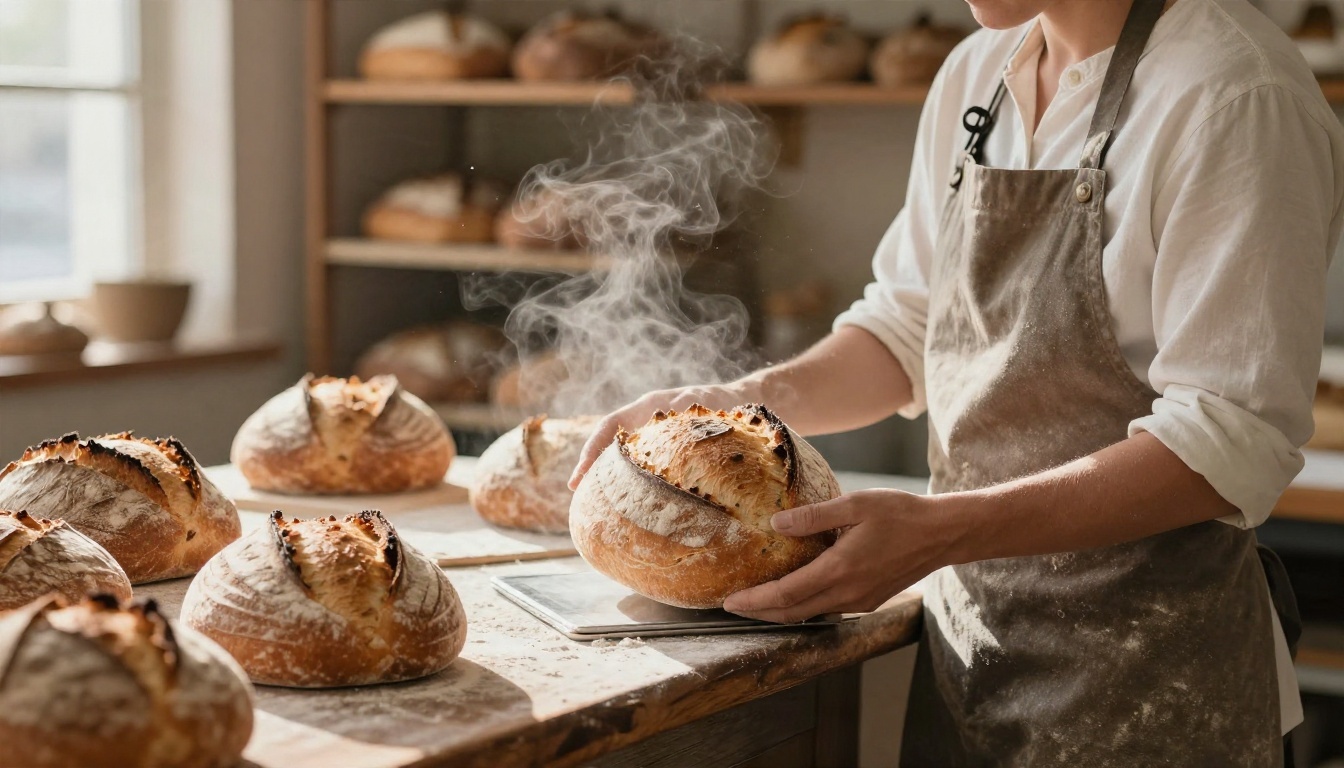
A bakery, a cafe, a florist, or a candle shop can all turn product photos into living thumbnails. Take the bread photo, ask for "steam rises gently from the loaf, flour dust drifts in the light, camera static", and you have a header GIF for a newsletter in about two minutes. Compare that to booking a video shoot.
Three practical uses for small shops:
- Email headers that show a product moving instead of a flat image.
- Menu boards and digital signage with a subtle steam or sparkle effect.
- Order confirmation pages with a friendly, repeating thank-you motion.
Reaction GIFs and stickers
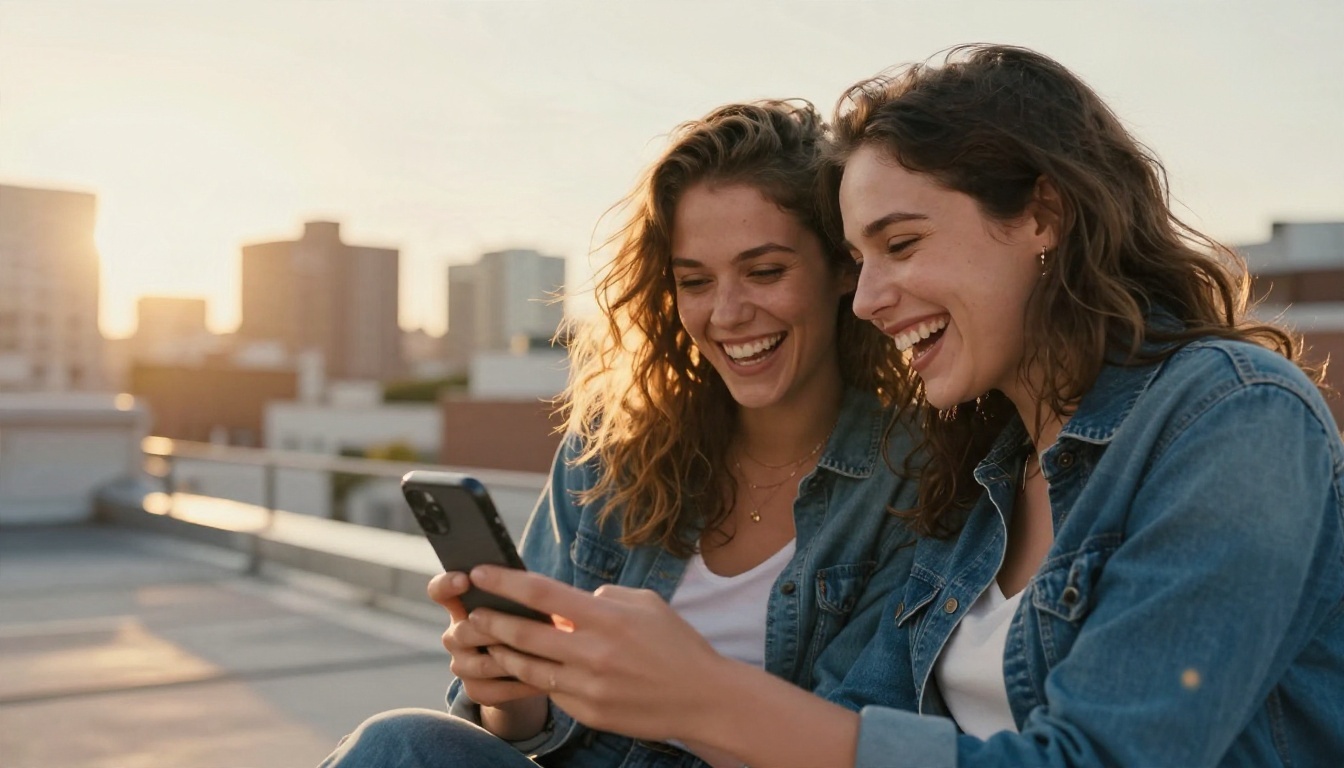
Reaction GIFs depend on a recognizable emotion: laughter, surprise, a thumbs up, a slow clap. Prompt the facial and body motion and keep everything else still: "both friends laugh and lean slightly toward each other, camera static". Trim to the peak of the laugh and loop it. For stickers, use a plain background so the subject can be cut out cleanly afterward.
💡 Note on faces: Use photos of yourself or people who gave you permission. Reaction clips made from strangers' photos can cause real problems when they spread.
Fixing Common Loop Problems
The visible jump
The classic complaint: the loop "pops" at the seam. Three fixes, in order of effort:
- Trim to matching poses. Scrub through the clip and find two moments where the subject looks nearly identical. Cut between them.
- Use a ping-pong loop. Most converters let you play the clip forward then backward. It hides the seam, and works especially well for sway, drift, and breathing motion.
- Crossfade the ends. In a simple editor, overlap the final half second with the first half second. The blend smooths small differences.
Heavy file size
A 10 MB GIF is not a good GIF. Bring it down with this checklist:
- Reduce the width to 480 pixels for chat and 640 pixels for web.
- Lower the frame rate to 12 fps. Slow ambient motion does not need more.
- Shorten the clip to 3 or 4 seconds.
- Pick scenes with calm backgrounds. Busy textures like leaves and crowds eat bytes fast.
- Limit the palette to 128 colors when the scene is warm and simple.
Morphing and warping
Faces that melt, hands with too many fingers, text that wobbles: these show up when you ask for too much. Reduce the number of moving subjects, keep the motion tiny, and avoid fast gestures. If the problem persists, switch the model. Hailuo 2.3 Fast and Wan 2.5 I2V Fast behave differently on the same input, and a quick A/B test often solves the issue.
Picking the Right Model for the Job
Different loops reward different tools. Use this table as a starting point, then test with your own image.
| Goal | Good starting point | Why |
|---|
| Lots of free attempts | Seedance 2.5 Lite | Free and unlimited, with clips up to 10 seconds |
| Text or image, no cost | PicassoIA Video | Handles both input types |
| Fast iteration | LTX 2.5 Fast | Quick generations for testing prompts |
| Natural human motion | Hailuo 2.3 Fast | Strong with hair, fabric, and expressions |
| Animate an existing photo | Wan 2.7 I2V | Dedicated image-to-video workflow |
| Clips with sound | Veo 3.1 Lite | Native audio, useful if you also want an MP4 version |
| Sharp starting image | Seedream 4.5 | Clean, detailed stills for a strong first frame |
💡 Remember: GIFs have no sound. If you want audio, keep the MP4 as well and publish both versions.
Make Your First Loop Today
The fastest way to understand a GIF creator AI is to make one. Pick a photo you already like, even a phone snapshot, and decide on one thing that should move. Write a single sentence for that motion, add "camera static", and run it on Seedance 2.5 Lite or PicassoIA Video. Generate three takes, trim the best one, and export it at 480 pixels wide and 12 frames per second.
If you do not have a photo yet, create one in a minute with Seedream 4.5 or Nano Banana, then animate it. Once you have one loop you like, try the prompts from the table above on your own scenes: a candle, a window, a cup, a product.
Picasso IA puts the image models, the video models, and the free options in one place, so you can go from idea to looping clip without switching tools. Open the platform, run a few experiments, and see which prompt gives you the loop you had in your head. You can browse every available model at picassoia.com/en/all-models.


