Google is giving eligible college students a full year of its paid AI plan at no charge, and the Flow video credits come bundled inside it. That is the real answer behind this search: there is no separate "Flow student program," but the Google AI Pro offer (or Google AI Plus outside the United States) puts monthly Flow credits in your account for twelve months without a bill. Below you will find who qualifies, the exact claim steps, how many credits land in your account, what a single clip costs, and what to do when the credits run out. The signup window closes on December 31, 2026, so the order of operations matters.
What Google Is Giving Students
Google's student promotion is a twelve month subscription, not a one-off coupon code. Where you live decides which plan you get, and the plan decides how many Flow credits you start with.
The US Offer
Eligible students in the United States get Google AI Pro free for a year. The plan normally costs $19.99 a month, or $199.99 a year. The student version includes 4x higher usage limits in Gemini, access to Gemini Spark, Gemini inside Gmail and Docs, 5TB of cloud storage, and 1,000 Flow credits per month for generating video and images in Flow.

The Offer Outside the US
Students in 140+ other markets get Google AI Plus free for twelve months instead. Plus brings roughly 2x Gemini limits, 400GB of storage, access to Gemini Omni, and about 200 Flow credits per month. After the free year it converts to a paid plan at around $4.99 a month, or the local currency equivalent.

💡 Good to know: Flow credits are a plan feature, not a coupon. You never type a code inside Flow. You claim the student plan once, and the credits show up in your Flow account on their own.
In practice there are three separate ways to end up with free Flow credits, and they stack:
- The daily free pool. Any Google Account can open Flow and use the free daily credits, no student status needed.
- The student plan. Twelve months of Google AI Pro or Plus brings the monthly allowance described above.
- Paid top-ups. Pro student members can buy extra AI credits once the monthly allowance is gone, as the credits section below explains.
Who Qualifies for the Offer
Google verifies every claim, and the rules are stricter than most "free for students" promotions. Check them before you begin so you do not burn a verification attempt.
Eligibility Checklist
- Enrolled student: you must attend a higher education institution, confirmed through SheerID.
- Age 18 or older: this applies in every country.
- Personal Google Account: a school-issued Workspace account will not work for the claim.
- No family group: members of a Google family group, and people who already subscribe through a partner, are blocked until they leave.
- Payment method: Google asks for a qualifying card even though the first year costs nothing.
- Claim by December 31, 2026: this is the redemption deadline reported for both plans.
Where It Is Not Available
The offer runs in most countries, with a short list of exclusions: Albania, Bolivia, Canada, Hong Kong, Macau, and Tunisia. Germany is reported to use different terms, so read the plan name and the renewal price on the checkout screen before you confirm.

Here is how the three entry points compare:
| Plan | Who gets it | Flow credits | Price after year one |
|---|
| Google AI Pro | Students in the US | About 1,000 per month | $19.99 per month |
| Google AI Plus | Students in other supported markets | About 200 per month | About $4.99 per month |
| Free Flow account | Anyone with a Google Account | About 50 per day | $0 |
How to Claim It Step by Step
The whole claim takes roughly ten minutes if your details are ready. The only slow part is verification.
Seven Steps to Your Free Year
- Sign in to the right account. Use the personal Google Account you want to keep the plan on, not your school address.
- Leave any family group. Do this first, because a family membership blocks the offer.
- Open the student offer page. Search for the Google One student offer, or the Gemini for Students page for your country.
- Pick the offer shown for you. US students see Google AI Pro. Most other countries see Google AI Plus.
- Verify through SheerID. Enter your school, then confirm with your school email or the proof of enrollment it requests.
- Add a payment method. Google Payments needs a card on file before the free year begins.
- Open Flow and check the counter. Sign in with the same account and look at the credit meter. If it shows your plan's monthly allowance, you are done.

💡 Tip: Screenshot the final checkout screen. It shows the plan name, the free period, and the renewal price. If anything looks wrong later, that image is your proof.
When SheerID Verification Fails
Most failures come from the same handful of causes, and each one has a quick fix:
| Problem | Fix |
|---|
| School-issued Workspace account | Claim with a personal Google Account instead |
| Family group membership | Leave the group, then retry |
| Enrollment not found | Check the school name spelling, then retry or upload proof of enrollment |
| Wrong plan shown for your country | Confirm your country setting and screenshot the screen for support |
| Past December 31, 2026 | Watch for new-subscriber promotions instead |
How Many Flow Credits You Get
Credits decide how much video you can make, so this is the section to read slowly. The numbers below come from Google's plan page and from pricing trackers. Google adjusts credit costs from time to time, so treat the per-clip costs as ballpark figures and confirm them in Flow's own counter.
Daily Credits vs Monthly Credits
Flow runs two separate pools. Every account, even a free one, reportedly gets 50 credits per day, and the 24 hour timer starts when you make your first generation of the day. The student plan adds a monthly allowance: 1,000 credits for Google AI Pro and 200 for Google AI Plus. Neither pool rolls over, so unused credits simply expire.
What One Video Costs
Cost depends on the model you pick inside Flow. These are the reported figures:
| Model in Flow | Approx. credits per clip | Clips per month on Pro | Clips per month on Plus |
|---|
| Veo 3.1 Fast | About 20 | About 50 | About 10 |
| Veo 3.1 quality tier | About 100 | About 10 | About 2 |
| Veo 3.1 Lite | Less than Fast | More than 50 | More than 10 |
The daily 50 credits alone buy about two Fast clips every day, which is plenty for a student who only needs a few shots for a class project.
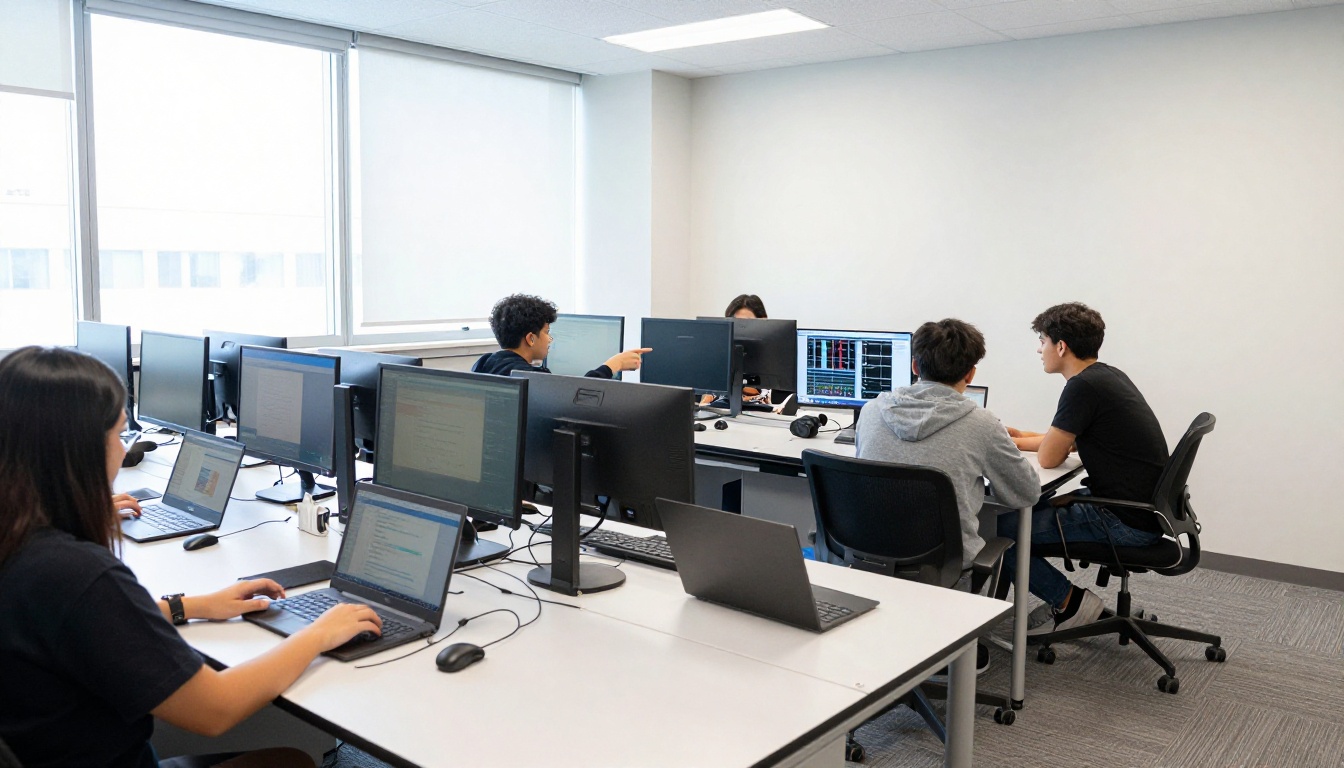
Here is what that looks like for a real assignment. Say each clip runs about eight seconds, so a 60 second short film needs roughly eight shots. Plan for three takes per shot to land a good one, and that is about 24 Fast clips, or around 480 credits. On Google AI Pro, that fits inside a single month with more than half of the allowance left over. On Google AI Plus, the same project eats about two and a half months of allowance, which is why Plus students should lean on the daily pool and tighten their shot list.
Can You Buy More Credits?
Google's own help page says AI Pro student members can purchase AI credits for extra usage in Flow once they reach the plan limit. Some pricing articles still claim Flow has no top-ups. That was true at one point, so trust the current help page over an older blog post. The page names Pro members specifically, so Plus students should check their own account before counting on it.
Stretch Your Credits All Year
A thousand credits sounds like plenty until a handful of rejected takes eat a week of it. A little structure turns roughly 50 Fast clips into a full semester of work.
Draft Cheap, Finish Once
Spend credits in layers. Plan the shots first, test the idea on cheap tiers, and render only the final version on the expensive one.
- Write a shot list before opening Flow. Nine to twelve shots, one line each.
- Settle the look with stills. Stills are generally cheaper to produce than video, so lock lighting and framing with a text-to-image model such as Nano Banana 2 Lite or Seedream 4.5, then animate the winner.
- Draft motion on free models. Seedance 2.5 Lite and Picasso IA Video are listed on PicassoIA as free and unlimited generators, which makes them handy for checking whether a camera move works before it costs you a single Flow credit.
- Render the final on Veo. Save Veo 3.1 quality renders for the three or four shots that will be shown on a big screen.

Prompt Habits That Save Credits
Every misread prompt is a clip you pay for twice. These habits cut the retries:
- One action per clip. A prompt with three events produces muddled motion and wasted re-rolls.
- Name the camera move. "Slow push in" or "static tripod shot" beats the word "cinematic."
- Describe the sound. Veo clips can include audio, so write the ambience into the prompt instead of fixing it in an editor.
- Change one detail per retry. If a take is close, adjust a single phrase instead of rewriting everything.
- Keep lettering out of frame. Generated text is unreliable, so add titles later in your editing app.
💡 Budget rule: Give yourself a monthly cap per project. If a 30 second film needs ten shots, plan for twenty generations, then stop. That leaves room for the next assignment.
Cancel Before the Year Ends
The free year ends with an automatic switch to a paid plan, charged to the card you added at signup. Students who forget pay $19.99 a month for Pro or about $4.99 for Plus.
Set the Reminder on Day One
Create a calendar event two weeks before the anniversary of your claim date, and a second one the day before. Paste the cancel steps into the event notes so you have nothing to look up when the date arrives.

Staying on a discounted student rate is possible for up to four consecutive years, but you must reverify through SheerID about every 12 months. In the US, students can also take a Google AI Pro and YouTube Premium bundle at $8.99 per month, which is a 70 percent discount on the combined price.
A useful habit is to decide by month ten whether the plan is worth $19.99 a month to you. If your Flow use has dropped to a few clips a month, cancel. If you rely on the higher Gemini limits and the 5TB of storage, the YouTube Premium bundle may be the cheaper way to keep them.
Cancel Without Losing Files
Cancel in the store where you subscribed, usually Google Play: open Subscriptions, choose Google AI Pro, and press Cancel. Uninstalling an app does not cancel anything. After you cancel, storage drops back to 15 GB. Existing files stay readable, but new uploads are blocked while you are over quota, and Google reportedly allows two years over quota, with advance notice, before anything is deleted. Export finished clips and move big Drive folders before the renewal date.
How to Use Veo 3.1 on PicassoIA
Flow runs on Google's Veo models, and the same model family is available on PicassoIA without a student verification or a December deadline. That makes it a practical fallback when your Flow credits run out in week three of the month.
Open the Model Page
- Open Veo 3.1 on PicassoIA.
- Write the prompt: subject, action, camera move, light, and the sound you want.
- Optional: add a start image to animate a still, plus an end image to build a transition between two frames.
- Press generate and wait. Example runs on the model page finished in roughly 70 to 115 seconds.
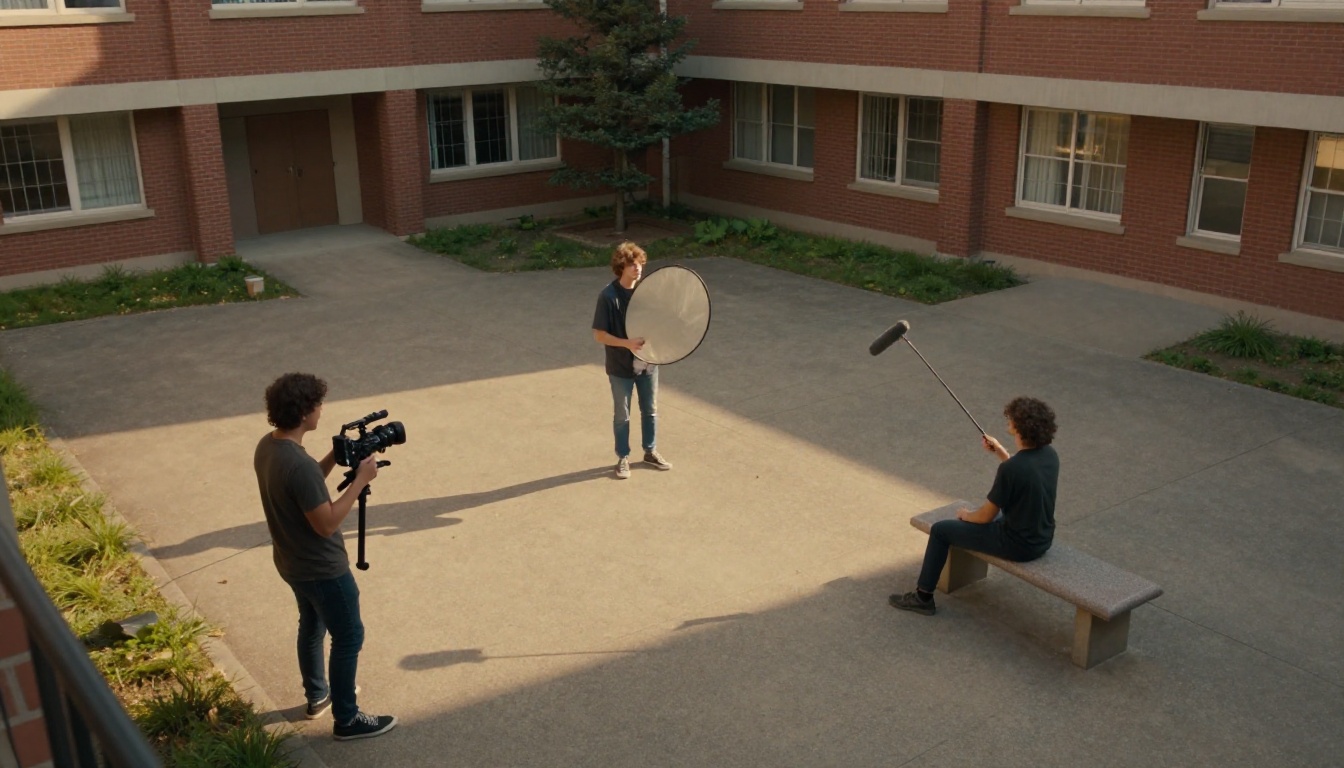
A prompt that works well for a student project: "A film student in a sunlit courtyard lifts a camera to her eye, slow push in, warm late afternoon light, quiet campus ambience and distant footsteps."
Two features are worth trying early. Reference images let you upload up to three pictures of a person or object so the subject stays recognizable from one clip to the next, which matters when a film has the same character in several scenes. Start and end frames let you choose where a clip begins and finishes, and the model fills in the motion between them. Both help on class projects where continuity matters more than spectacle.
Pick Settings That Matter
| Setting | Options | Tip |
|---|
| Duration | 4, 6, or 8 seconds (default 8) | Use 4 seconds for drafts |
| Resolution | 720p or 1080p (default 1080p) | Draft at 720p, finish at 1080p |
| Aspect ratio | 16:9 or 9:16 | Choose 9:16 for Reels and Shorts |
| Generate audio | On by default | Describe the ambience in your prompt |
| Negative prompt | Free text | Exclude "text overlay, watermark, extra fingers" |
| Reference images | 1 to 3 images | Works only with 16:9 and 8 seconds |
Want a faster or cheaper pass? Try Veo 3.1 Fast or Veo 3.1 Lite. Want a different look? Kling v3 Video and Seedance 2.0 handle motion in their own style, and comparing the same prompt across models is the quickest way to find the one you like.
Make Your Own Clips on Picasso IA
Whether you claim the Google student year this week or not, you do not have to wait for a credit meter to refill before you create. Build your first frame with Nano Banana 2 Lite, animate it with Veo 3.1 or Seedance 2.5 Lite, and compare the results side by side.

Pick one scene from your next class project and write it as a single sentence. Paste it into Picasso IA, generate three versions, and keep the best one. Then claim your Google student plan before December 31, 2026, and you will have two toolboxes instead of one. Browse the full catalog on Picasso IA and make something worth sharing.


