You type a perfectly reasonable prompt about a woman in a bikini walking along a beach at sunrise, hit generate, and Veo answers with a refusal. Or worse, it accepts the prompt, spends a minute rendering, and then returns nothing. If that has happened to you, you already know the Google Veo NSFW policy is not a single clean rule. It is a stack of filters that act on your text, on your reference image, and on the finished video.
This article sorts out what is actually blocked, where the gray zone sits, what the prompt limits look like in practice, and which free alternatives give you more room when your project involves glamour, swimwear, or boudoir-style visuals. Everything here sticks to non-explicit, editorial-level content, because that is where most creators actually live.

What Veo Actually Blocks
Google positions Veo as a tool built with responsible AI rules from day one. Its public documentation for Veo on Vertex AI says prompts are checked against a list of safety filters, and the categories include sexual content, violence, derogatory content and toxic content. When you ask for several videos and fewer come back, the missing ones were blocked for failing those safety requirements.
That short description hides three separate checkpoints, and each one fails in its own way.
Prompt-Level Blocks
The first checkpoint reads your text before any video exists. Explicit sexual language, requests for nudity, and anything that sexualizes minors are rejected outright. This is the clearest part of the policy, and no honest workaround exists for it. If your prompt is openly adult, Veo will refuse it, and that is the intended behavior.
Output-Level Blocks
The second checkpoint looks at the generated clip. A prompt can pass the text check and still produce a video that the output filter rejects. Users report accepted prompts that run for a while and then return nothing, or return fewer clips than requested. This is why the same wording can work on Monday and fail on Tuesday: the model samples a different result each time, and the output filter judges that result, not your intent.
Image-to-Video Checks
The third checkpoint applies when you upload a first frame. A thread on Google's own developer forum describes a wholesome commercial storyboard blocked by a child-safety filter. The poster stripped the prompt down to camera movement and scenery, and the block stayed. The likely trigger was the anchor image, not the words.
💡 Tip: If an image-to-video request keeps failing with a short, harmless prompt, test the same prompt in text-to-video. If that works, the reference image is your problem.
Where the Policy Gets Fuzzy
Here is the honest part: Google does not publish a line-by-line list of what counts as too suggestive. The documentation names categories, not thresholds. That leaves swimwear, lingerie fashion, dance, and "sensual" lighting in a space where results depend on phrasing, framing, and luck.
Swimwear and Glamour
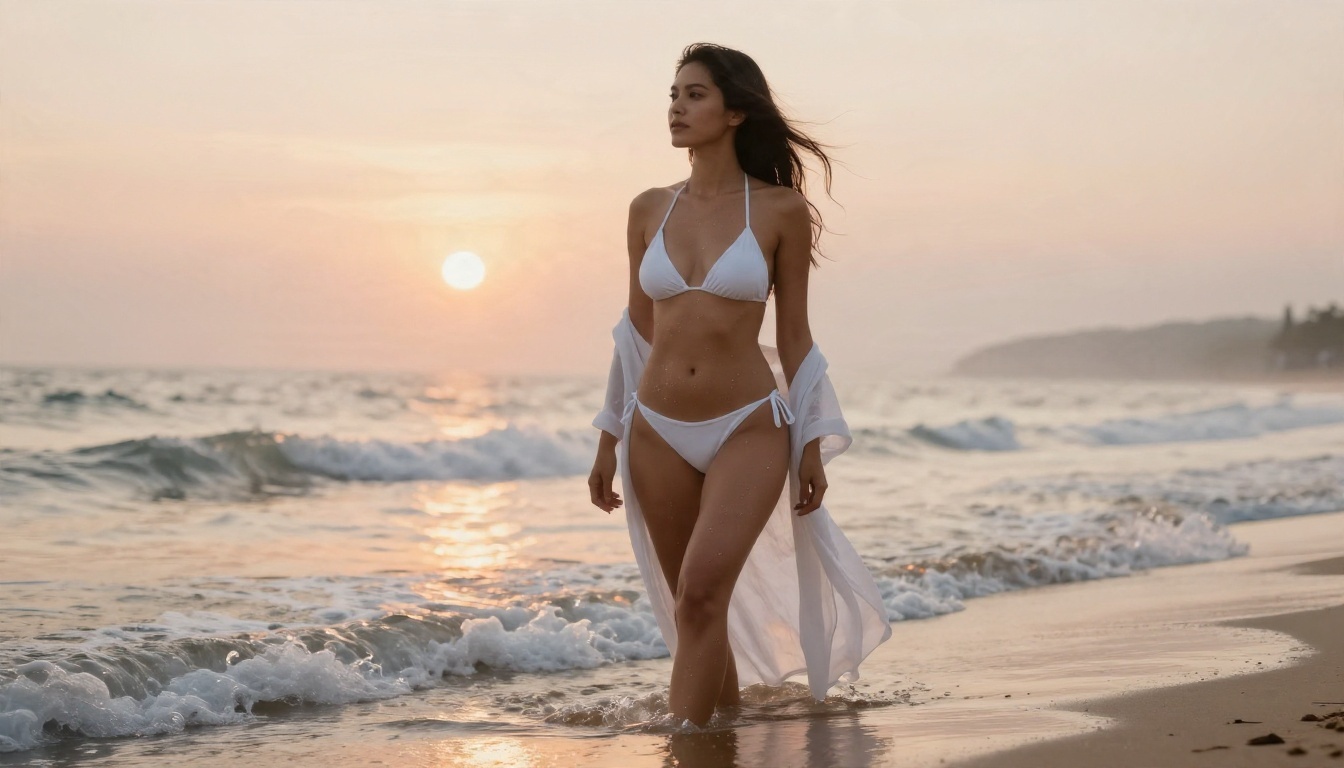
A bikini on a beach is ordinary content in advertising, travel, and fashion. Veo users report mixed outcomes with it. Wide shots with natural motion, such as waves, wind in hair, and walking, tend to pass more often than tight framing on the body. Nothing official confirms that pattern, so treat it as a field observation rather than a rule.
Consumer Apps Versus the API
Google ships Veo through several doors: a consumer app experience, a filmmaking tool, and developer access through Vertex AI and the Gemini API. I could not find an official statement describing how the NSFW handling differs between the consumer products and the API. Expect developer access to expose clearer error responses, while consumer tools often just show a generic warning.
| Access point | What you see when blocked | Official detail on NSFW rules |
|---|
| Consumer app | A short warning, often vague | Not spelled out |
| Filmmaking tool | Generic refusal message | Not spelled out |
| Developer API | Fewer videos returned, plus a support code | Categories listed in docs |
The Moving Target Problem
Filters get updated without announcements. A prompt that worked last month may fail today, and the reverse is possible too. If you build a workflow on a borderline prompt, you are building on sand.
Prompt Limits That Trigger Filters
People search for "prompt limits" expecting a character count. In practice the limit that matters is semantic, not numeric. A long, detailed prompt is fine. A short prompt with the wrong signal is not.
Words That Raise Flags
Terms tied to nudity, explicit acts, fetish content, and anything age-ambiguous raise flags immediately. So do some innocent words that carry a double meaning, which is the frustrating part. Words like "young", "student", or "girl" can push an otherwise clean prompt toward a child-safety block, even when your character is clearly an adult.
A safer habit is to state adulthood through context: "a woman in her thirties", a professional setting, a clear role.
Context Beats Keywords
Filters do not just count words. They read the whole scene. A bikini on a public beach with a wide camera is read very differently from the same swimwear in a bedroom with a slow push toward the body. If you want fewer refusals, change the setting and the camera before you change the nouns.

What Rewording Can't Fix
Some blocks are not about wording at all. If the policy forbids a category, synonyms and clever phrasing will not change the outcome, and they often make the output filter more suspicious. Rewriting the same request five times is not a strategy. It is a way to burn through your quota.
💡 Tip: Keep a log of prompts that passed and failed. After ten or fifteen attempts you will see your own pattern, and it is more useful than any forum thread.
The Hidden Cost of Blocked Runs
Blocked generations are not always free. A developer thread on Google's forum raises exactly this question: what gets billed, and what HTTP response comes back, when safety filters trigger on a fast Veo run? Billing rules differ across plans and platforms, so check how your plan treats a blocked result before you build a batch of fifty prompts.
Why It Hurts More on Paid Plans
If you pay per second of video, a clip blocked after rendering can feel like a lost coin. Even when you are not charged, you lose time. A creator who needs ten usable clips for a campaign can easily spend an afternoon retrying.
How to Cut Wasted Attempts
Three habits help:
- Test the concept with a still image first. If a still passes review, motion usually has a better chance.
- Start wide. Establish a full scene, then add closer framing only if the wide version succeeds.
- Change one variable per retry. Alter either setting, wardrobe, or camera, never all three, so you learn what triggered the block.

Free Alternatives Worth Trying
If your project sits in the gray area, a different tool saves more time than endless rewording. The route below keeps everything non-explicit and focused on aesthetics: swimwear, glamour portraits, fashion, and boudoir-style mood. Policies on any platform can change, so run a short test before you commit to a batch.
Seedream 4.5 for Stills
Seedream 4.5 is the strongest starting point for adult-leaning glamour work. It makes sharp, photorealistic stills with natural skin texture, believable fabric, and strong lighting control, and it is far less restrictive about swimwear and editorial nudity-adjacent mood than the big-lab video tools. Build your first frame here, then animate it.
Image Editor Pro for Unlimited Edits
PicassoIA Image Editor Pro is built for unlimited generations, which matters when you iterate. You can adjust outfits, fix lighting, change backgrounds, and refine details without watching a counter. For anyone burned by blocked runs, that unlimited loop is the real value.
Wan 2.5 I2V Fast for Motion
Once the still looks right, Wan 2.5 I2V Fast can animate it quickly. If you prefer to start from text, Wan 2.5 T2V and Wan 2.5 T2V Fast are alternatives. For cinematic camera work, Kling v2.5 Turbo Pro is worth a test as well. Each model has its own moderation behavior, so test with a safe prompt first.
How to Use Veo 3.1 on PicassoIA
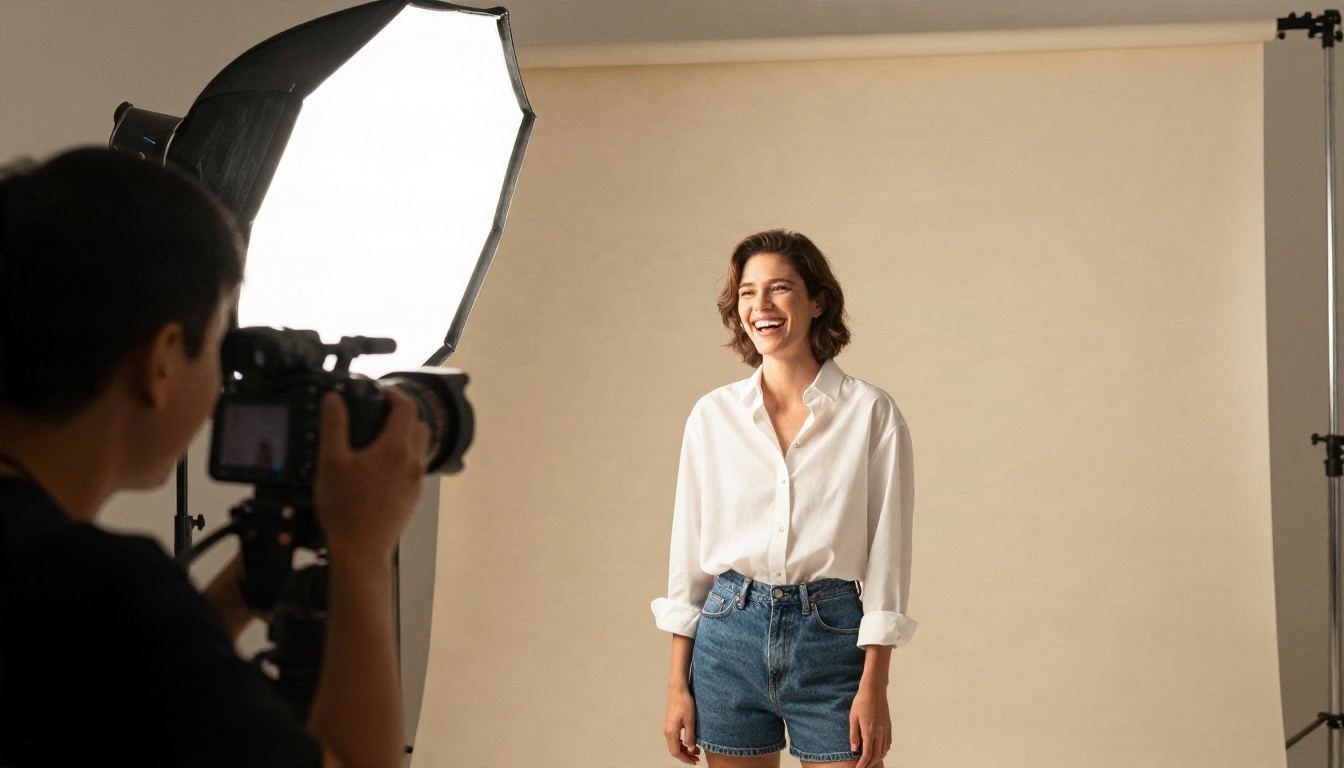
Veo is still excellent when your concept fits inside its rules: product shots, travel scenes, fashion in wide frames, and anything that benefits from native audio. Veo 3.1 is on PicassoIA, along with the cheaper and faster variants Veo 3.1 Fast, Veo 3.1 Lite and Veo 3 Fast.
Step-by-Step Setup
- Open the Veo 3.1 page and choose text-to-video.
- Write a prompt that names the subject, setting, light, and camera move in one flowing paragraph.
- Add the sound you want: waves, footsteps, light music, or ambient room tone. Veo generates audio alongside the picture.
- Generate, review, then adjust only one element if you need a retry.
Parameter Tips
- Camera language matters. Phrases like "slow dolly-in" or "gentle handheld pan" give steadier results than vague words.
- Keep scenes simple. One subject and one action per clip reduces odd artifacts and the chance of an output block.
- Use Fast for drafts. Try Veo 3.1 Fast to test ideas, then switch to the full model for the final render.
- Frame wide first. If the wide shot passes, tighten the framing in a second run.
A Workflow That Saves Time
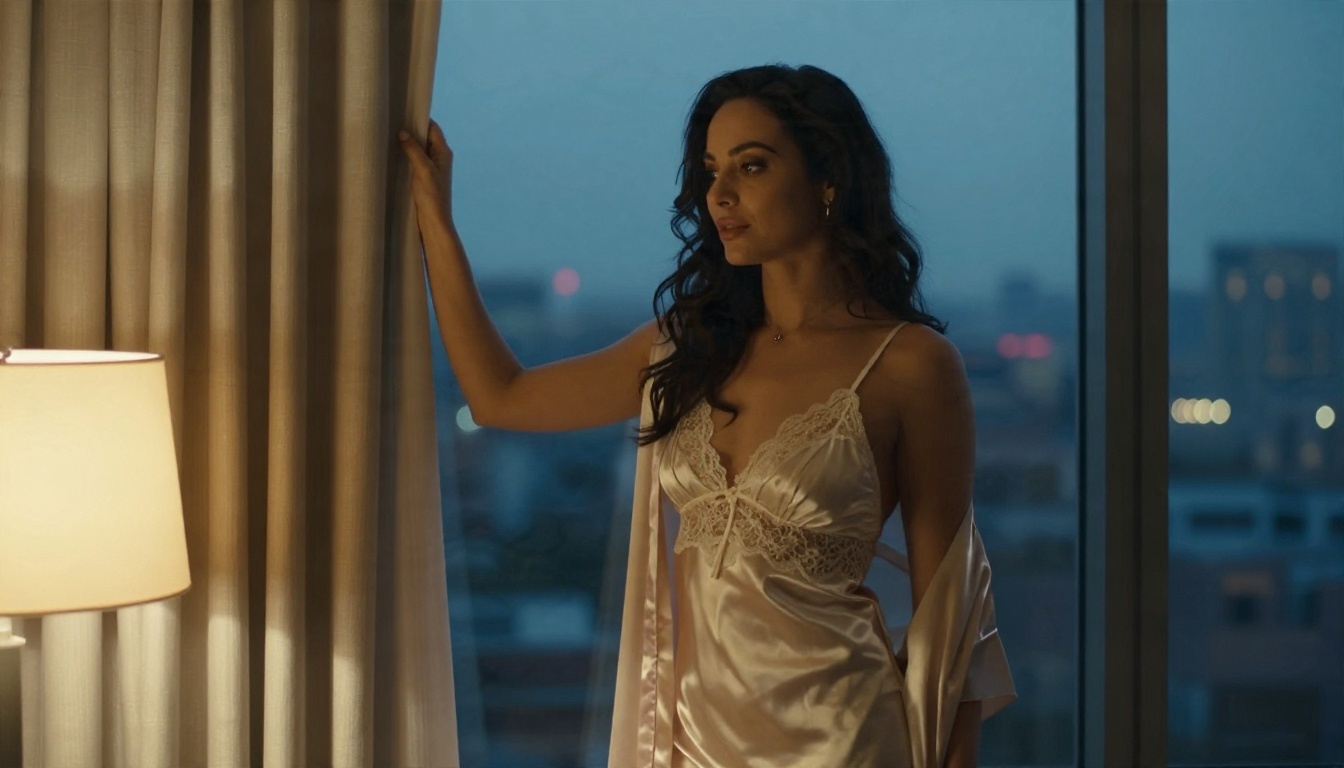
Many creators now split the job. They build the glamour still in Seedream 4.5, refine it in Image Editor Pro, and then pick the video model that accepts it. Safe scenes go to Veo, edgier editorial work goes to a model with looser moderation. It is faster than fighting one tool.
Common Mistakes to Avoid
Most refusals come from the same few errors, and all of them are fixable.
- Chasing the exact same prompt. Repeating a blocked prompt wastes quota. Change something real.
- Using ambiguous age words. Even innocent terms can trip child-safety filters. State adulthood through context.
- Trusting forum folklore. Many "bypass" posts come from sites that sell a competing service. Test claims yourself.
- Skipping the still-image test. A quick still tells you whether the concept is acceptable before you spend on video.
- Ignoring the platform rules. Whatever tool you use, follow its terms and the law. Consent and age are not negotiable.
Your Next Clip Starts Here
The Google Veo NSFW policy is strict where it names categories and vague everywhere else, and that vagueness is the real cost: wasted prompts, blocked renders, and uncertainty about what will pass tomorrow. You do not have to fight it. Use Veo where its polish and audio shine, and move glamour and swimwear projects to tools that give you more room.
Start with a still in Seedream 4.5, refine it with PicassoIA Image Editor Pro, then animate it with a video model from the lineup. Try three prompts, compare the results, and keep the workflow that gives you usable clips on the first or second attempt. When you want to see everything on offer, browse picassoia.com/en/all-models and start creating your own images and videos today.


