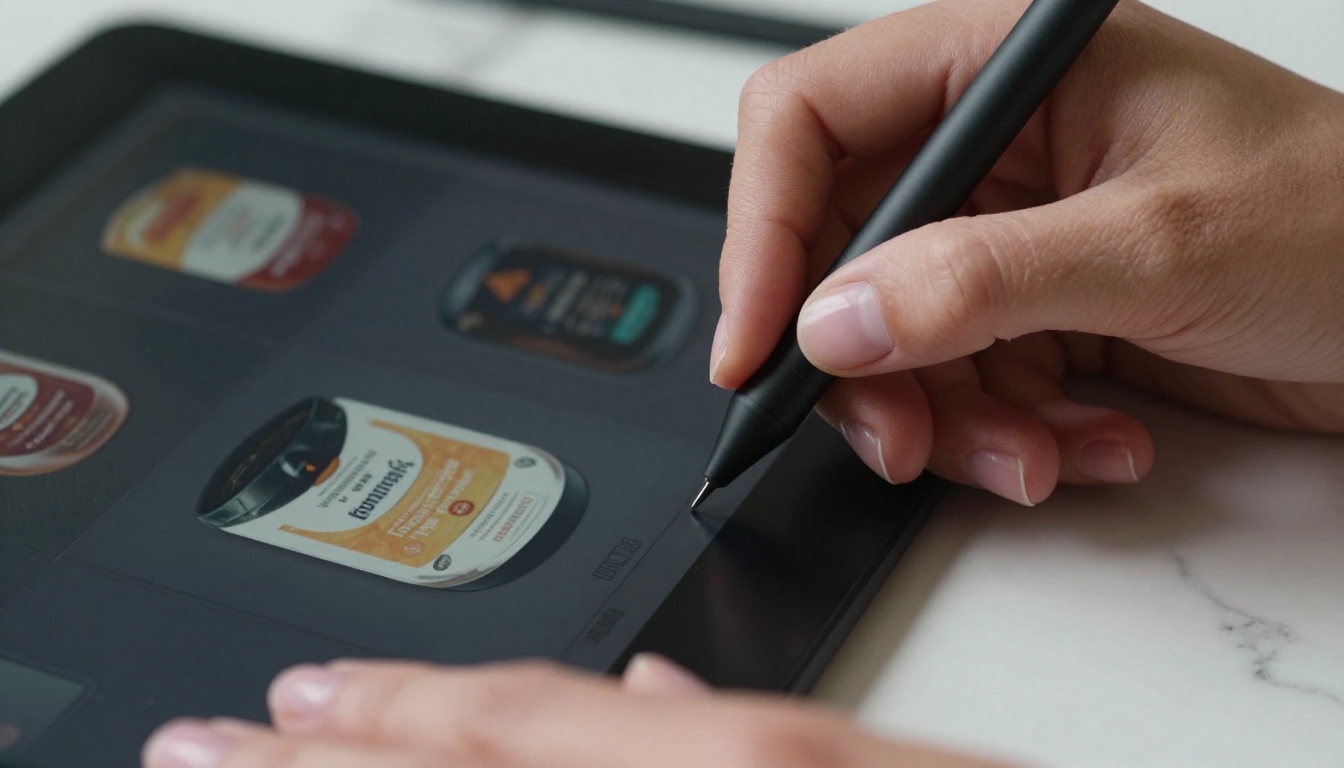
The design industry spent years tolerating mediocre text rendering in AI images. Warped letters, blurry headlines, fonts that looked like they melted in the sun. GPT Image 2.0 is the first model in this generation that makes that complaint largely irrelevant, and for anyone building visual content professionally, that is a meaningful shift worth understanding before your next project brief lands.
What GPT Image 2.0 Actually Produces
GPT Image 2.0 builds on the image generation capabilities introduced with GPT-4o, pushing further into the territory that matters most for working designers: precision. Not just aesthetic quality, but the ability to follow complex instructions and render specific visual elements with accuracy that earlier models could not reliably deliver.
Text in Images, Finally Fixed
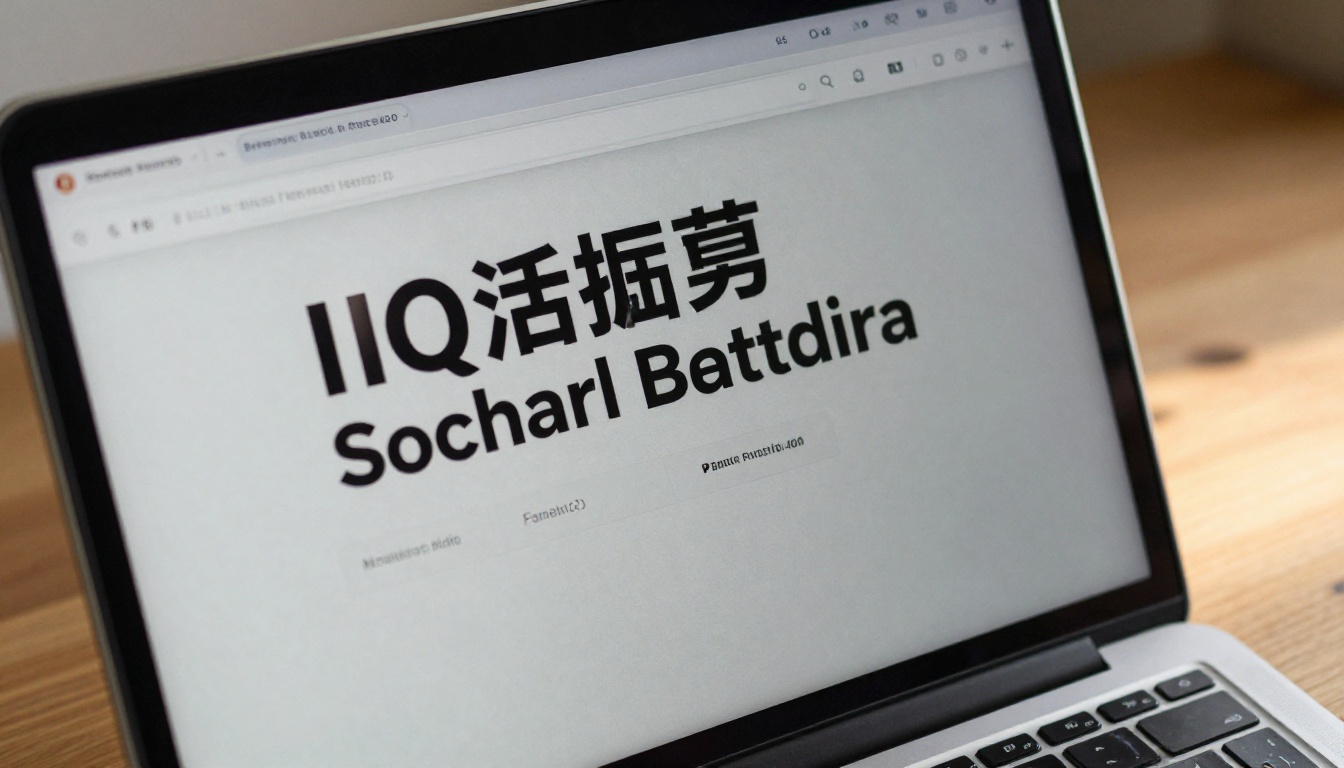
This is the headline feature and it earns the attention. For years, AI image generators struggled to reliably render readable text inside images. You could prompt for a storefront sign with a specific business name and receive something that looked vaguely like letters scattered in the right region of the image. GPT Image 2.0 changes the baseline entirely.
Single-word labels, short headlines, branded callouts, even short paragraphs can appear in generated images with legible precision. The letterforms hold their shape, spacing is consistent, and the text integrates into the composition rather than floating awkwardly over it.
For designers working on social media graphics, advertising banners, product packaging mockups, or editorial imagery, this closes a gap that previously required significant post-processing workarounds.
One Model, Multiple Output Modes
GPT Image 2.0 handles both image generation from text prompts and image editing through inpainting and targeted region modification within a unified interface. Instead of context-switching between a generation model and a separate editing tool, the workflow stays in one place. You can generate a product image, then modify specific regions by describing the change, without re-importing or re-exporting between applications.
This matters practically. Fewer tool switches mean fewer compression cycles, fewer format conversions, and fewer opportunities to introduce artifacts into the output. The model also handles reference image inputs, allowing designers to provide a compositional sketch or mood reference and generate from that starting point rather than purely from text.
Instruction Fidelity Across Long Prompts
Earlier models had an effective prompt length ceiling. Past a certain number of tokens, the model would drop or misinterpret instructions placed toward the end of the prompt. GPT Image 2.0 holds the full instruction context significantly better, processing longer, more detailed prompts without losing earlier specifications.
For designers, this means you can write compositionally specific prompts covering lighting direction, subject placement, background depth, color palette, mood, and text content all in one prompt, and expect the output to actually reflect the complete description rather than prioritizing only the first few phrases.
Why This Release Matters for Visual Work
The design industry has watched each AI image model release with a mix of optimism and fatigue. Many updates delivered marginal gains in a single dimension while regressing in others. GPT Image 2.0 represents a meaningful step because it addresses workflow problems, not just visual quality benchmarks.
API Access Opens Production Workflows
Beyond the consumer interface, API access to GPT Image 2.0 allows studios and agencies to integrate the model into production pipelines. Batch generation of product variants, automated social media visual creation, and CMS-connected image workflows all become viable at scale.
This is where the model shifts from an interesting tool to an infrastructure component for content-heavy operations. Marketing teams generating dozens of unique visuals per week, e-commerce brands managing hundreds of SKUs, and editorial teams producing daily visual content all benefit from being able to call image generation programmatically.
Tip: Platforms like PicassoIA give you direct browser access to GPT Image 1.5 with no API configuration required, which covers most single-session design tasks without developer overhead.
Commercial Clarity on Output Rights
One recurring friction point with AI-generated imagery has been uncertainty around commercial use rights for outputs. GPT Image 2.0, accessed through the API, produces outputs that OpenAI grants users rights to use commercially. For design studios producing client deliverables, this matters as much as image quality. It removes a legal ambiguity that has made some clients hesitant to accept AI-generated assets.
How It Compares to Other Models
GPT Image 2.0 is not competing in isolation. The text-to-image space has multiple strong contenders in 2027, each with different strengths depending on the brief.
When GPT Image 2.0 wins: projects requiring accurate text within imagery, complex multi-element compositions, and editorial or brand work where precision outweighs speed.
When alternatives win: high-volume generation where throughput is the constraint, highly stylized artistic outputs where photorealism is not the target, or rapid prompt iteration where generation speed enables more cycles per session.
The practical approach for most design workflows is not to pick one model and commit to it, but to use different models for different stages. Iterate fast on Flux 2 Pro or p-image to refine your prompt, then run the polished version through the GPT Image family for final output.
Real Use Cases That Actually Work
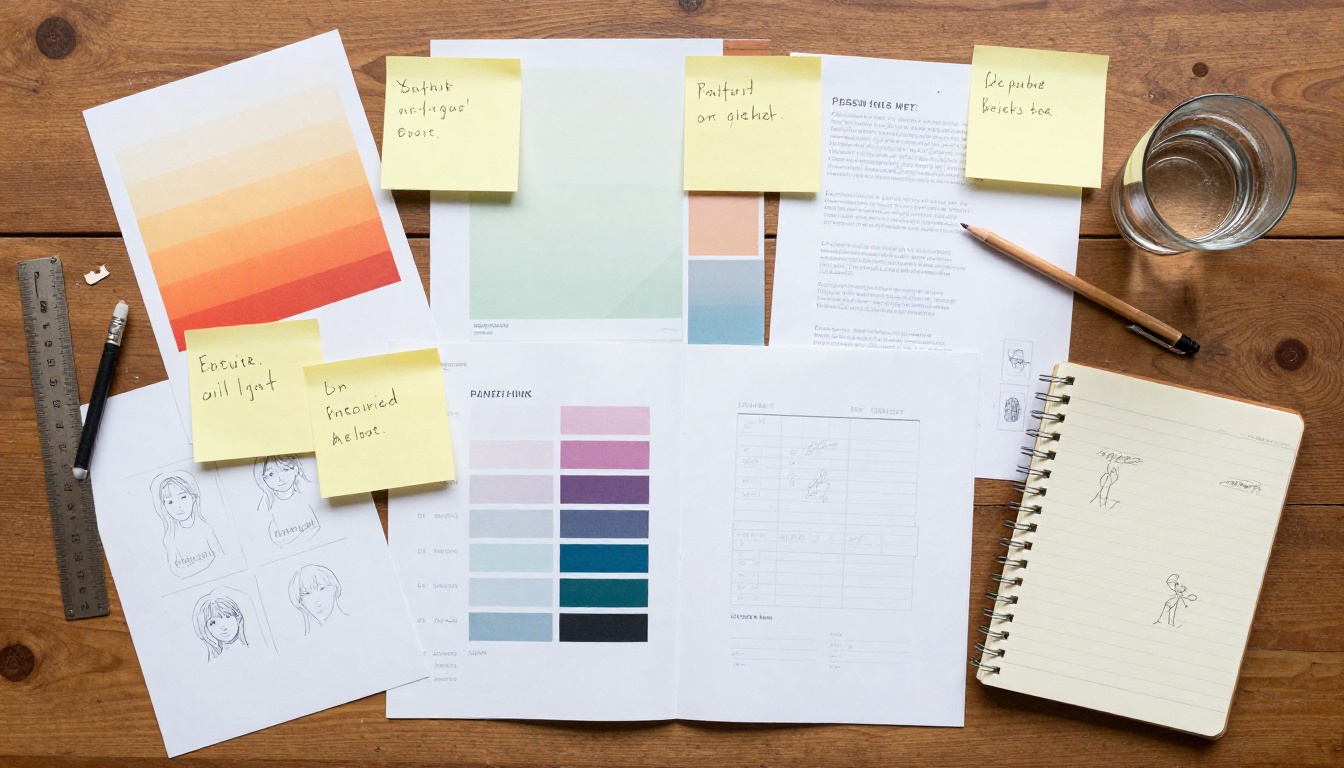
The practical value of GPT Image 2.0 comes down to what you can produce with it for real client work or recurring content pipelines.
Social Media Visuals at Volume
Brands running social media at scale need unique visuals constantly. Stock photography gets repetitive and recognizable over time. Custom shoots are expensive per image. AI generation with GPT Image 2.0 allows a social media manager or content team to describe a scene with specific brand elements and generate unique, photorealistic images that match brand guidelines and feel.
The text rendering capability means call-to-action overlays, product names, and seasonal messaging can be generated directly into the image rather than added as a separate layer in post-production. This removes the layout step from many social workflows entirely.
Prompt example for social use: "A glass of cold-pressed orange juice on a stone countertop, natural morning light from the left, water condensation on the glass, shot at 50mm f/2.0. Text overlay at bottom reads 'Fresh Daily' in clean sans-serif white."
Product Mockups Without a Photo Shoot
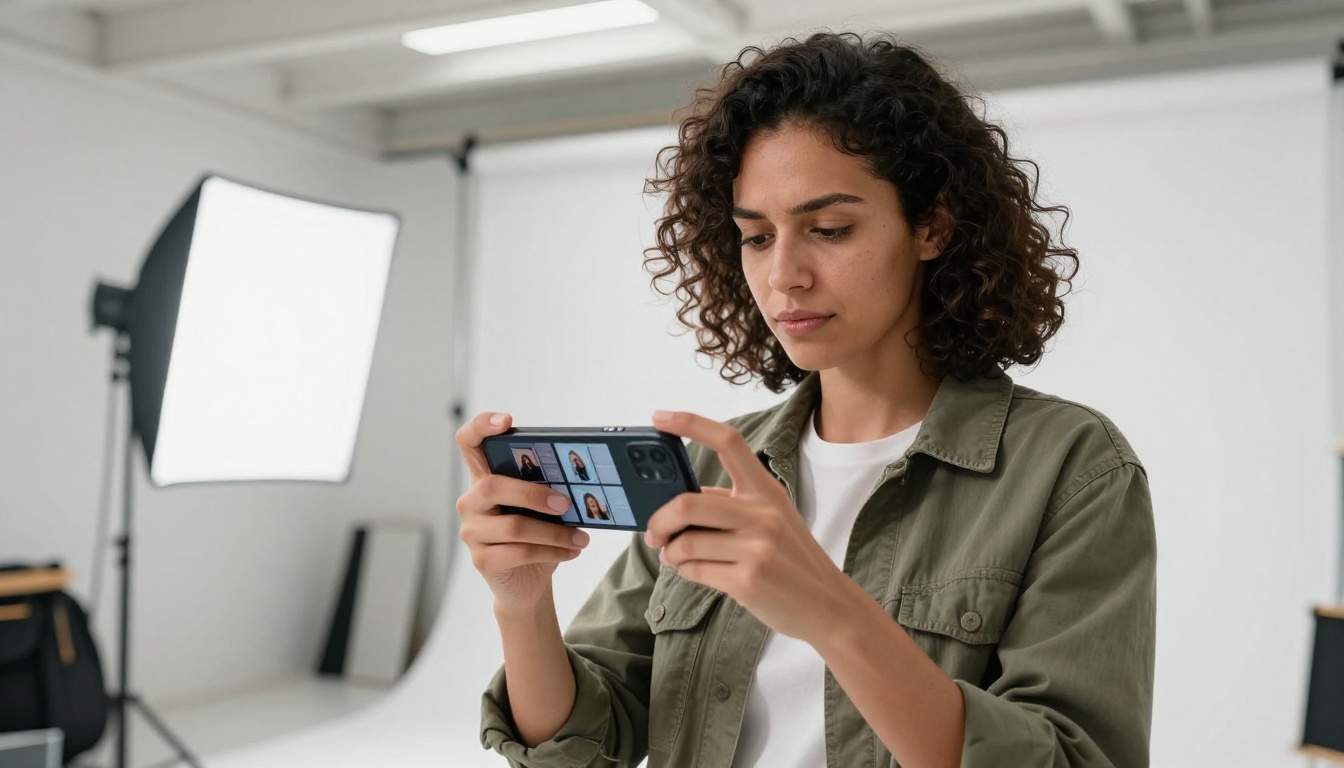
E-commerce and product teams generate large volumes of product imagery: lifestyle shots, different colorway presentations, scale references, contextual environment shots. A photo shoot for every SKU variant is not financially viable at volume.
GPT Image 2.0 handles contextual product placement prompts with enough accuracy to produce usable preliminary mockups and, in many cases, final-quality assets for digital channels. You describe the product, its material texture, the environment, the lighting, and the intended mood. The model produces an output that previously required a studio setup, a photographer, and a post-processing retoucher.
This is where having access to models like Flux 2 Pro and GPT Image 1.5 on a single platform becomes practical. Run the same product description through multiple models, compare the photorealism and composition, and select the version that fits the specific brief.
Marketing Banners with Readable Text
Display advertising, email headers, and web banners all require images with embedded text. The previous workflow: generate a background image, export, open in design software, add text layer, format and kern, export again. GPT Image 2.0 collapses this into a single prompt step for simpler layouts.
A prompt specifying a product image with a promotional headline and supporting subtext can return a usable banner in one generation. For quick-turn campaign work where a creative director needs to approve three directions by end of day, this changes the production timeline in a way that matters.

How to Use GPT Image 1.5 on PicassoIA
PicassoIA provides access to GPT Image 1.5 directly in the browser, no API credentials or developer setup required. GPT Image 1.5 is the direct predecessor in the same OpenAI image generation lineage, using the same core architecture approach with the same emphasis on text accuracy and instruction fidelity. For designers who want to work in this model family without handling API integration, this is the direct path in.
Step-by-Step in the Browser
Step 1: Go to the GPT Image 1.5 page on PicassoIA. A free account unlocks full generation access with no subscription required to start.
Step 2: Write your full image description in the prompt field. Be specific about subject, environment, lighting, composition, and any text that should appear in the image. The model handles detailed prompts well: do not truncate your description to save characters.
Step 3: Select your output aspect ratio. For social banners and landscape web headers, 16:9 is standard. For Instagram feed posts, 1:1. For stories and vertical ad units, 9:16.
Step 4: Click Generate and review. For complex prompts, expect roughly 20-30 seconds of generation time. The model works through the full instruction set before rendering.
Step 5: If the output is close but needs refinement, iterate on specific phrases rather than rewriting the full prompt. Change the lighting descriptor, adjust the composition instruction, or add a negative modifier to exclude unwanted elements.
Step 6: Download at full resolution. Outputs are ready for direct use in design workflows or as base layers for further editing in Figma, Photoshop, or any compositing tool.
Prompt Tips That Get Consistent Results
Prompt structure matters more with this model family than with some alternatives. A consistent layered format produces more predictable outputs across iterations:
- Subject plus state (what is in the image and what it is doing or how it looks)
- Environment (where, what surrounds the subject, surface details)
- Lighting (direction, color temperature, quality: soft diffused vs. hard direct)
- Camera (angle, focal length, aperture for depth of field)
- Texture and atmosphere (film grain, color science reference, time-of-day mood)
- Text content (write it explicitly in quotes if it should appear in the image)
This structure produces more consistent results across regenerations than loosely written natural language descriptions.
Getting the Most from AI Image Prompts
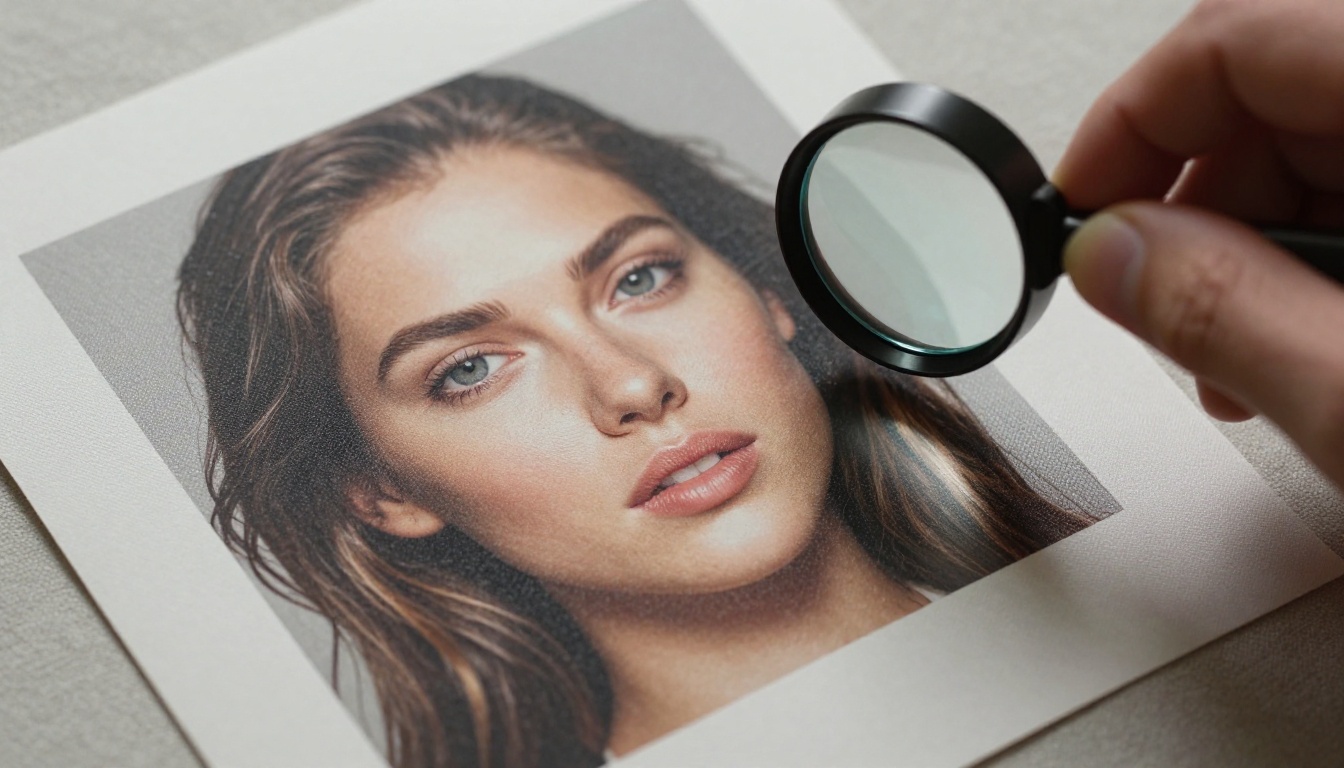
The quality ceiling on any image model is partly set by the model itself and partly by the prompt. With GPT Image 2.0 and comparable models available today, the prompt quality gap has become the primary variable affecting output for experienced users. Two designers using the same model with different prompting approaches will produce results that look like they came from different tools entirely.
Prompt Structure That Works
Tip: Write prompts in layers: first the visual anchor (main subject), then context (environment), then atmosphere (lighting, time, mood), then technical parameters (camera, lens, grain). Each layer constrains the model more precisely.
Strong prompt: "A woman in her 30s seated at a wooden desk, reviewing printed documents. Natural morning light from a window to her left, casting soft shadows across the desk surface. Shot at 85mm f/1.8, shallow depth of field, warm 5000K color temperature. Kodak Portra 400 film grain."
Weak prompt: "A woman working at a desk with nice lighting"
The strong version gives the model enough constraint to make decisions that align with your intent. The weak version leaves the majority of visual variables open, producing inconsistent and generic outputs across generations.
You can also use Flux 2 Dev for rapid prompt iteration since it generates faster, refine your description there across multiple cycles, then bring the finalized prompt to GPT Image 1.5 for the output you actually want to deliver.

3 Mistakes That Hurt Output Quality
1. Overloading the subject count. Prompting for five distinct subjects in one scene forces the model to guess at spatial arrangement. One to two primary subjects with a clearly described relationship produce significantly more coherent compositions.
2. Skipping the lighting description. Lighting is often the single variable separating a professional-looking output from a generic one. "Soft window light from the left" produces a different image character than "harsh midday sun from above." The model takes lighting cues seriously. Give it something specific to work with.
3. Omitting camera parameters. Phrases like "85mm f/1.8" or "24mm wide angle shot" do significant compositional work. They tell the model what perspective distortion, depth of field, and framing conventions to apply. Without them, the model has no constraint on perspective, which is where AI image aesthetics diverge most noticeably from real photography.

Start Creating with PicassoIA Right Now
GPT Image 2.0 represents a real capability step for anyone producing visual content professionally. The text rendering alone resolves a workflow problem that has been part of the AI image conversation since the first generation of these tools. The instruction fidelity changes what you can realistically expect from a single well-written prompt.
The fastest way to experience this model family is to open GPT Image 1.5 on PicassoIA and run your first prompt right now. No API configuration, no token management, no infrastructure. You write the prompt, select the ratio, and generate.
For comparing outputs across models in the same session, PicassoIA also gives you access to Flux 2 Max, p-image, Stable Diffusion 3.5, and Qwen Image, all within the same interface. Run the same brief across multiple models and make an informed choice about which output quality fits the specific project.
Designers and creators who develop strong AI prompting skills alongside their existing craft will produce more output, faster, at lower cost per asset. The model is better than it has ever been. What you do with it is still entirely up to the person writing the prompt.