GPT Image 2.0 changed what people expect from AI image generation. Released as part of OpenAI's GPT-4o suite, it brought native image rendering directly into the chat interface, and that shift raised an obvious question: can it actually build infographics? Not decorative illustrations that resemble data charts, but real, structured, data-driven visual content you could use in a presentation or social post. The answer, as of 2025, is nuanced. GPT Image 2.0 for infographics is powerful in some situations and surprisingly fragile in others, and the difference comes down to knowing exactly which formats work.

What GPT Image 2.0 Actually Does
GPT Image 2.0 operates through natural language prompting. You describe what you want and the model builds a pixel-level interpretation of that description. For photorealistic scenes, product shots, and artistic visuals, it performs at or near the top of its class. But infographics introduce constraints that text-to-image models have historically struggled with: precise text rendering, accurate data representation, and repeatable layout structure.
What sets GPT Image 2.0 apart from earlier OpenAI models is significantly improved text handling. It can embed short labels, numbers, and callouts inside images with far fewer spelling errors than DALL-E 3. This matters because infographics are inherently text-heavy, and a bar chart label that reads "47%" but renders as "4T%" is unusable in any real workflow.
Text Rendering Inside AI Images
Text in AI images has always been the weak link. GPT Image 2.0 handles short text strings, up to four or five words, with reasonable accuracy. Single numbers, percentages, and short category labels tend to render correctly around 80% of the time in testing. Longer sentences inside image-embedded text still drift into artifacts.
For infographic workflows, this translates to:
- Short labels: Reliable. "72%", "Step 1", "Revenue" work most of the time
- Legends and categories: Acceptable for two to three items
- Full sentences: Unreliable. Expect distortion or placeholder-style artifacts
- Decimal precision: Risky. "3.7x" often renders as "3.7%" or similar
The workaround most designers use is generating the visual frame and icons through AI, then adding precise text in Figma or Canva afterward. This hybrid approach gets the best of both.
How Prompts Control the Output
Your prompt structure determines almost everything. Vague prompts produce vague results. An effective infographic prompt needs to specify:
- The layout type: horizontal bars, circular icons, numbered steps, timeline
- The color palette: "teal and white flat design" produces consistent results
- The topic or data set: even if values are approximate
- The visual style: flat design, minimal icons, clean sans-serif typography
The phrase "infographic style" in a prompt by itself often produces a decorative illustration that looks like an infographic but contains no real structure. Specificity is what separates a usable output from a pretty but empty visual.

The Infographic Challenge for AI Models
Creating an infographic from scratch with AI is not the same as generating a landscape or portrait. Infographics are information architectures first and visuals second. Data relationships, hierarchy, and proportions have to be accurate, not just aesthetically plausible.
Why Data Accuracy Is Hard
GPT Image 2.0, like all current text-to-image models, has no internal data layer. It does not calculate proportions. A bar chart showing "40% vs. 60%" might render those bars at visually incorrect heights because the model is approximating what bar charts look like from training data, not drawing them to mathematical scale.
💡 Tip: Never use AI-generated infographics for data that requires precise visual accuracy. Charts where bar height matters should be built in tools like Google Slides, Datawrapper, or Tableau, then styled to match your brand.
This is not a flaw specific to GPT Image 2.0. Every AI image model currently available has this limitation. The model generates plausible-looking output based on pattern matching, not computation. Knowing this upfront saves hours of frustration.
Layouts AI Gets Wrong
Based on practical testing, here is how common layout types perform with current AI image generation:
| Layout Type | AI Reliability | Recommended Workaround |
|---|
| Exact bar charts | Low | Use Datawrapper or Flourish |
| Pie charts with labels | Medium | AI frame, manual labels |
| Numbered step flows | High | Works well with clear prompts |
| Timeline graphics | High | Reliable with horizontal layout |
| Icon row plus stats | High | Best AI infographic format |
| Data tables | Low | Always use real spreadsheet tools |
The sweet spot for AI-generated infographic creation is icon-based, non-data-precise layouts. Step visuals, comparison cards, and process flows are where GPT Image 2.0 actually delivers consistent value.

After testing hundreds of combinations, these five prompt structures consistently produce infographic-quality images in GPT Image 2.0 and comparable AI image generators available on PicassoIA.
The Stats Card Approach
"Flat design infographic card, white background, bold teal header text showing [TOPIC], three rows each with a large coral number on the left and a short label on the right, sans-serif clean typography, minimalist icons, no shadows"
Stats cards have simple grid structure that AI handles well. The hard separation between number and label reduces text rendering errors significantly.
The Step-by-Step Visual
"Horizontal step infographic, clean white background, four steps numbered 1 through 4 in navy circles, each with a minimal flat icon above and a two-word label below, teal connecting lines between steps, no text beyond short labels"
Numbered sequences with minimal per-step text produce the most reliable AI infographic output. Sequential visual flow is a pattern models recognize strongly from training data.
Timeline and Process Diagrams
"Vertical timeline infographic, alternating left-right layout, five events, each with a small circle marker in coral on a central vertical line, clean white background, dates on the outside, one-line descriptions on the inside, minimal flat style"
Timelines are a strong format because the central axis gives the model a visual anchor to build around. They also require less text precision per item than chart-based formats.
The Comparison Card
"Side-by-side comparison infographic, white background, two columns labeled with minimal flat icons at the top, four rows of attributes, teal column on left, coral column on right, no detailed text, icon-heavy layout"
Comparison visuals work well in AI because the binary two-column layout maps closely to design patterns the model has seen frequently in training.
The Icon Row Format
"Horizontal infographic row, five sections each with a circular teal icon at top, short bold label centered below, clean white background, light gray separator lines between sections, flat minimalist aesthetic"
Icon rows are the most consistently reliable AI infographic format because they rely on visual symbols rather than data or long text strings. The model excels at generating icon-style imagery.

GPT Image 2.0 is not the only option for AI infographic creation. Several other models handle infographic-adjacent content in ways worth comparing, and many of them are available with unlimited generations on PicassoIA.
Speed and Output Quality
| Model | Text Accuracy | Layout Structure | Generation Speed |
|---|
| GPT Image 2.0 | Very High | Good for simple layouts | 10-20 seconds |
| Flux Schnell | Medium | Flexible, creative | Under 5 seconds |
| Flux Dev | Medium-High | Strong with detailed prompts | 5-10 seconds |
| SDXL | Low-Medium | Excellent visual composition | 10-30 seconds |
| Stable Diffusion | Low | Strong artistic styles | 5-15 seconds |
Where Alternatives Win
GPT Image 2.0 leads on text accuracy, which is critical for infographics with embedded labels. But models like Flux Dev and SDXL win on visual composition, especially for background elements, icon aesthetics, and color palette application that make infographics visually compelling rather than just technically correct.
The practical answer most professional designers land on: use GPT Image 2.0 for text-critical outputs, and use Flux Schnell on PicassoIA for rapid iteration on visual style and concept direction.

How to Use Flux Schnell on PicassoIA
Since Flux Schnell offers unlimited generations with no credit caps, it is an excellent tool for prototyping infographic visuals quickly before finalizing text layers in a design tool. It generates a 1-megapixel image in under 5 seconds, which makes iterative prompt refinement practical within a single working session.
Step 1: Write Your Infographic Prompt
Open Flux Schnell on PicassoIA and write a specific prompt. Focus on layout type, color palette, and visual style. Example:
"Clean flat design infographic layout, white background, teal and coral accent colors, numbered step flow, four steps, minimal icons per step, sans-serif aesthetic, no photorealistic elements"
The more structural detail you include, the more consistent your output will be across iterations.
Step 2: Set Aspect Ratio and Format
Set your aspect ratio based on where the infographic will be used:
- 16:9: Presentations and blog headers
- 4:5: Instagram feed posts
- 9:16: Instagram Stories and TikTok
- 1:1: Twitter/X and Facebook feed posts
Flux Schnell supports all major ratios directly in the interface, with no post-generation cropping required. Download as PNG for the cleanest quality when adding text layers later.
Step 3: Refine and Iterate
Run 5 to 10 variations at no cost to find the visual direction you want. Since Flux Schnell generates in under 5 seconds, you can move through prompt variations in a single session without waiting. Once you have a clear visual direction, export it and add precise text labels in Figma, Canva, or Adobe Express.
💡 Tip: Use a fixed seed value in Flux Schnell to reproduce your favorite output exactly while making small prompt tweaks. This lets you isolate which prompt changes affect which visual elements.
Color and Layout Rules That Work
AI infographic generation produces better results when you follow established visual communication principles in your prompt, regardless of which model you use.
Teal, Coral, and White Win Every Time
The combination of teal, coral, and white has become the standard professional infographic palette in AI image training data. Models respond to these colors consistently because they appear frequently in the design-heavy samples that shaped their output style. When you use these specific color names in your prompt, the model has strong pattern references to draw from.
Other reliable palettes for AI infographic generation:
- Navy, amber, white: Corporate and authoritative feel
- Sage green, cream, charcoal: Modern lifestyle or wellness content
- Electric blue, white, light gray: Tech and SaaS visual identity
- Deep red, white, gold: Finance and premium reporting
Icon-First vs. Chart-First Designs
There are two main infographic archetypes that AI handles differently.
Icon-first infographics are built around visual symbols that represent categories or steps, with text playing a supporting role. These are AI's strongest format because the model generates compelling icon-style imagery naturally from training patterns. Process flows, feature lists, and comparison cards all fall here.
Chart-first infographics are built around data visualizations where chart proportions matter. These require post-processing with real chart tools. AI gives you the aesthetic wrapper; the data layer has to come from dedicated software like Datawrapper, Flourish, or Google Sheets.
Knowing which type you are building before you start saves significant time in prompt iteration.

Real Uses in Marketing and Business
GPT Image 2.0 for infographics is not a replacement for dedicated data visualization tools, but it has clear, high-value applications in real content workflows.
Social Media Post Templates
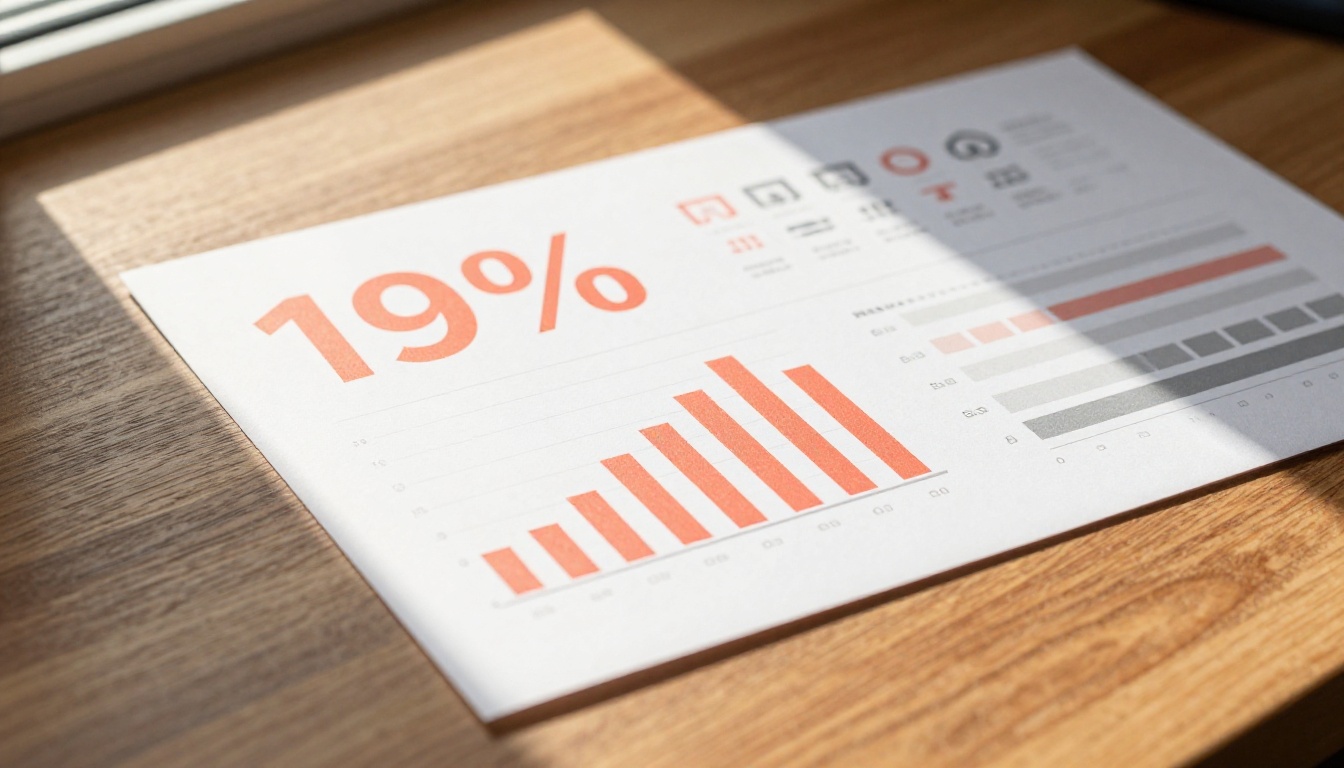
For social media, where infographic aesthetics matter more than data precision, AI image generation is genuinely effective. Stats cards, comparison visuals, "did you know" formats, and step-by-step how-to images all perform well as AI-generated content.
A workflow that works:
- Generate the visual frame and icon layout with AI
- Screenshot or export the output
- Open in Canva and replace any text placeholders with accurate copy
- Export and publish
This takes around 10 minutes per post type versus hours of manual design work from scratch.
Presentation Slides and Reports
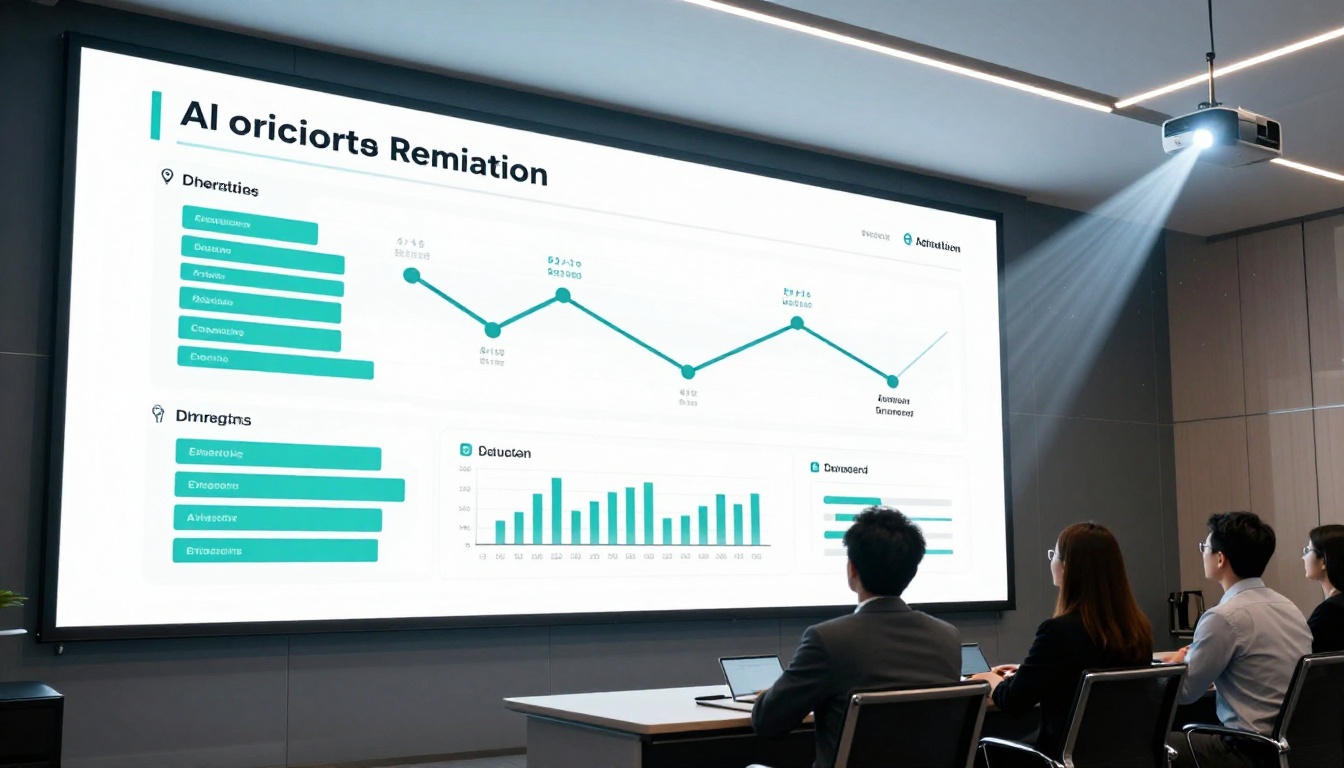
For internal presentations and reports, the same hybrid approach applies. AI generates background visuals, decorative infographic frames, and section dividers. Actual data goes in through Google Slides, PowerPoint, or Figma with real charting tools.
Where AI specifically helps in presentations: title slides, section openers, and visual analogies. A prompt like "clean flat infographic showing a three-stage funnel, top section wide in teal, middle in amber, bottom in coral, white background, no text" produces a usable slide graphic in seconds.
💡 Tip: For branded reports, generate 3 to 5 section divider visuals with AI using your brand colors, then use them as consistent visual openers between report chapters. It takes 15 minutes and makes the whole document feel designed.
Product Launch and Event Content
For product launches and marketing campaigns, AI infographic generation is particularly strong at "announcing" style content: countdown visuals, feature comparison cards, and numbered benefit lists. These formats require visual polish more than data precision, which plays directly to AI's strengths.
SDXL with its built-in refiner pipeline is especially strong for polished product-adjacent infographic visuals, while Flux Dev's image-to-image capability lets you take an existing branded asset and redirect it into an infographic-style visual without starting from scratch.
If you want to build structured infographic workflows that scale, these are the tools worth having in your stack:
- PicassoIA (Flux Schnell, Flux Dev, SDXL, Stable Diffusion): Best for rapid visual iteration with no credit limits. Over 91 text-to-image models in one platform with no signup required to start.
- Canva AI: Good for layering AI-generated frames with editable text components
- Datawrapper: For actual chart generation with mathematically accurate proportions
- Figma: For final layout and typography control after AI generates the visual base
- Adobe Express: Fast production layer for adding brand fonts and precise copy
The most effective content teams use AI generation for the visual concept and icon aesthetics, then structured tools for the data layer. Neither AI alone nor traditional design software alone covers the full workflow as efficiently.

Your First Infographic Starts Here
You do not need a design background or a large software budget to start creating infographic-quality visuals with AI. The tools exist right now, and the process is straightforward once you have a clear prompt structure and know which formats work.
If you are ready to experiment, PicassoIA has over 91 text-to-image models available with no credit caps. Models like Flux Schnell generate images in under 5 seconds, which makes prompt iteration fast and low-friction. Flux Dev adds image-to-image editing so you can refine an existing visual direction, and SDXL with its built-in refiner pipeline delivers maximum visual fidelity when you need a polished output.
Start with a simple stats card prompt. Pick a topic you know well, choose a two-color palette, write "flat design, no text, clean icons" at the end of your description. Run 5 variations. Then add your own text layer in Canva or Figma. That is a working infographic in under 15 minutes.
The biggest barrier to AI infographic creation is not the technology. It is the expectation that the first prompt will produce a finished product. Treat it like iteration, not generation, and the results compound quickly.


