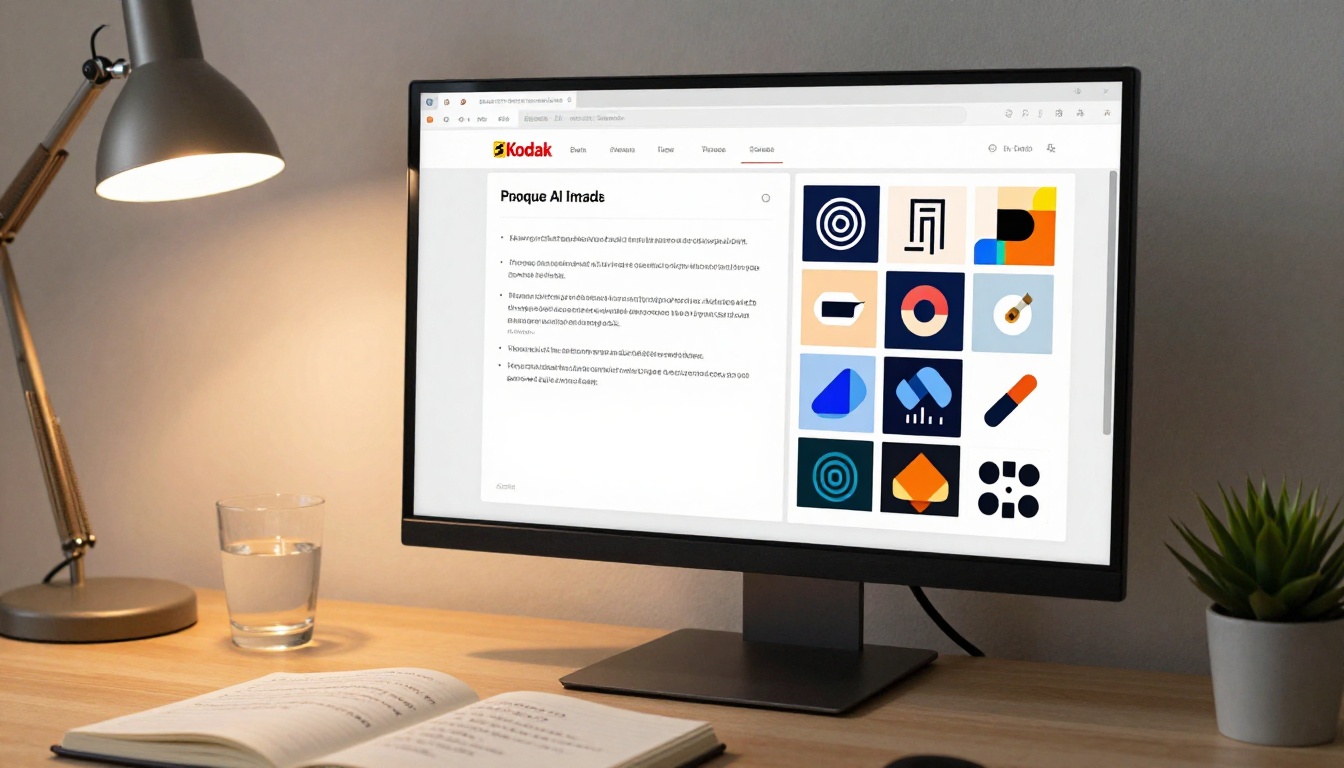
GPT Image 2.0 for Logos and Branding: Real Results, Real Workflows
GPT Image 2.0 is reshaping how designers and business owners approach logos, brand identity, and visual assets. This article examines real-world use cases, prompt formulas that actually work, and a hands-on workflow for generating production-ready brand visuals with AI image tools.
When a client asks for a logo, the old workflow looked like this: brief, mood board, sketches, revisions, more revisions, final delivery. Weeks later, you have something that might work. GPT Image 2.0 for logos and branding changes the timeline without lowering the creative standard, and that is what makes it worth paying attention to right now.
This is not about replacing designers. It is about what happens when you put a tool this capable into the hands of someone who knows exactly what they want. The results are faster concept generation, better client communication, and more iterations before a single production file gets opened.
What GPT Image 2.0 Actually Does for Branding
GPT Image 2.0 is OpenAI's most recent image generation model, building on the GPT-4o multimodal architecture. Unlike earlier diffusion-based tools, it processes text prompts with a language-first approach, which means it handles complex, multi-part instructions with noticeably better consistency.
For branding work specifically, that consistency matters. When you ask for "a minimalist geometric mark in deep navy and warm gold, with negative space suggesting movement," you want the model to interpret the full instruction, not latch onto one element and ignore the rest. GPT Image 2.0 gets closer to that standard than most alternatives currently available.
The model sits in a distinctive position in the AI image market: it produces fewer variations per run than Midjourney or Stable Diffusion, but each output reflects a more careful interpretation of the full prompt. For branding, where specificity matters more than volume, that tradeoff is worth making.
From Text Prompt to Brand Asset
The model produces a controlled number of images per run, which changes how you use it. Rather than generating 50 variations and hunting for one worth showing, you invest time in the prompt itself. A well-constructed brand prompt takes 5 to 10 minutes to write, but it produces something you can put in front of a client on the first attempt.
💡 Tip: Treat your prompt like a creative brief. Include color values, emotional tone, industry context, and what the logo should not look like. Specificity reduces waste and increases usable output significantly.
Where It Fits in the Design Process
GPT Image 2.0 fits best at the beginning of a project, not the end. Use it to:
Generate concept directions before opening Illustrator or Figma
Create client-facing mood options without spending hours on initial comps
Test color palette variations across surface types quickly
Produce placeholder brand assets for prototypes and pitch decks
Validate a brand direction before commissioning finished artwork
It does not replace the production phase. Vector conversion, type refinement, and file preparation still require design software and professional attention. But the ideation phase is where the time savings are substantial and immediate.
5 Branding Use Cases That Work Right Now
Logo Concept Generation
This is the most obvious application, and it works better than most people expect. The critical factor is framing the prompt around the brand's positioning, not just its visual style.
What works:
"A law firm logo: authoritative, approachable, serif-adjacent geometry, charcoal and warm white, no shields or gavels"
"Tech startup mark: abstract letterform suggesting speed and connection, single color, works at 16px favicon size"
"Organic food brand: hand-drawn quality but not childish, earthy greens and off-whites, suggests growth without being literal"
What does not work:
"Make me a logo" (too vague, model fills gaps generically)
Over-specifying proportions or pixel dimensions
Asking for multiple distinct concepts in a single prompt
For each logo prompt that produces a strong result, save it as a template. The prompt structure that works well for a wellness brand will transfer, with modifications, to a food brand, a legal firm, or a technology company.
Brand Color Palette Exploration
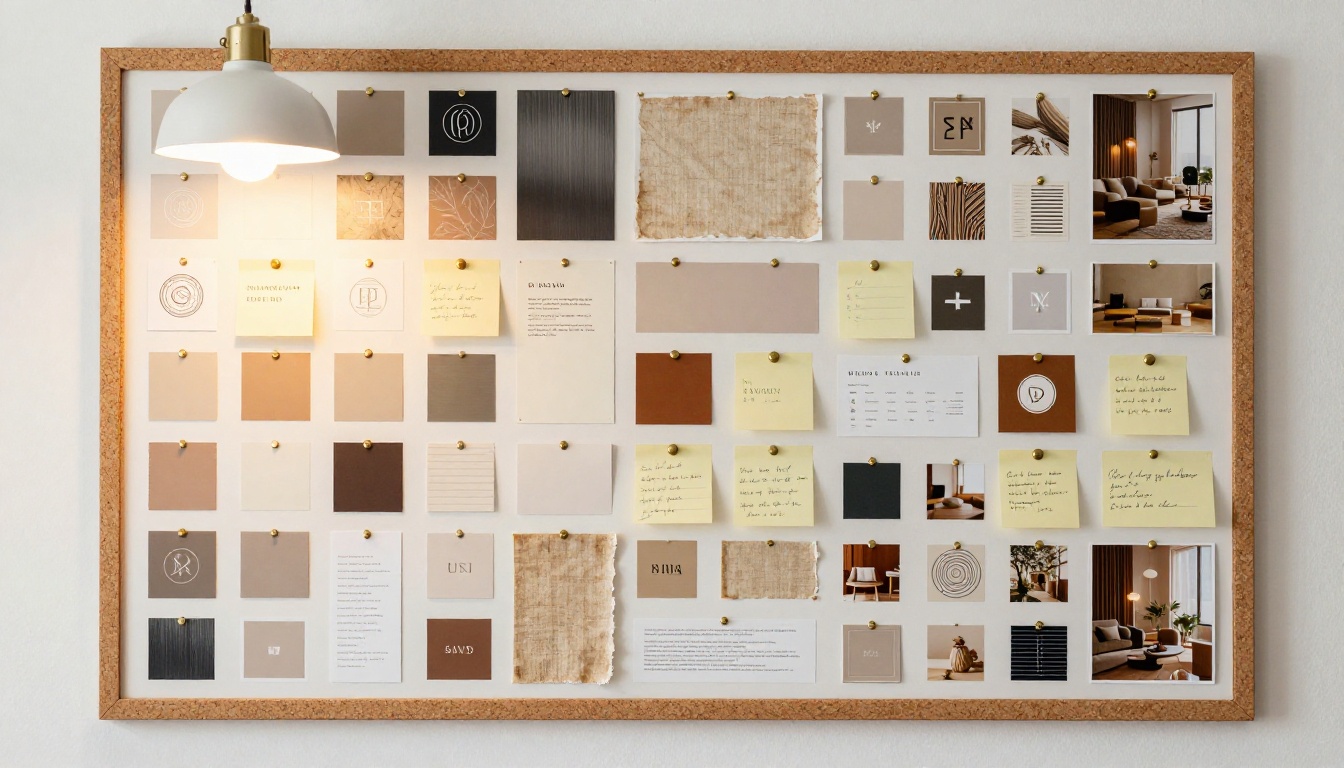
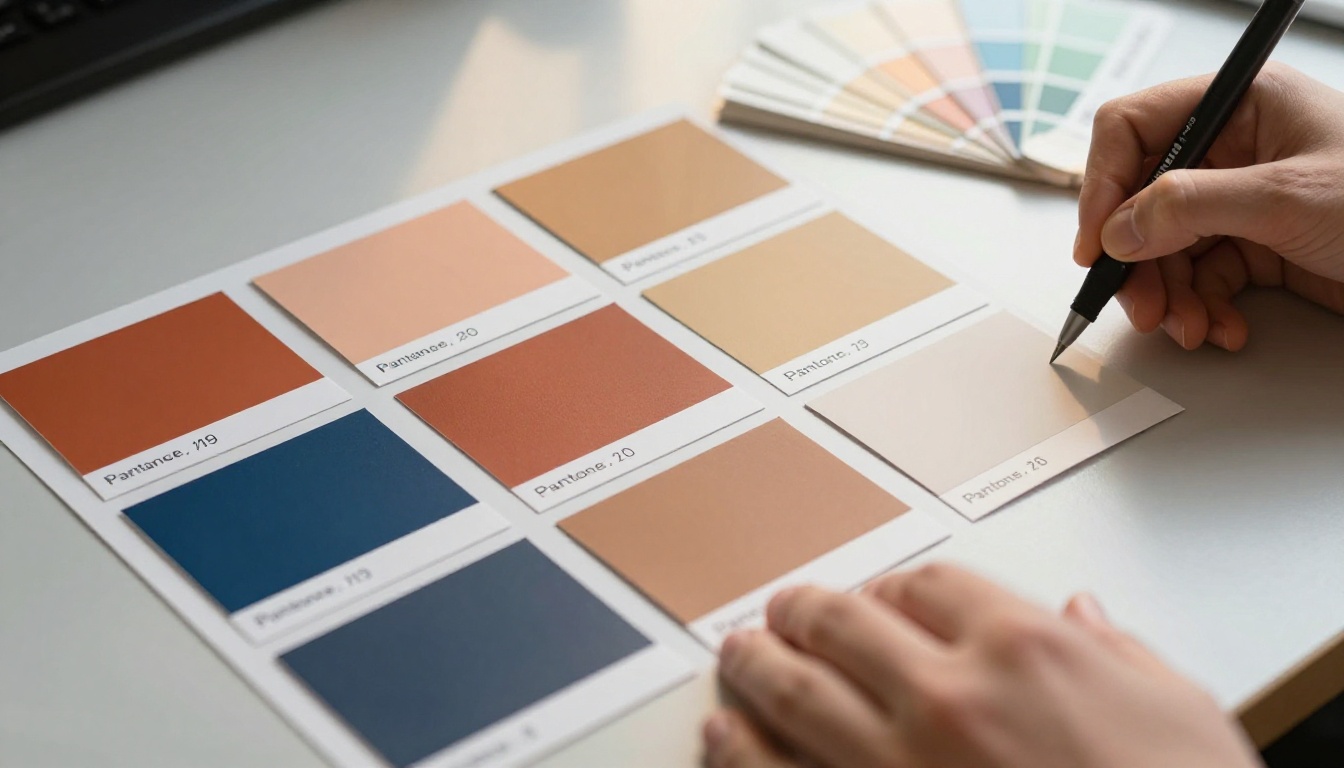
Paste a short brand description and ask for "a mood board showing the brand's color palette applied to real surfaces." The results give you a fast read on whether warm or cool tones serve the brand better, without producing a clinical swatch grid.
This is particularly valuable in early client conversations. You are showing intent, not commitment. The client reacts emotionally to a direction before any production time is spent, which accelerates approval and reduces expensive late-stage changes.
Packaging and Stationery Mockups
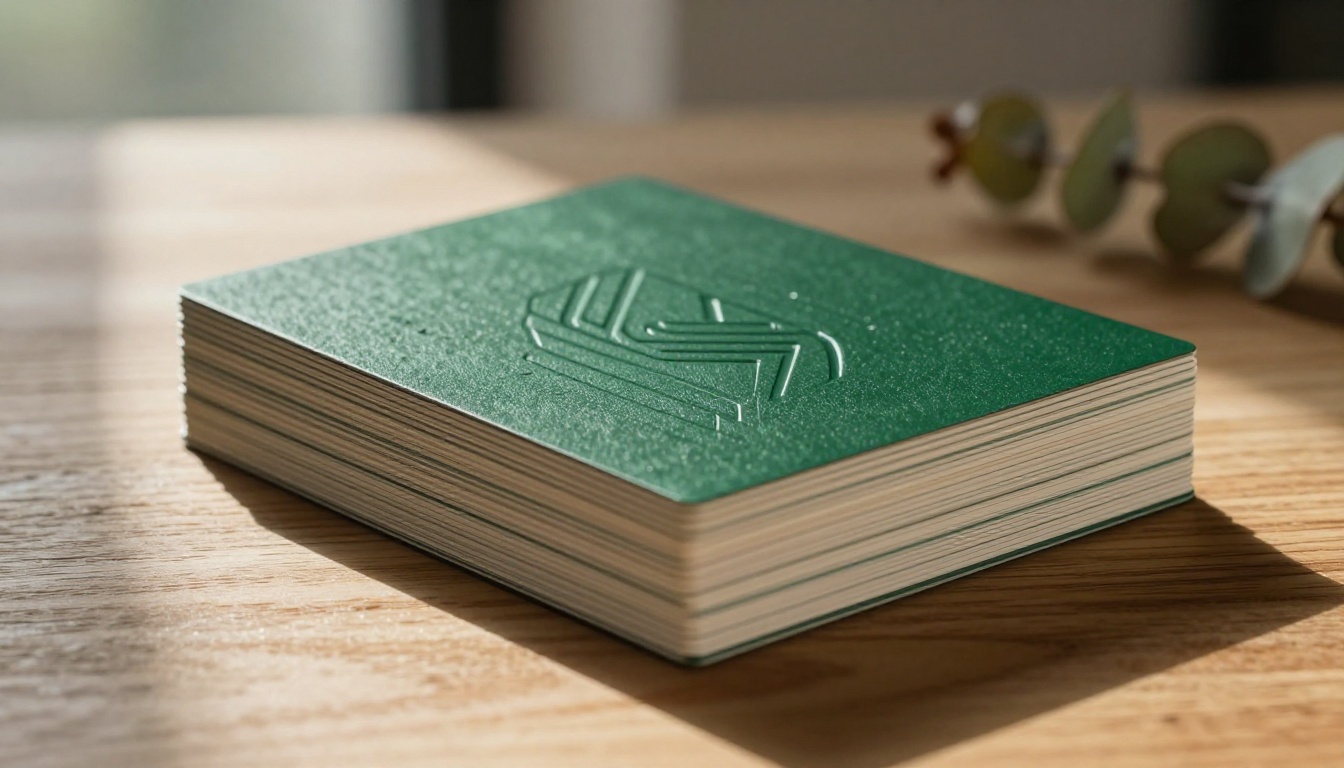
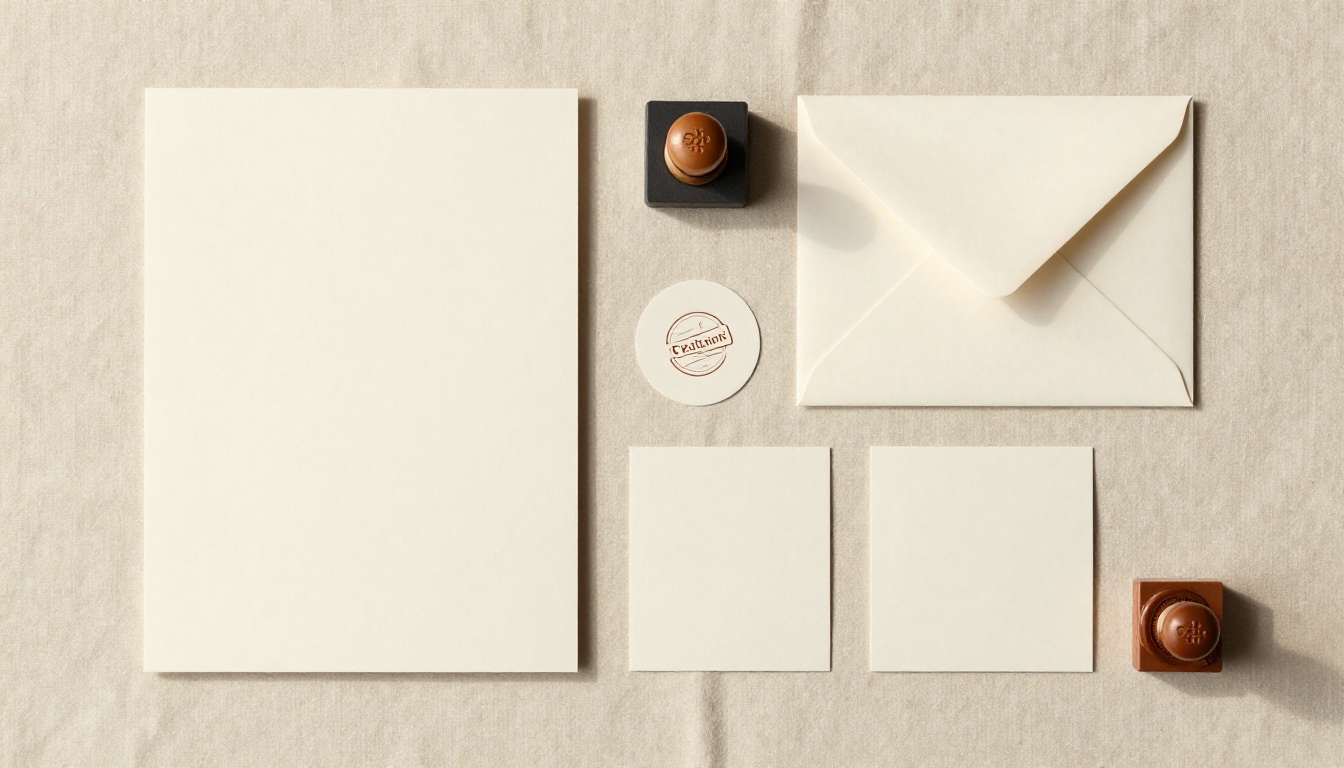
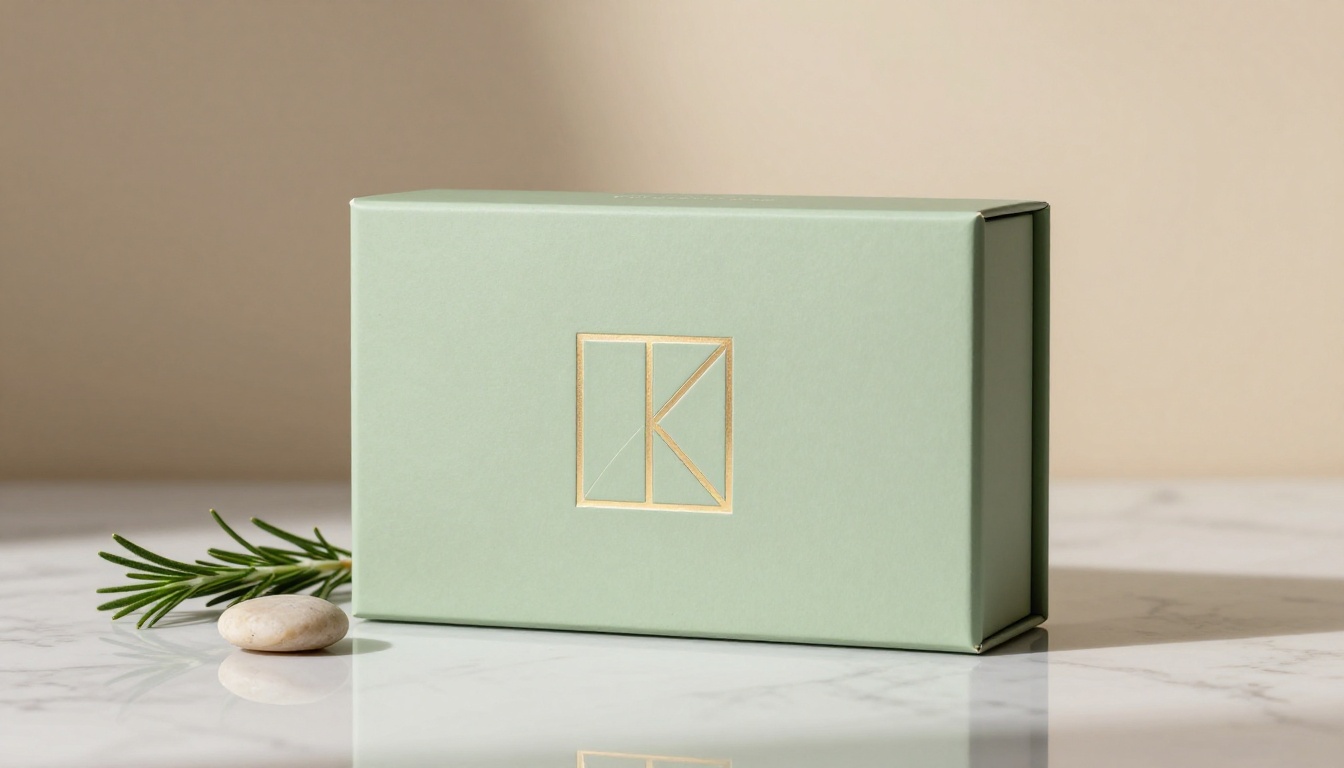
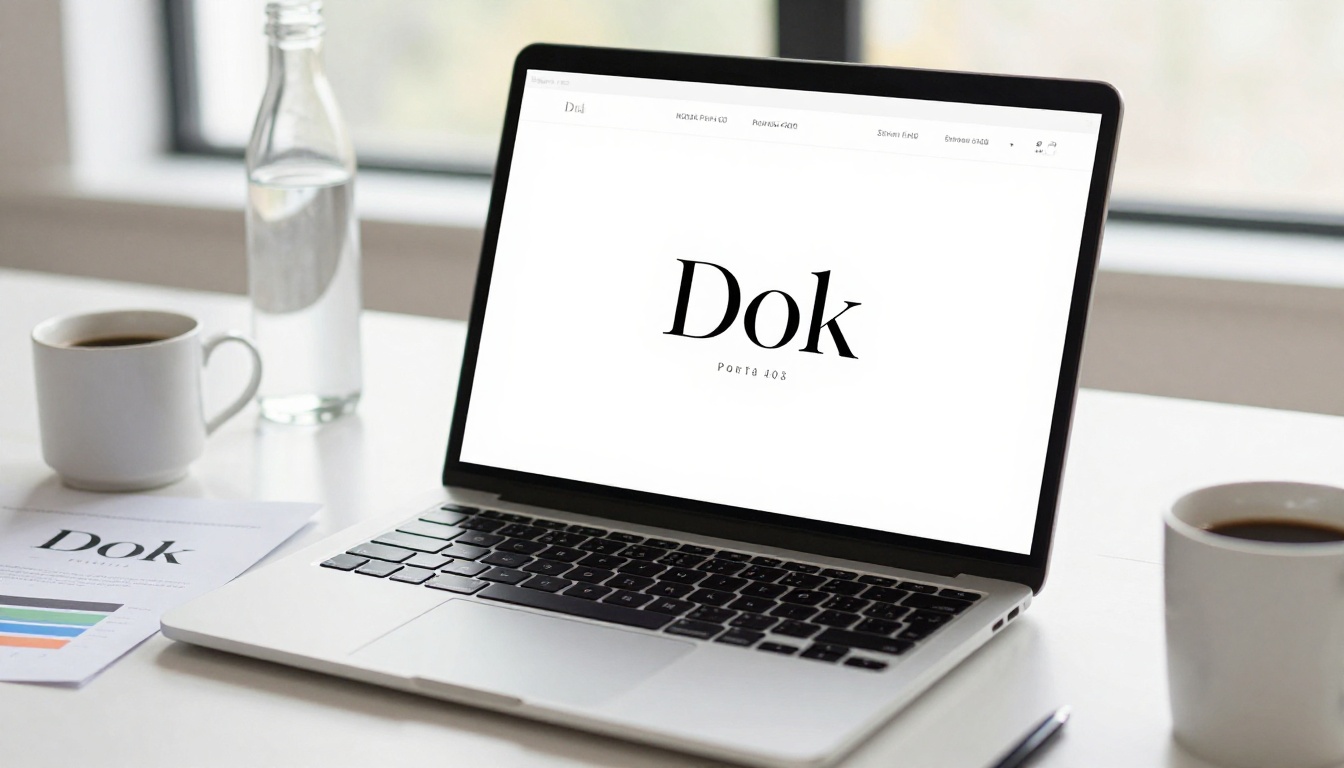
Generate photorealistic mockups of how a logo might appear on physical materials: business cards, packaging, product labels, and letterheads. These are not production-ready files, but they are excellent for client presentations and stakeholder sign-off.
💡 Tip: Specify the printing method in your prompt. "Debossed on thick matte card" produces a very different result from "offset printed on uncoated stock." Those details direct the model toward the tactile quality you want to communicate to the client.
Product Packaging with Brand Identity
For consumer brands, seeing how a logo applies to physical packaging is often the moment a client commits to a direction. GPT Image 2.0 generates realistic product packaging visualizations that show a mark in context: on a shelf, in someone's hands, or in a retail environment.
Signage and Environmental Graphics
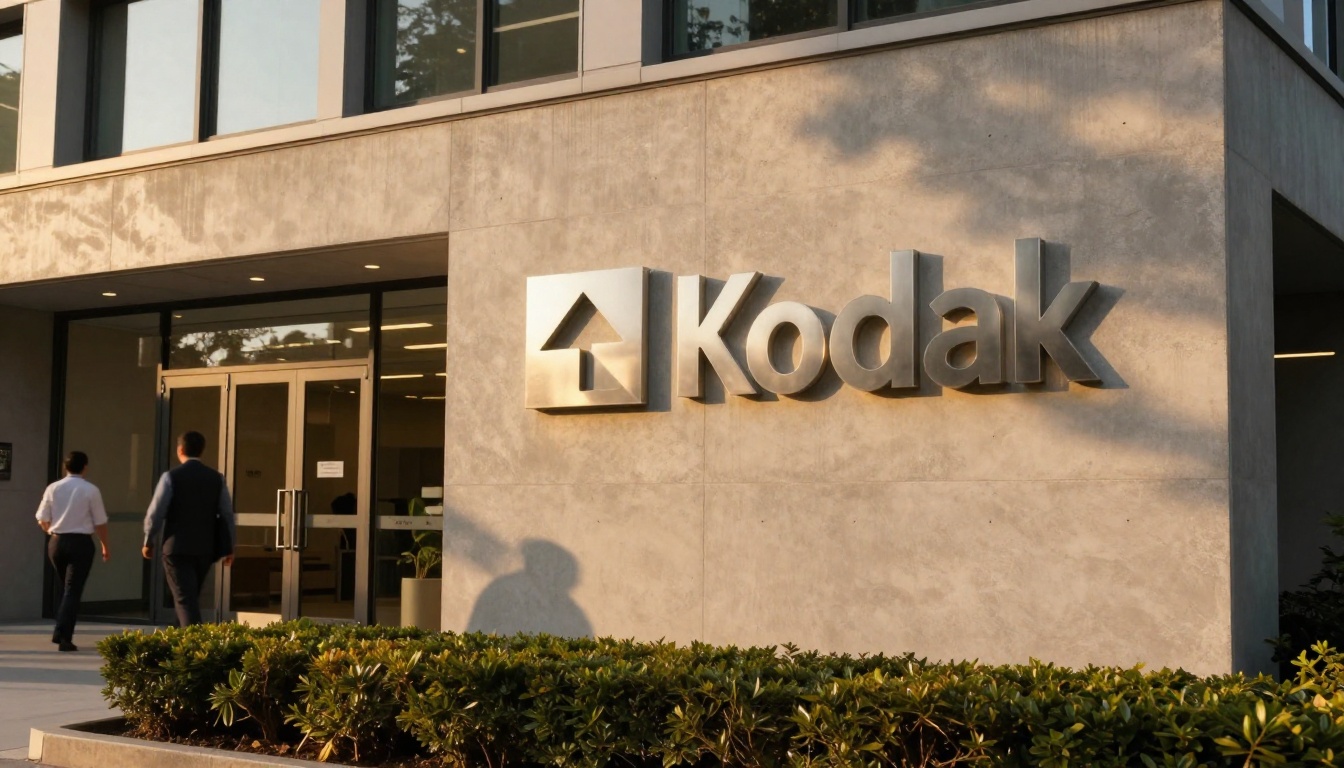
For pitch decks and office fit-out presentations, showing how a brand appears on physical spaces, from building signage to retail environments, can close deals before the design is finalized. Clients find it far easier to approve a direction when they can see it at architectural scale.
Writing Prompts That Produce Usable Results
Most people get weak output from AI image generators because they treat the prompt like a keyword search. It is not. It is closer to a written brief for a very literal-minded designer with no assumptions about your industry, your audience, or your brand positioning.
The Anatomy of a Good Logo Prompt
A strong brand prompt has six elements:
Element
Example
Category
Logo mark, wordmark, combination mark
Industry Context
Wellness brand, B2B SaaS, artisan bakery
Visual Style
Geometric, organic, minimal, illustrative
Color Specification
Specific hex codes or descriptive palette values
Negative Instructions
No clipart, no gradients, no literal objects
Application Context
Works at small sizes, on dark backgrounds
When all six are present, the output quality improves substantially. When you omit two or more, the model fills the gaps generically, and the result looks like every other AI-generated brand visual on the internet.
3 Prompt Mistakes That Waste Your Time
1. No industry context
Asking for "a logo" without specifying the sector, audience, and positioning gives the model no useful direction. It defaults to generic safe territory, which is precisely what you do not want for brand differentiation.
2. Contradictory instructions
"Bold and minimalist, complex and simple, modern but classic" does not give the model useful constraints. Pick a side on each axis, or the model averages everything into a mediocre middle ground.
3. Skipping the negative instructions
Telling the model what to avoid is as important as what to include. If your industry is full of clichéd visual shorthand (a house for real estate, a cross for healthcare), say so explicitly. The model needs to know what the field already looks like so it can move past it.
How to Use GPT Image 1 on PicassoIA
PicassoIA gives you direct access to GPT Image 1 without any API setup or local environment configuration. Here is how to run it for branding work from start to finish.
Step 1: Open the Model Page
Go to GPT Image 1 on PicassoIA and connect your OpenAI API credentials in the field provided. The model requires your own credentials, which keeps usage costs transparent and separate from your platform subscription.
Step 2: Configure Your Output Settings
Before writing the prompt, set the parameters that match your use case:
Quality: high for client presentations, medium for internal iteration rounds
Background: transparent if you need to layer the result into another layout, opaque for standalone mockups
Aspect Ratio: 1:1 for social media icons and marks, 3:2 for landscape brand applications
Output Format: PNG for transparent backgrounds, WebP for web-optimized deliverables
Number of Images: Start with 3 to 5 variations, then narrow to the strongest direction
Step 3: Write a Production-Grade Prompt
Use the six-element structure described above. Here is a worked example for a real use case:
Combination mark logo concept for a boutique architecture studio.
Minimal geometric letterform suggesting structure and open space,
negative space used intentionally. Color: warm charcoal (#2D2926)
on white. No houses, no blueprints, no literal building shapes.
Must read clearly at 32px icon size. Clean, confident, premium feel.
Step 4: Iterate and Refine
GPT Image 1 supports up to 10 outputs per run. Start with 3 variations on your core prompt, identify the strongest result, and run a second batch with one refined parameter at a time. Changing too many things at once makes it impossible to identify what drove the improvement.
💡 Tip: Keep a running document of your prompt iterations. When a version produces a strong result, note exactly what changed from the previous version. You will build a personal prompt library faster than you expect, and each saved prompt becomes a reusable starting point for future brand projects.
Step 5: Export and Apply
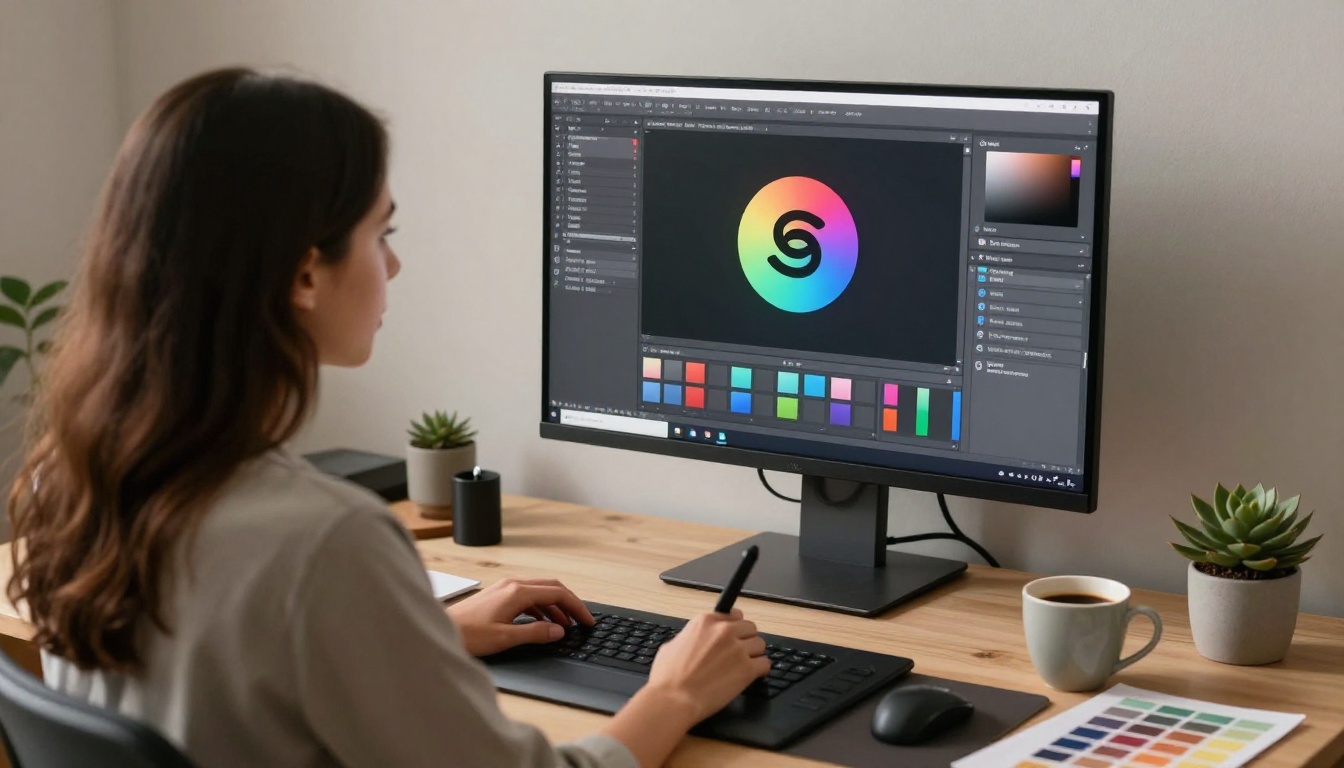
Download as PNG with transparent background for vector tracing. Tools like Adobe Illustrator's Image Trace can convert the raster output to a scalable vector file. The AI image establishes the concept direction; the vector work makes it production-ready for any application.
GPT Image 2.0 vs. Other AI Image Tools for Branding
Feature
GPT Image 2.0
Stable Diffusion
Midjourney
Prompt Fidelity
High (language-first)
Medium
High
Text Rendering
Good
Poor
Medium
Consistent Style
High
Variable
High
Transparent Background
Yes (via API)
Depends on model
No
Batch Generation
Up to 10
Unlimited
~4 per run
Multi-condition Prompts
Excellent
Moderate
Good
Setup Required
API credentials only
Significant
Account only
The clearest advantage of GPT Image 2.0 is prompt fidelity for complex, multi-condition briefs. When you write "no gradients, no drop shadows, single-weight stroke, works on both light and dark backgrounds," it follows all four conditions more reliably than most diffusion models trained primarily on aesthetic diversity.
For brand work, that reliability is not a nice-to-have. It is the whole point.
What It Still Cannot Do
Typography Limitations
Logo typography remains the most significant weakness. GPT Image 2.0 can suggest letterform styles and spacing ratios, but it does not generate clean, licensable type. The wordmark component of a logo still needs to be set in an actual typeface using real design software.
Use the AI output as a reference for type weight, width, and mood, then find the closest matching typeface and set it properly. Treat the AI output as a direction indicator, not a finished file ready for production.
When You Still Need a Human Designer
Brand system development: Rules for how the logo behaves across contexts, spacing systems, and full color documentation
Animation and motion: Logo lockup for video or interactive environments
Legal and trademark review: Confirming the mark does not conflict with existing trademarks in your category
Print production: Color separation, spot color conversion, embossing-ready vector artwork
IP ownership: A designer can give you a logo with clean ownership; AI-generated output sits in varying legal positions depending on jurisdiction
The AI accelerates the front end of the branding process substantially. The back end still requires craft, professional tools, and legal clarity that no model currently provides.
Start Creating Your Own Brand Visuals
The fastest way to evaluate whether GPT Image 2.0 fits your branding workflow is to run it on a real brief today. Take a project you are working on, write a prompt using the six-element structure from this article, and run three variations on GPT Image 1 on PicassoIA.
The platform also gives you access to dozens of other text-to-image models for comparison, so you can see how GPT Image 2.0's output stacks up against other approaches on the same brief. Once you have a strong concept image, PicassoIA's super-resolution tools can upscale your best outputs to high-DPI sizes suitable for print, and the background-removal tools make it simple to isolate logo elements on a clean transparent layer for use in presentations, mockups, and client deliverables.
Start with one brief. Spend 20 minutes on the prompt. The first result will tell you more about what this tool can do for your brand work than anything else.