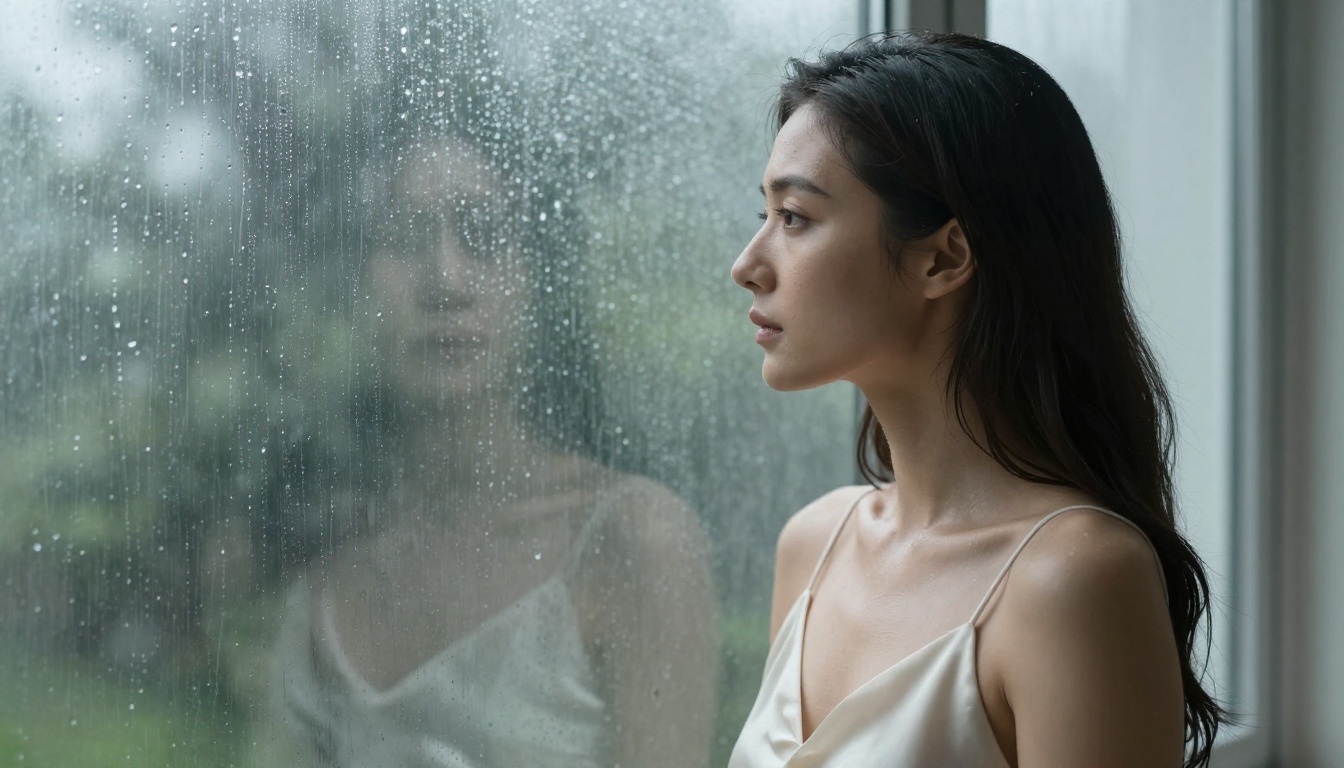
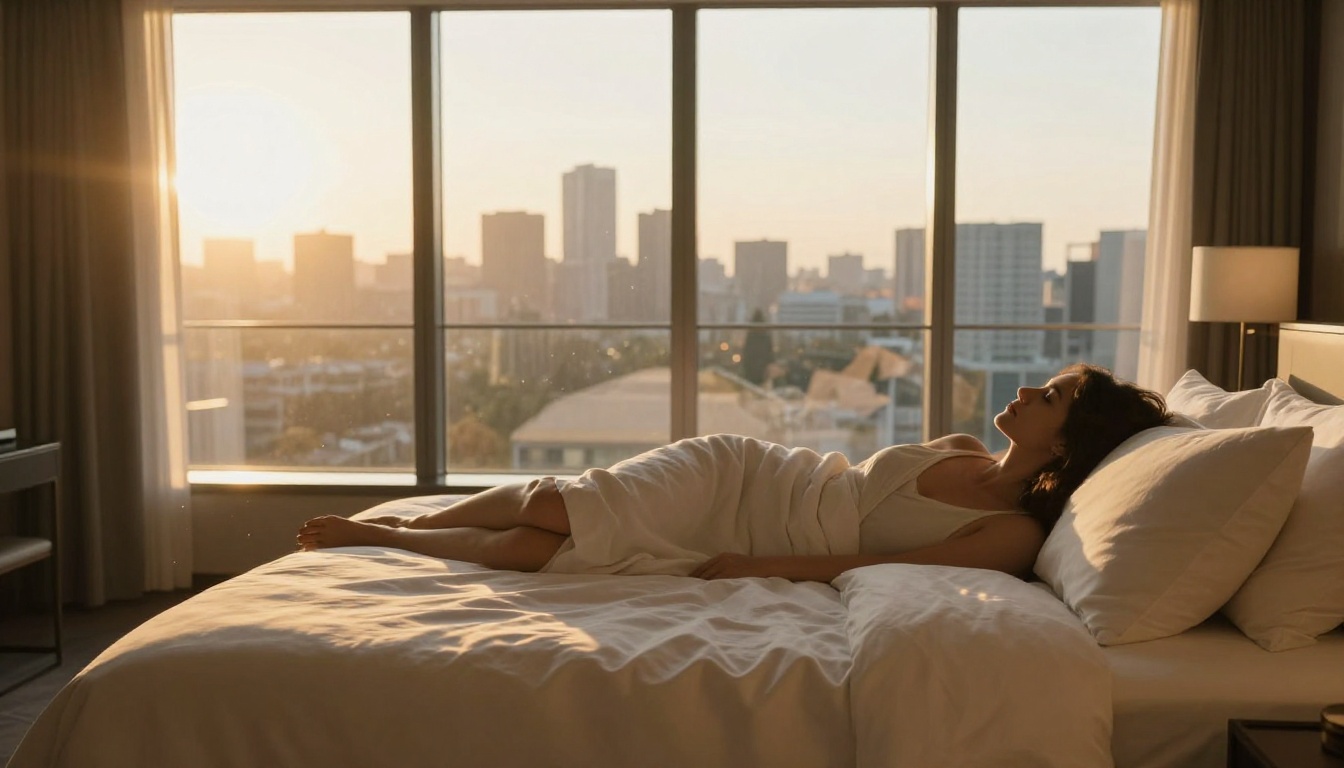
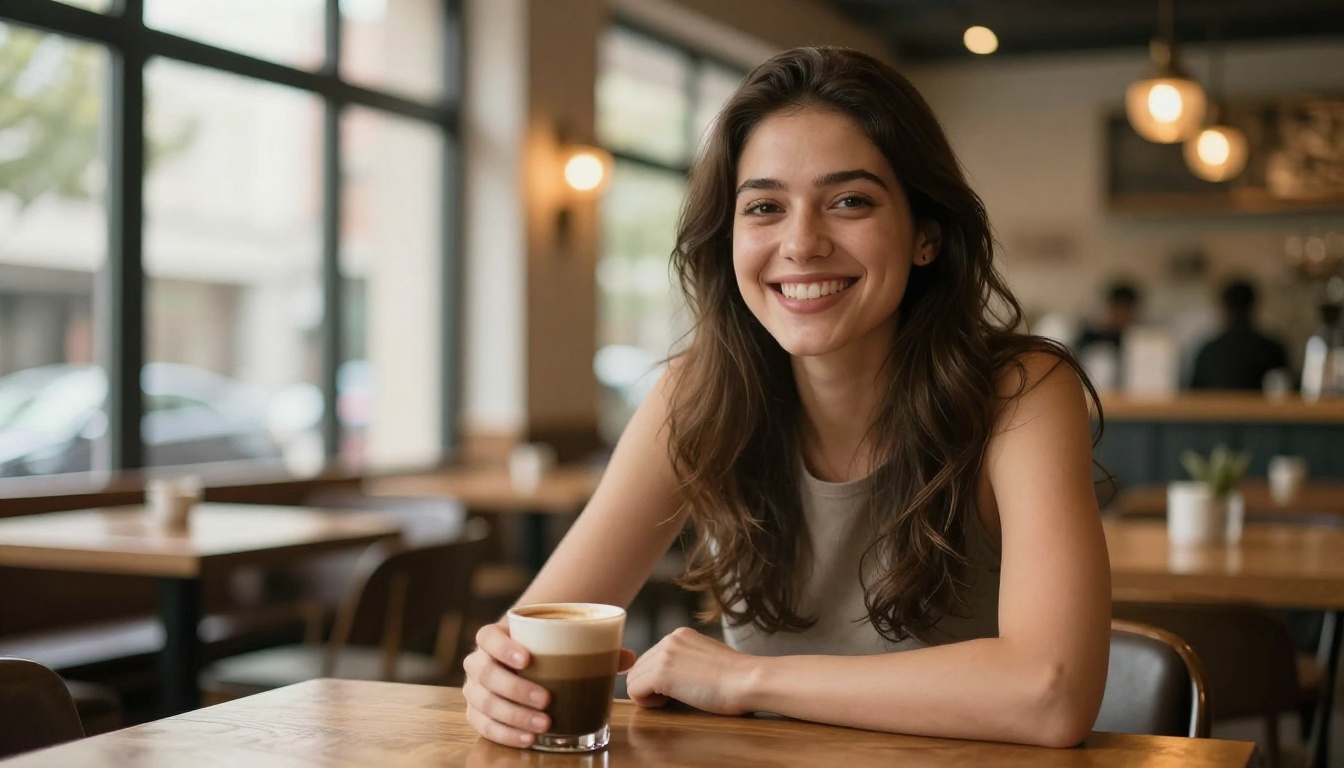
Grok 4.20 can generate NSFW images, but content filters limit what it can produce. This article walks through using Grok for image generation step by step, explains its filter limitations, and shows which uncensored AI platforms deliver real results without restrictions or daily caps.
If you've been trying to get Grok 4.20 to generate NSFW images and hitting walls, you're not alone. xAI's Grok has made significant leaps in multimodal capabilities, but the reality of using it for adult or suggestive content is far more complicated than the hype suggests. This article walks through exactly what Grok 4.20 can and can't do for image generation, shows you the step-by-step process, and points you to the platforms that actually deliver uncensored results at scale.
What Grok 4.20 Brings to Image Generation
Grok 4.20 from xAI represents a substantial upgrade over previous versions. Released as part of xAI's push to compete with GPT-4o and Gemini Ultra, it integrates image generation natively into its chat interface through a partnership with Aurora, xAI's proprietary image model. The results for general-purpose images are genuinely impressive: sharp details, accurate text rendering, and strong prompt adherence.
The Aurora Model Inside Grok
The image generation in Grok 4.20 runs on Aurora, xAI's internal diffusion model. Unlike third-party integrations, Aurora is baked directly into the Grok interface, which means lower latency and tighter prompt understanding. For photorealistic portraits, landscapes, and product-style images, Aurora consistently produces high-quality outputs.
💡 What sets Grok apart: Real-time web context. Because Grok indexes the live web, it can generate images informed by current events, recent aesthetics, and trending visual styles in ways that offline models cannot.
Where the NSFW Question Gets Complicated
Here's the honest answer: Grok 4.20 does allow more suggestive content than competitors. On X (Twitter) Premium, in certain regions, users with verified adult content settings can access the "adult mode" toggle that relaxes Grok's default filters. This is context-dependent, account-dependent, and territory-dependent.
But "relaxed filters" does not mean "uncensored." What you get is:
Bikinis, lingerie, and swimwear: Generally allowed
Suggestive poses with full clothing: Allowed in most regions
Artistic implied nudity: Inconsistent, often blocked
Explicit sexual content: Blocked across all regions
Specific anatomical detail: Blocked
The line shifts constantly. What works in one session may get blocked in the next. That inconsistency is the core problem for anyone trying to produce reliable NSFW image batches.
How to Use Grok 4.20 for NSFW Images: The Actual Steps
This is the step-by-step process. Know going in that results vary by account settings, region, and Grok's rolling policy updates.
Step 1: Set Up Your X Premium Account
Grok's image generation is available through X (formerly Twitter). You need an active X Premium or X Premium+ subscription. At the time of writing:
X Premium: Basic access to Grok, limited image generations per day
X Premium+: Higher generation limits, faster speeds, priority access to new features
Go to x.com/settings/subscriptions and confirm your subscription tier is active.
Step 2: Enable Adult Content in X Settings
This step is only available in regions where xAI has enabled it. Navigate to:
X Settings > Privacy and Safety
Scroll to "Content you see"
Toggle on "Display media that may contain sensitive content"
Separately, in Profile Settings: enable adult content labeling on your own account if applicable
Note: This setting controls what content you see in your feed. Grok's own filter is a separate system that responds to this account state but is not solely controlled by it.
Step 3: Access Grok 4.20
Open grok.x.ai or access Grok through the X app by tapping the Grok icon in the bottom navigation bar. Make sure you're on Grok 4.20 by checking the model selector in the top-right of the interface. Earlier versions have significantly stricter image policies.
Step 4: Write an Effective Prompt
Grok responds best to natural language descriptions rather than keyword-stuffed prompts. For suggestive content that's likely to pass filters:
Works better:
"A woman in a silk slip dress sitting in warm afternoon light, elegant and sensual, soft shadows, editorial magazine style photography"
More likely to be blocked:
"sexy woman naked bedroom"
Structure your prompts with:
Setting (location, time of day, light source)
Subject description (clothing, pose, expression)
Style reference (editorial, fashion, artistic)
Technical specs (lighting style, camera angle)
💡 Tip: Referencing established photography styles (Helmut Newton, Ellen von Unwerth, Peter Lindbergh) gives Grok aesthetic context that often helps suggestive content pass filters. These are legitimate fine art photography references.
Step 5: Iterate on Blocked Prompts
When Grok refuses a prompt, it typically gives a reason. Common refusal patterns:
Grok Refusal Message
What It Usually Means
What to Try Instead
"I can't create that image"
Hard content block
Reframe with artistic context
"That request contains content..."
Policy trigger word
Rephrase, remove trigger terms
"I'll generate a modified version"
Soft filter applied
The output will be toned down
Generates fully clothed version
Implicit filtering
Add lighting and mood cues, be more descriptive about setting
Each refusal teaches you something about where Grok's live filter sits. This is iterative work.
Step 6: Download and Save Your Results
Grok generates images in standard resolution (typically 1024x1024 or similar). To save:
Click the generated image to expand it
Right-click and select "Save image as" (desktop) or long-press (mobile)
Images are saved as PNG or JPEG
Grok does not currently offer bulk download or API access for Aurora image generation through Grok.com, which is a major limitation for production workflows.
Why Grok's NSFW Capabilities Fall Short at Scale
Grok 4.20 is an impressive general-purpose model. But for consistent, high-volume NSFW image generation, it has four structural problems:
1. Generation limits: Even X Premium+ users hit daily caps. There is no unlimited tier.
2. No API access for image generation: You cannot automate Grok image generation. Every image requires manual interaction through the web interface.
3. Filter inconsistency: The same prompt can generate different results across sessions. This is not a bug you can work around; it's baked into how Grok's safety layer operates.
4. No negative prompts: You can't tell Grok what to exclude. Dedicated image generation platforms give you fine-grained control over composition through negative prompting, which Grok does not support.
For someone who wants to create 10-20 images in a session with precise control over style, pose, lighting, and content, Grok is genuinely frustrating. That's where dedicated AI image platforms fill the gap.
Better Platforms for Real NSFW Image Results
The platforms below don't replace Grok for its strengths (real-time web knowledge, reasoning, text tasks). They replace it specifically for image generation where content latitude and production volume matter.
Seedream 4: The Best Starting Point
Seedream 4 from ByteDance is the top recommendation for suggestive and NSFW-adjacent content. It generates 4K-quality images with exceptional detail in skin texture, fabric, and lighting. Its training data and fine-tuning make it particularly good at:
Photorealistic human subjects
Natural lighting conditions
Fashion and editorial aesthetics
Bikini, lingerie, and glamour content
Speed is another advantage. Seedream 4 generates images significantly faster than many competing models, making it practical for iterating through prompt variations. Available at PicassoIA with unlimited generation access through the Image Editor Pro plan.
Flux 1.1 Pro Ultra: Maximum Resolution
Flux 1.1 Pro Ultra from Black Forest Labs produces photorealistic images at up to 4 megapixels, which translates to remarkable detail for portrait work. For editorial-style content that needs to look genuinely photographic, Flux 1.1 Pro Ultra is the premium choice.
The model handles complex lighting scenarios well: rim lighting, window light, golden hour, and studio setups all come through with natural-looking shadows and highlights. For fashion and glamour aesthetics, it competes directly with professional photography.
Realistic Vision v5.1: Portrait Specialist
Realistic Vision v5.1 is one of the most reliable fine-tuned models for photorealistic portrait generation. It was specifically trained to produce accurate human anatomy, natural skin tones, and realistic facial features, which makes it a natural fit for glamour and NSFW-adjacent content.
Where broader models sometimes struggle with hands, eyes, and proportions, Realistic Vision v5.1 handles them with notably higher accuracy.
Flux Schnell: Speed When It Matters
Flux Schnell generates high-quality images in seconds rather than minutes. When you're iterating through prompt variations, speed matters. Schnell is the right tool when you need to test 20 prompt variations before committing to a final generation pass at higher quality.
SDXL: The Classic Workhorse
SDXL from Stability AI remains one of the most widely used base models. Its strength is the ecosystem around it: thousands of community-trained LoRA weights, style embeddings, and fine-tunes that extend its capabilities dramatically. If you're familiar with the Stable Diffusion ecosystem, SDXL gives you maximum flexibility.
How to Use Seedream 4 on PicassoIA: Step by Step
PicassoIA gives you direct access to Seedream 4 without usage caps through the Image Editor Pro plan. Here's how to get started:
Step 1: Open the Model
Go to Seedream 4 on PicassoIA. You'll see the prompt interface immediately on the right side of the screen. No account required to preview the model; generation requires a free signup.
Step 2: Write Your Prompt
Seedream 4 responds well to descriptive, natural language. Unlike some models that prefer keyword lists, it works best with full scene descriptions. A strong prompt structure:
[Subject: who, what they're wearing, pose] + [Setting: location, time of day] + [Lighting: source, direction, quality] + [Camera: angle, lens, depth of field] + [Style: aesthetic reference]
Example prompt:
"Young woman in ivory silk lingerie sitting at the edge of a hotel bed, warm morning light streaming through sheer curtains from the left, low camera angle at bed height, 85mm f/1.4 portrait lens with shallow depth of field, Kodak Portra 400 film grain, photorealistic editorial fashion photography"
Step 3: Set Your Parameters
In the sidebar controls:
Aspect Ratio: Use 16:9 for cinematic results, 4:3 for editorial, 1:1 for social content
Resolution: Seedream 4 supports up to 4K output. Start at standard for speed, upscale the best results
Steps: More steps (30-40) produce higher detail. For quick iteration, 20 steps is sufficient
💡 Negative Prompt: Use the negative prompt field to exclude unwanted elements. Common additions: "blurry, low quality, deformed hands, extra fingers, watermark, text, artificial, CGI, cartoon"
Step 4: Generate and Refine
Click Generate. Seedream 4 typically returns results in 5-15 seconds depending on resolution. Review the output and adjust:
If lighting feels off: specify the direction and source more explicitly
If proportions seem wrong: add body proportion descriptors to the prompt
If the style misses: add a specific photographer's name or magazine reference
Step 5: Use the Image Editor Pro
Once you have a base image you like, PicassoIA's Image Editor Pro lets you refine it with inpainting and outpainting. Fix specific areas (face, hands, background) without regenerating the entire image. This is where unlimited generation becomes valuable: you can run dozens of inpainting iterations without counting each one against a quota.
Grok vs Dedicated NSFW Platforms: Honest Comparison
Feature
Grok 4.20
Seedream 4 (PicassoIA)
Flux 1.1 Pro Ultra
NSFW content latitude
Limited, inconsistent
High, consistent
High
Daily generation limit
Yes (capped)
Unlimited (Pro)
Unlimited (Pro)
Negative prompts
No
Yes
Yes
API/automation access
No
Yes
Yes
Image resolution
~1MP
Up to 4K
Up to 4MP
Prompt flexibility
Natural language only
Natural + keywords
Natural + keywords
Real-time web context
Yes
No
No
Speed
Moderate
Fast
Moderate-fast
What this table shows is clear: Grok wins on general intelligence and web awareness. For pure image generation with NSFW latitude, dedicated platforms win on every dimension that matters: content latitude, resolution, speed, and scale.
Writing Prompts That Actually Work for NSFW Content
The gap between a blocked prompt and a generated image is often just phrasing. These principles apply across Grok, Seedream 4, and most AI image platforms:
Describe the Scene, Not the Act
Instead of describing explicit acts or states, describe the aesthetic situation. Think of a professional photographer directing a shoot for a high-end magazine. That framing, applied to your prompts, tends to get through content filters while still producing the aesthetic you want.
Less effective: "naked woman lying in bed"
More effective: "boudoir portrait, woman in sheer ivory slip dress against white linen, soft window light, editorial photography, morning atmosphere"
Use Photography Language
References to camera gear, film stock, photographers, and magazines signal aesthetic intent. This works particularly well with Grok's system:
Film references: Kodak Portra 400, Fuji Provia, Ilford HP5
Lighting references: Rembrandt lighting, golden hour, window light, fill-flash
Layer Your Negative Prompts
On platforms that support negative prompts (Seedream 4, Flux Schnell, SDXL), build a strong negative baseline:
blurry, out of focus, low quality, deformed anatomy, extra limbs,
watermark, text overlay, artificial looking, plastic skin,
oversaturated, cartoon, illustration, painting, CGI, 3D render
💡 Model-specific tuning: Seedream 4 is particularly responsive to photography style references in positive prompts and anatomy quality terms in negative prompts.
The Real Advantage of Dedicated Platforms
Grok 4.20 is a brilliant product for its intended purpose: reasoning, research, and general-purpose conversation with image support. Its image generation adds genuine value for quick, safe-for-work visual tasks. But for NSFW image generation at any meaningful scale or quality level, it is not the right tool.
The platforms accessible through PicassoIA, particularly Seedream 4, Flux 1.1 Pro Ultra, and Realistic Vision v5.1, were built specifically for high-fidelity photorealistic image generation. They have the content latitude, the prompt control, and the scale that production adult content workflows require.
Stable Diffusion 3.5 Large Turbo adds another high-quality option with fast generation speeds, and Flux 2 Dev provides the most recent advances in Black Forest Labs' Flux architecture with improved anatomy handling and photorealism.
Start Creating Your Own Images
The best way to see what each model can do is to run prompts yourself. PicassoIA gives you access to all the models discussed in this article in one place, with no switching between platforms or managing multiple subscriptions.
Start with Seedream 4 for your first test: copy the example prompt from the tutorial section above, adjust the clothing and setting to match your target aesthetic, and generate. The quality difference from Grok's built-in image generation will be immediately visible in the first result.
For full access to all models including unlimited Image Editor Pro generations, visit picassoia.com/en/all-models and browse the full catalog. Between Flux Schnell for rapid iteration, Seedream 4 for quality output, and SDXL for ecosystem flexibility, you have everything you need to produce professional-quality NSFW images without the limitations Grok imposes.