You open the Grok app on your Android phone, go looking for the adult content toggle, and it is either missing, greyed out, or switched on but doing nothing. You are not alone. Android users have been reporting this for months, and the reasons range from a skipped age check to a plain app cache that never refreshed. This article walks through where the setting lives, what to check when it refuses to work, and which free tools let you make suggestive, glamour-style images without fighting a toggle at all.
A quick honesty note before we start: Grok is an xAI product and its rules change often. The steps below reflect what users and testers have reported recently, and menu labels can shift between app versions. Treat them as a checklist, not a promise.
What Grok NSFW Actually Means on Android
Spicy mode in plain terms
Grok's adult-leaning output lives mostly inside its image and video tool, Grok Imagine, under a setting commonly called Spicy mode. It loosens the filters a little so that suggestive, bikini-and-lingerie style results are less likely to be refused. It does not turn the app into an anything-goes generator. Explicit material is still blocked, and some prompts get refused or blurred even with the setting on.
Think of it as a dial, not a switch. Turning it on reduces refusals for suggestive content. It does not remove moderation.

Why Android feels different
Reports from users point to a pattern: new features and toggles tend to land on the web and iOS first, then arrive on Android later. For a while, people said the option was simply absent on Android even after release notes suggested it had shipped. Others said the setting appeared inconsistently because the app cached an older interface.
That means two people with the same phone model can see different menus. If your friend has the toggle and you do not, it does not automatically mean you did something wrong.
💡 Tip: Rollouts are often staged by account type and region. A missing toggle can be a rollout delay, not a bug in your phone.
How to Enable It Step by Step
Check the basics first
Before hunting through menus, confirm these four things. Most failed attempts trace back to one of them.
- App version: Update Grok from Google Play. Old builds are the most common reason a setting is missing.
- Account tier: Adult-leaning generation has been tied to paid access, such as a SuperGrok plan or X Premium Plus, according to several guides.
- Age verification: You are expected to confirm you are 18 or older. If that step lapsed or never finished, the toggle often stays greyed out.
- Region: Some countries get restricted features or none at all.
Turn on the toggle
The exact wording varies, but the path usually looks like this:
- Open the Grok app and sign in with the account that holds your subscription.
- Tap your profile icon or the menu in the corner.
- Open Settings, then look for a section about content, sensitive media, or Imagine options.
- Find the Spicy or adult content option and switch it on.
- Back out, force close the app, and reopen it so the change registers.
If you cannot find it, open Grok Imagine itself. In some versions the mode is a selector next to the prompt box rather than an item in the main settings list.

Settings that usually matter
| Setting | Where to look | Why it matters |
|---|
| Spicy or adult option | Settings or inside Imagine | The main switch for looser filters |
| Age confirmation | Account or privacy area | Locks the toggle if unfinished |
| Sensitive media display | Content settings | Blurred results can come from here |
| Subscription status | Account or billing | Free accounts may not see the option |
| Language and region | Phone and app settings | Can change which features show up |
Grok NSFW Not Working? Fixes That Help
Toggle missing or greyed out
A greyed out toggle almost always means a gate has not been passed. Work through this order:
- Update the app from Google Play, then reopen it.
- Finish age verification if the app prompts you. A half-finished check can keep the option locked.
- Confirm your plan. If you subscribed on another platform, sign out and back in so the app picks up the status.
- Try the web version on your phone browser or a desktop. Some users report the setting appears there first and then syncs to Android.

Setting resets after updates
A few users say mobile updates flip the option back to off. It is annoying but easy to confirm: after every app update, open Settings and check the toggle before you start a session. If it keeps resetting, set it once on the web, then force close and reopen the Android app.
Images blurred or refused
If the toggle is on but results still come back blurred or refused, the filter is doing what it was designed to do. A few things you can try:
- Rewrite the prompt around clothing, setting, light, and mood instead of body-focused wording.
- Avoid naming real people. Moderation is strictest there.
- Shorten the prompt. Long, stacked requests trip filters more often.
- Start a fresh chat. Earlier refusals in the same thread can make the model more cautious.
💡 Tip: Asking for "a woman in a red bikini on a wooden dock at golden hour, 85mm photo" tends to land better than a vague request for "spicy" content.
Quick fix table
| Symptom | Most likely cause | Fix |
|---|
| Toggle not visible | Old app or staged rollout | Update, sign out, sign in |
| Toggle greyed out | Age check or plan missing | Finish verification, check plan |
| Toggle on, nothing changes | Cached app state | Force close and reopen |
| Setting turns itself off | Update reset it | Re-enable after each update |
| Results blurred | Filter doing its job | Reword prompt, new chat |
| Worked yesterday, not today | Moderation tightened | Switch to an alternative |
The last row is the honest one. When a platform tightens its rules, no phone setting can bring the old behavior back.
Why Grok Keeps Tightening the Rules
Moderation changes without warning
Late 2025 brought reports of users saying features that worked one day stopped the next, with no announcement and no switch flipped for everyone at once. That pattern fits a platform adjusting filters quietly and in stages. It is the reason guides written a few weeks ago are often wrong today.
Cost, regions, and Android gaps
Even when the filters stay stable, you still have three practical limits: a paid plan for adult-leaning options, region based restrictions, and a mobile app that can lag behind the website. If any one of those fails, the toggle does not work. For people who just want attractive, suggestive images, that is a lot of friction for a result that can be refused anyway.

Free Alternatives Worth Using
Grok itself, the chatbot and its Android app, is not on PicassoIA, so there is nothing to switch on here. What PicassoIA offers instead is a set of image models that you can open straight in the browser, without a subscription gate or an age toggle buried in a menu. The focus is non-explicit NSFW: bikinis, lingerie, glamour, boudoir lighting, and artistic suggestion. Explicit pornographic content is not the goal.
Seedream 4.5 first
Seedream 4.5 is the model to try first. It produces sharp, photographic skin, fabric, and lighting, and it follows detailed prompts closely. For suggestive glamour portraits, swimwear shoots, and boudoir style scenes it is fast and consistent, and it does not ask you to flip any setting.

PicassoIA Image Editor Pro
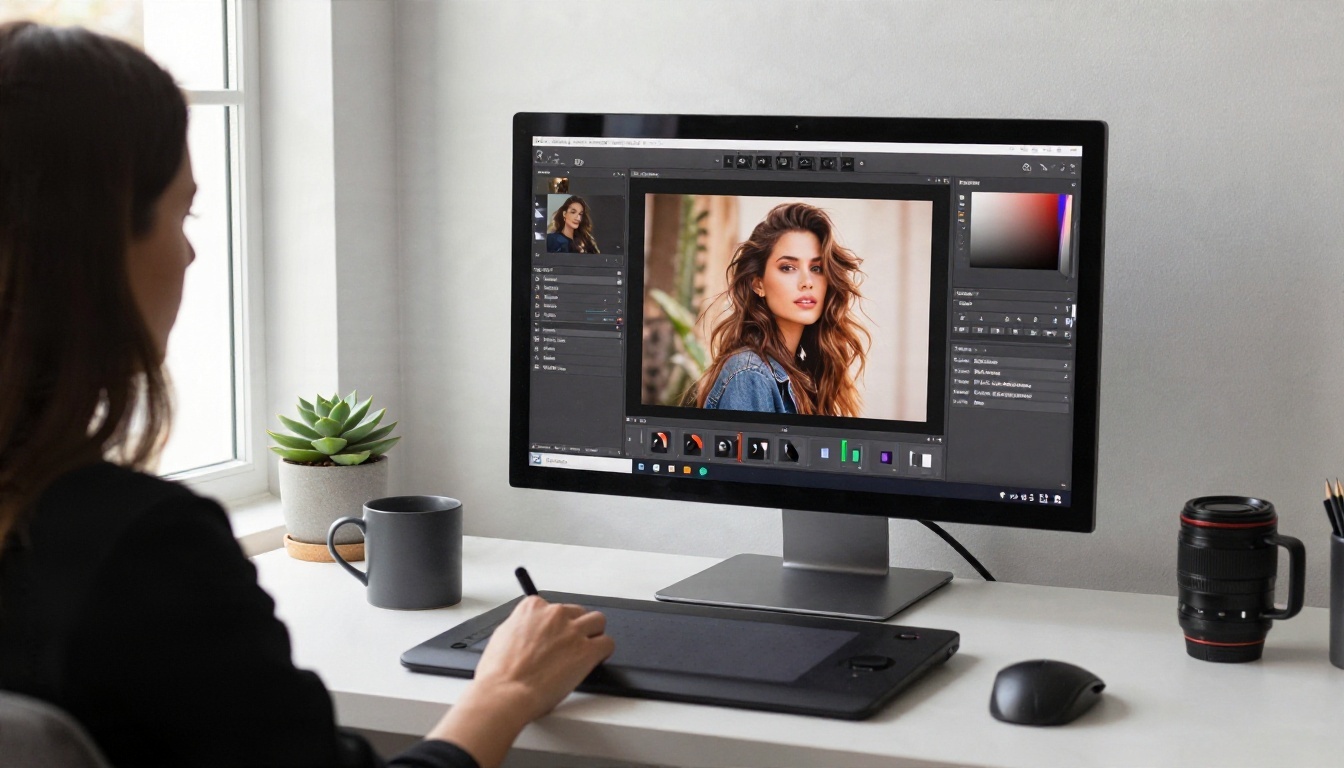
PicassoIA Image Editor Pro is the second stop, and its big draw is unlimited generations. You can edit, restyle, and regenerate as many times as you want, which matters when you are refining one look across ten variations. If a first pass is close but the outfit, light, or background is off, you fix it in the same tool instead of starting over.
More models to try
These are worth testing once you have a feel for the first two:
If you only want to see what xAI's image model can do, Grok Imagine Image 2 is also on PicassoIA as a regular image model. It is a different thing from the Grok chat app and its Android settings, so do not expect the same toggles.
| Option | Best for | Toggle or gate | Iteration limits |
|---|
| Grok on Android | Quick tries inside the app | Paid plan, age check, Spicy setting | Refusals and resets |
| Seedream 4.5 | Sharp glamour and swimwear photos | None to switch on | Fast, repeatable |
| Image Editor Pro | Editing and endless regeneration | None to switch on | Unlimited generations |
| Flux 2 Klein 4B Base | Styled variations | None to switch on | Quick runs |
| Z Image Turbo | Rapid drafts | None to switch on | Seconds per image |
How to Get Similar Results on PicassoIA
Grok's Spicy mode is not available on PicassoIA, so here is the closest workflow using Seedream 4.5.

Step by step
- Open the Seedream 4.5 page on PicassoIA.
- Write a prompt with the subject, clothing, setting, light, and lens. For example: "a woman in a navy bikini and open white shirt walking on a beach at sunset, warm backlight, 70mm lens, film grain."
- Choose a wide 16:9 ratio for scenic shots, or portrait ratios for close-ups.
- Generate, then check the skin texture, hands, and fabric edges.
- Send the best result to PicassoIA Image Editor Pro to change the outfit, tweak the background, or soften the light. Since generations are unlimited there, you can keep going until the frame feels right.
Prompt tips that work
- Describe light first. "Low golden sun from the left with a soft rim on the shoulder" does more than "beautiful lighting."
- Name the lens. "85mm f/1.8" gives you the shallow depth of field that makes portraits look photographed.
- Add texture words. Linen weave, satin sheen, wet sand, visible pores.
- Keep it suggestive, not explicit. Swimwear, lace, silk, and robes read as glamour and give cleaner results.
- Change one thing at a time. If you alter the outfit, pose, and location together, you will not know what helped.
💡 Tip: Save a prompt that works and reuse its structure. Swap only the setting or the color of the outfit to build a consistent set.
What to Do If Grok Still Fails
If you have updated the app, finished verification, confirmed the plan, reset the toggle, and rewritten your prompt, and results are still blocked, stop spending time on it. The cause is almost certainly a filter decision on xAI's side, and that can change again next week.
Here is a simple rule: give Grok one clean attempt with the checklist above. If it does not work, move to a tool where there is no toggle to chase. You will get to the image faster, and you will not be paying for a setting that might reset after the next update.
Try It Yourself Tonight
You do not need a special setting to make a striking, suggestive photo. Open Seedream 4.5, type a prompt about a sunlit terrace or a golden hour beach, and see what comes back in seconds. Then send it to PicassoIA Image Editor Pro and keep refining without hitting a daily limit.

Try a few prompt variations, compare results across models, and build a small collection of looks you like. When you want more options, browse every model at picassoia.com/en/all-models and pick the one that fits your style. Picasso IA makes the experiment easy: write a prompt, press generate, and keep what works.


