You open Grok, upload a photo, type "make it move," and instead of a video you get a prompt to subscribe. That is the experience a lot of people have had since xAI tightened access to its image and video tools in 2026. If you searched for Grok image to video free, you probably want one of two things: a way to animate a picture today without paying, or a straight answer on whether the free route still exists.
This article gives you both. You will see what free access looks like right now, where the limits bite, and which online tools animate a still image into a short clip without charging per generation. Facts about pricing and caps change quickly, so treat every number below as a snapshot and check the live plan page before you commit.
What Grok Image to Video Actually Does
Grok Imagine is xAI's media generator. Its image-to-video mode takes a single still frame, reads your motion prompt, and returns a short clip where the subject, the camera, or both move. The current video model is Grok Imagine Video 1.5, and it can also generate synchronized audio to match the motion.
The appeal is easy to see. You skip a timeline editor, you skip keyframes, and you keep the lighting and detail of your source photo. A portrait can blink and turn its head. A street scene can get passing traffic and a slow push-in.

Image to video versus text to video
Image to video starts from a frame you control. Text to video invents the first frame for you. If you care about a specific face, product, or location, image to video wins because the opening shot is already locked.
Why people want it free
Most people animating photos are not film studios. They are sellers making product loops, teachers building lesson visuals, and creators testing ideas before they invest in a longer project. For that group, a per-clip fee adds up fast.
💡 Quick rule: if you need ten test clips to get one good one, a "free" tool with a three-clip daily cap is not really free. It is a trial.
Is Grok Image to Video Free in 2026?
Short answer: mostly no, and the details depend on how you reach it.
Reports from March 2026 said xAI moved Grok Imagine image and video generation behind a paid subscription, and an xAI team member gave rapid user growth as the reason. Later reporting added a wrinkle: access is not limited to SuperGrok subscribers alone, and some X Premium and Premium+ users can use it too.
What sources disagree on is the free tier. Some say free accounts keep a thin image-only allowance inside Grok chat while video is paid only. Others say free users cannot generate images or videos at all. Because no single source is reliable here, assume that image to video requires a paid plan and treat anything free as a bonus.

Where the money sits
Third-party guides list rough monthly prices like these:
| Plan | Approx. monthly price | What reports say you get |
|---|
| SuperGrok Lite | About $10 | Basic images and short video |
| SuperGrok | About $30 | Full 720p video and higher limits |
| X Premium+ | About $40 | Grok access bundled with the X subscription |
These figures come from secondary sources, so confirm them on xAI's own pricing page. Plans, names, and caps have shifted more than once this year.
The API route
Developers can also reach the video model through xAI's API, which reportedly supports clips up to 15 seconds. That is not free either. You pay per second or per request, and you need to write code or use a tool that does.
Online Options That Cost Nothing
Search for "free" and you will find four common routes. Each one has a catch.
1. Free trial credits
Some video platforms give new accounts a small credit pack. It is enough for two to five clips. Good for a quick test, useless for a project.
2. Daily free generations
A few services reset a free allowance every 24 hours. The clips tend to be short, low resolution, and watermarked. If you only animate one photo a day, this works. If you iterate, it does not.
3. Open weights run locally
If you own a strong GPU, open video models run on your own machine with no per-clip fee. The cost shows up as setup time, VRAM requirements, and slow renders. For most people this is not a practical shortcut.
4. Subscription tiers with real unlimited generation
This is the option people overlook. Some platforms charge a flat membership and then let you generate without a per-clip meter. You pay once per month and stop counting.
💡 Watch for: the words "free" and "unlimited" used as marketing. Read whether the limit applies to clips, seconds, resolution, or queue priority.
The Real Limits You Will Hit
Even when access is open, five limits shape what you can do.
Daily caps
Guides cite figures such as more than 20 videos per 24 hours for standard SuperGrok, based on a support message from May 2026. Those numbers come from lower-quality sources and may already be outdated, so use them as a rough sense of scale only.
Clip length
Most image-to-video tools return around 5 seconds per run. Longer output usually means higher cost, a different model, or stitching clips together yourself.
Resolution
Free and entry tiers often cap at 480p. Sharp 720p output commonly sits behind a paid plan. For social posts 720p is plenty, but for a client deliverable you may want more.
Moderation filters
Image-to-video tools check both your photo and your prompt. Real faces, public figures, and anything borderline can be blocked. If a clip fails, simplify the prompt before you assume the tool is broken.
Queue time
Free users wait. Paid users skip the line. On a busy day the difference can be minutes per clip.
| Limit | Typical free access | Typical paid access |
|---|
| Clips per day | A handful or none | Dozens or no meter |
| Length | 3 to 5 seconds | 5 to 15 seconds |
| Resolution | 480p, often watermarked | 720p or higher |
| Queue | Slow | Priority |
| Audio | Often missing | Often included |
How to Use Grok Imagine Video 1.5 on PicassoIA
Here is the part many people miss: Grok Imagine Video 1.5 is available on PicassoIA, so you can animate an image online without opening the Grok app. It outputs up to 720p, supports synchronized audio, and runs in the browser with no code.
Step by step
- Open the Grok Imagine Video 1.5 page.
- Upload your source image. JPG, JPEG, PNG, and WebP all work.
- Write a motion prompt. Describe what moves and how the camera behaves.
- Leave aspect ratio on
auto to match your photo, or pick 16:9, 9:16, 1:1, 4:3, 3:4, 3:2, or 2:3.
- Keep resolution at 720p for the sharpest result, or choose 480p for a faster draft.
- Leave duration at the default of 5 seconds and generate.
Parameter tips
| Setting | Recommendation |
|---|
| Image | Sharp, well lit, subject clearly separated from the background |
| Prompt | One main action plus one camera move |
| Aspect ratio | auto for fidelity, 9:16 for vertical social posts |
| Resolution | 720p for final clips, 480p for tests |
| Duration | 5 seconds, the standard clip length |
A prompt that works
Weak prompt: "Make this move."
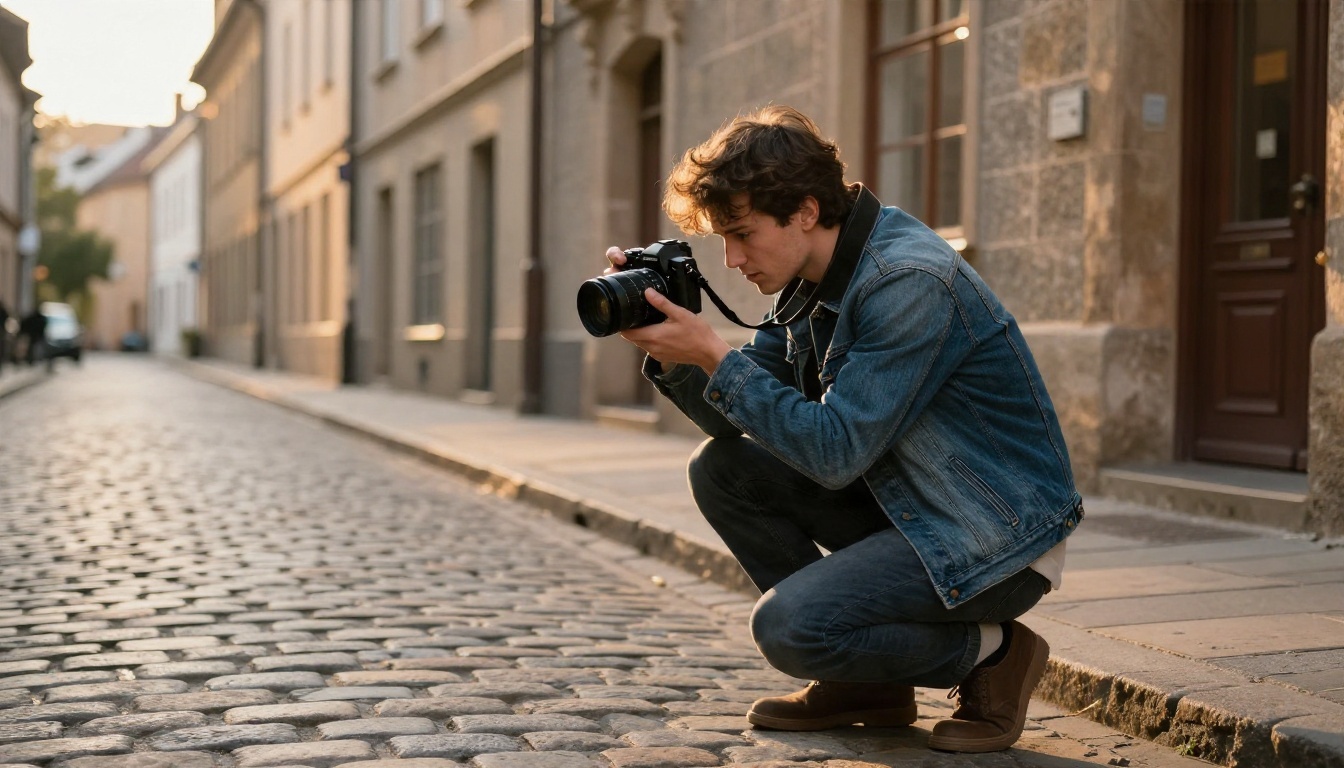
Better prompt: "The photographer lowers the camera and glances up the cobblestone street, a slow dolly-in, warm backlight flickers softly through the buildings, distant footsteps."
The second version names a subject action, a camera move, light behavior, and sound. That gives the model something concrete for every part of the clip.
💡 Tip: need a starting frame? Generate one first with Grok Imagine Image 2, then pass it straight into the video model.
Unlimited Alternatives Worth Trying
If your real goal is to stop counting clips, a flat-rate model is the better fit. These are available on PicassoIA, and each handles image to video.
Seedance 2.5 Lite for flat-rate volume
Seedance 2.5 Lite is the lightweight version of Seedance 2.5, tuned for 480p and 720p. It generates clips of 5 or 10 seconds from text or from an input image, and Elite and Infinite members run it without a per-clip cost or a daily counter. It also supports an optional last-frame image, so you can set both the opening and closing shot, plus a seed for repeatable results and a switch to turn synchronized audio on or off.
That makes it the closest match to what people hope "Grok image to video free" will be: no meter, longer clips, and a clear way to control how a shot ends.
Wan 2.7 I2V and Wan 2.5 I2V Fast
Wan 2.7 I2V is built to animate a picture into video, and Wan 2.5 I2V Fast trades some polish for speed. Use the Fast version when you are testing prompts and the newer one when you have settled on a look.
Kling v3 Video
Kling v3 Video is a strong pick for cinematic motion, such as slow pans, believable body movement, and detailed environments.
Veo 3.1 Lite and Hailuo 2.3 Fast
Veo 3.1 Lite produces video with native audio. Hailuo 2.3 Fast animates photos quickly and works well for short social loops.
Side by side
Prompt Habits That Save Credits
Whichever tool you pick, a few habits cut wasted generations. This matters most on any plan with a cap.

Choose the source image carefully
The model animates what it sees. A blurry, low-contrast photo gives a blurry, low-contrast clip. Pick images where the subject is sharp and has space around it to move.
One action per clip
A five-second clip handles one clear action well. "She turns, laughs, picks up the cup, and walks away" is four clips squeezed into one. Split it up.
Name the camera move
Words like slow dolly-in, gentle pan left, static tripod, and handheld sway give you control. If you leave the camera unspecified, the model picks one for you.
Describe light and sound
Light behavior (flicker, drifting shadows, shifting clouds) keeps a clip alive. When the model supports audio, naming the sound (footsteps, wind, a café murmur) gives you a clip that is closer to ready to post.
Test small, finish sharp
Draft at 480p. Once the motion looks right, run the final at 720p. That one habit can cut your total number of full-quality generations in half.
💡 Workflow tip: keep a short note of prompts that worked. Reuse the structure, swap the subject.
Who Should Pay and Who Should Not
Not everyone needs a subscription. Here is a quick way to decide.
Stay on free access if
- You animate one or two photos a week.
- Watermarks and 480p do not bother you.
- You are testing whether image to video is useful at all.
Pay for the original Grok plan if
- You already use SuperGrok or X Premium for other reasons.
- You want the video model tied to your Grok chat history.
- You are comfortable with whatever cap xAI applies this month.
Choose a flat-rate platform if
- You test many prompts before settling on a result.
- You need clips longer than five seconds.
- You publish regularly and a per-clip meter slows you down.
💡 Rule of thumb: count how many clips you need to get one you like. Multiply by how many finished clips you want per month. If the number is above 40, a capped plan will cost you more than a flat one.
A note on rights and faces
Whatever tool you use, only animate photos you own or have permission to use. Pictures of other people deserve extra care. Moderation filters exist for a reason, and a clean workflow starts with images you are allowed to move.
Common Mistakes to Avoid
Most failed clips come from the same few causes.
- Overloaded prompts. Too many actions create jittery or blended motion.
- Cluttered source images. If the subject touches the frame edge, the model has nowhere to go.
- Ignoring aspect ratio. Forcing a vertical photo into 16:9 crops or stretches the scene. Use
auto or match the platform.
- Chasing "free" sites that hide watermarks. Check the output before you build a workflow on it.
- Skipping the draft pass. Running every test at full resolution burns through a daily cap.
Try It on Picasso IA Today
You do not have to wait for xAI to change its pricing again. Pick a photo you already like, open Grok Imagine Video 1.5 for a faithful 720p animation with audio, then run the same image through Seedance 2.5 Lite to see what a longer, flat-rate clip looks like. Comparing the two takes a few minutes and shows you which style fits your content.
If you want a fresh starting frame, create one with Grok Imagine Image 2 and animate it right away. Every model mentioned here sits in one place at picassoia.com/en/all-models, so you can switch engines without changing tools. Start with one photo, write one clear motion prompt, and see how it moves.


