You typed a perfectly reasonable prompt, switched on Spicy Mode, and got a blurred tile that says the clip was moderated. If that sounds familiar, you are not alone. Grok Video NSFW is one of the most searched phrases in AI video right now, and also one of the most misunderstood. The mode exists, it does loosen some rules, and it still refuses a lot more than the headlines suggested at launch.
This article lays out what Spicy Mode in Grok Imagine actually does, what the limits look like in late 2026, which prompt habits get clips through, and where to go when you want more room. Everything here stays at the suggestive, glamour end of the spectrum: swimwear, lingerie fashion, boudoir mood, nothing explicit.
What Spicy Mode Actually Is
Spicy Mode is a generation setting inside the Grok Imagine feature of the Grok app. It sits next to the other style options, and when it is on, the model is allowed to produce more suggestive motion and styling than it would in the default setting. When xAI introduced it in 2025, coverage focused on partial nudity and heated reactions. Since then the mode has stayed, but it moved behind a paid plan and the guardrails around it have tightened and loosened several times.
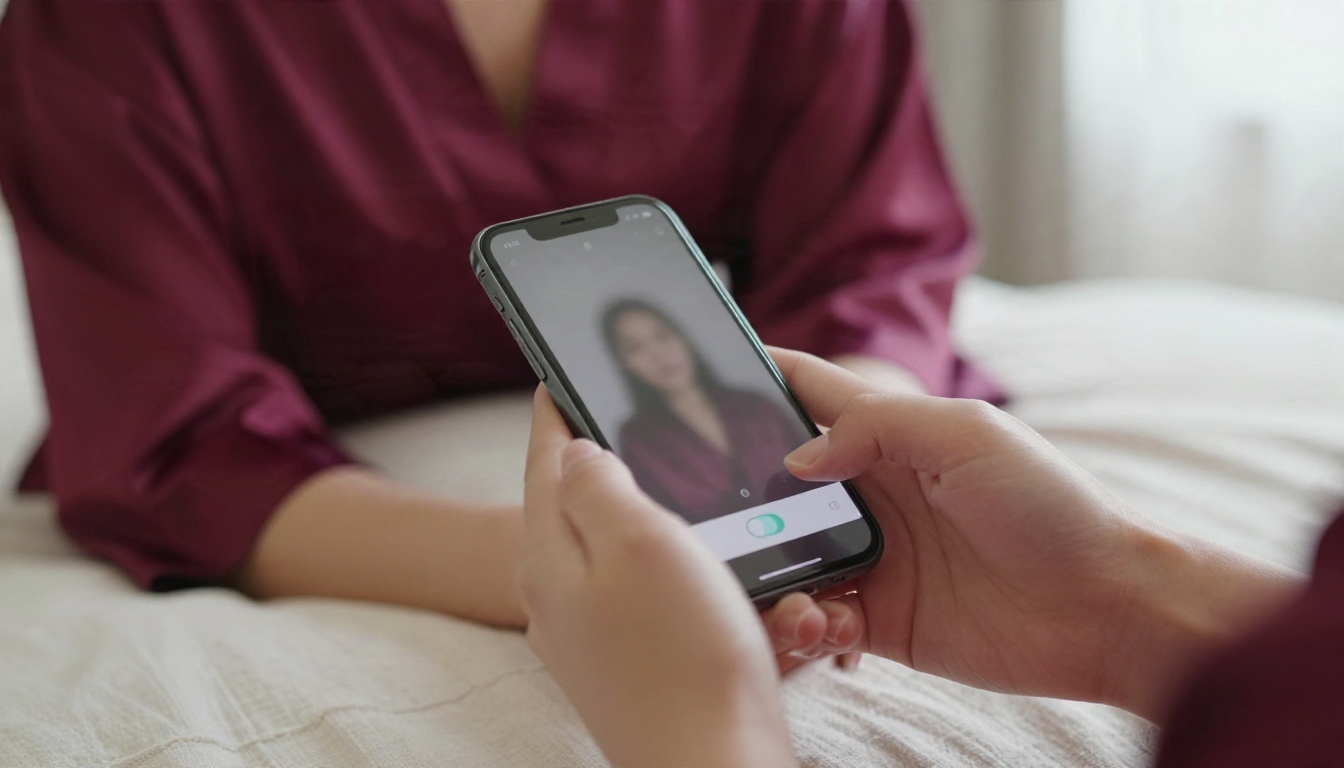
The most important thing to grasp is that Spicy is a dial, not a master switch. Turning on adult settings does not turn moderation off. A separate filter still reviews both your prompt and the finished frames, and it can block a clip at either stage.
The Grok Imagine Video line
Grok Imagine started as an image tool and grew into a video generator. Version 1.0 arrived in early 2026, and Grok Imagine Video 1.5 followed around mid 2026 with 720p output at 24 frames per second and synchronized audio. Clips are short, typically in the 5 to 10 second range, with an extension feature that stitches continuations onto an existing clip.
What it can and cannot do
| Capability | Spicy Mode behavior |
|---|
| Swimwear and beach scenes | Generally allowed |
| Lingerie style fashion shots | Hit or miss, depends on framing |
| Heavily suggestive motion | Often softened or blurred |
| Explicit content | Blocked |
| Real public figures | Blocked, and legally risky |
| Uploaded photos as first frame | Reported to be more restricted than text prompts |
💡 Reports about exact behavior vary from week to week because xAI adjusts its filters without announcements. Treat any specific claim, including the ones here, as a snapshot rather than a promise.
Why Prompts Get Blocked
Most refusals come from a handful of patterns. Once you recognize them, the "moderated" tile shows up far less often.
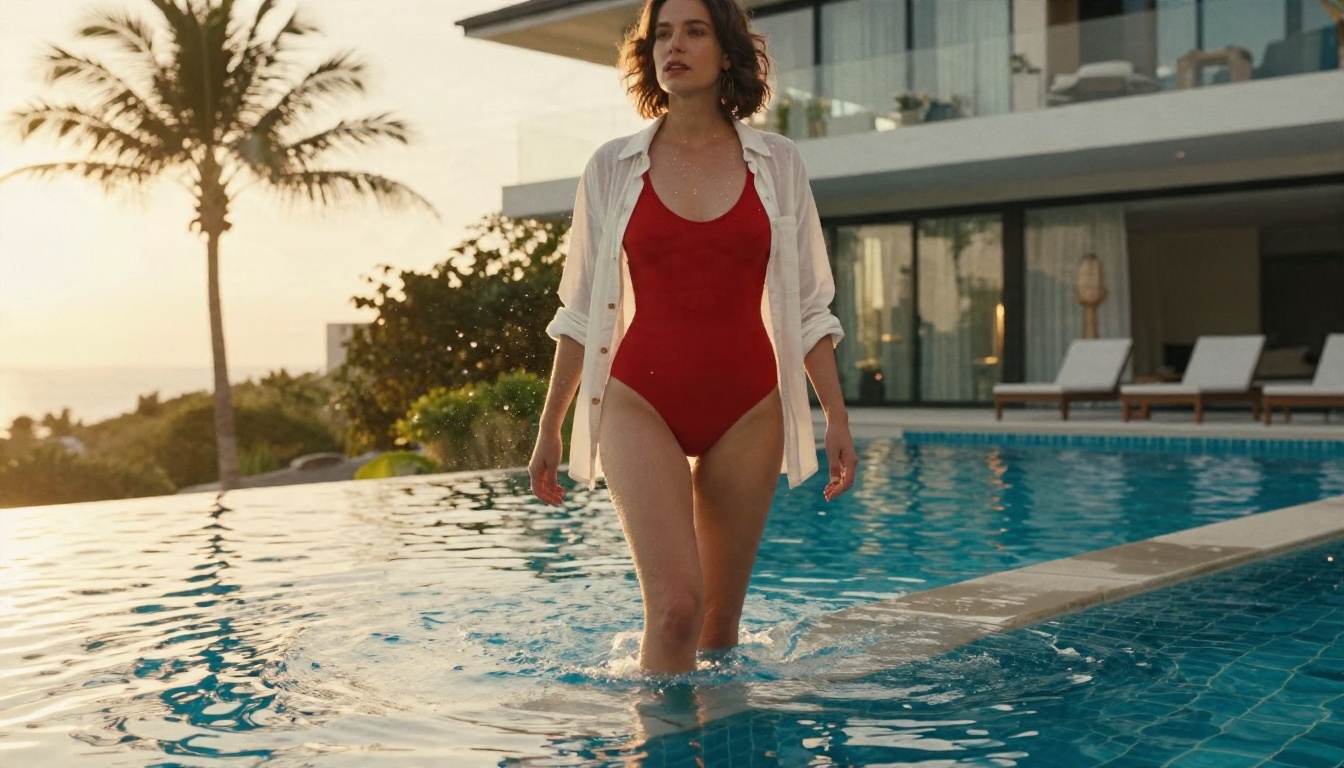
Trigger words in the prompt
Direct anatomical terms and explicit verbs are filtered at the text stage, usually before any video is generated. You will see an instant rejection rather than a blurred clip. Slang, misspellings and workarounds are caught more often than people expect, because the filter reads meaning, not just a word list.
Frame level checks
Even with a clean prompt, the model can drift toward something the output filter dislikes mid clip. That is the cause of the half finished blur. The longer the clip, the more frames get checked, so longer generations fail more often than short ones.
Account and region rules
Spicy Mode requires an adult account with the setting enabled, and it is reported to be restricted or disabled in some regions. If the toggle is missing, check your region and your plan before assuming the model is broken.
Grok Video NSFW Prompts That Work
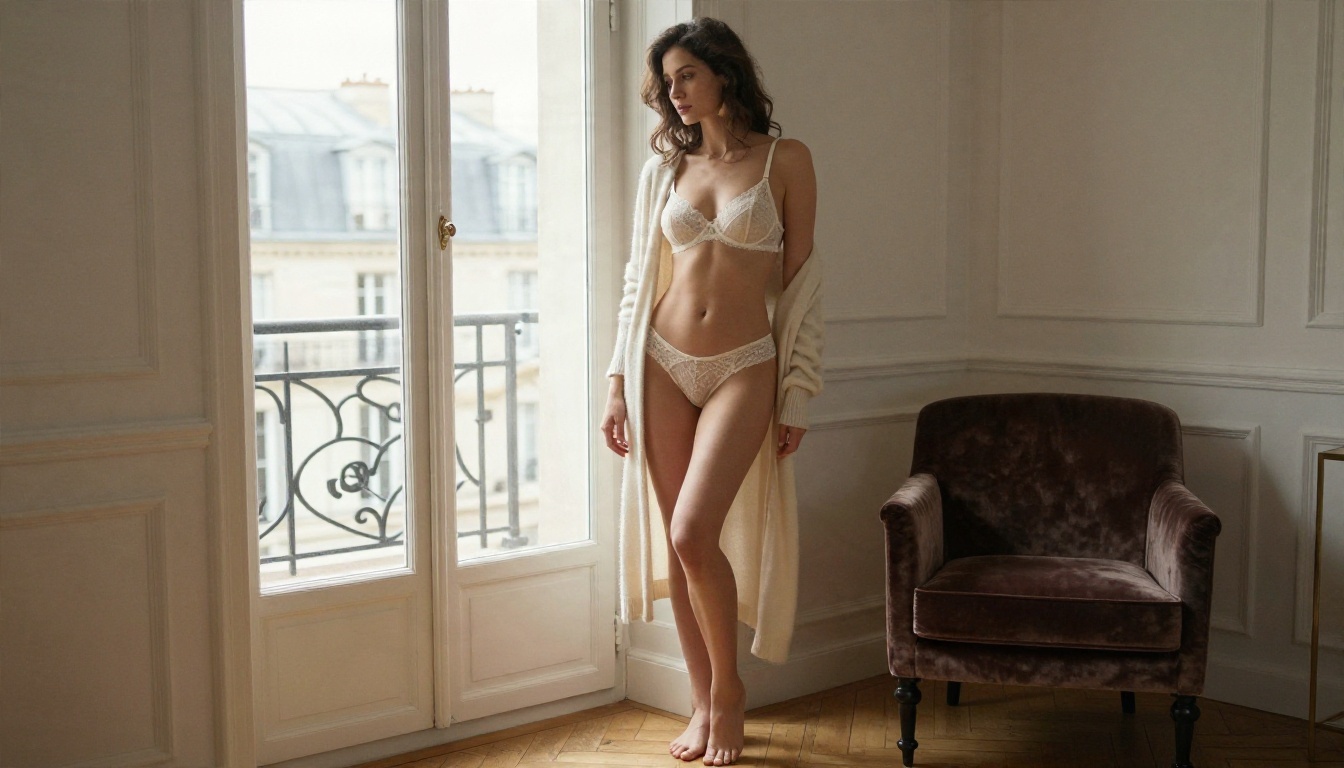
The pattern that passes most reliably is the one a fashion photographer would use: describe the wardrobe, the light, the setting and the motion, then let the mood carry the rest. Here is a structure worth reusing.
- Subject and wardrobe: "a woman in a black satin swimsuit and sheer linen shirt"
- Setting: "on a marble terrace beside a villa pool at golden hour"
- Motion: "she turns her head toward the camera and tucks her hair behind her ear"
- Camera: "slow dolly in, shallow depth of field, 85mm look"
- Atmosphere: "warm backlight, gentle breeze, soft film grain"
Prompt habits that help
- Write motion, not poses. "Slowly looks over her shoulder" beats "sensual pose."
- Keep it to one action. A single clean movement survives the frame filter better than three stacked ones.
- Lead with light and lens. Photographic language steers the model toward editorial results.
- Use short clips. Shorter duration means fewer frames for the filter to flag.
Prompt habits that backfire
- Stacking intensifiers like "very," "extremely," "ultra" in front of suggestive words.
- Asking for a specific celebrity look.
- Describing clothing being removed. Even implied undressing sequences are a common trigger.
- Reusing a blocked prompt with one word swapped. The same meaning gets the same result.
💡 If you want a reliable first frame, build it as a still image first, then animate it. A strong still removes half of the guesswork from the video step.
Limits You Will Hit
Even when your prompt passes, the platform around it has ceilings. These are the ones that matter most, based on what has been publicly reported. Figures from third party sources disagree in places, so confirm them in the app before you plan a project around them.

| Limit | What has been reported |
|---|
| Price | Paid SuperGrok tier, roughly 30 dollars per month |
| Resolution | 480p or 720p, no 1080p |
| Clip length | Short clips of about 6 to 10 seconds, extendable |
| Daily volume | A cap of roughly 20 or more videos per 24 hours on the standard tier, reported secondhand |
| Spicy availability | Adult setting required, restricted in some regions |
| Moderation | Always on, even with Spicy enabled |
The hidden cost: wasted generations
The sticker price is not the real cost. Every blocked clip still eats into your daily allowance, so a workflow that fails one in three times effectively shrinks your cap by a third. Over a week of testing prompts, that adds up fast.
The consistency problem
Short clips mean you cannot hold a scene for long, and each new generation reinvents the face and wardrobe slightly. Creators who need the same character across several clips usually end up fighting the tool more than directing it.
Why Creators Look Elsewhere
Frustration tends to come from three places: unpredictable refusals, a monthly subscription for a capped service, and no control over the filter. None of that is a flaw in the video quality. Grok Imagine Video 1.5 produces good motion and the audio is a real plus. The friction is everything around the model.
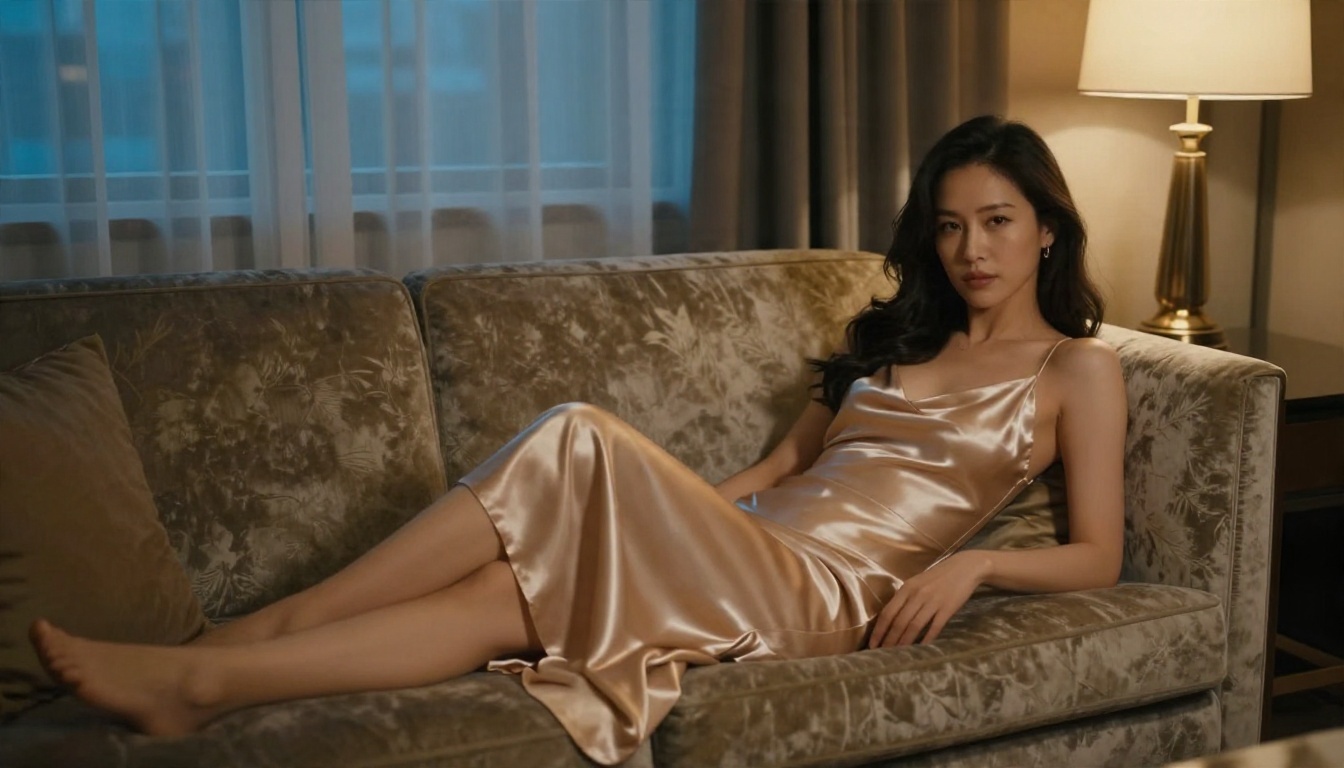
That is why a common workflow has emerged: build the still image on a model with fewer restrictions, then animate it with a video model. You keep creative control over the look, and you only spend video generations on frames you already like.
Uncensored Alternatives on PicassoIA
For suggestive, glamour oriented work, the order I would try things in is below. Start with the image step, because the first frame decides how good the clip can be.
Seedream 4.5 for the first frame
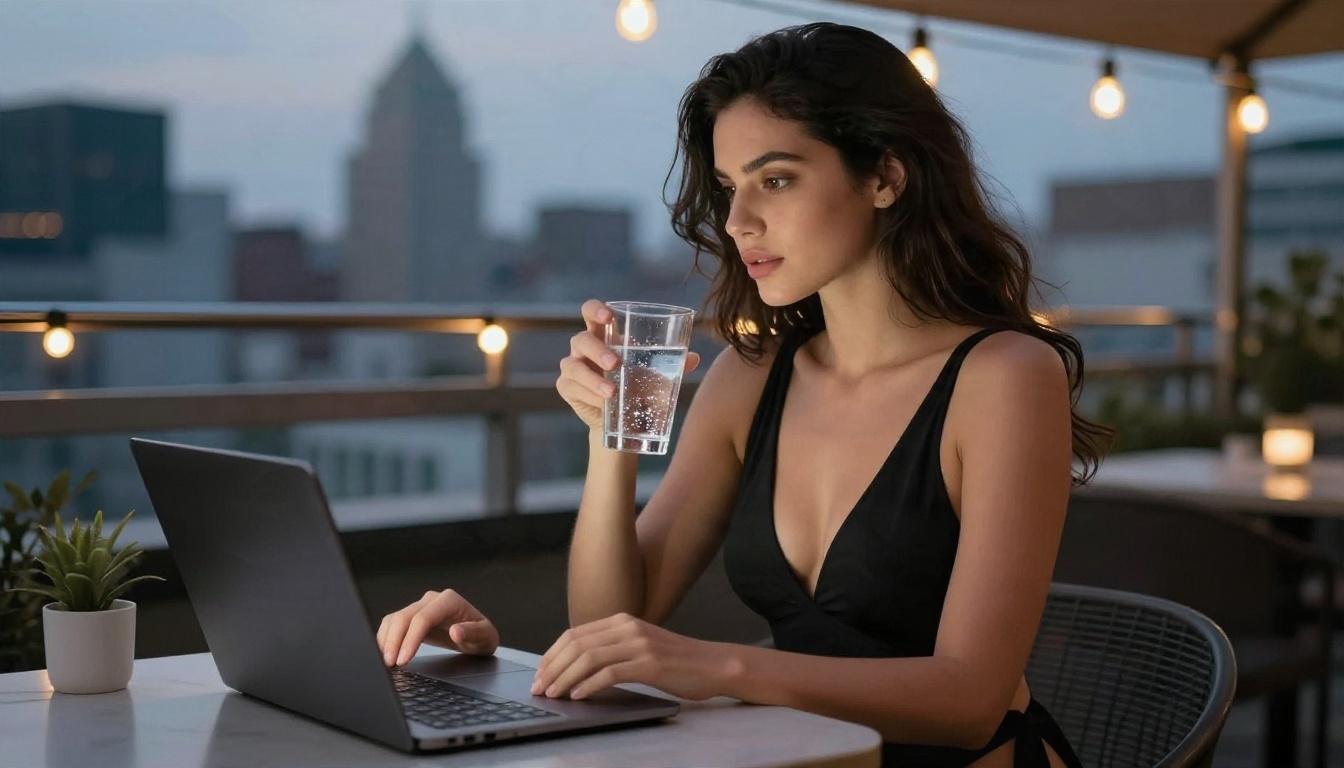
Seedream 4.5 is where I would lead. It produces sharp, photographic stills up to 4K, handles skin texture, fabric and lighting well, and it does not block suggestive, adult oriented glamour content the way many mainstream models do. For swimwear, boudoir style fashion and lifestyle scenes, it gives you a first frame worth animating.
PicassoIA Image Editor Pro for fixes and variations
PicassoIA Image Editor Pro is an unlimited AI photo editor, which matters when you are iterating. Change an outfit, adjust a setting, fix a hand or swap the background without watching a generation counter. Unlimited editing is the opposite of the wasted generation problem described above.
Video models to animate your frames
Once you have a still you like, these video models on PicassoIA can bring it to life:
The sweet spot for most people is pairing Seedream 4.5 for stills with Seedance 2.5 Lite for motion. Both are quick, and the Lite model's unlimited allowance means you can test five or six motion prompts without counting.
💡 Browse the full list at picassoia.com/en/all-models to see every image, video and editing model in one place.
How to Use Grok Imagine Video 1.5 on PicassoIA
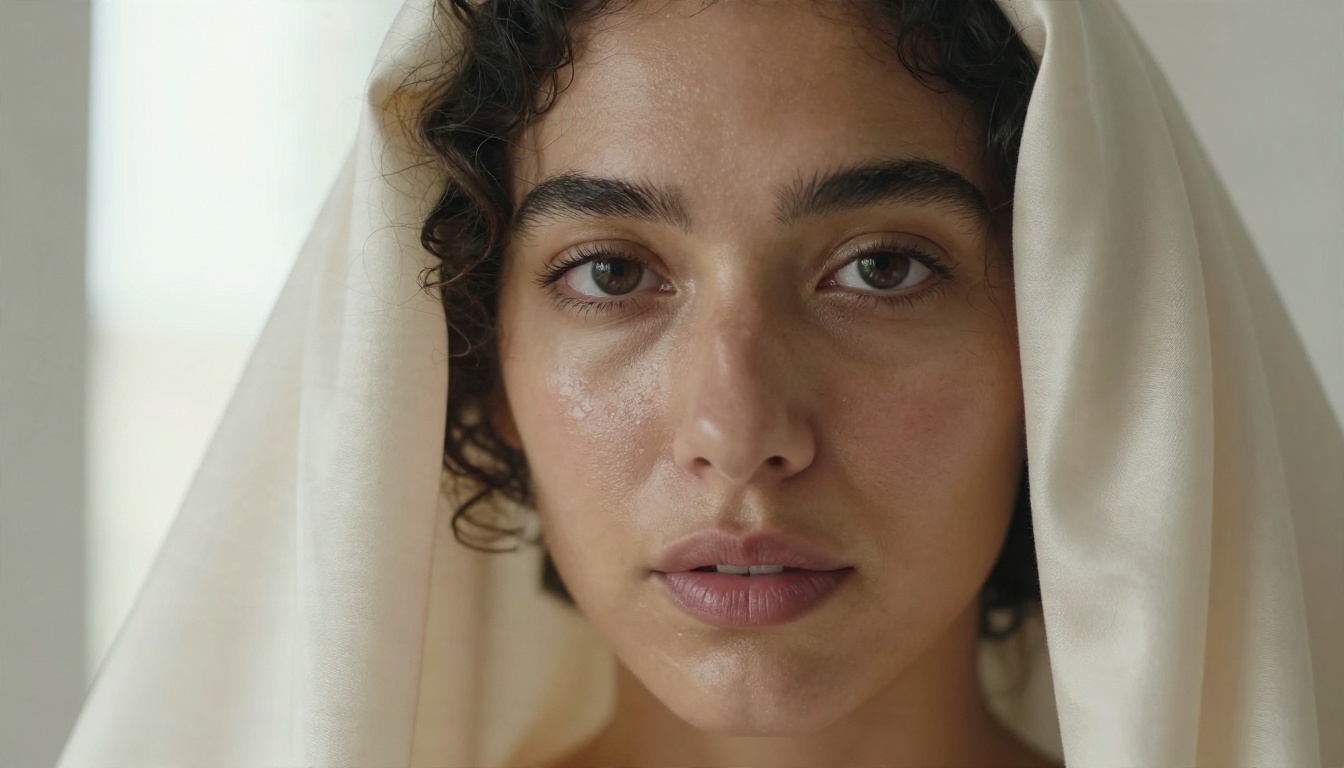
If you like the Grok look and want to try it without a monthly plan, Grok Imagine Video 1.5 is available on PicassoIA. It animates a still image into a short clip with synchronized audio. Note that this is the video model itself, not the Spicy Mode toggle from the Grok app, so keep your content in the tasteful, suggestive range.
Step by step
- Open the model page and choose Grok Imagine Video 1.5.
- Upload your first frame. JPG, PNG and WebP work. A sharp, well lit still gives the best result, so generate it with Seedream 4.5 first.
- Write a motion prompt. Describe what moves and how the camera behaves, for example: "she slowly turns toward the window, silk shifts in the breeze, slow push in, soft golden light."
- Set resolution to 720p. 480p is available for quick drafts.
- Leave aspect ratio on auto so the clip matches your image, or pick 16:9, 9:16 or 1:1 for a specific platform.
- Keep duration at 5 seconds for the cleanest motion.
- Generate, review, adjust. Change one thing at a time so you can tell what helped.
Parameter tips
| Setting | Recommendation |
|---|
| Resolution | 720p for finals, 480p for tests |
| Duration | 5 seconds, the default |
| Aspect ratio | Auto for best framing |
| Prompt length | One or two sentences of motion |
| First frame | Portrait or medium shot with clear lighting |
Extending the clip
If you need a longer scene, Grok Imagine Video Extension continues an existing clip, and Grok Imagine R2V turns reference photos into video. Both are on PicassoIA and useful when one 5 second shot is not enough.
A Workflow That Saves Time
Here is the routine that cuts down on rejected generations and wasted effort.

Step 1: Build the still
Write a photographic prompt in Seedream 4.5 with wardrobe, setting, light, lens and mood. Generate three to four variations and pick the one with the best face and posture.
Step 2: Polish in the editor
Use Image Editor Pro to fix small flaws: a stray strand of hair, a background object, the color of an outfit. Because it is unlimited, you can be picky.
Step 3: Animate with a short motion prompt
Pick a video model and write one clear action plus one camera move. Resist the urge to describe the whole scene again, since the image already holds that information.
Step 4: Compare models
Run the same frame through two video models. Motion style differs a lot. One may give smoother camera work, the other more natural body movement, and the best choice depends on the scene.
Step 5: Upscale if needed
If a clip looks soft on a large screen, run it through a video enhancement model before posting.
Safety and Common Sense
Suggestive does not mean careless. A few rules apply no matter which tool you use.
- Only depict adults. Never create content that suggests anyone under 18.
- Never use real people's likeness without consent. That includes celebrities, classmates and exes. It is a legal problem in a growing number of places, not just a policy issue.
- Label AI content when you post it, particularly on platforms that require it.
- Check platform rules before uploading. Each social network has its own line between suggestive and prohibited.
Quick Answers
Does Grok Video NSFW allow explicit content? No. Spicy Mode loosens suggestive styling, but moderation stays active and explicit material is blocked.
Is Spicy Mode free? Reports say it sits behind the paid SuperGrok plan, which runs roughly 30 dollars per month.
Why does my clip come out blurred? The output filter flagged one or more frames. Shorten the clip, simplify the action and remove intensifiers from your prompt.
Can I animate my own photos? The Grok app is reported to be stricter about uploaded images. On PicassoIA you can upload your own first frame to Grok Imagine Video 1.5 and the other video models.
What is the best free route? Generate the still with Seedream 4.5, edit with Image Editor Pro, then animate with Seedance 2.5 Lite.
Try It Yourself on PicassoIA
The fastest way to see the difference is to run one idea through both steps. Pick a scene you have been trying to get out of Grok, write it as a photographic prompt in Seedream 4.5, polish it in PicassoIA Image Editor Pro, and animate it with Seedance 2.5 Lite or Grok Imagine Video 1.5. It takes a few minutes, and you will know right away which setup suits your style.
Open picassoia.com/en/all-models, choose a model, and start creating your own images and videos today.


