You have a strong still photo and a deadline. The photo needs to move: a slow push toward the subject, hair catching a breeze, steam rising off a cup. The Hailuo 2.3 API from MiniMax is built for exactly that job, and it does it for well under a dollar per clip. But the price list, the settings and the prompt format all have small traps that cost money if you hit them blind.
This article lays out what the Hailuo 2.3 API costs, what each setting does, and how to write image to video prompts that behave. You will also find a short walkthrough for running the model on PicassoIA without writing a single line of code, plus alternatives for the cases where Hailuo is not the right pick.
💡 Pricing note: the figures below come from MiniMax's public pay-as-you-go list as I found it in November 2026. Resellers and gateways charge slightly different rates, and MiniMax has been rolling out newer model lines with per-second pricing. Check the provider you actually use before you commit to a budget.
What Hailuo 2.3 Actually Does
Hailuo 2.3 is MiniMax's video model that turns a text prompt, or a still image plus a text prompt, into a short clip. It sits in the Hailuo line after Hailuo 02 and is tuned for believable body motion, cloth and hair movement, and camera behavior that feels like a real operator rather than a slideshow zoom.
The model ships in two flavors:
- Standard: the full-quality version, available at 768p and 1080p, with 6 or 10 second clips at 768p.
- Fast: a cheaper, quicker variant aimed at image to video work. It is the one to use for drafts and high-volume batches.

Text to Video vs Image to Video
Text to video asks the model to invent everything: subject, lighting, framing. Image to video fixes the first frame, so composition, faces, colors and product shapes stay under your control. For anything where a brand, a face or a specific scene matters, image to video is the safer route, and it is where Hailuo 2.3 performs best.
Who Uses the API
The API is for developers wiring video into an app, agencies batching product clips, and automation builders who want a photo uploaded to a store to come back as a short motion loop. If you only need a handful of clips, a hosted interface is simpler and you skip the integration work entirely. More on that in the PicassoIA section below.
Hailuo 2.3 API Pricing Breakdown
MiniMax charges per generated clip, and the price depends on three things: the model tier (Standard or Fast), the resolution, and the duration. There is no charge for failed generations on most providers, but check that with yours.
| Tier | Resolution | Duration | Price per clip (USD) |
|---|
| Standard | 768p | 6 seconds | $0.28 |
| Standard | 768p | 10 seconds | $0.56 |
| Standard | 1080p | 6 seconds | $0.49 |
| Fast | 768p | 6 seconds | $0.19 |
| Fast | 768p | 10 seconds | $0.32 |
| Fast | 1080p | 6 seconds | $0.33 |

Standard vs Fast Rates
Fast is roughly 30 to 40 percent cheaper than Standard at the same length and resolution. A 6 second 768p clip costs $0.19 on Fast against $0.28 on Standard. Over a thousand clips that gap is $90, which is real money for a small team.
Note the 10 second price on Standard: $0.56 is exactly double the 6 second price, so you pay slightly more per second for longer clips ($0.056 per second against about $0.047). If the shot only needs 6 seconds of action, do not ask for 10.
Why Reseller Prices Differ
You will see slightly different numbers on third-party API gateways. One reseller lists around $0.30 for a 6 second 768p Standard clip, another around $0.29. The difference is usually a small margin for hosting, queue handling or unified billing across many models. Per-second gateways may list 1080p at a rate that works out near $0.08 per second.
Pick based on what you actually need: official pricing for the lowest unit cost, a gateway if you want a single key for ten different models and a single invoice.
💡 One source I checked also flags 1080p as not supporting the 10 second duration. Treat 1080p as a 6 second option unless your provider says otherwise.
Budgeting a Real Project
Here is a draft-then-final workflow that keeps the bill low:
- Generate 10 drafts of the shot on Fast at 768p: 10 × $0.19 = $1.90.
- Pick the best prompt and first frame.
- Render 2 finals on Standard at 1080p: 2 × $0.49 = $0.98.
Total for one polished shot: about $2.88. If you had rendered all twelve at Standard 1080p, the same shot would cost $5.88. Drafting on Fast saves roughly half.
Core API Settings Explained
The request itself is short. Most image to video calls need only a handful of fields, and the defaults are reasonable. These are the ones worth thinking about.
| Setting | What it controls | Typical value |
|---|
| Prompt | Motion, camera and mood description | 30 to 80 words |
| First frame image | The still that becomes frame one | JPG or PNG, clean and sharp |
| Duration | Clip length in seconds | 6 or 10 |
| Resolution | Output sharpness | 768p for drafts, 1080p for finals |
| Prompt optimizer | Lets the system rewrite your prompt | On for short prompts, off for precise ones |
First Frame Image
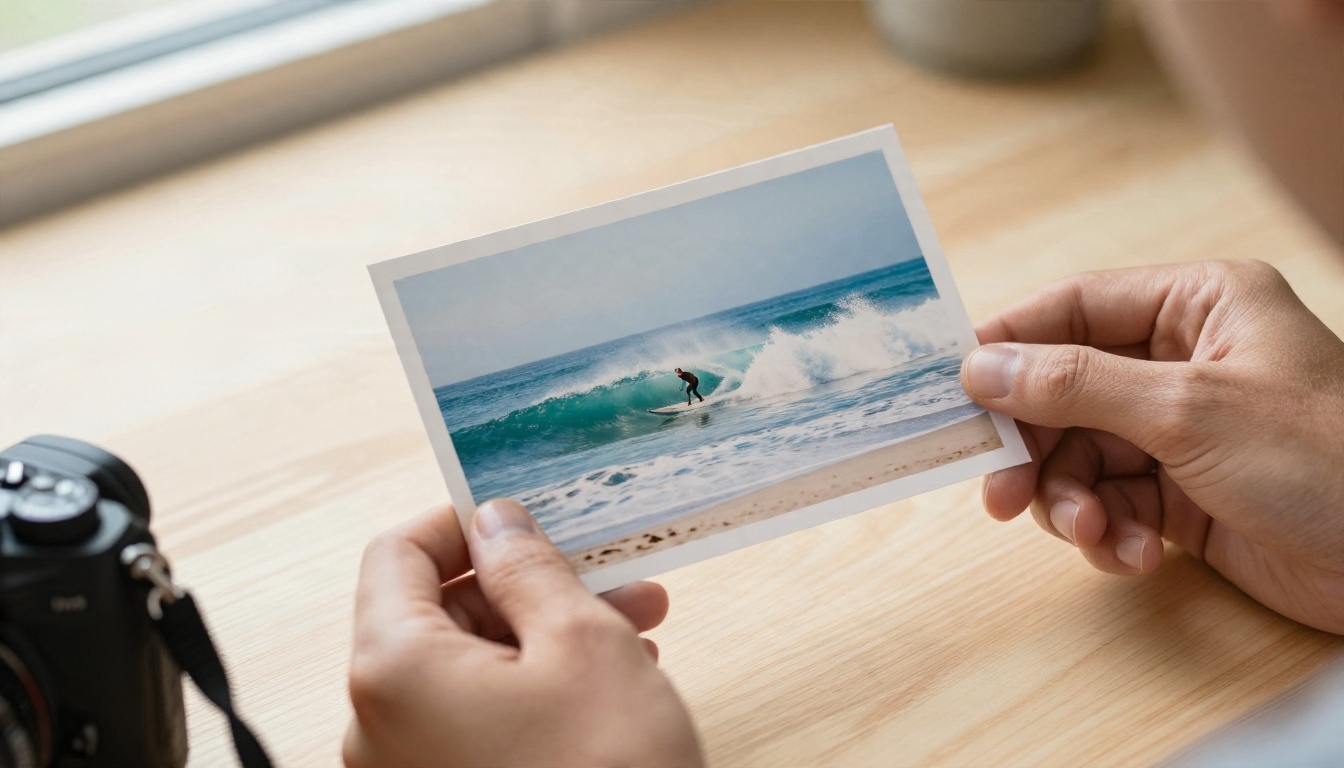
This is the setting that decides most of your quality. The model keeps the identity, color palette and composition of this image, so a soft, noisy or heavily compressed photo gives you a soft, noisy video. Use the sharpest source you have, ideally close to a 16:9 or 9:16 frame so nothing is awkwardly cropped.
Duration and Resolution
Longer clips give the motion more room to drift. On a 10 second generation, faces and hands can wander further from the source image than they do in 6 seconds. For product shots and portraits, 6 seconds is both cheaper and more stable. Save 10 seconds for slow landscape moves where drift is harmless.
Resolution is simpler: 768p for iteration, 1080p for the clip you actually publish.
Prompt Optimizer
The optimizer rewrites your prompt into a longer, more descriptive one before generation. It helps when your prompt is a single line like "woman walking". It hurts when you have already written a precise camera instruction, because the rewrite can add motion you did not ask for. A good rule: leave it on for quick tests, turn it off once you have a prompt you trust.
Camera Commands in Prompts
Hailuo reads camera instructions written in square brackets, such as [Push in], [Pull out], [Pan left], [Tracking shot] or [Static shot]. You can combine a couple in one bracket, for example [Push in, Pan right]. Keep it to one or two moves. Stacking four camera commands usually produces a confused shot.
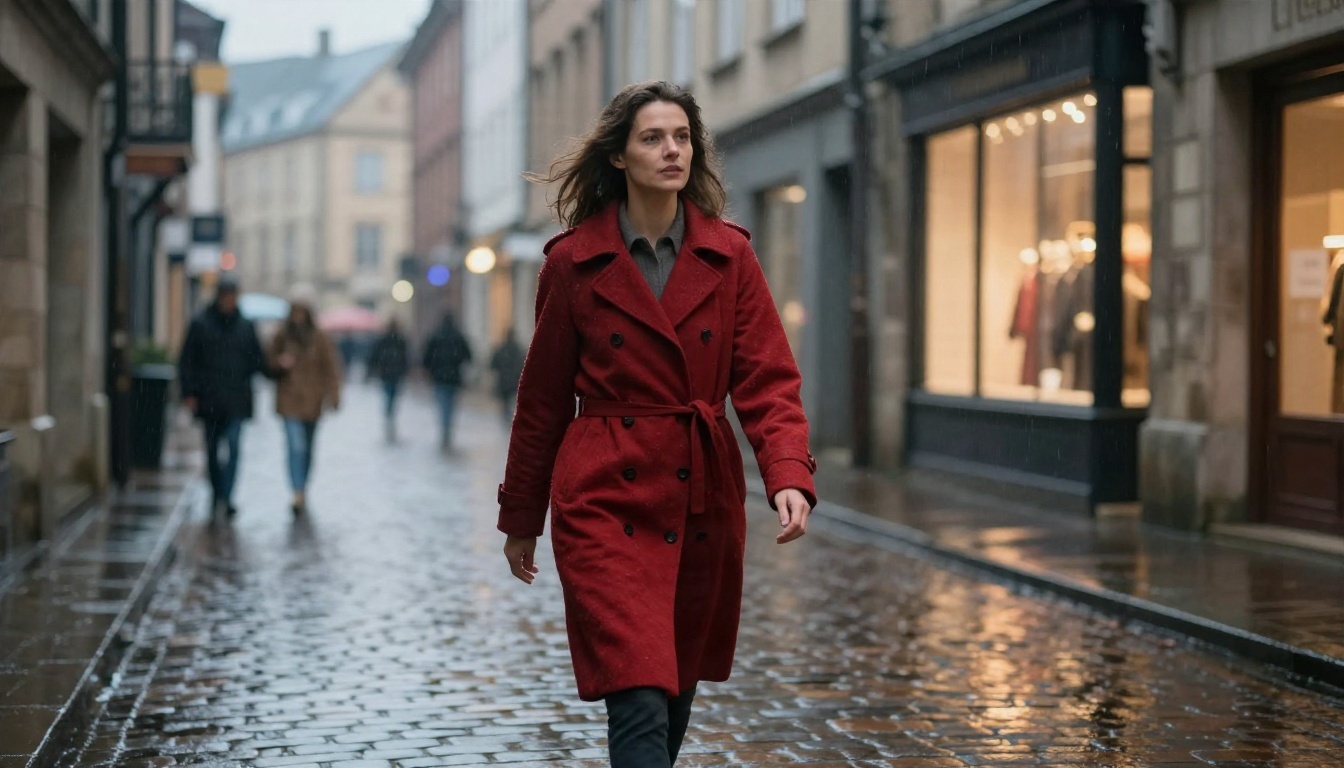
Image to Video Prompt Examples
A good image to video prompt does not describe the image again. The model already sees it. Describe only what changes: the subject's motion, the camera move, and the atmosphere. Here are four patterns that work, each with a prompt you can adapt.
Portrait With Natural Motion
Start with a clean portrait where the face is well lit and unobstructed. Ask for small motion, not dramatic action.
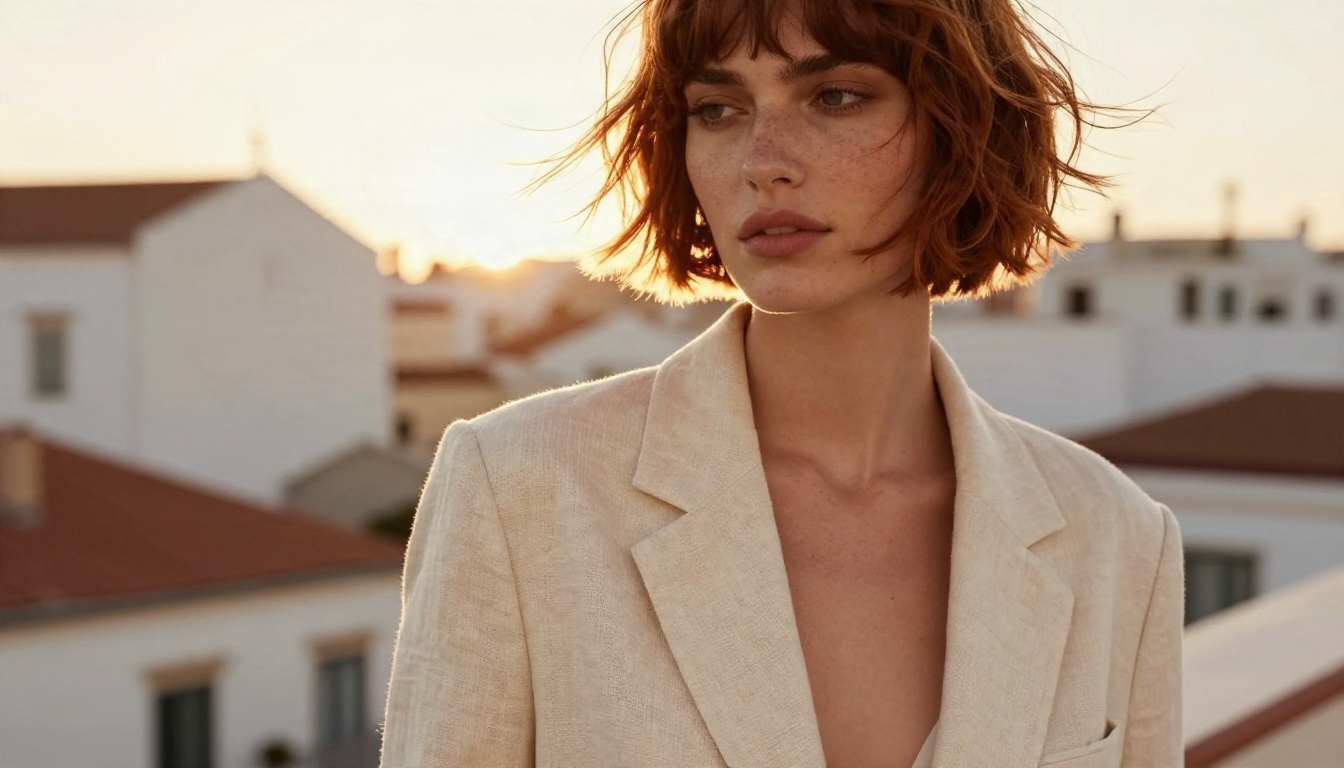
Prompt: [Push in] The woman turns her head slightly toward the camera and smiles softly. A light breeze moves her hair and the lapel of her blazer. Warm golden hour light, shallow depth of field, natural skin texture.
Why it works: one camera move, one subtle action, and the atmosphere is already in the source image. Duration 6 seconds, 768p on Fast for drafts.
Product Shot With Slow Orbit
Products need stability. The shape must not warp, and logos should not melt.
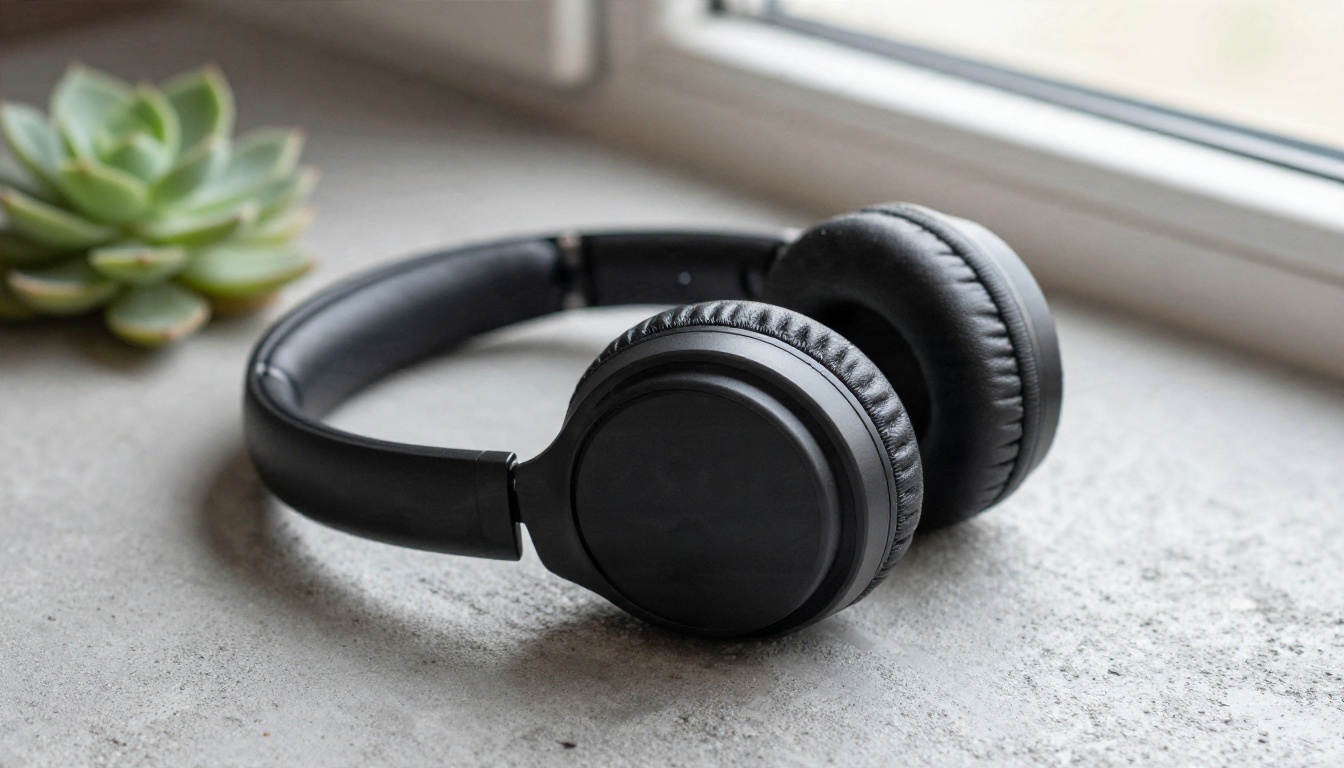
Prompt: [Pan right] Slow, steady camera drift around the headphones. Soft window light shifts gently across the matte surface. The succulent leaves sway very slightly. No other movement.
The phrase "no other movement" is a useful guardrail. Without it, the model sometimes adds extra motion to objects that should stay still. Keep this one at 6 seconds, and render the final at 1080p.
Landscape Drift and Parallax
Landscapes are forgiving, which is why they are the best place to use 10 second clips.
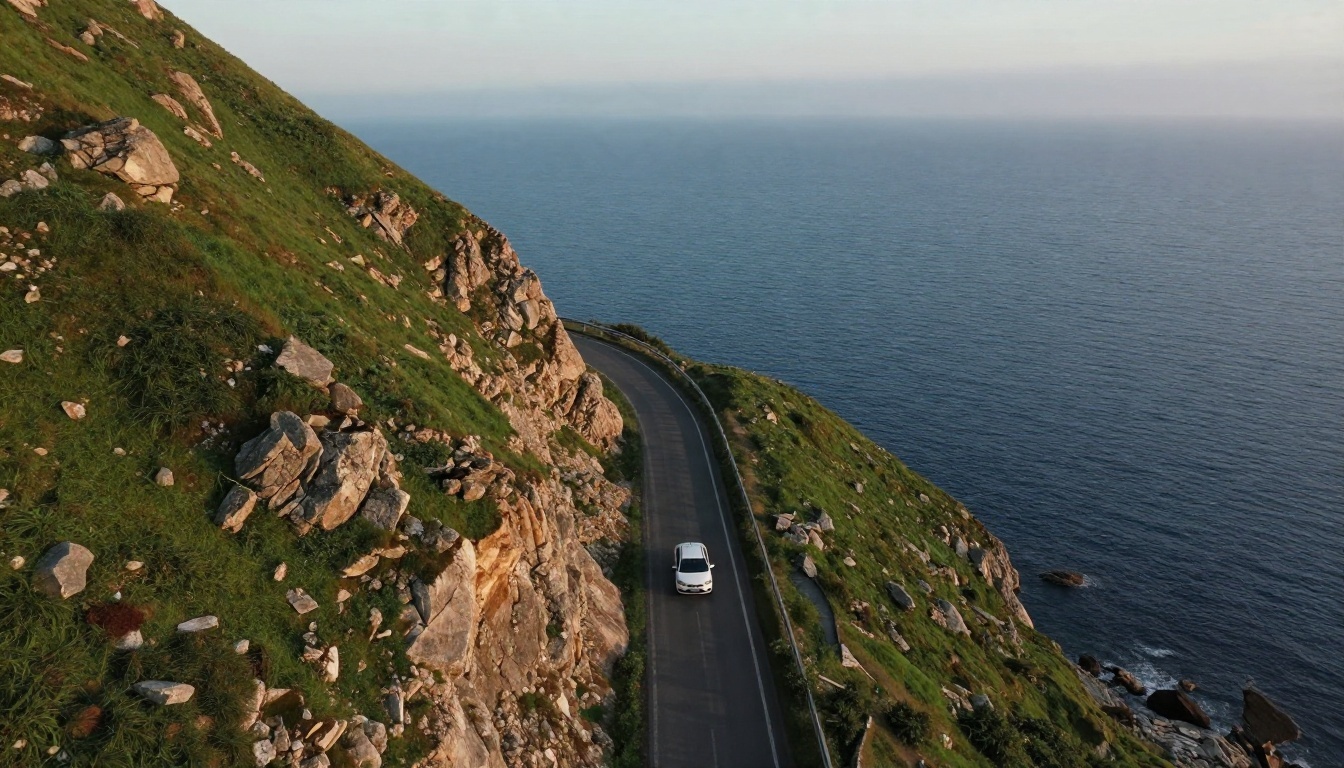
Prompt: [Push in] The camera glides forward over the coastal road. The white car travels slowly along the curve. Light haze drifts over the sea, waves roll gently below.
Describe the moving elements by name (the car, the haze, the waves) so the model knows what should move and what should hold still.
Animals and Fast Action
Fast action is the hardest category for any video model. Hailuo 2.3 handles running and jumping better than earlier versions, but results vary more between runs.
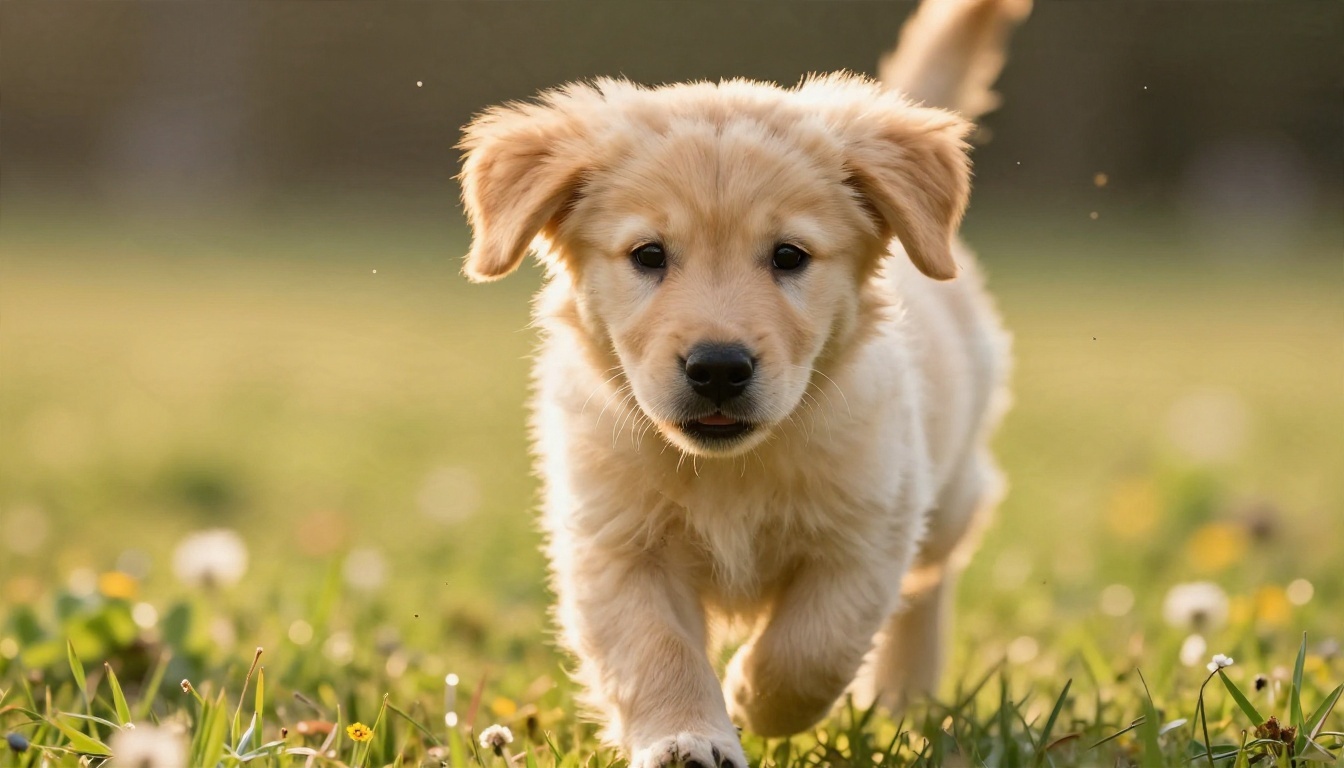
Prompt: [Tracking shot] The puppy runs toward the camera across the meadow, ears flapping, grass and petals kicking up behind it. Warm backlight, natural motion blur.
Plan on generating three or four drafts of any fast action shot. This is exactly where Fast pricing pays off.
Common Mistakes That Waste Credits
Most wasted money comes from a handful of repeatable errors.
- Describing the image instead of the motion. The model sees the photo. Spend your words on movement and camera.
- Asking for too much in one clip. A subject who walks, turns, talks and picks something up in 6 seconds will look rushed or broken. One action per clip.
- Rendering finals before testing. Always iterate at 768p on Fast. Switching to 1080p Standard is the last step, not the first.
Other things to watch: text inside the source image (signs, labels) can warp during motion, extremely busy backgrounds raise the risk of artifacts, and low-resolution sources never get sharper just because the output is 1080p.
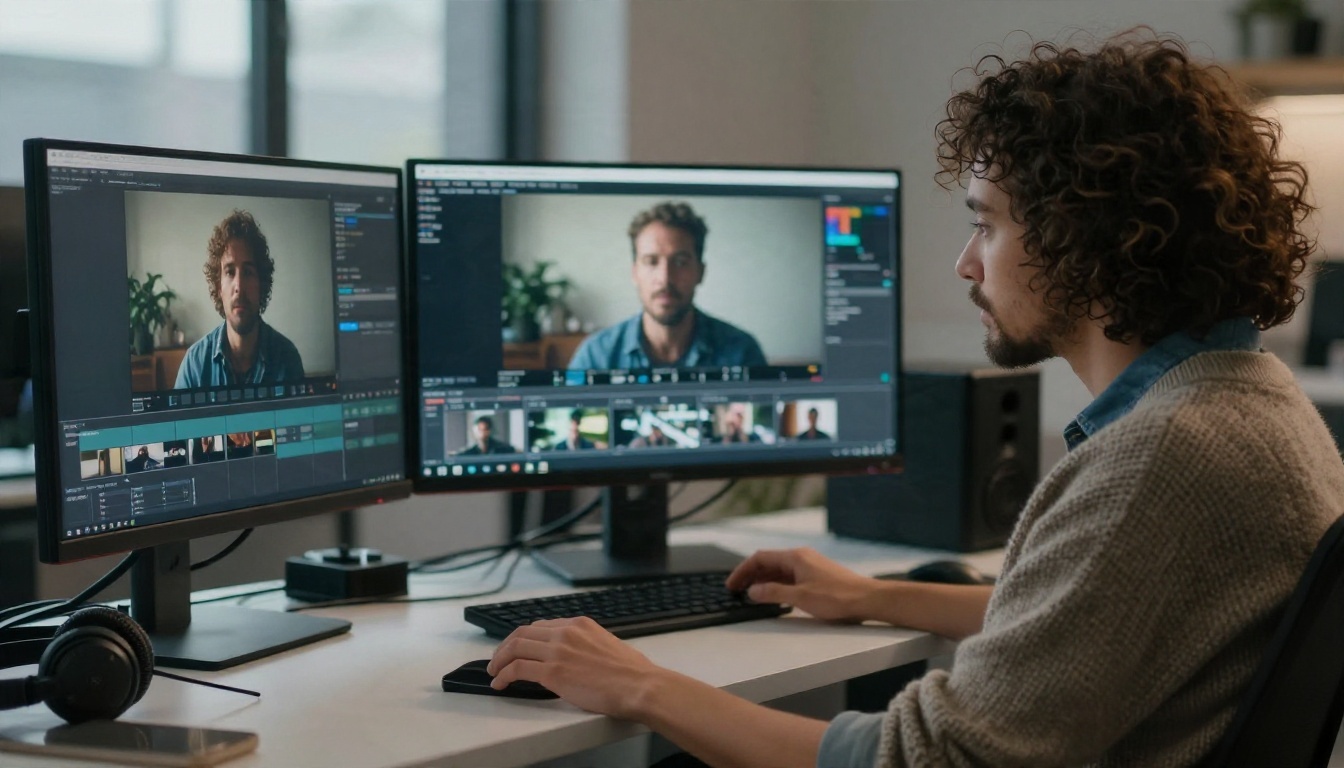
💡 Team tip: keep a small spreadsheet of prompt, first frame, tier and verdict. After twenty clips you will see which phrases the model responds to, and you will stop paying for repeats.
How to Use Hailuo 2.3 on PicassoIA
If you do not want to build an API integration, you can run the model directly on PicassoIA. There is no key to manage and no code to write. You are limited to what the interface exposes, but for most creators that is everything they need.
Step by Step With Standard
- Open the Hailuo 2.3 page.
- Upload your first frame image. Choose the sharpest version you have.
- Write a motion prompt using the patterns above: camera move in brackets, one subject action, one atmosphere note.
- Choose a duration (6 seconds for most shots) and a resolution (768p to test, 1080p for the final).
- Generate, review, and adjust one thing at a time: either the camera command or the action, never both.
Faster Drafts With Fast
For quick iteration, open Hailuo 2.3 Fast, which is built to animate photos. Use it to try five or six prompt variations, then take the winning prompt and first frame to the Standard model for the final render. The workflow mirrors the draft-then-final budget above.
💡 Parameter tip: keep your first prompt under 50 words. If the result is close but not right, add a single clause rather than rewriting from scratch.
Alternatives When You Need Different Output
No single video model wins every shot. These alternatives are all on PicassoIA, so you can switch without changing platforms.
| Model | Best for | Notes |
|---|
| Hailuo 02 | 1080p clips with the earlier Hailuo look | A reasonable fallback if a prompt behaves better there |
| Kling v3 Video | Cinematic motion and character shots | Strong on realistic human movement |
| Seedance 2.5 | Longer clips, up to 30 seconds | Useful when 6 or 10 seconds is too short |
| Wan 2.5 I2V Fast | Quick image animation drafts | Fast turnaround for testing source images |
A practical pattern: test the same first frame on two models with the same prompt. The results often differ more than you expect, and you pick the one that suits the shot.
Start Animating Your Own Photos
The cost of a good Hailuo 2.3 clip is small: roughly $0.19 to $0.56 depending on tier, resolution and length. What costs more is trial and error, so run your drafts cheap, keep prompts short, and write about motion rather than appearance.
Take one of your best stills, pick a single camera move, and generate a 6 second draft today. Open Hailuo 2.3 or Hailuo 2.3 Fast on PicassoIA, upload your image, and see what your photo does when it moves. When you want to compare other engines, browse everything at picassoia.com/en/all-models.


