Most people try Hailuo once, type a vague sentence, and get a clip that looks fine but feels random. Then they try again with a longer sentence and get something just as random. The problem is rarely the model. It is the prompt, the settings, and the choice between Fast and the full-quality mode. Get those three right and a six-second clip can look like it was shot on a real set, with believable faces, weight in the movement, and a camera that behaves.
This article walks through how Hailuo AI video actually works, which settings change the result, how Fast compares with the Pro-style full model, and five prompt examples you can copy and adapt today.
What Hailuo Actually Does
Hailuo is a family of video generation models built by MiniMax. You give it words, a still photo, or both, and it returns a short clip with motion, lighting changes, and in many cases natural-looking human expression. It is popular with solo creators because it handles people and body movement better than many rivals, which is the thing that usually breaks first in AI video.
Text-to-video and image-to-video
There are two ways to start a clip:
- Text-to-video: you describe everything, the model invents the first frame and the motion.
- Image-to-video: you upload a photo as the first frame and describe only what should move.
Image-to-video gives you far more control over the look, since the opening frame is already fixed. Text-to-video gives you more surprise. If you care about a specific face, product, or location, start from a photo.
💡 Rule of thumb: use text-to-video to find an idea, then switch to image-to-video once you like a frame and want to repeat it with different motion.

Which versions are on PicassoIA
Several Hailuo and MiniMax video models are available. Here is how they line up:
For most projects in late 2026, the pair you want is Hailuo 2.3 and Hailuo 2.3 Fast. The rest of this article focuses on them.
Fast vs Pro Modes Side by Side
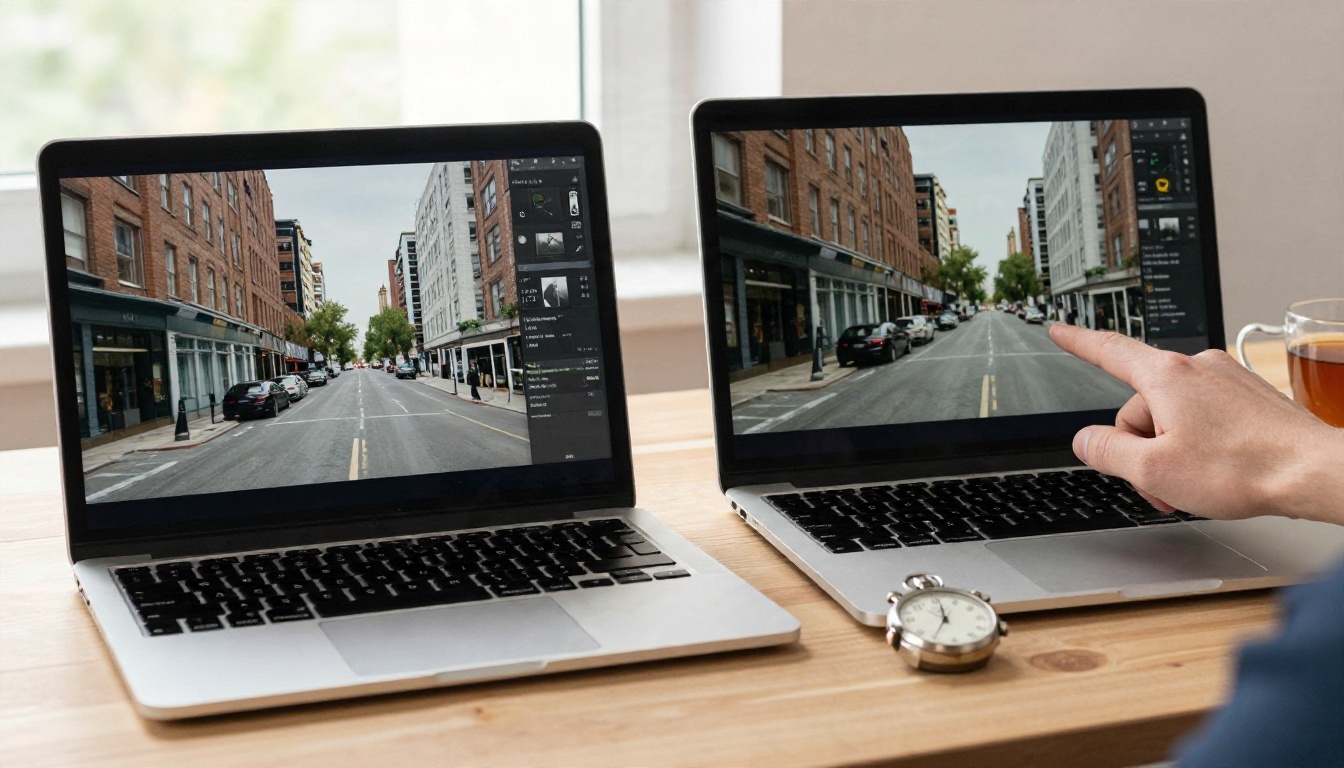
You will see "Pro" attached to Hailuo on several platforms. It generally means the full-quality version of the model, as opposed to the lighter Fast version. On PicassoIA, that full-quality role is played by Hailuo 2.3, while Hailuo 2.3 Fast is the speed-first option. Naming differs from site to site, so judge by what the model accepts and outputs, not by the label.
What Fast really changes
Fast is built for speed and lower cost. Its biggest practical difference is the input: it needs a first frame image. You cannot start it with text alone. That makes it ideal for animating a photo, a product shot, a portrait, or a frame you already generated with an image model.
In day-to-day use, Fast is where you test things. Does the motion read correctly? Does the camera move the way you wrote it? Does the face hold together? You get an answer quickly, which means you can try six prompt variations in the time one full render might take.
What the full model adds
The full Hailuo 2.3 accepts either text or an image, which opens up the whole idea stage. It is also the one to use when the output is going into a real edit: client work, a social campaign, a short film sequence. Expect more consistent facial detail, steadier physics in cloth and hair, and fewer small glitches across the clip.
A draft-then-final workflow
The most efficient pattern looks like this:
- Generate or pick a strong still image.
- Run it through Hailuo 2.3 Fast at 768p and six seconds with two or three prompt variations.
- Choose the motion that reads best.
- Re-run that exact prompt and image through Hailuo 2.3, at 1080p if you need sharpness.
| Stage | Model | Resolution | Duration | Goal |
|---|
| Idea | Hailuo 2.3 (text only) | 768p | 6 s | Find a look |
| Draft | Hailuo 2.3 Fast | 768p | 6 s | Test motion and camera |
| Final | Hailuo 2.3 | 1080p | 6 s | Deliver the clip |
| Long shot | Hailuo 2.3 | 768p | 10 s | Slow scenes needing more time |
💡 Keep the same seed of thought, not just the same words. If the draft works, copy the prompt exactly. Small rewording between draft and final is the most common reason a good draft does not survive.
Every Setting Explained
Both Hailuo 2.3 models share the same four controls. They look simple, and one of them has a rule that catches people out.
Duration and resolution rules
You can pick 6 seconds or 10 seconds, and 768p or 1080p. The two settings are linked:
- 10 seconds is only available at 768p.
- 1080p supports only 6 seconds.
So you are always choosing between longer and sharper. A 10-second clip at 768p suits slow, atmospheric scenes: a landscape at dawn, a person walking toward the camera, a gentle dolly move. A 6-second clip at 1080p suits shots where detail matters: a face, a product, food, fabric.
Six seconds is also the safer length for motion quality. The longer a model has to keep a subject consistent, the more chance there is for drift. If a 10-second render wanders, try a 6-second version with a tighter prompt.
The prompt optimizer
The prompt optimizer is on by default. It rewrites your input into something richer before generation, adding motion cues, framing, and consistency hints. For short, loose prompts it often helps. For prompts where you have already specified camera, lighting, and action, it can occasionally pull the clip away from what you wrote.
My approach: leave it on while exploring, and switch it off once you have a detailed prompt that you trust and want the model to follow literally.
The first frame image
The first frame image becomes the opening frame of your video, and the output keeps the same aspect ratio as that image. A vertical photo gives a vertical video. A wide photo gives a wide video. That means you should crop your source image to the final format before you upload it.
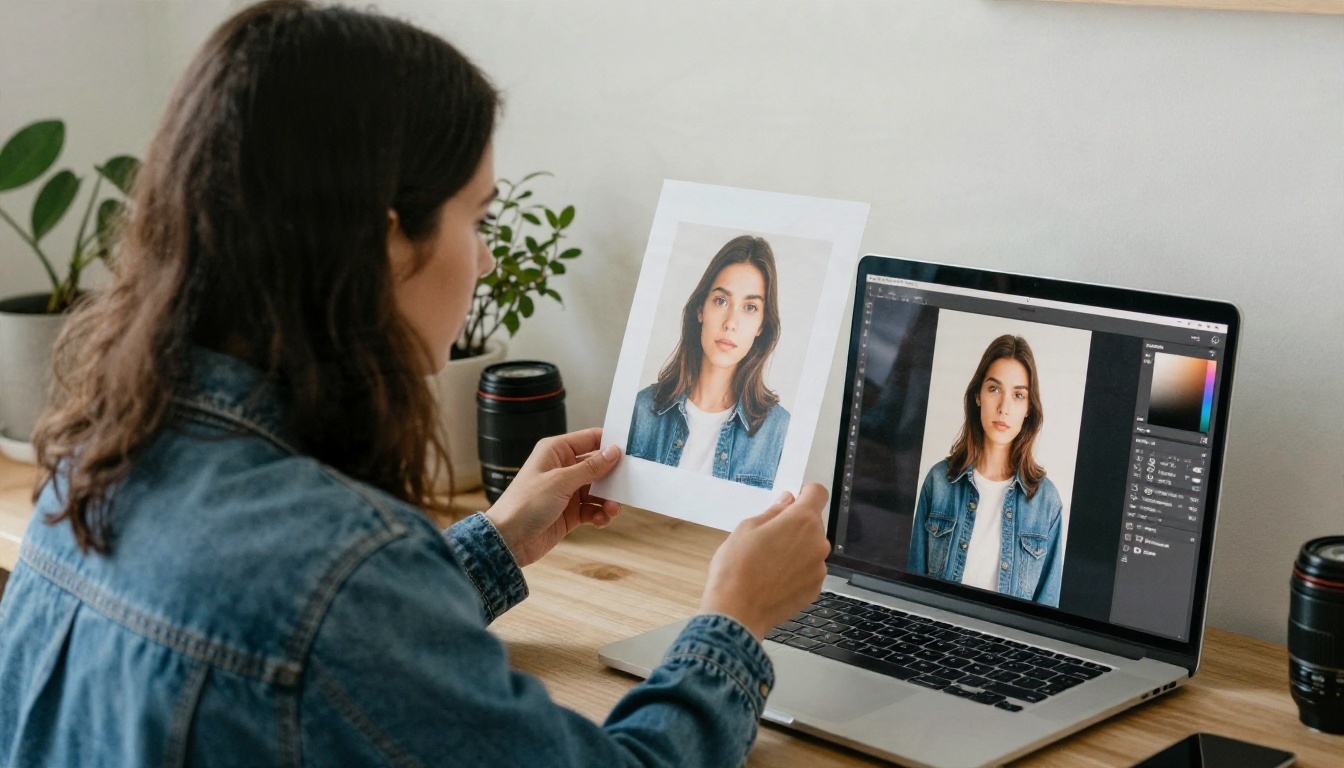
Good source images share a few traits: sharp subject, clear lighting, room around the subject for movement, and no heavy compression artifacts. A blurry or noisy first frame will give you a blurry or noisy video.
Hailuo responds well to clear, ordered descriptions. This structure covers nearly every shot:
Subject + action + camera movement + light and atmosphere
Subject, action, camera, light
Write each piece as a short phrase:
- Subject: who or what is on screen, with two or three concrete details.
- Action: one main movement, written as it unfolds over time.
- Camera: a named move such as slow push-in, handheld follow, static tripod, low-angle tilt.
- Light: direction and quality, such as soft morning side light or overcast blue hour.
One action per clip is the biggest improvement most people can make. Asking for a character to walk, turn, pick up a cup, and smile in six seconds usually ends with all four done badly. Pick the one that matters.
Words that help and hurt
| Helps | Hurts |
|---|
| "slowly", "gently", "subtle" | "fast", "chaotic", "explosive" |
| Named camera moves | "cinematic" on its own |
| Concrete materials: wool, wet stone, steam | Abstract mood words alone |
| One clear action | Lists of five actions |
| Light direction | "beautiful lighting" |
💡 If a prompt keeps producing jittery movement, remove adjectives about speed and add adjectives about weight, like "heavy coat swaying" or "slow, deliberate steps".
Prompt Examples to Copy
Each example below is written for a six-second clip. Use them as image-to-video prompts with a matching still, or as text-to-video prompts in Hailuo 2.3.
Example 1: a surfer at sunrise
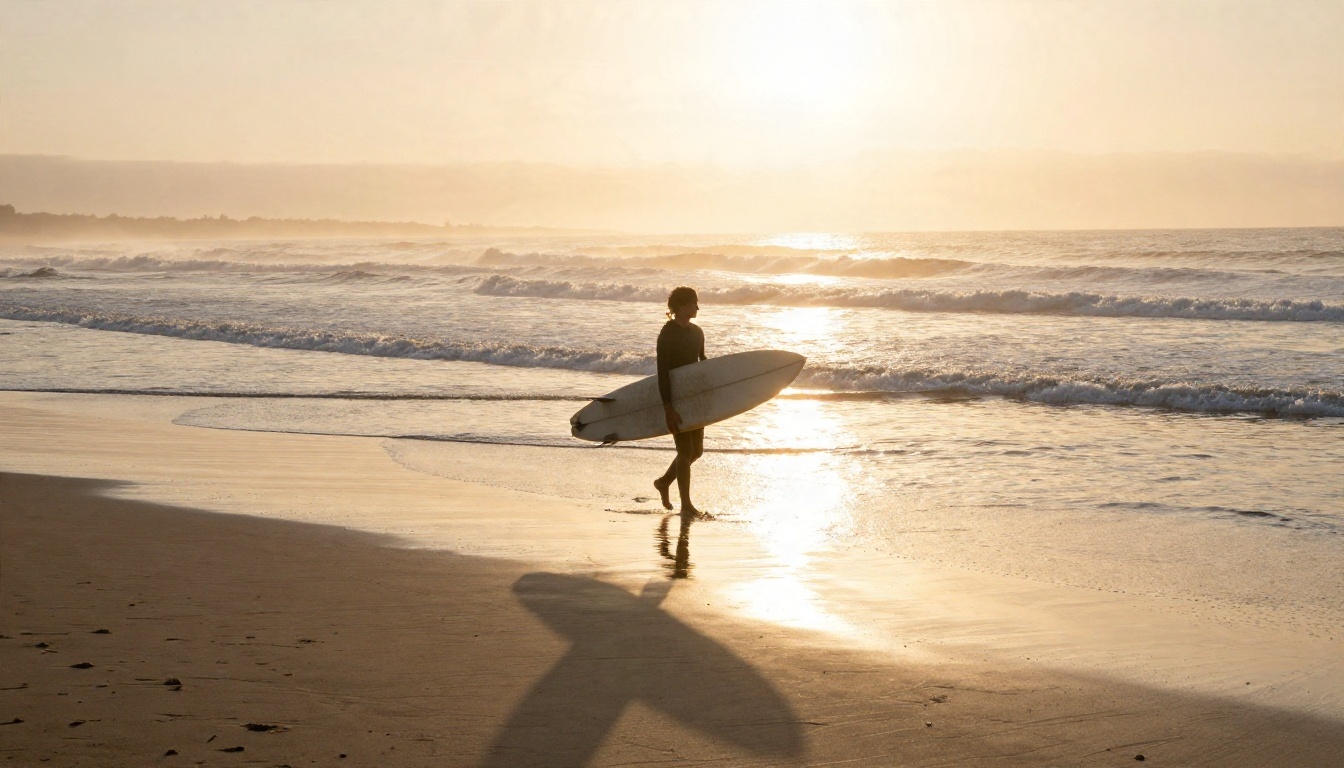
Prompt: A lone surfer walks left to right along wet sand at sunrise, board under one arm, small waves sliding up the shore behind. Low-angle camera slowly tracks alongside at knee height. Golden backlight, thin mist over the water, footprints filling with water.
Why it works: one subject, one direction of movement, a named camera position, and environmental motion (waves, footprints) that gives the model something natural to animate.
Example 2: a weathered portrait
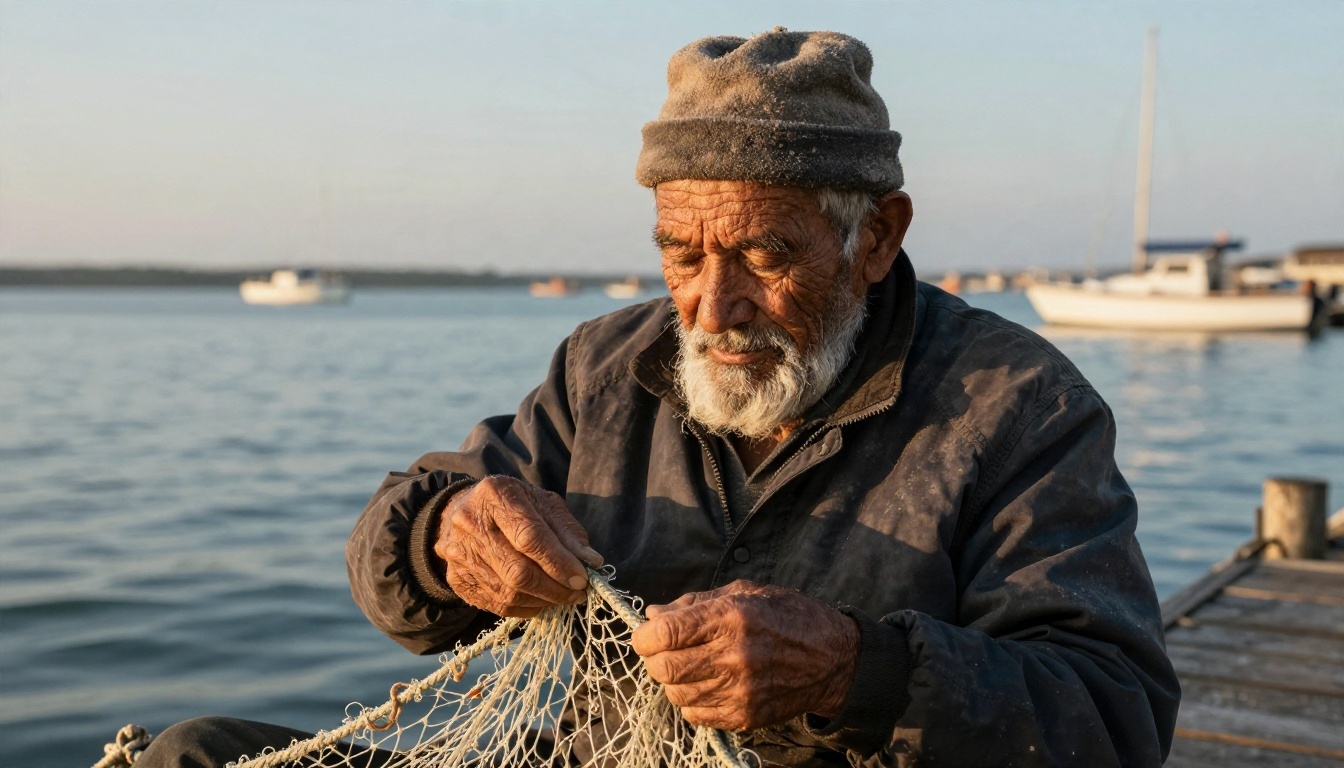
Prompt: An elderly fisherman looks down at his hands and slowly pulls a rope through a fishing net. Subtle blink, slight shift of his shoulders. Camera slowly pushes in from medium close-up. Warm side light from the left, harbor softly blurred behind.
This is where Hailuo 2.3 at 1080p earns its place. Faces with deep texture reward the extra resolution, and small gestures like a blink or a shoulder shift keep the result believable.
Example 3: an aerial coastline
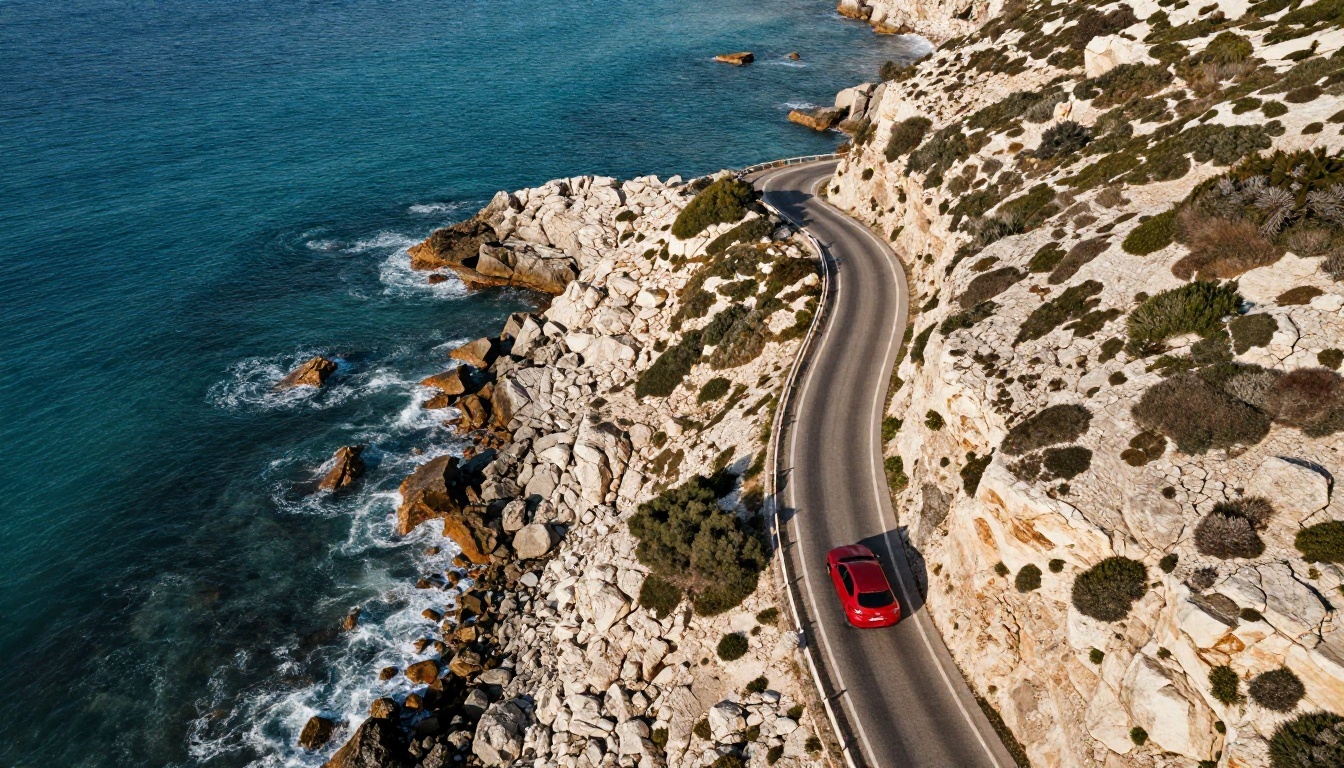
Prompt: Aerial top-down view of a red hatchback driving along a winding coastal road beside turquoise water. Camera glides forward and slightly upward, revealing more of the cliffs. Long shadows from late afternoon sun, small white surf lines on the shore.
For landscapes, the 10-second option at 768p is often the better choice. Wide scenes tolerate lower resolution well and benefit from the extra time for the camera to travel.
Example 4: a street dancer
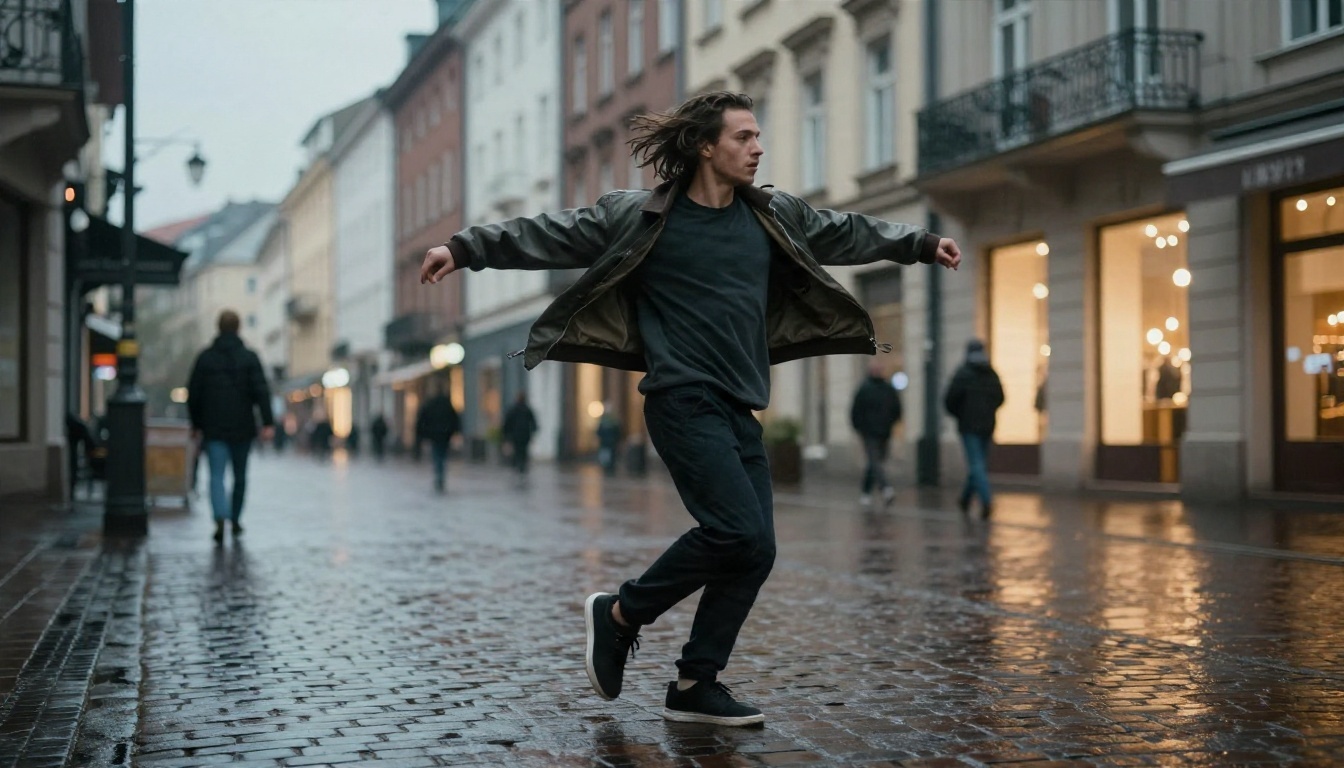
Prompt: A street dancer completes one slow spin on a wet city plaza at blue hour, jacket flaring outward, then settles into a pose. Handheld camera follows with a slight orbit. Warm shop windows reflect on the cobblestones.
Fast movement is hard for any video model. The trick here is writing the action as a single slow spin, not "dancing energetically". Hailuo is strong with body motion, but it still performs best when you give it one clean gesture.
Example 5: food close-up
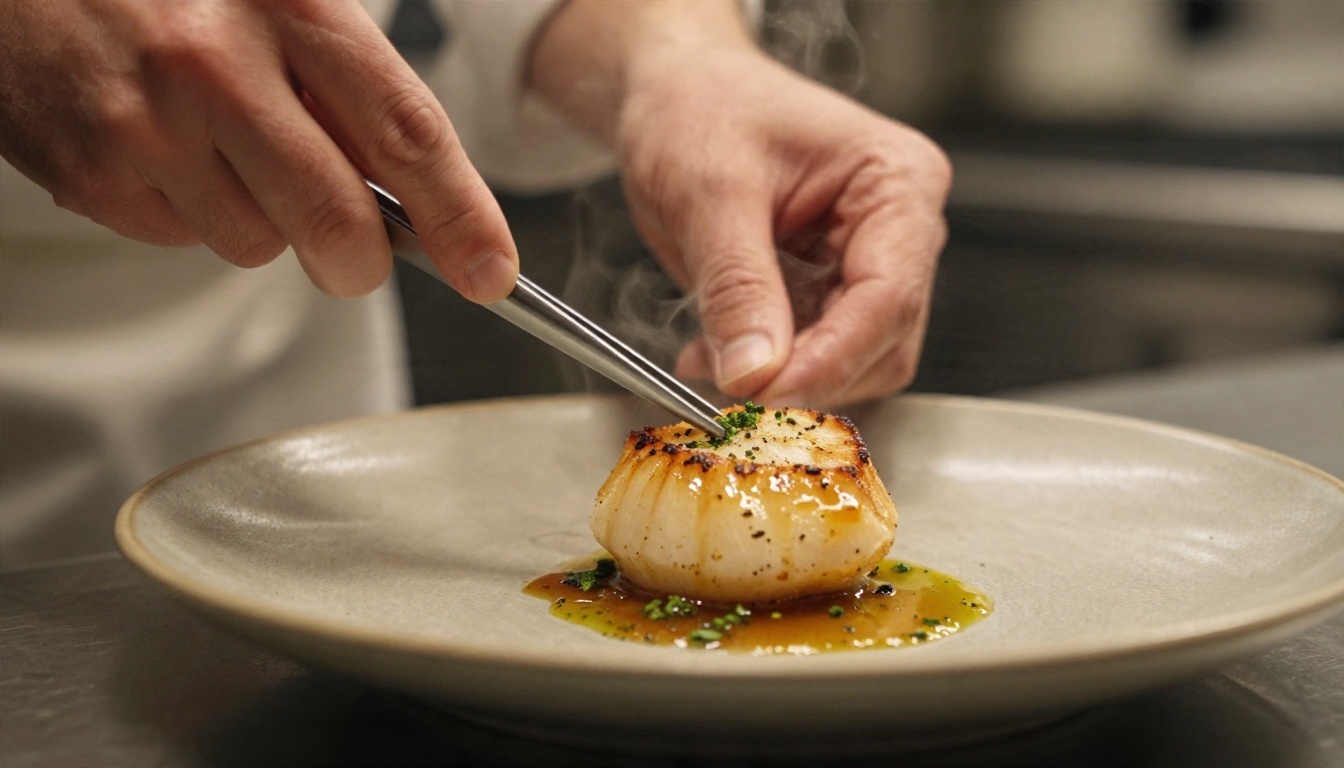
Prompt: A chef carefully places a micro herb on a seared scallop with tweezers, steam rising gently. Camera holds nearly still with a very slow push-in. Warm overhead light, sauce glistening on a matte plate.
Product and food shots are a perfect fit for Hailuo 2.3 Fast with a strong still as the first frame. The photo defines the look, and the prompt only adds steam and a small hand movement.
How to Use Hailuo 2.3 on PicassoIA
Here is the workflow, step by step, for a polished result with Hailuo 2.3.
- Open the model page. Go to Hailuo 2.3 on PicassoIA and open the generator.
- Choose your start. Type a prompt for text-to-video, or upload a first frame image for image-to-video. Crop the image to your target ratio first.
- Write one action. Use the formula: subject, action, camera, light. Keep it under a few sentences.
- Pick duration and resolution. Choose 6 seconds with 1080p for detail, or 10 seconds with 768p for slow, wide scenes.
- Set the prompt optimizer. Leave it on for loose ideas. Turn it off when your prompt is already precise.
- Generate and review. Watch the whole clip twice: once for the subject, once for the background. Backgrounds reveal glitches the subject hides.
- Iterate one change at a time. Change the camera move or the light, not both.
For quick tests, swap to Hailuo 2.3 Fast, upload the same image, and run variations at 768p before committing to the final render.
💡 Save your best prompts in a note with the matching image. A small personal library of working prompts saves more time than any setting.
Common Mistakes and Fixes
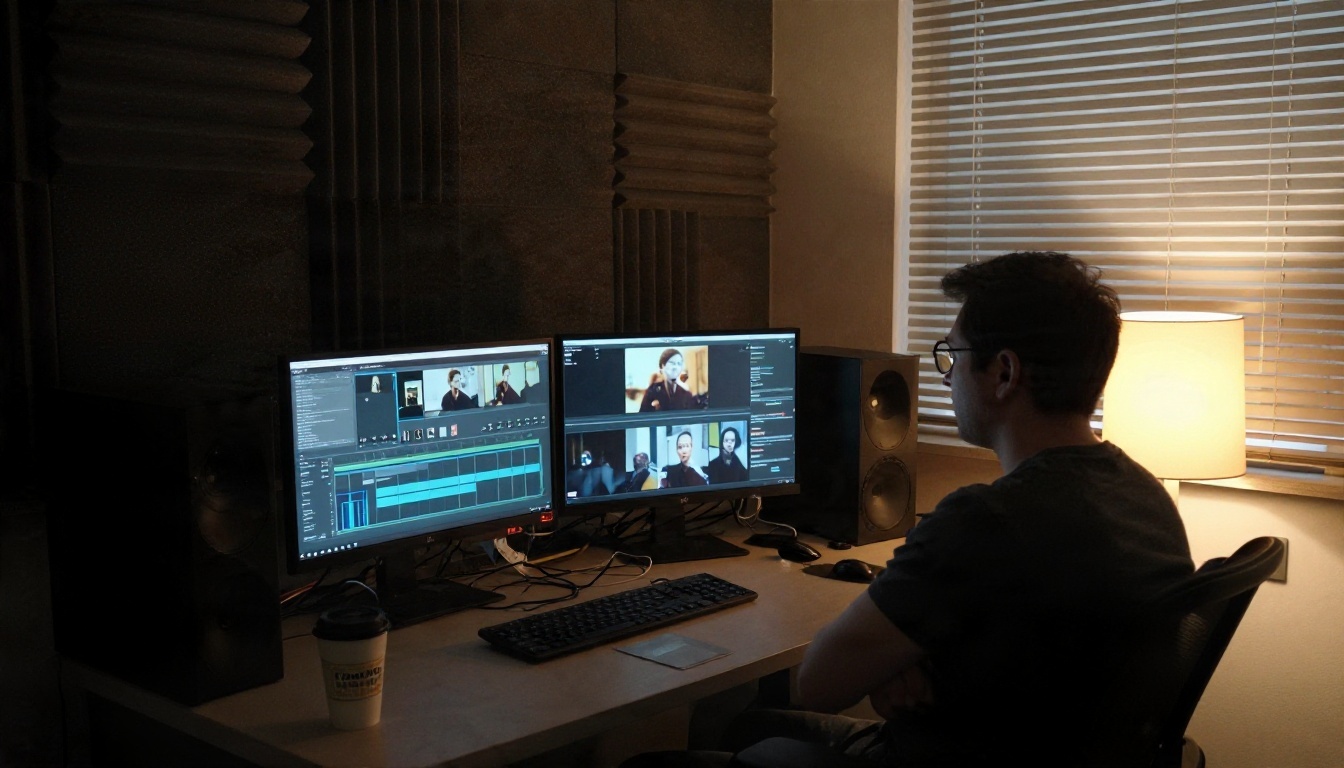
Most failed clips trace back to a short list of causes.
| Problem | Likely cause | Fix |
|---|
| Face melts or shifts | Too much action, low-detail source | Simplify to one gesture, use a sharper first frame |
| Camera ignores your instruction | Vague phrase like "cinematic" | Name a move: push-in, orbit, tilt up |
| Jittery or rushed movement | Speed words in the prompt | Use "slowly", "gently", add weight cues |
| Clip looks soft | 10 s at 768p | Switch to 6 s at 1080p |
| Output has wrong shape | Source image ratio | Crop image before upload |
| Draft good, final different | Prompt reworded | Reuse the exact text |
When another model fits better
Hailuo is excellent for short, realistic shots with people. If you need longer sequences, Seedance 2.5 can produce much longer clips in a single pass. If you want a lower cost for rough tests, Hailuo 02 Fast runs at 512p. For explicit camera control from a text prompt alone, Video 01 Director is built for that. Pairing a video with generated audio or voice-over also works well, since PicassoIA includes text-to-speech and music tools alongside its video models.
Make Your First Clip Today
You now have the three things that decide the result: a prompt formula, a clear idea of what each setting does, and a draft-then-final workflow that uses Fast and the full model where each one is strongest.
Pick one still image you already like, write a single action with a named camera move, and run it through Hailuo 2.3 Fast at 768p. If the motion reads well, send the same prompt to Hailuo 2.3 at 1080p and compare. Ten minutes of testing will teach you more than any list of rules.
Try it on Picasso IA, then browse the rest of the video lineup at picassoia.com/en/all-models to find the model that suits your next idea.


