You type five words, upload one photo, and a minute later a face looks at you and says "Hello, welcome to my channel." That small moment is why people keep searching for Hello AI Video. They want a talking avatar that greets viewers, introduces a shop, or sends a warm message, without a camera crew, without acting, and ideally without paying anything.
I searched for an app literally called "Hello AI Video" and could not confirm a single official product under that exact name. What I did find is a crowded group of free talking avatar apps and web tools that all answer the same need. So this article treats "Hello AI Video" as what it really is: a search phrase for AI generated greeting videos with a speaking face. You will see what these videos look like, which prompts produce natural results, how the free apps compare, and how to build your own on PicassoIA.
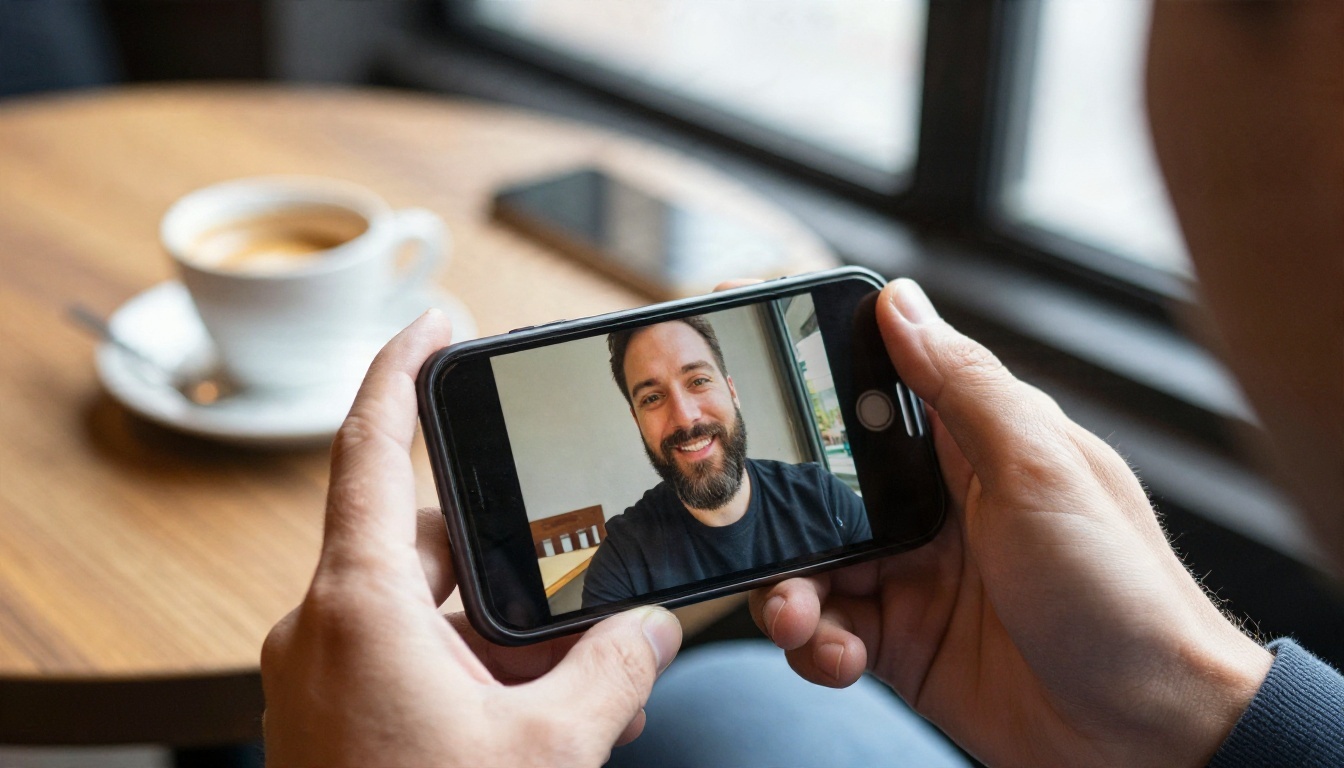
What "Hello AI Video" Really Means
The search intent behind it
People who type this phrase usually want one of three things. They want to see examples before they commit. They want a prompt or script they can paste and adjust. Or they want a free app that works on a phone. The best answer covers all three, because an example without a prompt is just a demo, and a prompt without a tool is just a sentence.
Related searches follow the same pattern: AI talking avatar, talking photo, AI spokesperson video, photo to talking video, free AI lip sync, text to avatar video, and AI greeting video maker. They all describe the same pipeline: a still face, a voice, and mouth movement that matches the words.
Free apps people keep mentioning
Here is how the most visible options present themselves, based on their own listings at the time of writing. Most are free to start and paid to remove limits.
| App or tool | How it works | Free access |
|---|
| Avatalk | Upload a photo, then type or record what the person should say | Free with in-app purchases |
| AI Talking Avatar (Photo Talk) | Script to avatar or audio to avatar with lip sync | Free with in-app purchases |
| Virbo | Stock or photo based avatars with text to speech | Free with in-app purchases |
| HeyGen | Stock avatars and AI voices in a browser tool | Free tool, paid plans for longer or unwatermarked output |
| Pictory | Talking avatar videos in the browser | Free trial |
💡 Reality check: "Free" almost always means a short clip, a watermark, or a limited number of tries. That is fine for testing a greeting. It is rarely enough for a channel intro you will use for months.
How Talking Avatars Work
Photo, voice and lip movement
A talking avatar has three moving parts. First, an image that sets the face, outfit and background. Second, a voice, which is either generated from your script by a text to speech model or uploaded as your own audio. Third, a lip sync model that animates the mouth, jaw, cheeks and often the head so the face seems to speak the audio.
Better models also add small natural motion: blinking, eyebrow lifts, a slight head tilt on stressed words. Weak ones only open and close the mouth, which is why some free apps look like a puppet.
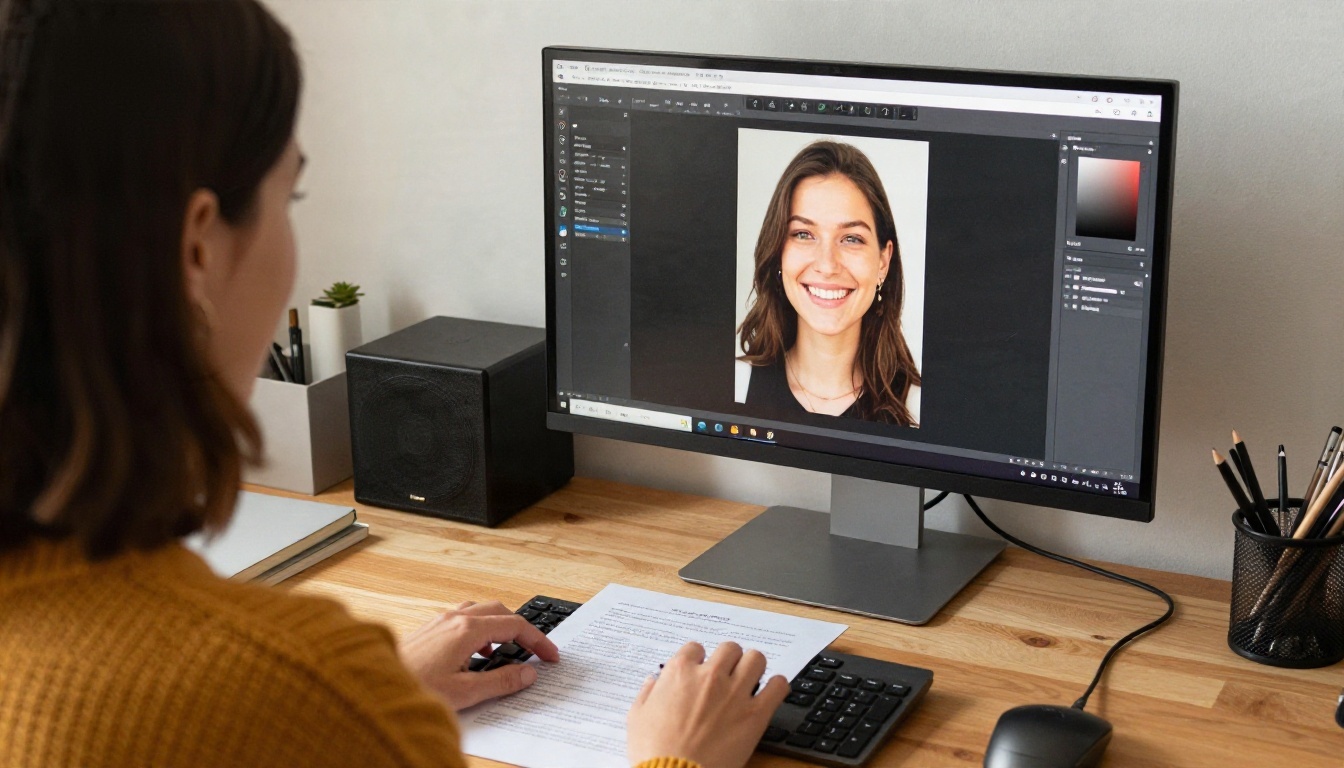
Stock avatars versus your own photo
Stock avatars are pre-made presenters. They are quick and consistent, but thousands of other people use the same faces. A photo based avatar uses an image you choose, so the result is unique. It also lets you match the face to your brand, shop or story.
| Approach | Best for | Weak spot |
|---|
| Stock avatar | Training videos, fast explainers | Generic look |
| Your own photo | Personal greetings, creators, small shops | Photo quality decides everything |
| Generated portrait | Fictional hosts, mascots, brand characters | Needs a good source image first |
Why the first frame matters most
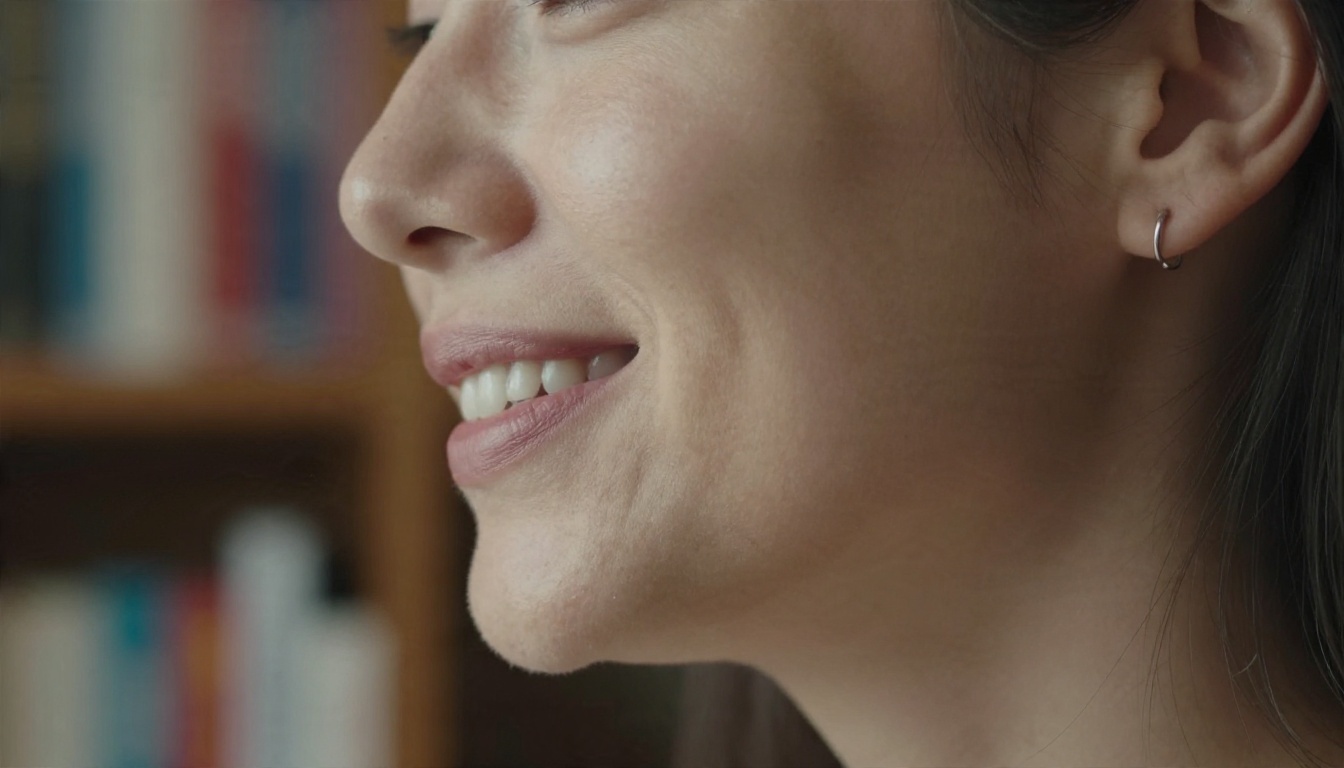
The model starts from your still image, so everything in it is carried into the video. A sharp, front facing portrait with an open expression and a visible mouth gives the lip sync model room to work. A blurry side profile with a hand covering the chin gives it almost nothing.
Free Talking Avatar Examples
These are the greeting formats I see working best, with the script style behind each one. Each one is short on purpose. Under ten seconds is a good target, because short clips stay in sync and cost less to generate.
The ten second channel greeting
The classic. One face, one friendly line, one clear next step.
"Hi, I'm Maya. Every week I share one simple recipe you can make in twenty minutes. Subscribe and I'll see you in the next one."
It works because it names the speaker, states the value, and ends with one action. Nothing in it needs a gesture the model cannot produce.
The small shop owner intro
A shop owner stands behind the counter and welcomes visitors to a product page or social profile. A real photo of the owner in their own space adds trust that no stock avatar can match.
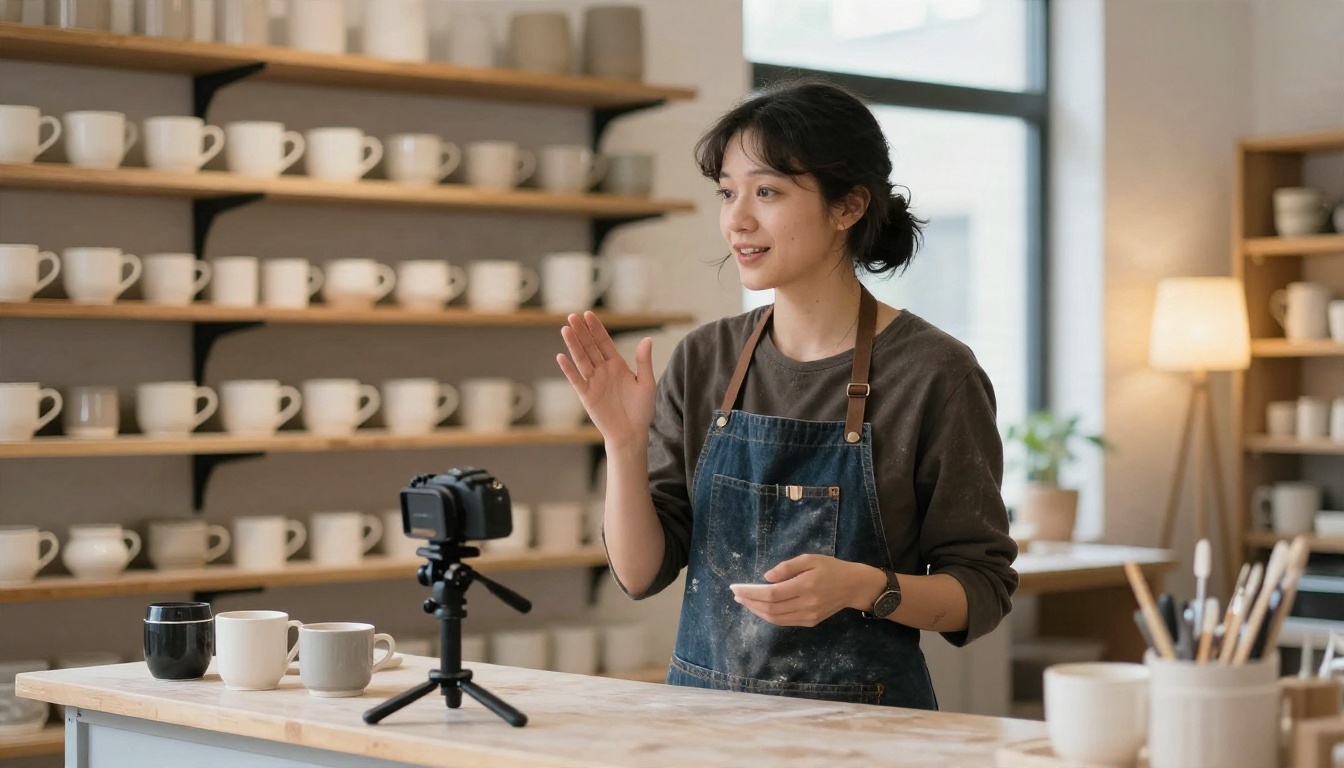
"Welcome to our studio. Every mug here is shaped by hand and fired in our kiln down the street. Take a look around, and message me if you want something made just for you."
The teacher welcome message
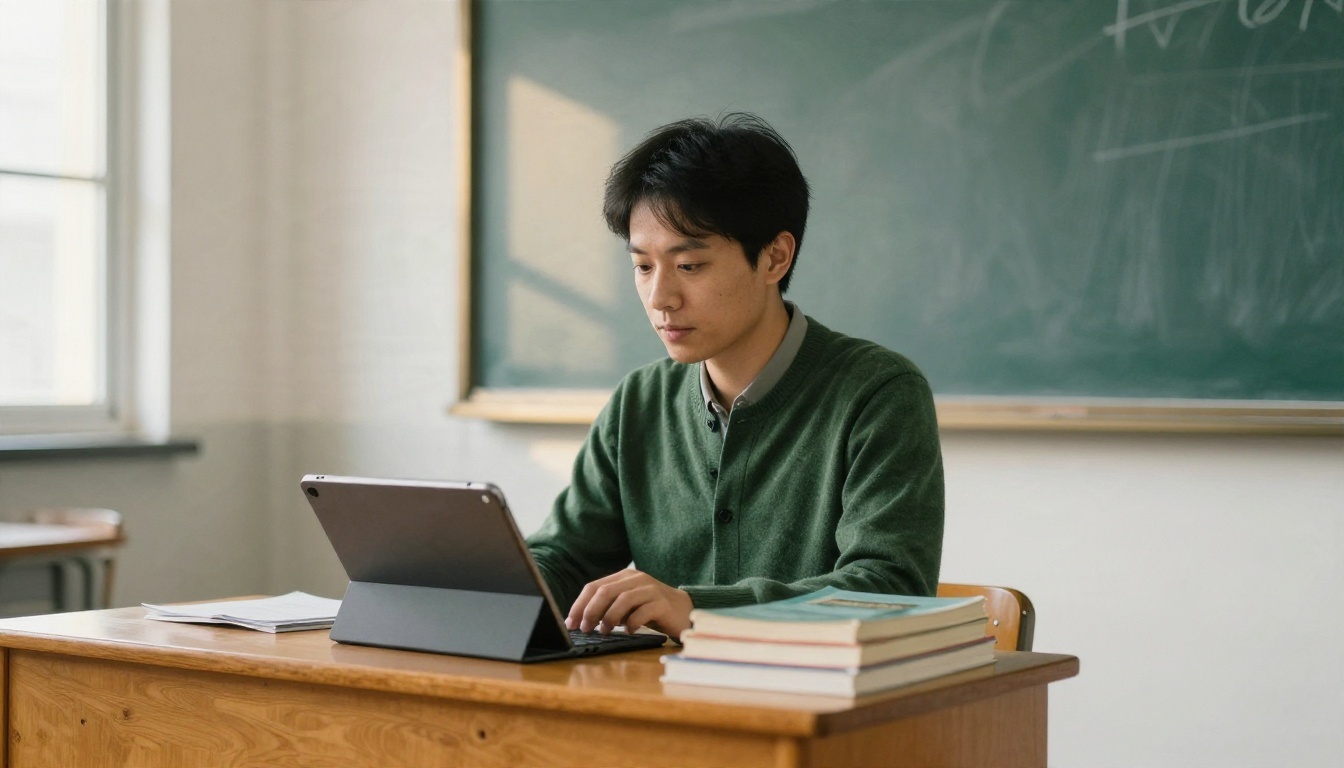
A teacher records one friendly intro for each new class or lesson. With a talking avatar, the same teacher can produce the greeting in several languages from a single photo, which helps families who speak something other than the classroom language.
The family greeting card
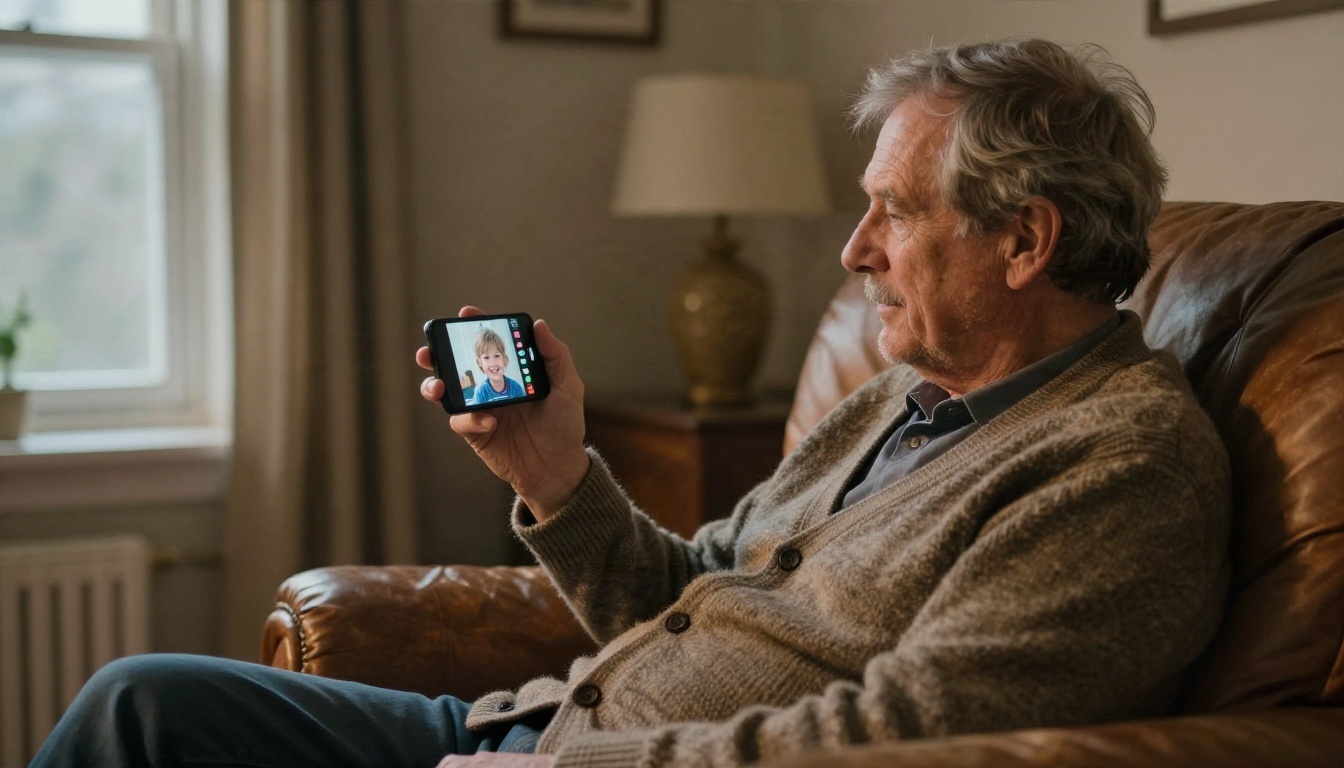
Birthdays, holidays, and "thinking of you" messages are the most emotional use. A grandchild's photo, a short voice, and a warm line can turn into a message someone replays all day. For anything involving a real person, use only photos of people who agreed to it, and say that the video is AI generated if it will be shared publicly.
Prompts That Actually Work
Most talking avatar tools separate three things: what is said, how it is spoken, and how the person looks while speaking. Keeping them separate gives you far more control than one long paragraph.
Write the script like speech
Read your script aloud before generating. If you run out of breath, the model will too. Aim for about 2.5 words per second, so a ten second clip holds roughly 25 words.
- Use short sentences with a natural pause at each period.
- Spell out numbers and abbreviations the way you would say them.
- Avoid tongue twisters and long brand names the voice may mispronounce.
- Put the most important word near the end of the sentence, where the voice naturally lands.
Add a voice prompt for tone
A separate style instruction changes delivery without changing the words. Short, specific directions work best.
| Goal | Voice prompt to try |
|---|
| Warm greeting | "Speak warmly and slowly, with a small smile in your voice." |
| Energetic intro | "Upbeat, quick pace, like greeting a friend at the door." |
| Calm lesson | "Calm and clear, gentle pace, pause after each sentence." |
| Professional welcome | "Confident and friendly, even pace, no exaggeration." |
Describe how the person behaves
The visual prompt tells the model what the face does while the audio plays. Keep it simple and physical.
- Good: "The woman smiles, nods slightly, and looks straight into the camera while speaking."
- Good: "The man waves once at the start, then keeps his hands still and speaks calmly."
- Weak: "She looks inspired and passionate about the future." That describes a feeling, not an action.
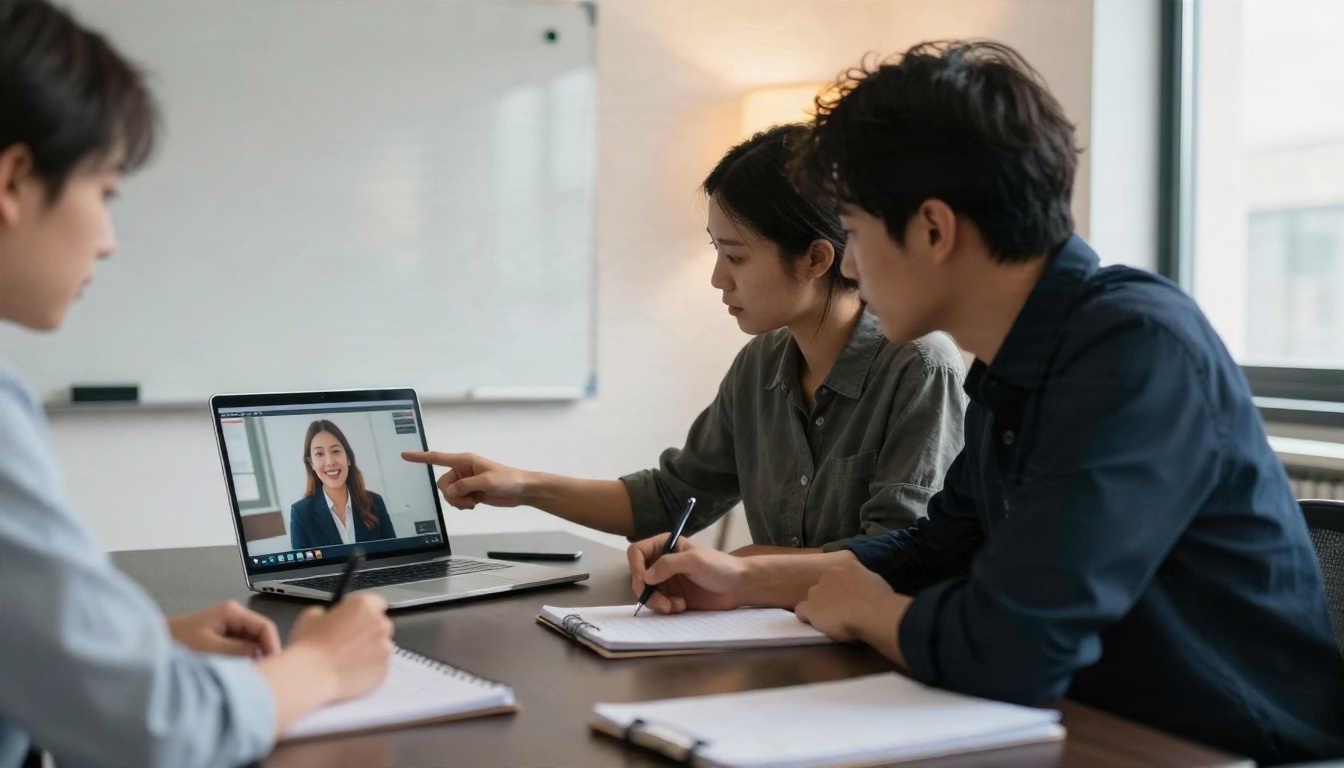
Copy and paste starter prompts
| Use case | Script | Visual prompt |
|---|
| Channel intro | "Hi, I'm Maya. Welcome to the channel. New recipes every Friday." | "The woman smiles, waves once, then speaks to the camera with relaxed shoulders." |
| Shop welcome | "Welcome in. Everything here is handmade. Ask me anything." | "The shop owner nods warmly and gestures slightly with one hand while speaking." |
| Class greeting | "Good morning, everyone. Today we start something new. Let's begin." | "The teacher looks into the camera, smiles, and speaks calmly with small head movements." |
| Birthday note | "Happy birthday, Grandpa. I miss you, and I'll call you tonight." | "The young person smiles softly, eyes warm, and speaks gently to the camera." |
Models Worth Trying on PicassoIA
PicassoIA groups the whole pipeline in one place: photo to talking video models, lip sync for existing footage, and text to speech for the voice. Here is how I would match them to common jobs.
| Job | Model | Why pick it |
|---|
| Talking avatar from one photo plus a script | P Video Avatar | Photo, script and voice in one screen, with 720p or 1080p output |
| Stock style presenter videos | Avatar V and Avatar IV | Talking avatar videos aimed at polished spokesperson clips |
| Realistic lip sync from a photo and audio | Omni Human 1.5 | Animates a photo into a talking video that follows your audio |
| Quick photo to talking clip | Fabric 1.0 | Makes a photo speak with a simple audio input |
| Fix lips on footage you already shot | Lipsync 2 Pro and Kling Lip Sync | Match mouth movement to new audio in an existing video |
| Greeting in other languages | Video Translate and Dubbing | Dub a finished video into many languages |
Pick a voice model first when voice matters
If the greeting depends on a specific vocal style, generate the audio separately and feed it into a lip sync model. ElevenLabs V3, Gemini 3.1 Flash TTS, Speech 2.8 HD and Realtime TTS 2 are all text to speech options worth comparing by ear. Generate the same line with two or three and keep the one that sounds like your character.
💡 Tip: Hello AI Video is not a model on PicassoIA. The tools above are what you can use today for the same kind of talking avatar greeting.
Get Similar Results on PicassoIA
For a "hello" video that starts from a single photo and a typed line, P Video Avatar is the most direct match. It takes a portrait, a script and a voice choice, and returns a lip synced clip.
Step by step
- Open the model page. Go to P Video Avatar on PicassoIA.
- Upload the image. This is the only required field. It becomes the first frame. Use a sharp, front facing portrait in jpg, png or webp.
- Type the voice script. Enter the exact words the avatar should say. Keep it near 25 words for a ten second clip.
- Choose a voice and language. Pick from the voice list, such as Zephyr (Female) or Puck (Male), then set the language. Options include English (US), English (UK), Spanish, French, German, Italian, Portuguese (Brazil), Japanese, Korean and Hindi.
- Add a voice prompt. Write how the line should sound, for example "Speak warmly and slowly, with a small smile in your voice." These style instructions are not spoken aloud.
- Add a video prompt. Describe the physical behavior, such as "The woman smiles, nods slightly, and looks straight into the camera while speaking."
- Set resolution. Use 720p for tests and 1080p for the version you publish.
- Generate and review. Watch the mouth shapes on stressed words. If one line is off, change the script rather than the whole setup.
Settings that make a difference
| Setting | Recommendation |
|---|
| Image | Front facing, even light, mouth visible, no hand near the face |
| Voice script | One idea per clip, 15 to 30 words |
| Voice prompt | One short instruction on tone and pace |
| Video prompt | Simple actions: smile, nod, wave once |
| Resolution | 720p while testing, 1080p for the final |
| Seed | Fix the seed when you want to compare small script edits |
Use your own audio instead
The model also accepts an uploaded audio file. When you provide one, it drives the speech and replaces the typed script and voice settings. This is the better path when you have recorded your own voice, or when you generated a voice with a separate text to speech model and want exact control over delivery.
Need a source photo?
If you do not have a good portrait, generate one first with a text to image model, then upload it as the first frame. A photographic, evenly lit head and shoulders shot of a fictional host works well and avoids using a real person's likeness.
Mistakes That Waste Credits

Starting with a weak photo
Sunglasses, heavy shadows across the mouth, a turned head, or a hand near the chin all lower the quality of the lip sync. Fix the photo before you touch the settings.
Writing a script that is too long
Long scripts drift. Mouth shapes lose accuracy, voices flatten, and costs rise. Split a long message into several short clips and join them in any editor.
Mixing too many instructions
A video prompt that asks the person to laugh, cry, walk, point and wave in five seconds will give you none of them cleanly. One or two small actions give the model a fair chance.
Ignoring consent and disclosure
Only animate faces you have the right to use. If a clip will be posted publicly, label it as AI generated. That protects the person in the photo and the trust of your audience.
Judging a tool by its first output
The first generation is a draft. Change one thing at a time, such as the voice, the script wording or the source photo, and compare. Two or three rounds usually separate an awkward clip from a believable one.
Make Your Own Hello Video
The fastest way to see how this works is to make one tiny clip. Choose a portrait, write one 20 word greeting, and pick a warm voice. Then open P Video Avatar on PicassoIA and generate your first version at 720p.
If you want to compare, run the same photo and audio through Omni Human 1.5 or Fabric 1.0 and see which one fits your face and voice best. Add a different voice from ElevenLabs V3 or Gemini 3.1 Flash TTS, and you have three versions of the same hello in under an hour.
Browse every model, from avatar and lip sync to voice and video generation, at picassoia.com/en/all-models. Pick a face, type a greeting, and let your first talking avatar say hello.


