When you drag a photo into an AI editing app and watch it instantly fix the lighting, sharpen faces, and separate the background, it can feel like magic. It isn't. What's happening is a precise, multi-layered computational process that works through your image in ways most people never think about.
AI editing tools don't see photos the way you do. They see data: grids of numbers, probability distributions, spatial relationships, and pattern matches drawn from millions of training images. Once you see what's actually happening under the hood, you'll get much more out of every tool you use.
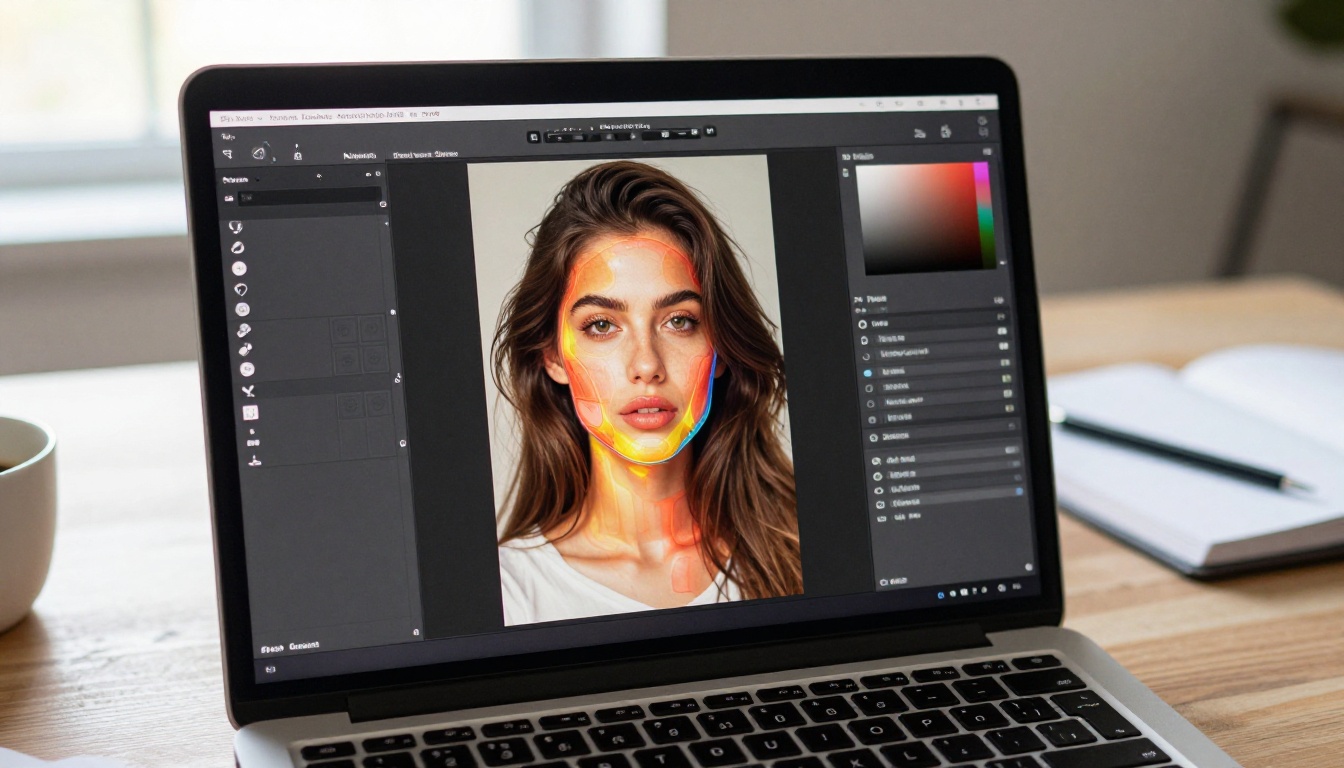
What Your Camera Captures vs. What AI Sees
Your photo is not a picture to an AI. It's a matrix.
Every image is stored as a grid of pixels, and each pixel carries numerical values for red, green, and blue channels. A standard 24-megapixel photo contains 24 million pixels, and at 8-bit color depth, that's three numbers between 0 and 255 per pixel. That's 72 million individual values before any processing begins. RAW files go deeper, often 14-bit, meaning each channel can store up to 16,384 distinct values rather than 256.
Raw pixels are just numbers
The AI reads this matrix not in isolation but as a spatial map. Neighboring pixels carry context: a bright pixel surrounded by dark ones likely signals an edge. A cluster of similarly-toned pixels represents a surface or object. A region with rapid value changes signals texture or detail. This spatial reading is what allows AI tools to detect where a subject ends and a background begins without you drawing a single manual selection.
Modern AI architectures, particularly Convolutional Neural Networks (CNNs), slide small filter windows across this pixel grid and detect patterns at increasing scales. From tiny edge details at the pixel level up to large structural features like faces or horizon lines at the full-image level, each filter layer builds on the previous one, converting raw numbers into progressively more abstract representations of what the image actually contains.
Metadata tells the hidden story
Before processing a single pixel, most AI tools read the file's EXIF metadata. This embedded data includes camera model, focal length, aperture, ISO sensitivity, shutter speed, and often GPS coordinates. A shot taken at ISO 6400 gets flagged for aggressive noise reduction before any visual processing begins. A portrait tagged with an 85mm focal length triggers face-detection logic. A photo timestamped at sunrise gets evaluated for warm, directional lighting conditions.
This metadata acts as a pre-processing brief that shapes the entire downstream pipeline, making the AI's decisions significantly more accurate from the very first step.

How Depth Mapping Changes Everything
One of the most powerful things an AI tool does with your photo is construct a depth map: a grayscale representation of how far each region of the image is from the camera lens. Brighter areas in the map represent objects close to the camera; darker areas represent distant ones.
Inferring depth from a flat image
The tricky part: most photos are flat. There's no stereo camera, no LiDAR sensor, no time-of-flight data attached. AI tools infer depth from a single 2D image using the same visual cues the human brain processes automatically: size relationships (smaller objects tend to be farther away), atmospheric haze, edge sharpness falloff, texture density gradients, and occlusion (when one object blocks another, the blocked one is behind it).
CNNs trained on large datasets of images paired with known depth data, such as frames from 3D environments or photos shot with dedicated depth sensors, learn to predict these spatial relationships with impressive accuracy. The output is a per-pixel depth estimate that the tool uses to make all its spatial editing decisions.
What depth data makes possible
With a reliable depth map, AI tools can:
- Separate foreground from background without manual masking or selection paths
- Apply selective focus effects that mimic the shallow depth-of-field of a fast prime lens
- Adjust lighting independently across depth planes, brightening the subject while leaving the background dimmer
- Replace or blur backgrounds while maintaining subject edge integrity on hair and soft fabric
- Apply vignetting only to the most distant regions of the frame
This is why AI portrait tools can produce background separations that would have taken a skilled retoucher 20 or 30 minutes to create manually.

Object Recognition and Semantic Segmentation
Identifying that there's a person in your photo is step one. Knowing that the person has a face, two eyes, hair, clothing, and is standing in front of a specific type of background is a completely different problem, and it's one that AI tools now solve routinely.
Semantic segmentation at work
Semantic segmentation assigns a category label to every single pixel in an image. A fully segmented portrait might classify pixels as: skin, hair, eyes, lips, teeth, clothing fabric, background sky, background foliage, foreground ground, and accessories.
This matters because each category deserves different treatment. Skin should receive smoothing but not edge sharpening. Hair should be sharpened at individual strands but not color-corrected like skin. Background sky can have its hue shifted to a richer blue without affecting the subject at all. Without segmentation, every adjustment would be a crude, blanket operation across the entire frame.
Models trained on datasets like COCO (Common Objects in Context) and ADE20K can segment over 150 distinct object categories at the pixel level, and portrait-specific models go even deeper with detailed subcategories of face anatomy.
Facial landmarks: the 68-point map
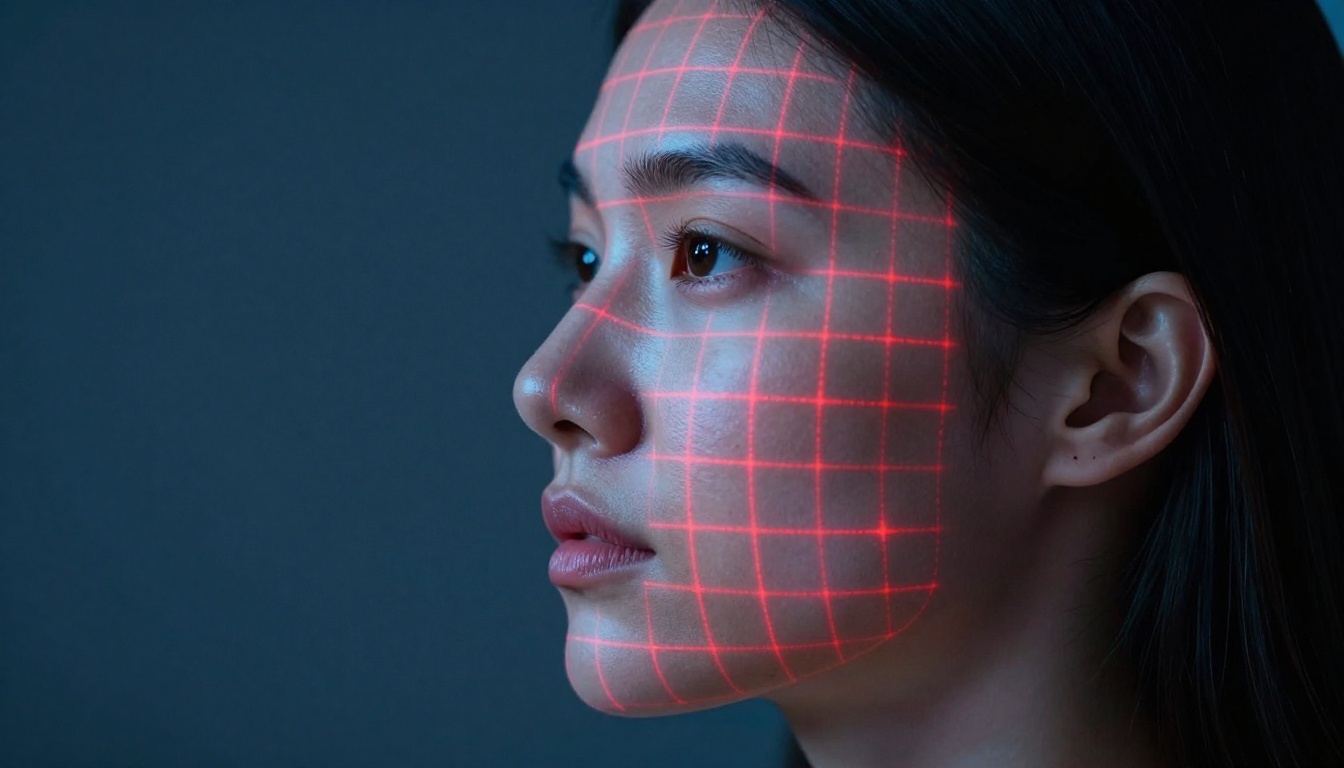
For portrait editing specifically, AI models detect up to 68 facial landmarks: precisely-placed coordinate points marking the corners of each eye, the edges of both eyebrows, the contour of each lip, the tip and bridge of the nose, and the full jawline curve.
These landmark maps enable:
- Selective skin retouching that stops precisely at the eyebrow and eye socket boundary
- Teeth brightening that stays within the lip contour without affecting lip color
- Face shape adjustments that maintain natural geometry and proportional balance
- Portrait animation in lipsync and face-swap tools, where the geometry of a source face must map precisely onto the target
💡 Face-swap tools on Picasso IA use these same facial landmark maps to align and blend faces with precise geometric accuracy. The result looks convincing because the spatial alignment was correct from the start.
Color Science: More Than Meets the Eye
Color in photography isn't just about the values stored in each pixel channel. It's about context, perceptual balance, and the physical properties of the light source that created the image in the first place.
How AI reads color temperature
AI tools identify light source characteristics by scanning for color casts on visually neutral surfaces in the frame: white walls, gray clothing, light-colored ceilings. A gray surface carrying a slight blue cast indicates cool, overcast natural light around 6500-7500K. The same surface with a warm amber cast suggests tungsten or late-afternoon light at 2700-3500K.
The correction process works by converting the image from RGB into a perceptual color space like CIE LAB, where one channel handles luminance independently from two chrominance channels. Shifting white balance in LAB means changing color without altering perceived brightness, which is what makes AI white balance correction look natural rather than washed out or tinted.
| Light Source | Color Temperature | Common Cast |
|---|
| Overcast sky | 6500-7500K | Cool blue |
| Direct sunlight | 5000-5500K | Neutral |
| Golden hour | 2500-3500K | Warm orange |
| Indoor tungsten | 2700-3200K | Amber/yellow |
| Fluorescent | 4000-4500K | Green-shifted |
Automatic tone mapping
Exposure correction is more than multiplying pixel values by a constant. Highlights and shadows in a photograph behave differently, and good AI tools process them as separate channels with different logic.
The AI evaluates the image's histogram: identifying clipped highlights where detail is lost at maximum values, crushed shadows where detail disappears into pure black, and midtone distribution across the rest of the range. It then applies parametric curve adjustments that recover near-clipped highlight detail while leaving well-exposed midtones untouched. The result often looks like a skilled manual edit rather than a blunt brightness boost.
Noise Removal: Pattern vs. Randomness
Digital noise is random variation in pixel values caused by sensor heat and electrical interference, especially at high ISO settings. To the eye, it looks like film grain. To an AI, it looks like high-frequency variation that doesn't follow the statistical patterns of genuine surface texture.
How AI tells texture from noise
Human skin has natural texture: visible pores, fine lines, and micro-surface variations that follow consistent, spatially correlated directional patterns. Digital noise mimics this visually, which is why older noise reduction algorithms destroyed skin detail alongside the grain they targeted.
AI tools trained specifically on distinguishing genuine texture from sensor noise can separate them at a microscopic level. Directional, spatially correlated patterns like fabric weave, wood grain, and hair strands are preserved. Random, spatially uncorrelated variation gets smoothed away. The result looks like real texture rather than the over-processed "plastic skin" effect produced by aggressive traditional denoisers.
Calibrating the threshold
The failure mode for AI denoising is over-smoothing. When confidence thresholds are set too high, the model removes fine detail it shouldn't touch. The best tools expose this as a tunable parameter, letting you balance noise removal against texture preservation based on the specific photo's needs and the output resolution.
Super Resolution: Predicting Pixels That Weren't There
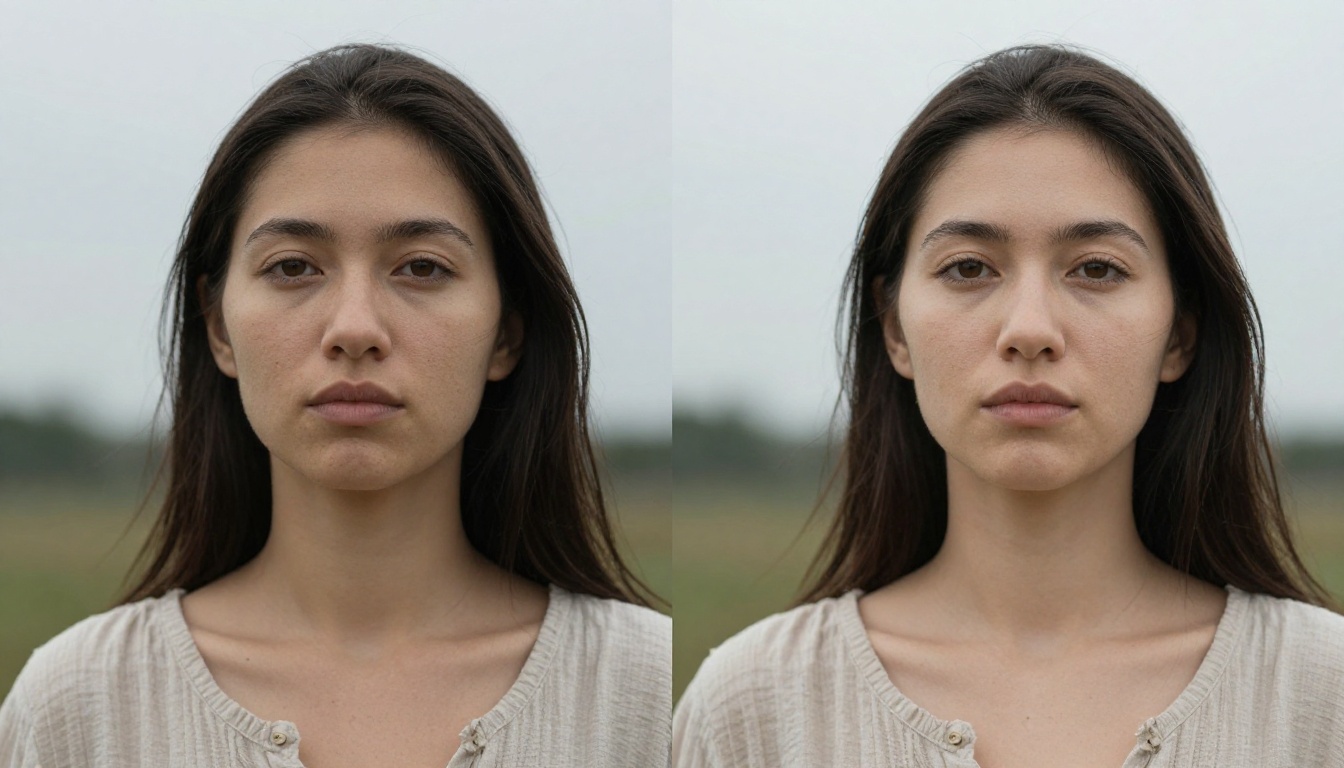
When an AI tool upscales your photo, it doesn't stretch or interpolate existing pixels. It predicts new ones based on patterns learned from millions of matched image pairs.
What upscaling models actually do
Tools like Real ESRGAN and Clarity Pro Upscaler are trained on matched pairs of low-resolution and high-resolution images. The model develops statistical relationships between what a small, degraded image looks like and what a fully detailed version of that scene should contain.
When you upscale a portrait, the AI draws on patterns from millions of portrait examples to predict what the texture of skin, hair, and fabric should look like at two or four times the original resolution. For skin, that means adding plausible pore structure and micro-shadow. For hair, it means rendering individual strand separation. For fabric, it means recreating the weave frequency at higher resolution.
💡 For portraits specifically, Crystal Upscaler applies face-aware processing that adds fine skin and hair detail selectively while keeping background textures spatially coherent and free of hallucinated artifacts.
Choosing the right upscaling tool
Different upscalers have different training emphases and output characteristics:
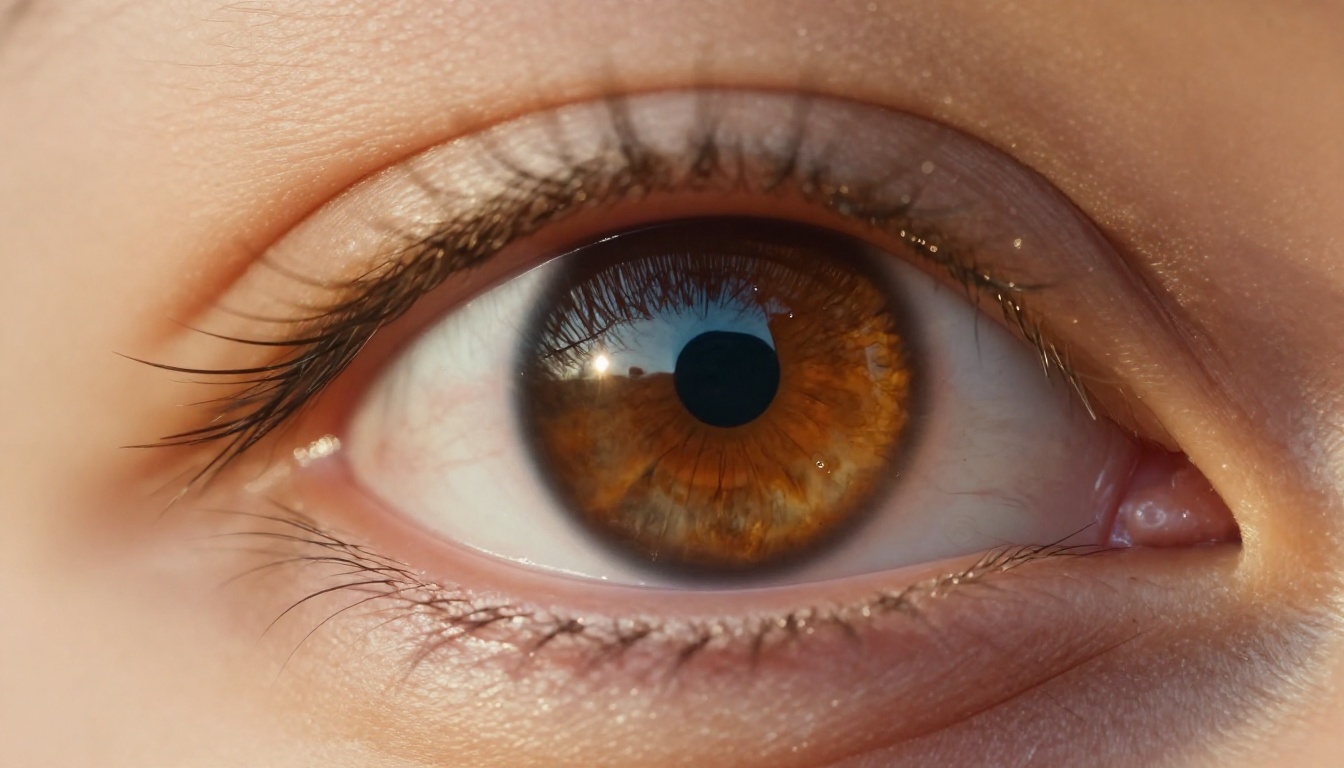
Background Removal: Where Edges Get Hard
Background removal sounds like one of the simpler AI tasks. It isn't. The difficult part is always the edges: wispy hair against a bright sky, semi-transparent fabric near the frame edge, motion-blurred arms at the subject boundary.
The two-stage separation process
Background removal tools combine depth map estimation with semantic segmentation to identify subject boundaries precisely. Once the boundary zone is located, a matting algorithm calculates, for each pixel near that boundary, the probability that it belongs to foreground or background.
The output is an alpha matte: a grayscale mask where white pixels are fully foreground, black pixels are fully background, and gray pixels are partially transparent. This gradation is what preserves the wispy appearance of flyaway hair and the soft edge of a fabric hem rather than producing the harsh, cookie-cutter cutouts of older selection tools.
When separation fails
The most common failure case: dark hair against a similarly dark or low-contrast background. When both depth contrast and color contrast are low, the model struggles to place the boundary correctly. Shooting subjects against backgrounds with clear tonal contrast, whether lighter or darker than the subject, gives the AI more signal to work with and produces noticeably cleaner mattes.
Restoring Damaged and Old Photos
Photo restoration is where AI's training data advantage shows most clearly. Restoring a badly damaged photo by hand requires a skilled retoucher and hours of careful work. An AI trained on thousands of restoration pairs can produce a credible result in seconds.
Inpainting: filling what's missing
When a photo has physical damage, scratches, water stains, or missing regions, the AI uses inpainting: it reads the surrounding pixels for context clues (nearby colors, textures, structural edges, object boundaries) and predicts what the missing region should contain.
For faces, inpainting works particularly well because the model has seen millions of face images and can reconstruct a missing section of cheek, a partially obscured eye, or a damaged section of hairline from the visible surrounding context. For complex backgrounds with irregular or unique patterns, results vary depending on how much coherent context surrounds the damaged area.
Colorizing black and white photographs
Colorization is a separate model task. These models are trained on paired color and grayscale versions of the same images, teaching them to predict color from luminance data combined with semantic object classification. The best colorization tools read both texture and object category, so they don't paint all wooden surfaces the same single shade of brown or all skin the same flat tone. They produce differentiated, contextual color that reads as natural rather than artificially tinted.
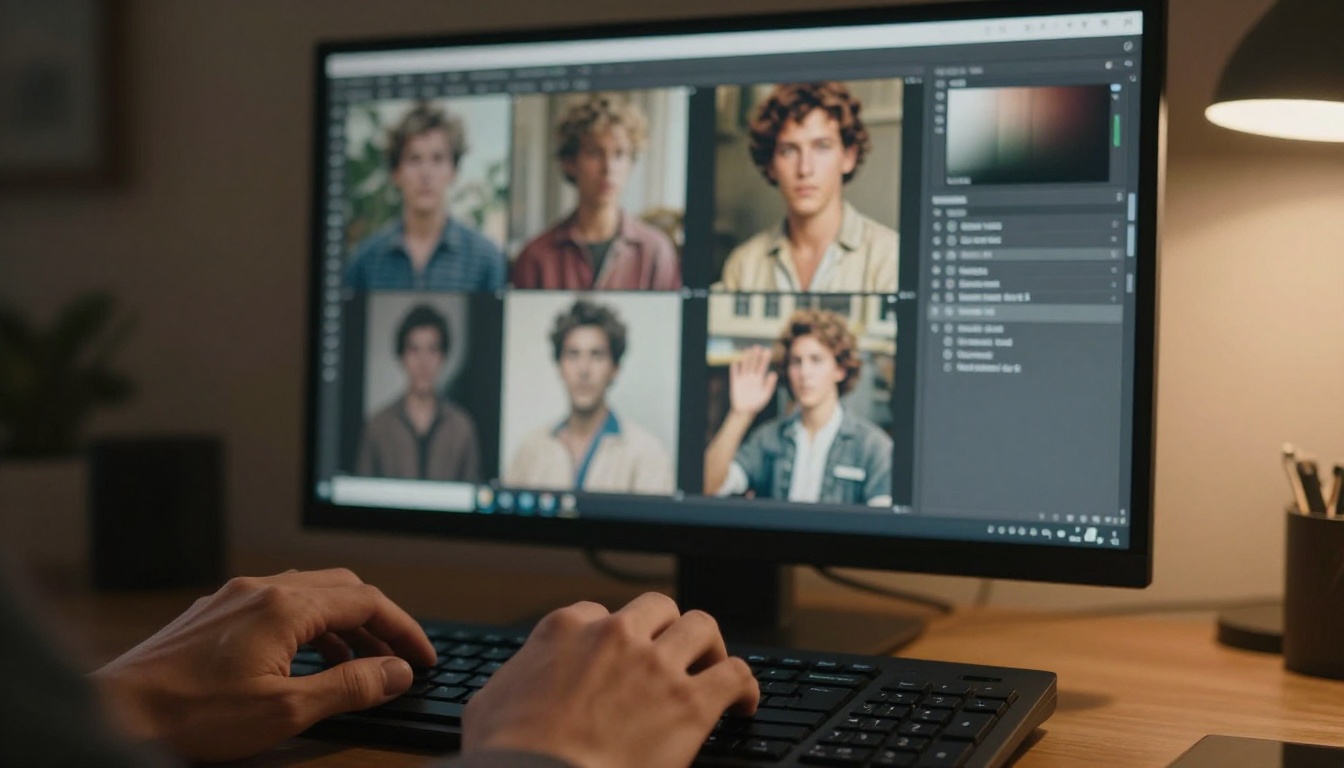
The Full Pipeline in Action
The reason modern AI photo tools feel powerful is that they don't run a single algorithm. They run an integrated pipeline where each step informs the next.
A single photo might pass through:
- Metadata reading to establish camera context and set initial processing parameters
- Noise evaluation to determine denoising strength before any spatial work begins
- Depth estimation to build the per-pixel spatial map of the scene
- Semantic segmentation to assign category labels to every pixel in the frame
- Facial landmark detection to locate precise editing zones on any faces present
- Color space conversion for accurate tonal and chromatic processing
- Task-specific modeling for upscaling, inpainting, background removal, or restoration
Each step shapes the next. The depth map informs where segmentation boundaries should fall. The segmentation tells the noise model which areas are skin (preserve texture) versus flat walls (aggressive noise removal). The facial landmarks define exactly where skin smoothing applies and where it stops.
This pipeline is why AI editing feels context-aware rather than mechanical, and it's why results hold up when you zoom in to 100 percent on a face.
Now Put the Pipeline to Work
Everything in this article, from depth mapping to super resolution to background separation and inpainting, runs on Picasso IA right now. You can upscale a portrait to 6x its original resolution with Topaz Labs Image Upscale, remove a complex background with precise matting using Bria Background Removal, bring back fine detail in a degraded photo with Clarity Pro Upscaler, or push resolution further with Recraft Crisp Upscale.
The technology described in this article is not theoretical. Pick a photo, choose a tool, and watch the pipeline work in real time. Once you see what it's doing, you'll know exactly how to give it photos that produce the best possible output.


