Scroll through any photography forum today and you will find the same question asked dozens of times a week: "How do I fix this blurry image?" The answer used to be simple and discouraging. Once pixels are lost, they are gone. Traditional software could spread colors around to make an image slightly less jagged, but the detail was never coming back. That was the rule for decades. AI upscaling broke it.
What changed is not just the tools but the entire logic of how a computer looks at an image. Instead of calculating averages between existing pixels, a trained neural network asks a fundamentally different question: what should this image actually look like? The result is the difference between a blurry guess and a reconstructed reality.
What Traditional Upscaling Actually Does
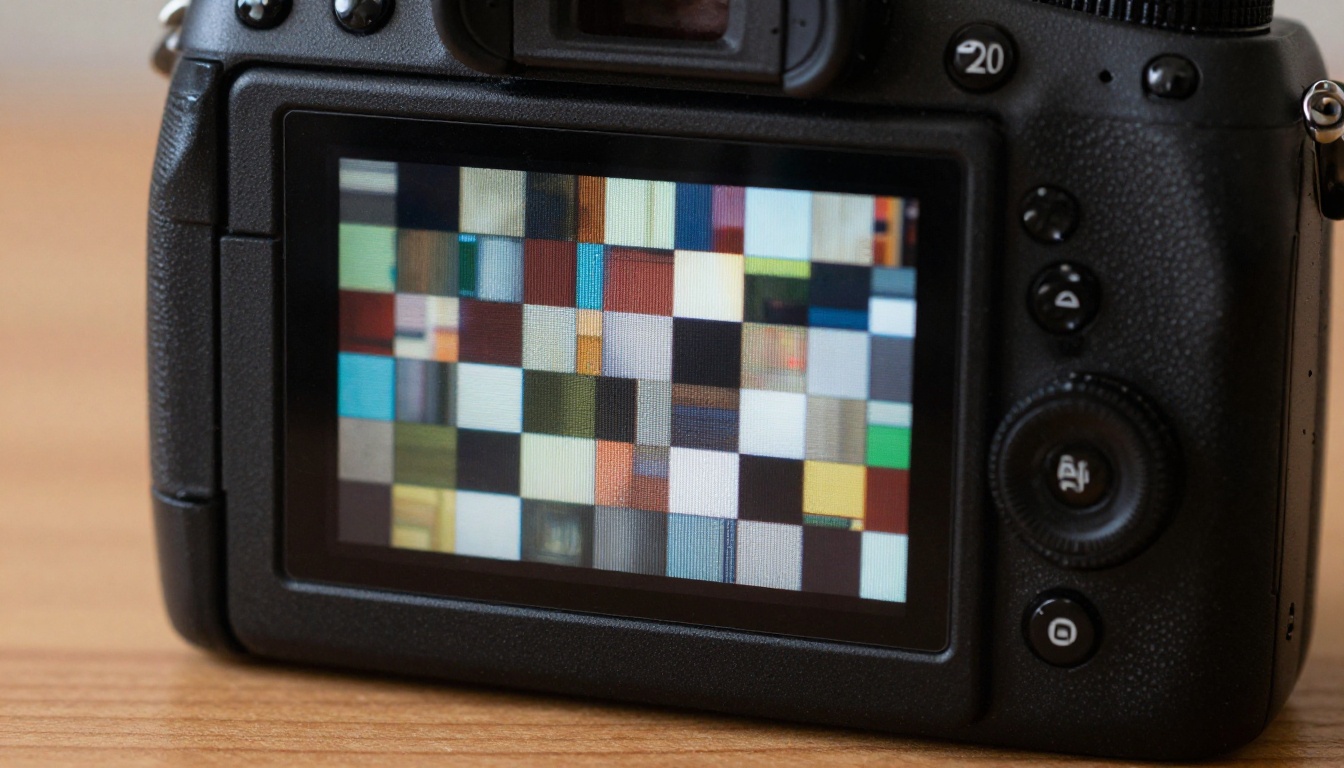
Most image editors have had an "upscale" option for years. You drag a slider, the image gets bigger, and the result looks like it was shot through frosted glass. That effect has a name: bicubic interpolation.
Bicubic Interpolation Explained
Bicubic interpolation is a mathematical formula. When you double the resolution of an image, the algorithm needs to invent new pixels. To fill each new pixel, it looks at the 16 surrounding original pixels, applies a weighted average, and calculates an estimated color value. It is fast, it is predictable, and it is entirely based on math that has no awareness of what it is looking at.
The formula does not know it is looking at an eye. It does not know the difference between a strand of hair and a horizon line. It treats every region of every image identically, which is exactly why every result looks the same: slightly larger and noticeably softer.
Why Interpolation Always Looks Soft
When you blur an image, you lose high-frequency information. That is the technical term for fine details: sharp edges, texture, small text, individual hairs. Bicubic interpolation cannot reconstruct high-frequency data because it never had it. It produces a weighted average of nearby values, which is by definition a smoothing operation.
The result is that traditional upscaling makes images bigger without making them better. You end up with a larger file that still looks blurry at the new resolution.
💡 The core problem: Traditional methods scale pixels. AI methods reconstruct content. These are completely different operations.
How AI Upscaling Changes Everything
AI upscaling is not a filter applied to an image. It is a neural network that has been trained to predict what high-resolution images look like based on their low-resolution versions. The model does not calculate averages. It makes educated, statistically-grounded predictions about what detail should exist in a region, based on patterns it absorbed during training across millions of image pairs.
Training on Millions of Image Pairs
The training process works with pairs: a high-resolution original and an artificially degraded low-resolution version of the same image. The network receives the blurry version and is asked to produce an output as close to the original as possible. Every iteration, the model measures how wrong it was and adjusts its internal parameters. This process repeats across millions of images.
After training, the model has internalized something remarkable: statistical knowledge about how different types of surfaces, textures, and structures look at high resolution. It has seen enough grass to know what individual grass blades look like. It has seen enough portrait photos to know how skin pores and eyelashes are structured. It uses this knowledge to fill in what is missing.
What the Model Actually Predicts
The model does not predict single pixel colors. It predicts high-frequency detail patterns conditioned on the low-resolution input. When it sees a blurry edge, it reconstructs that edge as a sharp boundary because every sharp edge in training looked like a blurry edge when downscaled. When it sees a blurry skin region, it reconstructs fine pore texture because that is what the training data consistently showed skin regions contain.
This is why AI upscaling produces results that look genuinely real rather than just "smoother." The added detail is statistically consistent with the content of the image, not a mathematical guess.
The Science: CNNs, GANs, and Diffusion
The term "AI upscaling" covers several distinct technical approaches, each with different strengths and limitations. Knowing the difference helps you choose the right tool for your image.
Convolutional Neural Networks (CNNs)
The first generation of AI upscalers used Convolutional Neural Networks. A CNN passes the input image through a series of filters, each detecting increasingly complex patterns: first edges, then textures, then structures. The output layer reconstructs the image at higher resolution using what the CNN detected.
Early CNN upscalers like SRCNN demonstrated that deep learning could substantially outperform interpolation. The problem was that they tended to produce results that were sharp but sometimes carried a slightly "painted" look, adding plausible texture that was not always accurate to the original scene.
GANs and Perceptual Loss
The second generation used Generative Adversarial Networks (GANs). In a GAN setup, two networks compete: a generator creates upscaled images and a discriminator tries to tell them apart from real high-resolution photos. This adversarial training pushes the generator to produce results that look perceptually real, not just mathematically close.
Real-ESRGAN is one of the most widely-tested GAN-based upscalers available today. It uses a residual dense network architecture trained on a carefully degraded dataset that simulates real-world quality loss: compression artifacts, blur, noise, and downscaling combined. This makes it especially effective on photographs that have gone through social media compression.
GANs produce sharper, more natural-looking results than CNNs. The tradeoff is that they can occasionally introduce hallucinated detail, adding plausible-looking texture that was not in the original. For most use cases, this is acceptable or even desirable.
Diffusion-Based Super Resolution
The most recent approach uses diffusion models, the same architecture behind modern image generation tools. A diffusion upscaler starts from the low-resolution input and iteratively removes noise, guided by the original image, to produce a high-resolution output.
Diffusion-based upscalers like Clarity Pro Upscaler produce exceptional detail recovery, especially in complex regions like hair, foliage, and fabric. The added detail is not just sharp but genuinely photorealistic, often indistinguishable from what a real camera would have captured. The tradeoff is that diffusion models are slower and more computationally expensive than CNN or GAN approaches.
💡 Choosing an approach: For speed: CNN. For natural-looking sharpness: GAN. For photorealistic detail recovery: Diffusion.
3 Types of AI Upscaling Models
Not all AI upscalers are trained on the same data or optimized for the same content. Matching the right model to your image type makes a significant difference in output quality.
General Purpose Models
General-purpose upscalers are trained on broad, diverse datasets and perform well across most image types. They handle landscapes, objects, architecture, and general photography reliably without any fine-tuning on specific content.
Portrait-Specific Models
Portrait models are fine-tuned on human faces, skin, and hair. They know that a blurry region in a face is likely skin pores, not random texture. This gives them a significant advantage over general models when the subject is a person.
Crystal Upscaler by philz1337x is specifically optimized for portraits, recovering facial detail with accuracy that general upscalers cannot match. The difference is most visible in eyes, hair strands, and skin texture viewed at close zoom.
Photo Restoration Models
Some models are specifically trained to handle damaged images: old scanned photographs with grain, scratches, yellowing, and loss of color fidelity. These go beyond simple upscaling to perform simultaneous restoration and resolution increase.
P Image Upscale combines speed with quality, delivering sharp results in approximately one second. Topaz Image Upscale scales up to 6x and is a favorite for archival photography work where preserving original integrity while increasing size is critical.
How to Upscale Images on PicassoIA

PicassoIA has nine dedicated super-resolution models, each accessible without any setup, downloads, or GPU requirements. You run the model in your browser and download the result in seconds.
Picking the Right Model for Your Content
Before running any upscaler, answer two questions:
- What is in the image? Portrait, landscape, architecture, product, or old photo?
- What is the primary problem? Blurry, pixelated, compressed artifacts, or simply low original resolution?
For portraits: start with Crystal Upscaler. For speed: P Image Upscale. For complex scenes with maximum detail: Clarity Pro Upscaler. For old photos: Recraft Creative Upscale.
Step-by-Step with Real-ESRGAN
Real-ESRGAN is the most widely tested general-purpose model on the platform and a reliable starting point for most images.
Step 1: Open the Real-ESRGAN model page on PicassoIA.
Step 2: Upload your low-resolution image. JPEG, PNG, and WebP are all supported.
Step 3: Select your upscale factor. 2x doubles the resolution. 4x quadruples it. Start with 4x for most cases.
Step 4: Click Run. The model processes your image in the cloud without requiring a local GPU.
Step 5: Download the result and compare at 100% zoom to see the recovered detail.
💡 Tip: Compare at 100% zoom, not fit-to-screen. The detail difference is most visible at native pixel view, not scaled to window.
Tips That Actually Make a Difference
- Do not upscale already-upscaled images: If an image has already been through a cheap upscaler, you will be amplifying artifacts rather than recovering detail.
- Start with the best version you have: If you have a RAW file, export a clean JPEG first. Compression artifacts in the input carry through to the output.
- Test multiple models: Different models prioritize different things. A 30-second test of two models often reveals a clear winner for your specific image.
- Use 2x instead of 4x for already-decent images: 2x on a good 1080p photo produces sharper 2160p than 4x on a 720p source.
AI vs. Traditional: The Real Differences
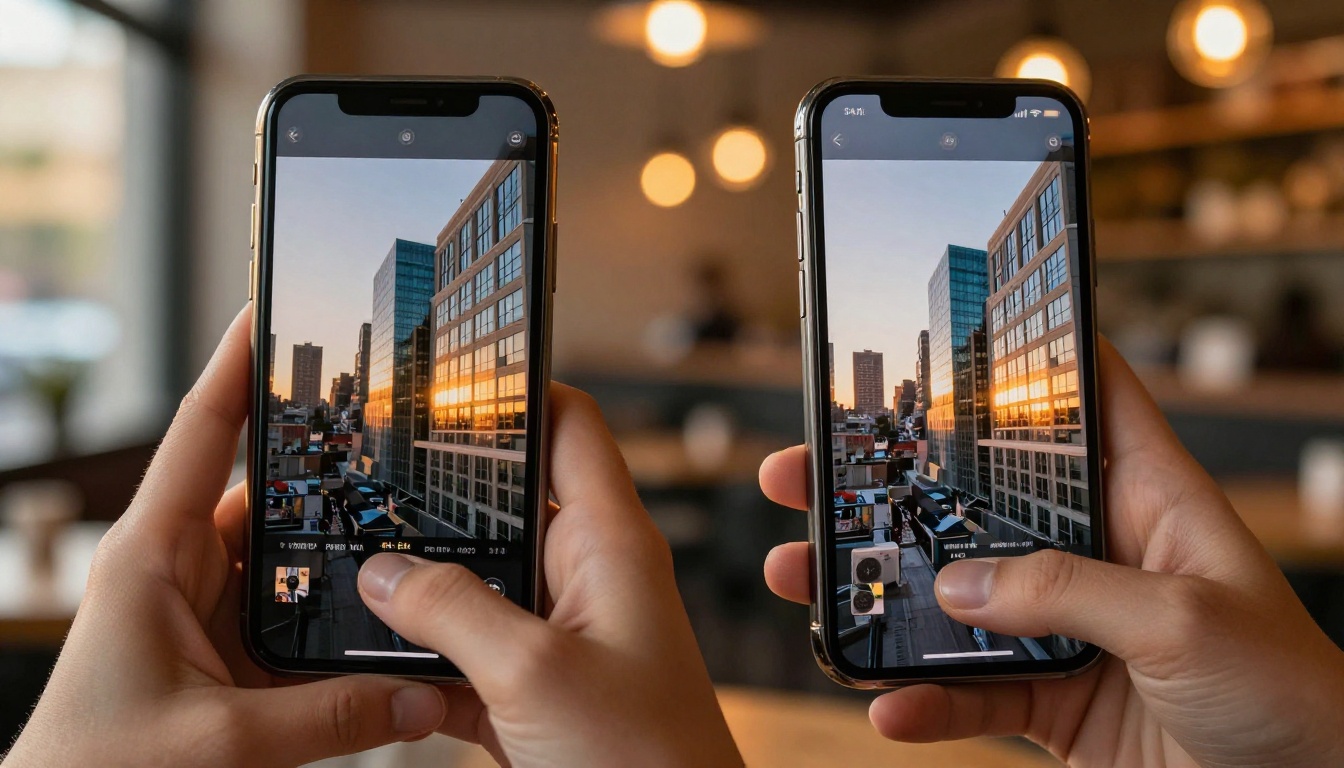
The proof is in the pixels. Here is where the difference between AI and traditional upscaling is most visually dramatic across three common scenarios.
Fine Hair and Skin Texture
This is where AI upscaling's advantage is most obvious. Run a portrait through bicubic interpolation at 4x and the hair looks like a painted smear. Run the same portrait through Crystal Upscaler and individual hairs separate, skin pores appear, and eyelashes show realistic taper from base to tip.
Portrait-specific models have been trained on millions of faces and internalized precisely what high-resolution facial detail looks like. They are not guessing. They are predicting from strong statistical priors built over extensive training.
Text and Logos
Text in images is one of the hardest targets for upscaling because it requires both sharp edges and recognizable character shapes simultaneously. Traditional methods blur the edges of letters. CNN-based models sharpen edges but sometimes distort character shapes in the process.
GAN-based models trained on diverse datasets handle text better because they have absorbed enough text-containing images to know what letter edges should look like. For images where text legibility matters, Recraft Crisp Upscale is worth testing for its clean, artifact-free edge rendering.
Old and Damaged Photos
This is perhaps the most compelling application. Scanning an old photograph often yields a low-resolution image with yellowing, grain, fading, and loss of shadow detail. Traditional upscaling makes these images larger without addressing any of the underlying problems.
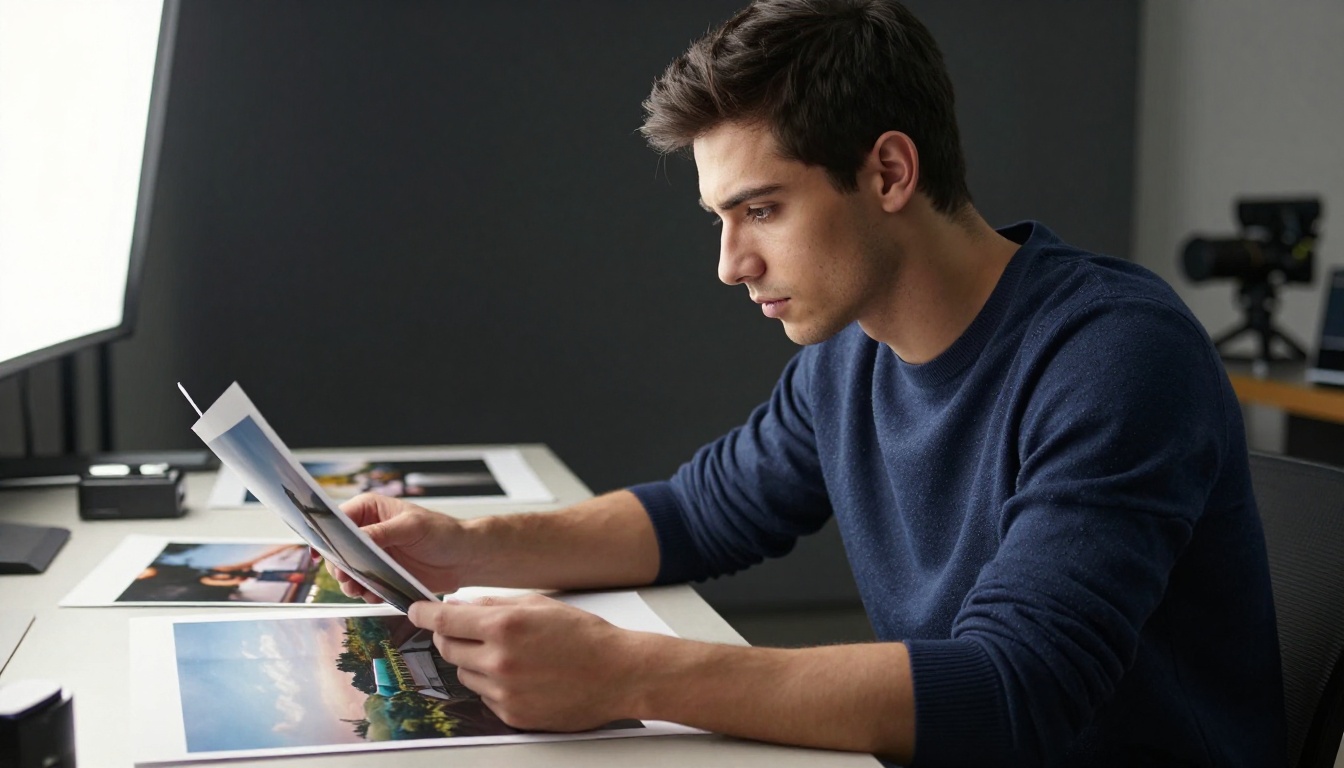
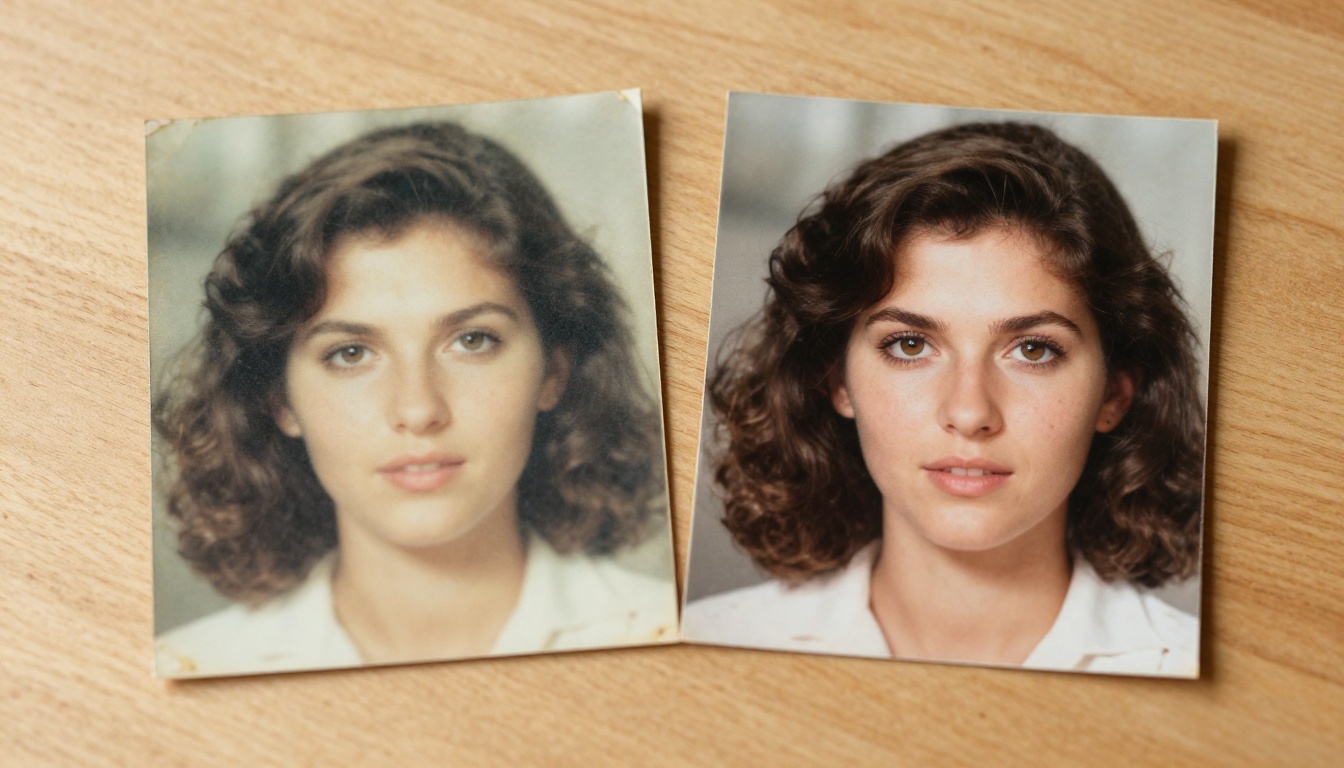
Models like Recraft Creative Upscale and Topaz Image Upscale approach old photos as a reconstruction problem. They remove noise, restore color balance, sharpen edges, and increase resolution simultaneously. A photograph from 1965 can come out looking like it was shot on modern equipment.
3 Mistakes That Ruin Upscaling Results
Even with the best models, bad inputs and wrong settings produce disappointing results. These are the three most common errors.
1. Using the Wrong Model for the Content
Running a portrait through a model optimized for landscapes, or running a product photo through a portrait model, gives you mismatched predictions. The model will try to apply patterns it absorbed from a different domain. Portrait models applied to architecture can create bizarre organic textures on stone and metal surfaces. Always match the model to the content type.
2. Upscaling Already-Compressed Images Without Pre-Processing
JPEG compression introduces blocking artifacts: rectangular grid patterns that appear at high zoom levels. When an AI upscaler sees these, it treats them as real features of the image and sharpens them. The result is an image where compression artifacts become prominently crisp.
The fix: if your source image has visible JPEG blocking, run it through a denoising step first, then upscale. Most platform workflows support this sequence.
3. Expecting 4x to Fix 10-Year-Old Thumbnails
AI upscaling works within physical limits. It can plausibly reconstruct detail that is statistically consistent with the image, but it cannot invent information that was not there in any form. A 50x50 pixel thumbnail upscaled 4x gives you a 200x200 output. The model will do its best, but there is simply not enough signal in the input for meaningful reconstruction.
💡 The practical limit: AI upscaling works best when the source image is at least 200-300px on its smallest dimension. Below that, results vary significantly by model and content type.
What Your Photos Can Look Like
The technology described in this article is not theoretical and it is not expensive. Every model referenced above is available on PicassoIA with no subscription required for basic use. You upload your image, select a model, run it, and download the result. There is no software to install and no GPU to rent.
The models worth trying for different needs:
Pick one of your own low-resolution photos and run it. The difference between what you put in and what comes out is the clearest explanation of how AI upscaling works that any article can offer you. Start with whichever model matches your content and go from there.


