You upload one photo, type a sentence, and five seconds later the waterfall is falling, the hair is blowing and the camera is slowly drifting forward. It feels like magic, but it is just math applied to a very large number of video clips. If you have ever wondered how image to video generators work, which free tools are actually usable, and why your last clip came out strange, this article gives you straight answers, with prompts you can copy and examples you can reproduce.
What Happens Inside the Model
An image to video generator is a neural network trained on millions of video clips paired with text descriptions. It has seen so many examples of water flowing, people walking and clouds drifting that it can predict what should happen next in a still scene. Your photo is the starting point, and the model fills in everything that follows.
From Pixels to Noise
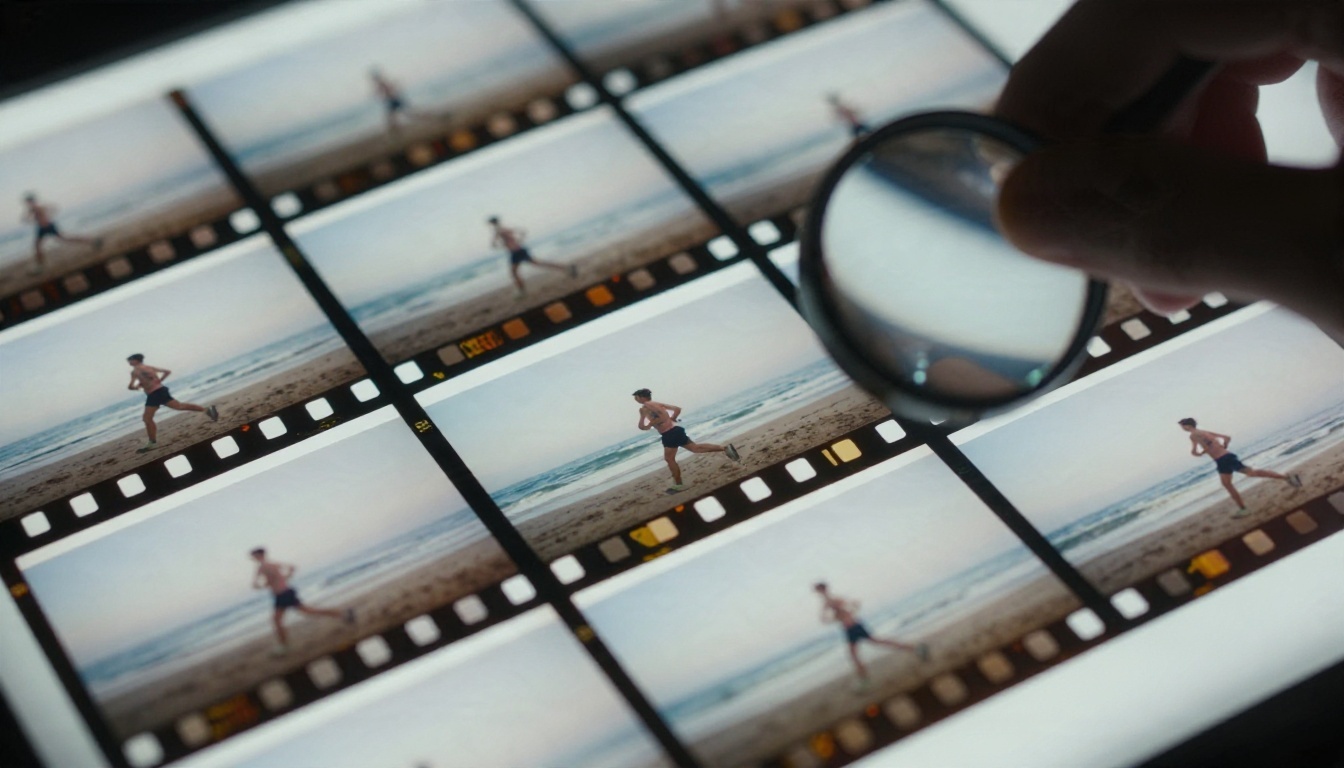
Most current generators are diffusion models. During training, real video frames are gradually buried under random noise, and the network learns to reverse that process one small step at a time. At generation time it starts from pure noise and removes it step by step until a coherent clip appears.
The difference with image to video is the anchor. Your photo is fed into the model as a strong condition, so the first frame (and often the overall look, colors and subject identity) stays locked to what you uploaded.
Frames Are Predicted Together
Early tools generated one frame at a time and stitched them together, which caused flicker. Modern systems treat the whole clip as a single block of space and time, usually inside a compressed latent representation. The model reasons about all 120 frames of a 5 second clip at 24 frames per second at once, so a face keeps its shape and a shadow stays where it should.
Where Motion Comes From
The model has no physics engine. It has learned statistical habits: hair lifts when wind is mentioned, water moves downward, a camera push makes the background shift more slowly than the foreground. Your prompt tells it which habits to apply. Your image tells it what to apply them to.
💡 Think of the photo as the "what" and the prompt as the "how it moves." A prompt that repeats what is already visible wastes the one part of the process you control.
The Pipeline Step by Step
Under the hood, almost every generator follows the same sequence, even when the interface looks different.
| Stage | What the system does | What you notice |
|---|
| Image encoding | Compresses your photo into a latent representation | Your photo's colors and subject carry over |
| Prompt encoding | Converts your text into numbers the model can use | Wording changes the type of motion |
| Denoising | Removes noise across all frames over many steps | The progress bar or queue wait |
| Decoding | Turns the latent clip back into visible pixels | The final MP4 appears |
| Audio (some models) | Generates synchronized sound with the video | Ambient noise, footsteps, wind |
Several newer models, including Veo 3.1 Fast and Seedance 2.5, can add native audio to the clip, which is why a waterfall now sounds like one.
Why Clips Are So Short
Compute grows quickly with length. Every extra second multiplies the number of frames the network must keep consistent, and errors pile up the longer a clip runs. That is why most generators default to 5 seconds, with some offering 10 and a few reaching longer durations. Short clips are not a flaw, they are the sweet spot where quality is stable.

"Free" means very different things from one product to the next. Based on what tools were publishing in 2026, the pattern is consistent, though exact numbers change often, so always check the current plan before you rely on it.
One-Time vs Recurring Credits
Some free plans hand you a one-time bundle of credits that never refills. Runway's free plan, for instance, was reported at 125 credits that do not renew, which is enough to test a handful of clips and not much more. Other tools, such as Dreamina, give daily or monthly credits that refill, which suits casual use better.
Watermarks and Resolution Caps
Free output on most big names, including Runway, Kling, Pika, Luma and Vidu, was reported to carry a watermark as of early 2026. Luma's free tier was listed at about 30 standard generations per month with a watermark. Lower resolution (often 480p or 720p) and slower queues are also common free-tier trade-offs.
The Four Limits You Will Hit
- Credits: one-time or recurring, and higher quality modes cost more per clip.
- Watermark: fine for testing, unusable for client or social work.
- Resolution and length: free plans often cap at short, lower-resolution clips.
- Queue time: free users wait behind paying users, sometimes for minutes.
| Limit type | Typical free tier | Workaround |
|---|
| Credits | Small one-time or daily allowance | Pick a tool with unlimited free modes |
| Watermark | Present on most big-brand free plans | Choose a generator with clean exports |
| Resolution | 480p to 720p | Upscale afterwards with a super resolution model |
| Clip length | 3 to 5 seconds | Chain clips using the last frame as the next start |
| Speed | Slow queue | Use a fast or lite model variant |
💡 A free allowance is enough to test a prompt and animate a single still. A real project with ten or twenty clips and retries burns through it fast, so plan your tests before you start spending.
Free Options on PicassoIA
If you want to avoid counting credits, two models on PicassoIA are built for that. PicassoIA Video is a free and unlimited generator that accepts text or an image. Seedance 2.5 Lite is also free and unlimited, with clips up to 10 seconds. Both are a good place to rehearse a prompt before moving to a heavier model.
Prompts That Actually Move the Image
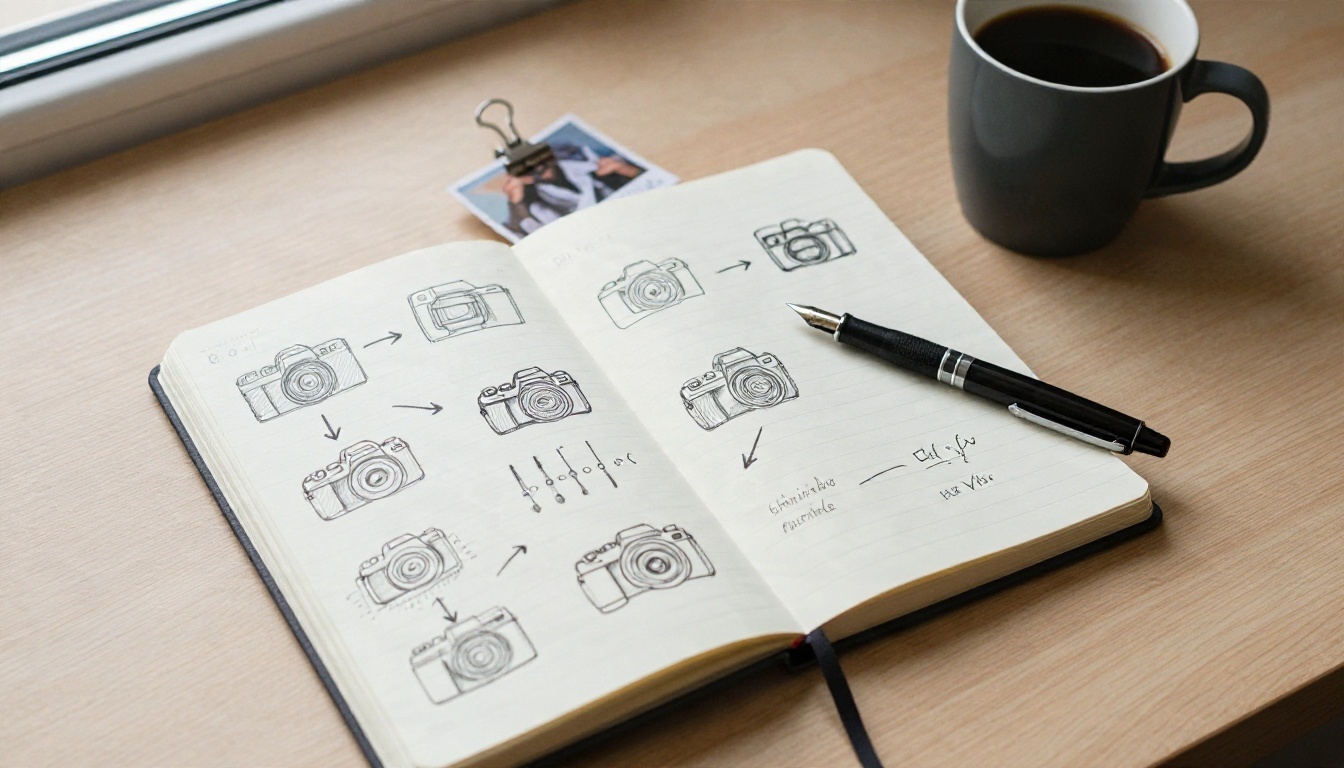
The most common mistake is describing the photo. The model can already see it. Describe change instead.
The Four-Part Formula
Write one or two sentences in this order:
- Subject motion: what the main subject does ("she turns her head slowly toward the sea").
- Environment motion: what the background does ("grass bends in the wind, waves roll in").
- Camera movement: how the viewpoint behaves ("slow dolly in, slight handheld sway").
- Light and mood: how the atmosphere shifts ("golden light flickers through clouds").
Camera Words That Work
Video models respond well to the vocabulary of film sets. These phrases are reliable:
| Phrase | Result |
|---|
| slow dolly in | The camera pushes toward the subject |
| gentle pan left | A smooth horizontal sweep |
| static camera | Only the subject moves, good for portraits |
| orbit around the subject | Parallax and depth, best with clear foreground |
| rack focus | Focus shifts from foreground to background |
| handheld, subtle shake | A documentary, natural feel |
Prompts to Copy
- Landscape: "Water cascades down the cliff, mist drifts upward, ferns sway slightly, slow dolly in, soft overcast light, ambient river sound."
- Product: "Static camera, a soft light sweep passes across the glass bottle, a thin reflection glides over the marble, lavender sprig trembles slightly."
- Portrait: "Her hair lifts in the wind, she blinks and looks toward the horizon, shallow depth of field, slow push in, warm sunset rim light."
- Phone photo: "The child laughs and tilts their head, background cafe patrons move softly, subtle handheld camera."
💡 Keep one main motion per clip. Asking for a spinning camera, running subject, falling rain and changing weather in five seconds usually produces melted faces and warped objects.
Examples by Image Type
Different photos behave differently. Here is what to expect from four common cases.
Landscapes Are the Easiest
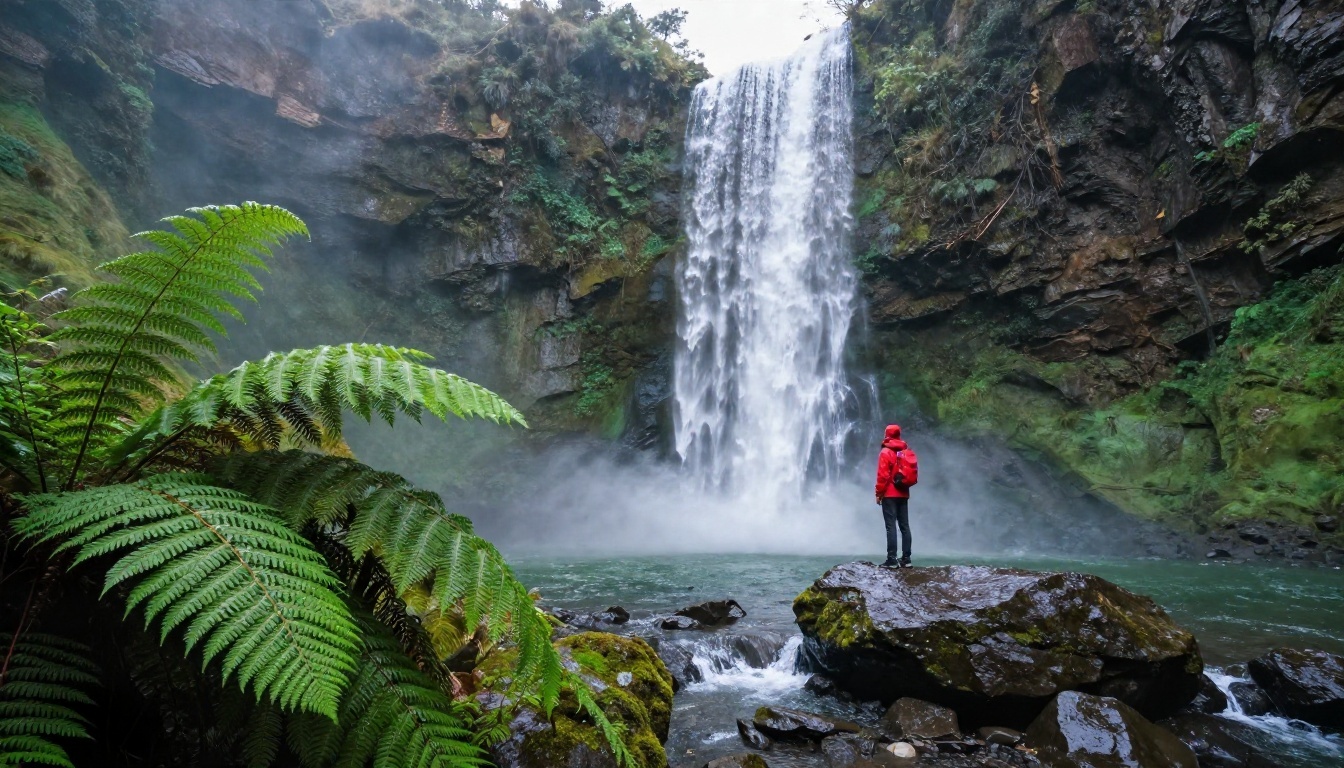
Water, clouds, leaves and mist are everywhere in training data, so models animate them convincingly. This image works because it has layers: foreground ferns, a falling waterfall and a small human figure for scale. A slow dolly in gives the layers different speeds, which reads as depth. Models like Wan 2.7 I2V handle this kind of scene very well.
Product Shots Need Restraint

With products, the object must not change shape. Ask for light sweeps, reflections, a slight camera orbit or a drifting prop. Avoid asking the bottle to rotate fully, because the back of the object is invisible in your photo and the model will invent it. Kling v3 Video is a strong choice for crisp, controlled product motion.
Portraits Reward Subtlety
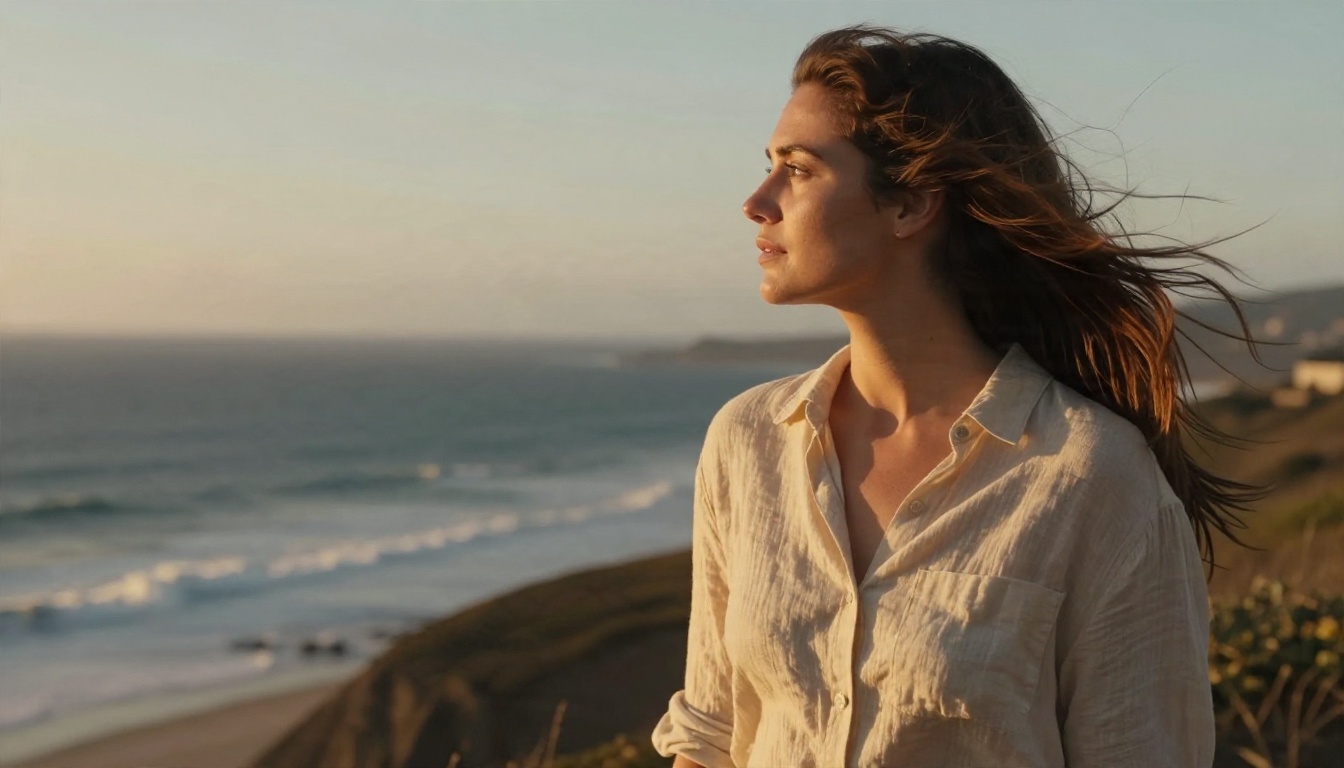
Faces are where viewers are least forgiving. Small movements, such as a blink, a breath, hair in the wind and a slight head turn, look natural. Big expressions, speech or fast head movement can drift away from the original identity. Pair a static or slowly pushing camera with one soft facial action.
Phone Photos Work Better Than You Think

Family pictures and travel snapshots animate nicely as long as they are sharp and well lit. A blurry photo produces a blurry video, and heavy compression artifacts get exaggerated in motion. If your source is small or noisy, run it through a super resolution tool first.
How to Animate a Photo on PicassoIA
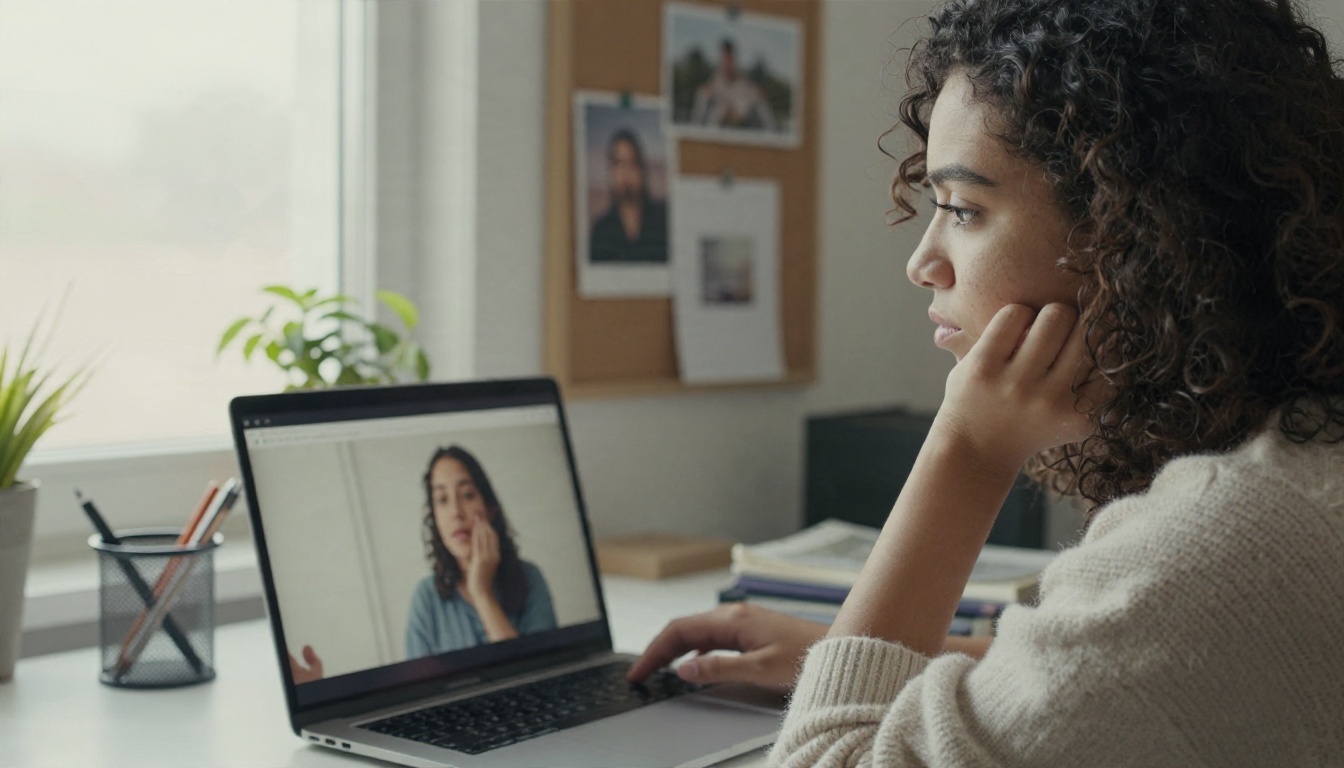
Here is a simple workflow using PicassoIA Video, the free and unlimited option.
- Pick or create your source image. A sharp, well-composed 16:9 or 9:16 photo is best. If you need a custom still, generate one with Seedream 4.5 first.
- Open the model page and choose the image input, then upload your photo.
- Write a motion prompt using the four-part formula above. Keep it to one or two sentences.
- Match the aspect ratio to the image so nothing is cropped or stretched.
- Generate and review. Watch for warped hands, drifting faces or flickering backgrounds.
- Adjust one variable at a time. If the motion is too strong, soften the verbs ("slightly," "slowly"). If nothing moves, name the element explicitly.
- Upgrade when needed. Once the prompt works, re-run it on a higher-fidelity model such as Veo 3.1 Fast or Wan 2.7 I2V for a final render.
💡 Test with a free model, finish with a premium one. The same prompt usually transfers, so you only pay for the version you actually keep.
Chaining Clips for Longer Videos
To go beyond 5 seconds, export the last frame of your clip, use it as the starting image for a new clip, and write the next action as a continuation. Cut the clips together in a video editor. Colors and lighting stay consistent because every segment begins from the same pixels.
Common Mistakes and Fixes
| Problem | Likely cause | Fix |
|---|
| Nothing moves | Prompt describes the image, not motion | Add verbs and name the moving element |
| Face melts or changes | Too much motion or a low-resolution face | Use a static camera, slow the action, use a sharper source |
| Flickering textures | Busy patterns, such as fine stripes or foliage | Simplify the source or lower the motion strength |
| Hands look wrong | Small details are hard to keep coherent | Crop hands out or keep them still |
| Weird camera spin | Conflicting camera words | Use only one camera instruction |
| Video looks soft | Low-resolution source | Upscale the image before animating |
Image Quality Decides Everything
The generator inherits every flaw in the photo. Sharp focus, clean lighting and a clear subject separated from the background produce the best results. A cluttered image gives the model too many things to guess about.
Aspect Ratio Matters
Uploading a vertical photo to a 16:9 setting forces cropping or empty fills. Match the ratio to the platform you are posting on: 9:16 for short-form vertical video, 16:9 for YouTube and websites, 1:1 for square feeds.
Which Model for Which Job
PicassoIA hosts many image to video options, and each one has a different strength. This table is a fast way to pick.
A Simple Testing Routine
Start with a free model and run three variations of the same prompt: one with a static camera, one with a slow push in, and one with a gentle pan. Keep the best, then re-run it on a premium model. This gives you a reliable look without wasting credits on guesswork.
Make Your First Clip Today
Now you know the process: a diffusion model reads your photo as an anchor, predicts motion from patterns it has seen in training, and delivers a short clip in seconds. The quality comes down to three things you control: a sharp source image, a prompt that describes motion instead of the picture, and a model that fits the job.
Pick one photo from your phone, write a two-sentence motion prompt using the formula above, and run it on PicassoIA Video or Seedance 2.5 Lite. Try the same prompt with a different camera word, compare the two results, and keep the one you like best. When you want more variety, browse every option at picassoia.com/en/all-models and see how far a single still can travel.


