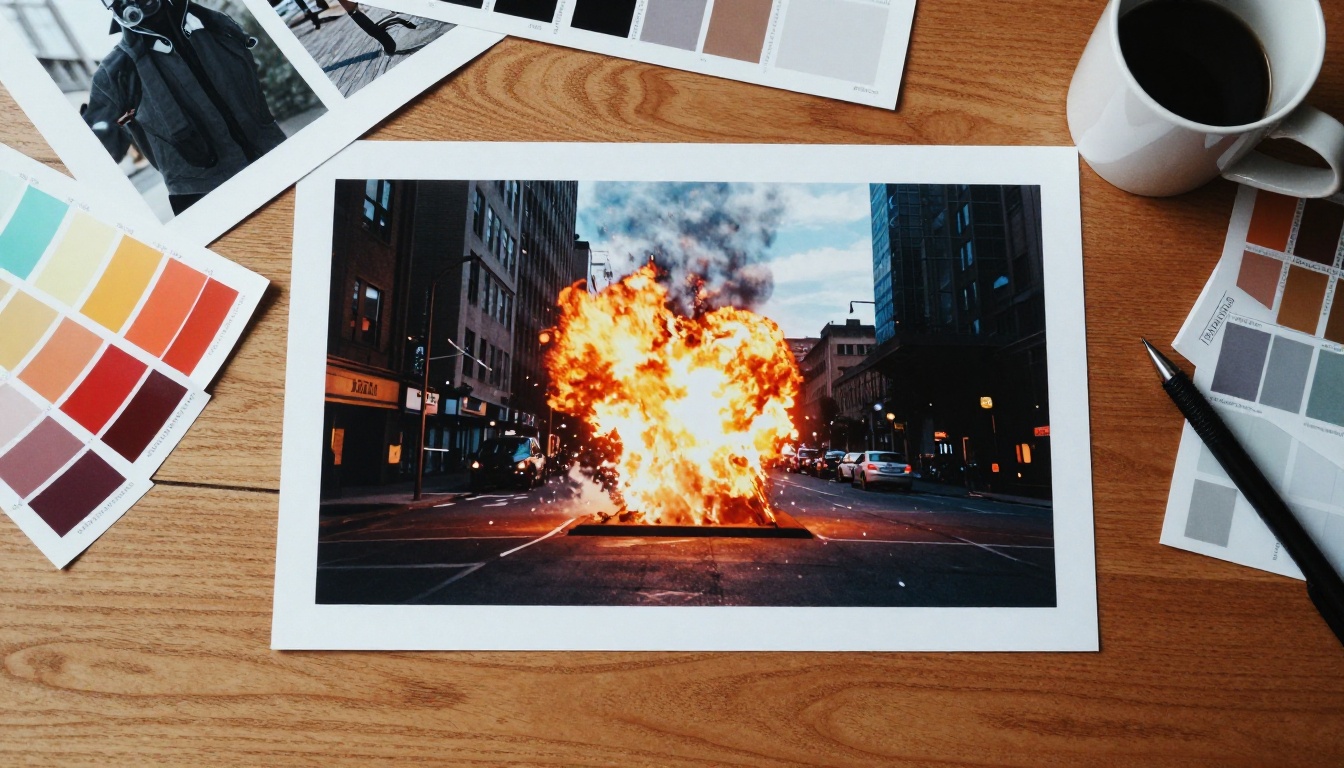
Adding a fireball to a photo used to mean hiring a pyrotechnics team, renting a film permit, and spending half a production budget on safety equipment. Today, you type a sentence. AI has made it possible to add realistic explosions, fire, smoke, debris clouds, and particle FX to any image or video, all from a browser. This article breaks down exactly how it works, which tools produce the best results, and how to avoid the common mistakes that make AI effects look fake.
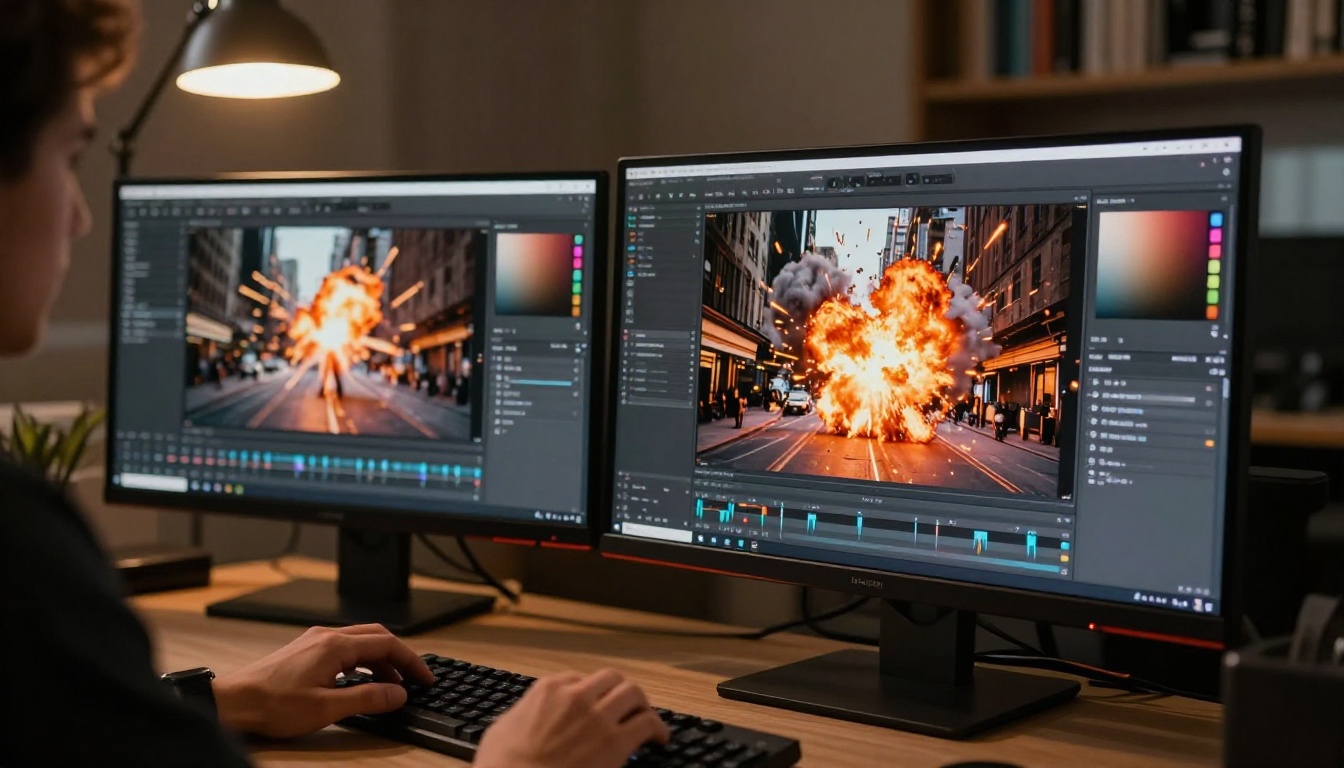
Why AI Is Changing Visual Effects Production
VFX has always been a bottleneck for independent creators. Even a simple smoke effect in a short film required compositing software, stock footage licenses, and hours of manual masking. Generative AI collapses that process into a prompt.
The Old Way Was Expensive and Slow
Traditional VFX workflows relied on layered compositing in tools like After Effects or Nuke. Each element, fire, smoke, shockwave, debris, had to be sourced, masked, color-matched, and blended manually. A single explosion sequence could take a professional VFX artist 8 to 40 hours to complete. Renting licensed stock footage of real explosions added additional cost, often hundreds of dollars per clip.
For stills, Photoshop was the standard: sourcing stock fire images, adjusting blend modes, matching color temperature, painting light spill onto subjects. Technically achievable, but slow and skill-dependent. Most creators simply could not afford the time or the tools.
What Changes When AI Handles the FX
AI generative models understand context. When you describe an explosion happening on a street corner, the model analyzes the perspective, lighting direction, and surface materials in your source image, then generates the effect to match. The light from the fireball bounces correctly off the pavement. Smoke drifts with the implied wind direction in the scene. This contextual awareness is what separates AI FX from basic photo overlays.
💡 The core advantage of AI FX is not speed, it is contextual coherence. The effect reacts to the scene rather than sitting on top of it.
The acceleration in quality over the past two years has been significant. What required a specialist compositor in 2022 can now be approximated with a well-written text prompt in 2025. The ceiling keeps rising.
Types of FX You Can Generate with AI
Before picking a tool, it helps to know what categories of effects AI handles best and where the limitations still exist.
Fire and Explosion Effects
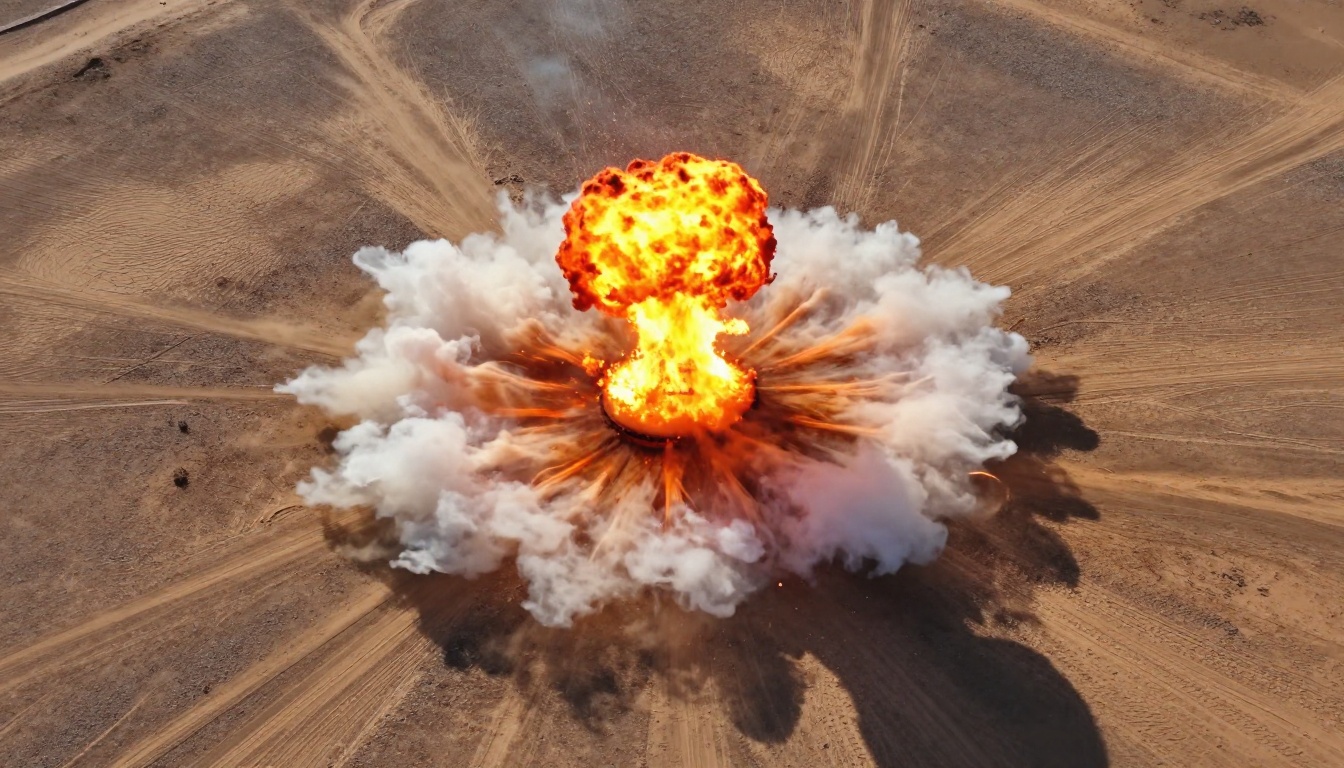
Fireballs, ignitions, and controlled detonations are among the most requested AI FX. Models trained on photorealistic imagery have seen enough real explosion footage to generate convincing fire geometry, heat distortion, and light behavior. The best results come from prompts that specify size, temperature color (blue flame vs. orange fireball), and atmospheric conditions.
What works well:
- Mid-distance establishing explosions
- Vehicle fires and building ignitions
- Ground-level blast craters with dust and debris rings
- Secondary fires spreading after an initial detonation
Where it still struggles:
- Extreme close-up fire with interacting subjects
- Multi-frame continuity in long video sequences (though improving fast)
- Precise fire shape control (flames are stochastic by nature)
Smoke and Particle Systems
Smoke is arguably the area where AI FX is most convincing. Volumetric smoke behaves according to physics, with density, dissipation, and light scatter all generated from context. Particle effects, including embers, ash, and debris shards, work similarly. The trick is specificity in your prompt: "thick black diesel smoke" produces very different results from "white steam cloud."
Particle trails around a subject (sparks, glowing embers, floating ash) work particularly well in portrait and close-up applications. They perform well for fashion shoots, action portraits, and product photography where dramatic atmosphere is needed without full explosion scale.
Debris and Shockwave Effects
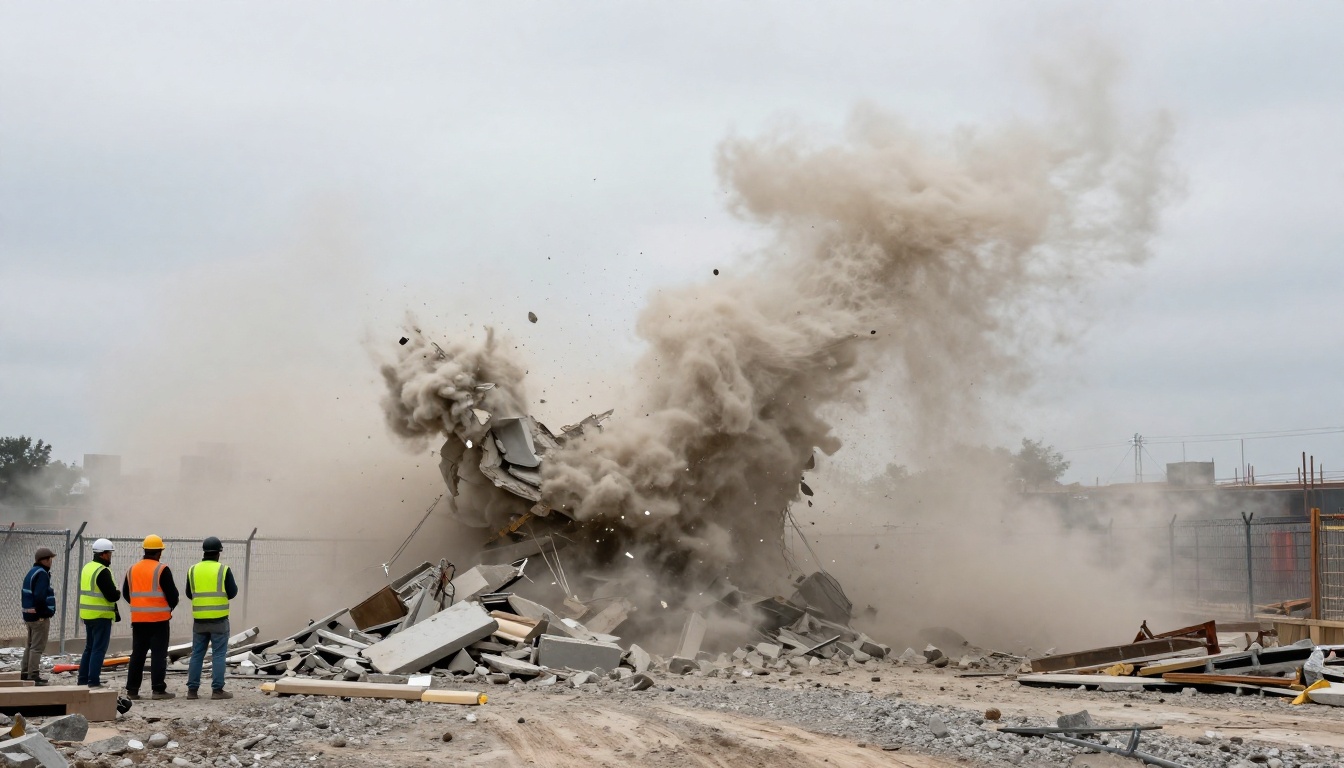
Shockwave rings, pressure waves, and flying debris are high-risk areas. They can look spectacular when the perspective and scale match the environment, but scale errors are immediately noticeable. A debris chunk the wrong size relative to background architecture breaks realism instantly. Prompting for debris requires anchor references: "concrete chunks the size of a car door, flying parallel to the second-floor windows."
| FX Type | AI Difficulty | Realism Ceiling | Best Use Case |
|---|
| Fireballs | Low | Very High | Action scenes, vehicles |
| Smoke | Very Low | Excellent | Atmosphere, industrial |
| Shockwaves | Medium | High | Sci-fi, action |
| Debris | High | Medium | Demolition, war scenes |
| Particle sparks | Low | Excellent | Close-up portraits, products |
| Heat distortion | Medium | High | Desert and fire-adjacent scenes |
How to Add FX to Photos Using AI
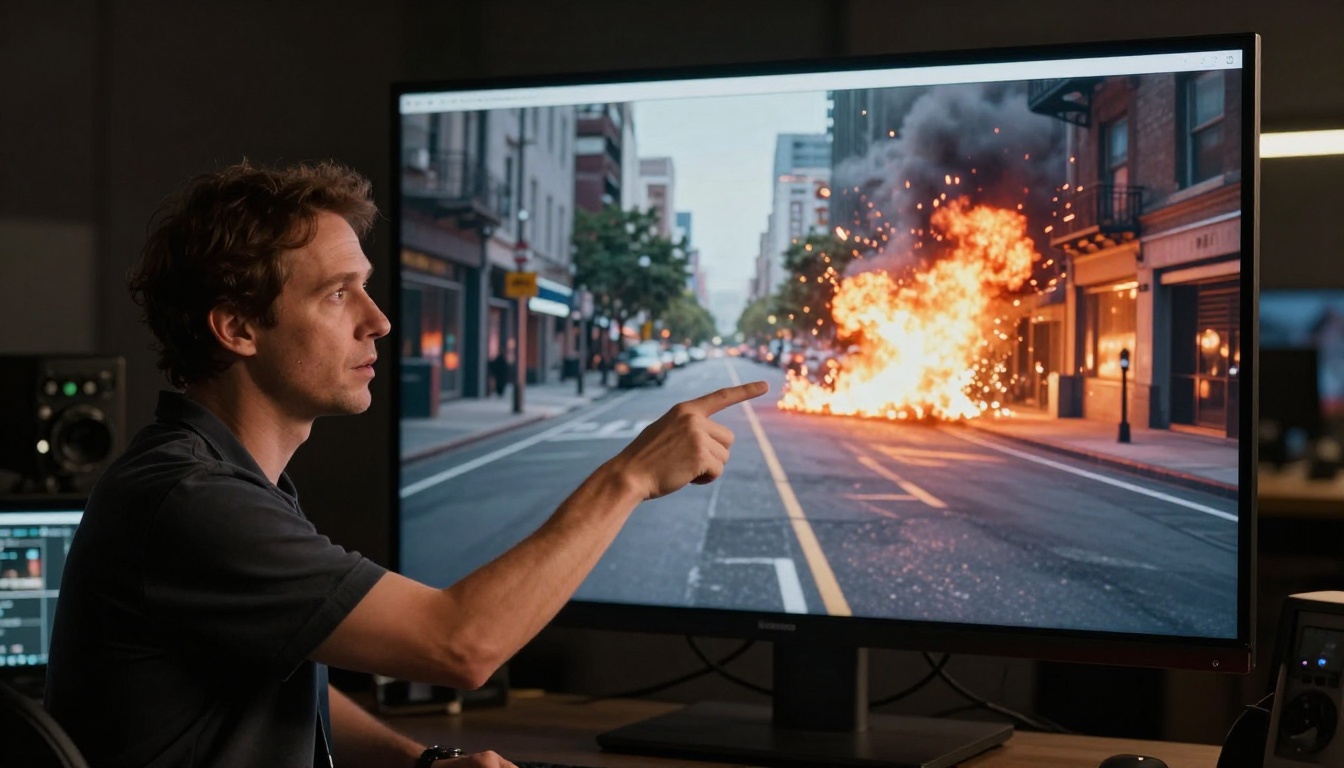
For still images, the workflow is prompt-based generation with your source image as the starting point. The process works best when you treat the AI as a collaboration partner, not a magic button.
Start with the Right Base Image
Not every photo is a good candidate for AI FX compositing. The models work best on images with:
- Clear horizon or environmental depth: The model needs spatial context to place the effect realistically.
- Consistent lighting direction: A photo lit from the left will look wrong with an explosion light spill coming from the right unless you address it explicitly in the prompt.
- Low compression artifacts: High-quality source images give the model more data to work with. Heavily compressed social media screenshots produce lower quality FX integration.
- Open negative space: Scenes with open sky, open background, or clear midground zones give the explosion room to breathe visually.
Writing Prompts That Work
The single biggest factor in output quality is prompt specificity. Vague prompts produce vague results.
Weak prompt: "Add explosion to the background."
Strong prompt: "Add a large fireball explosion 80 meters behind the subject in the midground, the blast light casting warm orange fill light from the right side onto the subject's jacket and face, thick black smoke rising vertically into the overcast sky, ground shockwave disturbing the dust on the road surface beneath the explosion, photorealistic, Kodak Portra 400 film grain texture."
Every additional detail constrains the model toward a more physically accurate result. Structure your prompts to describe:
- Position and distance of the FX relative to the subject
- Light direction and color temperature the FX casts onto the scene
- Atmospheric context: existing haze, wind implied by other elements, time of day
- Scale reference: compare the explosion to a recognizable element in the frame
💡 Always include "photorealistic" and a camera or film reference like "Kodak Portra 400 grain" in your FX prompts. These tokens push the model toward photography training data rather than illustration or CGI aesthetics.
Blending FX Naturally with the Scene
The most common failure point is light interaction. An explosion that does not visibly illuminate foreground elements looks pasted on. Explicitly prompt for "warm orange light spill from explosion illuminating [specific foreground element]" to force the model to compute that light interaction.
Secondary tells for low-quality compositing:
- Smoke opacity that ignores existing atmospheric conditions in the scene
- Fire that casts no shadows or affects nothing beneath it
- Debris that floats against the implied gravity given the camera angle
Adding Explosion Effects to Video with AI
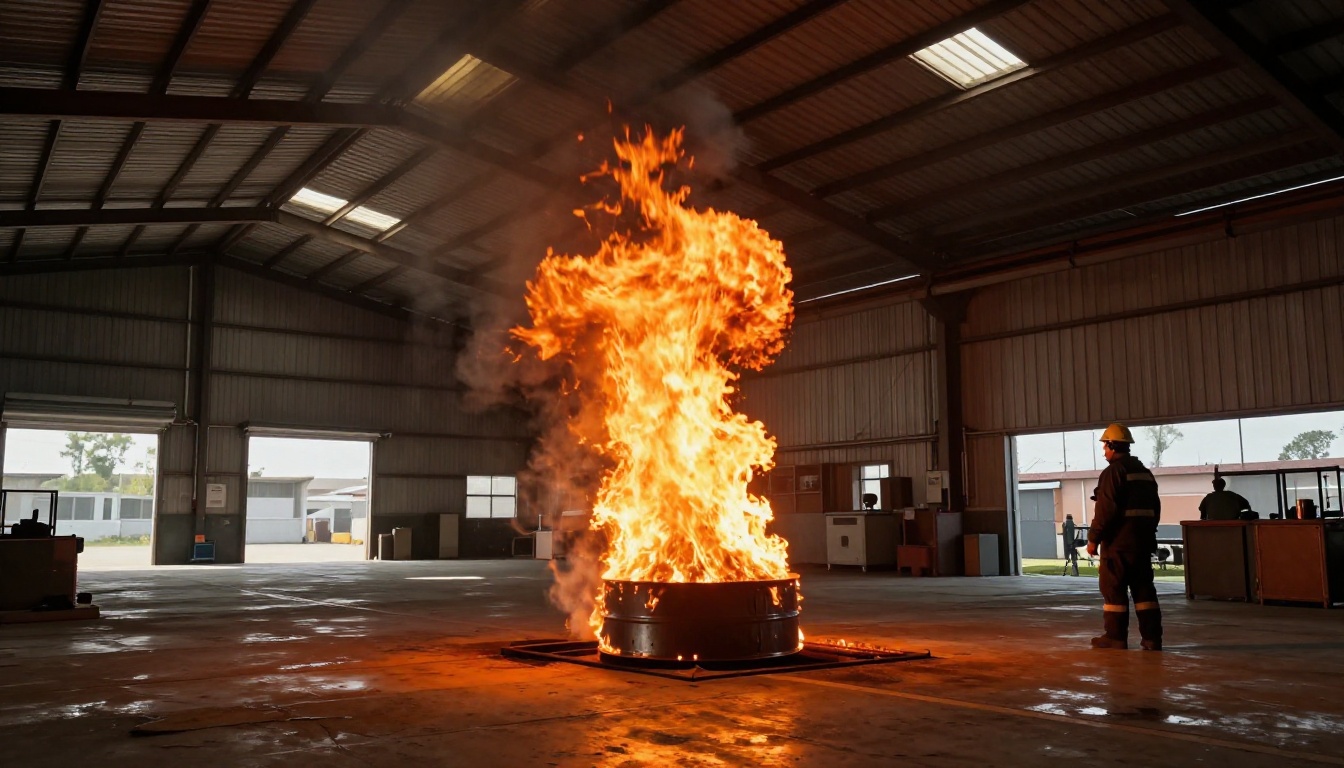
Video FX is where AI tooling has moved fastest over the past 18 months. Text-based video editing models can now inject, stylize, and composite effects into footage by understanding scene geometry and motion over time.
Text-Based Video Editing with Wan 2.7
Wan 2.7 Videoedit is one of the most capable text-based video editing models available. You upload a video clip and describe the transformation in plain text. For explosion FX, you describe the effect and its placement, and the model generates it frame-by-frame with motion coherence.
How to use it for explosion FX:
- Upload your source video clip (works best with clips under 10 seconds for faster iteration)
- Write a detailed FX prompt: "Add a large explosion in the background behind the car, with fire and black smoke rising, the blast light illuminating the car from behind with warm orange fill"
- Adjust the transformation strength slider: lower strength preserves more original footage detail, higher strength allows deeper FX integration
- Generate and review, then refine the prompt based on what the output shows
The model handles motion blur and temporal consistency automatically. The explosion effect tracks with camera movement rather than floating in a fixed position, which is the critical difference between this approach and simple overlay compositing.
Scene Rewriting with Kling o1
Kling o1 allows full scene rewrites through text input. Rather than adding an FX layer onto existing footage, it re-generates the entire video frame sequence while following your text description. This works particularly well for sequences where you want the environment itself to feel destroyed or heavily affected: crumbling building facades, burning street scenes, post-blast landscapes with lingering fires.
The tradeoff is that fine control over one specific element is harder. Kling o1 treats the scene holistically.
Full Restyle with Gen 4 Aleph
Gen 4 Aleph from RunwayML handles recut and full restyle operations. You can take existing footage and apply a complete cinematic treatment that includes atmospheric FX, haze, fire, and color grading changes simultaneously. It works well for taking clean, flat-lit footage and giving it a high-action or post-disaster visual treatment in one pass.
For more targeted edits on a specific frame region, Lucy Edit 2 from Decart specializes in localized video modifications, making it better suited for adding an isolated explosion or fire element without affecting the surrounding scene content.
💡 For video FX, always work on short clips of 3 to 8 seconds first. Longer clips compound temporal inconsistencies, and short clips let you iterate on the prompt quickly before committing to a longer render.
Sound Effects: The FX You Cannot Ignore
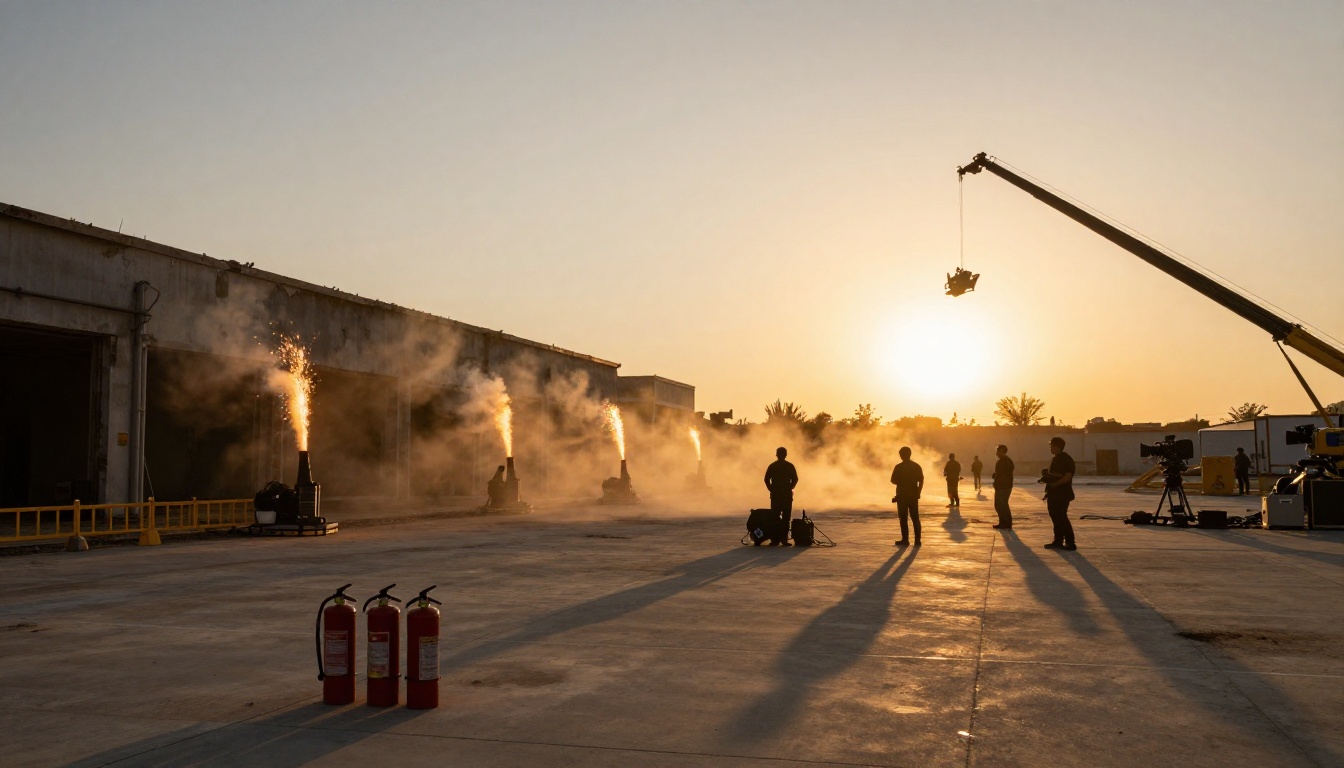
A visually perfect explosion with no sound is immediately unconvincing. Audio is half of the FX sell, and AI tools have addressed this with automatic sound design capabilities that match explosion audio to your visual content.
Auto-Syncing Audio to Your Explosion
Video To SFX v1.5 analyzes your video content and generates synchronized sound effects that match the on-screen action. For explosion content, it detects the blast, fire, and debris elements and generates appropriate boom, crackle, and rumble audio timed to match the visual hit points.
Thinksound takes a complementary approach: it adds contextual ambient audio that matches the overall environmental conditions. Adding distant traffic noise, wind, or the particular reverb of an urban space makes the explosion feel located in a real physical environment rather than a digital void.
Best Models for Realistic SFX
MMAudio from zsxkib gives you the most precise control over generated audio. You can describe the exact sound design you want through text: "deep subwoofer detonation hit at 0.3 seconds, followed by secondary crumbling debris at 1.2 seconds, fire crackle sustaining through 4 seconds, distant car alarms beginning at 2 seconds." This level of specificity produces cinematic-quality sound that matches professional blockbuster post-production standards.
| Tool | Best For | Control Level |
|---|
| Video To SFX v1.5 | Quick automatic audio sync | Low (auto) |
| Thinksound | Environmental acoustic placement | Medium |
| MMAudio | Custom SFX design via text prompt | High |

Pro Tips for Realistic FX Compositing
The difference between AI FX that looks convincing and AI FX that looks generated comes down to a handful of physical principles. These apply equally to stills and video work.
Lighting Match Is Everything
Every light source in a scene creates a corresponding shadow and a corresponding fill on nearby surfaces. An explosion is one of the most intense transient light sources possible. If you add a fireball to a daylight scene, the explosion should visibly overpower the ambient light on any surface facing it. Specifically:
- Foreground subjects should show warm orange or amber fill on the side facing the blast
- Ground surfaces should show a bright reflection or hotspot beneath the fireball
- Any glass or metallic surfaces in frame should catch a bright specular reflection from the blast
- The background sky on the explosion side should show atmospheric brightening from the heat column
Prompting AI models to compute these interactions explicitly, rather than simply "add explosion," is the single biggest quality multiplier available.
Scale and Perspective Rules
Human perception is extremely sensitive to scale errors. When adding explosion FX, always anchor the scale to something recognizable in the frame:
- "Fireball three times the height of the car on the left"
- "Smoke column reaching to the level of the third-floor windows of the building in the background"
- "Shockwave dust ring at ground level, extending roughly 5 meters from the blast center"
Scale anchors give the model a constraint that prevents the common error of generating an explosion that is either toy-like or impossibly massive for the implied scene distance.
When Less FX Looks More Real
The impulse to add maximum-scale dramatic FX often backfires. Some of the most convincing AI explosion results are actually restrained: a secondary fire burning in the background midground, a wisp of black smoke rising from a vehicle, dust and debris at ground level without a visible fireball. These subtle treatments work because they match the physical reality of how large explosions actually look at distance.
💡 At 300 meters, a substantial explosion is less visually dramatic than most people expect from watching film. AI FX that matches that physical reality reads as more authentic than an oversized foreground fireball.
Mobile and Quick-Iteration Workflows
Not every FX project needs a full desktop workflow. AI FX tools accessible through a browser work on mobile, which opens up on-location iteration and social content creation without needing a studio setup.
Tablet and Phone Workflows
For quick FX tests and social content, working from a tablet or phone is entirely viable. The main adjustment is prompt length: shorter prompts perform more reliably at mobile-generated resolutions because the model has less to integrate relative to output size. Focus on one FX element at a time (fire only, or smoke only, not both simultaneously) for cleaner results.
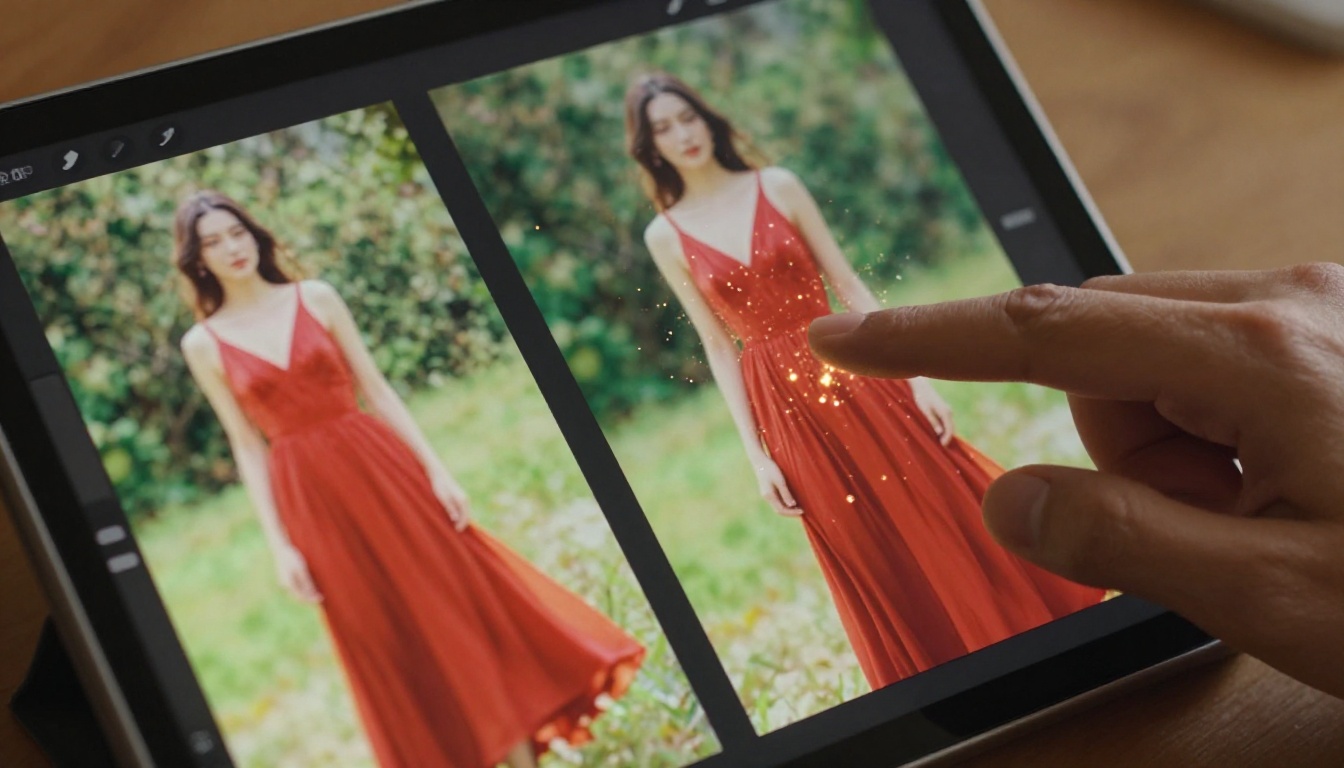
For portrait FX work, particle effects including sparks, embers, and floating ash work particularly well on mobile-generated images because the scale is intimate enough that minor artifacts are less visible. A shower of embers around a subject's hair and shoulders is forgiving of small inconsistencies in a way that a midground fireball is not.
Iterating Fast with Short Tests
The fastest iteration loop for any AI FX project is running multiple short tests with progressively refined prompts rather than one long generation. Generate a quick version, identify what needs to change (scale, light direction, position), update one variable at a time, and re-run. This systematic approach produces better results faster than trying to perfect the prompt in a single attempt.
Getting the Most from Your AI FX Workflow
Everything in this article is available right now without any software installation, VFX training, or production budget.
A practical starting workflow:
- Pick your base content: Choose a photo or video with clear spatial depth and consistent natural lighting
- Identify FX placement: Decide where the explosion or FX element should sit relative to existing scene elements
- Write a detailed prompt: Include position, scale, light interaction, atmospheric conditions, and a photorealism anchor phrase
- Generate and iterate: Run 2 to 3 variations with incremental prompt adjustments before settling on a result
- Add sound last: Once the visual FX is locked, use MMAudio or Video To SFX v1.5 to complete the scene with synchronized audio design
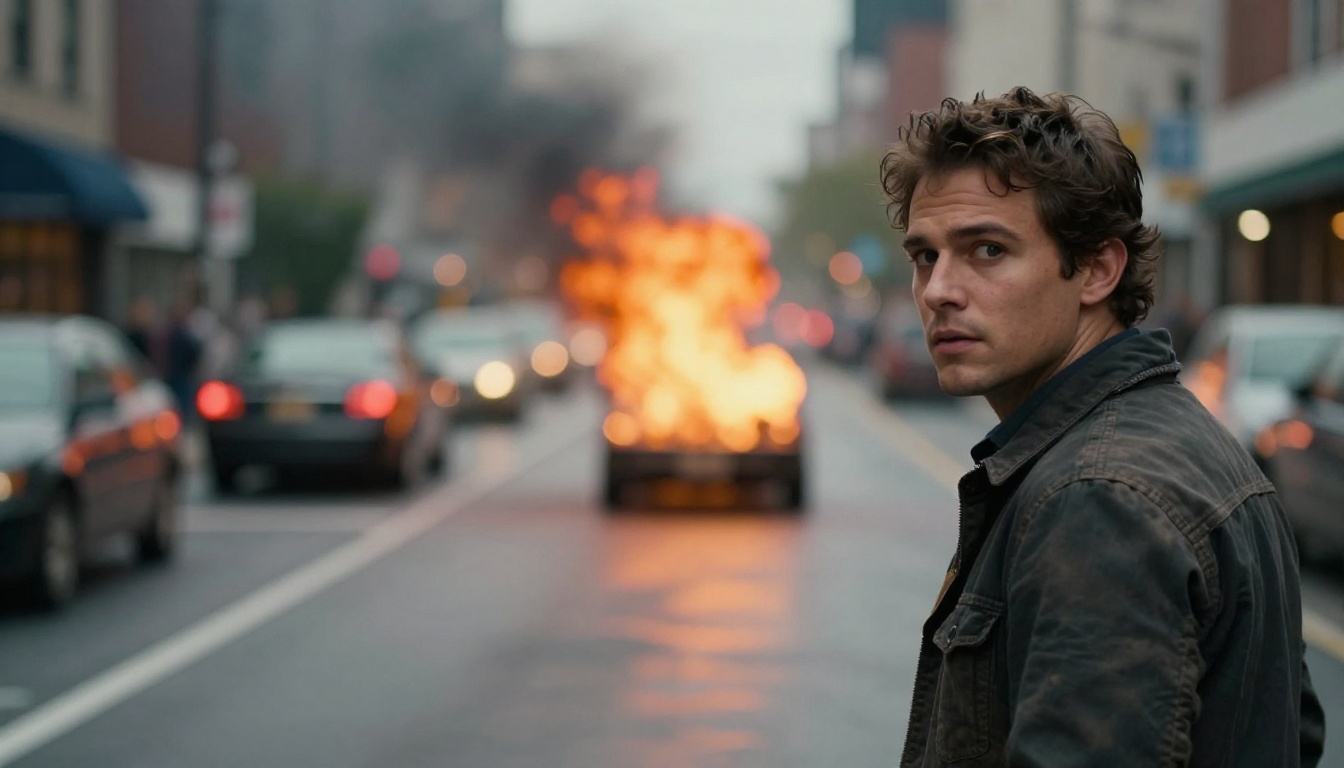
For video editing, the fastest path to professional FX is Wan 2.7 Videoedit. Its text-based interface makes it possible to describe almost any FX scenario and get a temporally consistent result in minutes. For larger-scale full scene transformations, Gen 4 Aleph and Kling o1 provide broader creative control over the entire visual treatment.
The practical barrier to entry is essentially zero: no pyrotechnics budget, no VFX software subscription, no compositing skills required. What matters is the ability to describe what you want in specific, physical, photographic terms. The AI handles the execution.
Create Your Own FX Right Now
Everything described above is available to use on Picasso IA today. Upload a photo, type a description, and see what AI generates in real time. The iteration loop is fast enough that you can go from a plain source image to a cinematic explosion composite in under five minutes.
For video work, start with Wan 2.7 Videoedit and a short clip of 5 to 8 seconds. Write a specific FX prompt using the principles in this article, pay close attention to light interaction descriptions, and run two or three iterations. For portrait and close-up photography with particle effects or subtle fire elements, prompt for restraint: a single ember trail or a ground-level dust cloud reads as more authentic than a maximum-scale detonation in most compositional contexts.
The tools are there. The FX quality keeps improving. The only remaining variable is how specifically you can describe what you want.


