Adding subtitles in two languages to a video used to be a specialist's job. You needed a transcriptionist, a translator, and someone who knew how to handle SRT timing files without breaking everything. Today, AI speech-to-text models can do all three in a fraction of the time, and the workflow has become simple enough that solo creators, small studios, and marketing teams handle it in a single afternoon.
Why Bilingual Subtitles Actually Matter
Most creators add subtitles as an afterthought. They tack on a single-language caption track to satisfy accessibility requirements or appease the platform algorithm, then move on. That approach leaves serious reach on the table.
The Audience You Are Not Reaching
When a video plays in English only, non-native speakers are watching at a disadvantage. They may understand most of it, but the cognitive load of processing a second language without text support causes drop-off. Add a subtitle track in the viewer's native language and watch-time climbs. Studies on multilingual captioning consistently show that bilingual subtitle tracks increase completion rates among non-native speaker audiences by 30 to 50 percent.
Spanish, Portuguese, French, Arabic, and Mandarin represent hundreds of millions of potential viewers for English-language content. The reverse is equally true: Spanish-language creators reaching into English-speaking markets benefit immediately from dual-language tracks.
Accessibility Beyond Borders
Bilingual subtitles serve deaf and hard-of-hearing audiences who are also bilingual, audiences in noisy environments, language learners who use captions as a study tool, and corporate contexts where video plays with sound off. A dual-language caption track addresses all of these at once.
Tip: Platforms like YouTube allow multiple subtitle tracks in different languages. Viewers choose which one to display. Burning both into the video frame is only necessary when you control the distribution channel directly.
How AI Transcription Works for Subtitles
Before adding subtitles in two languages, you need the first language transcribed accurately. This is where modern AI speech recognition has changed everything.
From Audio to Text in Seconds
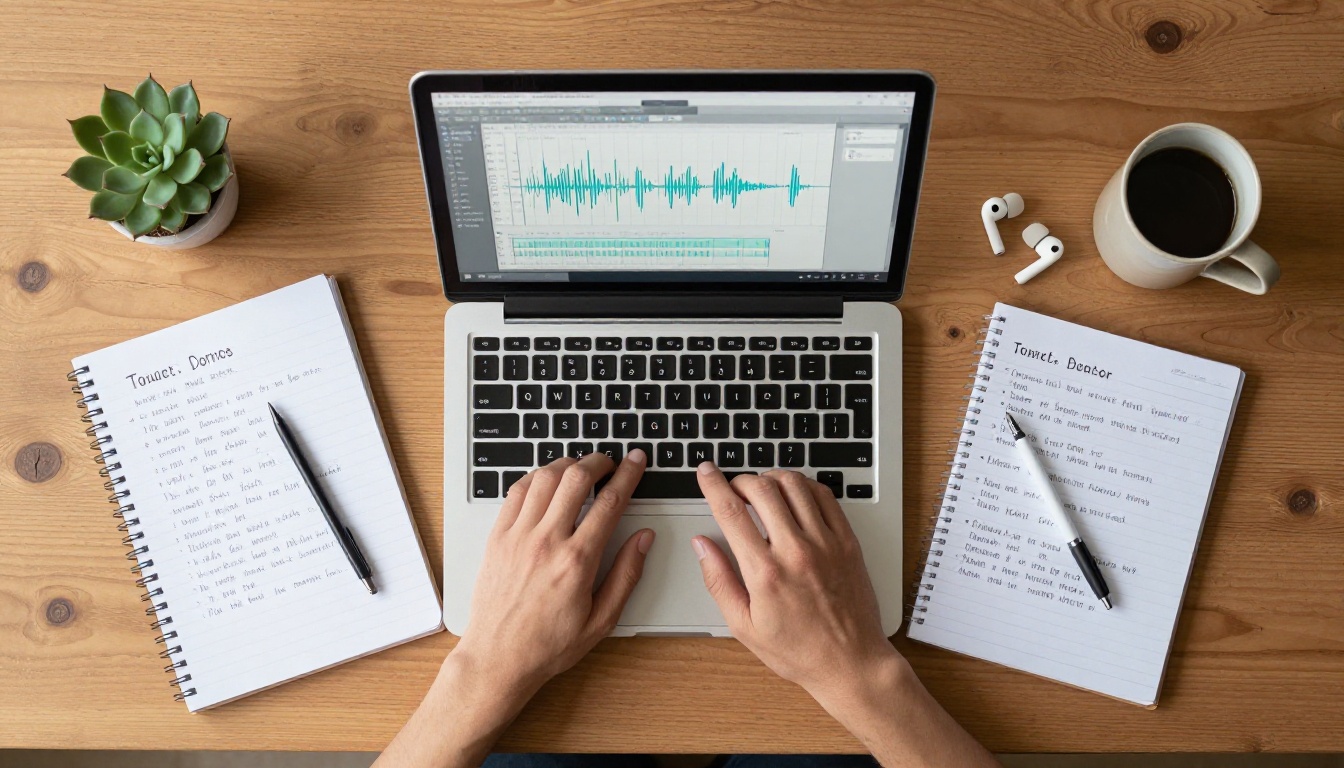
AI transcription models analyze the audio waveform of your video, segment it into utterances, and convert each segment to text with timestamp metadata. The output is typically a structured format like SRT (SubRip Subtitle), VTT (WebVTT), or plain text with timecodes.
Modern models handle this with impressive accuracy. Tools like GPT-4o Transcribe from OpenAI deliver near-human accuracy on clean audio, handling accents, technical vocabulary, and overlapping speech far better than rule-based systems from five years ago.
The critical technical improvement is the end-to-end neural architecture. Older automatic speech recognition systems had separate modules for acoustic modeling and language modeling. Modern transformer-based models process audio and language jointly, which means they grasp context. "Read" and "red" do not trip them up because they process what came before and after.
The Translation Layer
Once you have an accurate transcript in your source language, the second subtitle track comes from machine translation. You feed the timestamped text from language A into a translation model, and it returns timestamped text in language B.
The critical requirement: timestamps must survive the translation step intact. A properly formatted bilingual subtitle workflow looks like this:
- Transcribe audio to text with timecodes (Language A)
- Export the SRT file
- Translate the SRT file while preserving timecodes (Language B)
- Validate both SRT files for timing accuracy
- Import both tracks into your video editor or upload to your platform
Not all speech-to-text tools handle bilingual workflows equally. The best ones support multiple source languages, produce accurate timecodes, and output structured subtitle formats directly.
GPT-4o Transcribe: Accuracy at Scale
GPT-4o Transcribe is one of the strongest transcription models available today. It handles over 50 languages as source audio and produces timestamped output that slots directly into SRT workflows. For content in English, Spanish, French, Portuguese, or German, the accuracy is production-ready with minimal correction needed.
Its lighter counterpart, GPT-4o Mini Transcribe, offers the same multilingual transcription capability at faster processing speeds. If you are handling shorter video segments or need rapid turnaround on a batch of clips, the mini variant is worth considering first.
Granite Speech for Multilingual Source Audio
Granite Speech 4.1 2B from IBM is specifically built for multilingual speech recognition. It natively supports six languages as source audio and is optimized for conversations that switch between languages mid-sentence, a common pattern in bilingual interviews, podcasts, and corporate presentations. If your source video contains speakers who naturally mix two languages, this model handles it without collapsing the transcript.
Granite Speech 3.3 8B is the larger variant, offering deeper contextual processing at the cost of slightly longer processing time. For complex or technical audio, the 8B model reduces word error rate significantly compared to smaller alternatives.
Gemini 3 Pro for Long-Form Content
Gemini 3 Pro handles long audio files without the chunking issues that affect smaller models. For feature-length content, interviews longer than 30 minutes, or webinars, Gemini 3 Pro maintains accuracy across the full duration without timestamp drift.
| Model | Best For | Languages | Speed |
|---|
| GPT-4o Transcribe | High-accuracy short-to-medium clips | 50+ | Fast |
| GPT-4o Mini Transcribe | Rapid batch processing | 50+ | Very Fast |
| Granite Speech 4.1 2B | Multilingual source audio, code-switching | 6 | Fast |
| Granite Speech 3.3 8B | Technical or complex audio | 6 | Moderate |
| Gemini 3 Pro | Long-form content, full sessions | Multi | Moderate |

How to Add Bilingual Subtitles Step by Step
This is the workflow that works. It applies whether you are subtitling a YouTube video, a corporate training module, or a social media reel.
Step 1: Transcribe Your Source Audio
Start with the cleanest version of your audio. Export just the audio track from your video editor if possible. MP3 and WAV both work. Avoid highly compressed formats that introduce artifacts.
Upload your audio to GPT-4o Transcribe on Picasso IA. The model returns your transcript with timestamps. Download it as an SRT file.
Open the SRT file in a text editor and spot-check the first ten entries. Confirm that:
- Speaker names match the actual speakers (if applicable)
- Technical terms or proper nouns are spelled correctly
- Timestamps align with what you remember from the audio
Make corrections at this stage. It is much faster to fix the source transcript before translation than to correct two files after the fact.
Step 2: Generate the Second Language Track
Take your corrected SRT file and run it through a translation layer. The most important requirement: the translation tool must preserve SRT formatting. Subtitle numbers, timecodes, and blank-line separators must remain intact. A translation that strips the structure produces a broken subtitle file.
Several approaches work here:
- AI translation APIs that accept SRT input natively
- LLM-based translation with explicit SRT structure preservation in the prompt
- Subtitle editing software with built-in translation capabilities
Tip: When using an LLM for translation, include this instruction: "Translate only the subtitle text. Preserve all subtitle numbers, timecodes, and blank-line separators exactly as they appear in the original file." This single instruction prevents 90 percent of formatting failures.
Validate the output SRT by loading it into a free subtitle viewer or VLC media player against your video. Verify that text appears at the right moments and does not overflow the screen.
Step 3: Format Both SRT Files
Each subtitle track should follow these conventions to avoid display issues across platforms:
- Max characters per line: 42 (some platforms enforce this strictly)
- Max lines per entry: 2
- Duration per entry: Between 1 and 7 seconds
- Reading speed: No more than 17 characters per second for general audiences
The second language subtitle may need line-break adjustments. Some languages, particularly German and Finnish, produce significantly longer translations from short English sources. Others, like Mandarin, produce much shorter text. Adjust line breaks manually where the translated text exceeds the character limit.
Step 4: Embed or Upload Both Tracks
You have two options at this point:
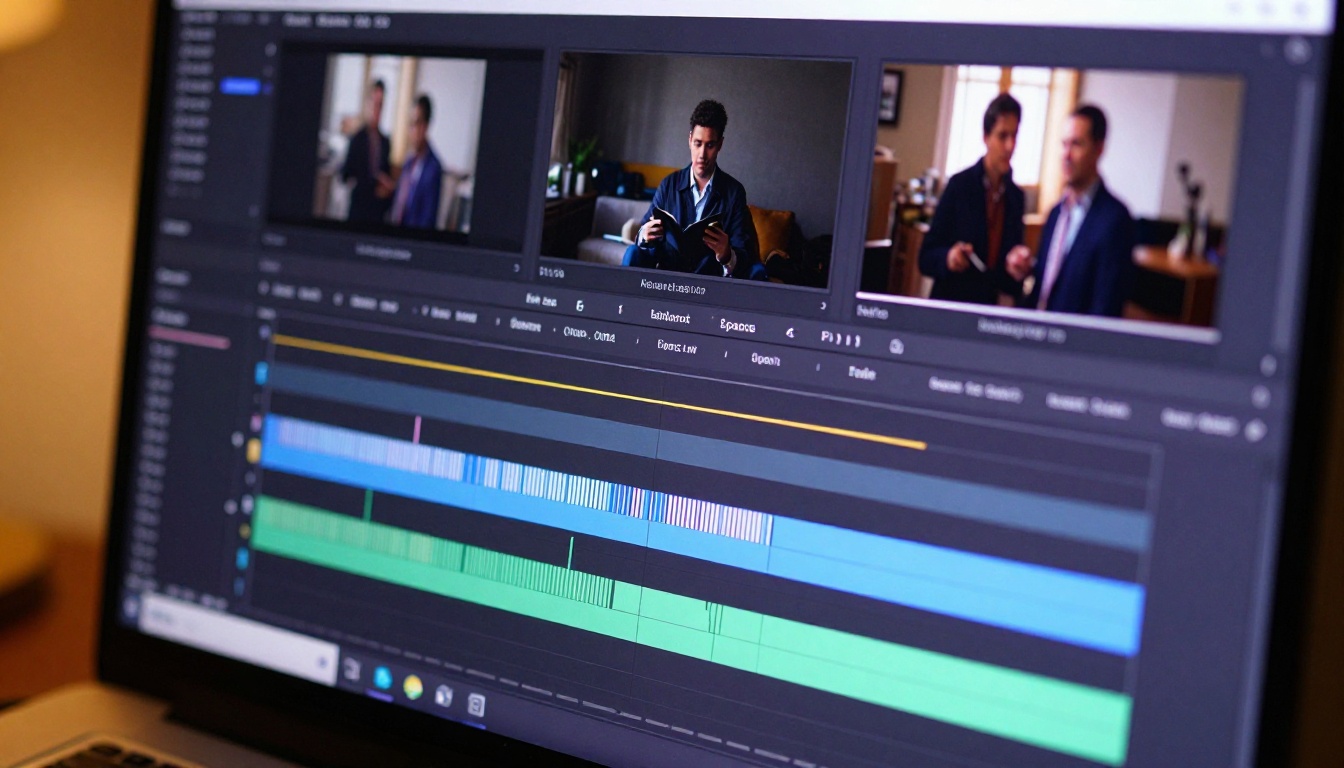
Soft subtitles (separate SRT tracks): Upload both SRT files to your video platform. YouTube, Vimeo, and most professional platforms support multiple subtitle tracks. Viewers choose which language to display. The video file itself remains clean and editable.
Hard subtitles (burned-in captions): Both subtitle tracks are rendered directly onto the video frames. Useful when you distribute on platforms with no subtitle track support or when you need guaranteed display. The tradeoff is that you cannot hide them after publishing.
For most distribution channels, soft subtitles are the better choice. They are flexible, editable after publishing, and do not compromise video quality.
How to Use Speech-to-Text on PicassoIA
PicassoIA's speech-to-text collection gives you access to all five models described above from a single browser interface. No API setup, no local installation, no billing configuration. Here is how to run your first transcription:
Getting Your Transcript
- Go to GPT-4o Transcribe on PicassoIA
- Upload your audio or video file using the file input
- Select your source language, or leave it on auto-detect for multilingual content
- Click Run and wait for the model to process your file
- Copy the transcript output, which includes timestamped segments
- Format it as SRT by numbering entries and converting timestamps to
HH:MM:SS,mmm format
Tip: For faster results on shorter clips, try GPT-4o Mini Transcribe. For multilingual source audio where speakers switch languages mid-sentence, Granite Speech 4.1 2B handles code-switching better than any other model in the collection.
Choosing the Right Model for Your Content
The model selection matters depending on what you are working with:
- Short clips, clean audio, single language: GPT-4o Mini Transcribe
- Long interviews or webinars: Gemini 3 Pro
- Multilingual speakers or code-switching: Granite Speech 4.1 2B
- Technical vocabulary or heavy accents: Granite Speech 3.3 8B
- Maximum accuracy for production content: GPT-4o Transcribe
Common Mistakes That Break Bilingual Subtitles
Getting to a functional bilingual subtitle file is one thing. Getting it right is another. These are the four mistakes that ruin otherwise solid subtitle work.
Timestamp Drift
Timestamp drift happens when the transcription model processes audio in chunks and those chunks do not align precisely with speech boundaries. The result is subtitles that are half a second late or early. Over a 10-minute video, this becomes genuinely distracting.
Fix it by loading both SRT files into a subtitle editor before publishing and checking sync at the beginning, middle, and end of the video. Most drift is uniform, so a single global offset adjustment resolves it.
Translation Without Context
Machine translation of subtitle files sometimes produces grammatically correct text that makes no sense in context. A speaker who says "we are going to drop this feature" gets translated with "drop" as "dejamos caer" (physically drop) instead of "eliminamos" (remove or eliminate). The timecodes are perfect; the translation is wrong.
Review the translated track against the video, particularly for technical content, idioms, and industry-specific language. One pass through the video with the translated subtitles active catches the majority of these errors before they reach your audience.
Character Limit Overflows
Some languages are significantly more verbose than others. A two-line English subtitle that fits comfortably within the 42-character-per-line limit may translate to three or four lines in German or Russian. On mobile screens, this pushes subtitles into the center of the frame and covers the speaker's face.
After translation, run a character count check on every entry. Any entry exceeding 84 characters total needs a line-break adjustment.
Ignoring Reading Speed
Subtitle files often look fine in a text editor but fail in practice because text appears and disappears too quickly for viewers to read comfortably. Calculate reading speed: divide the character count of each entry by its duration in seconds. If the result exceeds 17 characters per second, the entry needs to be shortened or the duration extended.

When Your Source Audio Is Not in English
The bilingual subtitle workflow described above assumes English as the source language. The same process applies for any source language, with one additional consideration.
Non-English Source Audio
Granite Speech 4.1 2B handles Spanish, French, German, Japanese, and several other languages natively. GPT-4o Transcribe supports over 50 source languages. For most non-English source audio, these two models handle the full range of requirements.
One area where extra care is needed: languages with non-Latin scripts. Arabic, Chinese, Japanese, and Korean transcriptions are accurate but require subtitle players configured to handle Unicode correctly. Always test your SRT file in a player before publishing to catch encoding issues early.
Right-to-Left Language Subtitles
Arabic and Hebrew subtitle tracks require RTL (right-to-left) text direction in your subtitle file. Standard SRT format does not encode text direction explicitly, so the direction depends on how the player interprets the Unicode characters. Most modern players handle this automatically, but if you see text appearing in the wrong order, add a right-to-left mark (U+200F) at the start of each affected line.

SRT vs. Embedded Captions
The format you choose affects how viewers experience your bilingual subtitles and how much flexibility you retain after publishing.
| Format | Editable After Upload | Platform Support | File Size Impact | Best For |
|---|
| SRT (soft captions) | Yes | YouTube, Vimeo, most pro platforms | None | Flexible distribution |
| VTT (WebVTT) | Yes | Web players, HTML5 video | None | Web-first video |
| ASS/SSA | Yes | Desktop players, streaming tools | None | Custom styling |
| Burned-in (hard captions) | No | All platforms, social media | Larger | Locked distribution |
For bilingual content specifically, soft captions win in almost every scenario. They let you update, correct, or replace either language track independently after publishing. Burned-in bilingual captions are only appropriate when you have zero control over the playback environment, such as a video displayed at a trade show kiosk or embedded in a third-party application with no subtitle support.
Tip: When uploading to YouTube, label your subtitle tracks clearly in the upload dialog. Use "English" and "Spanish (Latin America)" rather than generic labels. Viewers with their browser set to a preferred language will see that track selected automatically.
What Bilingual Subtitles Do for Your Content Strategy
Beyond accessibility and reach, bilingual subtitles have a measurable effect on the metrics that matter to brands and creators.
SEO indexing: YouTube indexes the text of subtitle tracks. Two language tracks mean your video is indexed for search terms in two languages, doubling the surface area for organic search discovery without any additional content production.
Watch time: Viewers who can read subtitles in their native language watch longer. Longer watch time signals quality to the algorithm, which affects recommendation placement and overall distribution.
Repurposing: A video with bilingual subtitles can be shared natively in two language markets without re-editing. One piece of content does the work of two, with no extra production time.
Brand authority: In multilingual markets, producing content with proper subtitles signals investment in the audience. It separates professional operations from casual creators who only publish in one language.
The time cost of adding a second subtitle track, once you have the AI transcription workflow in place, is roughly 20 to 40 minutes per video. For most content, that is a strong return on the additional reach and watch-time it generates.
Start Adding Bilingual Subtitles Right Now
The workflow is simpler than it looks when broken down into steps. Transcribe your audio with an AI model, translate the SRT while preserving timestamps, validate both tracks, and upload them to your platform. The AI handles the heavy lifting on transcription and assists with translation. Your job is reviewing and correcting the output, which takes far less time than producing it from scratch.
PicassoIA's speech-to-text collection puts all five models from this article in one place. GPT-4o Transcribe, GPT-4o Mini Transcribe, Granite Speech 4.1 2B, Granite Speech 3.3 8B, and Gemini 3 Pro are all available with no setup required. Upload your audio, get your transcript, and start building a bilingual subtitle workflow for your next video today.


