How to Add Subtitles with AI Transcription in Minutes
Adding subtitles manually is slow and costly. This article shows you how to add subtitles with AI transcription using the best speech-to-text models available, from uploading your audio to exporting SRT files and translating captions into multiple languages automatically.
Spending three hours typing subtitles for a ten-minute video is the kind of task that stops creators in their tracks. AI transcription changes that math entirely, turning what used to be a grinding manual process into something that takes minutes. Whether you are producing YouTube tutorials, interview-based podcasts, social media clips, or corporate training videos, accurate auto-generated captions are no longer a luxury; they are a standard part of the workflow.
Why Subtitles Change Everything
Adding subtitles does more than caption what someone says. It reshapes how your content performs, who can access it, and how search engines index it.
The SEO Case for Captions
Search engines cannot watch a video. They read text. When you embed subtitles or upload a transcript alongside a video, you are giving crawlers rich, keyword-dense content to index. Studies consistently show that videos with captions get higher organic rankings and longer average watch times because viewers stay longer when they do not miss a word, even in noisy environments or when watching on mute.
💡 Tip: A properly formatted SRT file with accurate timestamps can function as structured data, helping platforms like YouTube and LinkedIn surface your content in search results for spoken terms.
Who You Reach Without Captions
People who are deaf or hard of hearing
Non-native speakers following along in a second language
Viewers watching in public spaces without headphones
Anyone on a low-bandwidth connection where audio lags behind video
Closed captions are not an accommodation for a niche audience. They serve the majority.
How AI Transcription Actually Works
Before you add subtitles with AI transcription, it helps to know what is happening behind the scenes. The process is not simply "audio in, text out."
Speech Recognition Under the Hood
Modern AI transcription models use a combination of acoustic modeling and language modeling. The acoustic model converts raw audio signals into phoneme probabilities. The language model then resolves those probabilities into words, drawing on massive training corpora to pick the most statistically likely word in context.
This is why models trained on broader datasets, such as GPT-4o Transcribe, perform better on domain-specific jargon than older generation models. The larger the language model paired with the acoustic system, the better it handles accents, overlapping speech, and technical vocabulary.
The Role of Timestamps in Subtitle Files
Every subtitle file is essentially a list of time-coded text blocks. An SRT file looks like this:
1
00:00:03,200 --> 00:00:06,800
The quarterly results exceeded all projections.

2
00:00:07,100 --> 00:00:10,400
Here is why that matters for the next fiscal year.
Each block has an index, a start and end timestamp in milliseconds, and the actual caption text. AI transcription tools generate these timestamps automatically by analyzing the audio signal at the word level, then grouping words into readable caption segments. Getting this grouping right, where each line reads naturally and does not split mid-phrase, is one area where better models make a visible difference.
Choosing the Right AI Transcription Model
Not all AI transcription models perform equally across every use case. The choice depends on your content type, language requirements, and the acceptable error rate for your workflow.
GPT-4o Transcribe vs. Gemini 3 Pro
GPT-4o Transcribe and Gemini 3 Pro represent two approaches to the same problem. GPT-4o Transcribe leans into broad multilingual accuracy and excels at mixed-language content, technical jargon, and noisy environments. Gemini 3 Pro brings tight integration with long-form audio, handling hour-long recordings without the context degradation that smaller models sometimes show.
GPT-4o Mini Transcribe is the right choice when you need fast turnaround at scale and your content is in a major language like English, Spanish, or Portuguese. The accuracy trade-off is minimal for clean, single-speaker recordings.
When to Use Granite Speech Models
Granite Speech 3.3 8B and Granite Speech 4.1 2B from IBM are built for production pipelines where you need consistent performance across six languages without proprietary lock-in. If your subtitling workflow handles multilingual corporate content, these models deliver reliable timestamps and predictable output formats.
How to Add Subtitles with AI Transcription on PicassoIA
PicassoIA gives you direct access to every model in the table above without installing software or managing API keys. Here is how the subtitle workflow runs from start to finish.
Step 1: Upload Your Audio or Video
Head to PicassoIA's Speech to Text collection and select the model that fits your content. The platform accepts standard video formats (MP4, MOV, MKV) and audio formats (MP3, WAV, M4A). For videos, the service extracts the audio track automatically before passing it to the transcription model.
💡 Tip: If your video has background music or ambient noise, use GPT-4o Transcribe for better word-level accuracy. For clean voiceover or talking-head content, GPT-4o Mini Transcribe is faster and equally accurate.
Step 2: Run the Transcription
Once the file uploads, the model processes it and returns a full text transcript with word-level timestamps. For a 10-minute video, this typically completes in under 60 seconds with any of the models listed above. The output includes:
Full text transcript
Timestamped segments suitable for SRT conversion
Speaker labels (when multiple voices are detected, depending on model)
Confidence scores per segment
Step 3: Review and Edit Captions
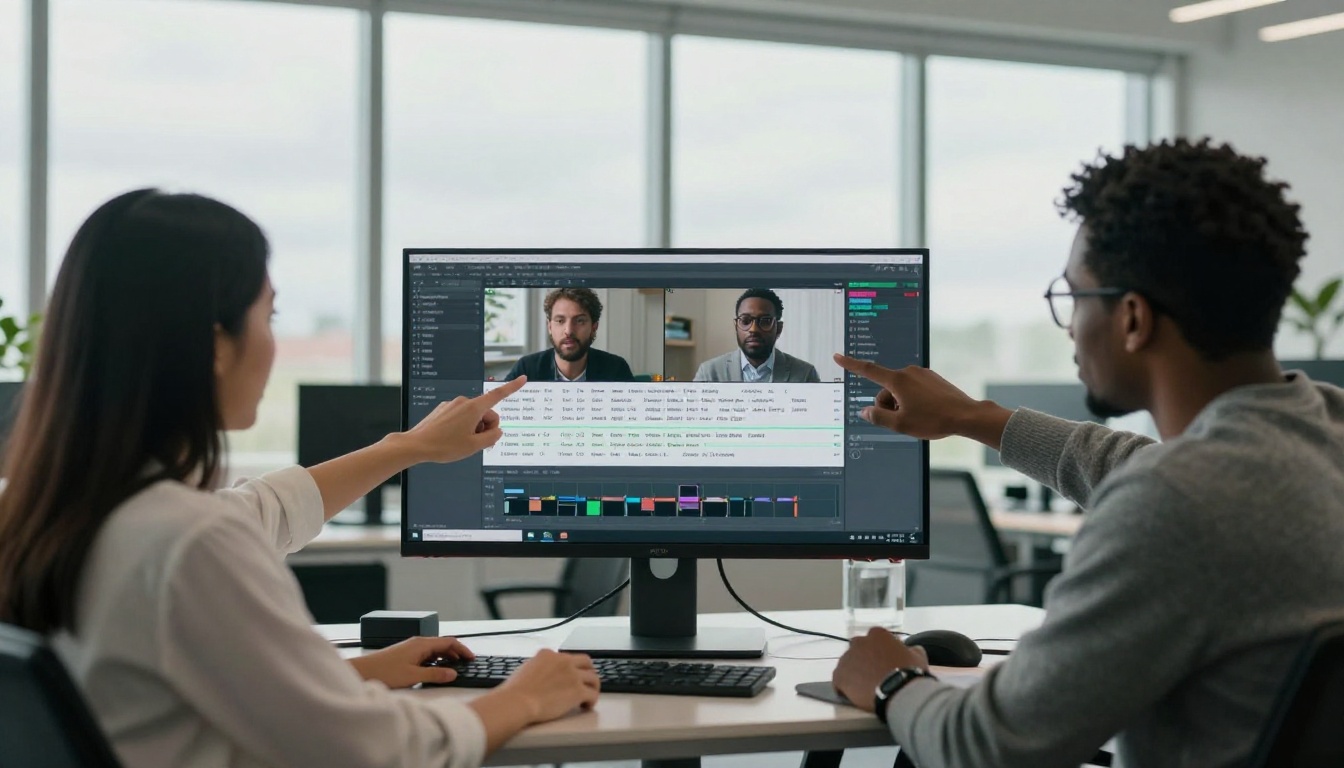
AI transcription is accurate but not perfect. The review step is where you catch homophone errors ("their" vs. "there"), missed punctuation, and places where the AI split a sentence at a grammatically awkward point. Tools that display the transcript alongside the audio waveform make this much faster because you can click a timestamp and immediately hear the audio at that moment.
Look specifically for:
Proper nouns that the model rendered phonetically (brand names, people's names)
Sentence breaks at unnatural pauses
Numbers that should be spelled out versus written as digits
Filler words the model transcribed literally ("um", "uh") that distract from readability
Step 4: Export Your Subtitle File
After review, export the subtitle file in the format your platform requires. The most common options:
SRT (SubRip Text): The universal format. Accepted by YouTube, Vimeo, LinkedIn, Facebook, and every major NLE (video editor).
VTT (WebVTT): The web standard. Required for HTML5 video players and many streaming platforms.
TXT: Plain transcript without timestamps, useful for blog posts, show notes, and SEO descriptions.
Step 5: Embed or Upload to Your Platform
On YouTube, navigate to the video's Subtitles menu in Studio and upload the SRT file. The platform processes it and syncs the captions to the video within seconds. For burned-in subtitles where captions are permanently part of the video frame, you will need to import the SRT file into your video editor and render a new export with captions baked in.
Subtitle Format Comparison
Choosing the wrong subtitle format can mean captions that look fine in one player and break in another. Here is a practical breakdown:
Format
Extension
Timestamps
Styling
Platform Support
SubRip
.srt
Yes
None
Universal
WebVTT
.vtt
Yes
CSS-based
HTML5, streaming
TTML
.ttml / .xml
Yes
XML styles
Broadcast, Netflix
Plain Text
.txt
No
None
Blogs, documents
Burned-In
N/A
Baked in
Video-based
All players
💡 Quick rule: If you are uploading to social media or a standard video host, SRT is always the safe choice. If you are building a web video player, go with VTT.
3 Mistakes That Kill Subtitle Quality
Getting the transcription right is half the job. These are the errors that make captions look unprofessional even when the AI did its part correctly.
Skipping the Review Pass
AI transcription accuracy for clean English audio now routinely hits 95-97%. That sounds high until you realize a 10-minute video at normal speaking pace contains roughly 1,500 words, which means 45-75 words could be wrong. In a tutorial or corporate video, even three wrong words can cause confusion. Budget 15 minutes of review per 10 minutes of video.
Ignoring Line Length
A subtitle that runs across 80% of the screen width is hard to read, especially on mobile. The broadcast standard for subtitle line length is 42 characters per line. Most AI tools do not enforce this automatically. When editing, keep each caption line under 40 characters and split at natural phrase boundaries, not at the longest point.
Forgetting Punctuation
Models trained on spoken language often produce unpunctuated output because natural speech does not include commas and periods. Subtitles without punctuation are harder to read and look amateurish. Add punctuation during the review pass, particularly periods at sentence ends and commas at natural pauses.
Multilingual Subtitles from a Single Source File
One of the most practical applications of AI transcription is producing subtitles in multiple languages without re-recording anything. The workflow is:
Transcribe the original audio to a text transcript in the source language
Use a large language model to translate the transcript while preserving timestamps
Export individual SRT files per language
Upload each language version as a separate subtitle track on your platform
This approach lets a single English-language video reach Spanish, French, Portuguese, and German-speaking audiences with correctly timed captions. YouTube supports multiple subtitle tracks per video, and viewers can select their preferred language directly.
Accuracy Across Languages
The models available on PicassoIA perform differently by language:
GPT-4o Transcribe: Strong across 100+ languages including Arabic, Japanese, and Hindi
Gemini 3 Pro: Particularly strong for European and South Asian languages
Granite Speech 3.3 8B: Optimized for English, Spanish, French, German, Portuguese, and Japanese
For content primarily in English that needs multilingual subtitle output, the best workflow combines GPT-4o Transcribe (for source transcription) with a translation LLM pass to generate the foreign-language SRT files.
The Accessibility Angle You Cannot Afford to Ignore
Subtitles are legally mandated in many contexts. In the United States, the Americans with Disabilities Act requires captions for video content on government and public accommodation websites. The EU's Web Accessibility Directive extends similar requirements across member states. Beyond compliance, accessibility drives business results.
Research from the World Health Organization estimates that 430 million people worldwide have disabling hearing loss. Adding captions to your video content is not a charitable act; it is access to nearly half a billion potential viewers.
💡 Stat: Facebook's own internal data showed that 85% of video views on the platform happen with the sound off. Subtitles are not supplementary; they are the primary communication channel for the majority of your viewers on mobile.
When Burned-In Subtitles Make Sense
Burned-in subtitles, captions permanently rendered into the video file rather than as a separate track, make sense in specific situations:
Social media posts: Platforms that autoplay videos silently benefit from always-visible captions
Exports for broadcast: Some broadcast pipelines do not accept external subtitle tracks
Speaker emphasis effects: When you want captions styled differently per speaker or with animated pop-in effects
Archival purposes: A single self-contained file that will always show captions regardless of player support
The trade-off is that burned-in subtitles cannot be turned off by the viewer and cannot be easily updated if the text needs correction after export.
Try It on PicassoIA
Every speech-to-text model mentioned in this article is available on PicassoIA right now, no sign-up headache or credit card required to test. Start by uploading a short clip, under two minutes, to see the kind of transcript quality you can expect before committing to a full workflow.
The models on PicassoIA's platform span from ultra-fast lightweight options like GPT-4o Mini Transcribe to production-grade high-accuracy systems like Gemini 3 Pro. Whether you are captioning a short-form reel or a two-hour documentary, there is a model here that fits the scale and budget.
Browse the full catalog at picassoia.com/en/all-models and start generating subtitles in minutes. The difference between a video that gets watched and one that gets skipped often comes down to whether the viewer can follow along without sound. Subtitles close that gap.