Your logo is probably the most important visual asset your brand owns. It appears everywhere, from social media profiles to website headers to presentation decks. But when it just sits there, flat and motionless, it does only half the job it could.
Animated logos hold attention longer, communicate professionalism faster, and perform significantly better on video platforms where static content competes with autoplay clips. The problem historically has been the cost: motion design takes time, specialized software, and expertise that most founders, freelancers, and small teams simply do not have.
AI has changed the math entirely. With image-to-video AI models, you can take any existing logo file, feed it into the right tool, write a short motion prompt, and generate a high-quality animated version in under five minutes. No timeline editors, no keyframes, no rendering queues.
This article covers exactly how to do that, which models produce the best results, what prompts actually work, and a step-by-step walkthrough for getting your first animated logo out the door today.
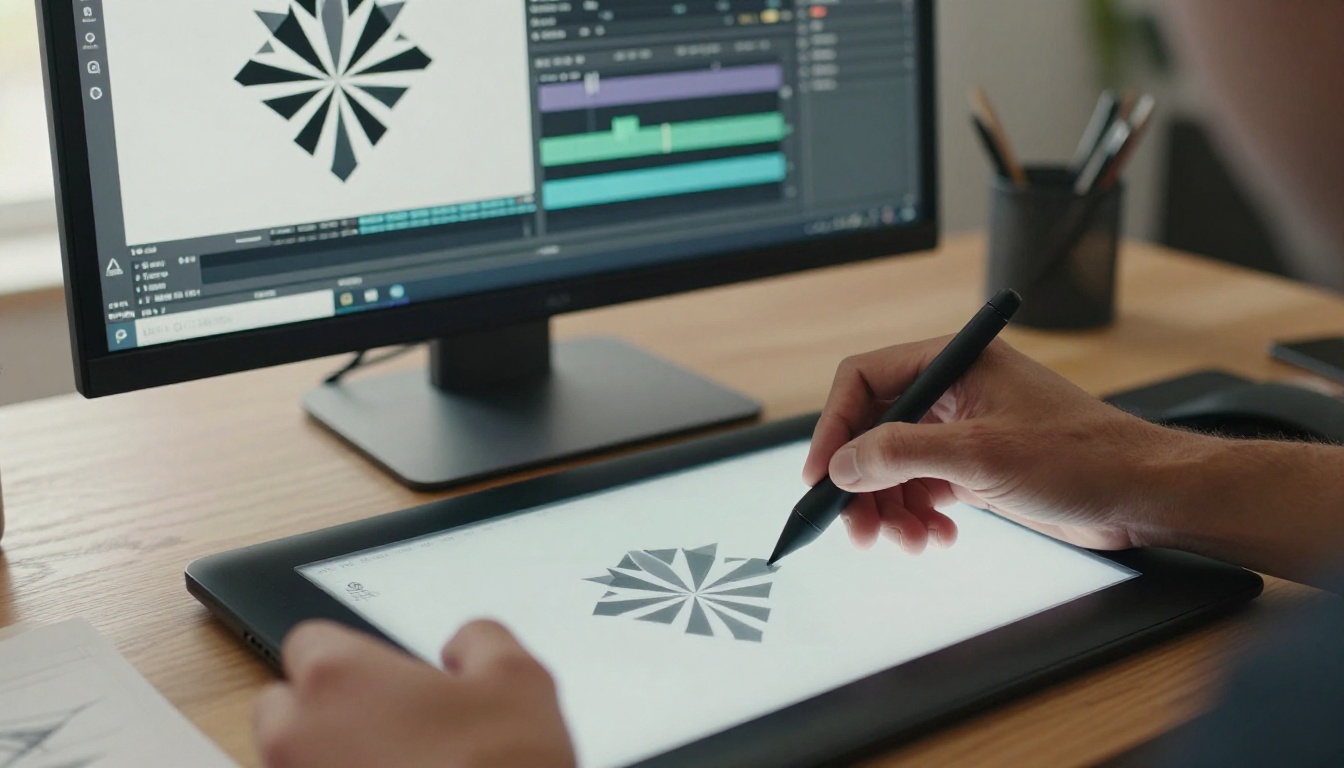
Why Logo Animation Matters Right Now
The shift from static to motion-first content is not a trend. It is a platform reality. LinkedIn's algorithm favors video content. Instagram Reels and TikTok auto-play. YouTube bumper ads require animation. Even email marketing tools now support embedded GIFs and short clips in header sections.
A static logo in these contexts looks incomplete. An animated one signals that your brand operates at a professional level, even if the whole company is just you and a laptop.
Beyond platforms, there is the attention economics argument. Human vision is wired to track motion. A logo that transitions, scales, or traces itself draws the eye naturally in a way that a flat image cannot compete with.
The specific animation behaviors that work best for logo reveals:
- Reveal animations: the logo appears element by element, building from left to right or center outward
- Pulse or breathe loops: subtle scale or opacity cycling creates a living brand mark ideal for looping contexts
- Particle trails: geometric elements dissolve into or emerge from fine particles, producing a high-production look
- Camera push-in: the AI generates a simulated slow dolly toward the static logo, adding depth with no logo movement required
- Rotation or spin: the mark rotates once and settles into place, classic and effective for geometric marks
All of these are achievable with current AI image-to-video models with no software beyond a browser.
What AI Actually Does to a Logo
Most people assume AI logo animation works by analyzing your logo's vector paths and programmatically moving elements along trajectories. That is not what happens.
Modern AI image-to-video models work by training on billions of frames of real video footage. They learn the physics of how objects move, how light changes across surfaces, how camera motion feels. When you feed them a still image and a text prompt, they predict what the next 120 frames of video should look like given that starting frame and the motion you described.
This means the AI is essentially dreaming forward from your static logo. It is not moving your layers. It is generating new pixels that feel physically plausible from that starting point.
The practical implication is important: AI excels at organic, physics-based motion. Gentle rotations, particle dispersions, light ripples, reveal sweeps. It is less reliable for precise, mechanical motion that needs to hit exact timing marks. If you need a logo to spin exactly 360 degrees and stop on a specific frame, a human animator with After Effects will do it more predictably. If you want a logo to breathe with soft light pulsing around it, AI will produce something visually richer in a fraction of the time.
Note: The quality of your source image matters enormously. A clean, high-contrast logo on a solid background or transparent PNG will animate far better than a screenshot or compressed JPEG with artifacts. Export the cleanest version of your logo before feeding it to the model.
The Best AI Models for Logo Animation
Not all image-to-video models produce equal results when handling logo animation. Some excel at photorealistic motion, others at stylized movement or high-resolution output. Here is a breakdown of the top performers available on PicassoIA right now.
Wan 2.7 I2V
Wan 2.7 I2V is currently one of the strongest image-to-video models for logo animation. It produces smooth, temporally consistent motion and handles clean graphic elements without introducing the distortion artifacts common in earlier generations of AI video. Feed it a clean logo image, describe the motion you want in a few sentences, and it generates reliable, professional output. This is the model to start with for most logo animation jobs.
Seedance 2.0
Seedance 2.0 by ByteDance produces cinematic-quality video with native audio capability. For logo animations that need to live inside brand videos or social content with sound, the cinematic motion quality it produces is notable. The model handles light physics particularly well, making logo reveal animations with light sweeps especially convincing.
Kling v3 Video
Kling v3 Video is optimized for 1080p output with strong motion fidelity. Its handling of subtle camera movement makes it ideal for the push-in style of logo animation where a simulated camera slowly approaches a static logo, adding cinematic depth without touching the logo itself.
LTX 2.3 Fast
LTX 2.3 Fast by Lightricks produces 4K video output at speed. If you need high-resolution logo animations for large-format displays, broadcast use, or high-DPI social exports, this is the model to reach for.
Pixverse v6
Pixverse v6 handles stylized motion with native audio and produces consistent output at 1080p. Its reliability with clean graphic elements makes it a strong alternative when you want to compare outputs across multiple models.
PicassoIA Video
PicassoIA Video is the platform's own free unlimited video generator. For iterating quickly on motion ideas, testing different prompts, and generating rough previews before committing to a premium model, it is the right starting point. Unlimited generations mean you can experiment without watching a credit counter.
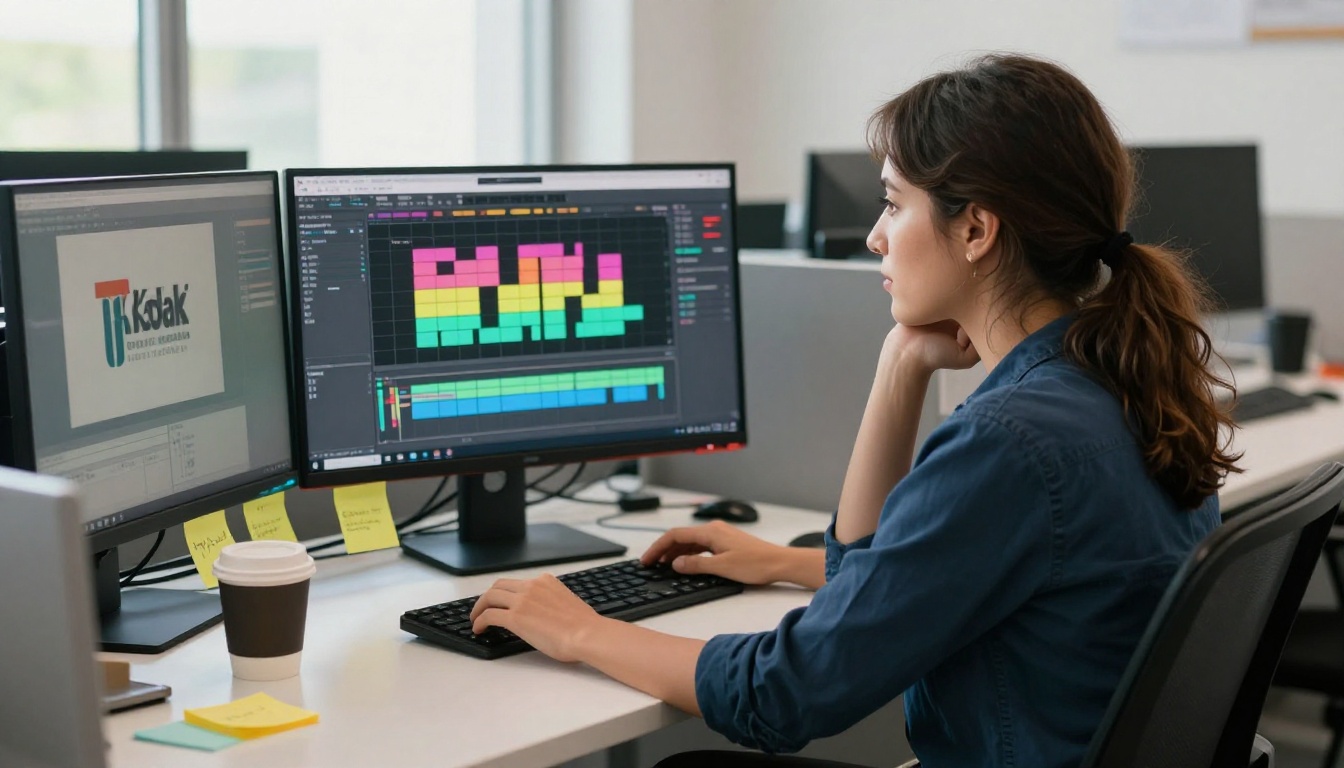
How to Use Wan 2.7 I2V on PicassoIA
Wan 2.7 I2V is the model to start with for most logo animation work. Here is the exact workflow from start to finished clip.
Step 1: Prepare Your Logo File
Before touching any AI tool, your source file needs to be right. The ideal input:
- Format: PNG with a transparent or solid-color background
- Resolution: At least 1024 x 576 pixels
- Contrast: The logo should be clearly visible with clean, sharp edges
- Simplicity: Clean, geometric logos animate more reliably than complex illustrated marks
If your logo is a vector file (.ai or .svg), export it as a flat PNG at 1920x1080. If you only have a low-resolution version, run it through a super-resolution tool first.
Step 2: Navigate to the Model
Open Wan 2.7 I2V on PicassoIA. The interface shows an image upload area and a prompt text field.
Step 3: Upload Your Logo
Upload the prepared PNG. The model uses this as the first frame of the video. Every frame it generates will be temporally consistent with this starting image, so the quality of your upload directly determines the quality of the output.
Step 4: Write Your Motion Prompt
This is where most people make mistakes. Vague prompts produce vague motion. Specific, physically-grounded descriptions produce repeatable, high-quality results.
Weak prompt: animate this logo
Strong prompt: The geometric logo begins static on a dark background. A soft warm light sweeps across it from left to right over two seconds, illuminating each element as it passes. The logo elements gently scale up 3 percent and settle back over the following second. Camera is completely locked, no camera movement. The final second holds still on the fully-lit logo.
Key principles when writing logo animation prompts:
- Describe what moves and explicitly state what stays still
- Use time references: "over two seconds", "in the final second" help the model pace the motion
- Lock the camera unless you specifically want camera movement
- Reference light behavior: sweeps, glows, and fades work well with AI video generation
- End on a hold: logos should settle into stillness, not just cut off
Step 5: Generate and Review
Submit the generation. Wan 2.7 I2V produces 5-second clips, which is the sweet spot for logo animations: long enough for a full reveal, short enough to loop cleanly. Download the result and review it for distortion, unintended camera movement, and motion that overshoots.
Step 6: Iterate
If the first output has issues, modify one variable at a time and regenerate. Changing everything at once makes it impossible to know what fixed the problem.
Prompting Strategies That Work
Writing effective motion prompts is a skill, and it is learnable fast. Here are the four formulas that consistently produce strong logo animation results across all models.
The Light Sweep
The logo sits on a dark solid background. A soft warm light moves across the logo from left to right, illuminating each element as it passes. No camera movement. The logo remains static after the sweep. Final second is a clean hold.
Light sweeps are physically simple for the AI to model and feel premium when executed correctly. This is the most reliable formula for first-time logo animations.
The Particle Emerge
The logo begins invisible against a dark background. Fine white particles drift in from the top of frame and slowly coalesce into the shape of the logo over three seconds. The particles settle and the logo becomes fully formed in the final second. Camera locked, no movement.
This style reads as high-production-value and works particularly well with wordmark logos where individual letters can appear to form from particles separately.
The Camera Push-In
Camera begins slightly farther from the logo than the final frame. Over four seconds, the camera gently dollies forward until the logo fills 80 percent of the frame. Depth of field is shallow, with a dark studio background softly blurred. No logo motion at all, only the camera moves forward.
This style adds cinematic depth to a completely static logo using only camera movement. It has the highest success rate of any approach because it does not require the model to animate the logo itself.
The Breathe Loop
The logo gently scales from 100 percent to 103 percent and returns to 100 percent over three seconds in two smooth cycles. The scale change is barely perceptible but creates a living quality. No other motion. Camera locked.
Ideal for loading screens, waiting states, and website hero sections where the animation needs to loop infinitely without drawing too much attention to itself.
Comparing Outputs: Which Model Wins for Your Use Case
Running the same logo through multiple models and comparing outputs is the fastest way to find what works for your specific brand identity. Different logo styles favor different models.
Minimal geometric logos (triangles, hexagons, circles, letter-marks with clean geometry): Wan 2.7 I2V and Kling v2.6 both handle these cleanly. Hard edges tend to stay crisp across multiple generations with both models.
Wordmarks with custom typography: Seedance 2.0 handles letter-level motion better than most. The model's training data includes strong representation of text in motion, so characters tend to stay legible and correctly formed throughout the animation.
Illustrated or complex logos: These are harder across all models. Kling v2.6 Motion Control gives you the most control over what moves and what does not, making it the best option for complex marks where specific elements need to stay anchored while others move.
Logos needing audio: If the animation will play with sound design, Seedance 2.0 is the clear choice. Its native synchronized audio generation means the motion and sound feel designed together rather than assembled separately in post.
Tip: Generate at least three variations with different prompts before committing to a direction. AI outputs have natural variance between runs with the same prompt. Variation three is often substantially better than variation one.
After Animation: Polishing Your Result
The AI output is usually 80 to 90 percent of the way to production-ready. These finishing steps close the gap.
Resolution Upscaling
If you generated at standard resolution and need broadcast or high-DPI output, run the video through a super-resolution tool. Video Increase Resolution on PicassoIA upscales video up to 8K without re-rendering the animation from scratch. This is far faster than regenerating at a higher native resolution.
Adding Sound Design
Most logo animations benefit from a subtle sound layer: a soft whoosh during a light sweep, a crystalline tone on the final hold, a low resonant thud for a bold impact reveal. MMAudio analyzes your video and generates contextually appropriate sound design in seconds by reading the visual content.
Text-Guided Editing
If something specific is wrong with the output (an element that distorts too much, a section that loses sharpness), Lucy Edit 2 lets you describe the change in plain language and applies it directly to the clip. For small corrections on an otherwise good animation, this is faster than regenerating from scratch.
Editing the Whole Output
For more substantial changes to an already-generated logo animation, Wan 2.7 Videoedit accepts a text description of what you want changed and rewrites the relevant sections of the video. It is the closest thing to a non-destructive edit layer available for AI video right now.
3 Common Mistakes with AI Logo Animation
These are the errors that consistently produce bad results even with good tools.
Using a low-quality source image. AI video models amplify what is already in your source frame. A blurry, compressed, or small logo image will produce a blurry, distorted-looking animation. Always start with the highest-quality version of your logo, ideally a PNG exported from the original vector file at 1920x1080 or larger.
Prompting for too much motion. Beginners often ask the AI to do too many things at once: spin the logo, change the colors, add particles, move the camera, and add a glow. The model distributes its generation capacity across all of these requests and executes none of them cleanly. Pick one or two motion ideas and describe them with precision. The restraint shows in the final output.
Not iterating. A single generation is rarely the best output the model can produce. AI has significant variance between runs with the same prompt. Submit the same prompt three to five times and select the best result. The winner is usually obvious on first viewing.
What PicassoIA Offers Beyond Logo Animation
Logo animation is a starting point. Once your brand identity is in motion, the same tools extend to the full content production stack.
Wan 2.7 T2V generates brand video content entirely from text prompts, with no source images required. Seedance 1 Pro produces 1080p brand footage with native audio for social campaigns. Veo 3 by Google creates cinematic video with native audio from text descriptions, handling complex scene motion that represents the current ceiling of what AI video can produce.
For brands building a complete motion identity from scratch, the full model library at picassoia.com/en/all-models covers every step: static image generation, video creation, audio design, video editing, and resolution upscaling.
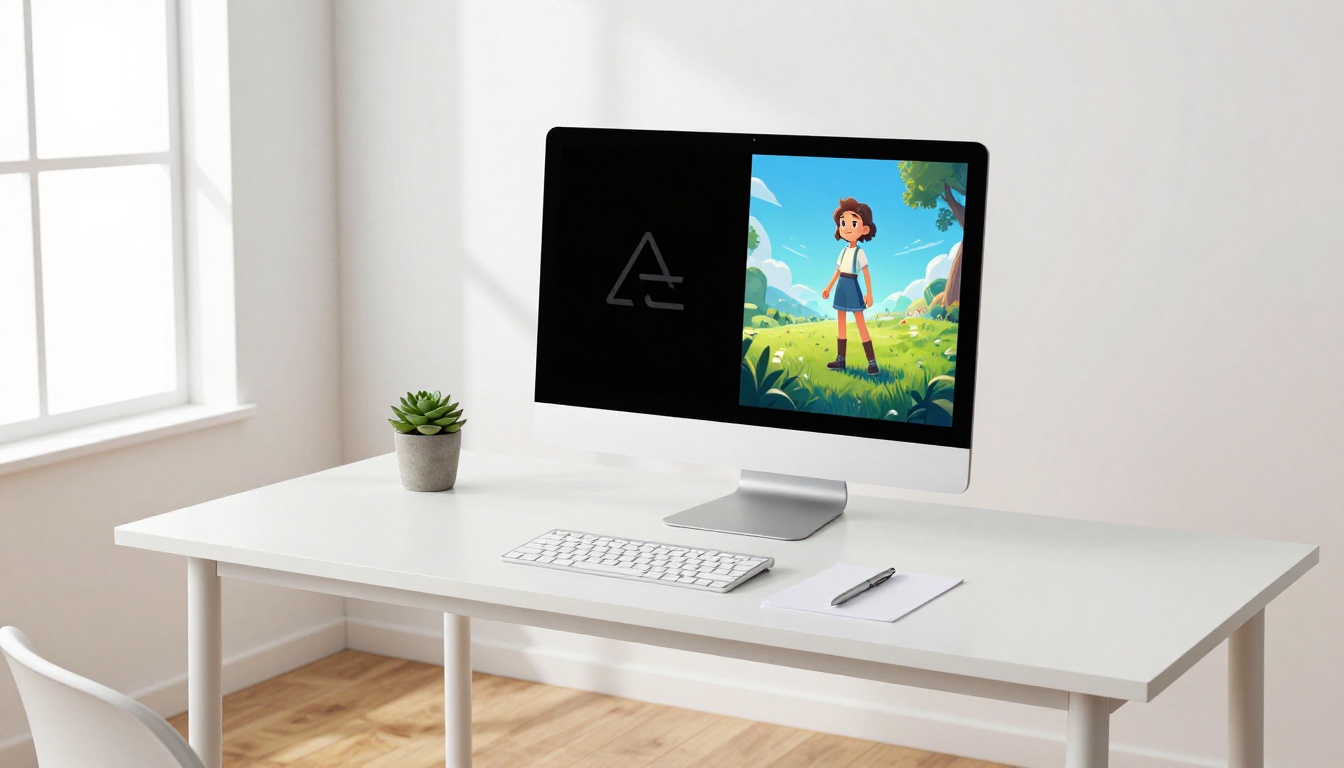
Animate Your Logo Today
The process is simpler than most people expect. A clean logo file, a specific motion prompt, and the right model on PicassoIA is everything you need to go from static to animated in minutes.
Start with PicassoIA Video for unlimited free iterations while you dial in your prompt approach. When you have a direction you like, move to Wan 2.7 I2V or Seedance 2.0 for production-quality output.
The creative ceiling is genuinely high. A logo animation that once required a motion designer, After Effects, and a week of production time now takes minutes and a clear description of what you want. The brands that take advantage of that shift now will look sharper than competitors who have not caught up yet.
Open PicassoIA, upload your logo, and write your first motion prompt. See what the AI does with it.


