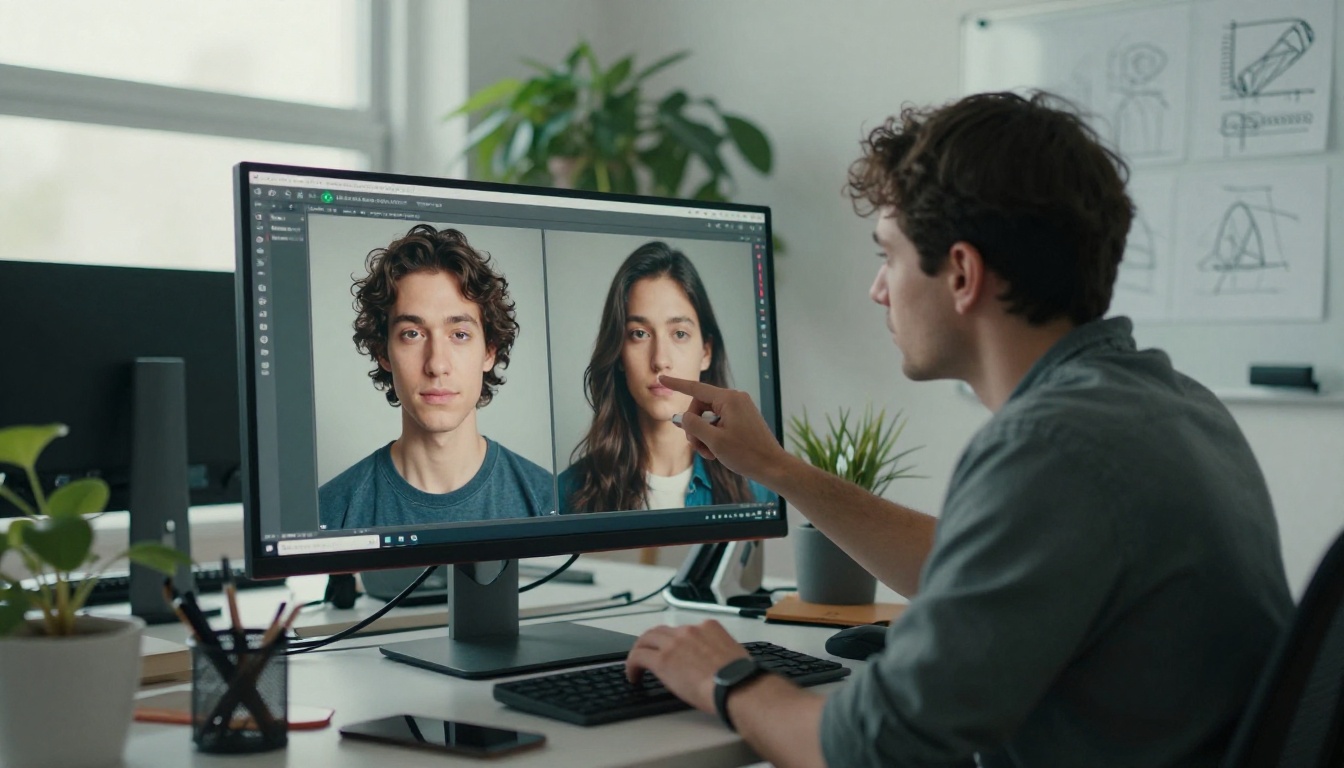
You can tell instantly. The too-smooth skin, the impossible lighting, the background that feels like a screensaver from a mid-2000s office computer. AI-generated images have a distinct look, and once you recognize it, you cannot unsee it. The problem is not the technology itself; it is how most people prompt it, which models they choose, and what they skip in post-processing. This piece breaks down exactly what creates that telltale AI look and what to do differently to produce images that hold up as real photographs.
Why Your AI Images Look Fake
Most AI-generated images fail at the same places. It is not random. Image generation models are trained to output visually pleasing results, and visually pleasing in the training data often means maximizing sharpness, saturation, symmetry, and surface polish. The output looks like what the model was rewarded for producing: images that score well on aesthetic metrics but fail on authenticity.
Real photographs carry information about the physical world: imperfect light, optical distortion, random texture, the visual noise of actual capture. AI outputs carry none of that by default, and the human eye notices immediately even when the viewer cannot articulate exactly why.
The Plastic Skin Problem
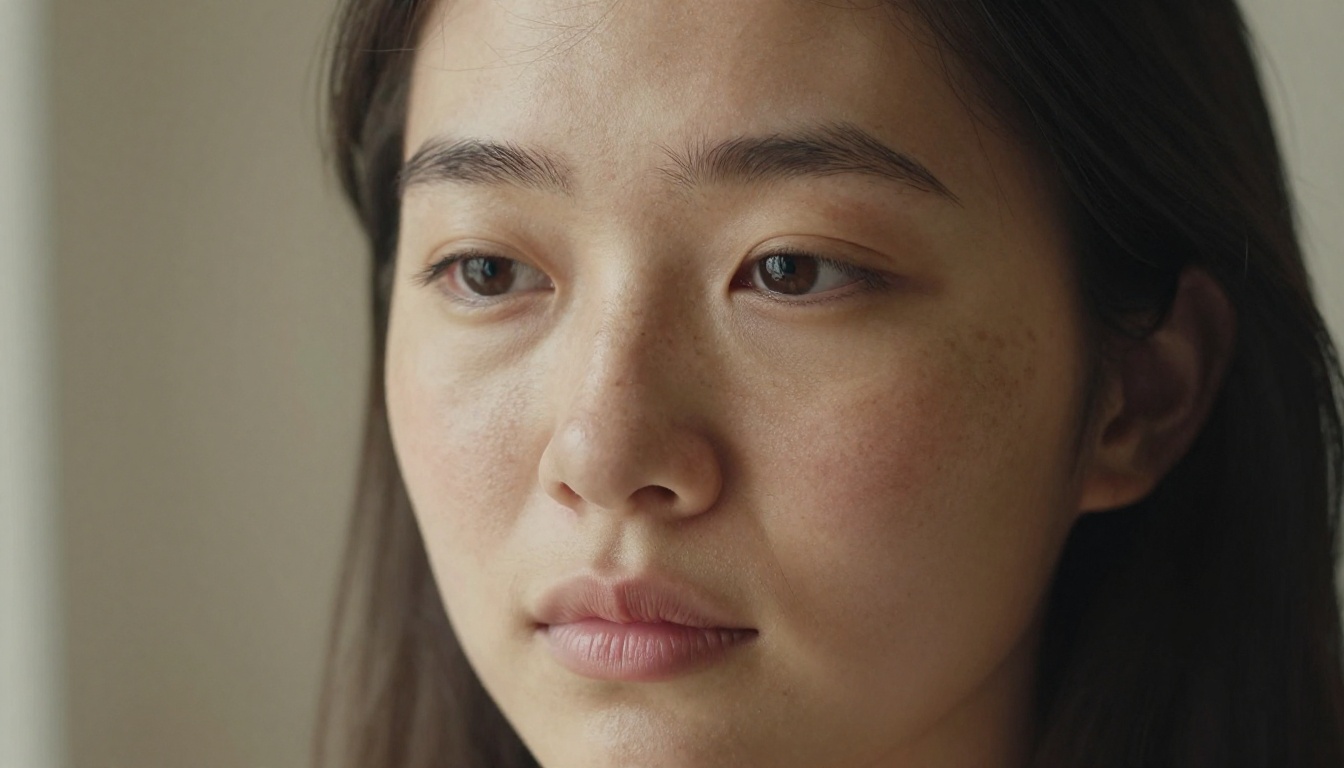
Skin is the single biggest giveaway in AI portrait photography. Human skin has pores, asymmetry, fine surface hairs, subtle redness, slight oiliness in some spots and dryness in others. AI models, when prompted vaguely, produce skin that looks like polished silicone. Every pore is erased. Every shadow falls in exactly the right place. The result reads as inhuman even at a glance, even to people who have never thought consciously about it.
This happens because the default training data skews toward editorial photography and stock images, which have typically been retouched before publication. The model learns that good skin means smooth skin. You have to actively counteract that assumption in your prompts and model selection, or you will reproduce it every time.
Lighting That Doesn't Exist
Real photography is messy with light. You get specular highlights that bloom slightly at their edges. You get shadows that are soft on one side and harder on another depending on the distance to the light source. You get color temperature shifts where outdoor daylight mixes with indoor incandescent warmth near a lamp. AI images, by default, produce lighting that is even, warm, and perfectly diffused in a way that no real environment ever produces.
The most common specific tell is what photographers call the ring-light face: even, almost shadowless frontal illumination that removes all depth from a portrait. Real photographs always have a defined direction of light with corresponding shadow behavior on the opposite side. If you cannot identify where the light is coming from in an AI portrait, it is almost certainly AI.
Too Perfect to Be Real
Imperfection is information. In a real photograph, the tablecloth has a crease. The wall has a scuff. The subject's hair has a few strands that did not cooperate. AI images strip all of that out unless you specifically request it. The resulting environments and people feel like a rendering because that is effectively what they are: a synthesis of what things look like, not a capture of how they actually appeared.
The Most Common AI Tells
Beyond the general issue of over-polishing, there are specific visual patterns that consistently mark an image as AI-generated to anyone who has spent time with photography. These appear often enough to function as a checklist.
Symmetry Overload
Real faces are not symmetrical. Real buildings are not perfectly centered in their frames. Real street scenes do not have balanced left-right compositions unless a photographer consciously composed for them. AI models have a strong bias toward visual balance because these qualities were rewarded during training. The fix is to explicitly request off-center compositions, candid framing, asymmetric subjects, and environmental elements that break up geometric regularity.
Backgrounds That Make No Sense
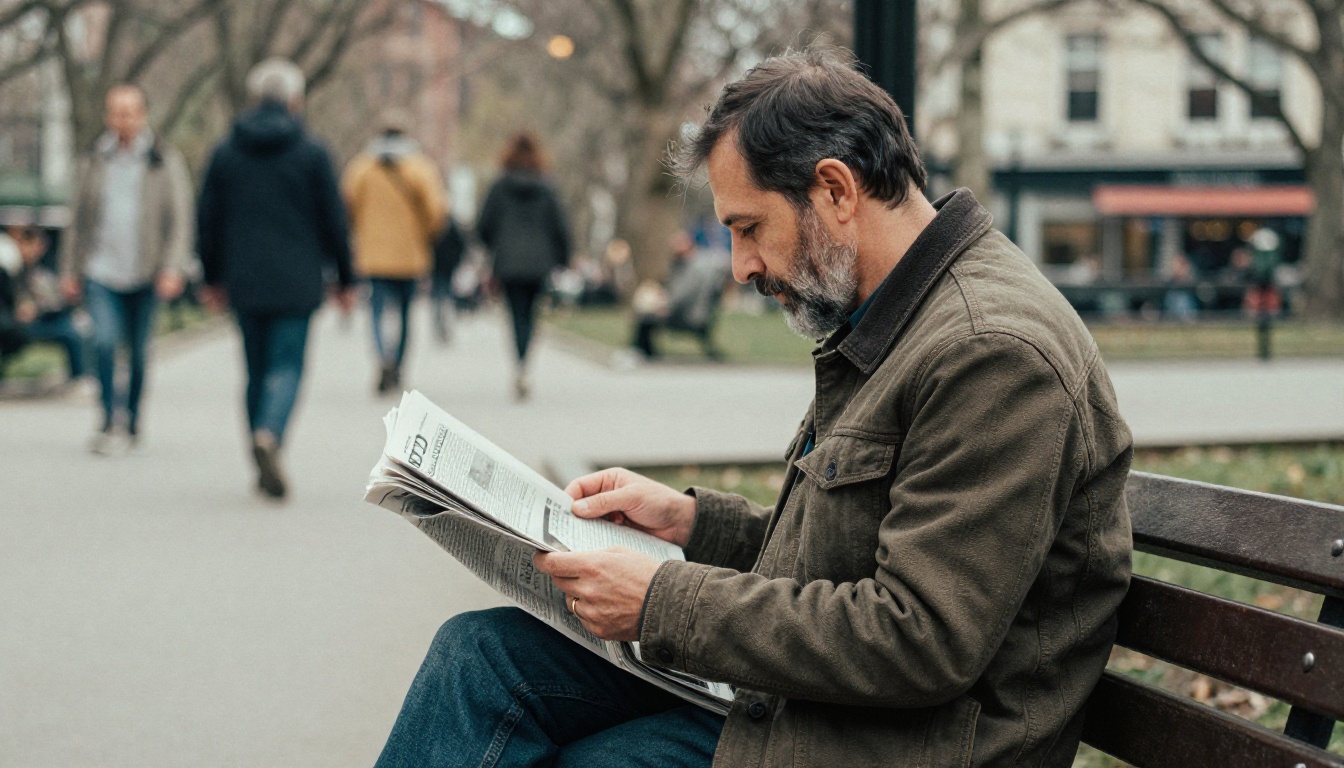
Look at the background of most AI portraits. It is either a generic blur of color with no spatial logic, or it is a setting that has no coherent relationship to the subject. Real photographs always have backgrounds that tell a story: the person is somewhere specific, doing something, for a reason. Architectural elements are in correct perspective. People in the background are engaged in activity. AI backgrounds are often just visual noise that exists to fill space rather than to anchor the subject in a real environment.
Hands and Fingers
This is the oldest and most persistent AI failure. Hands are anatomically complex and require spatial reasoning that current models still struggle with under default settings. Extra fingers, fused fingers, fingers that bend at impossible angles, hands that partially merge with held objects: all of these appear regularly in AI images that were generated without specific attention to anatomy.
If your image includes visible hands, you need to be explicit about their position and configuration in the prompt, and you need a model with strong structural control.
Pro tip: Flux Canny Pro uses edge detection to preserve scene structure, which significantly reduces anatomical errors in hands and complex poses. Use it when structural accuracy matters more than creative variation in a shot.
Prompt Engineering for Realism
Model choice matters, but prompts matter more. The same model can produce a plastic-looking portrait or a convincingly real photograph depending on how you describe the shot. The following prompt approaches move your output toward authenticity consistently.
Add Real-World Imperfections
Stop describing ideal subjects and start describing real ones. Instead of "a beautiful woman with perfect skin," write "a woman in her mid-30s with slight laugh lines, natural freckles on her cheeks, one eyebrow slightly higher than the other, fine wispy hairs at her temples." The specificity forces the model out of its default beautiful-portrait template and into something that has actually been observed.
For environments, describe the kind of wear and age that real spaces have: "worn leather couch with slight discoloration on the left armrest, morning light coming through partially open blinds leaving stripe patterns across the floor." Every imperfection you name anchors the image in lived reality rather than a generic visual space the model invented.
Film Stock and Grain
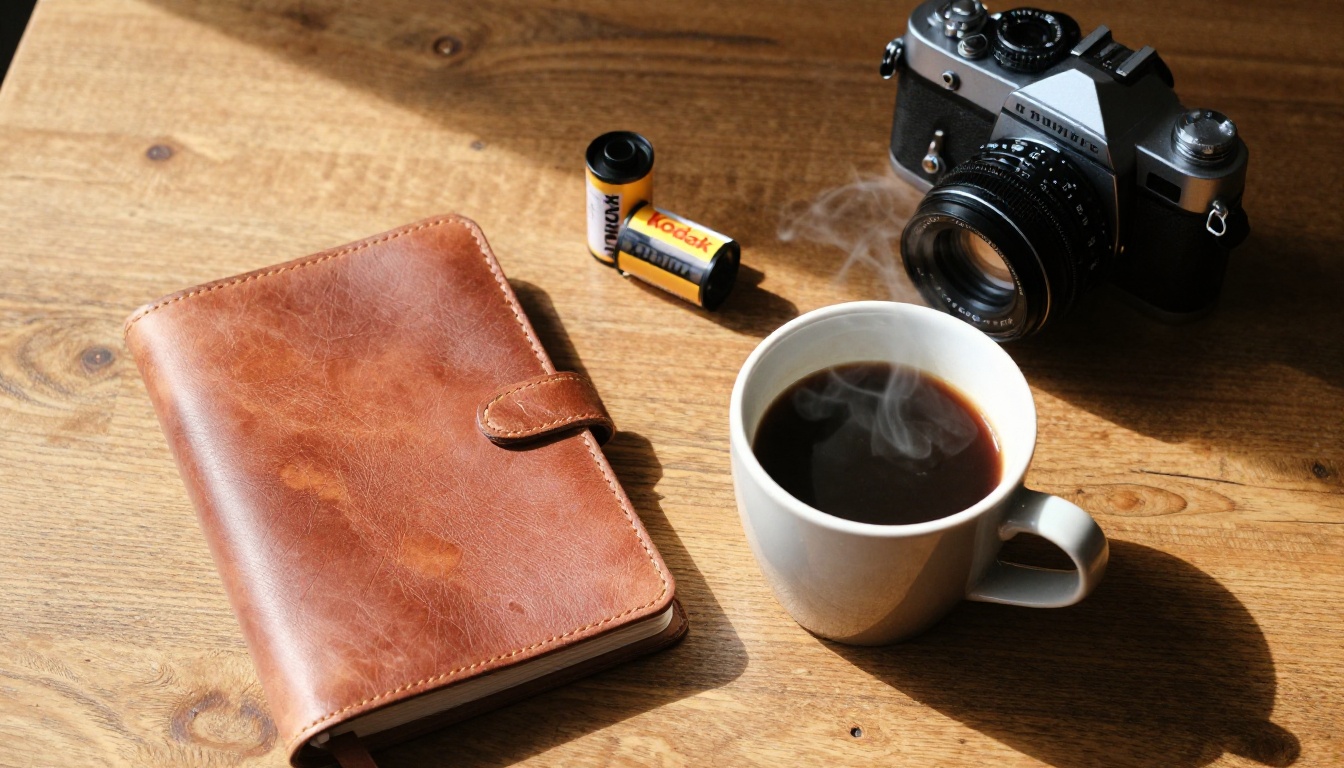
This is one of the most effective single additions to any prompt aimed at photorealism. Referencing specific film stocks introduces grain, color shifts, and tonal characteristics that are deeply associated with authentic photography in human perception. Try any of the following:
Kodak Portra 400 for warm, slightly faded portrait tonesFujifilm Superia 400 for cooler, neutral street photography colorKodak Ektar 100 for saturated, sharp outdoor shotsKodak Tri-X 400 for classic black-and-white grain structure35mm film grain, slight color cast, faded highlights, lifted shadows
Grain is noise. Noise is information. The visual system has learned to associate image noise with authentic camera capture, and its presence makes an image read as real even when it is not. This is one of the cheapest improvements available in any prompt.
Specify Camera and Lens
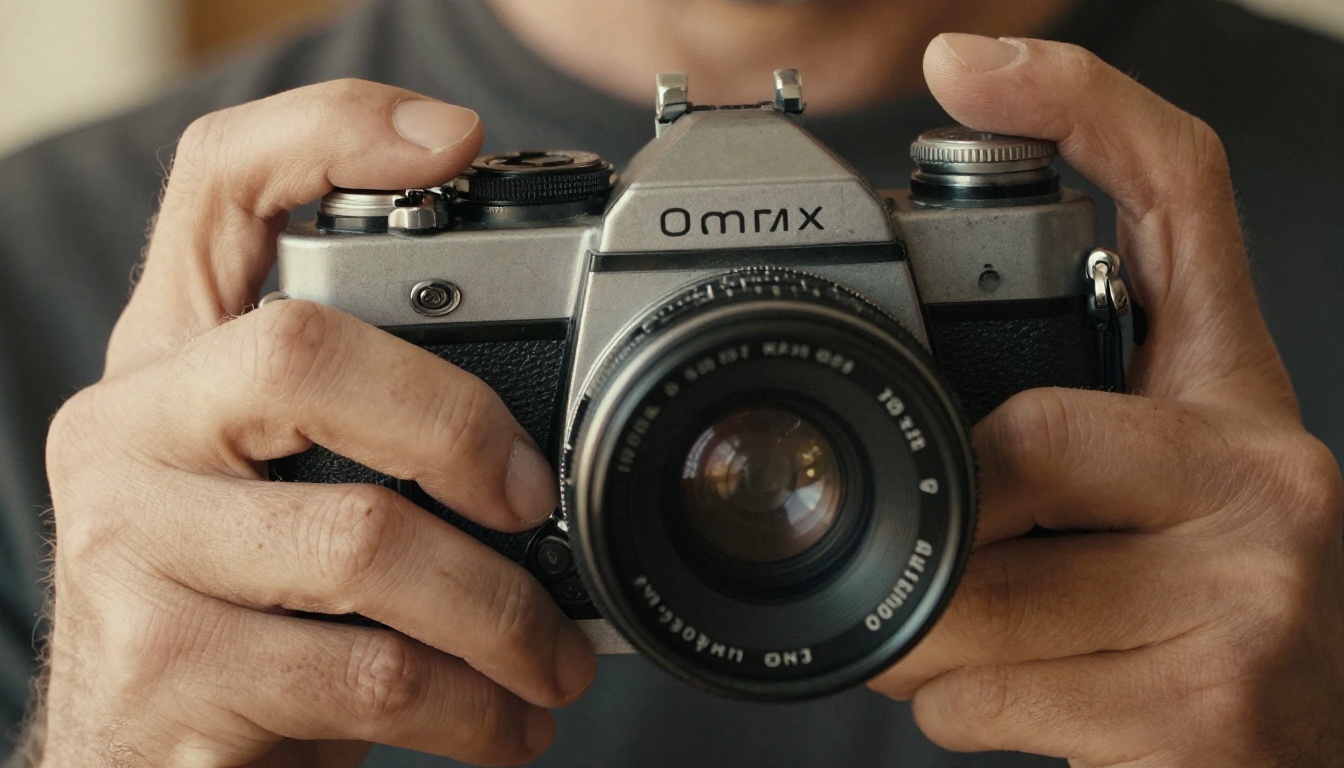
Real photographs are taken with specific equipment, and that equipment has specific optical properties. Wide-angle lenses introduce barrel distortion at frame edges. Telephoto lenses compress the background distance. Wide apertures produce distinctive bokeh with soft circular highlights. All of these optical characteristics are authenticity signals.
Try adding: shot on Canon 5D Mark IV, 85mm f/1.4, shallow depth of field, natural vignette, slight chromatic aberration at frame edges. The optical behavior that comes from real glass is something AI models reproduce quite accurately when asked, because it appears consistently in their training data under those descriptors.
The Right Models for Photorealism
Prompts do significant work, but the base model determines the ceiling. Not every text-to-image model is built for photorealistic output. Some are designed for illustration, concept art, or graphic design. If your goal is authentic-looking photography, you need a model with that specific intent behind its training.
Flux Krea Dev: Built for This
Flux Krea Dev was developed with photorealism and visual authenticity as the primary objective. Its training curation explicitly targeted the over-polished AI appearance that most models produce by default. It handles skin texture, environmental coherence, and directional lighting significantly better than most alternatives without requiring workarounds in the prompt. If you use one model for this specific challenge, this is the one. Its name signals exactly what it was built to solve.
Seedream 4.5 and Dreamina 3.1
For portrait work and cinematic-style photography, Seedream 4.5 by ByteDance produces 4K-quality outputs with strong compositional coherence and controlled skin rendering. Dreamina 3.1, also from ByteDance, is trained on cinematic reference photography and handles depth, focus roll-off, and color temperature in a way that reads as photographic rather than rendered. Both are strong choices for portrait and lifestyle photography subjects.
Model Comparison for Photorealism
| Model | Best For | Realism Level | Link |
|---|
| Flux Krea Dev | Portraits, environments | Very High | Open |
| Seedream 4.5 | 4K portrait, fashion | High | Open |
| Dreamina 3.1 | Cinematic photography | High | Open |
| Stable Diffusion 3 | Versatile, structured | Medium-High | Open |
| Flux Fill Pro | Fixing specific areas | High | Open |
Post-Processing That Helps
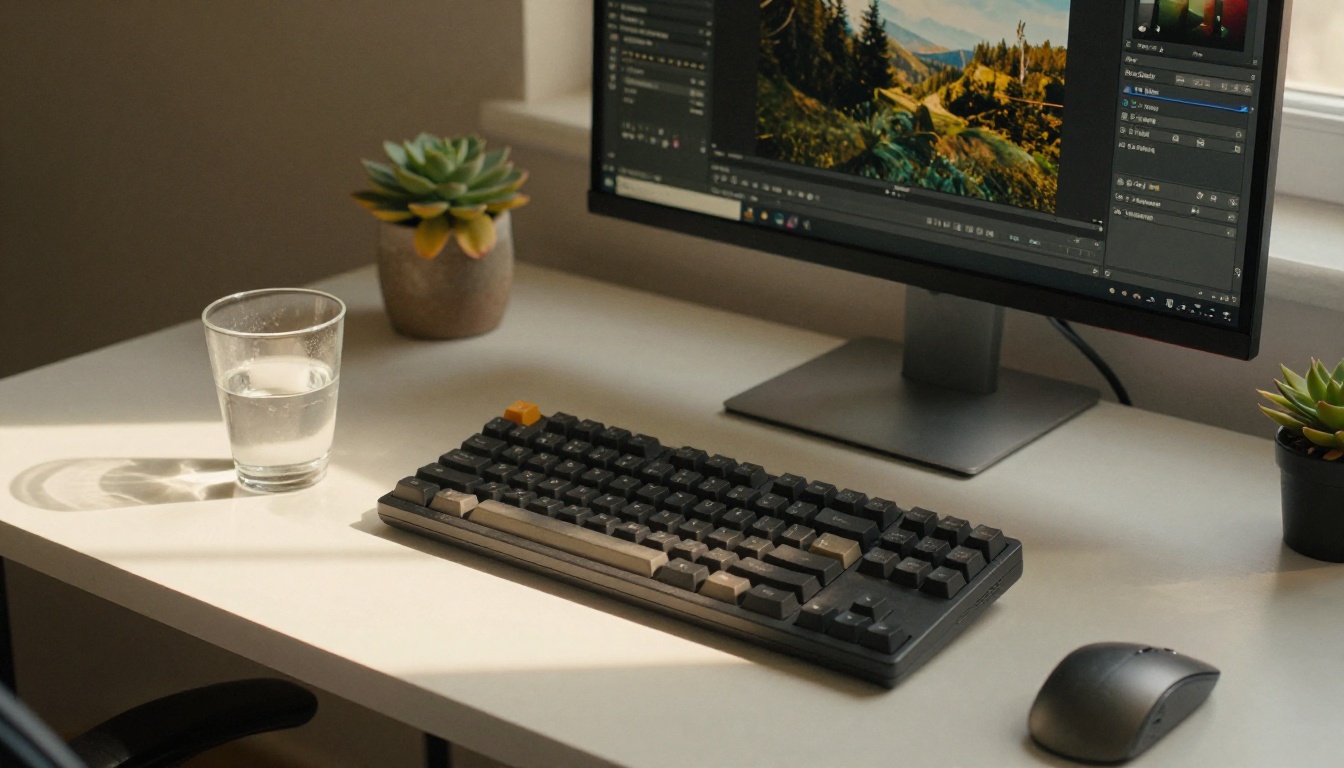
Getting a strong base image is step one. What you do after generation determines whether it holds up under scrutiny. Several specific tools on PicassoIA directly address the problems that most commonly make AI images read as fake.
Upscaling vs. Over-Sharpening
One of the most common post-generation mistakes is applying aggressive sharpening to make an AI image look crisp. Sharpening increases apparent edge contrast, but it also exaggerates the smooth, artificial quality of AI-generated skin and surfaces. The image becomes sharper and more plastic at the same time.
Proper upscaling is different. Clarity Pro Upscaler adds genuine micro-detail during the upscaling process rather than simply enlarging existing pixels. Crystal Upscaler is specifically optimized for portrait photography and handles skin texture recovery without introducing the over-sharpened soap-opera effect. For maximum resolution needs, Image Upscale by Topaz Labs supports up to 6x enlargement with genuine detail preservation.
For fast, clean upscaling without elaborate processing, P Image Upscale processes in about one second and maintains natural tonal quality without introducing artificial sharpness artifacts.
Skin Retouching Done Right
Most people associate retouching with smoothing. That is the wrong approach. Professional retouching normalizes skin by reducing extreme redness and isolated blemishes while preserving the underlying texture, pores, and natural variation that make skin read as skin. When you smooth out all the texture, you reproduce the plastic AI skin look you were trying to avoid.
Qwen Image Edit Plus LoRA Skin handles this correctly. It is designed specifically to retouch skin while preserving the natural pore structure and micro-texture that distinguishes convincing portraiture from polished artificiality.
Relighting for Naturalness
Wrong lighting is one of the hardest problems to fix in traditional post-processing. AI-based relighting changes the situation entirely. Qwen Image Edit Plus LoRA Relight lets you redefine the light source direction and color temperature in an existing image after generation. You can take a portrait with generic frontal lighting and add a directional sidelight that creates the depth shadows real photography always carries. This single adjustment does more for perceived photorealism than almost anything else in post-processing.
How to Use Flux Krea Dev on PicassoIA
Since Flux Krea Dev is the model most directly built for photorealistic, non-artificial-looking images, here is exactly how to get the most from it on PicassoIA.
Step 1: Access the Model
Go to picassoia.com and navigate to the text-to-image section. Search for "Flux Krea Dev" or go directly to the model page. It runs immediately from the browser with no additional setup needed.
Step 2: Write a Grounded Prompt
Flux Krea Dev responds particularly well to photography-language prompts. Lead with the subject and situation, not with abstract style descriptors. Instead of "cinematic dramatic portrait," write "a man in his 40s standing in front of a window, afternoon light coming from the left, casual clothes, slight stubble." Ground the image in a physically real scenario first, then layer in photography specifics.
Add: shot on 50mm f/1.8, natural window light, film grain, Kodak Portra 400, slight grain visible in shadows. These cues activate the model's photorealistic tendencies more reliably than generic quality modifiers like "ultra HD" or "best quality."
Step 3: State What You Want to Avoid
Tell the model explicitly what not to include. In the prompt itself, or in a negative prompt field if the interface provides one: "no artificial lighting, no HDR tone mapping, no smooth skin, no perfectly symmetrical face, no studio backdrop, no neon effects." The model does not read omission as instruction; you have to name what you do not want.
Step 4: Generate Multiple Variations
Do not commit to a single generation. Produce three to five variations of the same prompt and compare them. The difference between a convincing shot and a plastic one is often just a matter of which random seed happened to produce which version. Flux Redux Dev can create variations from a strong base image while preserving its general composition, letting you iterate faster once you have a promising result.
If you need to fix specific areas of a strong output without regenerating the whole image, Flux Fill Dev lets you inpaint precise regions. This is the right move when hands or a small background element are the only problems in an otherwise strong image.
Step 5: Finish Like a Real Photograph
After generation, treat the output like a photograph in post. Reduce clarity slightly to soften harsh rendered edges. Add a subtle vignette, since real lenses produce this naturally as a result of light falloff at the corners. Use Real ESRGAN to upscale if you need more resolution without introducing sharpening artifacts. For a full unlimited editing session that spans multiple adjustments, PicassoIA Image Editor Pro provides a complete set of operations with no generation limits.
3 Mistakes That Always Expose an AI Image
Even experienced users of AI image generation tools make these consistently. They are small choices that have outsized effects on how real the final result feels to a viewer.
Never Use "8K Ultra HD"
The phrase "8K ultra HD" appears in millions of AI prompts because users assume it produces high quality. What it actually signals to the model is a certain kind of artificial sharpness that reads as rendered rather than photographed. Real 8K photography has grain, diffraction, and optical softness from lens characteristics at the edges and in shadow regions. AI "8K ultra HD" produces uniformly sharp edges everywhere, which is precisely what no real lens at any resolution produces.
Instead, describe the shooting conditions that produce a high-quality real photograph: directional light, a quality lens with a stated aperture, correct exposure for the scene. Quality follows from physical conditions in real photography, and the same logic produces better results when prompting AI models.
Stop Over-Prompting
A prompt with 40 descriptors usually produces a worse result than one with 10. Over-prompting splits the model's attention across too many potentially conflicting requirements, and the output tries to satisfy everything while succeeding at nothing clearly. Use fewer, more precise words. "Morning light from the left on a woman's face, 85mm portrait lens, film grain" is almost always a stronger prompt than a paragraph of stacked aesthetic modifiers. Pick the most important qualities and name them precisely rather than trying to describe every possible property of the image.
The White Background Trap
Subjects placed against pure white or pure black backgrounds read immediately as stock photography or product mockups, not as real life. Real photographs of people and environments always have spatial context. If you need a clean background for practical use, generate the subject in a natural environment first, then use Bria Remove Background to isolate the subject cleanly afterward. This approach almost always produces a more convincing subject than prompting for a white background from the start.
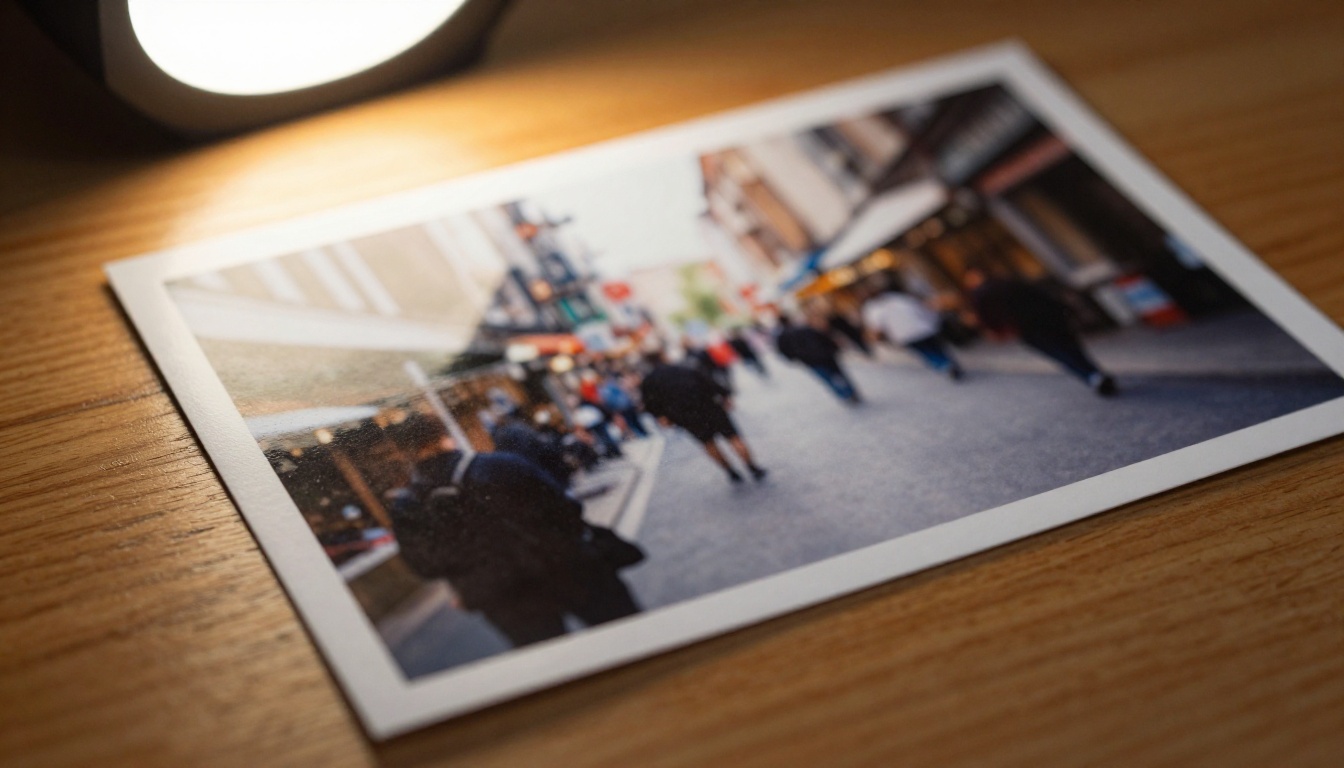
One of the most reliable photography-specific authenticity signals is correct depth of field. Real cameras can only focus sharply at one distance at a time. Everything in front of or behind that focal plane falls off in sharpness according to the aperture, focal length, and subject distance. AI models often ignore this completely and produce images where everything from foreground to background sits at equal apparent sharpness, or where the blur is applied as an obvious flat gradient behind the subject rather than following scene geometry.
Depth of Field on PicassoIA directly addresses this. It applies optically accurate depth of field based on a defined focal plane in the scene, so the blur follows the three-dimensional geometry of the image rather than being layered on as a background effect. The difference is immediately visible to any viewer with photography experience, and it significantly improves how a portrait or product shot registers as authentic.
Why Blur Direction Matters
The direction of focus falloff must match a physically plausible camera position. In a portrait where the subject faces forward, the sharpest point should be the eyes, falling off toward the ears, then the shoulders, then the background. If the blur is uniform across the entire face, or if it radiates outward from the center without following the actual depth of the scene, it reads as technically wrong.
Realism rule: In a well-made portrait, the eyes are always the sharpest point in the frame. Any deviation from this registers as a technical error to most viewers, even those who could not name what is wrong.
For images where you want to simulate a specific lens choice after generation, Flux Kontext Fast allows fast iterative editing including perspective and depth adjustments. Paired with proper depth-of-field processing, it gives you control over the optical properties of a generated image in a way that approaches real photographic post-production.
Your Images Can Pass the Test
Avoiding the AI look is not about hiding the fact that you used AI. It is about producing images that communicate what you intend without the viewer's attention being pulled toward technical artifacts. Every visual element that reads as wrong draws the eye away from the subject and toward the medium. The goal is images where the medium is invisible.
The combination that works reliably: a photorealism-trained model like Flux Krea Dev or Seedream 4.5, prompts written in photographic language with specific real-world imperfections named, and targeted post-processing using Clarity Pro Upscaler or Qwen Image Edit Plus LoRA Relight to fix the remaining tells.
Everything needed for this workflow is available on PicassoIA. From Qwen Image Edit Plus for detailed text-driven photo adjustments to Flux Depth Pro for depth-aware editing that respects scene structure, the platform's full set of tools is at picassoia.com/en/all-models.
The best AI images do not look like AI images. They look like photographs taken by someone who understood exactly what they were doing. That standard is achievable today with the right model selection, specific prompting, and minimal post-processing. Every image you produce is a chance to close the gap between AI output and authentic photography. Start with Flux Krea Dev and see what a model built specifically for this problem actually delivers.