How to Batch Create Images with AI: Speed Up Your Visual Workflow
Stop creating AI images one at a time. This article breaks down how batch image generation works, which models handle bulk output best, and exactly how to set up a prompt workflow that produces dozens of consistent, high-quality visuals in a single session without hitting limits or losing creative control.
Generating 50 images one click at a time is not a workflow. It is a patience test you will eventually fail. The real advantage of AI image generation is volume, consistency, and speed, and you only capture all three when you stop treating it as a single-generation tool and start building an actual batch process.
This article breaks down how to batch create images with AI from first principles: what it actually means, which models are built for it, how to write prompts that hold together across dozens of outputs, and the specific steps to run on PicassoIA today.
What Batch Image Generation Actually Means
Most people use AI image tools the same way they use a camera: one shot at a time. Write a prompt, generate one image, inspect it, tweak the prompt, generate one more. That works for exploration. It falls apart the moment you need 30 product backgrounds for an e-commerce launch or 15 social post visuals for a campaign week.
Batch image generation changes the unit of work. Instead of one prompt producing one image, you configure the model to produce a set: same prompt, same seed logic, multiple outputs in a single run. Or you queue a series of variant prompts and process them back-to-back without restarting from scratch each time.
Single vs. Batch: The Real Difference
Mode
Prompts
Images Per Run
Best For
Single
1
1
Exploration, testing
Batch (same prompt)
1
4-8
Style variations, picking the best output
Batch (variant prompts)
Multiple
1 each
Consistent visual series with controlled variables
The distinction matters because each mode requires different setup. Same-prompt batching is about quantity from a single idea. Variant-prompt batching is about consistency across a series. Both are valid, and most production workflows use both.
When Batch Makes Sense
Batch generation earns its value in specific situations:
Content banks: You need 20 visuals for a month of social posts and want them to share a visual identity.
E-commerce at scale: A product catalog with 40 SKUs, each needing 3 background variations.
Storyboarding: A scene sequence where each frame needs to feel like it came from the same shoot.
A/B creative testing: Running the same concept with 8 different lighting or composition variables to find the best performer.
If you only need two or three images, single generation is fine. Once you cross five to ten outputs in a session, batch workflows pay for themselves in time saved.
The 3 Models Built for Bulk Output
Not every text-to-image model handles batch generation the same way. Speed, quality ceiling, and control parameters vary significantly. These are the three worth knowing on PicassoIA.
Flux Schnell
Flux Schnell is the fastest option in the lineup. It uses only four denoising steps to generate a 1-megapixel image, which means a full batch of 8 images can process in well under a minute. On PicassoIA, it carries no credit caps or usage limits, so you can run 50 or 100 variations in a session without hitting a wall.
The num_outputs parameter controls batch size per run. Set it to 4 or 8, write one strong prompt, and the model produces that many distinct interpretations simultaneously. Each output shares the prompt's visual direction but varies in composition, lighting detail, and small element placement. For bulk visual content production where you want variety from a single creative brief, this is the most efficient path.
Best for: Speed-first workflows, high-volume content banks, rapid iteration where quality is good enough rather than maximum.
Flux Dev
Flux Dev runs a 12-billion parameter model, which produces noticeably higher fidelity than Schnell. It supports the same 11 aspect ratios and adds an image-to-image mode, where you can feed a reference photo and use a prompt to redirect it. This makes it particularly useful for brand consistency: generate one strong base image, then use img2img to produce variations that keep the same subject while changing environment or mood.
It takes longer per generation (28 inference steps versus 4), but the output ceiling is higher. For final-asset production where each image goes live, Flux Dev handles the quality bar more reliably.
Stable Diffusion is the model with the most granular control. Six different schedulers, resolution control from 64px to 1024px, negative prompts, and an adjustable guidance scale give you more levers to pull than either Flux model. The negative_prompt parameter is especially valuable in batch workflows: it lets you exclude unwanted visual elements from all outputs in a run rather than correcting them one image at a time.
Best for: Workflows requiring precise visual exclusions, art direction control, or custom resolution outputs.
How to Batch Create Images on PicassoIA
Here is the concrete workflow. This uses Flux Schnell for the example because it offers the fastest feedback loop, but the same principles apply to any model.
Step 1: Open the Model Page
Go to Flux Schnell on PicassoIA. No account setup or credit purchase needed. The model loads directly in your browser.
Step 2: Write a Batch-Ready Prompt
A batch-ready prompt is specific enough to hold visual consistency across multiple outputs, but not so rigid it produces near-identical clones. The structure that works:
[Fixed subject and core description] + [Fixed environment] + [Fixed lighting direction] + [Fixed camera parameters] + [Fixed style modifiers]
Example for a product background batch:
"White ceramic coffee mug on a dark slate countertop, morning side light from upper left, 85mm f/2.0 depth of field, photorealistic, 8K, Kodak Portra 400 film grain"
Every output shares the subject, surface, lighting direction, and style. The model varies composition micro-details naturally, giving you a set that feels like it came from the same shoot.
Step 3: Set Your Num Outputs
In the parameters panel, set num_outputs to 4 or 8. Do not go higher on first runs with a new prompt. You want to validate the prompt produces acceptable output before generating 20 variations of something that misses the mark.
Step 4: Review, Pick, Iterate
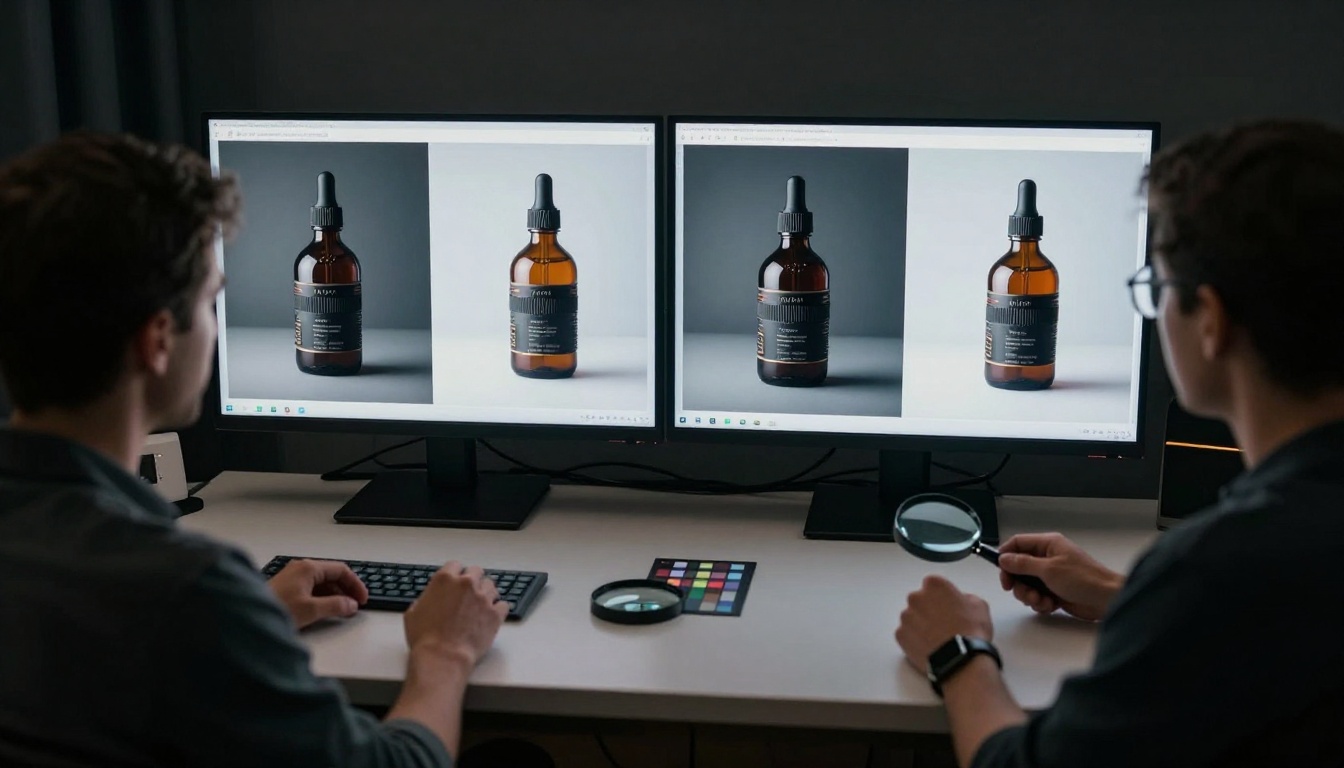
Download the batch. Pick the strongest 2-3 outputs. Note what the model did well and what drifted from the intent. On the next run, tighten the prompt on the problem areas and increase batch size. This two-run calibration loop is faster than trying to perfect a prompt before generating anything.
💡 Tip: Use the same seed across runs when you find a composition you like but want to vary the color palette or time of day. The seed locks the base structure while prompt changes shift mood and detail without losing the composition.
Writing Prompts That Scale
Individual prompts are disposable. Batch prompts are assets. The difference is in how you build them.
The Consistent Variable Formula
Think of your prompt in two layers:
Fixed layer (what stays the same across every image in the batch):
Subject identity and material
Background environment
Lighting direction and color temperature
Camera lens and depth of field
Style modifiers (grain, color science, output format)
Variable layer (what you intentionally change between batch runs):
Subject pose or orientation
Background color variant
Time of day (morning light, midday, golden hour)
Aspect ratio
Keeping these layers separated in your thinking makes it fast to produce a second and third batch that extends the same visual series without starting from scratch.
Negative Prompts Save Time
In Stable Diffusion, the negative prompt field is a batch workflow's best efficiency tool. Common batch output problems and their fixes:
Write your negative prompt once and reuse it across all batch runs in a session. It functions as a quality floor that filters the same class of problems from every output automatically.
Real Use Cases for Batch AI Images
E-commerce Product Shots
Product photography at scale is the clearest ROI case for AI image batching. A catalog of 50 products, each needing 3 background variations, is 150 images. At a traditional photography rate, that is thousands in budget and days in production time. With Flux Dev's img2img mode, you can start from one real product photo and batch-generate 8 background variations in a single run, then repeat across the catalog.
Consistency comes from using the same fixed-layer prompt structure for every product: same light direction, same shadow quality, same surface material. The subject changes; the visual environment stays identical.
Social Media Content Banks
Content teams burning through 20-30 images per week for social posts face constant production pressure. Batch AI generation turns a full month's worth of visuals into a half-day task. Use Flux Schnell with num_outputs set to 8, write a prompt that matches your brand visual language, and run 4-5 prompt variations. You have 32-40 usable images before lunch.
The secret is building a library of tested prompt templates. Once you find a formula that consistently produces on-brand results, save it. A five-template library covers most content needs for weeks.
Storyboard and Concept Art
Film, animation, and game development teams use batch generation to move quickly through visual development. A scene that would take a traditional storyboard artist a full day to rough out can be batch-generated in an hour: write one prompt per scene with fixed camera angle, light quality, and subject description, run each through Flux Dev with a batch of 4 outputs, and pick the strongest frame.
The AI does not replace the storyboard artist's creative vision. It removes the hours spent on rough drafts so the artist can spend time on refinement rather than first passes.
Common Mistakes When Batch Creating
Vague Prompts Kill Consistency
The most frequent problem in AI image batching is treating it like a single-generation task. A prompt like "coffee shop interior" produces wildly inconsistent outputs across a batch because it gives the model too much creative latitude. Across 8 outputs you might get 3 different architectural styles, 4 different lighting conditions, and 2 images that do not look like coffee shops at all.
Fix this by being specific on every axis that matters: not "coffee shop interior" but "narrow Brooklyn coffee shop interior, exposed brick walls, warm Edison bulb pendant lighting from above, 35mm f/2.8 lens, morning light from east-facing window on left side, photorealistic, 8K, Kodak Portra 400." The more constrained the fixed layer, the more consistent the batch. Specificity is not a constraint on creativity. It is the mechanism that makes bulk output usable.
Ignoring the Seed Parameter
When a particular output from a batch is close to what you want but not quite right, do not discard the seed. Flux Schnell and Flux Dev both support a seed parameter that reproduces the same compositional structure when reused. Copy the seed from the output you liked, fix the prompt element that was off, and regenerate. You get a refined version of the same composition rather than a completely new roll of the dice.
💡 Tip: Keep a simple text file of seeds that worked. A seed paired with its original prompt is a reusable visual template. Two months later, you can return to that seed and extend the series without rebuilding the prompt from scratch.
Using Flux Schnell for Your First Batch
Flux Schnell is purpose-built for high-volume AI image generation. Here is a step-by-step run through the interface:
Write your prompt: Use the fixed-layer structure above. Be specific about subject, environment, lighting, and camera parameters.
Set aspect ratio: Choose 16:9 for landscape content, 9:16 for mobile and social stories, 1:1 for square social posts.
Enable Go Fast: This activates the fp8-quantized processing mode, cutting generation time further without a visible quality difference at standard viewing sizes.
Set Num Outputs: Start at 4 for your first run with any new prompt. Once validated, move to 8.
Set your seed (optional): Leave it blank for maximum variation in a batch, or set it when refining a specific composition.
Generate and review: All outputs appear in the results panel simultaneously. Download as WebP, JPG, or PNG.
Iterate: Tighten your prompt based on what the first run showed you, then scale batch size.
The absence of credit caps on PicassoIA matters here in a practical way. A calibration run of 4 images, followed by a full batch of 8, followed by two or three variation runs, is 20-28 images in a session. On platforms with per-generation credit costs, that kind of iteration adds up fast. On PicassoIA with Flux Schnell, it is just the normal workflow.
Start Generating Your First Batch Now
The workflow covered here works starting from your very first session. You do not need prior experience with AI image generation, a design background, or any local setup.
Open Flux Schnell on PicassoIA, write a fixed-layer prompt for something you actually need visuals for, set num_outputs to 4, and run it. The first batch tells you more about what works than any amount of reading about it.
If you need higher fidelity for final assets, try Flux Dev. If you need granular control over visual exclusions and resolution, Stable Diffusion gives you the most parameters to dial in. All three are available on PicassoIA with no credit caps, no watermarks, and no installation required. The only thing left is the prompt.