Editing 30 videos the same way you edit one is not a scaling strategy. Every hour spent manually trimming, captioning, and color-grading individual clips is an hour not spent on the next project. AI batch video editing changes that calculation entirely, letting you apply the same set of operations to dozens of clips simultaneously, with results that would have taken a full production team days to produce.
This is not about cutting corners. It is about spending your creative energy where it matters and letting automated processing handle the repetitive work that used to eat entire production days.
What Batch Video Editing Actually Is
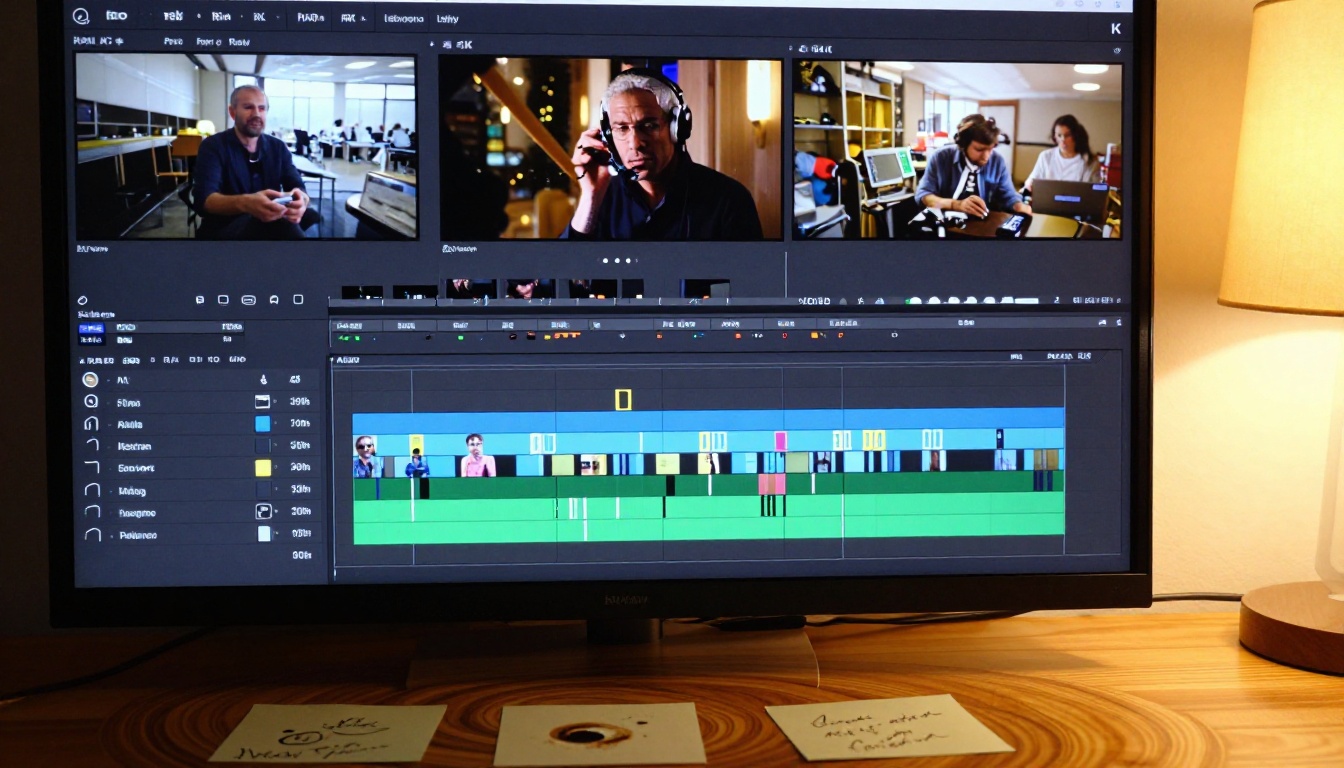
Batch video editing means applying one or more editing operations to multiple video files at the same time. In traditional software, this is limited: you can export multiple files, but the actual editing decisions still have to be made one at a time. AI changes this at a fundamental level.
Modern AI video editing tools let you write a single text instruction, like "make the colors warmer and add dramatic shadows," and apply that transformation across an entire folder of clips. The AI interprets your intent and executes it consistently across every file, without manually adjusting each one.
One Prompt, Many Outputs
The shift from manual to AI-driven batch editing is not just about speed. It is about consistency. When you apply a color grade manually to 50 videos, the 50th one will look slightly different from the first. Human attention drifts. AI does not. Every clip processed by the same model with the same parameters will match.
This level of visual consistency used to require either an extremely rigid style guide enforced by a dedicated team or expensive color management software. With AI, it is the default output of a well-configured batch job.
How AI Changed the Workflow
Traditional batch processing tools required technical knowledge: scripts, command-line tools, or expensive plugins. AI models have replaced that barrier with plain language. You describe the result you want, and the model figures out how to get there. That means anyone on a content team, not just the technical editor, can run a batch job and produce professional-quality output.
The practical impact is that small teams and solo creators now have production capacity that previously required entire post-production departments.

The Real Cost of Editing One Video at a Time
If you produce 10 short videos per week and each one takes 45 minutes to edit, you are spending 7.5 hours every week on repetitive operations. Multiply that across a year and you have lost nearly 400 hours to tasks that AI can now handle in minutes.
But the problem is not just time. It is also the mental overhead of staying consistent across dozens of clips, especially when projects span multiple days or involve multiple editors with different habits and preferences.
Hours Most Creators Never Get Back
Most content creators underestimate how much time goes into the small edits: trimming silence from the start and end of clips, removing background clutter, adding subtitles, normalizing audio levels. These tasks feel minor individually. At scale, they consume entire production days.
A single AI batch run can handle all of these in the time it takes to have a coffee. The time savings do not accumulate gradually. The difference shows up immediately in the first batch you run.
Consistency Breaks at Scale
When a brand publishes 50 product videos, every frame needs to match the same visual standard. Background removed? Check. Color tone matching the brand palette? Check. Captions in the correct style? Check. Without AI batch processing, this requires either a large team or extremely rigid manual checklists prone to human error. With AI, it becomes a configuration you run once and trust across every output.
The consistency benefit compounds over time. The more clips you process through the same pipeline, the more cohesive your overall video library becomes, which directly affects how professional your channel, store, or platform presence appears to viewers.
6 AI Models That Handle Bulk Video Editing
PicassoIA gives you access to a specific set of models built for different parts of the batch editing workflow. Each one handles a distinct operation, and together they cover the full pipeline from raw footage to finished, publish-ready clips.
Text-Based Edits Across Clips
Lucy Edit 2 is built for editing video using plain text instructions. You type what you want the video to look like or do differently, and the model applies those changes. For batch workflows, this means writing one instruction and running it across every clip in your project without touching the editing interface for each individual file.
Wan 2.7 Videoedit extends this with stronger style transfer capabilities. If you want every clip to share the same cinematic look, or if you need to restyle footage to match a new brand direction, this model applies those changes at the pixel level based on your text description.
Gen 4 Aleph from Runway takes this a step further by combining recut and restyle into one operation. You are not just changing how a clip looks. You can change how it is structured, what is emphasized, and how it flows, all from a single prompt. For creative projects that need a consistent visual language across a series of clips, this is one of the most powerful batch tools available.
Kling o1 specializes in rewriting video content with text, which is particularly useful when you need to repurpose footage shot for one context into something suited for a completely different platform or audience.
Bulk Upscaling and Resolution Boost
Low-resolution footage is one of the most common problems in batch video projects, especially when working with older footage, user-generated content, or assets from mobile devices filmed in poor light.
Real ESRGAN Video upscales videos to 4K using a super-resolution neural network that adds genuine detail rather than just stretching pixels. The result is sharper edges, cleaner textures, and footage that holds up on large screens without the blurriness of simple interpolation.
Video Increase Resolution by Bria offers an alternative approach with different output characteristics. Some footage responds better to one model than the other depending on the original codec, lighting conditions, and subject type, so having both available gives you more flexibility when processing diverse clip libraries.
Automatic Captions at Scale
Adding captions to every video you publish is no longer optional. Accessibility requirements, social media autoplay without sound, and SEO discoverability all depend on subtitles being present and accurate.
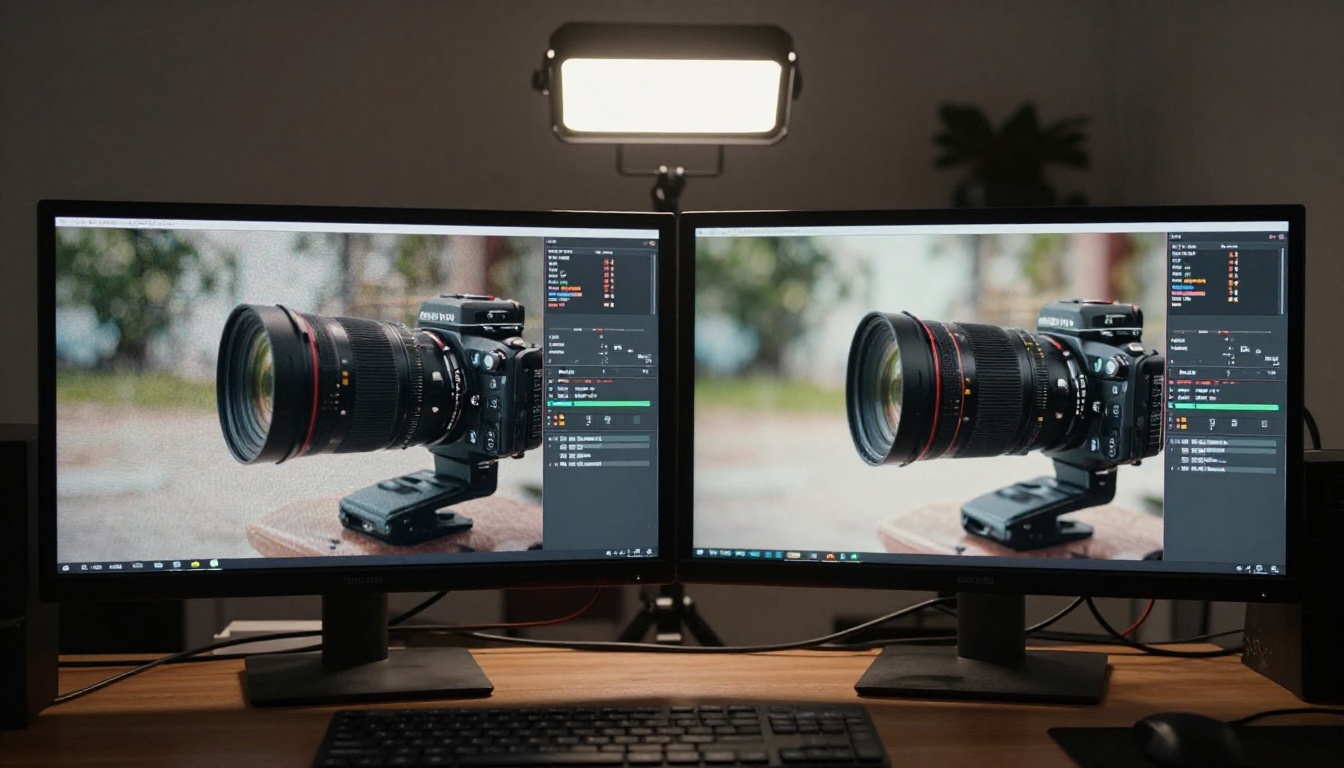
Autocaption generates synchronized captions for any video automatically. For a batch of 20 clips, this replaces 20 individual captioning sessions with a single processing run. Captions are timed accurately to match the speech in each clip and styled consistently across every output file.
Background Removal for Every Clip
Product videos, fashion content, and social media clips often need clean backgrounds. Shooting with a green screen is one option. AI background removal is faster, does not require any special equipment, and works on footage filmed anywhere.
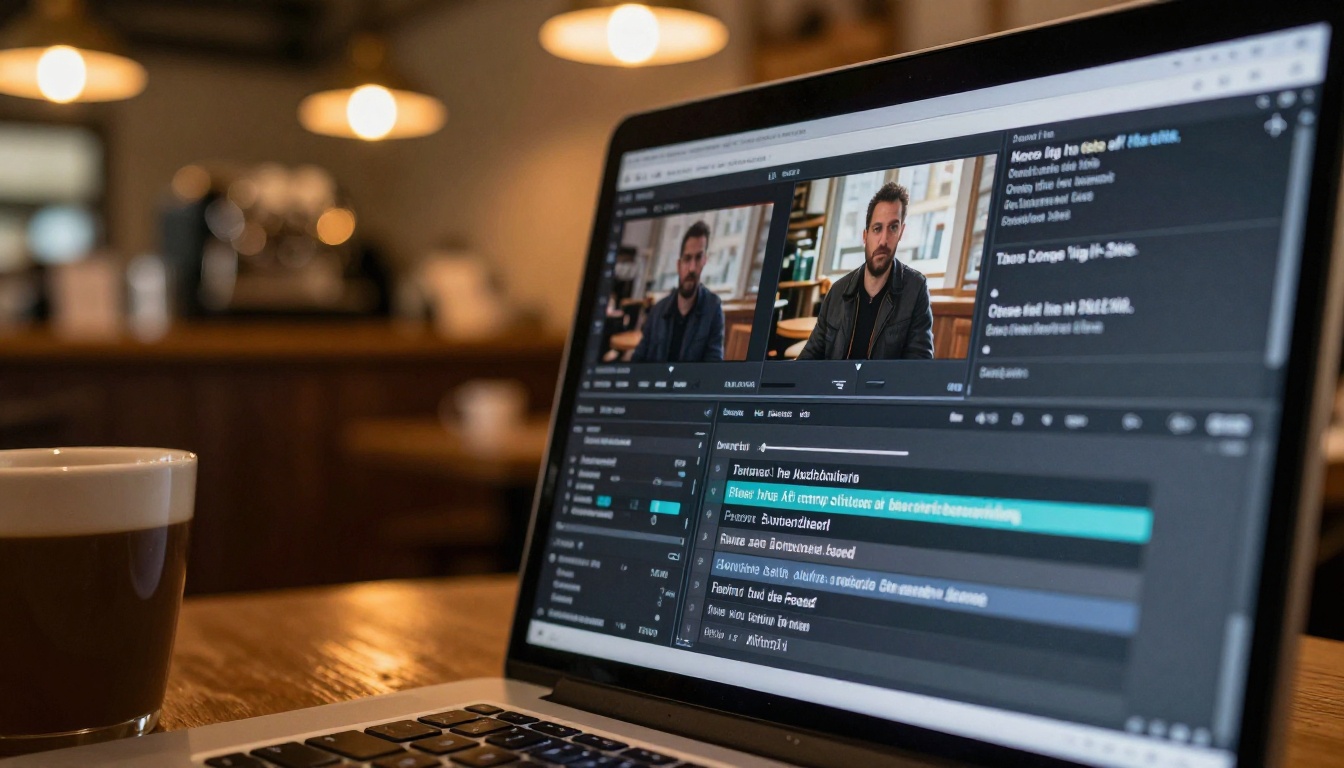
Video Remove Background processes each clip and removes the background without a green screen setup. For creators working in varied environments, this means consistent, clean output regardless of where the original footage was shot, whether that is a busy office, a living room, or outdoors.

Audio Sync and Sound Effects
Batch editing is not limited to the visual layer. Audio inconsistencies across a series of clips are just as damaging to a professional output as visual ones. Clips recorded in different environments, with different microphones, or at different gain levels will sound jarring when published as a series.
Thinksound analyzes the visual content of a video and adds contextually appropriate ambient audio automatically. Video Audio Merge lets you replace or blend soundtracks across multiple clips using a consistent audio source, which is essential when scoring a series of videos with the same music track or voiceover.
Trim, Split, and Merge in Seconds
Raw footage always has dead space: a few seconds before the action starts, an awkward pause at the end, a cutaway that did not work. Removing these manually from 50 clips takes hours.
Trim Video cuts each clip to exact length specifications. Video Split divides clips into timed segments, useful for repurposing long-form content into short-form clips for different platforms. Video Merge combines separate clips into a single output, useful for creating highlight reels or compilation videos from batch-processed segments.
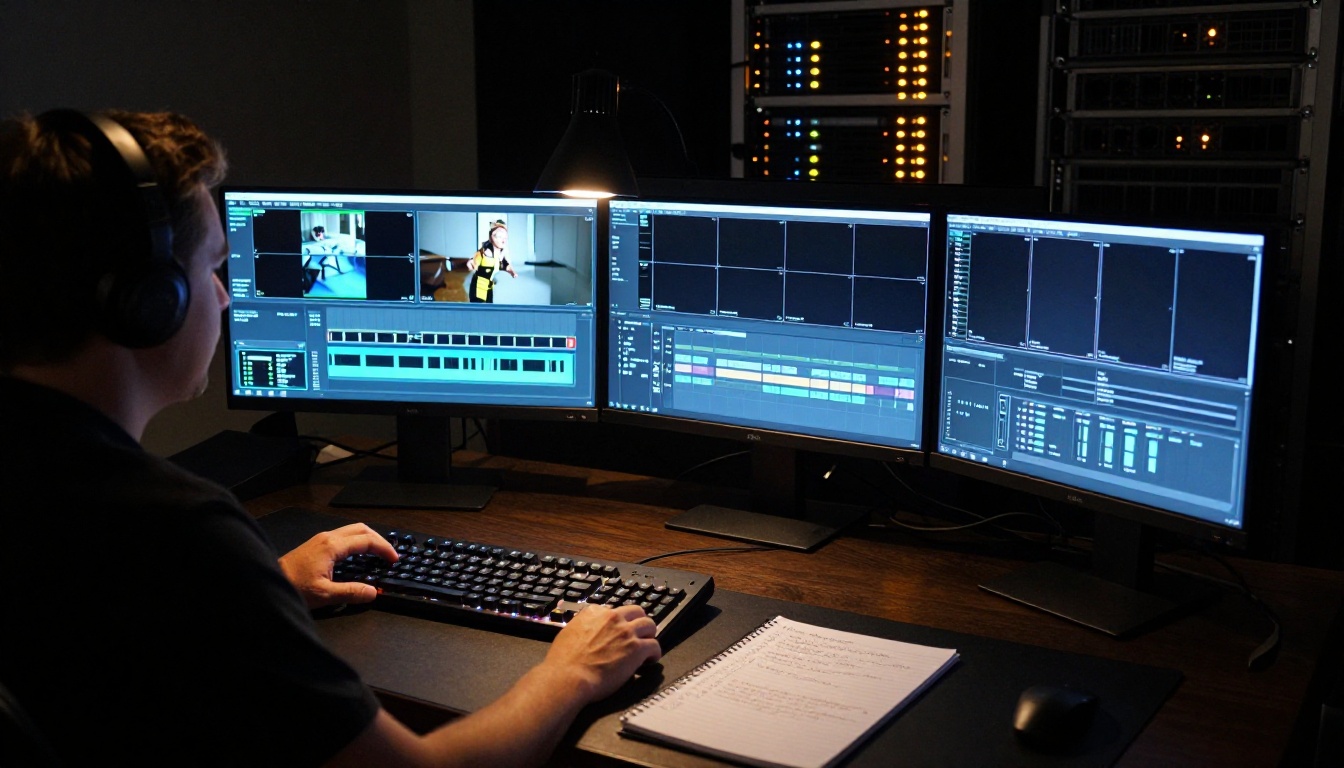
PicassoIA makes these models available through a browser-based interface with no software installation required. Here is how a typical batch editing workflow runs from raw footage to finished clips.
Step 1: Audit Your Clips First
Before running any AI model on a batch of videos, check your source files. AI upscaling cannot fix footage that is catastrophically out of focus. AI background removal works best on clips with clear contrast between subject and environment. A five-minute audit of your clip library saves you from wasting processing time on files that need to be reshot or handled individually.
Step 2: Apply Text-Based Edits with Lucy Edit 2
Open Lucy Edit 2 on PicassoIA. Upload your first clip and type your editing instruction in plain English. For example: "Remove the first 3 seconds of silence, add warm golden hour color tone, crop to 9:16 aspect ratio." Run the model and check the output. If the result matches what you need, apply the same prompt to every remaining clip in your batch.
💡 Write your prompt as specifically as possible. Vague instructions like "make it look better" produce inconsistent results. Specific instructions like "increase contrast by 20%, warm the shadows, and remove background noise" produce repeatable outputs across every clip.
Step 3: Upscale with Real ESRGAN Video
Take your edited clips and run them through Real ESRGAN Video. This model adds genuine detail to each frame rather than simple interpolated sharpening. For social media content, the difference between 720p source footage and AI-upscaled 4K output is visible even on mobile screens. Process the entire batch with the same settings and every clip comes out at matching quality.
Step 4: Add Captions with Autocaption
The final step in most batch workflows is captioning. Run each clip through Autocaption and the model generates synchronized subtitles automatically. Captions are timed to the speech in the video and formatted consistently, so every clip in your batch has matching subtitle styling ready for publication.
Best Use Cases by Content Type
Batch video editing with AI is not a one-size-fits-all solution. The specific models you use and the order you apply them in depends on what you are creating.
Social Media Creators
For Instagram Reels, TikToks, and YouTube Shorts, the typical batch workflow is: trim dead space, reframe to 9:16 using Reframe Video, apply consistent color grading with Lucy Edit 2, and add captions with Autocaption. A creator publishing 5 Reels per day can reduce their editing time from 4 hours to under 30 minutes using this pipeline consistently.
💡 For short-form content, captioning is the highest-impact operation in the batch. Videos with captions get significantly higher watch-through rates because viewers can follow along without sound, which is how most people watch social video in public spaces.
E-Commerce and Product Videos
Product videos need clean backgrounds, consistent lighting tone, and professional resolution. The batch workflow here centers on Video Remove Background first, followed by Video Increase Resolution, then a style pass with Wan 2.7 Videoedit to match the brand color palette and lighting tone across every product clip.
For stores with dozens or hundreds of product videos, this pipeline reduces post-production cost dramatically while maintaining visual consistency across the entire catalog. Buyers browsing a product page where all 20 videos look polished and consistent trust the brand more than one where video quality is uneven.
Event and Travel Footage
Event coverage and travel videos typically involve large quantities of raw footage that need to be trimmed, merged, and color-matched across shots taken in very different lighting conditions.
Use Video Split to break long recordings into usable segments, Trim Video to remove dead time, Video Merge to assemble the highlights, and Gen 4 Aleph for stylistic coherence across clips shot at different times and locations.
Travel content especially benefits from consistent color grading because footage shot across different times of day and geographic locations naturally varies in color temperature, exposure, and mood.

3 Mistakes to Avoid
Even with the best AI tools, batch editing workflows fail when they are set up incorrectly. These are the three mistakes that waste the most time and produce the worst results.
Skipping Source Quality Checks
AI models work with what you give them. If your source clips have severe compression artifacts, focus issues, or corrupted audio, no upscaling or style model will fully fix the problem. Check your files before processing and separate problem clips for individual attention rather than running them through the same batch pipeline as your clean footage.
Over-Processing Already Clean Footage
Running upscaling on footage that is already high quality can introduce artifacts. Running style transfer twice on the same clip produces over-processed results that look artificial. Build your batch pipeline with the minimum number of operations needed to reach your target quality, not the maximum available.
💡 Test your full pipeline on 3 to 5 clips before running it on 100. A 10-minute test run saves hours of processing time if you catch a settings issue before applying it to your entire library.
Ignoring Audio in Batch Workflows
Most batch editing guides focus entirely on the visual layer and ignore audio. Inconsistent audio levels, background noise that varies between clips, and missing sound effects break the professional impression of an otherwise well-edited batch. Run your clips through Video Audio Merge for consistent levels or add contextual ambient sound with Thinksound before finalizing your batch output. Consistent audio is the difference between a polished series and one that feels pieced together.
Start Processing Your Videos Today
The tools exist, the workflow is repeatable, and the time savings are immediate from the first batch you run.
PicassoIA gives you direct access to every model described in this article without subscriptions to multiple platforms or complex software installations. Whether you are processing 5 clips or 500, the same pipeline applies: audit your source files, apply text-based edits, upscale for quality, add captions, and handle audio consistency.
Open Lucy Edit 2 and run your first batch today. The hours you recover this week are hours you can spend on the work that actually requires your creative judgment. Let the AI handle the rest.


