If you've been streaming for more than a month, you've already lost viewers because of missing captions. Not because your content wasn't good, but because roughly 85% of social media video is watched on mute, and a significant portion of your potential audience is deaf, hard of hearing, or simply watching in a noisy environment where audio is inaccessible. AI-powered live captions fix that, and in 2027 they're faster, cheaper, and more accurate than anything that existed three years ago.
Why Live Stream Captions Matter Now
The accessibility conversation around live streams tends to focus on compliance, but that framing misses the point. Captions are not just a box you check. They are a growth mechanism. When your words appear as readable text, you double the ways a viewer can follow your content regardless of their environment, language proficiency, or hearing ability.
The Viewers You're Currently Missing
The World Health Organization estimates over 1.5 billion people live with some degree of hearing loss. Within that group, a meaningful chunk actively watches live content but bounces within seconds when there are no captions. Add non-native English speakers, office workers with no headphones, and parents watching while kids sleep nearby, and you're looking at a substantial share of any stream's potential audience that disappears without subtitles.
💡 Stat worth knowing: Studies show captioned videos on social platforms see up to 40% higher view completion rates compared to uncaptioned equivalents.
What Platforms Actually Do Automatically
Here's the honest breakdown of what each major platform provides out of the box:
| Platform | Auto-Captions on Live | Accuracy | Delay |
|---|
| YouTube Live | Yes | Good | 3-8 sec |
| Twitch | No (VOD only) | N/A | N/A |
| TikTok Live | Partial | Moderate | 5-10 sec |
| Facebook Live | Yes | Moderate | 4-9 sec |
| LinkedIn Live | No | N/A | N/A |
The gaps are obvious. Twitch, the largest dedicated streaming platform, gives you nothing in real time. LinkedIn Live, increasingly important for professionals, offers no caption support at all. That's where third-party AI transcription becomes essential.
How AI Caption Technology Works
AI captions for live streams rely on a specific type of machine learning called automatic speech recognition (ASR). The audio from your microphone is sampled in short chunks, typically 0.5 to 2 seconds, run through a neural network trained on millions of hours of speech, and converted to text. That text is then overlaid on your stream with a short delay.
Speech-to-Text vs Closed Captions
These two terms get used interchangeably but they're technically different:
- Speech-to-text (STT): Raw transcription of spoken audio into text. No timestamps, no formatting by default.
- Closed captions (CC): A formatted subtitle track with precise timestamps, speaker labels, and positioning data, often in WebVTT or SRT format.
For live streams, most AI solutions produce speech-to-text output that gets formatted into captions on the fly. True closed caption formatting is more common in post-production or recorded content.
Latency: The Real Challenge
The biggest technical hurdle in live AI captioning is latency. Your viewers see what you said 2-8 seconds after you said it, depending on the tool. That delay comes from three places:
- Audio buffering: The system needs enough audio to accurately transcribe a phrase
- Model inference: The AI processes the chunk and converts it to text
- Delivery pipeline: The caption gets routed to the stream overlay
Modern models like GPT-4o Transcribe have cut inference time dramatically, bringing total perceived delay to under 3 seconds in most conditions.

Best AI Models for Live Captioning
Not all speech-to-text models are equal when it comes to live content. You need a combination of speed, accuracy on informal speech (people talk differently when streaming than in a controlled interview), and resilience to background noise from gaming audio, music beds, or ambient room sound.
GPT-4o Transcribe for Accuracy
GPT-4o Transcribe from OpenAI is currently the strongest option for English-language accuracy on conversational content. It handles:
- Filler words ("um", "like", "you know") with intelligent filtering or preservation depending on your setting
- Background audio from games without confusing it for speech
- Rapid topic switches without losing context mid-sentence
- Punctuation prediction that makes captions readable without manual editing
For streams where audio quality matters most and your audience is primarily English-speaking, this model is hard to beat.
GPT-4o Mini Transcribe offers a faster, lighter alternative at slightly reduced accuracy, suitable for high-frequency captioning where speed beats perfection.
Granite Speech for Multilingual Streams
If your audience is spread across multiple languages, IBM's Granite Speech 4.1 2B supports transcription in six languages out of the box. This matters enormously for streamers who switch between English and Spanish, or who stream primarily in French, German, Portuguese, or Japanese.
Granite Speech 3.3 8B is the larger, higher-accuracy version for production environments where multilingual precision is non-negotiable.
💡 Tip: Multilingual captions dramatically increase clip shareability. A Spanish speaker sharing your clip to their audience multiplies your reach without any extra work on your end.
Gemini 3 Pro for Long-Form Content
Gemini 3 Pro from Google excels at extended sessions. Its architecture handles long audio contexts without drift, meaning a 4-hour stream doesn't see accuracy degradation in hour 3 the way smaller models sometimes do. It also handles mixed-language audio well, making it strong for streamers who code-switch naturally.
How to Add Captions with PicassoIA
PicassoIA's speech-to-text collection gives you direct access to all the models above without needing to manage API keys, billing accounts with multiple providers, or infrastructure setup. Here's the workflow for captioning recorded stream segments or transcribing audio files from your broadcast software.
Step 1: Choose Your Model
Go to the speech-to-text collection on PicassoIA and select the model that fits your use case:
Step 2: Prepare Your Audio
Export a clean audio file from your streaming software, whether that's OBS, Streamlabs, or your recording buffer. For best results:
- Format: WAV or MP3 at 44.1 kHz or higher
- Channels: Mono or stereo (mono often transcribes better for single-speaker content)
- Noise: Minimize background music during transcription; gate your mic if possible
- Segment length: Files under 25 minutes process fastest per request
Step 3: Run the Transcription
Upload your audio to the selected model on PicassoIA. You'll receive a text output within seconds for short clips, or a few minutes for longer recordings. The output is clean, punctuated text ready to format into SRT captions or paste directly into your video editing software.
💡 Workflow tip: Many streamers batch their overnight recordings and run transcription the next morning, using the output for both stream captions and repurposed content like blog posts, YouTube descriptions, or social media clips.
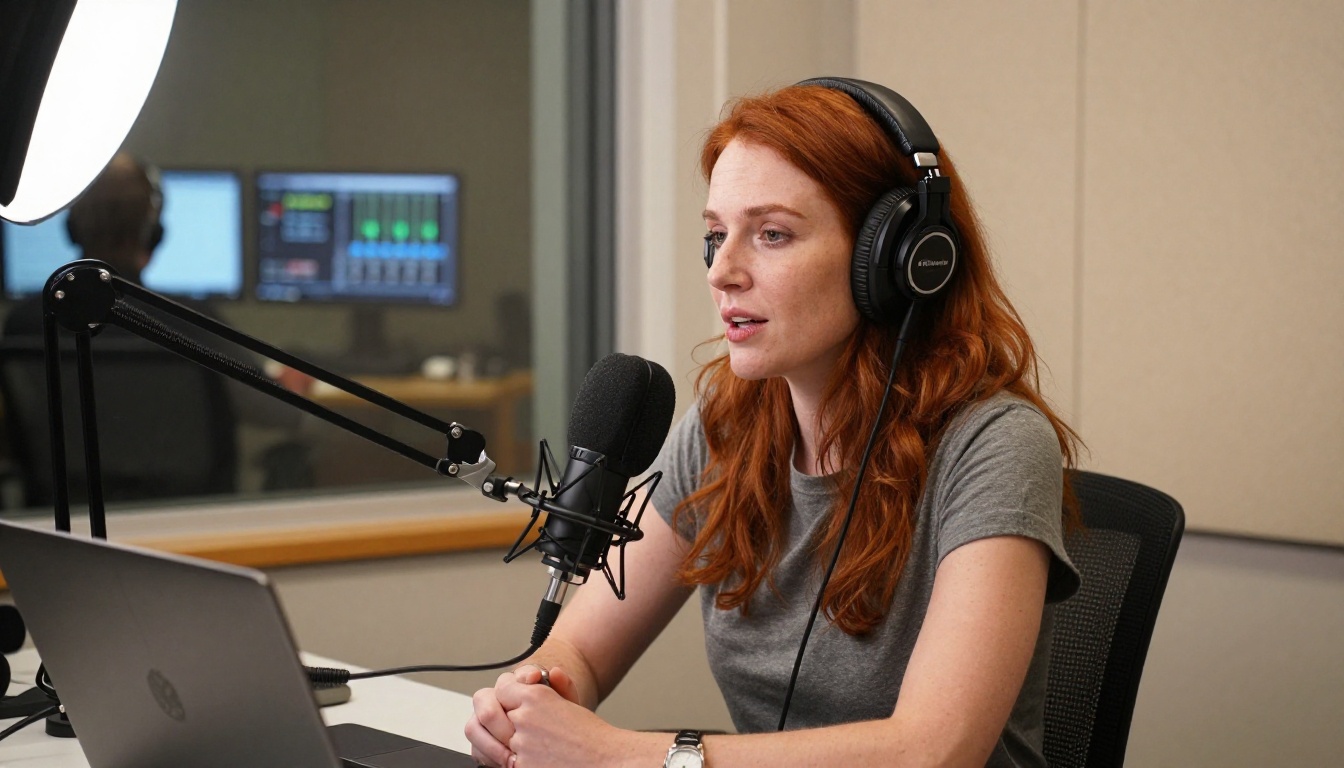
Real-Time Captioning in OBS
For actual live streaming with on-screen captions appearing in real time during your broadcast, OBS Studio is the most common setup. Two main approaches exist:
The Browser Source Method
This is the most flexible approach. Services like Speechnotes, Otter.ai in live mode, or custom WebSocket caption servers push text to a webpage that OBS displays as a browser source overlay:
- Set up a speech-to-text service that outputs to a URL
- In OBS, add a Browser Source and enter that URL
- Style the captions using CSS in the browser source settings
- Position the caption overlay at the bottom of your scene
The advantage: you control every visual aspect of the captions with full CSS customization. Font, color, background opacity, animation, and word highlighting are all possible.
Caption Plugin Options
OBS plugins like OBS-Captions or Whisper-based plugins (using OpenAI's open-source Whisper engine) work directly within OBS without needing an external browser source:
- OBS-Captions: Integrates with Google Cloud Speech. Simple setup, reasonable accuracy, limited customization
- Whisper for OBS: Higher accuracy, runs locally on your GPU, more setup required
For streamers who want maximum accuracy without external dependencies, running a local Whisper model is increasingly practical on modern hardware.
Caption Style That Actually Reads
A technically perfect transcription is worthless if your caption text is unreadable. Caption legibility on stream has its own set of rules that differ from subtitle design in film or TV.
Font, Contrast, and Timing
| Element | Recommended Setting | Common Mistake |
|---|
| Font size | 40-50px at 1080p | Too small (under 30px) |
| Background | Semi-transparent black box | No background on bright scenes |
| Font style | Bold sans-serif (Arial Bold) | Decorative or thin fonts |
| Max words per line | 6-8 words | Full sentences on one line |
| Display duration | 2-3 seconds per caption | Too fast (under 1 sec) |
| Text color | Pure white (#FFFFFF) | Light gray on bright backgrounds |
Three Caption Mistakes to Fix Today
- No background box: White text on a bright game scene or outdoor background becomes invisible. Always use a semi-transparent backdrop behind your text.
- Too many words at once: When a full sentence drops in as one block, viewers can't read it before it disappears. Break text into 5-7 word chunks.
- Ignoring speaker identification: On multi-person streams or interviews, use color coding or name labels so viewers know who's speaking without audio.
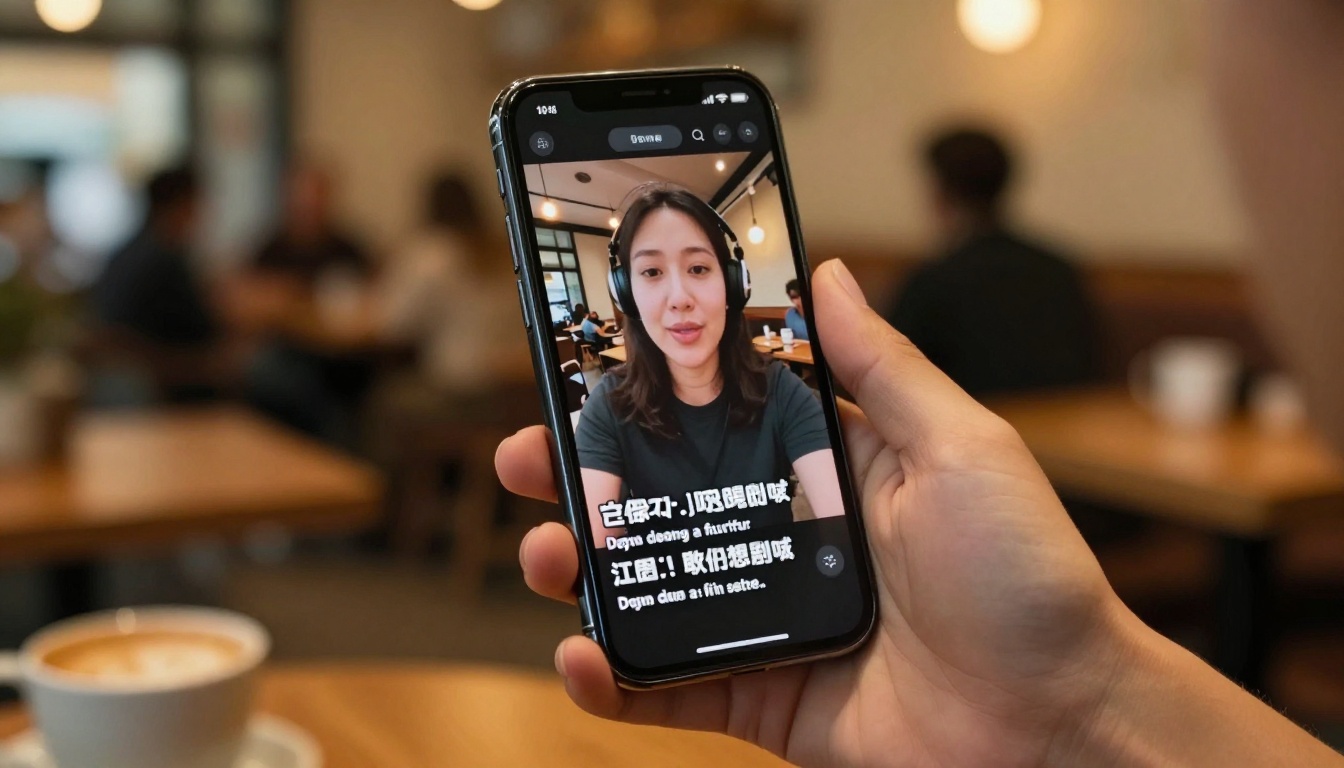
Different platforms have different constraints and native tools. Here's what works where:
YouTube Live
YouTube's automatic captions for live streams have improved substantially. They're available for English, Spanish, French, German, Italian, Japanese, Korean, Portuguese, and Russian streams, with accuracy ranging from good to very good depending on your microphone quality and speaking pace.
To enable them: go to your YouTube Studio live dashboard, select your stream, and toggle Closed Captions in the stream settings. Note that auto-captions may not be available if you're using a third-party encoder with certain custom stream key configurations.
Twitch
Twitch has no native live caption system. Your options are:
- OBS plugin sending captions to a stream overlay (viewers see them burned in)
- Third-party browser extensions like dedicated Twitch CC tools (viewer-side, not streamer-controlled)
- StreamElements or Streamlabs overlays connected to a live transcription API
The browser extension approach puts control with the viewer rather than the streamer, which has real accessibility implications since many viewers won't know to install it.
TikTok Live
TikTok offers partial auto-caption support on live in select regions, but it's inconsistent and can't be styled or controlled by the creator. For reliable captions on TikTok Live, burn them into the video with your streaming software before the feed goes out.
Accuracy Factors That Matter
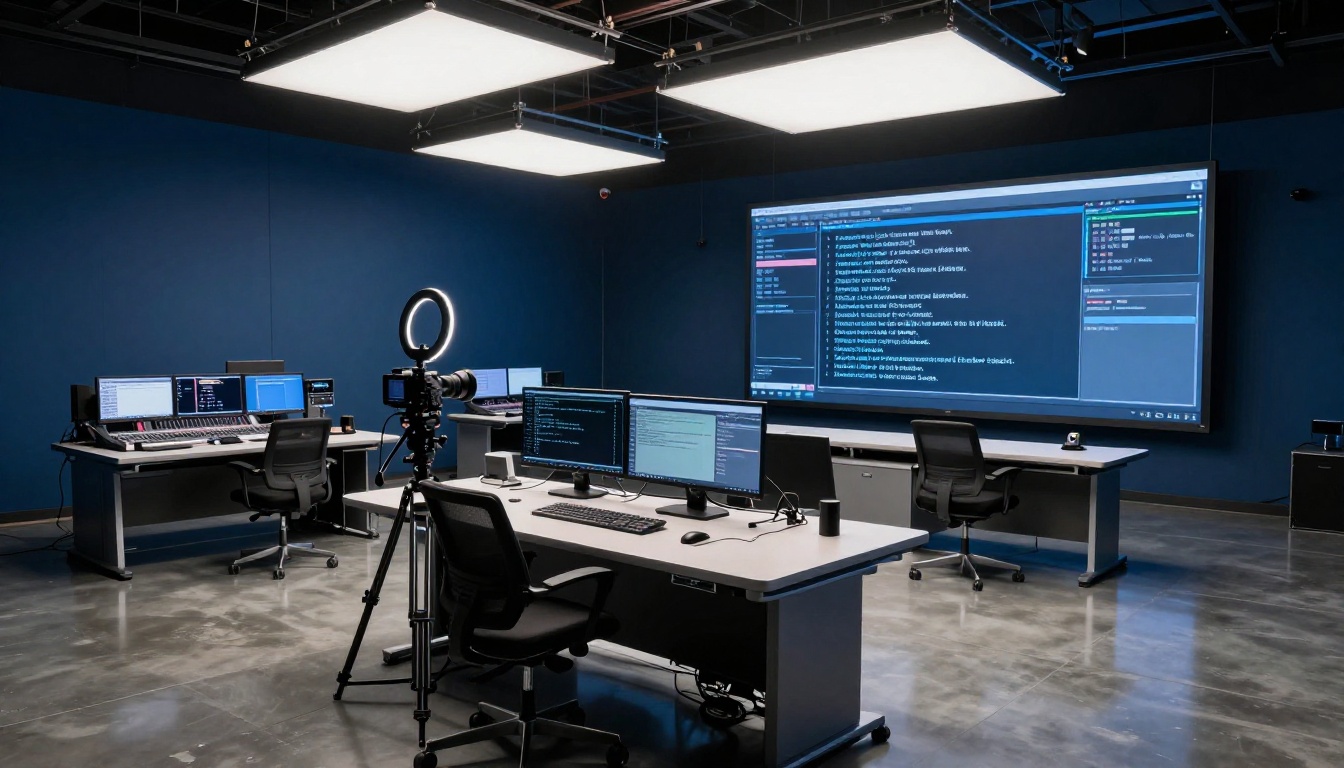
Even the best AI model will produce poor captions under certain conditions. These are the variables that most affect transcription quality:
Microphone quality: A cheap headset with background noise bleed will produce noticeably worse output than a cardioid condenser microphone with proper gain staging. This is the single highest-impact variable, bar none.
Speaking pace: Models trained on conversational speech handle 130-180 words per minute well. Above that, accuracy drops. Slowing down slightly during important moments also helps viewers read captions before they scroll.
Background audio: Game sound effects, music beds, and co-commentator crosstalk all introduce noise. AI models use speaker diarization and noise cancellation, but they're not perfect. Routing your microphone to a dedicated clean audio track before sending to the transcription service helps significantly.
Proper nouns and jargon: Model names, game titles, developer names, and community-specific terminology will often be misrecognized. Many AI transcription tools let you add custom vocabularies or prompt the model with context about your content. Use this feature whenever available.
💡 Pro setup: Run your microphone through a hardware noise gate before it hits your streaming software. Even a budget gate removes most room noise and dramatically improves AI transcription accuracy on any model you choose.
What Good Captions Do for Your Channel
Beyond accessibility, well-implemented captions compound into real channel metrics. Here's what regularly captioned streams tend to see:
- Higher average watch time from viewers who can't or won't use audio
- Better clip performance because captioned clips work silently on social feeds
- More indexed content when captions are exported and used as video descriptions or transcripts
- Cross-language sharing when multilingual captions encourage non-English audiences to share your content in their communities
The accessibility win and the algorithm benefit pull in the same direction. That's rare enough in streaming that it's worth acting on immediately.
Start Captioning Your Next Stream
The barrier to getting real-time AI captions on your live content has never been lower. Whether you use a native platform tool, an OBS plugin, or a dedicated transcription service, the technical setup takes an afternoon, not a week.
If you want to go further than basic captions, PicassoIA's speech-to-text models give you professional-grade transcription you can use across your whole content operation: stream captions today, VOD subtitles tomorrow, auto-generated show notes next week. Try GPT-4o Transcribe on your next recording, or experiment with Granite Speech 4.1 2B if your audience spans multiple languages.
Your captions are waiting. Pick a model, upload your audio, and see what you've been missing.


