The hardest part about AI video isn't generating a clip, it's picking the model that fits what you actually need. Cinematic dialogue scenes, product spots, vertical reels for social, animated explainers, and high-resolution restorations all live in different model families, with different price tags, frame rates, and creative quirks. Pick wrong and you waste credits chasing a look the model was never built for. Pick well and you skip three rounds of revisions on the very first prompt.
This walkthrough is a practical playbook for matching How to Choose the Right AI Video Model on Picasso IA. We will move from the questions you should answer before opening any tool, through resolution and audio choices, into editing and upscaling, and finish with a quick comparison table you can save for later.
Why Model Choice Matters
Modern AI video models look similar from the outside. They all take a prompt or a still image and return a short clip with motion. Under the hood, they make wildly different tradeoffs.
Some, like Sora 2 Pro and Veo 3.1, are built around narrative coherence and synced audio, which makes them dream candidates for short film cuts. Others, like Hailuo 02 Fast or Wan 2.5 T2V Fast, trade resolution for raw speed so you can iterate a TikTok storyboard ten times before lunch. And then there are tools like Topaz Video Upscale that never generate anything new, but turn yesterday's grainy 720p archive into a sharp 4K cut at 120 fps.
💡 Pro tip: Start with the output, not the model. Decide the final resolution, length, aspect ratio, and whether you need audio. The shortlist of models shrinks itself.
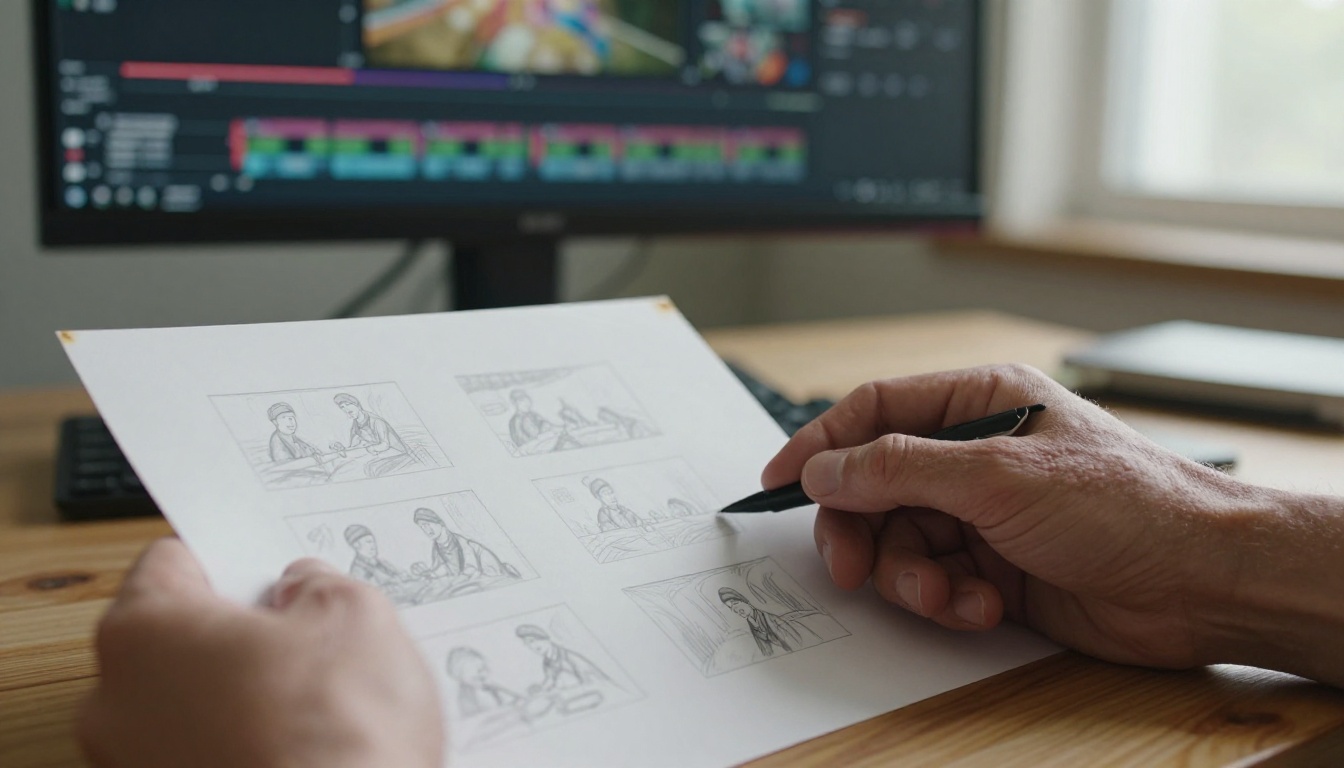
The wrong model is rarely a bad model. It is just a model built for a different shot than yours. The rest of this article is about preventing that mismatch.
Define Your Use Case First
Before you compare specs, pin down the brief. The same word, "video," means a six-second product loop for one client and a two-minute brand film for another. The model that wins the first job will fight you on the second.
Cinematic Storytelling
Narrative work is where audio-native models earn their price. Seedance 2.0 and Veo 3.1 generate dialogue, footsteps, ambient room tone, and synced lip movement in a single pass, which removes the entire audio post step for early drafts. For longer storyboarding sequences, Kling v2.6 gives cinematic motion and reliable physics, especially for character work. When the brief calls for music-led visuals, Kling v3 Omni Video and Hailuo 2.3 are strong picks.
Short-Form Social Content
Vertical 9:16 reels demand throughput and a snappy first second. Pixverse v6 and Hailuo 2.3 Fast handle this well, and Picasso IA Video is the free unlimited option for early concept passes. Pair them with Reframe Video and you can repurpose horizontal cuts into stories or shorts in one click.
Product and Marketing Spots
For polished product loops, you want clean physics, predictable camera moves, and an image-to-video starting point so the brand asset stays on model. Wan 2.5 I2V and Wan 2.7 I2V animate a product photo into a turning, glowing, or hovering shot without warping the label. Runway Gen 4.5 layers cinematic motion on top, and Gen4 Turbo is the speed-first cousin for daily ad iterations.
Animation and Stylized Looks
If you want to step away from photoreal, Tooncrafter animates 2D illustrations, Video Morpher creates dreamy morph transitions between photos, and Stable Diffusion Animation keeps things classic for music videos and lyric reels.
Resolution, Frame Rate, and Audio
Resolution is the easiest spec to overshoot. 4K is impressive in the side menu and brutal on credits when you only need a 1080p Instagram cut. Match the resolution to the delivery surface, not the model's marketing page.
When 480p Is Enough
Drafts, storyboards, animatics, internal review cuts, motion tests. Use Wan 2.1 T2V 480p or Ray Flash 2 540p to iterate cheaply. Render the keeper later in a higher tier.
720p Through 1080p
720p is the workhorse for social, embedded web video, and SaaS demos. Kling v1.6 Standard and Wan 2.2 5B Fast deliver here in seconds. Step up to 1080p, with Hailuo 02, Kling v2.1 Master, or Pixverse v5, when the cut is going on YouTube, paid media, or a client deck.
4K Hero Shots
True 4K generation is rare and expensive. LTX 2 Pro and LTX 2.3 Pro are the headline options. If you only need a single hero shot at 4K, generate everything else at 1080p and upscale the rest with Topaz Video Upscale.
Audio: Native or Silent
A surprising number of teams pick a video model, fall in love with the visuals, and then realize the clip is silent. Sound is half the perceived production value of any cut. Choosing an audio-aware model upfront saves you a separate music license, a foley pass, and three rounds of re-syncing in Premiere. Seedance 2.0, Veo 3, Pixverse v6, and Sora 2 all return clips with synchronized dialogue and ambient sound. For talking-head outputs, Avatar IV and Kling Avatar v2 sync mouth movement to your script. If you already have silent footage, add scene-aware sound with Video To SFX v1.5, Thinksound, or MMAudio.
⚠️ Watch the frame rate: Most current models lock at 24 fps. If you need 60 fps for sports, gaming overlays, or smooth slow-motion, plan to upscale. Native high-fps generation is still limited.
Speed vs Quality Tradeoff
Every model on Picasso IA falls somewhere on the speed-quality curve. The trick is not picking the fastest or the prettiest, but picking the right one for this step of this project.
Fast Tier for Iteration
When you are still finding the shot, render speed beats render quality. Seedance 2.0 Fast, Wan 2.5 T2V Fast, LTX 2 Fast, and Wan 2.2 I2V Fast all return clips in well under a minute. Iterate prompts aggressively here.
Quality Tier for the Keeper
Once the prompt is locked, re-render at the highest tier you can afford. Veo 3.1, Kling v2.5 Turbo Pro, Kling v2.6, Sora 2 Pro, and Runway Gen 4.5 are the heavy hitters for final renders.
💡 Pro tip: Always lock the seed before you re-render. A fast-tier render and a quality-tier render of the same prompt and seed will be close cousins, not strangers. That preserves blocking and timing across tiers.
Image-to-Video vs Text-to-Video
This is the single most underrated decision in the whole pipeline. Starting from a still image gives you control. Starting from text gives you freedom. Most professional workflows mix both.
When Text-to-Video Wins
If the brief is open and you are looking for inspiration, a text-to-video model will surprise you in useful ways. Use Wan 2.7 T2V, Wan 2.6 T2V, or Hailuo 2.3 for free-form ideation. They reward bold visual descriptions and lean into surprise.
When Image-to-Video Wins
For anything brand-sensitive, talent-sensitive, or product-sensitive, start from a hero still. Wan 2.5 I2V, Wan 2.6 I2V, Kling v2.1, and Hailuo 2.3 Fast animate that still into a five-second clip while preserving identity, framing, and lighting from the source image. This is how most marketing teams keep the AI clip on-brand. For reference-driven shots that hold identity across multiple scenes, Wan 2.7 R2V and Grok Imagine R2V let you reuse the same character or product in fresh environments.
Editing, Cleanup, and Upscaling
A great generated clip is rarely the finished asset. The fastest way to improve any AI video is to swap the generation tool for an editing tool at the right moment.
Object Removal and Cleanup
Got a stray logo, mic boom, or background distraction? Bria Video Erase Object handles single-pass removal. For backgrounds, Bria Video Remove Background skips the green screen entirely. Need to isolate and track a specific subject? SAM 2 Video is the precision tool.
Restyling and Recutting
When the shot is right but the look is wrong, restyle instead of regenerating. Lucy Edit 2, Luma Modify Video, and Runway Gen 4 Aleph restyle and recut any clip from a text prompt. For longer-form edits, Kling o1 and Wan 2.7 Videoedit rewrite scene content while preserving motion. Captions and aspect-ratio rebuilds are quick wins with Autocaption, Trim Video, and Reframe Video.
Upscaling and Restoration
Old phone clips, low-bitrate archive footage, and 480p drafts of your own AI renders can all be brought up to broadcast spec. Topaz Video Upscale is the standard for sharpness and 120 fps interpolation. Crystal Video Upscaler and Runway Upscale v1 bring footage up to 4K with subtle texture recovery. For embedded video pipelines, Bria Video Increase Resolution goes all the way to 8K. To revive black-and-white archive reels, Deoldify Video colorizes the source, and a follow-up upscale gives you a museum-grade restoration of old family or archive footage.
Side-by-Side Comparison Table
Here is the cheat-sheet most teams want pinned in their docs:
| Project type | Best first pick | Speed tier | Audio | Notes |
|---|
| Cinematic short film | Veo 3.1 | Quality | Native | Synced dialogue, strong physics |
| Brand product loop | Wan 2.7 I2V | Balanced | Add later | Preserves logos and labels |
| Vertical reel | Pixverse v6 | Fast | Native | Snappy first second |
| Talking avatar | Avatar IV | Quality | Native | Lip-sync to script |
| Free unlimited drafts | Picasso IA Video | Fast | Optional | Zero-cost iteration |
| 4K hero shot | LTX 2.3 Pro | Quality | Add later | True 4K render |
| Upscale archive | Topaz Video Upscale | Quality | Keeps original | 4K plus 120 fps |
| Object removal | Bria Video Erase Object | Fast | Keeps original | One-pass cleanup |
| Style transfer | Lucy Edit 2 | Balanced | Keeps original | Prompt-driven restyle |
| Animated 2D | Tooncrafter | Balanced | Silent | Vector-friendly motion |
💡 Pro tip: Save this table as a Notion or Linear doc. Most teams burn the first hour of every new project rediscovering which model handles which job, when a one-page reference would have answered it instantly.
Three Mistakes Worth Skipping
Even seasoned operators trip on the same three pitfalls. Avoiding them shortens the path to a finished video by days.
- Picking by hype, not use case. A model trending on Twitter is not the right pick if your job is a 720p product loop. Always match capability to the brief, not the buzz.
- Burning quality credits on first drafts. The fast tier exists for a reason. Iterate cheaply, then re-render the keeper.
- Forgetting audio until post. If sound is part of the deliverable, choose an audio-native model from the start. Adding sync sound to silent AI footage in post can take longer than the original generation did.

Try It Yourself on Picasso IA
The right AI video model is not the most expensive one or the one trending this week. It is the one whose strengths match the job in front of you. Define the brief, pick a fast model to iterate, lock the prompt and seed, then re-render on a quality tier for the final cut. When the shot needs touch-up, switch to an editing tool instead of regenerating. When the footage needs polish, push it through an upscaler.
Every model linked above lives inside picassoia.com/en/all-models, where you can sort by category, speed, and resolution and try each one with a free starter render. Open a project, paste your storyboard, and run two or three of the recommendations side by side. The model that feels right for your work will reveal itself within the first three clips.
Pick a brief from your current backlog, open Picasso IA, and ship the first version today. Start a clip with Picasso IA Video for free, jump to Seedance 2.0 when audio matters, and finish on Topaz Video Upscale when the cut is ready for delivery. Your next great video is one prompt away.