Wind noise has a way of showing up at the worst possible moment. You nail the shot, the lighting is perfect, the subject delivers a great take — and then you open the footage in your editor and hear it. That low, rumbling, wavering roar that swamps everything else on the track. If you film outdoors with any regularity, you know exactly what this sounds like.
The good news: AI-powered audio denoising has gotten remarkably good. What used to require a professional studio and hours of manual work can now be handled in minutes with the right tools. This article walks you through exactly how wind noise removal works, which AI tools actually deliver results, and a practical workflow you can use right now to clean any wind-damaged clip.
Wind noise is not just background sound. It operates in the low-frequency range, typically 20Hz to 300Hz, which overlaps directly with the bass register of human speech. This is why simply turning down the volume does nothing — the wind occupies the same frequency space as the content you want to keep. Boosting a high-pass filter helps, but it shaves off the natural warmth of the voice in the process.
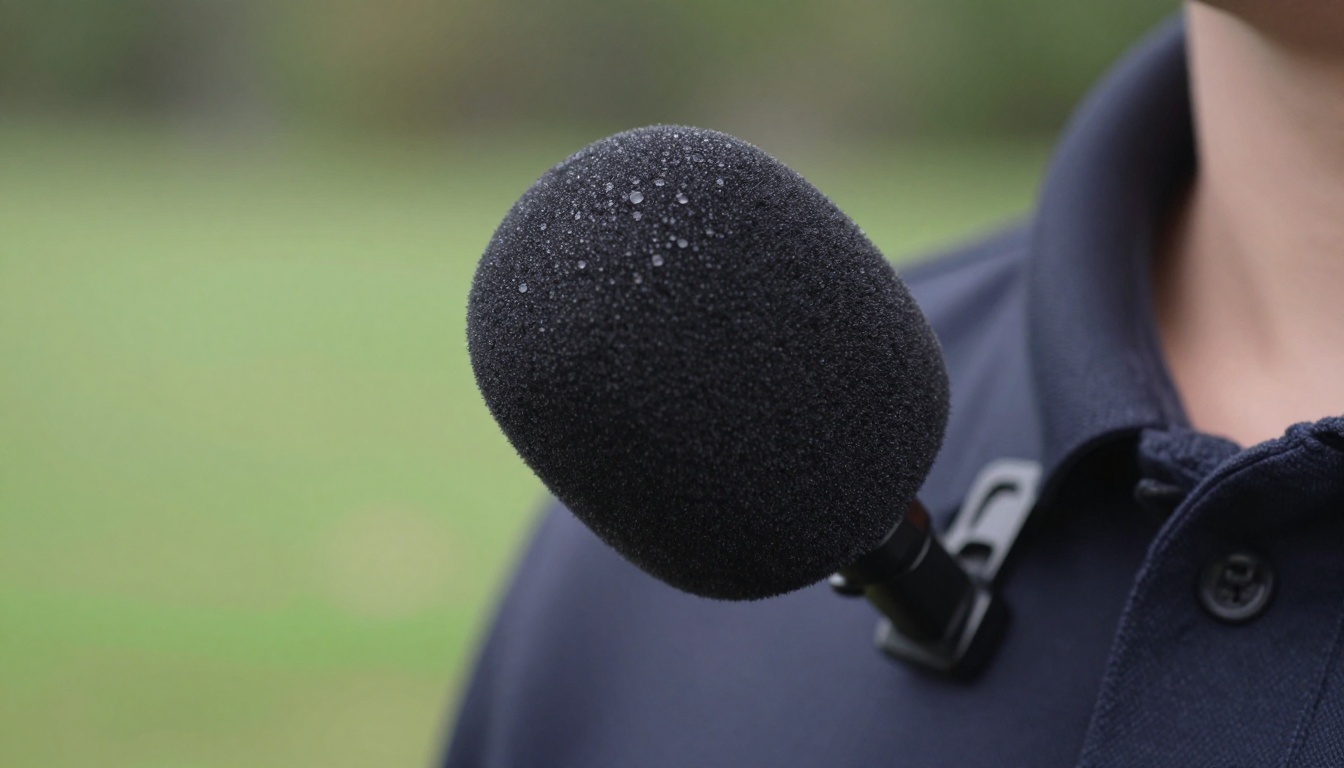
There are three main types of wind noise you will encounter in real footage:
- Low-frequency rumble: The deep, constant roar from sustained wind hitting the microphone capsule directly. Often sounds like someone blowing continuously into the mic. This is the most common type and the easiest for AI to remove.
- Intermittent gusts: Short, sharp blasts that spike the audio waveform unpredictably. These are harder to fix because they vary wildly in intensity and timing, making a static profile useless.
- Turbulence noise: Wind flowing around camera bodies, clothing, or boom poles creates turbulent airflow that produces irregular rattling and brushing sounds spread across a wide frequency range.
Each type behaves differently in the frequency spectrum, and modern AI denoisers are specifically trained to separate each one from voice content without damaging the underlying speech.
What AI Actually Does to Remove Wind
Traditional noise reduction tools work by sampling a short section of "noise only" audio and then subtracting that profile from the rest of the track. It works reasonably well for static background noise — air conditioning hum, computer fans — but wind is rarely consistent. It shifts in pitch, surges in intensity, and varies constantly, which means a static noise profile never captures it accurately.
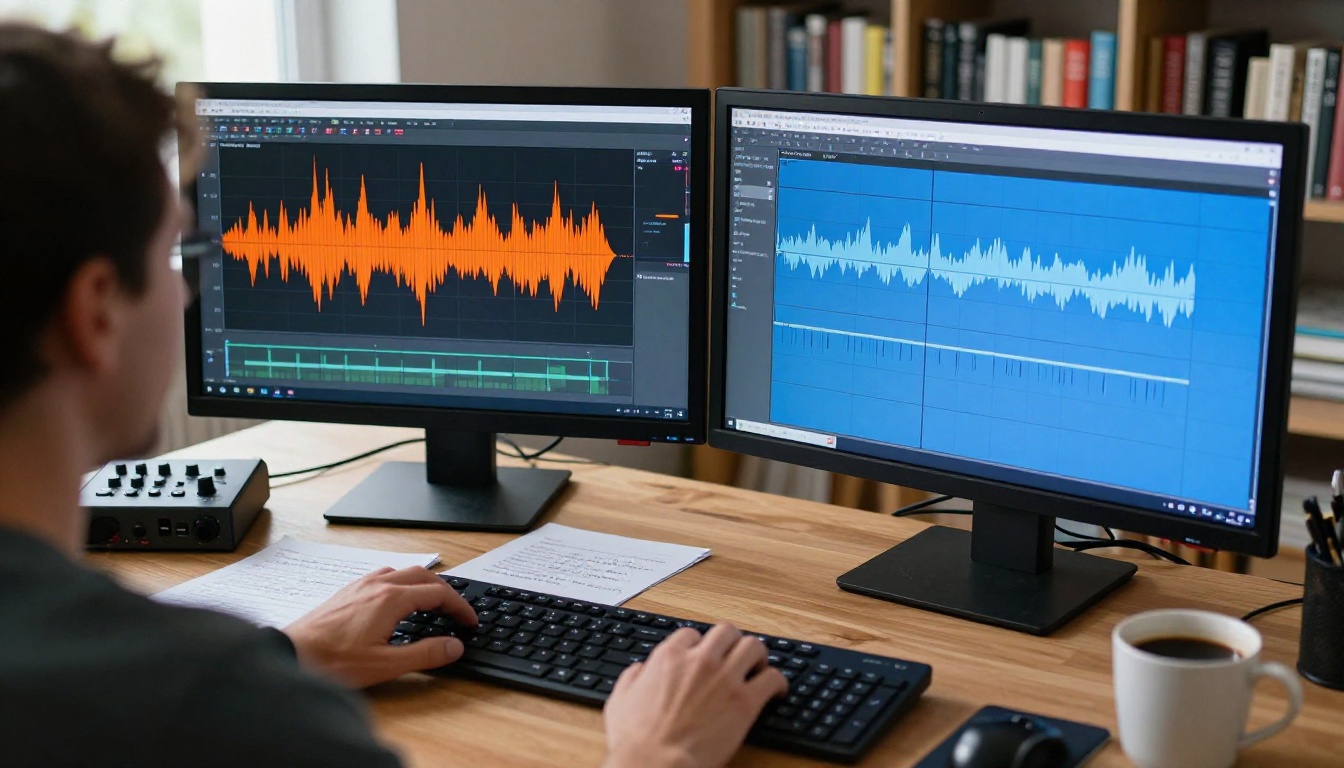
AI-based noise removal works differently. Modern models are trained on millions of hours of audio pairs: clean speech recorded alongside deliberately degraded versions containing wind, rumble, hiss, and handling noise. The neural network learns to identify the acoustic patterns that belong to speech and suppress everything that does not match. The best models do this while preserving the natural timbre and articulation of the voice, rather than creating the muffled, underwater quality that older noise reduction tools produce at higher settings.
💡 The key difference: AI separates signal from noise based on learned patterns, not a static profile. This is why it handles variable wind noise so much better than anything that came before.
The core processing techniques AI models combine include:
| Technique | What It Does | Best For |
|---|
| Spectral Subtraction | Removes identified frequency bands from the signal | Consistent low-frequency rumble |
| Wiener Filtering | Estimates clean signal statistically from noisy input | Moderate, variable wind |
| Deep Neural Networks | Learned real-time voice/noise separation | All types, best overall results |
| Adaptive Low-Cut | Dynamic high-pass filtering that follows noise floor | Quick fix for rumble-only situations |
| Spectral Repair | Reconstructs damaged sections using neighboring frames | Isolated gust spikes |
The best professional tools combine all of these in sequence. The result is audio that sounds like it was recorded indoors, even when captured in genuinely difficult outdoor conditions.
Browser-Based Options That Work Right Now
Several browser tools have implemented solid AI audio denoising with no software installation required:
Adobe Podcast (Enhance Speech): Adobe's free web tool applies a deep learning model trained specifically for podcast and video speech cleanup. Upload a file, click enhance, and download the result in minutes. It handles lavalier wind noise particularly well and is free for files under a certain length.
Krisp.ai: Originally designed for real-time meeting audio suppression, Krisp also offers a file-based noise removal tool. It handles moderate wind noise well when the voice signal is strong enough to give the model something to hold onto.
Cleanvoice.ai: Focuses on podcast and video audio specifically. Handles wind noise, mouth sounds, and background noise as a combined cleanup pass. Batch processing is available on paid plans, which makes it practical for larger projects.
These are solid starting points, especially for one-off clips or fast turnaround work.
Desktop Software with AI Noise Reduction
For creators processing footage regularly, desktop software gives you more granular control over the result:
Adobe Audition: The Spectral Repair and Noise Reduction tools have been updated with AI assistance over recent versions. The Remix feature can also help reconstruct audio around sections that are too damaged to clean.
iZotope RX: The industry standard for serious audio restoration. RX's Voice De-wind module is purpose-built for this exact problem, using adaptive filtering that responds dynamically to wind noise as it changes over time in the recording. If you work with a lot of outdoor footage professionally, RX is worth the investment.
DaVinci Resolve (Fairlight): The built-in Fairlight audio engine includes a noise reduction module with AI-assisted spectral processing. If you're already editing in Resolve, this keeps the entire post-production workflow inside one application without needing to round-trip to a separate audio editor.

API and Batch Processing Solutions
For developers or content creators who process large volumes of footage regularly:
Dolby.io Media API: A REST API with strong noise suppression that handles wind specifically as a noise type. Practical for building automated post-production pipelines that process multiple files in parallel.
AssemblyAI: Primarily a speech transcription service, but its audio intelligence preprocessing pipeline includes noise reduction that cleans wind noise before transcription — useful if you need both cleaned audio and captions from the same file.
Step-by-Step: Clean Audio in Under 5 Minutes
Here is a practical workflow that works with most AI tools and gets results fast.
Extract Your Audio First
Before running any AI processing, separate the audio from the video. This lets you work on the audio independently and compare before/after without re-encoding the video file on every pass.

- Export the audio from your video file as a WAV file (uncompressed) at the original sample rate — typically 48kHz for video work.
- If the wind damage only affects certain sections, consider splitting those clips out and only processing the damaged portions. Less processing always sounds more natural.
- Always keep the original. Work on a copy so you can compare the processed version against the source before committing.
Run the AI Noise Filter
With your audio file extracted:
- Upload to your chosen AI tool
- If the tool offers a preview or bypass button, always listen to both sides before committing to the full process
- For iZotope RX: apply the Voice De-wind module first, then use Spectral Repair on any remaining isolated gust spikes that the initial pass missed
- For Adobe Podcast: the single-click Enhance button handles the full pipeline automatically with no settings to configure
- Export the cleaned audio as WAV at the same sample rate and bit depth as your original file
💡 A common mistake: Running noise reduction at maximum strength. Over-processed audio develops a metallic, artifact-laden character that sounds just as bad as the original wind noise. Start at 50-60% strength and increase only if needed.
Merge Clean Audio Back into Video
Once you have the cleaned audio file:
- Import both the original video and the cleaned audio into your editor
- Mute or unlink the original audio track from the video clip
- Sync the cleaned audio to the video using a visible audio spike — a hand clap, a clapperboard, or any sharp transient that appears on both the cleaned audio file and the original track
- Trim any length differences caused by the processing pipeline
- Export the final video
This workflow is fully non-destructive. The original video file is never modified, and you retain full control over the sync and output settings.
How to Do This Entirely on PicassoIA
PicassoIA has two tools that let you run this exact workflow entirely in the browser, no desktop software required.
Step 1: Extract the Audio Track
The Extract Audio tool separates the audio from any uploaded video file in seconds. Upload your wind-damaged clip and it returns a standalone audio file you can send to any AI denoising service.
- Go to Extract Audio on PicassoIA
- Upload your video clip
- Run the extraction and download the resulting audio file
- Send the audio through Adobe Podcast Enhance, Krisp, or your preferred denoiser
- Return to PicassoIA with both the cleaned audio and the original video ready to merge
Step 2: Merge Back with Video Audio Merge
Video Audio Merge puts the cleaned audio back into the video. When both files are the same length, sync is handled automatically.
- Go to Video Audio Merge on PicassoIA
- Upload the original video (with the original bad audio — the merge tool replaces it entirely)
- Upload your cleaned audio file
- Run the merge and download the finished video
The result is your original video with the cleaned audio track baked in, ready to export or publish.
When Wind Is Too Severe: Replace the Audio Entirely
Sometimes wind damage is so bad that no denoiser can save the track. The wind clipped the signal, or it was simply too loud relative to the voice. In these cases, the better option is replacing the audio altogether.

Thinksound analyzes the visual content of your video and generates contextually appropriate ambient audio that matches what is happening on screen. It is not a replacement for dialog, but for b-roll footage, nature shots, or action clips where the original audio is beyond saving, it produces a convincing ambient bed that gives the video its sound back.
MMAudio takes a similar approach, generating synchronized sound effects and ambient audio from video content using AI. Both are available on PicassoIA and both produce results that are far more natural than silence or generic stock audio.
Stop Wind Noise Before You Film
AI cleanup is fast, but prevention is always faster than fixing in post. The right gear and positioning decisions eliminate the problem before it enters the recording.
Gear That Actually Blocks Wind

| Solution | Typical Cost | Effectiveness | Best Use Case |
|---|
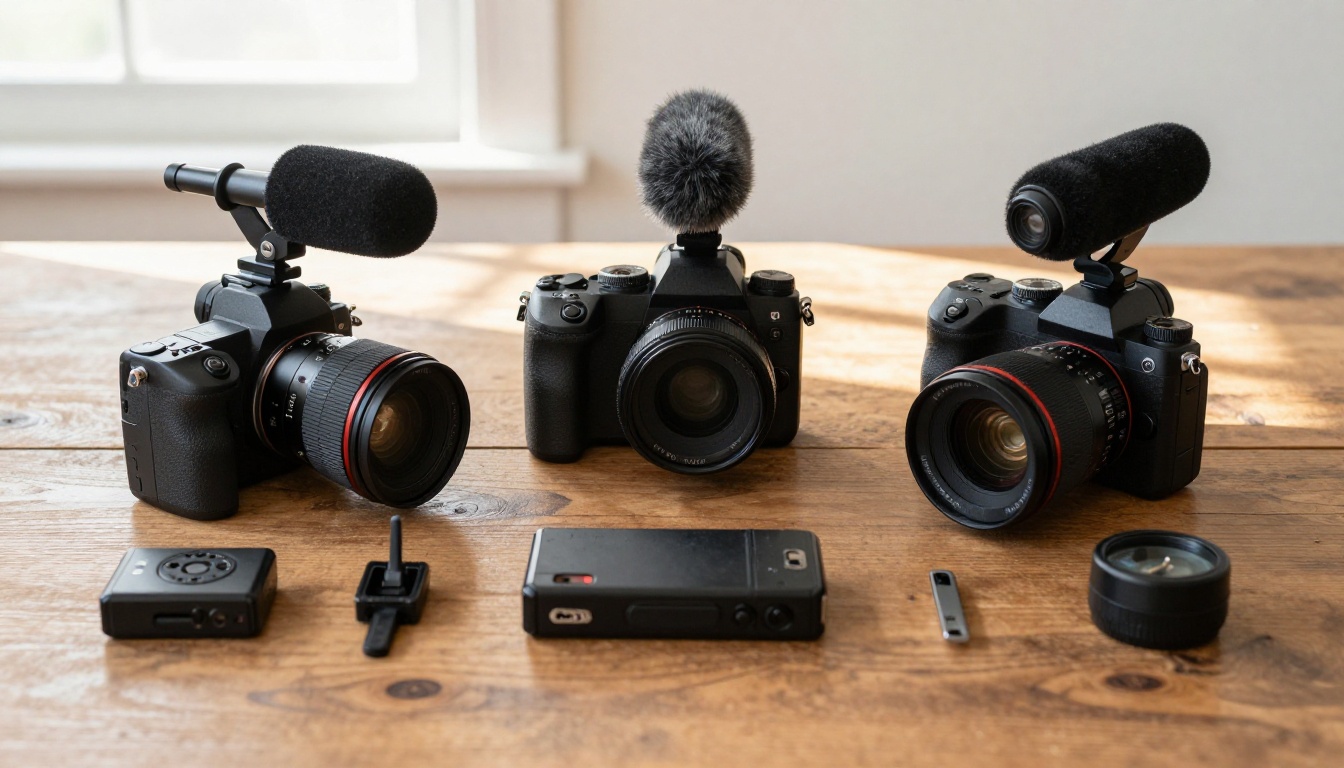
| Deadcat / Furry windscreen | $15-80 | High | Shotgun mics in sustained wind above 15mph |
| Foam windscreen | $5-20 | Moderate | Light breeze, lavalier microphones |
| Blimp / Zeppelin enclosure | $100-400 | Very High | Professional outdoor production |
| Lavalier hidden under clothing | $0 extra | Very High | Eliminates wind contact entirely |
| Directional mic positioning | $0 | Moderate | Reduces off-axis wind ingestion |
The single most effective trick for lavalier microphones costs nothing: route the cable under clothing and place the capsule between two layers of fabric. The fabric acts as a physical wind baffle that outperforms most foam windscreens at any wind speed. The slight muffle from the fabric is almost always preferable to wind noise, and AI tools can restore the high-frequency clarity of fabric-muffled audio far more easily than they can remove severe wind.
Positioning That Reduces Wind Exposure
Where you place the microphone matters as much as what you put on it:
- Boom mic positioning: Angle the boom above and slightly in front of the subject, pointed down toward the mouth. This places the microphone in the acoustic shadow of the subject's body relative to the wind direction.
- Body blocking: Position the subject so their body faces the wind, with the microphone on the downwind side. The subject themselves becomes a wind break.
- Natural shelter: Buildings, vehicles, hedges, and terrain features all create wind shadows. Even partial cover at the recording location significantly reduces the turbulence hitting the mic capsule.
- Lower positions: Wind speed is lower close to the ground. For seated interviews or low-angle shots, positioning the mic below shoulder height measurably reduces wind exposure.
When AI Cannot Fully Fix It
There are situations where even the best neural network denoiser will not recover the track:
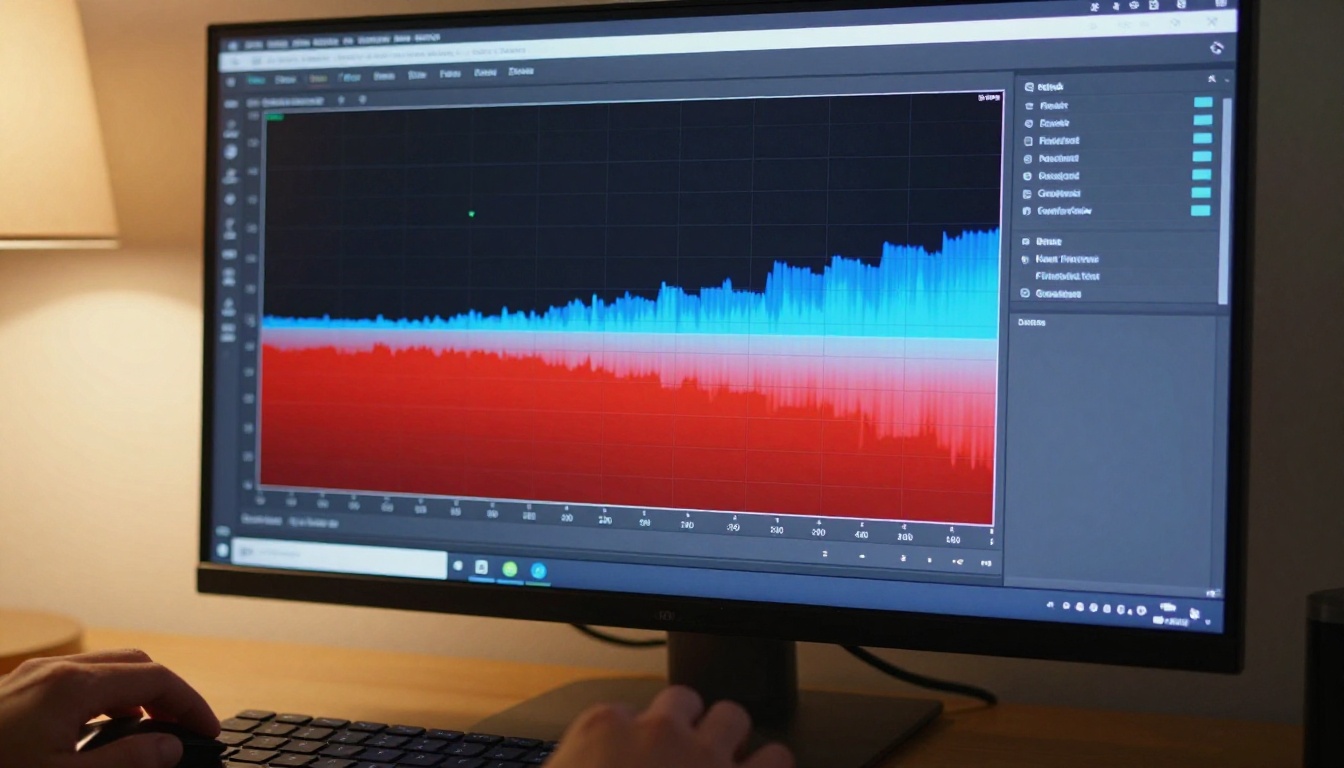
- Clipped audio from gust spikes: If a wind gust drove the signal to 0dBFS (digital clipping), the waveform is permanently distorted. No AI tool can reconstruct data that was never recorded. The clipped peaks create harmonic distortion across the full spectrum.
- Signal buried under noise: When wind is 20+ dB louder than the voice, the neural network has almost no signal to identify. The output will contain artifacts regardless of the tool or settings.
- Broadband turbulence: Turbulence from clothing or camera handling creates random noise across such a wide frequency range that removing it also degrades significant portions of the speech spectrum.
In these cases, your options are:
- ADR (Automated Dialog Replacement): Re-record the dialog in a quiet room and sync it to the footage. Professional productions do this routinely.
- Subtitles without audio: If the visual content is strong and the dialog can be inferred from context, captions only can work for short-form content.
- AI-generated ambient audio replacement: For non-dialog footage, Thinksound or MMAudio on PicassoIA give you a usable audio bed that fits the scene.
What You Can Do Right Now
Every minute of outdoor footage you film carries wind noise risk. The difference between ruined clips and broadcast-quality audio comes down to three things: physical protection before recording, AI cleanup in post, and knowing when to replace rather than repair.
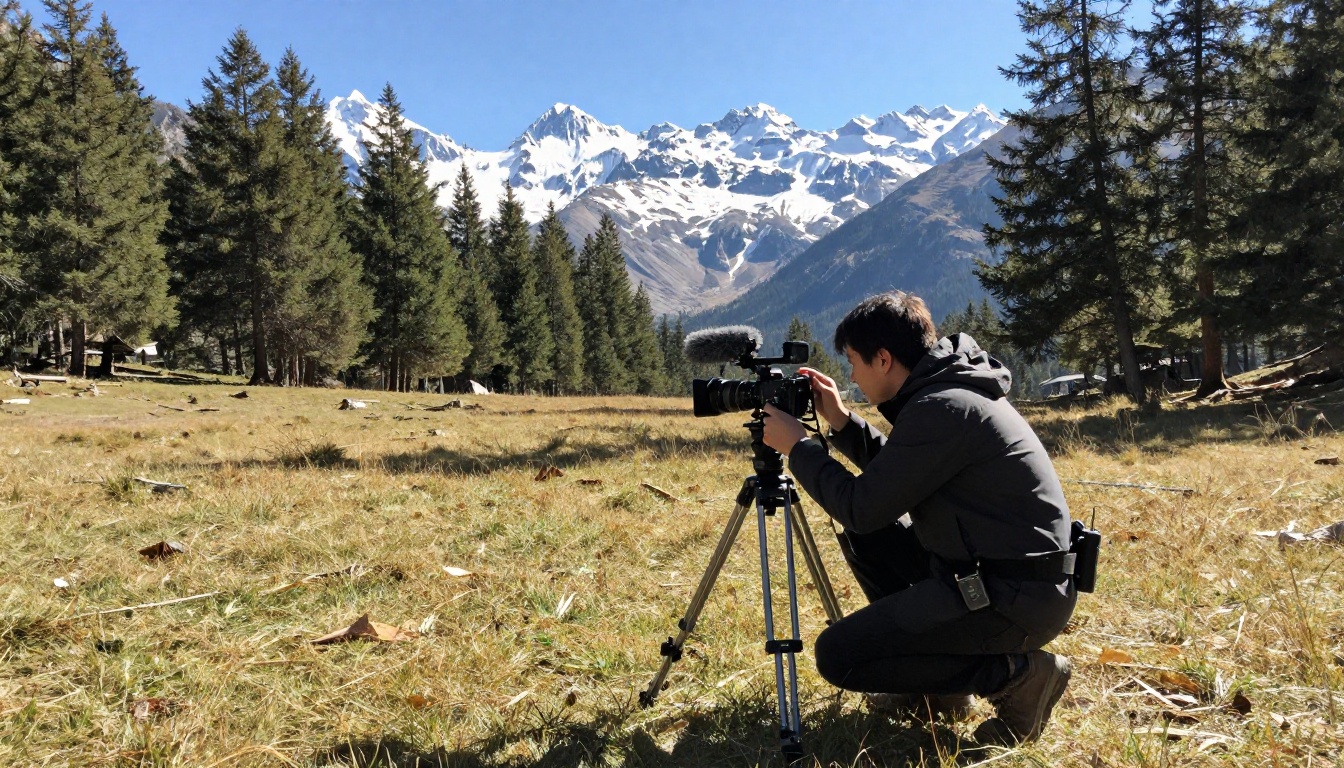
The full browser-based workflow on PicassoIA is straightforward: use Extract Audio to pull the audio track, run it through Adobe Podcast Enhance or any AI denoiser, then bring everything back together with Video Audio Merge. For footage where wind damage is irreversible, Thinksound and MMAudio offer a way to give your video a compelling audio bed even when the original track cannot be saved.
Once your audio is clean, you can push your video quality even further with Crystal Video Upscaler or Video Upscale by Topaz Labs to bring footage up to 4K. For publishing, the Autocaption tool adds perfectly synced captions to your clean audio track in one step.
Try the extract, clean, and merge workflow on your next wind-damaged clip. The results from AI audio denoising are fast enough — and good enough — that there is no reason to publish any video with bad wind noise ever again.


