Most people use AI tools the same way they once used separate software apps: one at a time, switching between them, pasting outputs by hand, and losing context at every step. The approach works for a single image or a short audio clip, but it breaks down the moment a project requires multiple output types. Every session restarts from zero instead of building on what came before. The better model is to think in pipelines, where the output of one AI tool becomes the direct input for the next, and the whole sequence runs from idea to finished asset without constant interruption.
That shift from tool-by-tool to pipeline-by-pipeline is not complicated, but it does require a clear picture of how each layer connects. This article breaks down the four core pillars of a multi-tool AI pipeline, shows you exactly where the handoff points are, and walks through how to chain text-to-image, video, voice, and music tools into one continuous production run that holds its quality from start to finish.

Why Most AI Users Keep Starting from Scratch
The first time you use an AI image generator, it feels effortless. You type a sentence, an image appears, you save it. Then you switch to a voice tool, type a script, and download an audio file. Then you open a video editor and discover that the image is the wrong resolution for your canvas. The audio tempo does not match your pacing. You go back, adjust both, re-export, and start the loop again.
The Tab-Switching Problem
This is not a skill issue. It is a systems issue. Every tool in isolation works fine, but connecting them across a project requires planning that most introductions to AI never cover. The result is that creators spend more time on logistics than on the actual creative decisions.
The tab-switching trap follows a specific pattern. You complete step A in one tool, manually carry the output to step B, discover a format mismatch or a quality gap, go back to step A to fix it, carry the output forward again, and repeat. Each round trip adds friction and drains the momentum you started with.
What a Real Pipeline Solves
A proper multi-tool AI workflow defines the output format before the first generation ever runs. You decide upfront: what resolution do I need, what aspect ratio, what file type, what duration? Then you configure every tool in the chain to match those specifications from the start. When the image passes to the video tool, it already fits. When the voice audio exports, it is already the correct length.
The output of each tool is the input for the next. That single principle, applied consistently, is what separates a workflow from a collection of separate steps.
💡 The most valuable planning habit: define your target output format before you open the first tool. Every downstream decision becomes faster when you already know where you are heading.
Every creative AI workflow, regardless of the final deliverable, operates across four distinct capability layers. These pillars are not rigid stages, they are functional categories. Understanding them is what makes the difference between a disconnected set of tools and a working pipeline.
Pillar 1: Visual Creation
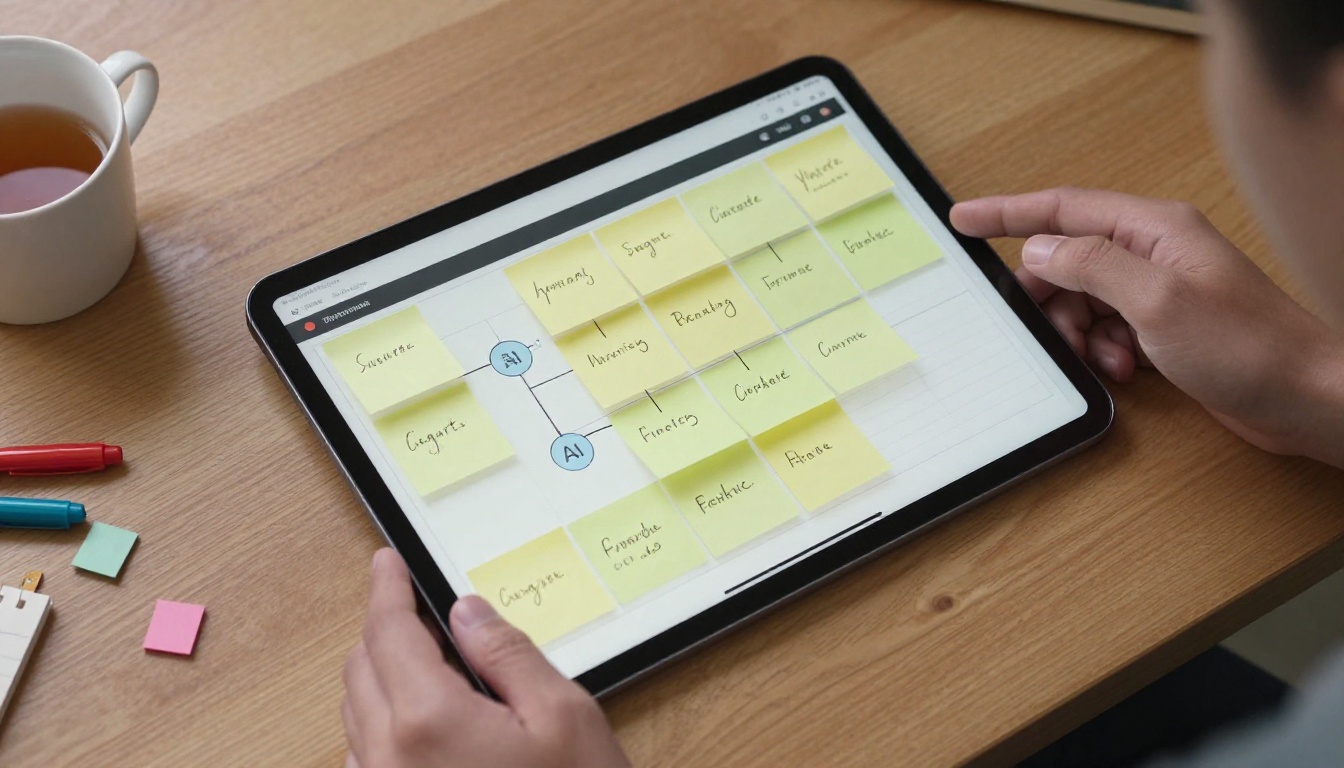
This is almost always where the pipeline starts. A text prompt becomes a visual asset, and that asset sets the visual language for everything that follows. The image's color palette, lighting style, and compositional framing carry through to the video layer, the thumbnail, and even the mood of the accompanying audio.
On PicassoIA, the text-to-image layer includes over 90 models. For fast iteration and content drafting, Flux Schnell generates a finished image in under 5 seconds with no usage limits. For high-resolution 4K output, Seedream 4.5 delivers pixel-dense results suitable for print or large-format display, with multi-image batch support up to 15 images per run. For multi-style flexibility, Recraft v3 covers photorealistic, pixel art, and engraving styles within a single model. P Image runs sub-second generation with no credit caps, making it ideal for high-volume iteration sessions where speed matters most.
Pillar 2: Video Production
The second layer takes your visual assets and adds motion. Image-to-video models are central here. Rather than generating video purely from text, a well-structured pipeline passes the image from Pillar 1 directly into a video model as the first frame or reference image. That preserves the visual identity established in the image step and prevents the visual drift that happens when text-to-video models interpret a prompt independently.
Seedance 2.0 produces native-audio video from both text and image inputs. Wan 2.7 I2V animates any photo into HD video with strong preservation of the source image's detail. Kling v2.6 renders cinematic motion from a single reference image with precise camera control. For speed without sacrificing output resolution, LTX 2.3 Fast generates 4K video output at near-real-time speeds.
Pillar 3: Voice and Music
Audio is the layer most creators skip in a first pass, and it is the layer that most dramatically affects how polished the final asset feels. A voiceover that matches the pacing and tone of your visuals turns a sequence of images into a story. Background music that matches the video's duration and mood holds the entire piece together.
For voice, ElevenLabs V3 handles natural-sounding narration with emotional inflection control. Speech 2.8 HD delivers studio-quality output with multilingual voice support across dozens of languages. Gemini 3.1 Flash TTS provides 30 distinct voices across 70-plus languages for international content pipelines.
For music, Lyria 3 Pro creates full-length, professionally arranged tracks from a brief text description of genre and mood. Music 2.6 generates complete songs including vocals. Stable Audio 2.5 composes instrumental tracks across a wide range of genres and tempos for when you want a cleaner, voice-only final mix.
Pillar 4: Finishing and Publishing
The final layer is where raw outputs get prepared for their target platform. Images and video frames generated at lower resolutions often need upscaling before display or print. Clarity Pro Upscaler adds photorealistic detail during the upscale rather than simply stretching pixels. P Image Upscale delivers sharp results in under one second. Image Upscale by Topaz Labs handles up to 6x enlargement with strong edge fidelity on complex source material.
Understanding the four pillars is step one. Knowing how to connect them in practice is step two.

Output Becomes Input
The core principle of any working pipeline is simple: the output file from one tool is the input for the next. This sounds obvious, but it breaks down constantly because creators do not plan for file format and resolution compatibility before they start generating.
Here is how the data flow looks in a standard image-to-video content pipeline:
| Stage | Tool Layer | Input | Output |
|---|
| 1 | Text-to-Image | Text prompt | PNG or JPG |
| 2 | Super-Resolution (optional) | PNG or JPG | High-res PNG or JPG |
| 3 | Image-to-Video | Image URL or file | MP4 |
| 4 | Text-to-Speech | Script text | MP3 or WAV |
| 5 | Music Generation | Mood prompt | MP3 |
| 6 | Final Assembly | MP4 + MP3 files | Published asset |
Every row in that table is a handoff point. Planning for each one means the next tool is always ready to accept the output from the previous step without an intermediate conversion pass.
The Handoff Points That Break Workflows
Most pipeline failures happen at three specific transitions:
- Resolution mismatch: The image is generated at 512px but the video model expects 1024px or higher. Fix: upscale before passing to video.
- Format incompatibility: The voice tool exports WAV but the final editor only imports MP3. Fix: know your editor's requirements before choosing the voice tool.
- Duration misalignment: The voiceover runs 45 seconds but the video is 5 seconds. Fix: write the narration with the video duration in mind, not after.
None of these problems require technical expertise to avoid. They require one planning pass before any generation starts.
💡 Quick fix: Before starting a pipeline, write down the specs for your final output: resolution, aspect ratio, duration, audio format. Then verify each tool in your chain can produce or consume those specs.
Common Mistakes in the Chain
Three additional workflow habits consistently slow down multi-tool pipelines. The first is generating the voiceover before the video is locked, which almost always forces a second narration pass when the visual pacing changes. The second is running every tool at its highest quality setting by default, adding generation time without improving the early-draft output you are going to adjust anyway. The third is using too many tools at once. Three to five tools is the practical ceiling for most projects. Beyond that, the handoffs between tools consume more time than the generation steps themselves.
Image Generation as the Starting Point
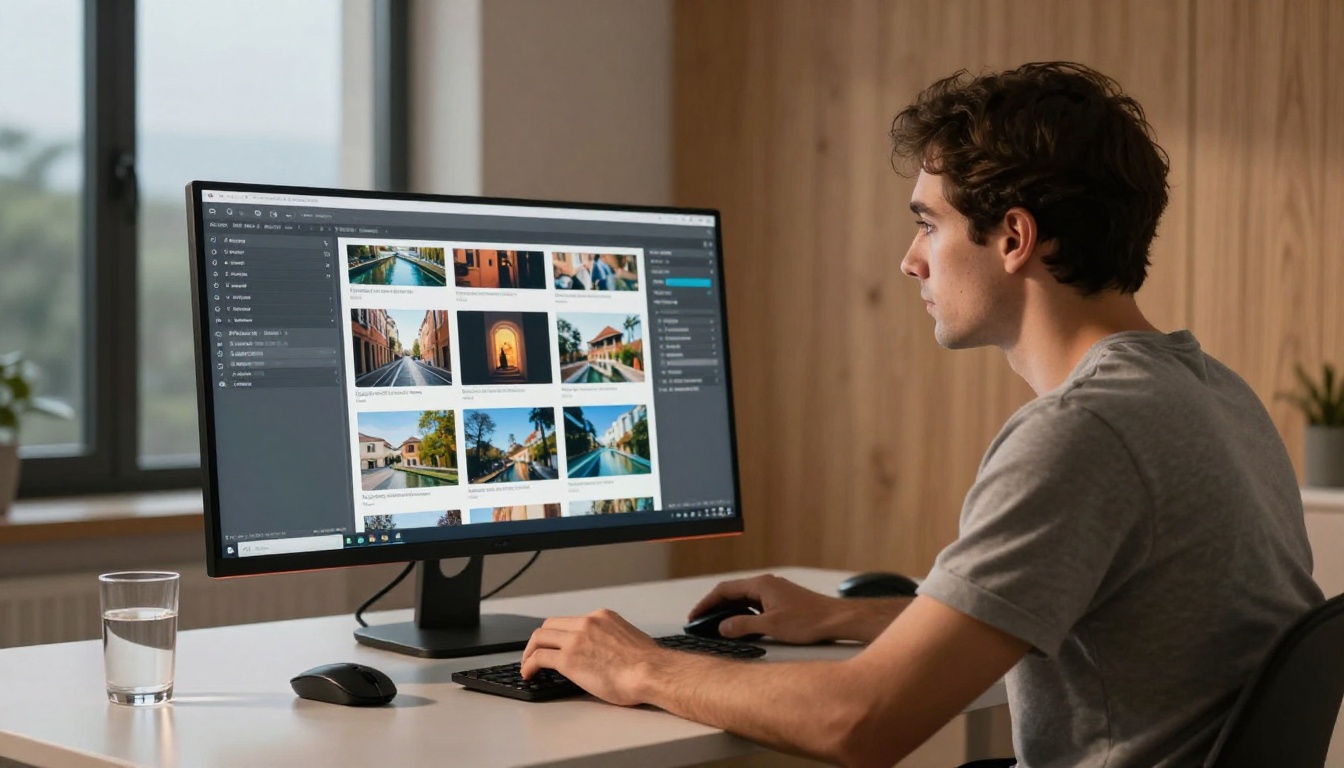
The image you generate in Pillar 1 does more work than it appears to. It does not just produce a visual. It establishes the creative identity for the entire downstream pipeline: color temperature, composition style, lighting character, and spatial depth. Changing any of these in a later stage creates visible inconsistency across the final deliverable.
Choosing the Right Model for the Job
A practical decision framework for the image generation layer:
- Speed is the priority: Flux Schnell or P Image for sub-second generation with no credit limits
- Resolution is the priority: Seedream 4.5 for 4K output with multi-image batch support
- Style range is the priority: Recraft v3 for flexible visual modes including photorealistic, pixel art, hand-drawn, and engraving
- Downstream compatibility: photorealistic outputs tend to animate more cleanly in image-to-video models than heavily stylized outputs do
Prompt Structure That Transfers Well
A prompt written for a standalone image often fails when that image feeds into a video tool. Video models look for motion cues in the source image. A prompt that describes a fully static composition gives the model nothing obvious to animate, and the model will invent motion that may not match your intent.
For images that will move into the video layer:
- Describe subjects in motion-ready positions, mid-gesture or mid-action rather than fully at rest
- Include environmental context that implies movement: water, wind, moving light sources, or active backgrounds
- Avoid extremely tight crops, the video model needs spatial context around the subject to generate coherent motion
- Specify lighting direction clearly, because this helps the model animate consistent shadow movement across the clip
Bringing Images Into Video
The image-to-video step is where your pipeline either holds together or loses coherence. The quality of this transition determines whether the final video feels like a continuous piece or a disconnected assembly.
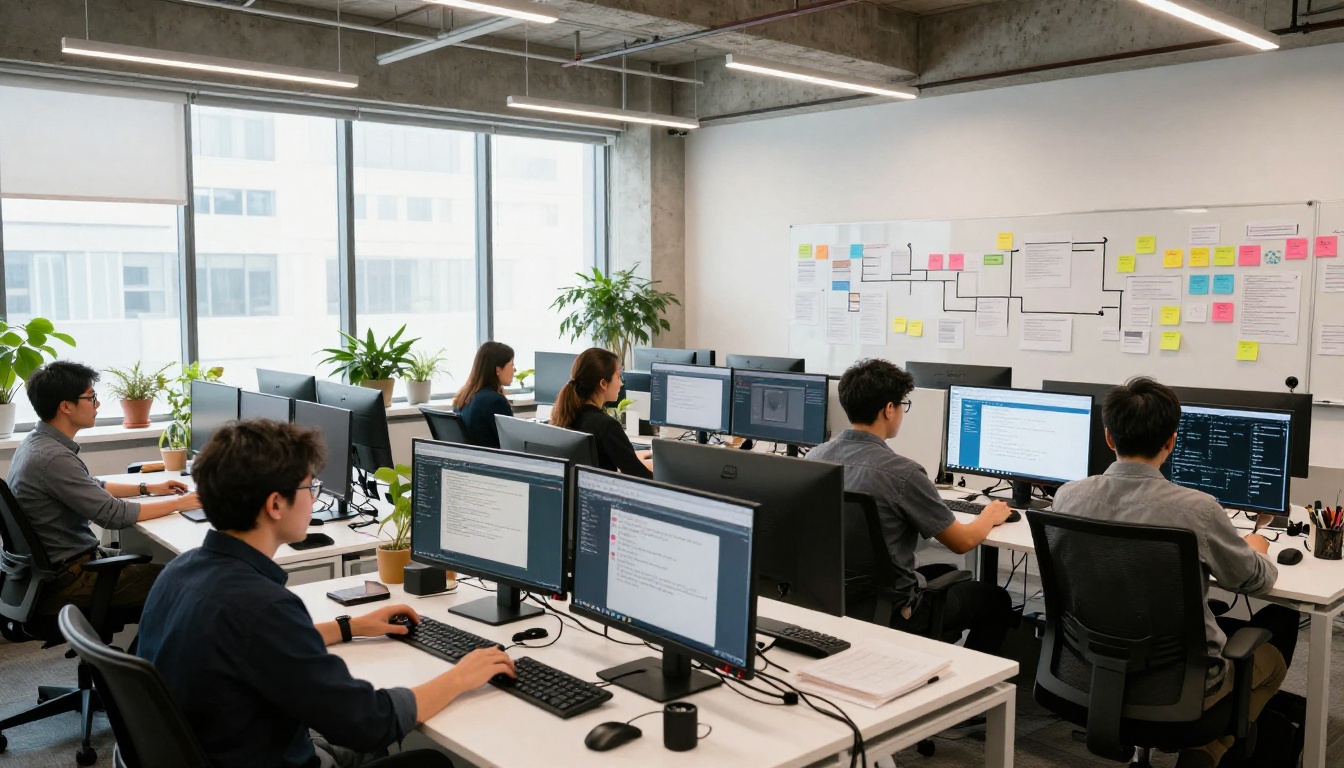
Image-to-Video Without Losing Quality
The most common issue at this stage is passing a compressed or low-resolution image to the video model. Most image-to-video models produce noticeably better results with higher-resolution inputs. A 1024x576 image at 16:9 will produce cleaner, more stable motion than a 512x288 version of the same composition.
If your text-to-image model generated at a lower resolution, pass the image through an upscaler before feeding it to the video model. P Image Upscale handles this in under one second. Real ESRGAN adds natural texture during the upscaling pass, which preserves the look of the source image rather than softening it.
For the video generation itself, Wan 2.7 I2V is well-suited for photorealistic source images and produces strong HD motion with accurate detail preservation. Hailuo 02 generates 1080p video and is particularly effective at preserving fine facial and environmental detail from the reference image.
Matching Motion to the Image Style
The motion prompt describes what happens in the scene, not what the scene looks like. The image already handles the visual. The motion prompt tells the model what should move and how.
Three effective motion prompt structures:
- Environmental motion: "Gentle wind moves through the trees in the background. The camera performs a slow dolly-in. Soft afternoon light shifts gradually across the ground."
- Subject motion: "The person turns slightly toward camera and raises one hand in a casual gesture. The background remains still. The movement is slow and natural."
- Camera only: "The scene is static. The camera tilts slowly upward from the desk surface to the window. Natural light remains consistent throughout."
If you do not specify motion, the video model will invent it. Specifying motion, even minimally, consistently improves the output.
Adding Voice and Music
Audio completes the pipeline. A visually coherent image-to-video sequence that plays silently still reads as an unfinished draft. Adding a voice layer and a music track takes the same asset from concept to deliverable.

Narration That Fits the Visual Tone
The critical variable when choosing a text-to-speech model for a workflow is not just voice quality. It is controllability. You need to match the pacing, emotional register, and tone of the narration to what is happening visually.
ElevenLabs V3 offers granular control over emotional inflection, making it well-suited for narrative content where tone shifts across sections of a script. Speech 2.8 HD produces studio-quality output with consistent voice character across long-form content. Chatterbox adds emotion cloning, allowing the generated voice to reflect the emotional quality of a reference audio sample.
One practical approach: write the script with a target duration in mind, then generate the narration before locking the video length. This way the voice and visuals are designed to match from the start, rather than one being retrofitted to the other.
Background Music Without a Composer
Generated music in a pipeline serves one function: it sets the emotional baseline that holds the visual and voice layers together. The track does not need to be complex. It needs to match the video duration and fit the mood established in the image layer.
Lyria 3 Pro creates full-length tracks with professional arrangement from a text prompt describing genre, tempo, and emotional character. ElevenLabs Music composes complete tracks from a few words of description, without requiring detailed musical vocabulary. Music 2.6 generates songs with vocals when the content calls for a more produced sound.
Specify duration explicitly in your music prompt when the model supports it. Even an approximate target such as "around 30 seconds, loopable" saves significant editing time in the assembly stage.
Upscaling and Refining Outputs
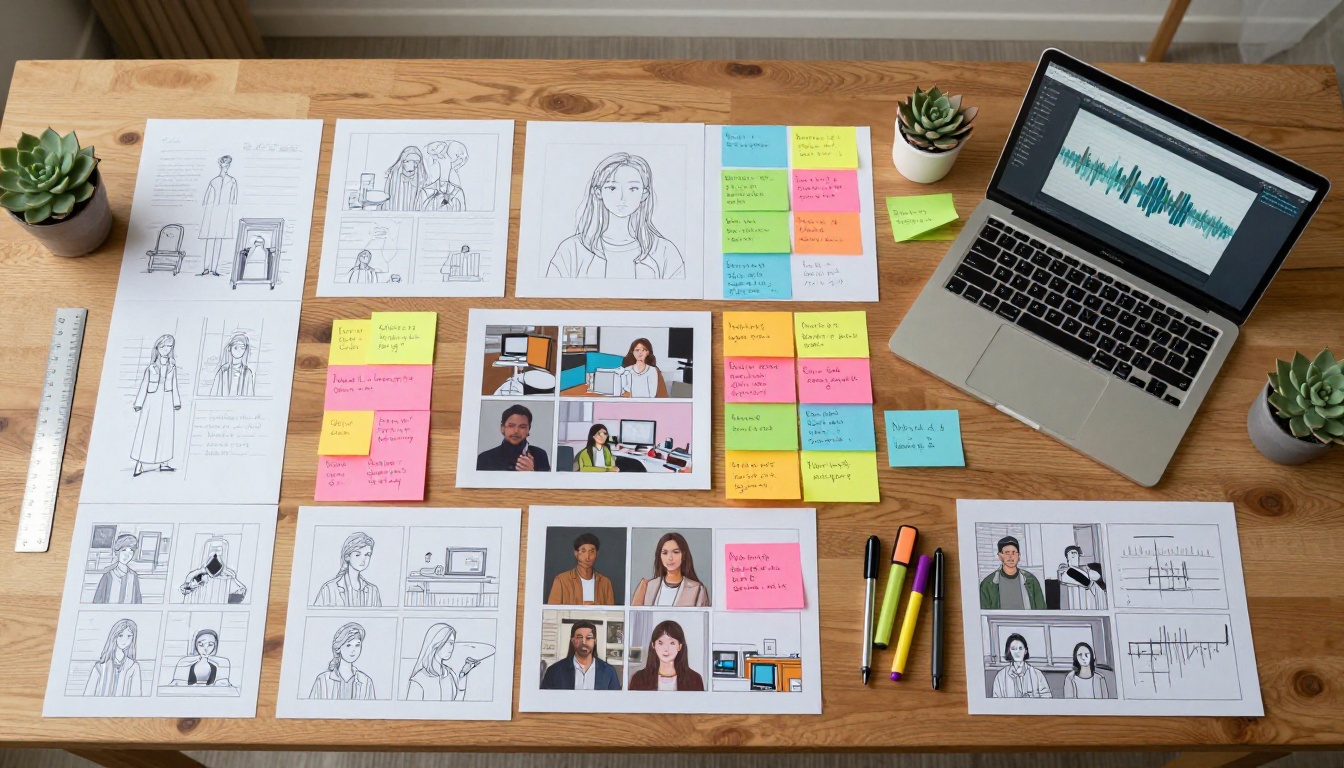
The finishing layer separates polished production from adequate production. Raw AI outputs often have soft edges, minor compression artifacts, or details that lose sharpness when viewed at full display size or print resolution.
When to Upscale
Run an upscaler when:
- The image will display at a size larger than the generation resolution
- The image feeds into a video model and you want clean frame-level detail
- The final output is for print, where pixel density requirements exceed screen standards
- A first-pass generation captured the right composition but lost sharpness in fine details
Clarity Pro Upscaler adds photorealistic texture detail during the upscale pass, making it particularly useful for portraits and environments where skin, fabric, and natural surface quality matter. Image Upscale by Topaz Labs handles the widest range of source material up to 6x enlargement, with strong edge preservation on complex scenes.
Sharpening for Different Platforms
Different publishing targets require different finishing specifications. A thumbnail for a video platform needs sharp contrast and readable composition at small sizes. A print-ready file needs high pixel density. A social media asset needs the correct aspect ratio above everything else.
Quick reference for common platforms:
| Platform | Target Resolution | Aspect Ratio | Priority |
|---|
| YouTube thumbnail | 1280x720 | 16:9 | Contrast and readability |
| Instagram post | 1080x1080 | 1:1 | Color accuracy |
| Instagram story | 1080x1920 | 9:16 | Vertical composition |
| Print (A4) | 2480x3508 | A-series | Pixel density |
| Web hero image | 1920x1080 | 16:9 | File size vs. quality balance |
Start Building on PicassoIA
Every tool category described in this article, text-to-image, image-to-video, voice synthesis, music generation, and super-resolution, is available on a single platform at picassoia.com/en/all-models. That means you manage one account rather than six. The images you generate are already accessible when you move to the video step. No format conversion is required between layers because you stay inside one environment throughout the entire pipeline.
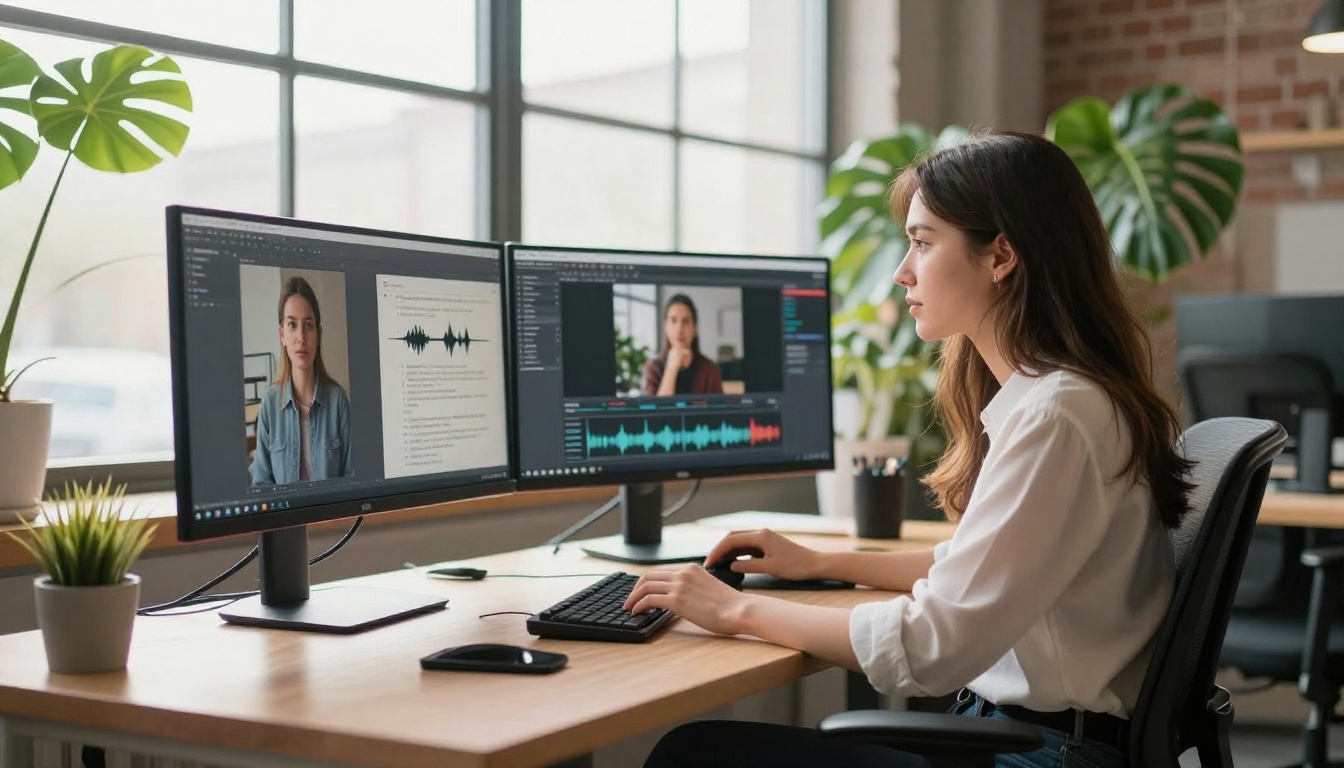
Start with one image using P Image or Flux Schnell. Animate it with Seedance 2.0 or Wan 2.7 I2V. Add narration with ElevenLabs V3. Score it with Lyria 3 Pro. Finish the output with Clarity Pro Upscaler.
That is a five-tool pipeline running on one platform, in one session, without losing visual consistency between steps. The first time you run it end to end, the difference in speed and output coherence compared to working tool-by-tool will be immediately clear.
Pick one project, map out the four pillars, and run your first connected pipeline today. Everything you need is already there.


