You recorded the whole show. Three songs in, you finally nailed the angle. The vocalist stepped into the light, the crowd surged, the moment was perfect. Then you watched it back the next morning and it looked like it was shot through a wet paper bag.
That is the reality of concert video. Low light destroys smartphone sensors. Compressed audio clips at the peaks. Motion blur turns every raised hand into a smear. Even professional rigs struggle when the lighting rig shifts mid-song and your exposure flies off the rails. But the footage is not gone. It just needs the right tools to bring it back.
AI video restoration has reached the point where clips you would otherwise delete are now salvageable, and in some cases genuinely stunning. Here is exactly how to do it.
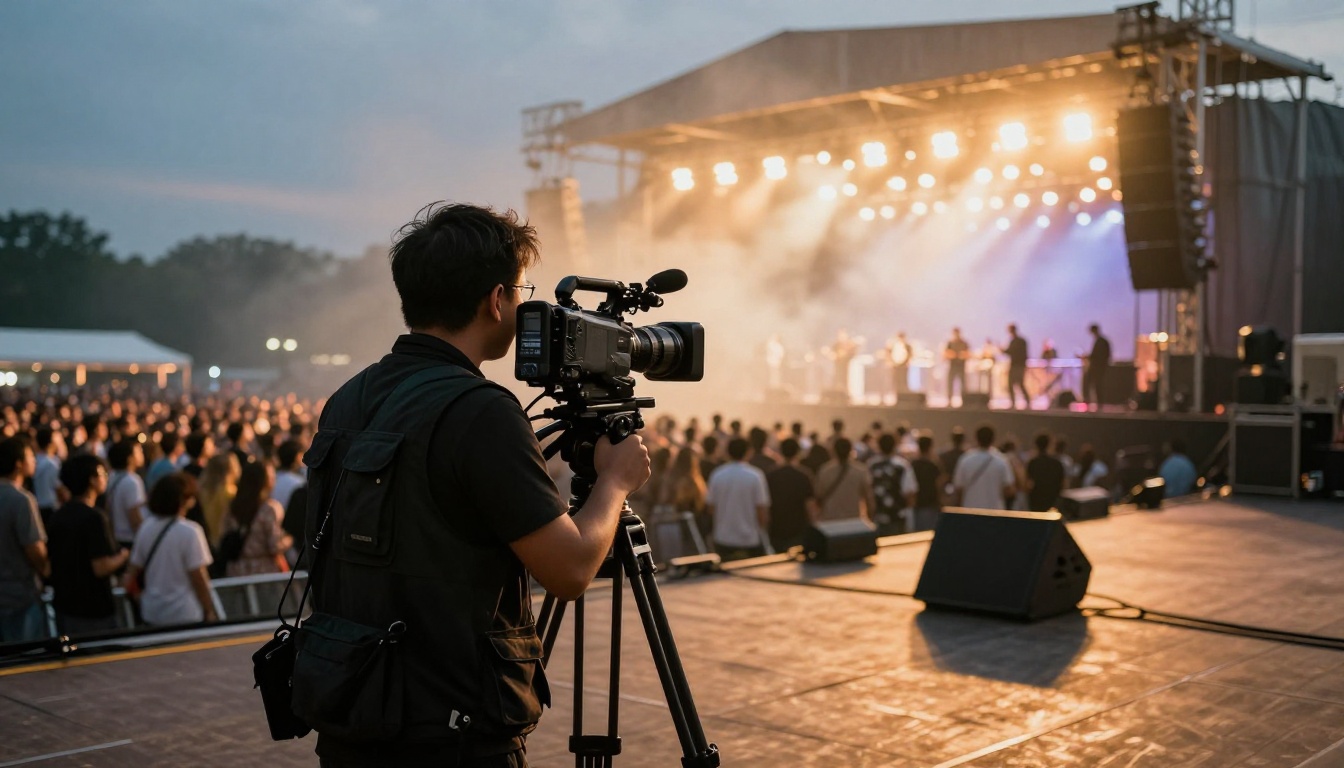
Most people blame their phone. The phone is not the whole problem. Concert environments are genuinely difficult to shoot in: the lighting changes every few seconds, the dynamic range between a performer in a spotlight and the dark crowd behind them can exceed what any sensor handles cleanly, and the audio is hitting levels that clip everything.
The 3 Problems AI Can Fix
These are the specific failures that AI tools were built to address:
- Low resolution and soft focus: Phone cameras drop to lower quality modes in low light. Even 4K footage can look like 1080p after compression artifacts pile on.
- Noise and grain: High-ISO footage in dark venues creates digital noise, banding, speckle, and a general muddiness that basic editing software cannot remove cleanly.
- Motion blur: Fast performer movements, handheld shaking, or panning too quickly all create motion blur that traditional sharpening only makes worse.
What Your Phone Actually Captures
The video you shot is a heavily processed interpretation of the light that hit the sensor. Modern phones apply aggressive noise reduction in real time, which smears detail across dark areas. The audio gets compressed. The codec picks settings that make the preview look good, not settings that give you the most data to work with in post.
This matters because AI tools do not create information from nothing. They use training data to make informed predictions about what detail should be there, based on patterns from thousands of similar images. The better the input, the better the output.
💡 Quick tip: Shoot at the highest bitrate your phone allows, even if the preview looks similar. More data means better AI results later.
Before picking a tool, it helps to understand what is happening under the hood. Not because you need to follow the math, but because knowing the difference between an upscaler and a restorer changes which tool you reach for.
Upscaling vs. Restoration
Upscaling takes your footage and increases the pixel count. Old-school upscaling just stretched each pixel. AI upscaling analyzes the content of each frame and adds realistic detail consistent with what should be there. A face becomes sharper, not just bigger.
Restoration works at the same resolution and removes artifacts: noise, compression blocks, color banding. If your footage is already 1080p but looks terrible, a restorer fixes the quality without changing the size.
Most concert video problems require both. You upscale to get the resolution needed for modern screens, and you restore to clean up the artifacts that make it look like it was recorded on a potato.
Noise Reduction That Works
Standard noise reduction in editing software works frame by frame using relatively simple spatial algorithms. It removes grain but also removes detail, leaving footage looking coated in Vaseline.
AI noise reduction uses temporal analysis: it looks at multiple frames simultaneously and separates real content from noise. The performer's face stays sharp. The random speckle in the dark background disappears. The difference in quality is significant.
| Method | Noise Removed | Detail Preserved | Processing Speed |
|---|
| Standard NR | Moderate | Low | Fast |
| AI Frame-by-Frame | High | Moderate | Medium |
| AI Temporal NR | Very High | High | Slower |
The Best AI Models for Concert Video
All of the models below are available directly on PicassoIA. No software to install, no GPU required. Upload your clip, set your parameters, download the result.
Crystal Video Upscaler
Crystal Video Upscaler by philz1337x is built specifically for situations where footage quality is already compromised. It handles the two-step problem of upscaling and restoration in a single pass.
How to use it on PicassoIA:
- Open Crystal Video Upscaler
- Upload your concert clip (MP4 or MOV)
- Set the scale factor to 2x or 4x depending on your source resolution
- Enable the restoration option to clean artifacts before upscaling
- Select output format and hit Generate
- Download and compare with your original
For concert footage specifically, start with 2x upscaling before jumping to 4x. The model performs best when it is not trying to invent detail it cannot reasonably predict from the source. A 1080p clip upscaled to 2K often looks better than the same clip pushed directly to 4K.
💡 Parameter tip: If your footage has severe noise, run a restoration pass first before upscaling. Stacking operations in the right order makes a significant difference.
Topaz Video Upscale
Video Upscale by Topaz Labs is the professional standard for a reason. Topaz trained their model on more footage types than most tools, which means it handles the specific edge cases concert video throws at it: fast-moving spotlights, motion blur from crowd movement, and color shifts from changing stage lighting.
How to use it on PicassoIA:
- Go to Video Upscale by Topaz Labs
- Upload your clip
- Choose the processing mode that matches your footage type (for low-light concert footage, Iris or Proteus are strong options)
- Set output resolution
- Run the generation and download
What separates this model from basic upscalers is its handling of temporal consistency: faces, instruments, and stage elements stay consistent from frame to frame rather than flickering between them. This matters enormously for music video footage with sustained shots of the performer.
Real ESRGAN Video
Real ESRGAN Video applies the ESRGAN architecture, originally designed for still images, to video content frame by frame. It is particularly strong at recovering edge detail: the sharp boundary between a performer's lit face and the dark background, the strings of a guitar, the texture of clothing.
How to use it:
- Open Real ESRGAN Video on PicassoIA
- Upload your video file
- Select the scale factor (2x is usually sufficient for concert clips)
- Generate and download
It runs faster than Topaz for shorter clips and works well as a first option when you need edge sharpening without heavy restoration overhead.
Runway Upscale v1
Upscale v1 by RunwayML adds a creative dimension to the process. Where Topaz and Crystal focus on faithful reconstruction of the original, Runway's model produces output that reads well visually even when the source data is badly compromised. For concert footage where emotional impact matters more than photographic accuracy, it is worth testing.
Video Increase Resolution
For footage that is already at acceptable quality but needs a resolution bump for a specific platform output, Video Increase Resolution by Bria offers upscaling reported up to 8K. It is lighter-weight than heavy restoration models and works well when your source footage is in reasonable shape and just needs sizing up for large-format playback or broadcast.
When Upscaling Is Not Enough
Sometimes the video quality is fine and the problem is everything else. Concert audio is particularly brutal: venue reverb, clipping from levels that maxed out your phone's microphone, crowd noise bleeding over the performance. A visually improved video with terrible audio is still a terrible video.
Fixing the Audio
Two tools address the audio problem from different angles:
Video Audio Merge lets you replace or layer a new audio track onto your video. If you have access to the soundboard recording, a field recorder audio track, or even a clean streaming audio of the set, you can sync and merge it directly onto your improved video clip. The result sounds like a professional recording over footage that now looks like one.
Thinksound generates contextually appropriate audio from video content using AI analysis. For concert clips where audio is completely unusable, it can create crowd atmosphere and environmental audio that matches the visual mood of the footage.
The Before-After Test
Before committing to a full export, always do a frame comparison. Upload a 30-second representative clip, run it through the model, and set the two versions side by side.
The most common mistakes people make:
- Over-sharpening: Running multiple sharpening passes creates a harsh, artificial look that is worse than soft footage
- Wrong model for the content: Using a model trained on general video for footage with specific issues (extreme low-light, high motion) gets worse results than a specialized tool
- Skipping restoration before upscaling: Upscaling noise makes it bigger, not cleaner
Adding Captions and Final Touches
Concert video has a secondary use case that has grown significantly: short-form social content. A 45-second clip from a set, trimmed to the strongest moment with captions, reaches audiences that would never sit through a full recording.
Autocaption handles transcription and caption placement automatically. Upload your clip, it detects speech and lyrics, and places styled captions frame-accurately. For music videos where lyrics are part of the content, this is notably faster than manual subtitle work.
For clips where you want to modify more than just text, Lucy Edit 2 accepts text prompts to edit specific sections of a video. If part of your clip has a background element you want removed or a lighting issue you want corrected in a specific moment, this is the tool for it.
Building a Workflow That Scales
If you shoot concerts regularly, processing each clip one at a time is not viable. Here is the workflow that produces the best results efficiently:
Step 1: Triage Your Footage
Not everything is worth processing. Sort clips into three buckets:
- Keepers: Good angle, pivotal moments, usable audio
- Recoverable: Great moment, bad quality
- Discard: Nothing worth saving
Only run AI processing on the first two categories.
Step 2: Restoration First
For every recoverable clip, run restoration before upscaling. Use Crystal Video Upscaler with restoration enabled, or run a dedicated restoration pass through Video Upscale by Topaz Labs before scaling.
Step 3: Upscale
Target 2x upscaling as your default. Go to 4x only if the source was very low resolution and you need it for large-format output.
Step 4: Audio Replacement
If the audio is unusable, replace it via Video Audio Merge. If it is passable, leave it alone. Every transcode degrades audio slightly.
Step 5: Cut and Caption
Trim to your strongest 30-60 seconds. Add captions via Autocaption. Export for your platform.
💡 Platform note: Instagram and TikTok both compress video heavily on upload. Export at a higher bitrate than you think you need. Their compression handles the rest.
Results Worth Sharing
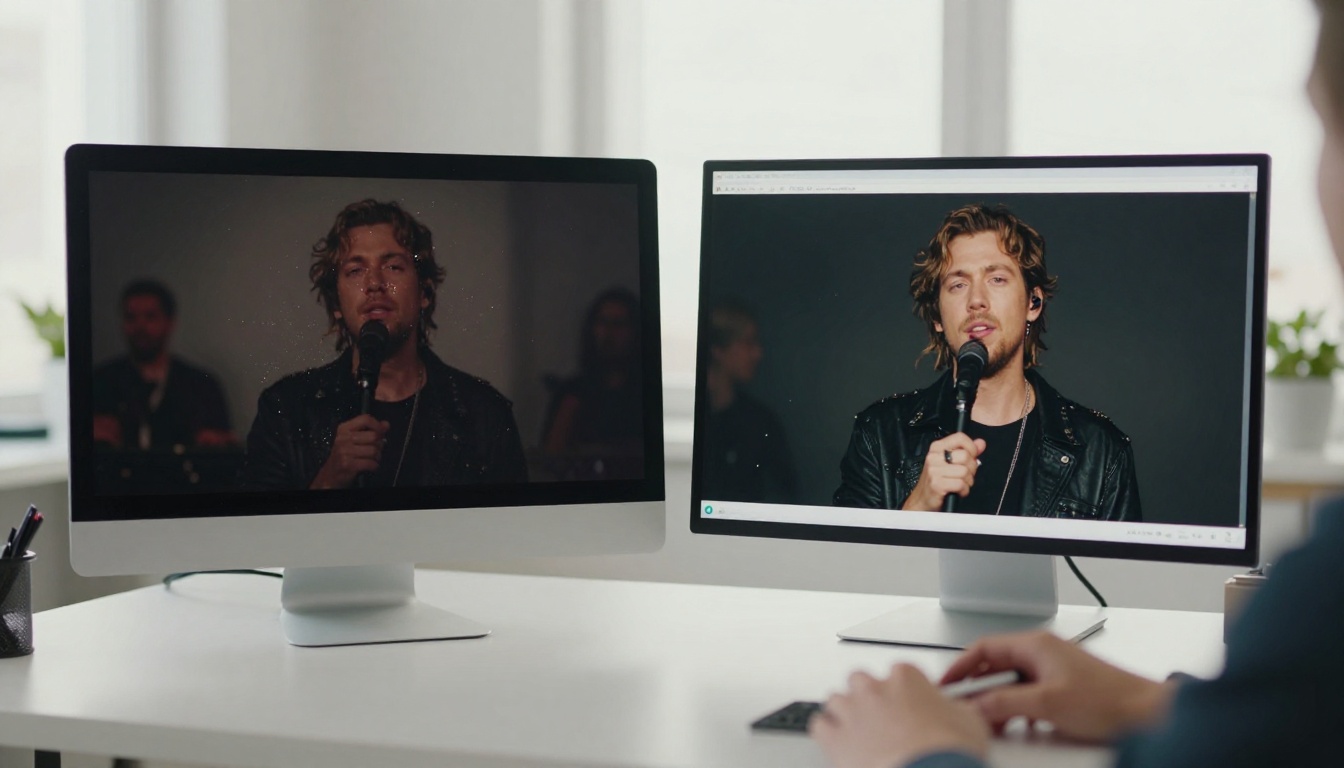
The realistic outcome of applying these tools to a typical smartphone concert clip is footage that:
- Moves from soft 1080p to crisp 2K or 4K
- Has visible detail in the performer's face and instrument
- Has reduced noise in the crowd and dark background areas
- Has audio that does not clip or distort
It will not look like it was shot by a professional broadcast crew. But it will look like it was shot by someone who knew what they were doing with a good camera. That is the difference between footage you post and footage that sits on your phone until storage runs out.
| Before AI Processing | After AI Processing |
|---|
| Soft 1080p, compressed | Sharp 2K-4K, clean |
| High digital noise | Minimal noise, detail preserved |
| Clipping audio | Replaced or restored audio |
| Raw unedited clip | Captioned, trimmed, shareable |
The footage from your last show is sitting in your camera roll right now. Pick the worst clip from it, the one you were about to delete. Run it through Crystal Video Upscaler or Video Upscale by Topaz Labs on PicassoIA and compare the output.
Start with the clip you thought was unsalvageable. The results tend to surprise people.
PicassoIA gives you access to all of these tools without any installation. Crystal Video Upscaler, Video Upscale by Topaz Labs, Real ESRGAN Video, and Upscale v1 by RunwayML are all available now. Upload a clip, run the process, and see what comes back. The footage you thought was gone might just be waiting for the right tool.


