There is a moment that happens to almost everyone the first time they type an AI prompt: you hit generate, wait a few seconds, and something appears on screen that you did not entirely believe was possible. A photorealistic portrait of a person who does not exist. A mountain landscape that looks like a million-dollar travel campaign shot. A gourmet food photograph from a kitchen you have never visited. The ability to generate anything with AI has moved from a research curiosity into an everyday creative tool, and the barrier to entry is now a single sentence.
This article breaks down exactly how to generate anything with AI, from still images to cinematic video, which models produce the best results for each task, and how to write prompts that consistently deliver the output you actually want.
What Happens When You Type a Prompt
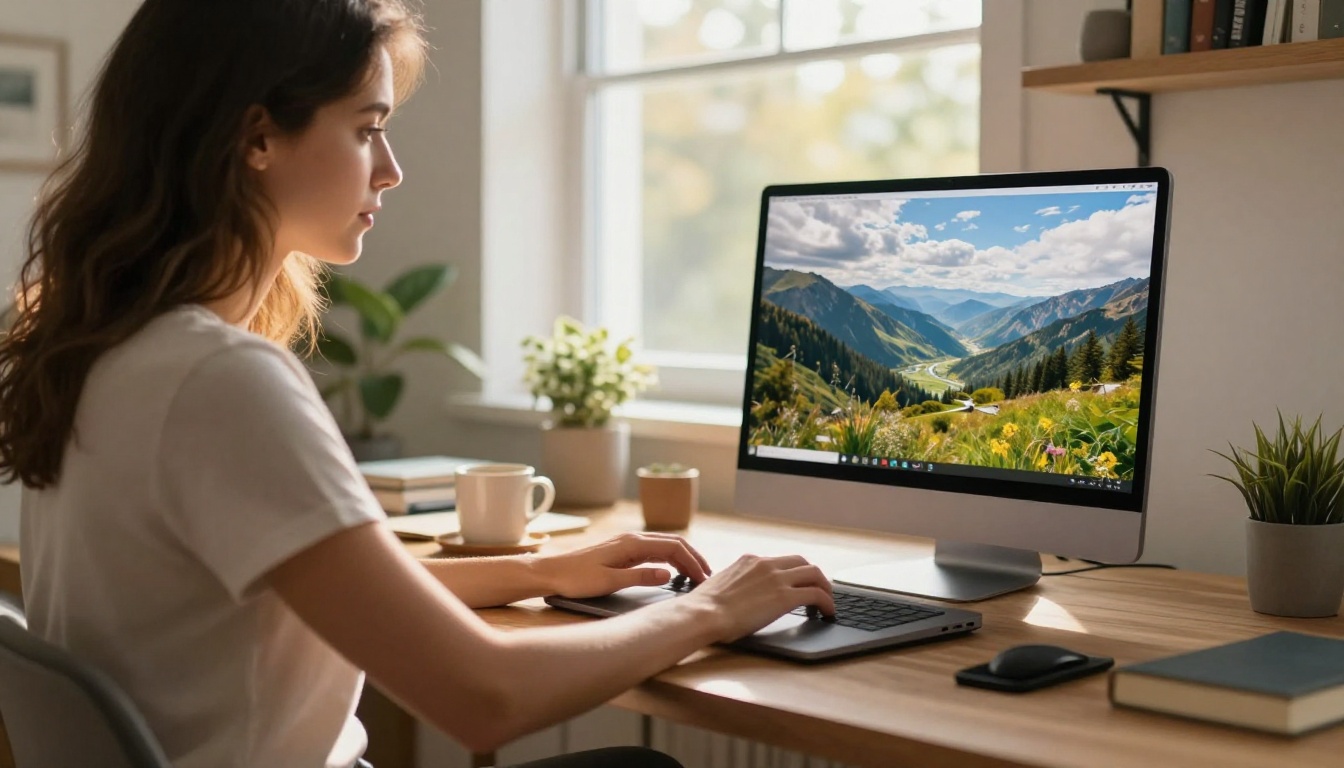
AI image generation does not work like a search engine. You are not retrieving existing images. You are instructing a model to synthesize a completely new image based on the statistical relationships it has learned across hundreds of millions of visual examples. The result is shaped by every word in your prompt, the model you choose, and the settings you apply.
When you submit a prompt to a text-to-image model like Seedream 4.5, the model encodes your text into a numeric representation, then works backward from random noise to produce an image that matches that representation. Better models produce sharper, more coherent images with fewer visual artifacts. Models trained on more diverse data tend to handle unusual combinations of subjects and styles more reliably.
The same process applies to text-to-video and image-to-video models. Instead of generating a single frame, the model produces a sequence of frames with realistic motion between them. Tools like Seedance 2.0 and Kling v3 Video go further by generating synchronized native audio alongside the video, meaning the final output already has ambient sound without any additional step.
💡 The core truth: The model does not know what you want. It only knows what you describe. The more specific your prompt, the more likely the output matches your vision.
The 5 Types of AI Generation
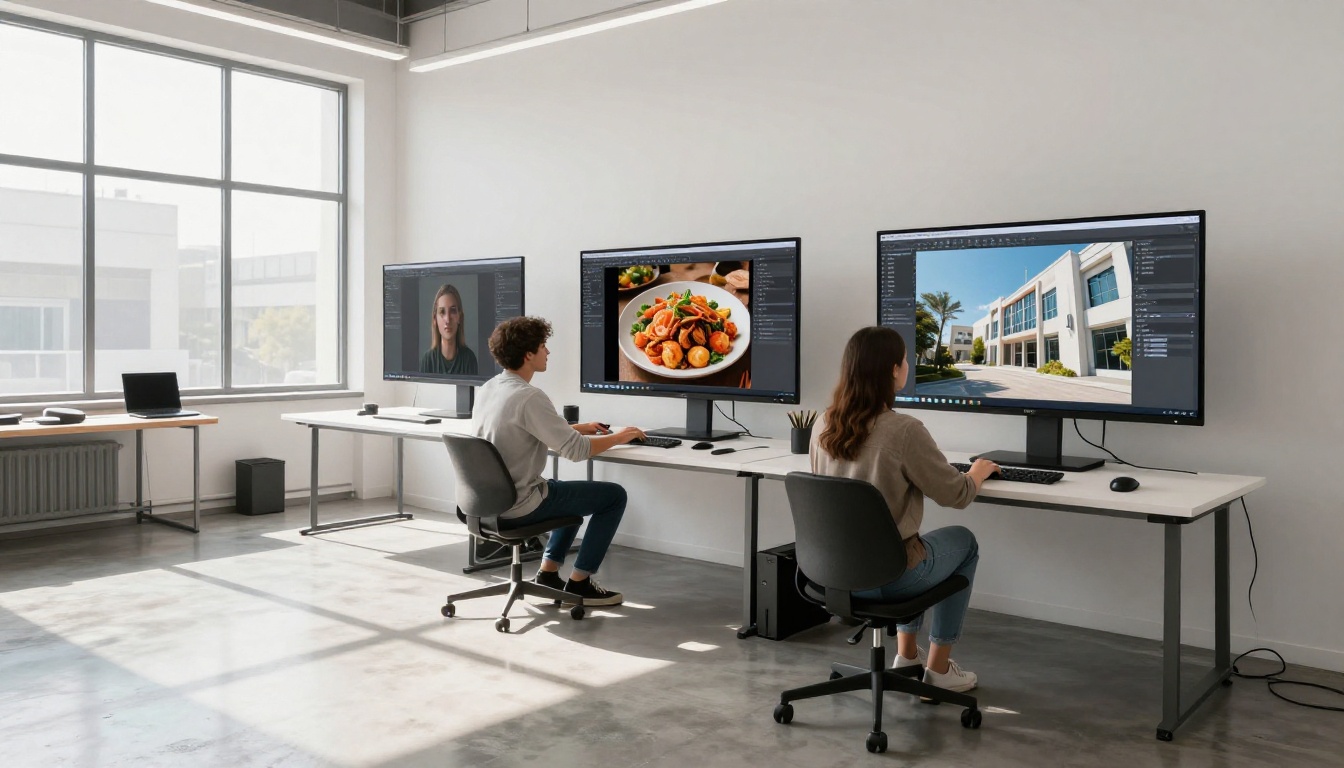
Before choosing a tool or writing a prompt, it helps to know which category of AI generation you are working with. Each type has different strengths, limitations, and ideal use cases.
Text to Image
The most widely used form. You type a description and the model produces a still image. Resolution, aspect ratio, and style vary by model. Wan 2.7 Image Pro outputs at 4K. GPT Image 2 excels at precise prompt adherence. Stable Diffusion 3 gives you fine-grained control over style and composition.
Text to Video
You describe a scene or motion sequence and the model creates a short video clip. Veo 3 and Wan 2.7 T2V produce 1080p video from text alone. LTX 2 Pro pushes this to 4K resolution with cinematic motion control.
Image to Video
You provide an existing image, and the model animates it into a 5-to-10 second video clip. This is the most common workflow for product animation, portrait motion, and scene visualization. Kling v2.1 handles this particularly well with accurate first-frame anchoring and natural motion physics.
AI Image Editing
You take an existing photo and modify specific areas using a text instruction. Change the background, add an object, relight the scene, or adjust the style without replacing the whole image. Tools like Qwen Image Edit Plus and PicassoIA Image Editor Pro support unlimited edits without watermarks or per-generation fees.
Custom LoRA Training
LoRA (Low-Rank Adaptation) lets you fine-tune a base model on your own subject, product, or visual style, so every generation reflects a specific identity. Flux Schnell LoRA enables fast LoRA-based generation with near-instant results. Once your LoRA is trained, every output carries your defined visual signature automatically.
How to Write Prompts That Work
The single biggest factor separating strong AI generation from average AI generation is prompt quality. Vague prompts produce generic outputs. Specific, structured prompts consistently produce something worth using.

The most effective prompt structure for photorealistic images follows this pattern:
| Element | What to Include | Example |
|---|
| Subject | Who or what, with specific details | "Young woman in her late 20s" |
| Action or Pose | What they are doing | "seated at a wooden desk, typing" |
| Environment | Where, with specific detail | "sunlit home office with pine shelving" |
| Lighting | Direction, quality, color temperature | "warm afternoon light from left window" |
| Camera | Lens, focal length, depth of field | "85mm f/1.4, shallow bokeh background" |
| Film or Style | Texture, grain, color grade | "Kodak Portra 400 film grain, RAW 8K" |
| Negatives | What to exclude | "no CGI, no illustration, no cartoon" |
💡 Prompt length matters: A 60-word prompt describing specific lighting, a camera angle, and film texture consistently beats a 6-word prompt. More specificity equals more control over the output.
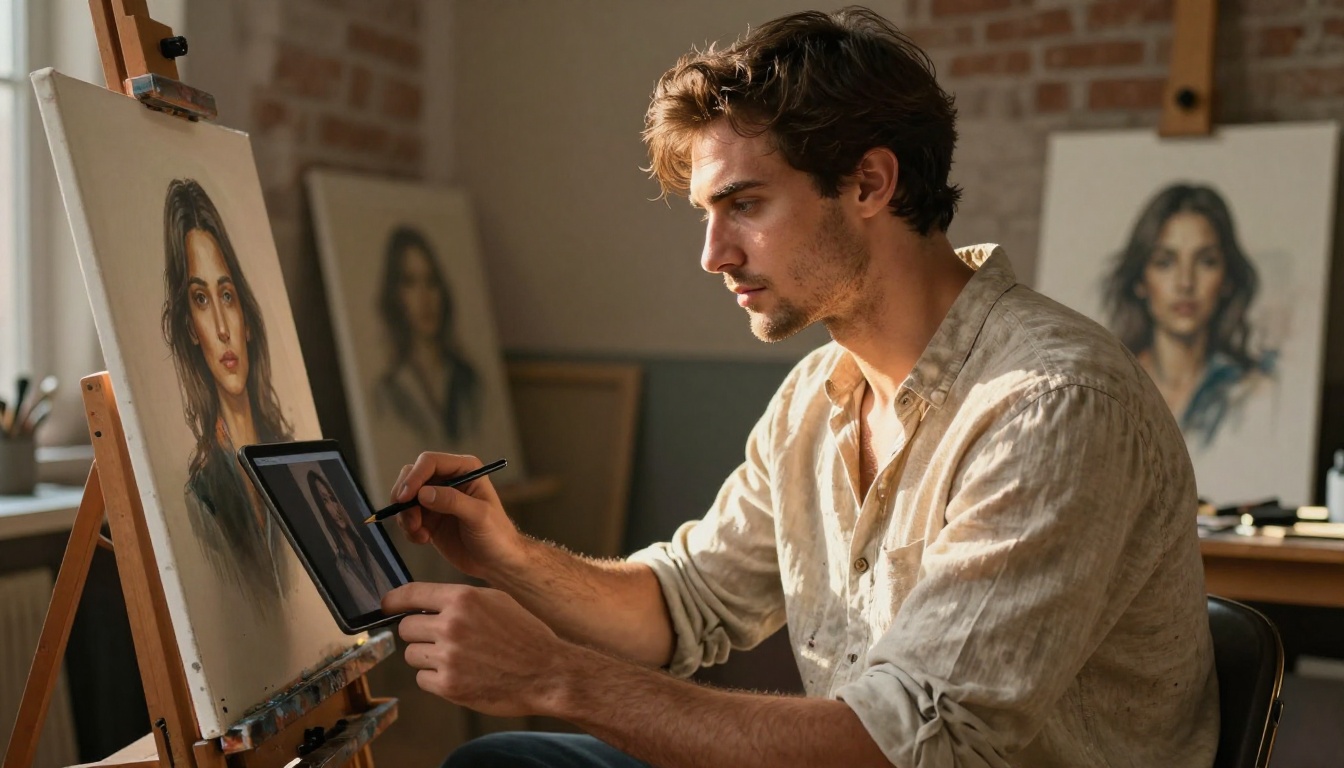
For video prompts, the structure changes slightly. Instead of a static scene description, you describe motion over time:
- Open with the subject and its starting position or state
- Describe what moves or changes during the clip
- Specify the camera movement (slow dolly-in, gentle pan, static hold, subtle orbit)
- Close with atmosphere, lighting conditions, and visual style
A prompt like: "A woman seated at a desk begins typing, the monitor lights up with a newly generated AI image appearing, camera slowly dollies in from a 3/4 angle, warm afternoon light from the left, photorealistic natural motion" gives the model a clear chronological sequence to follow rather than a single frozen moment.
Best Models for Every Type of Visual
Choosing the right model matters as much as writing the right prompt. Different models have different strengths across realism, speed, resolution, and style adherence. Here is a practical breakdown of the strongest models currently available on PicassoIA:
For text-to-image generation:
| Use Case | Recommended Model | Why |
|---|
| Photorealistic portraits | Seedream 4.5 | 4K output, excellent skin and hair detail |
| Product photography | Wan 2.7 Image Pro | Sharp edges, realistic surface rendering |
| Any style images | Recraft 20B | Flexible style control, strong composition |
| Unlimited editing | PicassoIA Image Editor Pro | Inpainting, outpainting, no generation limits |
| Image variations | Flux Redux Dev | Consistent style across multiple outputs |
| Fast LoRA generation | Flux Schnell LoRA | Near-instant results with custom styles |
| Prompt precision | GPT Image 2 | Excellent instruction-following and coherence |
| Budget photorealism | Hunyuan Image 2.1 | 2K output, strong generalist performance |
| Text inside images | Reve Create | Handles embedded text better than most models |
| Precise structured images | Fibo | Accurate subject placement and color fidelity |
For video generation:
Generating AI Video from a Single Image
Image-to-video is one of the most practically useful applications of AI generation. You take any photo (one you photographed yourself, one you generated with a text-to-image model, or one from your existing library) and the model animates it into a short cinematic clip.
Output quality depends on three factors:
- Source image quality: Higher resolution source images give the model more detail to work with, resulting in sharper, more coherent motion across all frames.
- Motion prompt specificity: Describe what should move, how it should move, and what the camera does throughout the clip.
- Model selection: Different models handle different motion types better. Kling v2.1 excels at portrait animation. Wan 2.7 T2V handles complex environmental scenes.
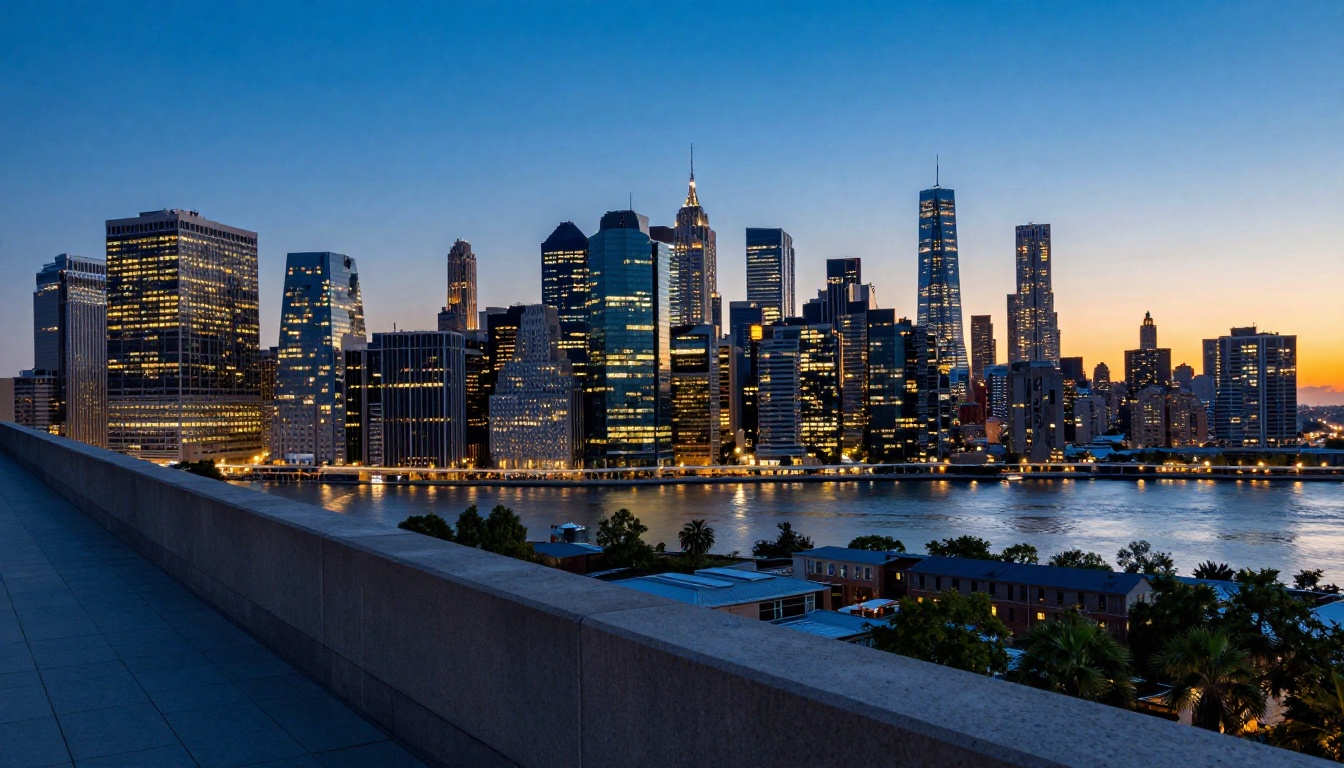
For portrait animation, the goal is usually subtle. A slight head turn, a natural blink, hair moving in a gentle breeze, a small breath visible in the shoulders. Overly dramatic motion prompts often produce visual artifacts and unnatural warping. For landscape and architectural scenes, you can be considerably more ambitious with wind effects, flowing water, moving clouds, and shifting ambient light.
💡 Production tip: Generate your source image at 16:9 for landscape and architectural scenes. Portrait subjects work better at 3:4 or 1:1. The output video matches the input image's aspect ratio automatically.
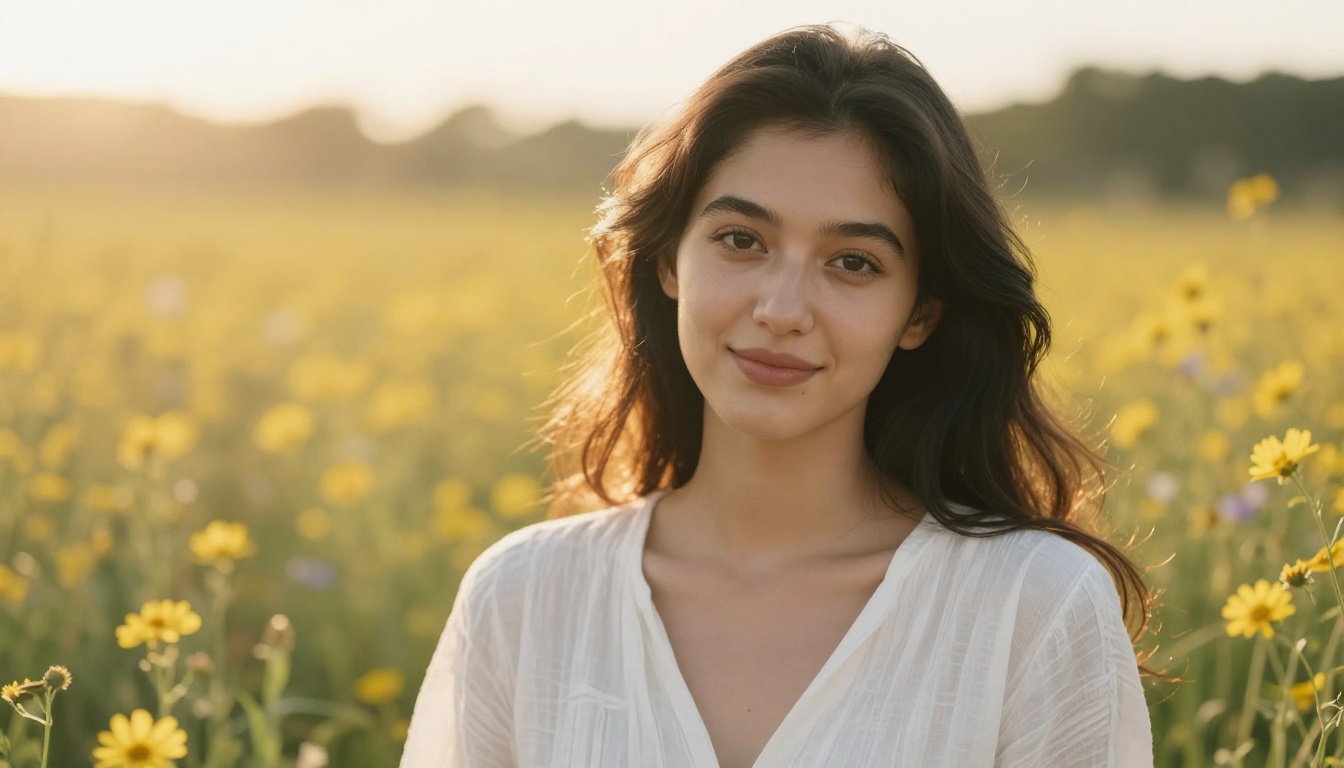
When iterating on video, change one variable at a time: either the prompt or the source image, not both simultaneously. This lets you pinpoint exactly which element produced the improvement.
How to Use PicassoIA
PicassoIA brings together over 90 text-to-image models, over 100 text-to-video models, and dedicated tools for image editing, audio generation, speech synthesis, and video effects in one platform. The main advantage over working with individual model APIs is access to the full range without managing separate accounts, API keys, or billing arrangements for each one.
The basic workflow from text prompt to finished image takes about 60 seconds:
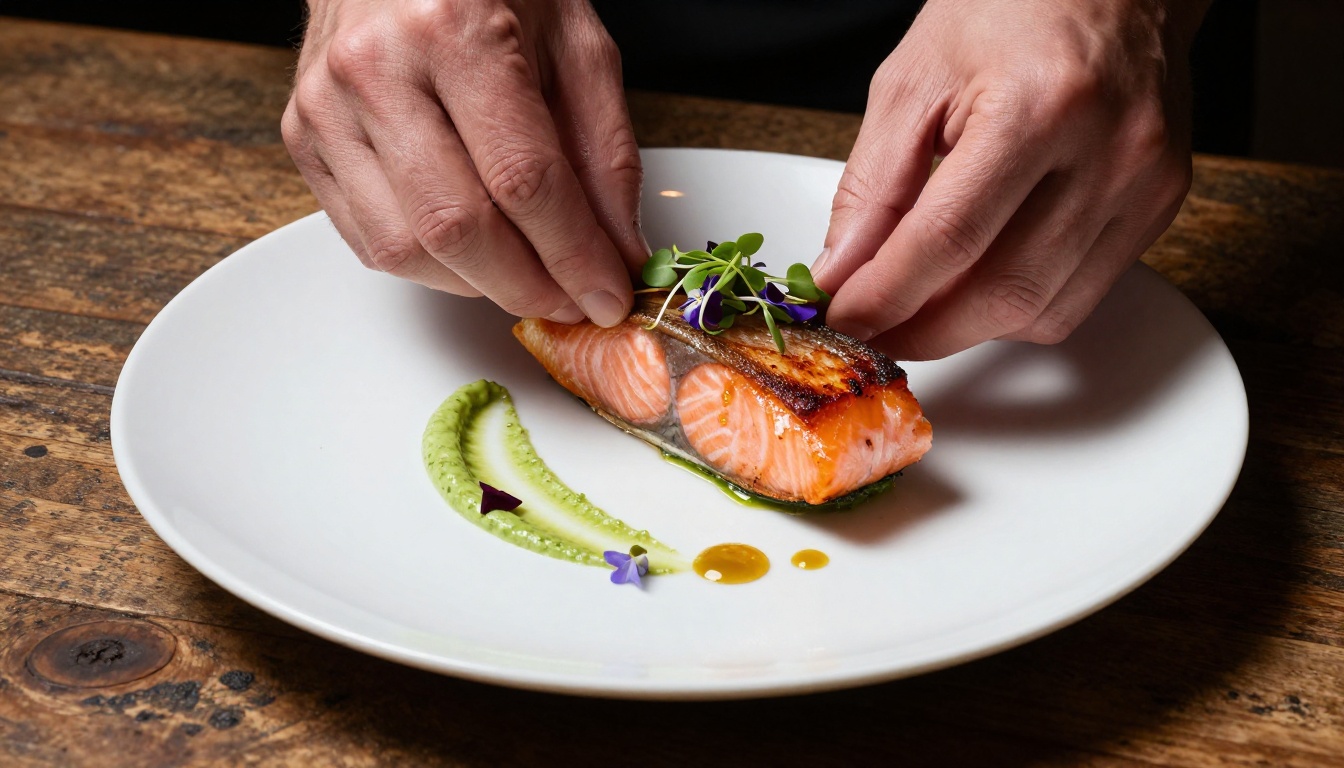
Step 1: Choose your model. Browse all available models or filter by category. For photorealistic portraits, Seedream 4.5 and PicassoIA Image are the strongest starting points.
Step 2: Write your prompt. Use the structured format from earlier. Subject, environment, lighting, camera, film texture, negatives. Aim for at least 50 words. The investment in a specific prompt pays off immediately in the quality of the first generation.
Step 3: Set your parameters. Select aspect ratio, resolution, and any negative prompts. For photorealistic output, 16:9 at maximum resolution with "no CGI, no illustration" as negatives works reliably across most photorealistic models.
Step 4: Generate and iterate. Run the generation. If the output is close but not right, adjust one element at a time and regenerate. Isolating the variable gives you much clearer feedback on what is working.
Step 5: Refine with editing tools. Use PicassoIA Image Editor Pro to make targeted changes after the initial generation. Inpainting fixes specific regions. Outpainting expands the canvas in any direction. Qwen Image Edit Plus handles more complex text-driven modifications across larger areas.
Step 6: Animate into video. Take any generated image and feed it into Kling v2.1 or Seedance 2.0 for image-to-video output. Write a motion prompt, select your resolution, and run.
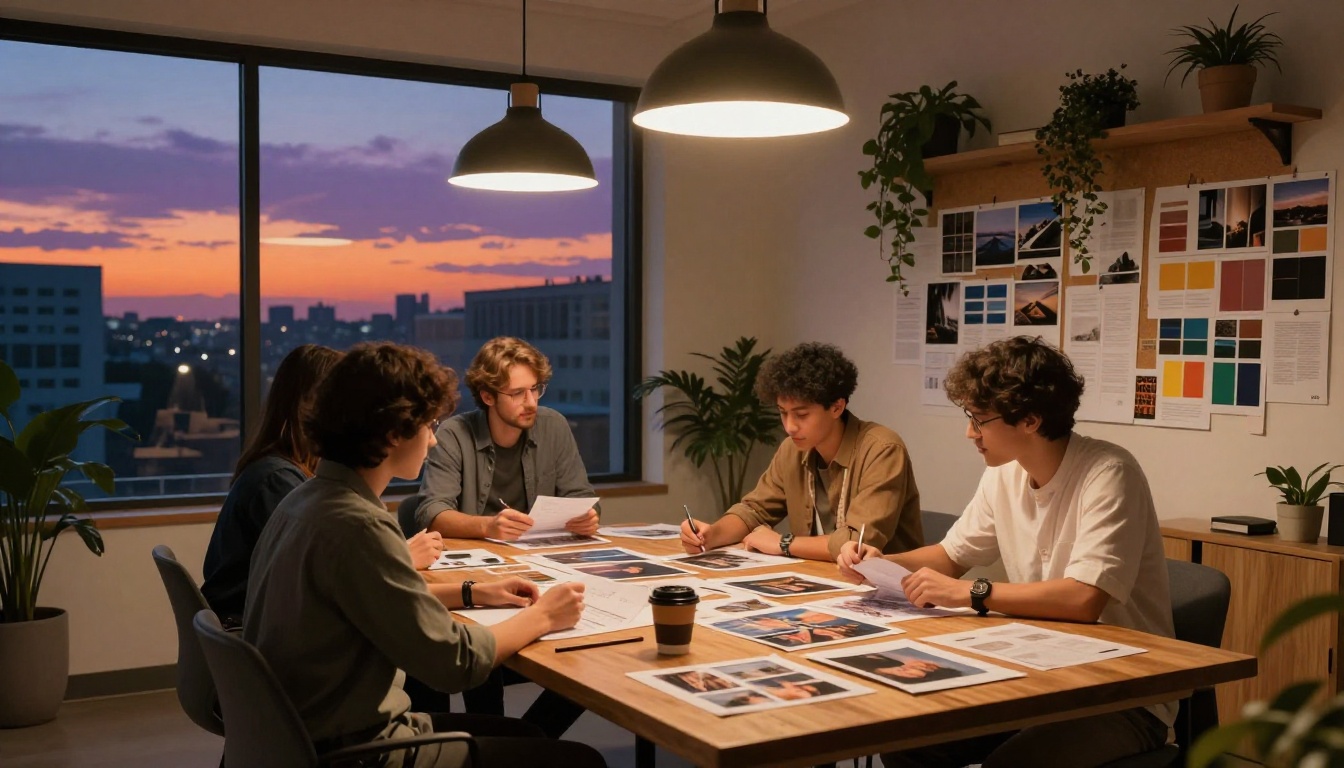
The PicassoIA Image Editor Pro is particularly effective for brand and product work because it supports unlimited generations. Most platforms charge per image, per video, or per API call. Unlimited generation changes the economics of iterative creative work: you can run 50 variations without tracking spend.
3 Mistakes That Ruin Your Results
Even with a strong model and a well-crafted prompt, it is easy to get disappointing output. These are the three most common failure points.
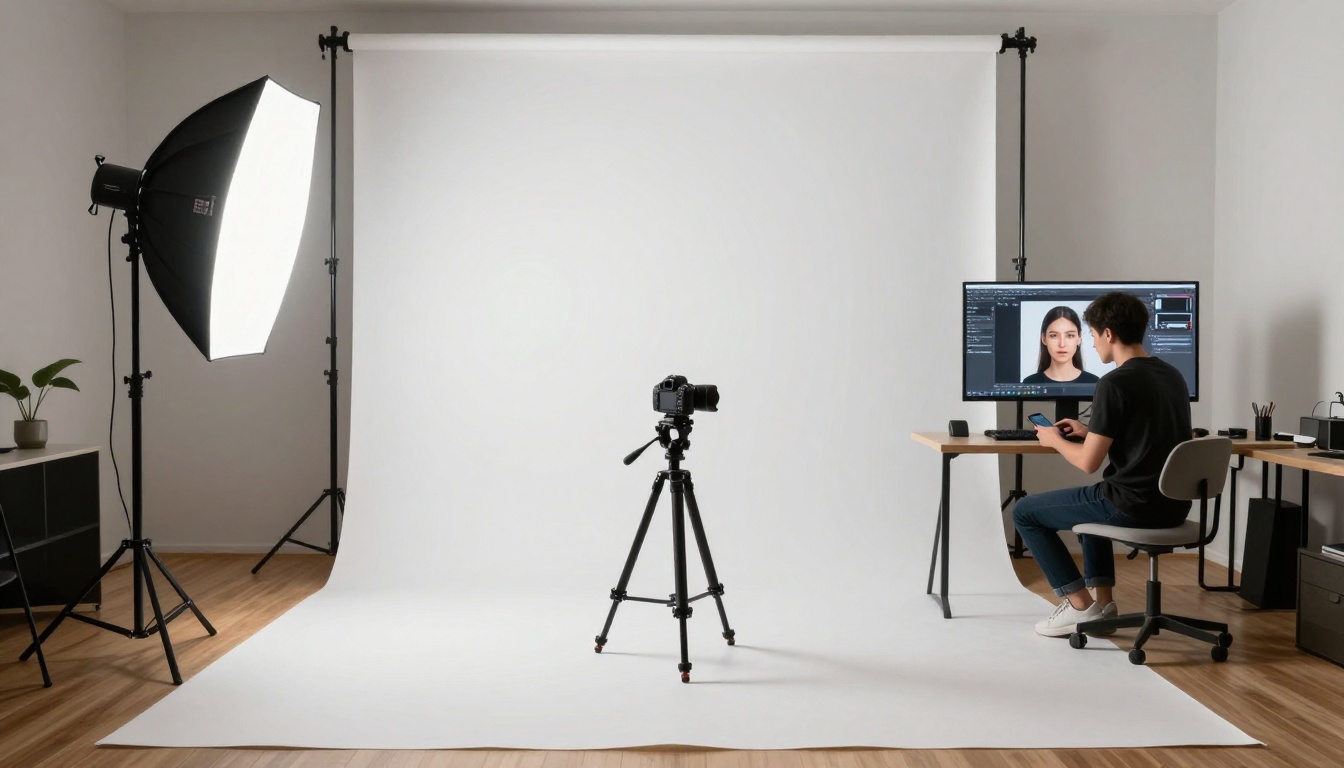
1. Prompts That Are Too Short
"A woman at a desk" is a prompt. It is also almost guaranteed to produce a generic, forgettable image. A 60-word prompt describing the specific woman, her exact position, the desk surface, the quality and direction of the light, the camera angle, the film grain, and the mood is what separates professional-quality output from stock-photo defaults. Longer, more specific prompts consistently outperform short abstract ones across every model.
2. Using the Wrong Model for the Task
A model built for illustration will produce disappointing results on a photorealistic product shot, even with a perfect prompt. Read the model description before selecting. Recraft 20B is excellent across styles. Hunyuan Image 2.1 performs better on realistic human subjects. Matching the model to the output type is not optional: it is where half the quality difference lives.
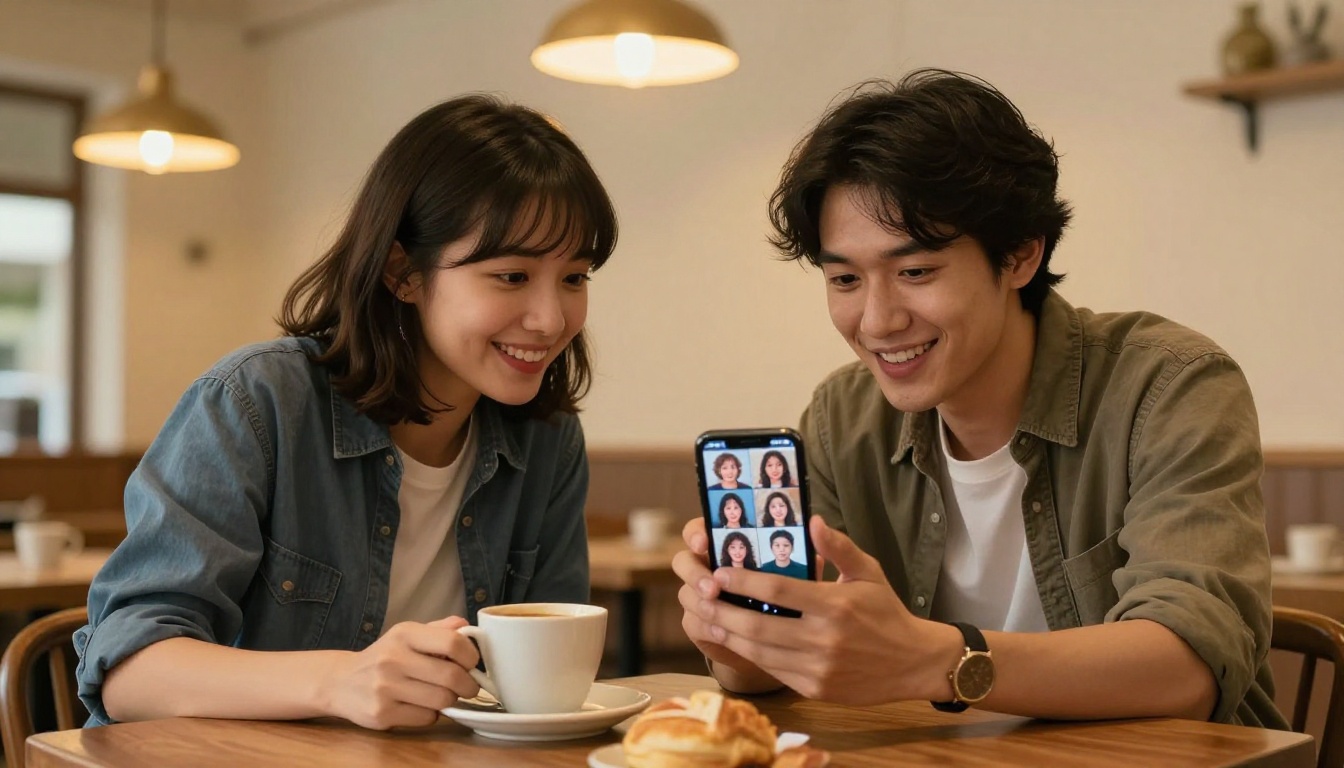
3. Changing Too Many Variables at Once
When a generation result is wrong, the instinct is to rewrite the entire prompt. This makes it impossible to isolate which element caused the problem. Change one thing at a time. Swap the lighting description. Remove a style modifier. Change the camera angle. Systematic iteration produces better results faster than wholesale rewrites, and it builds a clear mental model of how each element affects the output.
💡 Save your best prompts: Once a prompt produces a result you are happy with, save it as a template. Swap the subject or setting while keeping the lighting, camera, and style specifications the same. This produces consistent visual output across a full series with minimal rework.
Start Creating Now
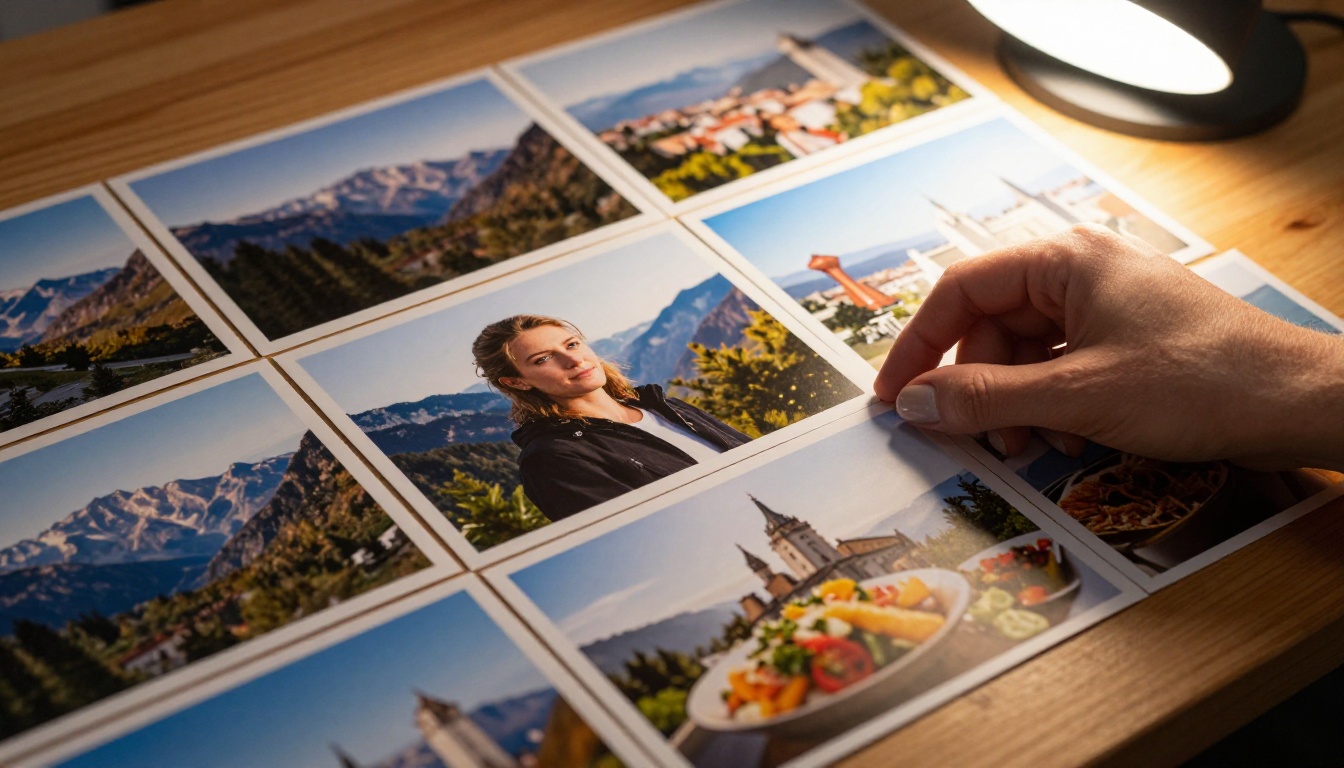
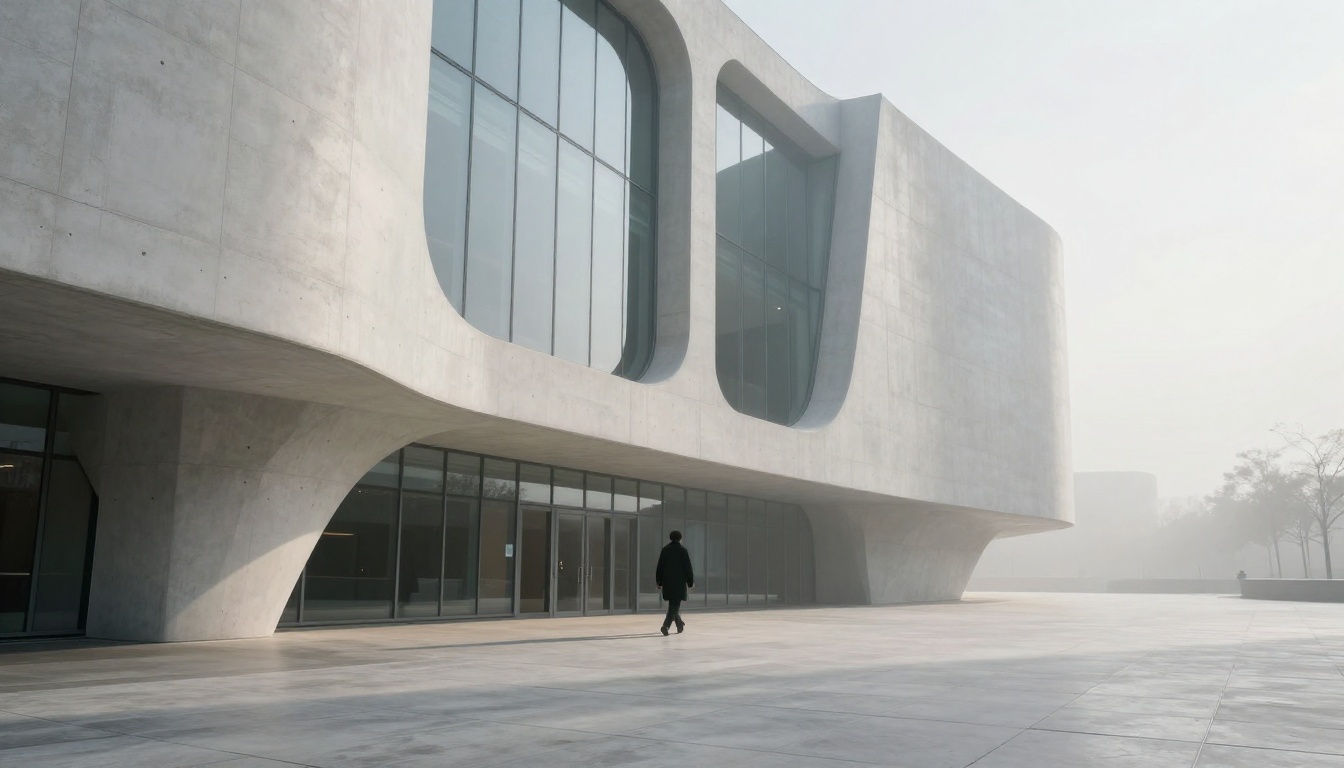
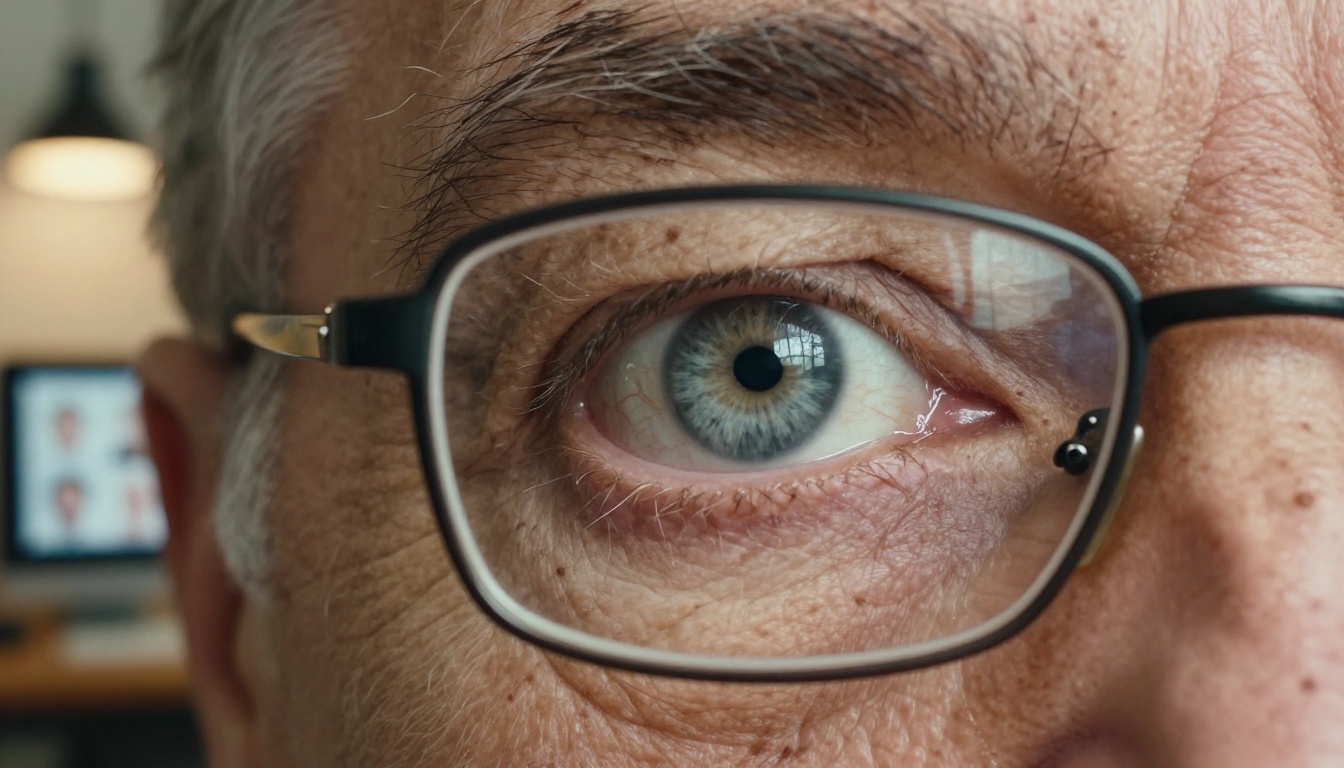
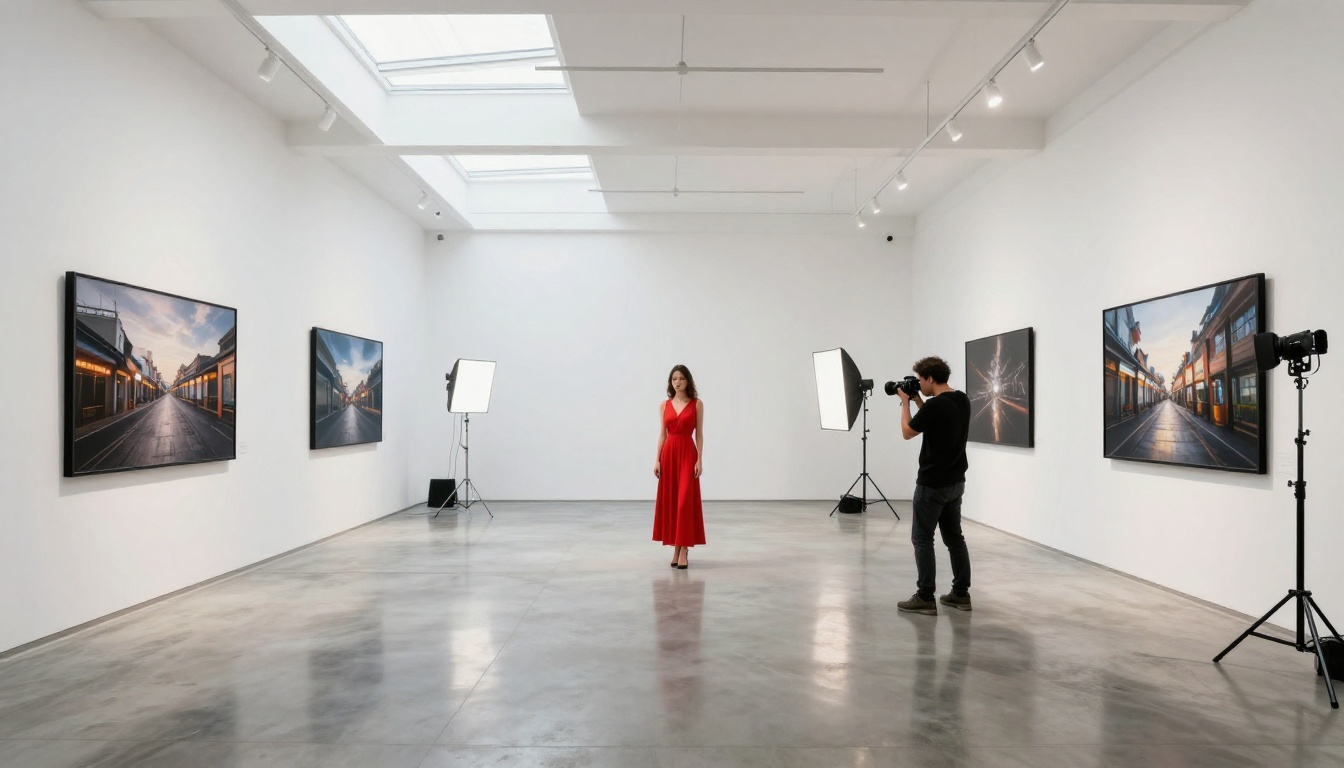
Every piece of visual content in this article was generated from text prompts using AI image and video generation models available on PicassoIA. The mountain landscape. The portraits. The food photography. The architectural shots. The animated video clips. None of these images were photographed in the traditional sense, and each one took under 30 seconds to generate.
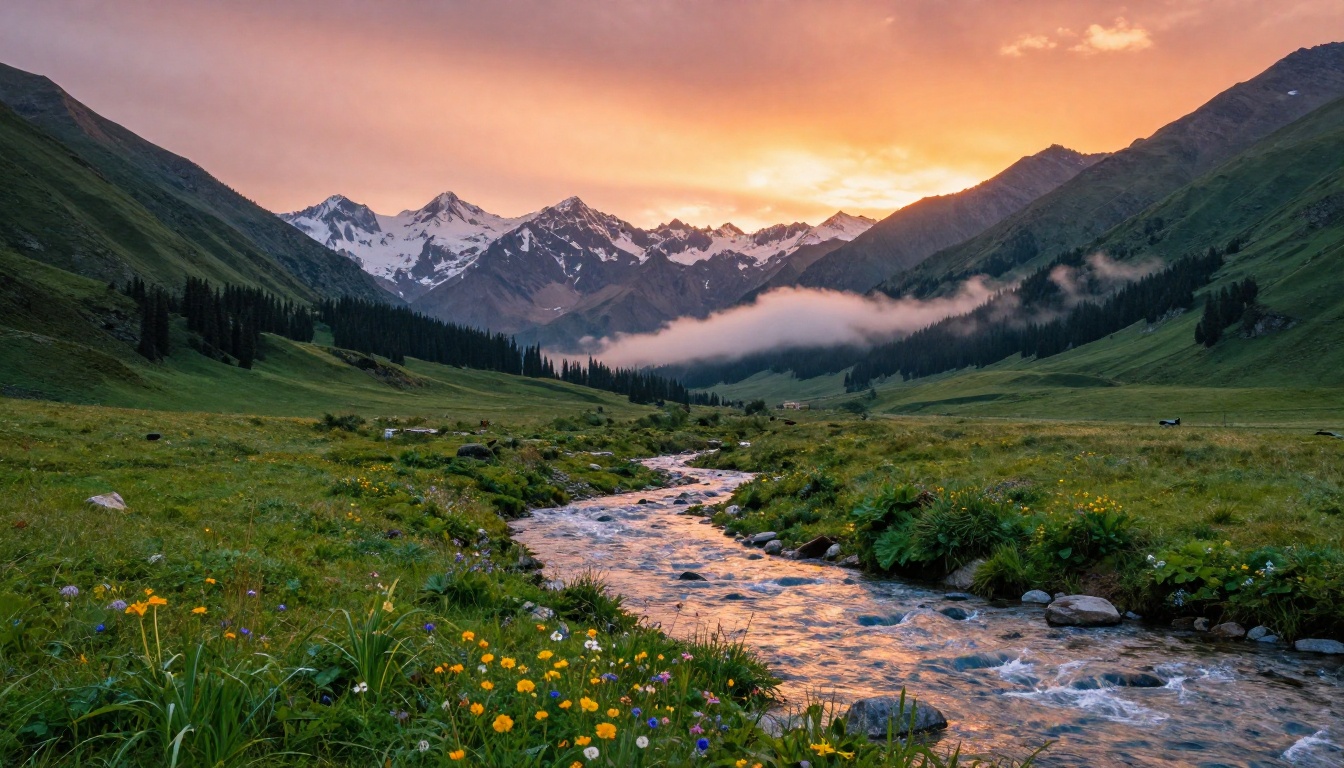
The tools are accessible to anyone, they are getting better every few months, and the gap between what you can produce with a well-crafted prompt and what would have required a professional shoot two years ago has almost completely closed. The models covered in this article are not experimental research tools. They are production-ready systems being used right now by photographers, marketers, filmmakers, product designers, and content creators.
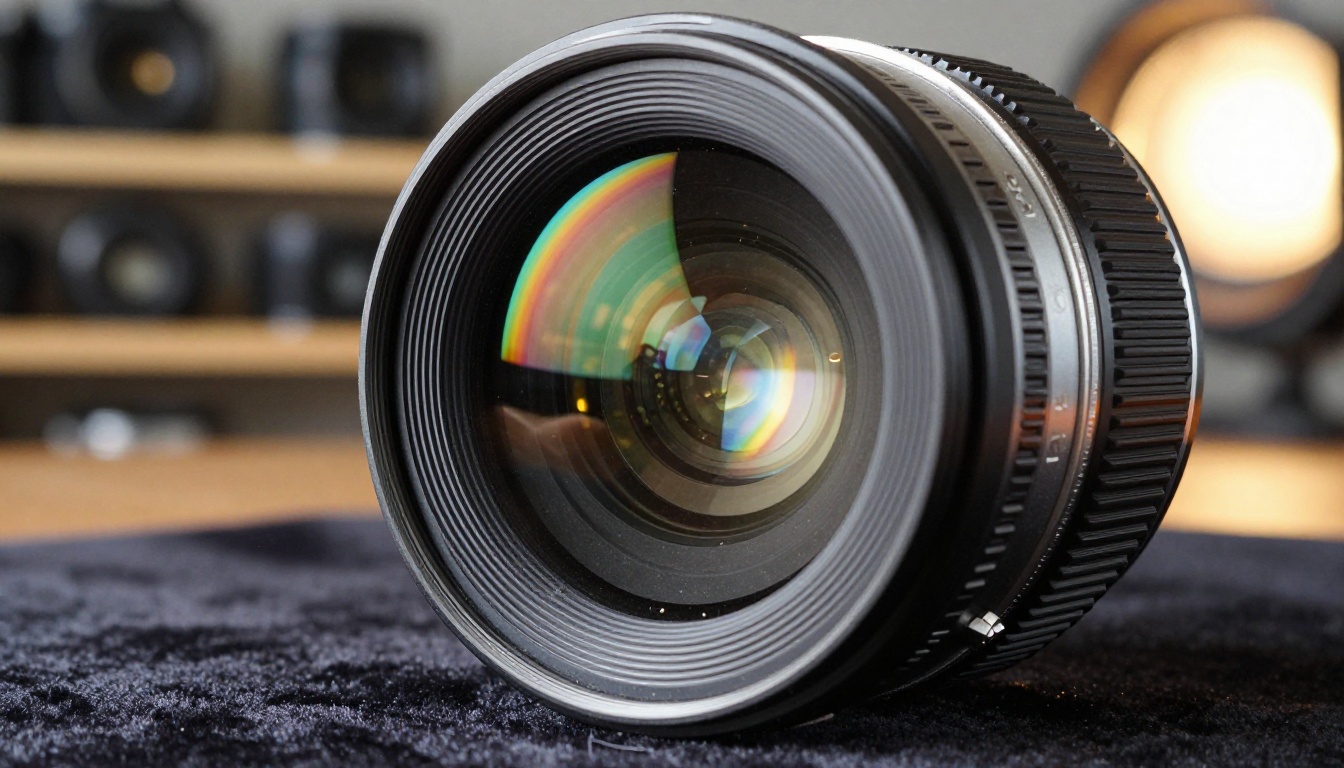
Whether you want to create photorealistic portraits, cinematic landscapes, product photography, or short video clips with synchronized audio, the models are available right now at picassoia.com/en/all-models. Start with Seedream 4.5 for images or Seedance 2.0 for video. Write a specific, detailed prompt using the structure from this article. Run it. Adjust one element. Run it again.
The output you can produce in your first session will likely surprise you. The output you produce after 10 sessions, once you have built a library of working prompt templates and a solid feel for how different models respond to different instructions, will be something else entirely.
Take your first prompt, make it as specific as you can, and see what comes back. The rest follows from there. Try it now at PicassoIA.


