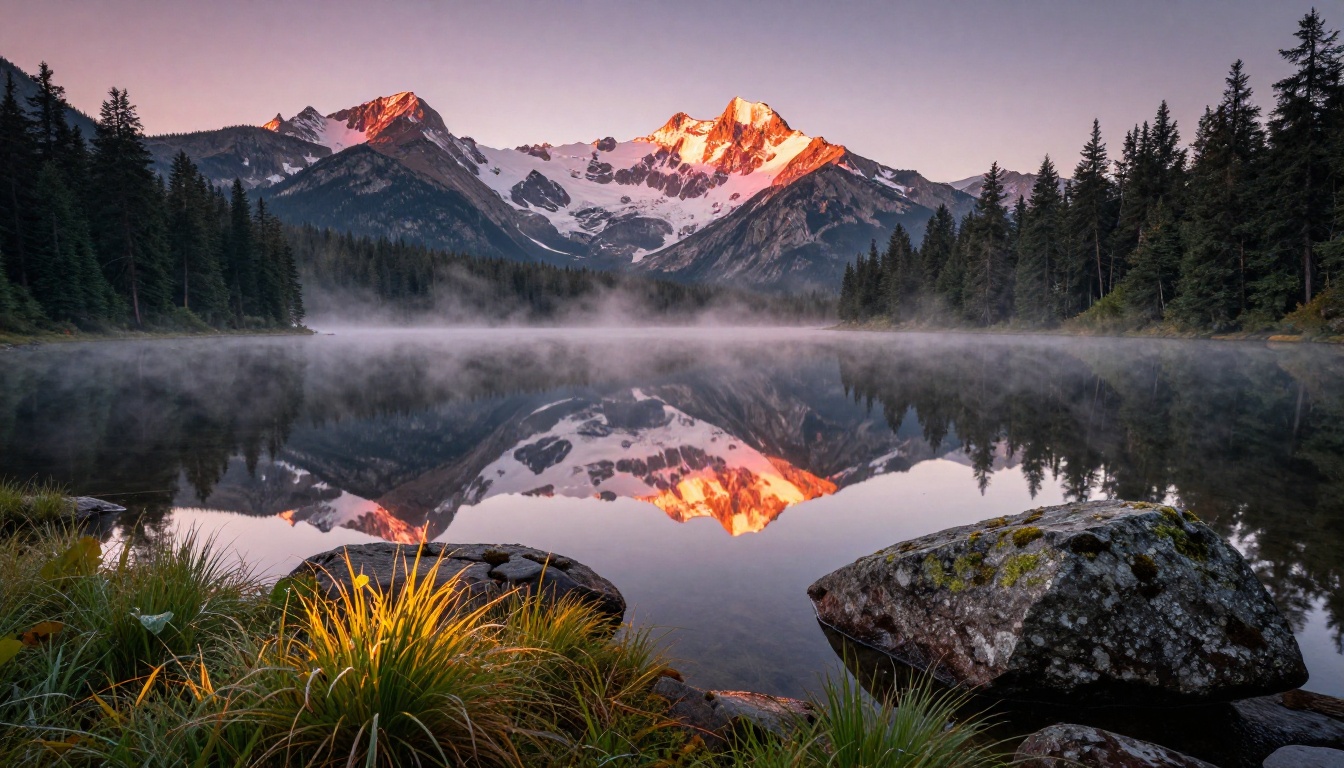
FLUX.2 Max changes what you can expect from a text-to-image model. Where most AI image generators work at resolutions under one megapixel and rely on upscaling to fill in the gaps, FLUX.2 Max outputs natively at 4 megapixels. That is not a cosmetic difference. It means every detail you describe in your prompt has the pixel space to actually appear: individual hair strands, fabric weave, the reflection inside a water droplet. The difference between 1MP and 4MP is not just size. It is whether the image holds up under close inspection, whether it looks real at 100% zoom.
This article breaks down exactly how to use FLUX.2 Max to generate images that look like photographs. You will find prompt structures that reliably produce realistic results, a comparison of the full FLUX model family, a step-by-step tutorial using PicassoIA, and the most common mistakes that prevent people from getting the realism they are after.
What Sets FLUX.2 Max Apart
4-Megapixel Native Resolution
The defining feature of FLUX.2 Max is its native 4MP output. This is the number that separates it from most of its competition. When a model generates natively at 4MP, fine-grained detail is built into the generation process rather than approximated afterward by an upscaler. You see the difference immediately in textured surfaces: woven fabric shows individual threads, skin shows pores, a metal surface shows directional brushing patterns. None of this detail is interpolated. It is generated.
For any application where the image will be scrutinized, such as print materials, professional presentations, or editorial content, this makes FLUX.2 Max the only option in the FLUX family worth considering.
Prompt Adherence at Scale
One persistent problem with lower-resolution models is prompt fidelity degradation. When you specify five or six distinct elements in a prompt, the model often collapses several of them into something generic. It does not have enough pixels to express all of them distinctly, so it picks the most probable elements and discards the rest.
FLUX.2 Max does not have this problem to the same degree. Because the output canvas is larger, the model can resolve each element of your prompt separately. A background with specific architectural detail does not compete with a foreground subject for pixel space. Both have room.
Where It Sits in the FLUX Family
FLUX.2 Max is the top-tier quality model in the FLUX.2 generation, developed by Black Forest Labs. It prioritizes output fidelity over generation speed, sitting above FLUX.2 Pro in raw quality and above FLUX.2 Dev which is positioned for workflow experimentation. Below those are speed-oriented options like FLUX.2 Klein 9B and FLUX.2 Klein 4B for rapid iteration.
💡 When to use Max vs Pro: Use FLUX.2 Max for final-quality output and print. Use FLUX.2 Pro when you need faster generation for concept iterations.
FLUX.2 Max vs. Other FLUX Models
Not every use case calls for the same model. Here is how the main FLUX models compare so you can pick the right one for your workflow:
| Model | Resolution | Speed | Best For |
|---|
| FLUX.2 Max | 4MP native | Slower | Professional quality, print, fine detail |
| FLUX.2 Pro | High | Medium | Creative work, client previews, iteration |
| FLUX.2 Dev | High | Medium | Custom workflows, experimentation |
| FLUX.2 Klein 9B | Standard | Fast | Volume output, rapid concept testing |
| FLUX Schnell | Standard | Very fast | Quick prompt drafts, fast previews |
| FLUX 1.1 Pro Ultra | 4MP | Medium | High-res from the previous generation |
| FLUX.1 Dev | Standard | Medium | High-quality community generation |
The general rule: when you are still finding the right prompt, use a fast model. When you have a prompt you are confident in and need the highest possible output quality, switch to FLUX.2 Max.
Writing Prompts That Actually Work
FLUX.2 Max is only as good as the prompt it receives. The model has the technical capability to render realistic detail, but it needs the information in the prompt to know which details to render. A short, vague prompt and a specific, detailed prompt go into the same model and come out as entirely different images.
Subject and Scene First
Always begin with the primary subject and what they are doing or where they are. Every word spent describing the subject constrains the model toward your vision rather than its own default assumptions.
Weak prompt: "a woman in a park"
Strong prompt: "a woman in her early thirties with naturally curly dark hair, wearing a cream linen shirt, reading a paperback book on a wooden bench in a sun-dappled city park, fallen leaves scattered on the path behind her"
The second prompt tells the model the subject's approximate age, hair type, clothing, action, setting, and atmosphere. The first leaves almost everything to chance.
Lighting Is Everything
Lighting is the single biggest factor in whether an AI image reads as photographic or artificial. Flat, unspecified lighting is what makes AI images look like AI images. Directional, physically grounded lighting is what makes them look like photographs.
Describe lighting in physical terms:
- Source and direction: "late afternoon sun from the upper left", "window light from the right side", "overhead studio strobe with softbox"
- Quality: "hard direct sunlight with sharp shadows", "soft diffused overcast light", "volumetric rays through fog"
- Color temperature: "warm amber golden hour", "cool blue twilight", "neutral white studio"
Even one lighting phrase changes the output dramatically. "A woman by a window with warm afternoon light from the left" already produces something far more interesting than "a woman by a window."
Camera and Lens Details
Specifying a camera and lens is optional but consistently produces better results. The model associates specific camera and lens combinations with specific visual characteristics:
- 85mm: Portrait compression, subject-forward framing
- 24mm wide-angle: Environmental context, slight peripheral distortion
- 100mm macro: Extreme close-up, sharp foreground with rapid background fall-off
- f/1.4: Very shallow depth of field, strong subject-background separation
- f/11: Everything in sharp focus from foreground to background
Adding "Shot on Canon EOS R5, 85mm f/1.4, Kodak Portra 400, RAW 8K" to the end of a portrait prompt consistently shifts the output toward a warmer, more photographic look.
💡 Film stock trick: "Kodak Portra 400" adds warmth and accurate skin tones. "Fujifilm Velvia 50" adds saturated, high-contrast landscape rendering. "Ilford HP5" shifts the image toward high-contrast black-and-white even in a color model.
Texture and Atmosphere Words
Surface texture descriptions allow the model to render micro-detail instead of generic pattern approximations:
- Skin: "visible pores", "subtle freckles", "light stubble texture"
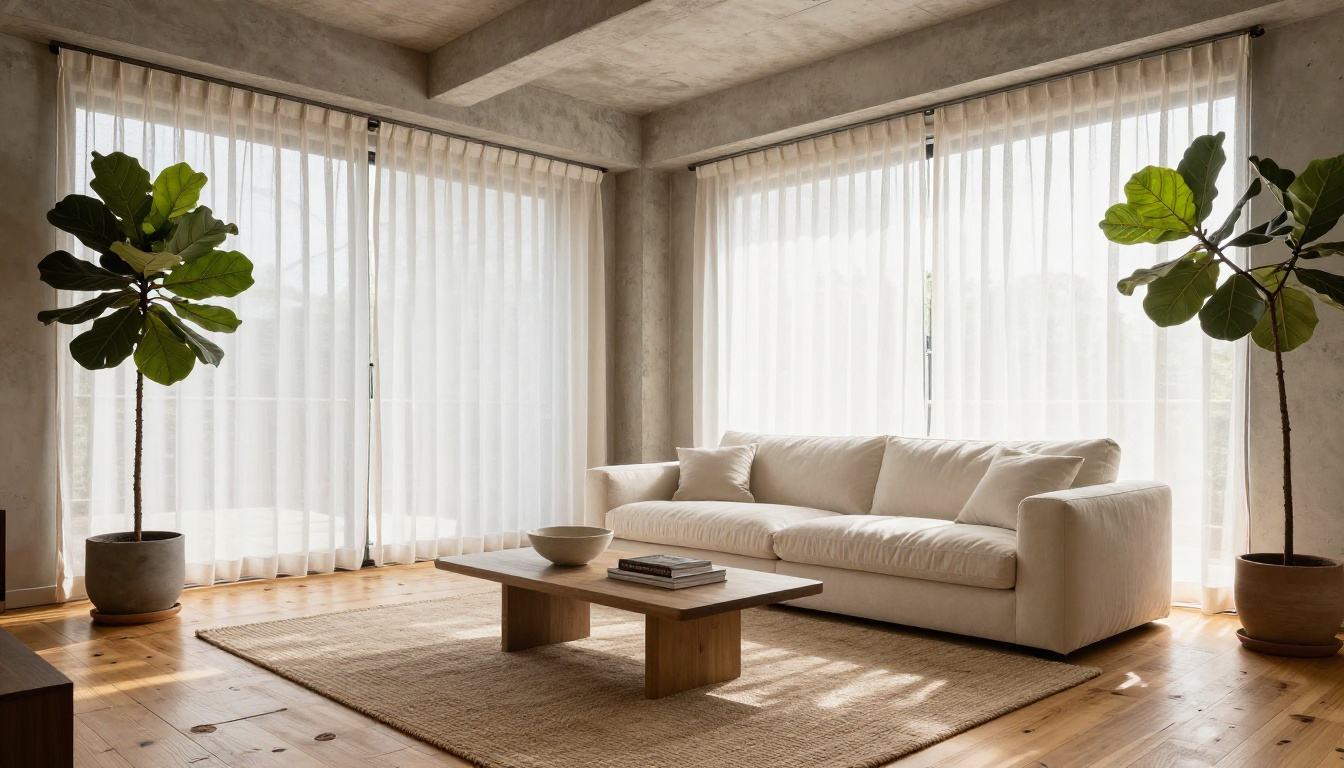
- Fabric: "herringbone weave", "linen wrinkles", "wool nap texture"
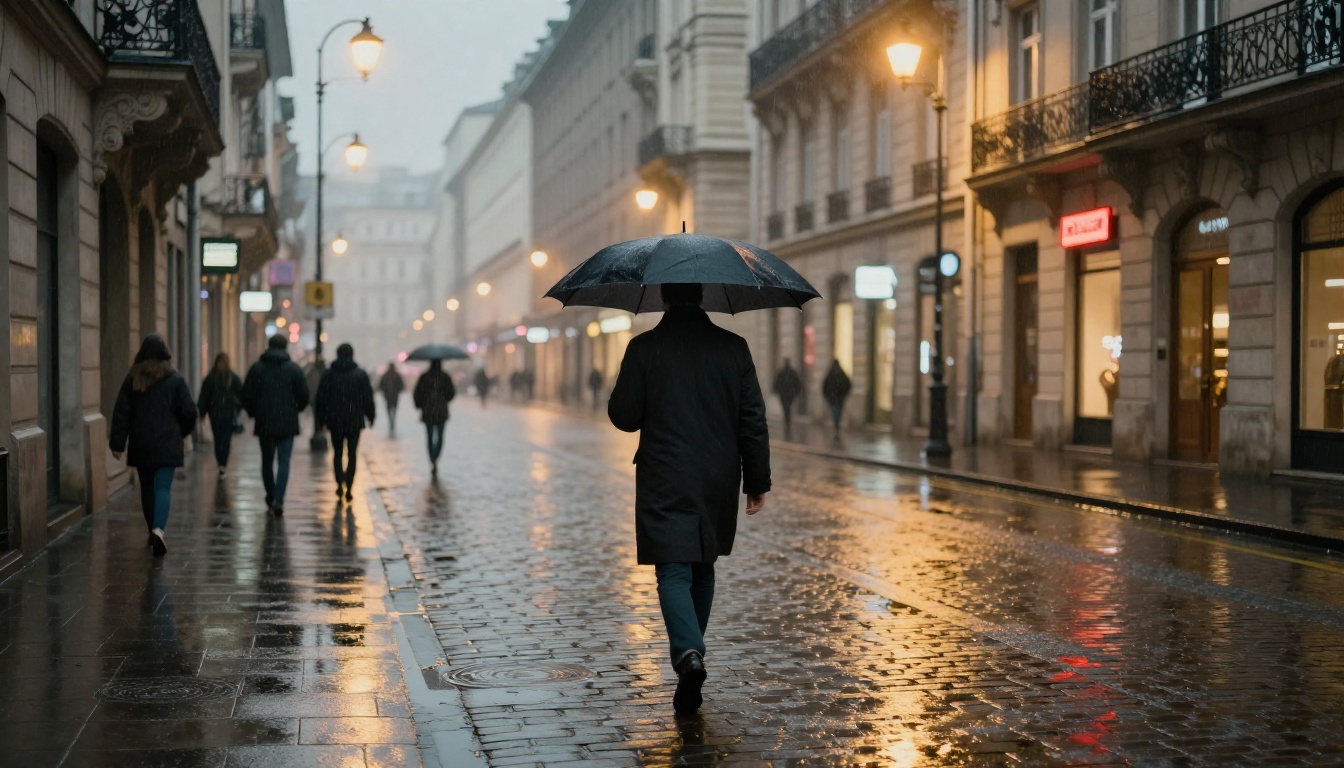
- Surfaces: "weathered concrete", "brushed stainless steel", "wet cobblestone with light rain ripples"
- Nature: "moss-covered rock", "translucent leaf veining", "dew-beaded grass blades"
Atmosphere words set the physical conditions of the scene: "humidity visible as haze", "morning frost on all horizontal surfaces", "heat shimmer rising from asphalt", "lens flare from a direct sun source".
5 Real Use Cases for FLUX.2 Max
Portrait Photography
Portrait realism is where FLUX.2 Max shows its clearest advantage. At 4MP, individual hair strands are distinguishable. Skin shows subsurface scattering when lit correctly, meaning light appears to travel through the skin rather than bounce off a flat surface. Eye catchlights are sharp single-point reflections rather than diffuse blobs.
For portraits, specify facial structure, hair texture, and a precise lighting setup. The closer your prompt describes a real studio photography scenario, the closer the output looks to an actual photograph.
Use cases: character reference sheets, creative portraiture, editorial imagery, social content production.
Product Photography
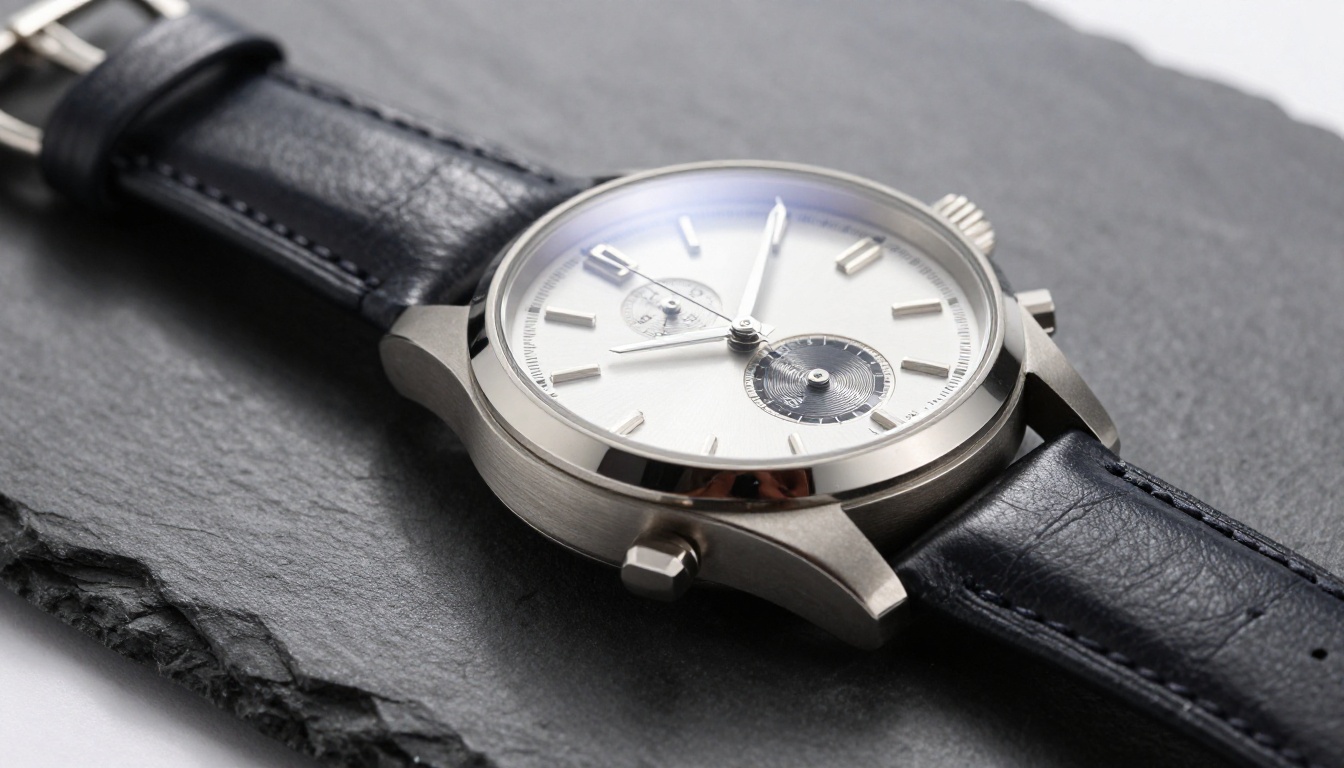
At 4MP, reflective surfaces show distinct, physically correct reflections rather than gradient approximations. The brushed pattern on a steel surface is directional and consistent across the entire face. Leather grain is individual rather than tiled. Glass surfaces show both transparency and reflection simultaneously.
For product shots, specify the surface the product rests on, the number and position of light sources, and the background treatment. "White seamless background" and "single softbox from the upper right at 45 degrees" produce a clean commercial result.
Use cases: e-commerce imagery, product visualization, catalog mock-ups before manufacturing.
Landscapes and Architecture
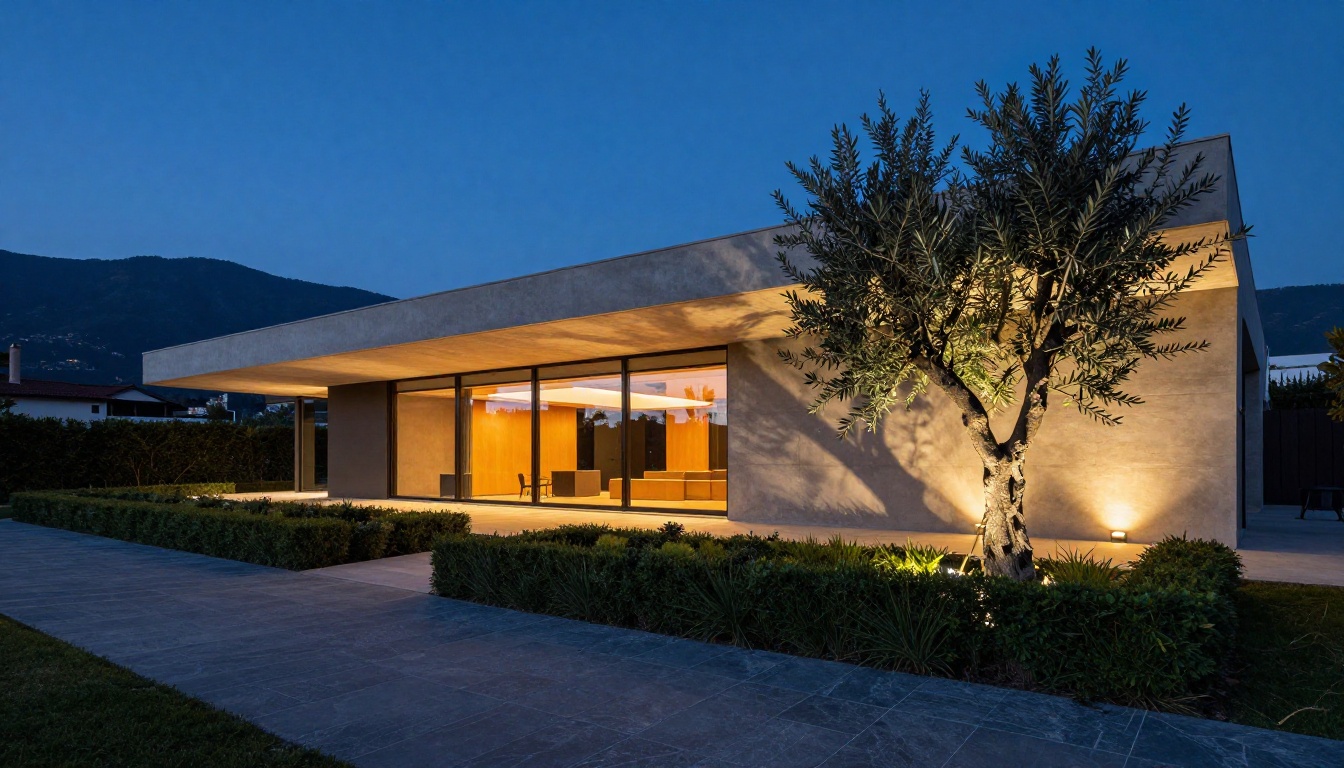
Wide landscape shots need to express depth across three planes: foreground, midground, and background. At lower resolutions these planes blend together. At 4MP, a foreground rock shows moss texture, a midground tree line has distinguishable individual trees, and a background mountain shows snow patterns and ridgeline detail simultaneously.
For architecture, combine FLUX.2 Max for primary generation with Flux Depth Pro for depth-aware edits, or use Flux Canny Pro when you need to maintain the structural lines of an existing design while changing materials or lighting.
Fashion and Lifestyle
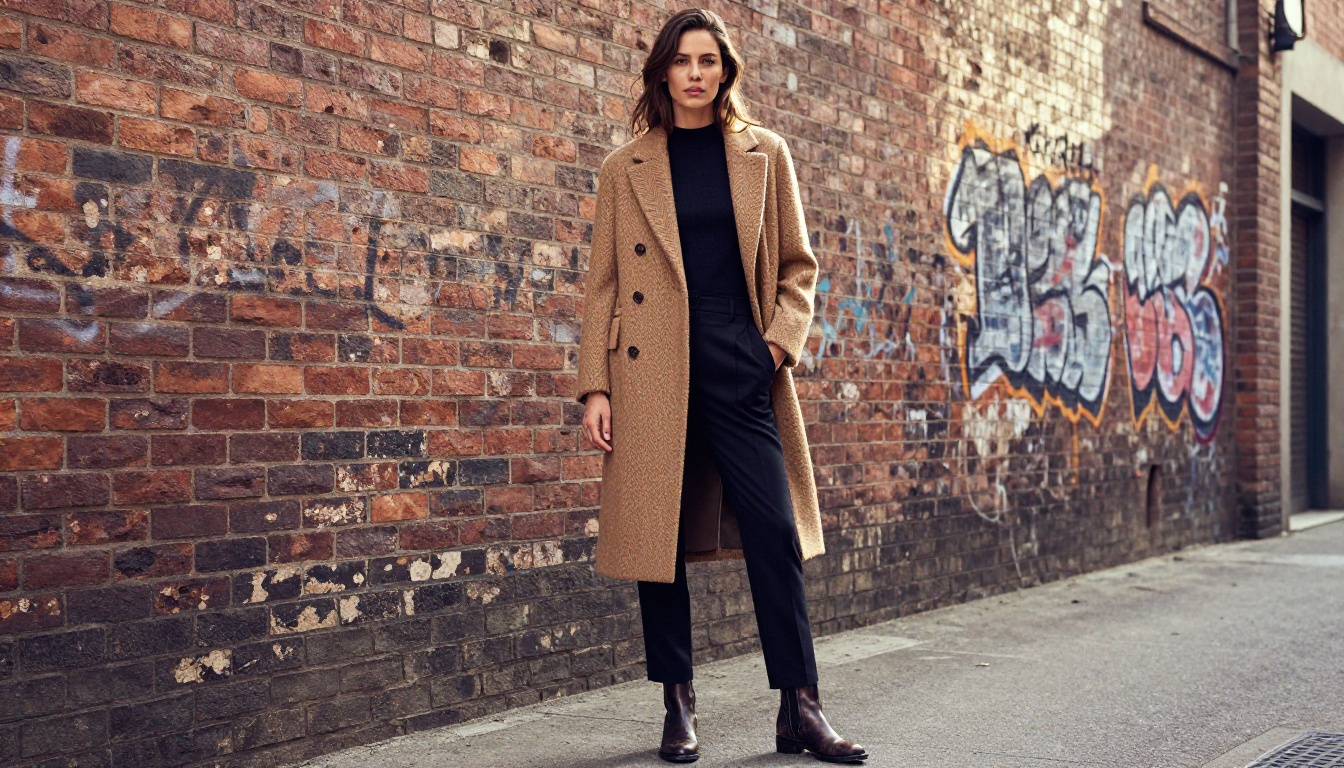
Fabric rendering is a direct test of resolution. The drape, texture, and sheen of a garment all require high pixel density to render accurately. FLUX.2 Max handles woven fabric patterns, denim texture, and the way linen wrinkles without losing definition at normal viewing distances.
For fashion shots, describe the garment material and any visible construction detail: stitching, seams, hardware. Add an environmental context that fits the garment's character.
Use cases: lookbook production, fashion editorial concepts, social campaign content.
Nature and Wildlife
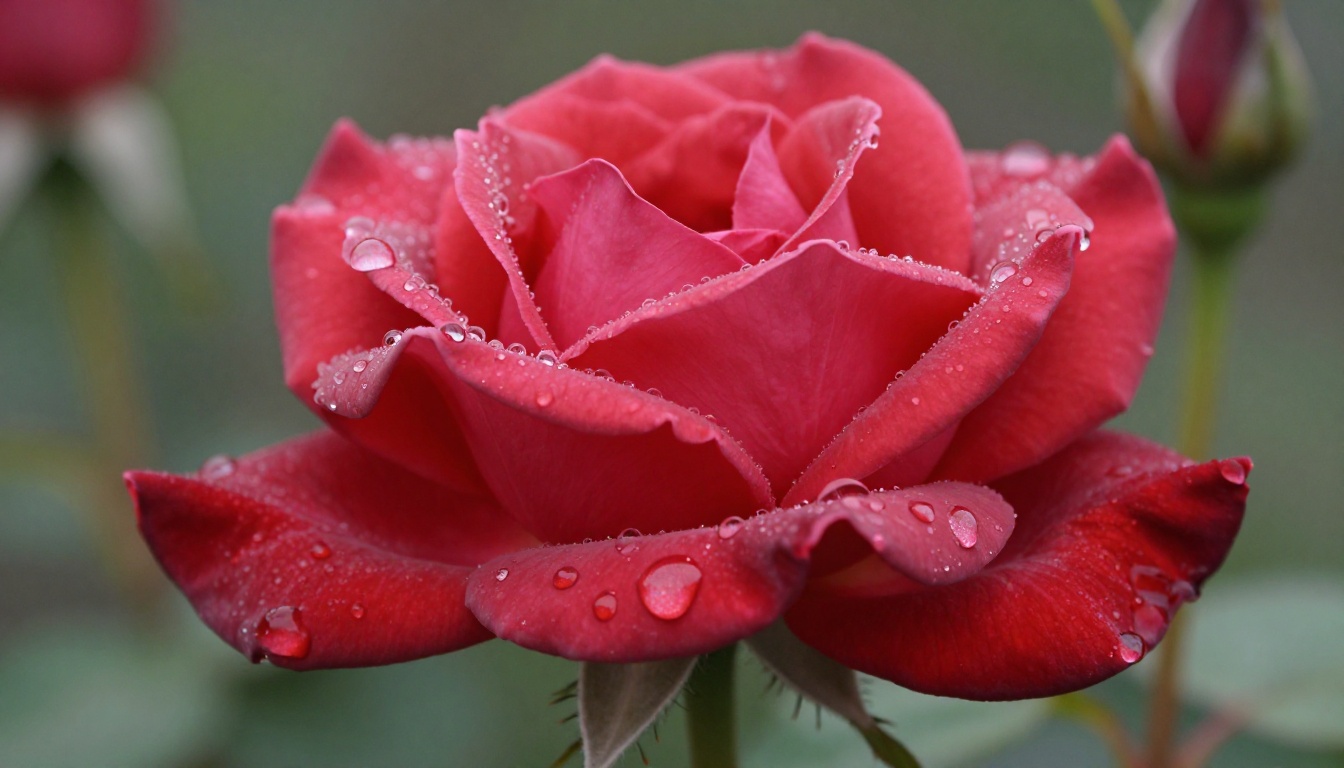
Nature macro photography requires the highest available resolution because the subject is inherently small and full of fine structure. A dewdrop on a rose petal at 4MP shows internal refraction and micro-reflections. A tiger's fur shows individual hair direction and variation rather than a repeating stripe pattern. Both are only possible at this resolution level.
Use cases: nature publishing, scientific illustration, stock imagery, environmental campaigns.
How to Use FLUX.2 Max on PicassoIA
PicassoIA gives direct access to FLUX.2 Max without needing additional setup beyond registration. Here is the workflow from first prompt to final image:
Step 1: Open the Model
Go to the FLUX.2 Max page on PicassoIA. The interface shows a prompt field at the top and generation parameter controls below. No configuration is needed before writing your first prompt.
Step 2: Build Your Prompt
Use this structure: Subject + Scene + Lighting + Camera Specs + Surface Textures. A portrait prompt might look like this:
"Close-up portrait of a man in his mid-forties, salt-and-pepper beard with visible texture, weathered skin with subtle lines, wearing a dark navy wool coat, standing in a narrow cobblestone alley, soft overcast morning light from directly in front, reflections on the wet paving stones behind him. Shot on Leica M11, 50mm Summicron, f/2.8, ISO 400, Kodak T-Max film emulation, RAW 8K"
Every part of this prompt adds a layer of physical specificity. The more physical specificity, the more photographic the result.
Step 3: Set Aspect Ratio
Choose your ratio before generating:
- 16:9: Wide landscape, architecture, horizontal compositions
- 2:3: Vertical portrait, full-body fashion shot
- 1:1: Social square format
- 9:16: Mobile-first content, vertical frame
FLUX.2 Max outputs at native 4MP in whichever ratio you select.
Step 4: Generate and Evaluate
Run the first generation, then evaluate what worked and what did not.
| Problem | Fix |
|---|
| Lighting looks flat or artificial | Add specific light direction and quality to the prompt |
| Background too detailed when you want separation | Add "shallow depth of field, f/1.4 bokeh background" |
| Subject appears generic | Add more specific physical description |
| Colors feel washed out | Add a specific film stock name like "Kodak Portra 400" |
| Scene lacks atmosphere | Add weather or environmental conditions |
Step 5: Refine With Editing Tools
Once you have a strong base image from FLUX.2 Max, PicassoIA's editing tools let you make targeted changes without regenerating from scratch:
- Flux Fill Pro: Repaint a specific area using text instructions
- Flux Kontext Max: Rewrite any part of an image through text without affecting the rest
- Flux Redux Dev: Generate variations of the image while preserving its core composition
Step 6: Upscale for Final Output
For print or high-resolution digital use, apply a super-resolution pass after generation. PicassoIA's Super Resolution models upscale 2x to 4x while preserving the fine-grained detail that FLUX.2 Max already generated. This is the full pipeline: generate at peak quality with FLUX.2 Max, then upscale to the target output dimensions.
3 Common Mistakes People Make
Vague Scene Descriptions
The most frequent reason FLUX.2 Max produces generic results is under-specified prompts. "A landscape at sunset" leaves nearly everything to the model. "Rocky coastal cliff at sunset, Atlantic Ocean stretching to the horizon, warm amber light catching the spray of waves breaking against dark basalt rocks, long exposure blurring the water into silk, a lighthouse visible in the far distance" gives the model a physical scene to reproduce.
Replace category words with specific physical descriptions every time you notice them in your prompts.
Missing Lighting Information
Generating without a specified light source is the single most common reason portraits look artificial. The model defaults to flat ambient light when no source is described. Even simple additions like "window light from the left" or "direct sun from above at midday" create a more convincing photographic result.
If you are unsure what to specify, start with "natural window light from the right, soft and diffused" as a default for portraits. It almost always produces a cleaner, more believable result than unspecified lighting.
Forgetting Camera Specs
Camera specifications are the simplest way to shift an image from looking AI-generated to looking photographed. Terms like "85mm f/1.8", "Sony A7R IV", or "Kodak Portra 400" activate photographic visual patterns that differ from patterns activated by art-focused prompts.
Add "RAW 8K, photorealistic" to every prompt as a baseline. Then add the specific camera and film stock for the aesthetic you want.
More Ways to Work With Your Images
FLUX.2 Max generates the image. What you do afterward determines how far it goes.
Flux Kontext Pro and Flux Kontext Max are the most capable post-generation editing tools available on PicassoIA. Both accept a generated image plus a text instruction and rewrite the specific elements you describe without touching the rest. Change a background from winter to summer, replace a shirt color, adjust the apparent light source, or remove an object from the scene.
For custom style control, Flux Dev LoRA allows the base model to be guided by trained style weights. If you have a specific aesthetic you want to reproduce consistently across many generations, LoRA fine-tuning through this model gives you that control without rewriting your prompt from scratch each time.
For structural control, Flux Canny Pro extracts the edge map from any source image and uses it as a structural constraint for new generations. This is useful when you need to generate within a fixed compositional structure, such as architectural plans or product outlines, while allowing the visual treatment to vary.
For rapid variations, Flux Redux Schnell produces fast image variations for iteration workflows where you need multiple takes on the same concept without waiting for a full generation cycle.
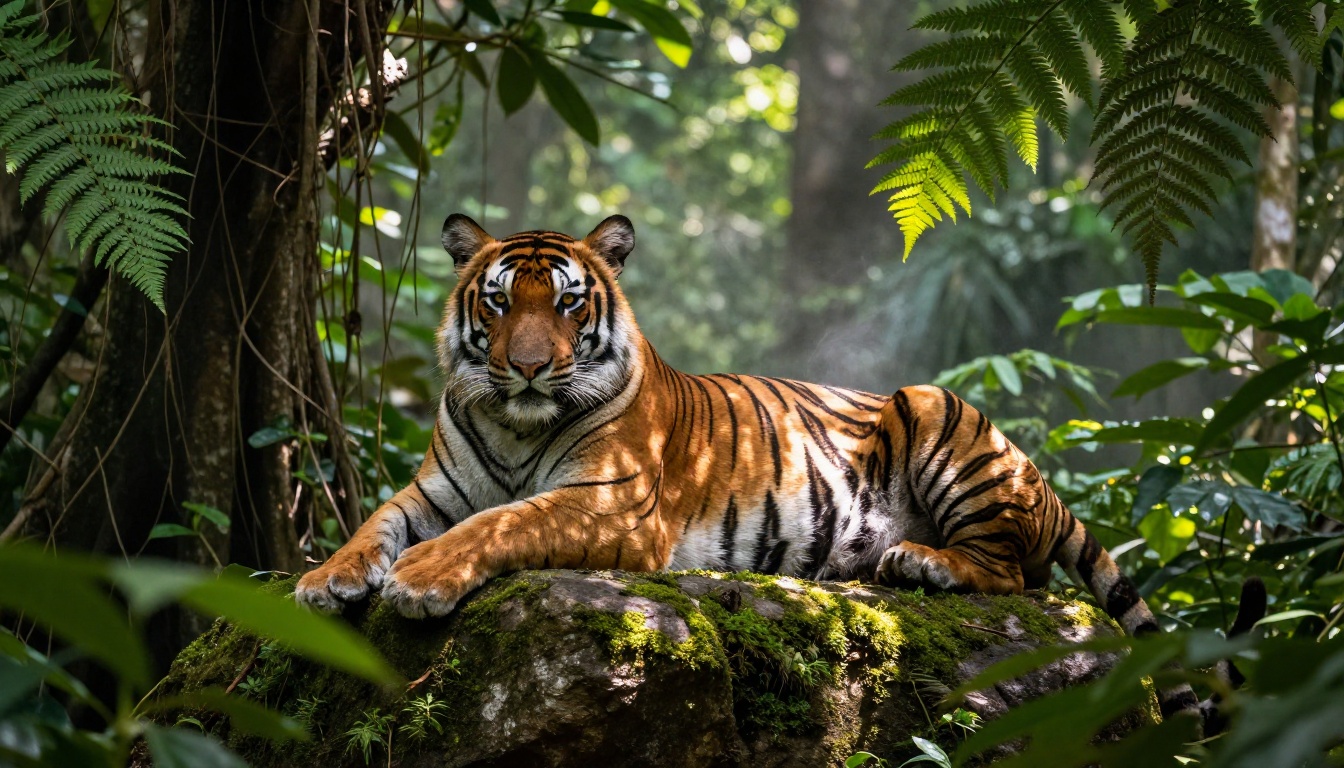
Start Generating With FLUX.2 Max
The gap between AI-generated and photographed imagery is narrower than it has ever been, and FLUX.2 Max is the model that closes most of it. At 4MP native resolution with strong prompt fidelity and access to a full ecosystem of editing and upscaling tools on PicassoIA, you have what you need to produce images that hold up in professional contexts.
Head to FLUX.2 Max on PicassoIA and write your first detailed prompt. Start with something specific. Apply the structure from this article: subject, scene, lighting, camera. Run it and evaluate what worked. Refine and run again. The model rewards specificity, and after a few iterations most people find a prompt pattern that consistently delivers what they are looking for.
The full range of image generation, editing, and upscaling tools at picassoia.com/en/all-models means your workflow does not stop at the first generation. Create with FLUX.2 Max, edit with Kontext, upscale for final output. That is the full pipeline for professional-quality AI imagery.


