Getting a clean cutout from an AI tool sounds like it should be effortless. Upload a photo, click a button, done. But if you have ever tried to isolate a subject with flyaway hair, a furry pet, or a product with complex edge textures, you already know that "good enough" is a long way from "actually usable."
The difference between a rough, jagged cutout and a clean, professional transparent PNG comes down to a handful of factors, most of which are completely in your control. This article breaks all of them down: what causes bad cutouts, how to prepare your images, how to use AI background removal tools correctly, and where to spend your refinement effort after the AI has done its pass.
Why AI Cutouts Fail (Most of the Time)
Before fixing the problem, it helps to understand what is actually going wrong. AI background removal is not magic. It is a trained model that predicts which pixels belong to the foreground and which belong to the background, then generates an alpha mask that assigns transparency values to each pixel. When that prediction is even slightly off, you get artifacts.
The Edge Detection Problem
The edge of any subject is the hardest part for an AI to resolve. In the interior of a shirt or a face, the model has lots of confident signal: "this is definitely foreground." At the edge, it is working with ambiguous pixels that are a blend of subject and background at sub-pixel level.
When the model is uncertain, it tends to do one of two things. Either it cuts too tight, clipping into the subject and leaving a halo of wrong-colored pixels around the edge. Or it cuts too loose, leaving a faint ghost of the original background clinging to the subject. Both read as obviously fake, especially when you place the subject on a new background color.
When Hair Becomes the Boss
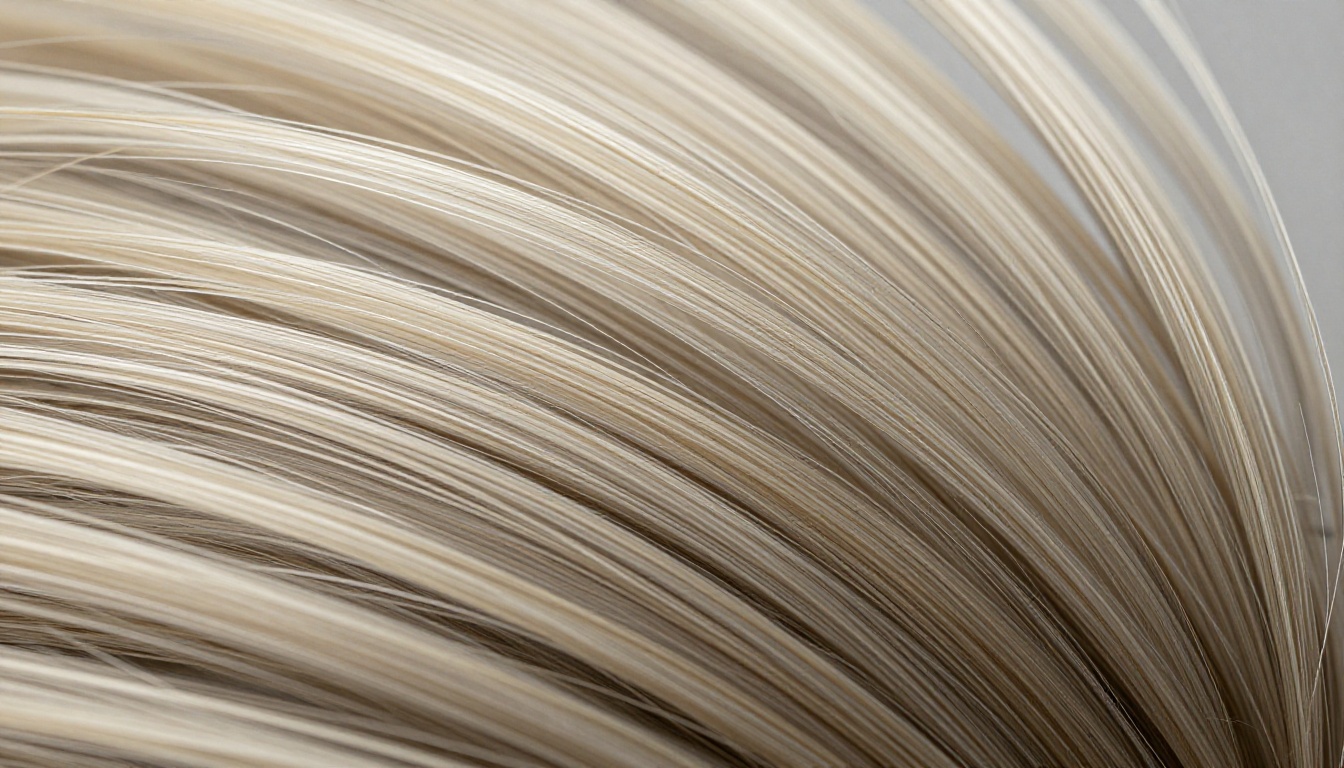
Hair is the canonical nightmare of background removal. A typical head of hair has thousands of individual strands, each one semi-transparent where it tapers to a fine tip, and each one potentially overlapping with strands of different colors. Even a single wrong prediction on one cluster of hair reads as a clump or a sudden hole.
Curly and textured hair pushes this even harder. The silhouette is not a smooth boundary. It is a fractal edge where every curl creates concavities that the background shows through. A model not purpose-built for this kind of input will return a muddy, blocked-out result instead of preserving individual curl definition.

What a Clean Cutout Actually Needs
The word "clean" means different things depending on the use case. For product photography landing on a white background, clean means pixel-sharp edges with no antialiasing or feathering. For a portrait going into a composite scene, clean means soft edge transitions that blend naturally with the new background environment.
Edge Sharpness vs. Soft Feathering
Hard edges work best for products: glasses, bottles, shoes, bags, and anything with a defined geometric contour. When you feather a product edge, it looks soft and out-of-focus even when everything else in the composite is razor-sharp. That mismatched focus is what makes composites look fake.
Soft feathered edges work best for organic subjects: hair, fur, fabric with visible texture, and anything shot with shallow depth of field. These subjects have natural edge transitions in real life. Preserving that softness is what makes a composite look photographic rather than pasted-on.
The best AI models handle this intelligently, applying hard masks to clear geometric edges and soft alpha gradients to organic boundaries, within the same image and in the same pass.
The Alpha Channel, Simplified
Every pixel in a PNG file has four values: Red, Green, Blue, and Alpha. The Alpha value controls opacity, running from 0 (fully transparent) to 255 (fully opaque). A truly clean cutout is not just about which pixels are on or off. It is about how correct the alpha value is at every single pixel.
A bad cutout has alpha values that do not match the actual visual opacity of the subject. Thin hair tips that should be 30% opaque get forced to 0 or 255, and the result looks like someone painted over the hair with a hard brush. A good model outputs precise intermediate alpha values that preserve the natural look of semi-transparent edges and give you something that looks photographed, not extracted.
5 Things That Ruin Your Cutout
Even the best AI background removal tool struggles when the input has certain characteristics. Know these before you upload.
Low-Contrast Backgrounds
If your subject is a dark object on a dark background, or a pale skin tone against a beige wall, the AI has almost no luminance difference to work with. It has to rely entirely on shape and context priors, which are far less reliable than color and brightness contrast.
💡 Tip: Shoot products on a background that is at least 2-3 stops brighter or darker than the subject. White, light gray, or pale blue backdrops work for most subjects.
Textures Right at the Border
A rough wool sweater photographed against a textured linen background is one of the most difficult inputs for any removal tool. The fiber texture of the sweater blends visually into the fiber texture of the background, making per-pixel classification extremely difficult. The result is an edge that looks chewed rather than clean.
Low-Resolution Source Images
This one is underestimated. When your source image is small or heavily compressed, the model is working with fewer pixels to make boundary decisions. A hair strand that is 2-3 pixels wide in a 1000px-wide image is barely present. The same strand in a 4000px image gives the model enough signal to classify it correctly and preserve it.
Always process the highest resolution file you have. Resize down after the cutout is complete, never before.
Busy or Patterned Clothing
A subject in a floral print dress standing against floral wallpaper gives the AI almost no color-based cues to separate foreground from background. Shape-based cues are also confused by the repetitive pattern. Solid-color clothing almost always produces better, faster, and cleaner cutouts.
Motion Blur Near Edges
A subject moving even slightly during exposure creates real optical blur at the edge. That blur is not an artifact. It is genuine image data that reduces the information available for boundary classification. For product photography especially, use a tripod and a fast enough shutter speed to keep the subject contour crisp.
Prep Your Image Before Running AI
The single highest-impact thing you can do for cutout quality costs nothing: spend thirty seconds thinking about your background before you shoot.
Lighting Choices That Matter
Even, diffused lighting on the background is more important than dramatic lighting on the subject. A softbox or a window with a diffusion panel creates a background that is uniformly bright with no shadows that could be mistaken for foreground detail.
Rim lighting on the subject separates the subject edge from the background with a thin bright outline, giving the AI exactly the signal it needs right where it needs it most. Even a low-powered backlight or a reflector bouncing window light can add enough edge definition to dramatically improve cutout results.
Background Color for Best Results
| Background Color | Best For | Why |
|---|
| Pure white | Products, apparel | Maximum contrast with most subjects |
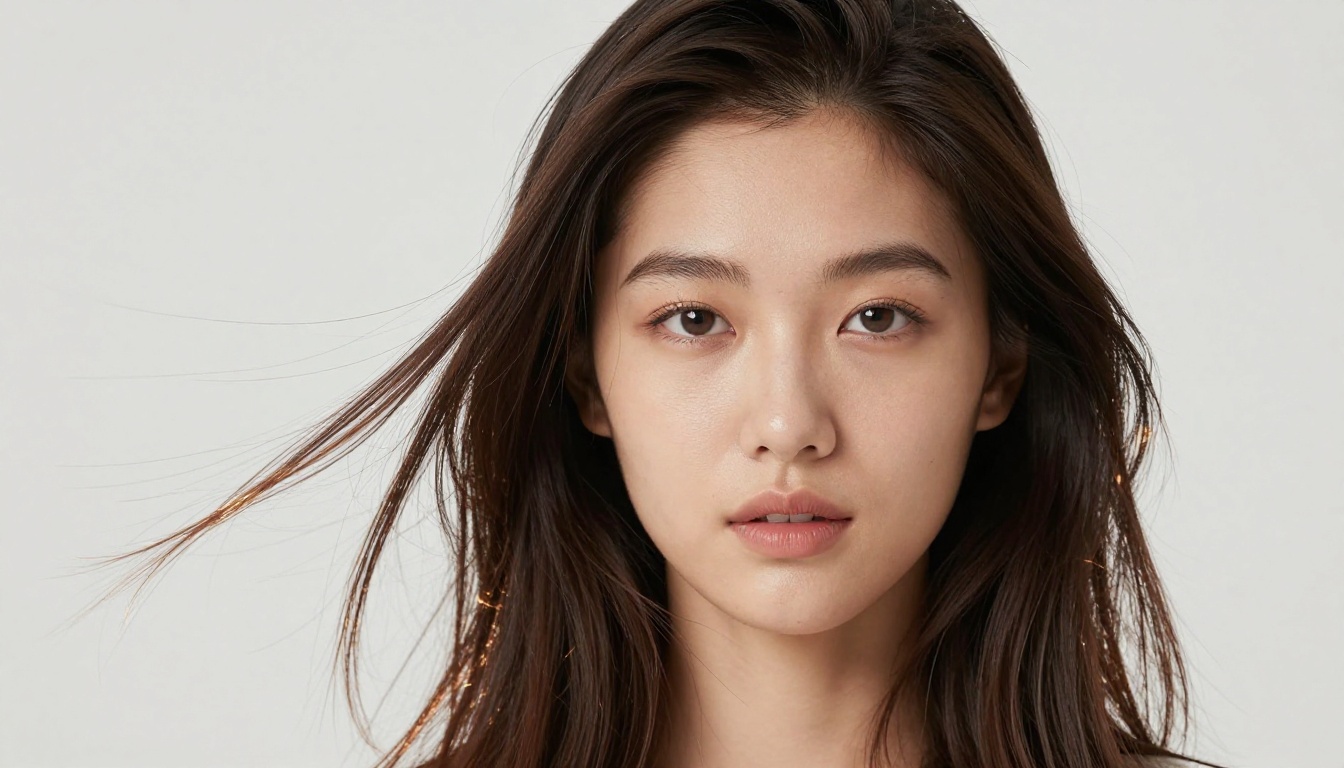
| Neutral gray | Portraits, hair | Avoids white-spill on skin and hair edges |
| Bright blue | Studio portraits | Easy to separate from warm skin tones |
| Black | Light-colored or metallic products | Maximum contrast for pale subjects |
One rule overrides all of them: never use a background that shares a color with part of your subject. A red jacket against a red wall guarantees edge bleeding at the shoulder seam.
How to Use BRIA Remove Background on PicassoIA
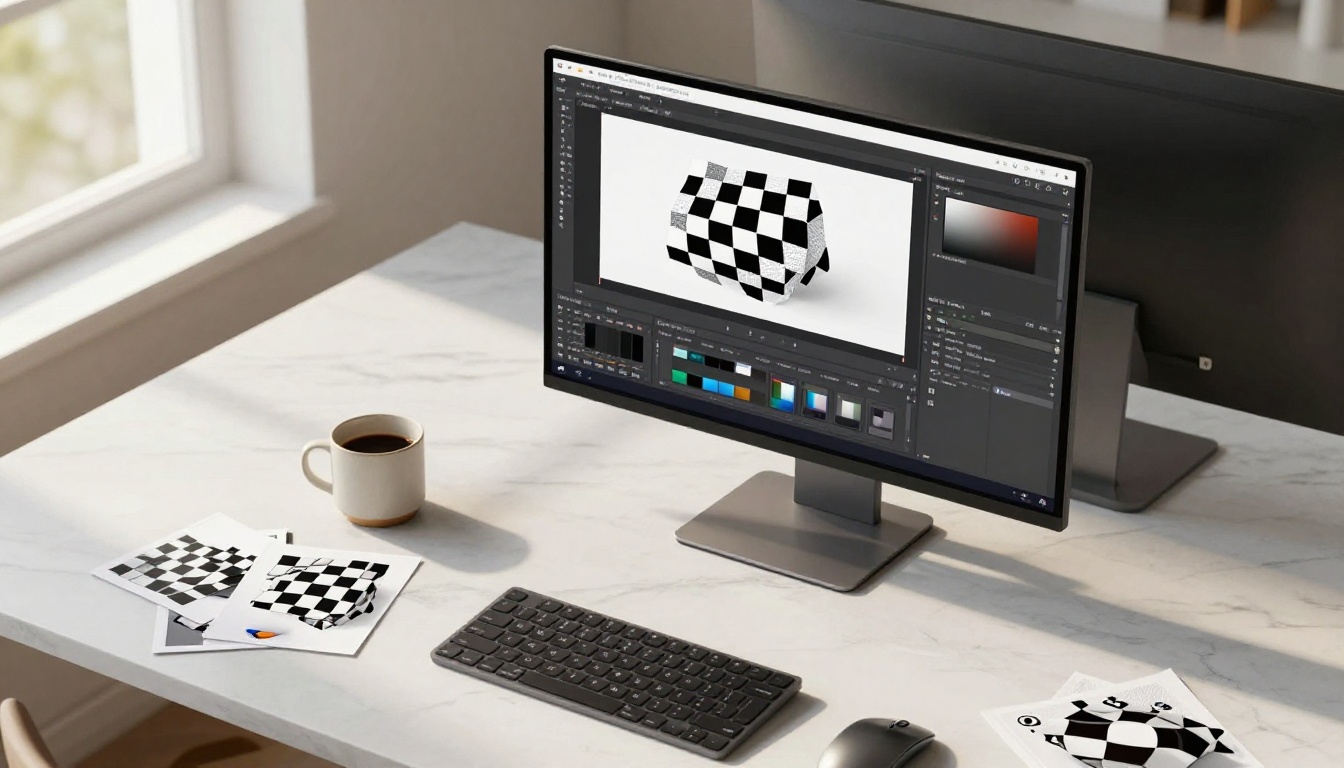
PicassoIA offers BRIA Remove Background as a dedicated tool for AI-powered foreground extraction. BRIA is purpose-built for production-ready transparent PNGs, making it well suited for e-commerce, marketing, and product photography workflows where quality and speed both matter.
Step 1: Open the tool
Navigate to BRIA Remove Background on PicassoIA and open the model interface.
Step 2: Upload your image
Click the upload area and select your file. Use the highest resolution version you have. The model handles large files well and produces sharper edge results from higher resolution inputs.
Step 3: Run the removal
Click generate. Processing typically takes a few seconds. The model analyzes every pixel, generates a refined alpha mask, and applies it to produce a transparent PNG.
Step 4: Check the edges at full zoom
Before downloading, zoom into the edge areas. Pay particular attention to hair, fur, and any fabric with visible texture. Zoom to 100% or higher to evaluate whether individual strands are preserved and whether there is any color fringing along the edge.
Step 5: Download your PNG
Download the result as a PNG to preserve the alpha channel. Saving as JPG would flatten the transparency and destroy everything the AI just produced.
💡 Pro tip: If you are processing many images for a catalog, handle simple products first, then clothing, then portraits and hair-heavy shots. This lets you calibrate your expectations and refine your input workflow before tackling the harder subjects.
Fixing Imperfect Cutouts
Even with good source material and a strong AI tool, some cutouts need a light pass of manual refinement. Here is where to put that effort.
Edge Refinement After AI
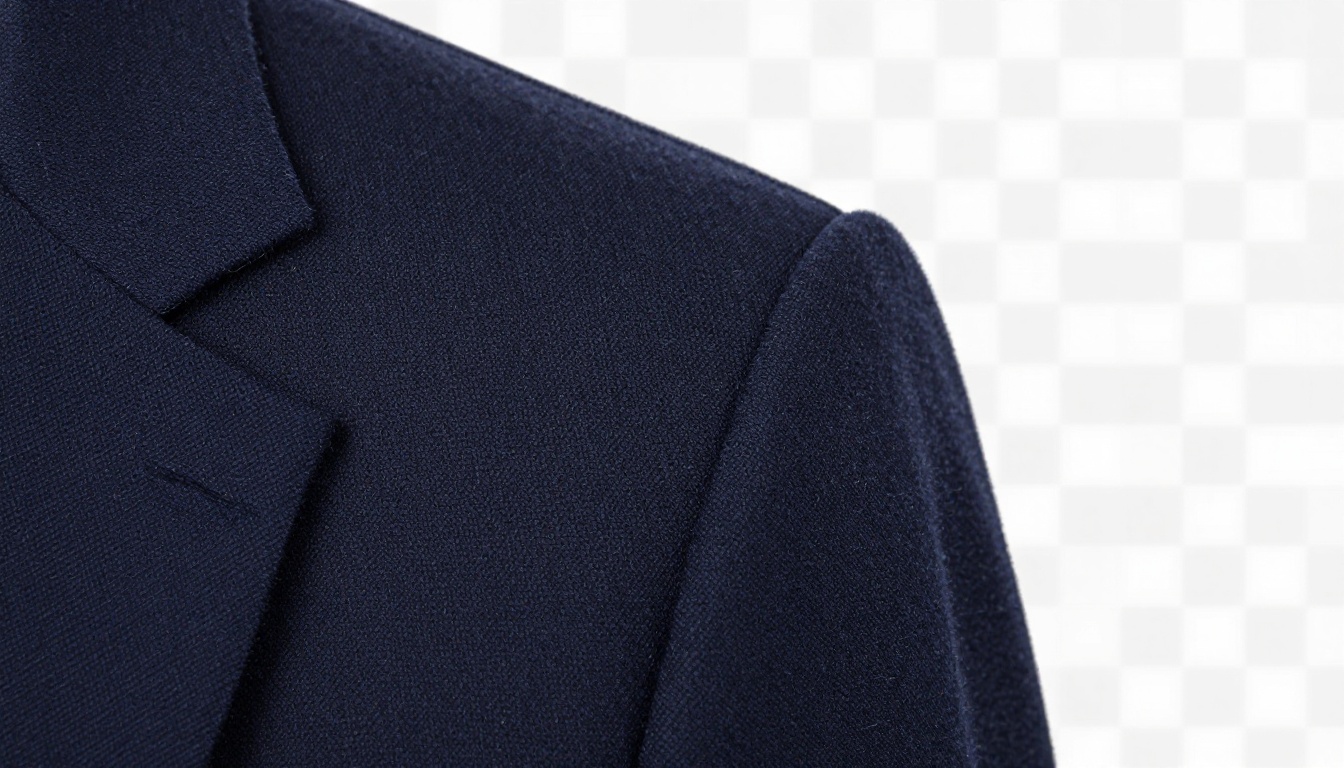
The most common artifact is a color halo: a thin ring of original background color clinging to the subject edge. This happens when the AI sets edge pixels to fully opaque when they should be semi-transparent, or when the model grabs a 1-pixel border of the original background.
The standard fix is to apply a contract or erode operation to the alpha mask, pulling the edge inward by 1-2 pixels, followed by a feather or blur to soften the newly tightened edge. You are removing the contaminated border zone and replacing it with a clean, graduated transition.
When to Use Feathering
Feathering adds a gradient at the mask edge, transitioning from opaque to transparent over a set pixel radius. Use it when:
- Portraits blend hair naturally into the surrounding background light
- Subjects were shot with shallow depth of field, giving edges natural optical softness
- You are building a composite and want the subject to feel integrated rather than pasted-on
Avoid feathering when:
- Working with products that need crisp, commercial-grade edges
- Output will appear on a solid white or solid-color background where soft edges create a visible fringe ring
- Subjects have hard geometric contours that should read as clean, defined lines
Handling Fur and Complex Hair
For pets and textured hair, the practical approach is to let the AI do 85-90% of the work, then focus manual effort only on the edge zone, not the interior of the subject.
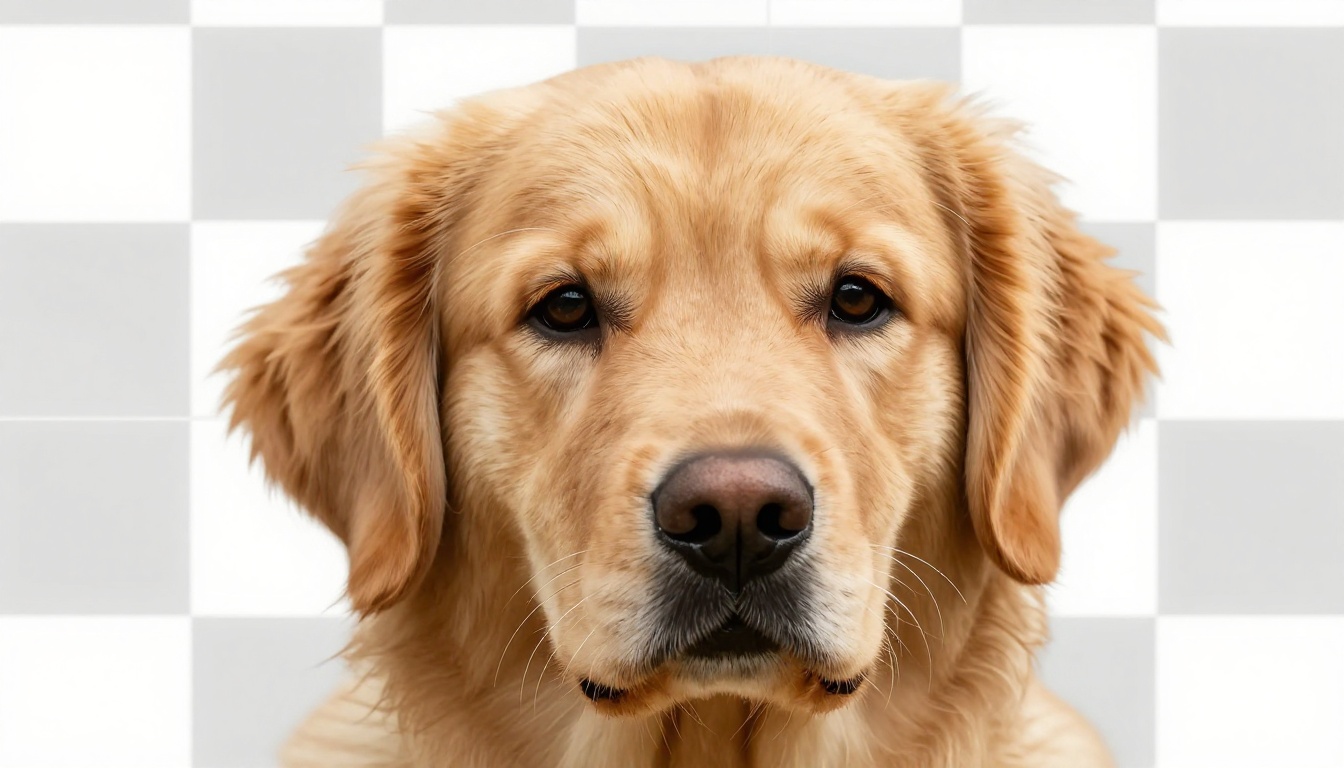
Work at 100% zoom or higher and use a soft brush at 20-40% opacity to paint alpha corrections at problem areas. The goal is not to perfectly isolate every single strand. It is to make the visible edge zone read naturally at the output size. At normal viewing distances, a few missing strand tips are invisible. What reads as bad is a hard, blocky outline where there should be wispy, organic transition.
Where Clean Cutouts Make a Real Difference
Once the workflow is working consistently, the applications multiply fast.
Product Photography at Scale
E-commerce is the most direct use case. A clean cutout makes it possible to swap backgrounds across entire catalogs for seasonal campaigns, place products in lifestyle scenes without reshooting, and produce consistent white-background images for marketplace listings across hundreds of SKUs.
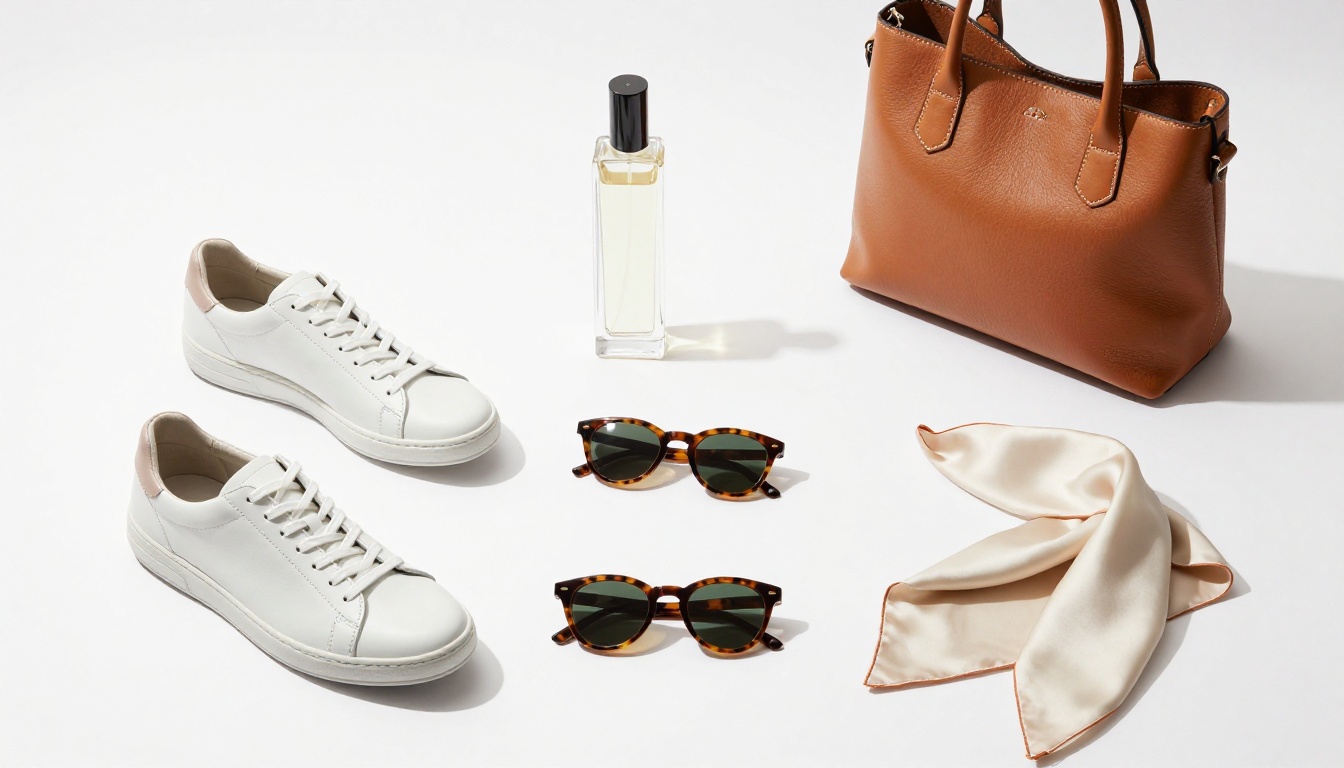
At scale, cutout quality compounds. Bad edges on 200 product images means 200 items to re-process. Clean cutouts from the first pass means moving directly to layout and publish.
Portrait and Fashion Editing
Portrait photographers use background removal to replace distracting locations, place subjects into styled environments, and combine separately-photographed elements into single frames. In fashion specifically, a garment photographed once on a model can be placed into multiple background environments without reshooting.
The quality of the hair isolation is almost always what separates professional-grade results from obvious digital composites. Blocky, clumped hair edges are the first thing viewers notice, often without being able to explain exactly why the image looks wrong.
💡 For portraits: Shoot against a neutral gray background rather than white. White backgrounds cause white spill, a subtle brightening at the hairline, and gray avoids this entirely while still providing high contrast for the AI.
Composite Photography and Creative Work
Composite photographers build scenes from multiple photographs, and every element in the scene needs to be cleanly isolated to sit naturally within it. Lighting direction, depth-of-field characteristics, and edge softness all need to match across every layer for the result to look cohesive.
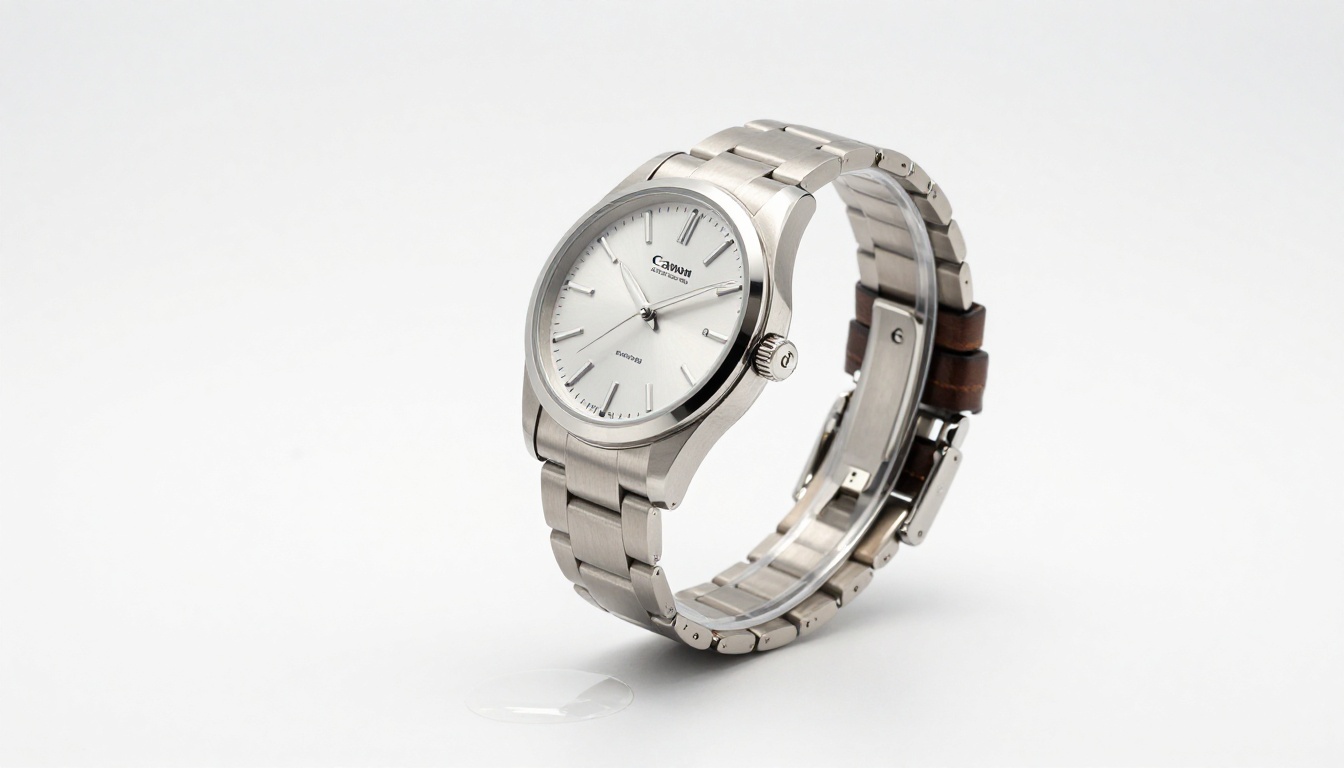
AI tools handle the heavy lifting on the initial isolation pass, and the photographer handles fine-tuning of edge softness to match the optical characteristics of the scene. The result is a composite that reads as a single photograph rather than an obvious assembly of separate parts.
Three Rules That Change Your Results
If you take only three things from this article, take these:
- Shoot for the cutout: Control your background color and lighting before you ever reach the AI tool. The quality of the output is largely decided before the upload happens.
- Resolution first: Always process the highest resolution version of your image. Downsize after the cutout is complete, never before.
- Check at 100% zoom: Always inspect edge quality at full zoom before downloading. A cutout that looks clean at thumbnail size can have visible artifacts at output size.
Put It to Work on PicassoIA
The fastest way to see what clean AI cutouts look like in practice is to test one yourself. PicassoIA's BRIA Remove Background is built for production-quality output, no software installation required and no shoot setup needed to start. Upload one of your harder images, whether that is a portrait with flyaway hair, a product with reflective edges, or a pet with complex fur, and see how far the AI gets on the first pass.
Beyond background removal, PicassoIA has over 90 image generation models, super-resolution upscaling for sharpening and enlarging your sources before processing, inpainting tools for fixing edge problem areas after the AI pass, and a full suite of video generation capabilities, all in one platform. If you want to see every model available, the full library is at picassoia.com/en/all-models.
A clean cutout is rarely about the subject being too complex. It is almost always about preparation, the right tool, and knowing exactly where to put your refinement effort. You now have all three.


