Getting the same face to show up reliably across multiple AI video clips is not a solved problem. Every time you generate a new scene, diffusion models resample from scratch, and that new face might share your character's general vibe but miss on the jawline, the eye shape, or the skin tone. For short experiments, that is fine. For any project you actually want to ship, it is a disaster.
This is fixable. Not perfectly, not with zero effort, but reliably enough that you can build coherent AI video projects with recognizable characters. The approach is not about chasing magic prompts. It is about understanding why faces drift and building a workflow that fights against it.
Why AI Faces Drift Between Clips
The randomness baked into every generation
Text-to-video and image-to-video models work by denoising random noise into coherent visuals, guided by your prompt. The key word is random. Every generation starts from a fresh noise seed unless you explicitly control it. That means even if you write the exact same character description twice, the underlying random starting point produces two different people who happen to share some broad traits.
The diffusion process does not have memory. It does not know what your character looked like in the last clip. It only knows what your prompt is saying right now. So even meticulous prompt writing will drift over time because language is an imprecise reference for a face.
How prompt attention degrades facial detail
When you describe "a woman with brown eyes, high cheekbones, and shoulder-length red hair walking through a city street," the model distributes attention across every part of that description. The city street matters. The shoulder-length red hair matters. The walking motion matters. The eyes and cheekbones are competing with everything else for influence over the output.
In practice, broad environmental and motion descriptions often dominate, and facial specifics get averaged into something plausible but not identical. The longer and more complex your prompt, the more this averaging effect compounds.
💡 The fix is not longer prompts. It is visual reference. A face shown as an image carries far more information than any text description can.
The Reference Image Strategy
What makes a usable reference face
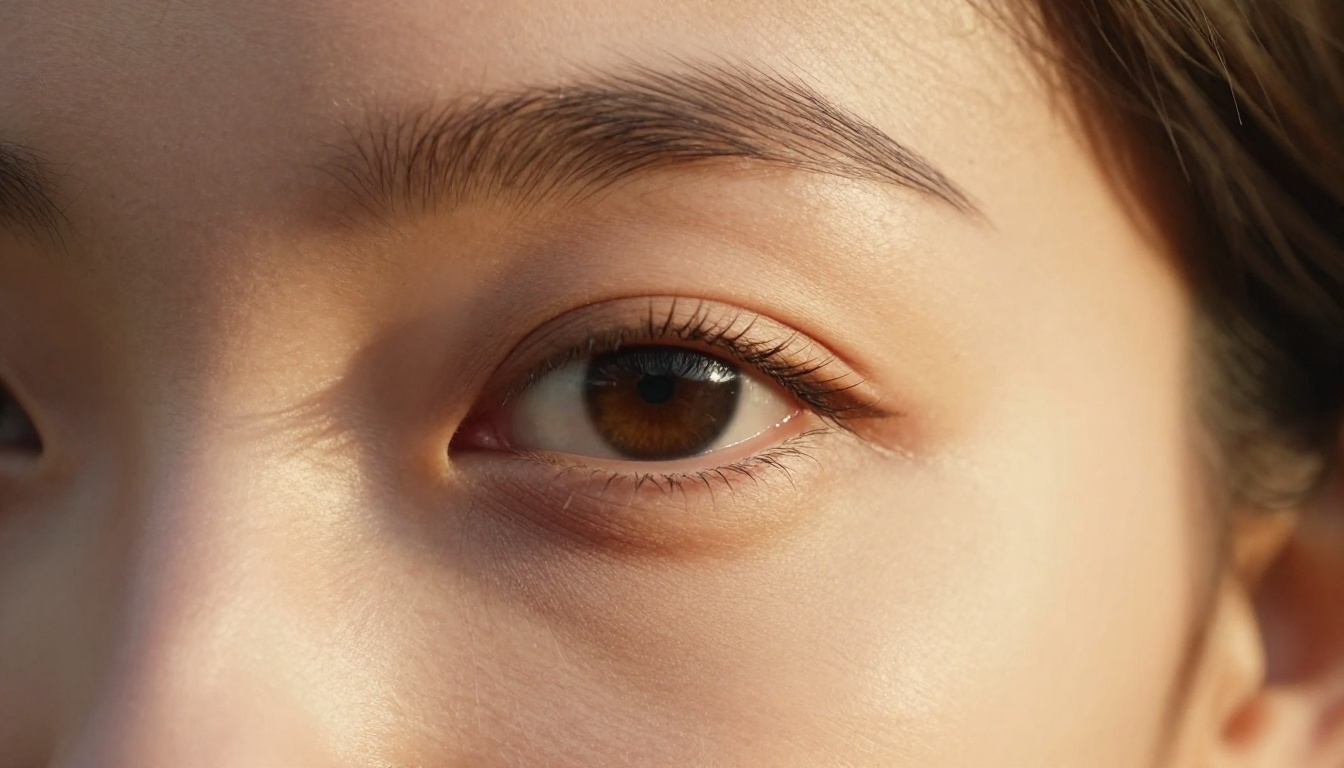
A reference image is your single most powerful tool for face consistency. The goal is a clean, well-lit portrait that gives the model as much facial information as possible. Here is what makes a reference actually work:
- Neutral expression. Smiling or emoting creates ambiguity about facial proportions. A neutral or slightly soft expression gives the clearest baseline.
- Front-facing or slight three-quarter angle. Full profile shots hide too much. The sweet spot is 0 to 30 degrees off center.
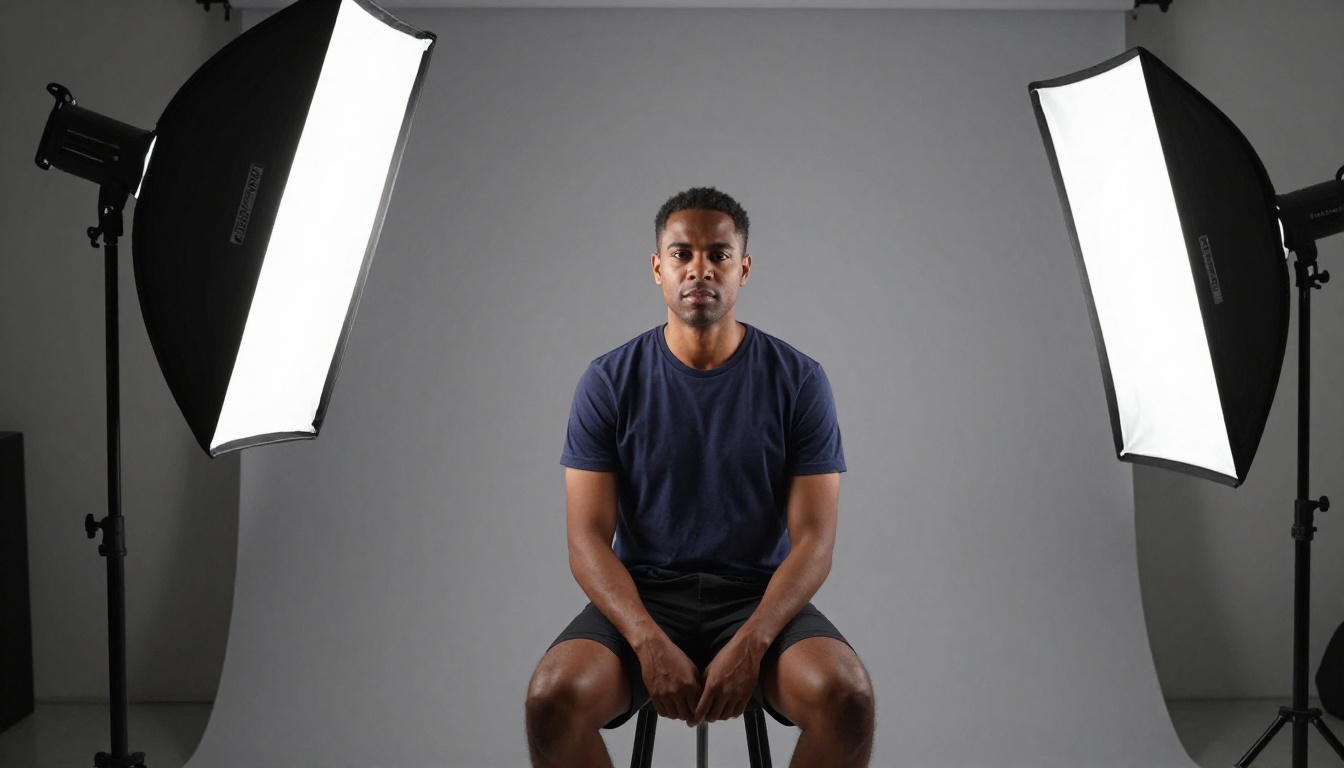
- Even, diffused lighting. Harsh shadows obscure features. Soft window light or a simple key-fill setup works best.
- Plain or blurred background. Busy backgrounds compete with the face for model attention.
- High resolution. The more detail available, the more the model has to anchor to.
A portrait shot at 85mm f/2.0, with natural window light and a clean background, is almost exactly what you want. This is not about aesthetics. It is about information density.
Angles that matter most
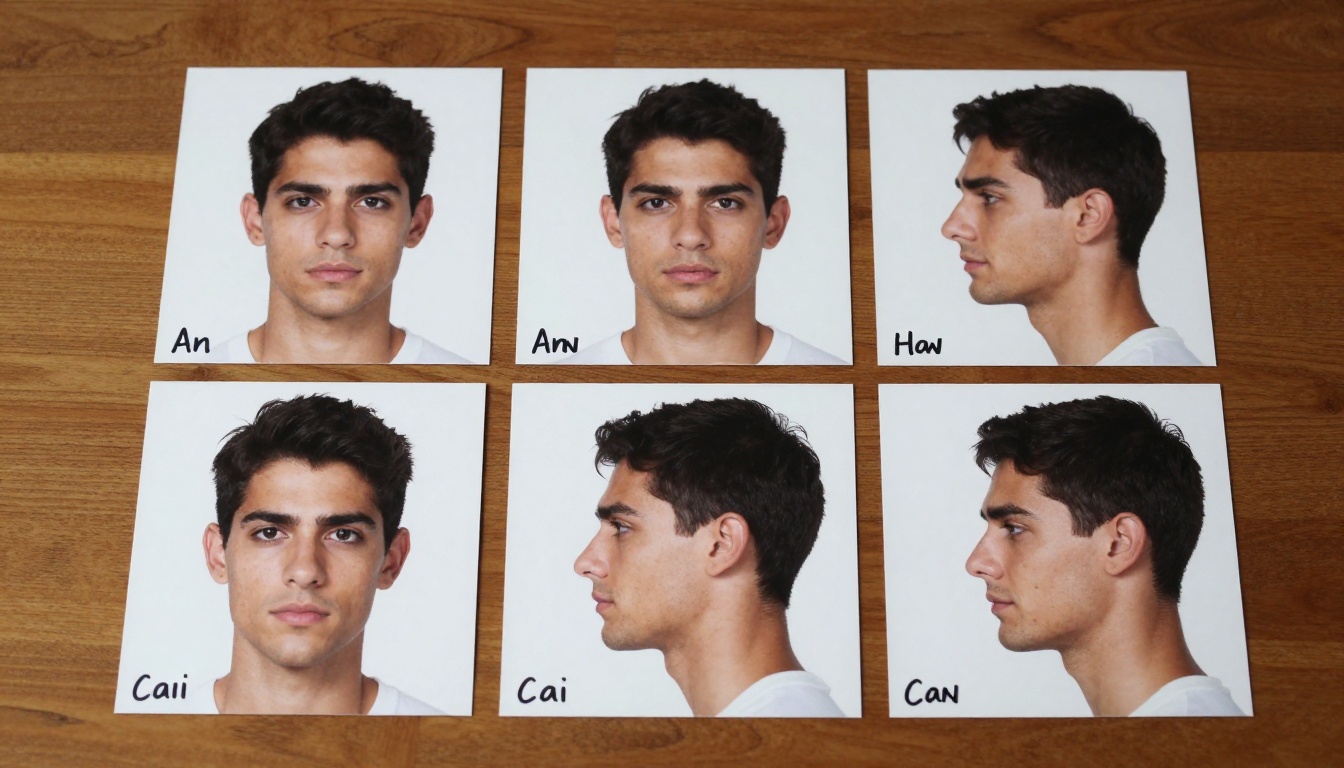
Collecting multiple reference angles of the same character dramatically improves consistency across video shots where the camera moves or the character turns. If your video clip shows the character from the side, the model needs side-reference data to maintain fidelity.
| Angle | When You Need It |
|---|
| Front (0 degrees) | Straight-on close-ups |
| Three-quarter (30 degrees) | Most dialogue and walking shots |
| Profile (90 degrees) | Over-the-shoulder and silhouette shots |
| Slight downward | POV shots from above |
| Upward tilt | Dramatic low-angle scenes |
Building a mini character sheet with 3 to 5 angles, all under consistent lighting, takes 10 minutes and saves hours of regeneration. When you have reference images for each major camera perspective, you always have the right anchor for any shot type.
Building a Character Bible
Before running a single video generation, serious AI video creators build what filmmakers call a character bible: a locked document that defines every physical attribute of the character in precise visual and textual detail.
For AI video production, a practical character bible includes:
Visual assets:
- The master reference portrait (full resolution, neutral expression, front-facing)
- Side reference (pure profile)
- Three-quarter reference
- Expression variations (one happy, one serious, one surprised, all built from the same master)
Text anchors:
- Age written as a specific number, not a range
- Skin tone described with specific terminology (warm medium brown, pale ivory, deep ebony)
- Eye color with specific detail (steel blue with amber ring around pupil)
- Hair: color, length, texture, and style locked with precise language
- Distinguishing features: freckles, scar location, eyebrow shape
Lighting spec:
- A single lighting setup that you will use for all reference images
- The same lighting description for all text-to-video prompts
This sounds like overhead, but it is actually the document that makes multi-scene production possible without constant manual corrections. Once the bible is built, every generation decision becomes clear: does this match the bible? If yes, proceed. If no, adjust first.
Models Built for Face Consistency
Not all AI video models treat faces the same way. Some are purely prompt-driven and produce beautiful but character-agnostic output. Others are specifically built to accept a face reference image and maintain it through the entire video generation.
Kling Avatar v2
Kling Avatar v2 is purpose-built for animating faces into video. You provide a portrait image and it preserves the person's identity through the entire clip. This is not a general image-to-video tool that happens to handle faces. Avatar modes are architecturally designed to lock facial identity as a hard constraint rather than a soft suggestion.
Dreamactor M2.0
Dreamactor M2.0 from ByteDance handles full-body character animation from a reference image. Facial identity holds well because the reference is used as a structural anchor throughout generation, not just as a style hint. It works particularly well for scenes that require full-body motion while keeping the face recognizable.
Wan 2.7 R2V
Wan 2.7 R2V (Reference-to-Video) accepts a reference image of any subject and animates it. The R2V designation specifically means it is designed for reference-anchored generation. For face consistency, this is one of the most direct tools available on the platform.
Ovi I2V
Ovi I2V from Character AI generates video with audio directly from a photo. It handles portrait photos particularly well, making it practical for scenes where a character needs to speak, react, or engage with the camera.
Grok Imagine R2V
Grok Imagine R2V is another reference-to-video option that takes a photo and produces coherent video output, preserving the subject's identity across motion. It is worth testing alongside Wan 2.7 R2V for comparison on your specific character type.
💡 For face-locked video, prioritize Image-to-Video and Reference-to-Video models over text-to-video. The image is the constraint that prevents drift.
Using Image-to-Video for Face Locking
How the anchor frame works
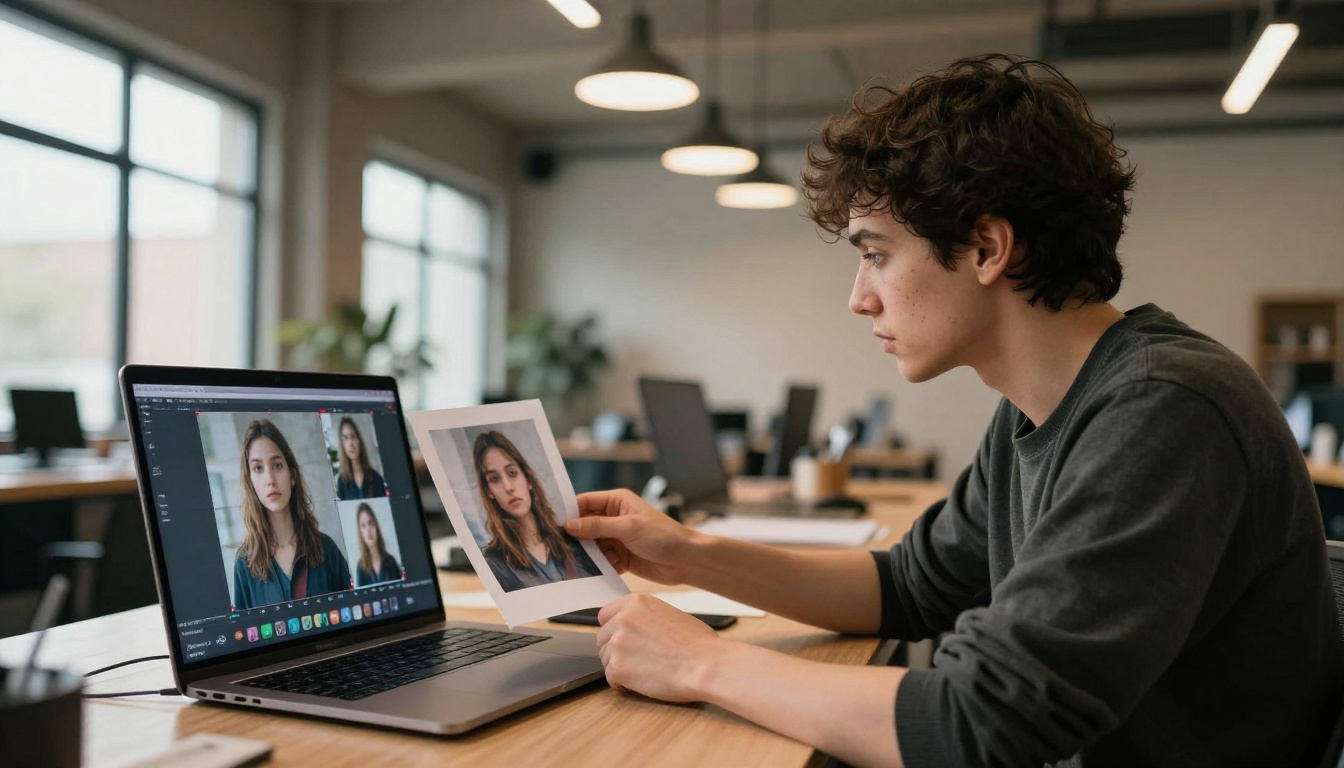
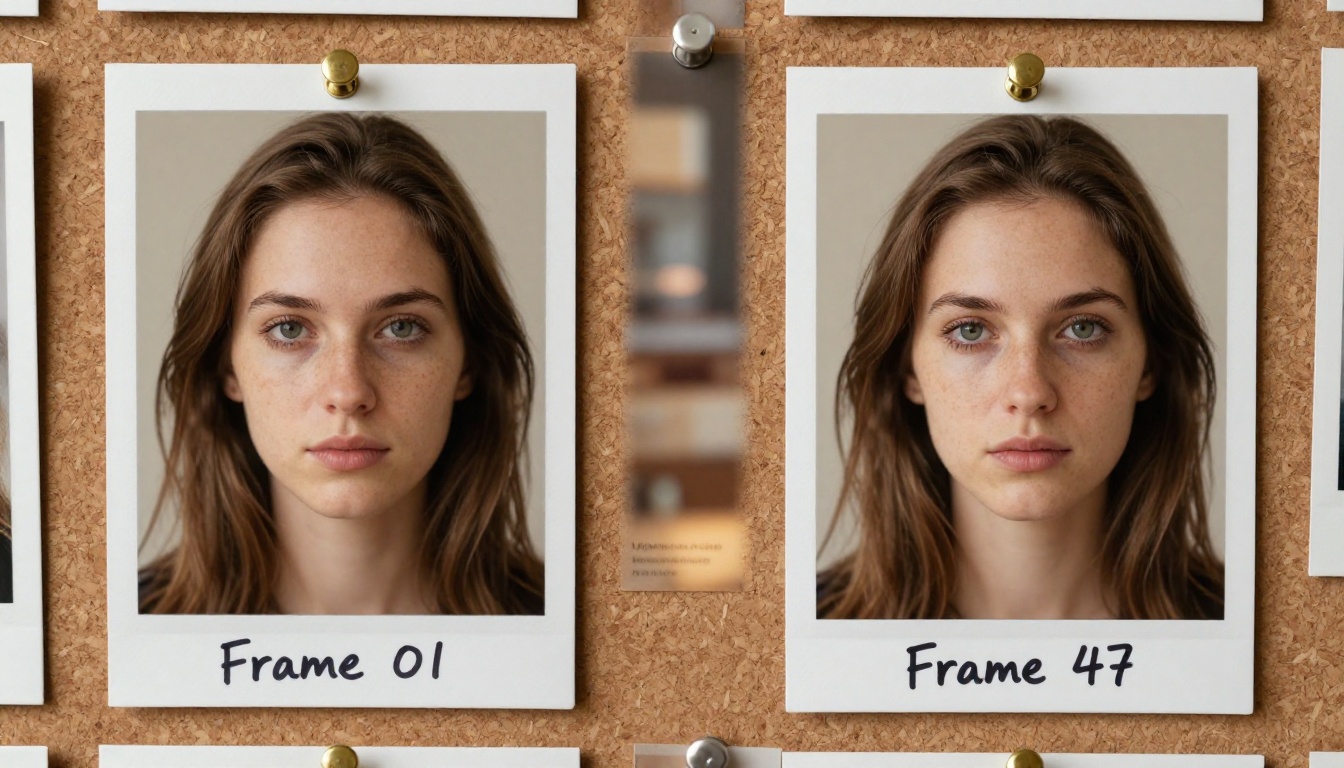
When you use an image-to-video model, the input image becomes the literal first frame. The model's job shifts from "generate a plausible person matching this description" to "animate this specific person." That is a fundamentally different task, and it produces much more consistent results.
The face in that first frame is now a hard visual constraint. The model cannot freely resample facial geometry because it must remain continuous with frame 1. This is why image-to-video is the most reliable method for face consistency in AI video production.
Choosing your source image
The source image for image-to-video should be:
- The character at neutral or slightly relaxed expression so the model has room to animate into any emotional state
- Composed with enough head room and body visible so the model can animate body motion without cropping issues
- Shot with neutral flat lighting so the model can add dramatic lighting in the video without fighting against a strongly lit reference
- At high resolution so compression artifacts do not introduce face-shape ambiguity
- Free of motion blur so face edges are sharp and well-defined for the model to track
Avoid using images where the character is mid-action. If your reference shows the person mid-laugh or with a turned head, the model anchors to that specific state and has less flexibility to animate believably.
How to Use Kling Avatar v2 on PicassoIA
Kling Avatar v2 is the most direct path to consistent face video on PicassoIA. Here is the exact workflow:
Step 1: Prepare your reference portrait
Generate or photograph a clean portrait of your character. Neutral expression, front or slight three-quarter angle, soft lighting, plain background. Save it at full resolution.
Step 2: Open Kling Avatar v2
Navigate to Kling Avatar v2 on PicassoIA and upload your portrait as the input image. The tool is designed specifically to accept face portraits as its primary input.
Step 3: Write your motion prompt
Describe what you want the character to do, not what they look like. The face is already defined by the image. Focus on:
- Motion ("turns to look left, smiles slightly, nods")
- Environment ("sits in a softly lit cafe with warm ambient background")
- Camera movement ("slow dolly in toward the face")
Step 4: Generate and evaluate
Run the generation. Check that the face matches your reference. If there is significant drift, try:
- Cropping the reference tighter to the face (remove body from the portrait)
- Simplifying the motion prompt to fewer simultaneous actions
- Running with a different seed value
Step 5: Build clips sequentially
For a multi-scene video, use the output frame from one clip as the reference image for the next clip. This creates a chain of visual continuity. Each clip's ending face becomes the next clip's starting anchor, keeping drift from compounding across your full sequence.
💡 Chain your clips. The final frame of clip 1 as the input to clip 2 is the most reliable way to maintain continuity across a full video sequence without post-production fixes.
Prompt Strategies for Consistent Faces
When you need to work with text-to-video models like Wan 2.7 T2V, Seedance 2.0, or Kling v3 Omni Video, prompt strategy becomes your primary lever for consistency.
Character description anchoring
Build a fixed character description block and paste it into every prompt, unchanged. Every word variation opens the door to face variation. Something like:
"28-year-old woman, pale skin with light freckles, blue-grey eyes, narrow straight nose, thin lips, short dark auburn hair cut to the jaw, small silver stud earrings"
That block stays identical across every generation. What changes is the scene, the action, and the camera position. The character description is a locked variable that you do not touch between clips.
Lighting consistency
Lighting changes faces. A character lit from the left looks subtly different to the model than the same character lit from the right, because highlights and shadows alter perceived facial geometry. Pick one lighting setup and describe it identically in every prompt.
- "Soft natural window light from camera-left" in scene 1 should be exactly that in scene 10
- This is more repeatable than "dramatic cinematic lighting" which the model interprets differently each time
What to avoid in prompts
| Avoid This | Use This Instead |
|---|
| "Beautiful woman" (vague) | Specific physical descriptors |
| "Cinematic face" | Specific lighting conditions |
| Changing character age per scene | Fixed age in every prompt |
| Mentioning emotions in the character description | Put emotions in the action description |
| Inconsistent hair descriptions | Lock the exact hair description |
| "Realistic woman" | Full specific physical description |
Animate Replace and Motion Control
For more complex scenarios where you want to transfer a character into existing footage or apply specific motion patterns, Wan 2.2 Animate Replace lets you swap characters in video while preserving the original motion. This is useful when you have the right action but the wrong face and want to inject your reference character into the scene.
Kling v3 Motion Control gives you control over exactly how the character moves using motion signals. More controlled motion means fewer opportunities for the face to distort during complex actions. When facial fidelity during movement is critical, motion control removes one more variable from the equation.
Both of these tools complement the core reference-image workflow rather than replacing it. They are most useful once you have already locked your character identity and want to control movement with precision.
5 Face Drift Mistakes to Stop Making
These are the patterns that consistently cause face inconsistency in AI video, and they are all avoidable:
-
Using text-to-video when image-to-video exists. If you have a reference image, use it. The model will not guess as well as it can anchor to a real face. Default to Wan 2.7 I2V or Kling Avatar v2 before reaching for a text-only model.
-
Generating a new reference each time. Pick one reference image per character and never swap it. Generating "a new version" of the same character will always produce subtle variations that compound across clips.
-
Changing the character description between scenes. Even small wording changes ("blue eyes" vs "blue-grey eyes") produce measurable face variation. Lock the description and do not touch it.
-
Using low resolution for face-critical video. Higher resolution outputs give the model more pixels to preserve facial detail. Use Wan 2.1 I2V 720p or similar high-resolution models when facial fidelity matters most.
-
Ignoring first frame quality. For any image-to-video model, the first frame is everything. Spend as much time as needed getting that reference image exactly right. The video will only be as consistent as the frame you start from.
Putting It All Together
Consistent faces in AI video come down to one core principle: give the model a visual constraint, not just a verbal one. Text descriptions drift. Images anchor.
The workflow that holds up across multi-scene projects:
- Generate a clean reference portrait with neutral expression and soft diffused lighting
- Use an avatar or reference-to-video model (Kling Avatar v2, Wan 2.7 R2V, Dreamactor M2.0) instead of text-only generation
- Chain clips by using the final frame of each clip as the input for the next
- Keep all text descriptions locked: same wording, same lighting, same character details in every generation
- Work at 720p or higher when face detail matters
- Build and commit to a character bible before your first generation
This is not a guarantee of pixel-perfect consistency across 10 clips. Current models still drift, especially with complex motions or extreme angle changes. But this workflow cuts uncontrolled variation to a minimum and gives you a real shot at a coherent character arc across a full production.
Build Your Character Now
PicassoIA has the full stack for this: image-to-video models like Wan 2.7 I2V, avatar models like Kling Avatar v2, and reference-anchored tools like Dreamactor M2.0. The models are there. What you bring is a clean reference image and a disciplined workflow.
Pick one character. Generate one reference portrait. Run it through Kling Avatar v2 for your first clip. See what consistent face video feels like in practice before building a whole production pipeline around it.
All the models mentioned in this article are available at picassoia.com/en/all-models.


