Getting subtitles from a video used to mean one of two things: spending hours typing out every spoken word yourself, or paying a transcription service and waiting days for the result. Neither option is great when you have ten videos to publish this week. AI has changed the math entirely, and in 2027 the quality is good enough that manual transcription has almost no use case left.
Why Subtitles Are Not Optional Anymore
Captions are no longer just an accessibility feature. They are a reach multiplier. Research consistently shows that 85% of social media videos are watched without sound, which means viewers who never turn on audio are reading subtitles or scrolling past. That is a massive silent audience you are either capturing or losing.
What You Gain with Accurate Captions
- Accessibility: Deaf and hard-of-hearing viewers can follow your content fully.
- SEO value: Search engines cannot watch a video. They can read a transcript. Embedding subtitle text on your page gives crawlers something to index.
- Engagement: Average watch time increases when captions are on. Viewers stay longer because they can follow along even in noisy environments.
- Translation base: A solid subtitle file is the starting point for multilingual versions. You translate once from text, not from audio.
The Silent Viewer Problem

Think about where people watch content: on a bus, in a waiting room, at a desk next to a colleague. Sound is often off, or impractical. Your video competing without subtitles is like a billboard with missing letters. The message is there, sort of, but the gaps cost you the viewer.
How AI Speech Recognition Actually Works
Modern AI transcription uses deep learning models trained on thousands of hours of spoken audio. These models do not simply match sounds to phonemes one at a time. They predict what words are likely given the broader context of the sentence, which is why they handle accents, fast speech, and background noise better than older rule-based systems.
Acoustic Models vs. Language Models
There are two components working together:
- Acoustic model: Converts raw audio waveforms into phoneme probabilities.
- Language model: Takes those probabilities and resolves ambiguity using context. It knows "I need to read the book" and "I read the book yesterday" are different even though "read" sounds identical.
The interaction between these two layers is what gives modern AI transcription its high accuracy. The acoustic model provides the raw signal; the language model makes sense of it.
Word Error Rate in 2025
The benchmark metric for transcription accuracy is Word Error Rate (WER). A WER of 5% means 5 out of every 100 words contain an error. For context:
| WER | Quality Level | Typical Use Case |
|---|
| Under 5% | Excellent | Broadcast, publishing |
| 5 to 10% | Good | Social media, YouTube |
| 10 to 20% | Fair | Internal notes, rough cuts |
| Over 20% | Poor | Needs heavy review |
Top AI models in 2025 routinely hit sub-5% WER on clear audio. Noisy recordings or heavy accents can push that to 10 to 15%, but that is still far faster than typing.
The Best AI Models for Video Transcription
Choosing the right model depends on your priorities: raw accuracy, language support, speed, or cost. Here is a breakdown of the top-performing options available right now.
GPT-4o Transcribe
GPT-4o Transcribe from OpenAI is the current gold standard for English transcription accuracy. It handles heavy accents, overlapping speakers, and low-quality audio better than almost any competing model. The output is clean, punctuated text with strong sentence structure preservation.
For creators who primarily produce English content and need the highest possible accuracy with minimal post-editing, this is the model to start with.
GPT-4o Mini Transcribe
GPT-4o Mini Transcribe delivers accuracy close to its larger sibling at a fraction of the cost and processing time. If you are transcribing large volumes of content, regular recordings with clean audio, or you need fast turnaround on multiple files, Mini is the practical choice. The quality difference is minimal on studio-quality recordings.
Gemini 3 Pro
Gemini 3 Pro from Google brings two particular strengths to the table. First, it performs exceptionally well on multilingual content, including mixed-language audio where speakers switch between languages mid-conversation. Second, its understanding of technical vocabulary, jargon, and domain-specific language is notably strong. For podcasts, technical interviews, or educational content, Gemini 3 Pro handles specialized terminology with fewer errors.
IBM Granite Speech Models
IBM offers two Granite Speech models worth knowing about:
- Granite Speech 4.1 2B: A compact model supporting transcription in 6 languages. Fast, lightweight, and well-suited for real-time or batch processing where compute efficiency matters.
- Granite Speech 3.3 8B: The larger variant with broader language understanding and better handling of complex audio. Strong choice for enterprise workflows that need reliable throughput.
Quick Comparison
| Model | Best For | Language Support | Speed |
|---|
| GPT-4o Transcribe | Maximum accuracy | English-primary | Medium |
| GPT-4o Mini Transcribe | Volume transcription | English-primary | Fast |
| Gemini 3 Pro | Multilingual, technical | Wide | Medium |
| Granite Speech 4.1 2B | Efficiency, speed | 6 languages | Very Fast |
| Granite Speech 3.3 8B | Enterprise accuracy | Multi | Fast |
How to Get Subtitles on PicassoIA: Step by Step
PicassoIA gives you direct access to all the models above without any setup, API keys, or local installation. Here is exactly how the workflow runs.
Step 1: Open the Speech-to-Text Section

Navigate to the Speech to Text category on PicassoIA and pick your model. If you are not sure where to start, GPT-4o Transcribe is a safe first choice for most content types.
Step 2: Upload Your Audio or Video File
You can upload common formats including MP4, MOV, MP3, WAV, and M4A. If your source is a video file, the model automatically extracts the audio track before processing. No need to pre-convert files.
💡 Tip: If your video has significant background music or ambient noise, extracting just the dialogue track first with an audio editor will noticeably improve accuracy.
Step 3: Configure Language and Output Settings
Select the spoken language in the video. For multilingual content, Gemini 3 Pro or Granite Speech 4.1 2B handle mixed-language audio better than single-language models. Choose your output format: plain text, SRT (the standard subtitle format), or timestamped transcript.
Step 4: Review and Export
The model returns your transcript within seconds to a few minutes depending on file length. You get:
- Plain text: Full transcript without timing markers. Useful for blog posts, show notes, or SEO content.
- SRT file: Standard subtitle format with precise timestamps for each caption block. Ready to upload to YouTube, Vimeo, or embed in your video editor.
- Timestamped transcript: Full text with time codes at regular intervals. Useful for editing references.
💡 Tip: Always do a quick read-through of the transcript. AI models occasionally mishear proper nouns, brand names, or uncommon technical terms. A 5-minute review saves you from embarrassing captions going live.
Getting Better Results: Audio Quality First
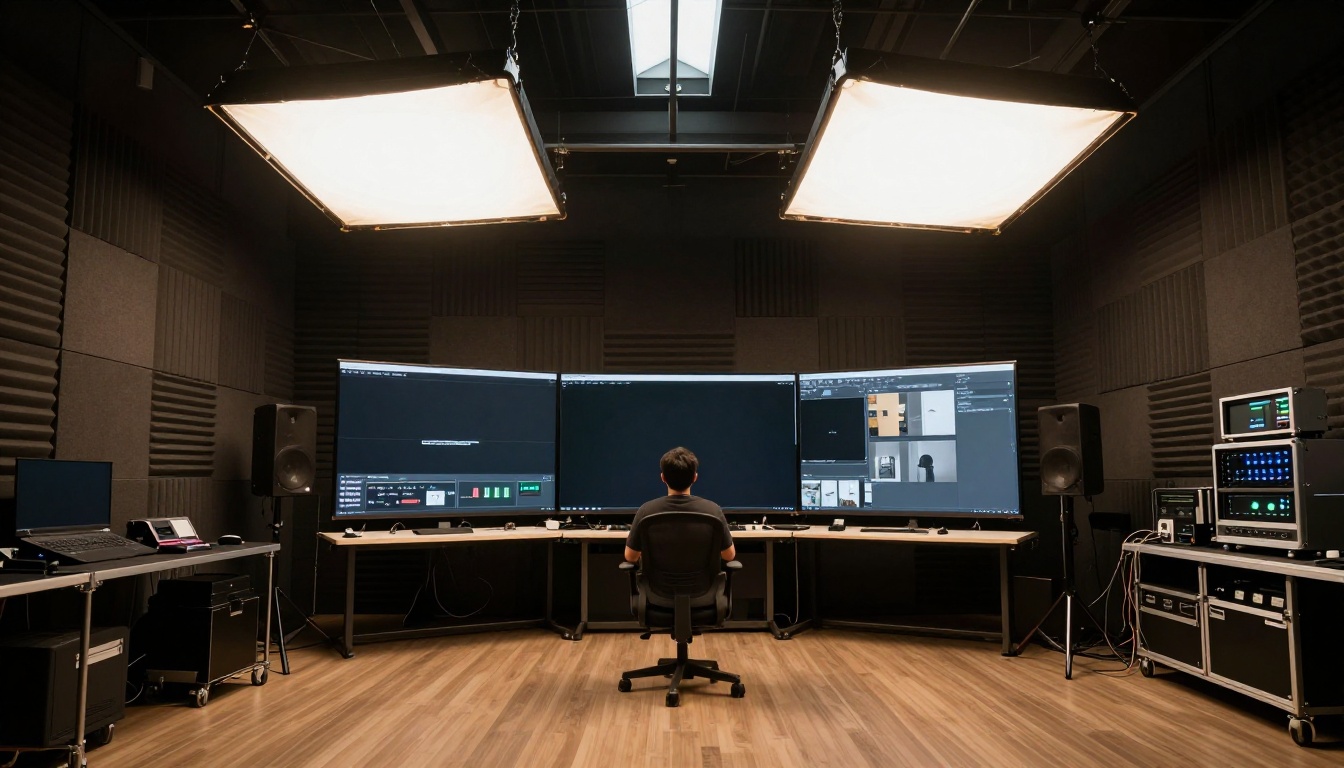
The single biggest factor in transcription accuracy is not which model you use. It is the quality of the audio you feed into it. A great model with bad audio will lose to a good model with clean audio every time.
What Clean Audio Looks Like
- Recorded in a quiet room: Background noise is the primary enemy of speech recognition. Air conditioning hum, street sounds, and keyboard clicks in the recording all compete with the speech signal.
- No room reverb: Hard-walled rooms create echo that blurs phoneme boundaries. Even hanging a blanket behind you makes a measurable difference.
- Consistent microphone distance: Speakers moving closer and further from the mic create volume swings that confuse acoustic models.
- No clipping: Audio that peaks and distorts is essentially corrupted data at those moments.
The Right Microphone Matters
You do not need a professional studio setup. A USB condenser microphone positioned 15 to 20cm from the speaker's mouth in a reasonably quiet room will produce audio that hits sub-5% WER on any of the top models. Built-in laptop microphones in echoing rooms are the main source of poor transcription results.
Fixing Common Transcription Problems
Even with great audio and a top model, you will occasionally run into issues. Here is how to handle the most common ones.
Misheard Proper Nouns and Brand Names
AI models are trained on broad datasets, so uncommon names, brand names, or niche technical terms sometimes come out wrong. The fix is simple: keep a search-and-replace list of your most-used proper nouns and run a quick find-replace pass after each transcription. Takes 2 minutes and eliminates recurring errors permanently.
Timing Sync Issues

If your subtitle timings do not align with the spoken words, the most common cause is a pre-roll silence or a gap at the beginning of the audio file. Most video editors and dedicated subtitle tools let you offset all timing by a fixed amount. Shift the entire subtitle file by the offset duration and the sync resolves immediately.
For videos with music intros or extended silence before speech begins, trimming the audio file to start at the first spoken word before transcription will produce cleaner timing in the output SRT.
Speaker Overlap and Crosstalk
When two people speak simultaneously, AI models attempt to transcribe the dominant voice and may partially capture or drop the secondary speaker. For interview content with frequent crosstalk, consider splitting speakers into separate audio tracks before transcription and merging the resulting SRT files afterward.
What to Do with Your Subtitles
Getting the SRT file is the beginning, not the end. Here is where that file goes next.
Embed in Your Video Editor
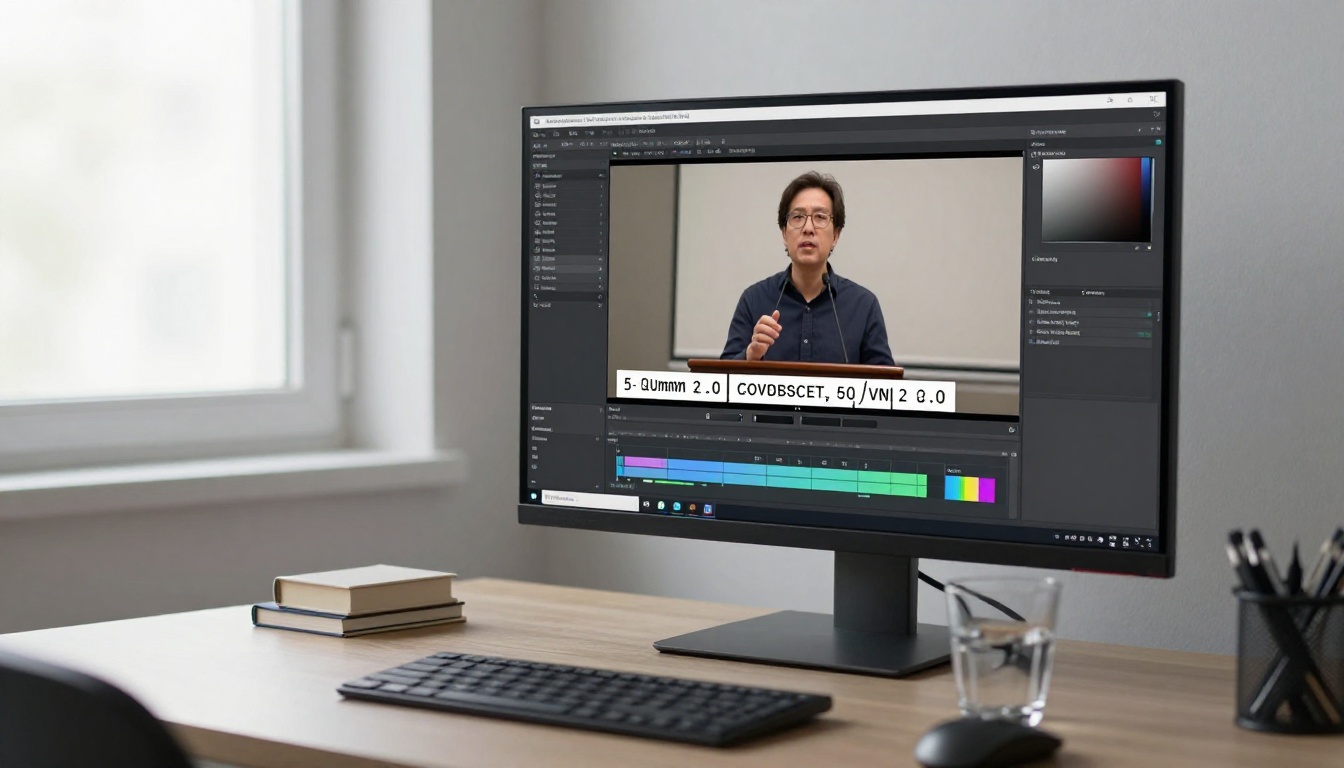
Most professional video editors accept SRT files directly as a subtitle track. In Premiere Pro, import the SRT file and it drops directly onto a text track synced to your video timeline. In DaVinci Resolve, use the Subtitles panel to import the file. From there you can restyle the captions, burn them in permanently, or keep them as a soft subtitle track.
For social media exports, burning in the captions (hardcoding them into the video) performs better because platform auto-caption systems are less accurate than the AI models you used to generate your SRT.
Translate to Other Languages
A clean SRT file is the fastest path to multilingual content. Feed the transcript to a Large Language Model for translation, review for natural phrasing, and you have a localized subtitle file in any language in minutes. PicassoIA's Large Language Models category includes models built for high-quality text generation and translation tasks.
Create a Blog Post or Show Notes
The transcript from a long-form video or podcast becomes a blog post with surprisingly little editing. Remove filler words, break into paragraphs by topic, and you have written content that ranks for the same keywords as your video. One recording, two indexable content assets.
Upload to YouTube and Vimeo
Both platforms accept SRT uploads directly. YouTube's auto-caption feature has improved, but uploading your own accurate SRT file is always better than leaving it to platform auto-detection. The accuracy gap between a purpose-built speech-to-text AI model and YouTube's automatic captions is significant, especially for technical content, accents, or fast speakers.
💡 Tip: YouTube also uses uploaded captions for search indexing. Accurate captions improve your video's discoverability for spoken keywords that your title and description did not explicitly mention.
Subtitles for Short-Form Content
The workflow above applies equally to short-form content. For a 60-second video, GPT-4o Mini Transcribe returns a complete SRT in under 15 seconds. At that speed, adding captions to every piece of short-form content becomes part of the standard export checklist rather than an additional task.
For Reels, TikToks, and YouTube Shorts, captions are particularly high-impact because these formats are watched almost universally on mobile with sound off. Content without captions in these formats is actively competing at a disadvantage.
The formatting also matters for short-form. Short caption blocks of 3 to 5 words per line, high-contrast colors, and a centered position perform better than long lines of small text. When you import your SRT into a short-form editor, adjust the line breaks to fit the format before exporting.
Start Generating Your Subtitles Now
Every model covered in this article is accessible directly on PicassoIA without any technical setup. Open a model, upload your file, and your SRT is ready in minutes.
If you want the fastest path to accurate subtitles with no API configuration, GPT-4o Transcribe is where to start. For volume processing or multilingual content, Gemini 3 Pro and the Granite Speech models give you specific advantages worth exploring.
While you are there, PicassoIA also offers full video processing capabilities including AI Video Enhancement for improving source quality before transcription, and Text to Speech for the reverse workflow: converting your subtitle text back into natural voiceover for dubbed versions or narrated content.
The tools are there. The accuracy is production-ready. Start with a video you have been putting off captioning and see how fast the workflow actually runs.


