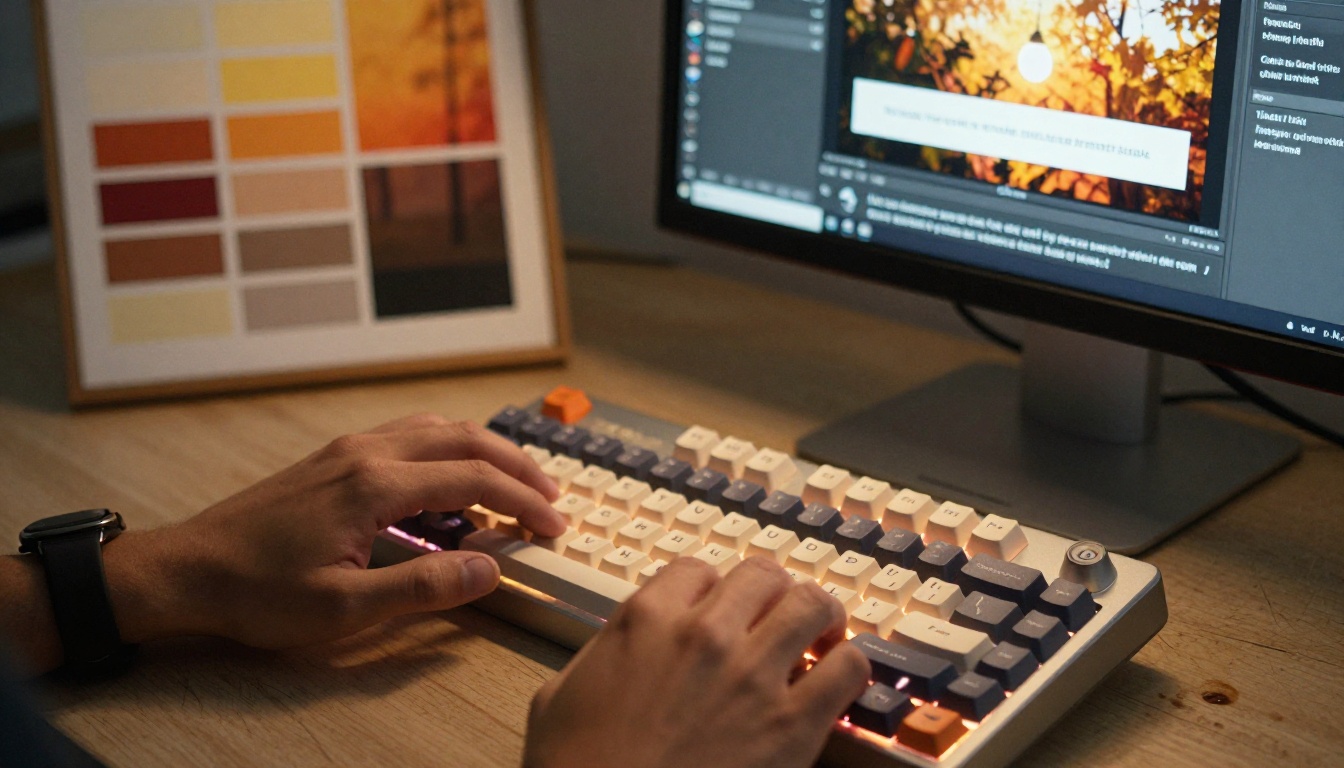
Every AI video you generate without a defined style system ends up looking like a separate project. This article breaks down the exact workflow for building visual consistency across AI video series, from prompt templates to seed locking, model selection, and color anchoring, so your content has the polished, coherent look of professional production.
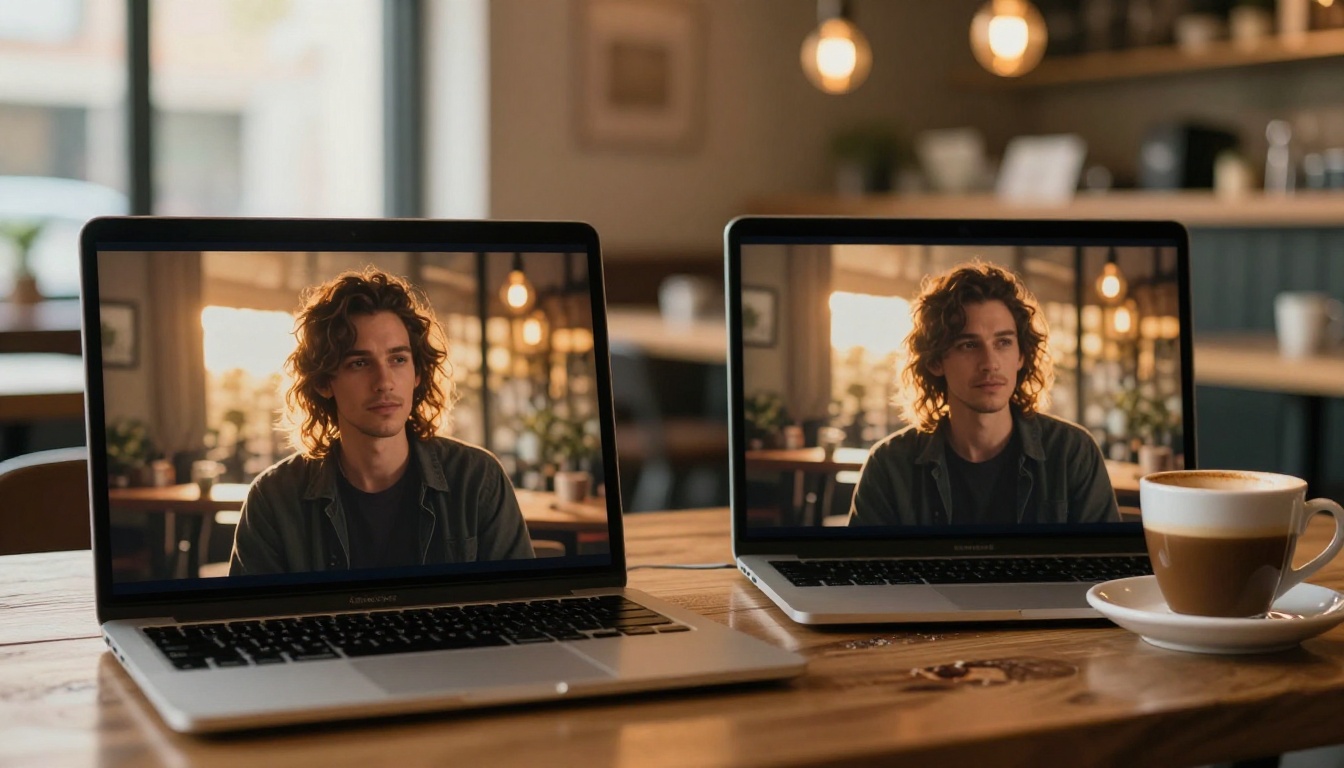
If you have ever generated two AI video clips on the same topic and then placed them side by side, you know the feeling: they look like they were made by two different people on two different days. The lighting shifts. The color mood swings. The character proportions drift. The result is a series that feels stitched together rather than produced with intention. This does not happen because the models are broken. It happens because visual consistency in AI video is not automatic. It requires a deliberate system.
This article walks you through that system. You will build a style blueprint, write prompt templates that carry your aesthetic across every clip, choose the right models for continuity, and set up a workflow on PicassoIA that produces videos that genuinely belong together.
Why Visual Consistency Actually Matters
Before the workflow, let us be precise about why this problem is worth solving. The human visual system is extremely good at detecting discontinuity. Viewers may not consciously notice that the color temperature shifted between clip two and clip three, but they feel something is off. That feeling erodes trust in your content, even when the story or information is solid.
What Breaks the Illusion
The most common consistency-breakers in AI video are:
Color temperature drift: warm golden light in one clip, cold blue tones in the next
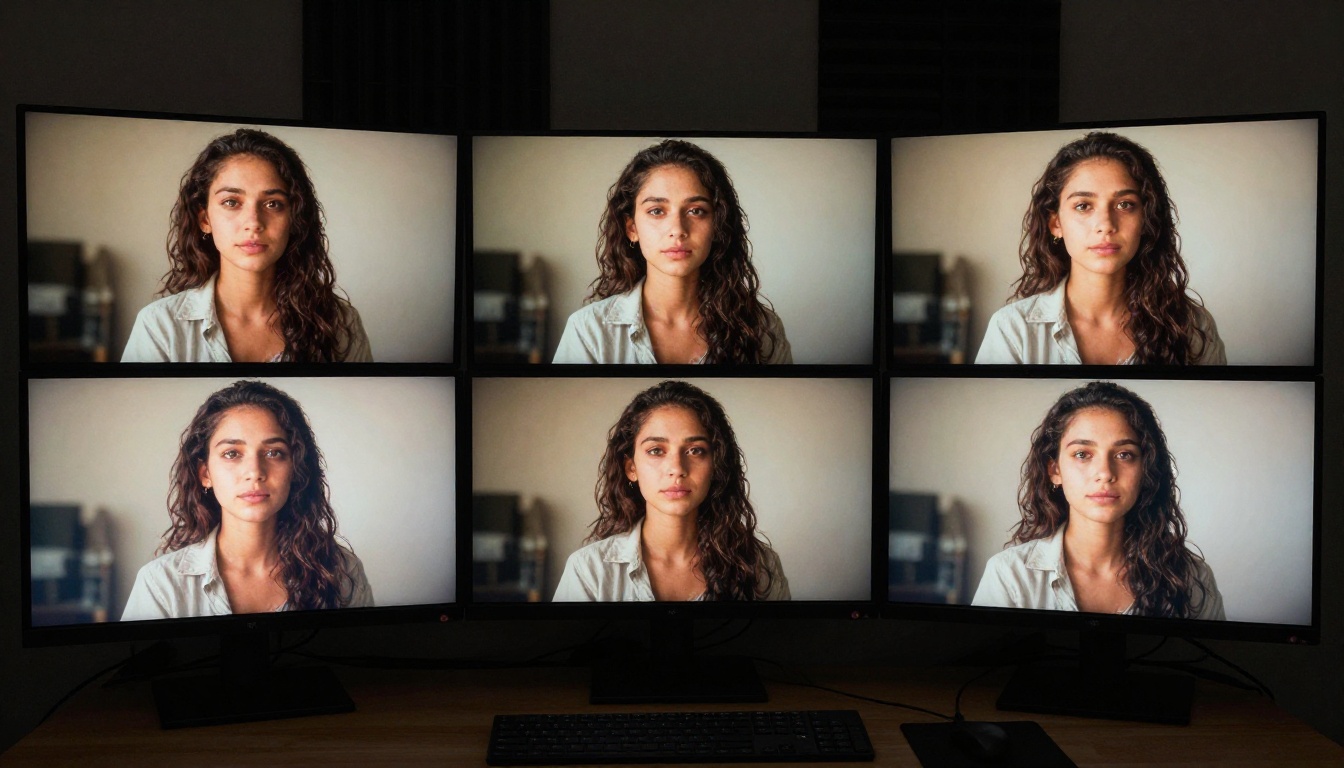
Character feature variance: the same "protagonist" with different facial structure across scenes
Cinematic register mismatch: one clip feels like a documentary, the next like a fashion shoot
Resolution or aspect ratio inconsistency: 16:9 mixed with portrait clips
Texture and grain variation: sharp, clean outputs next to grainy or over-smoothed ones
Each of these happens when you treat every generation as an independent event. Fixing them means treating every generation as part of a series, which requires decisions made before you open any model interface.
The Viewer Test
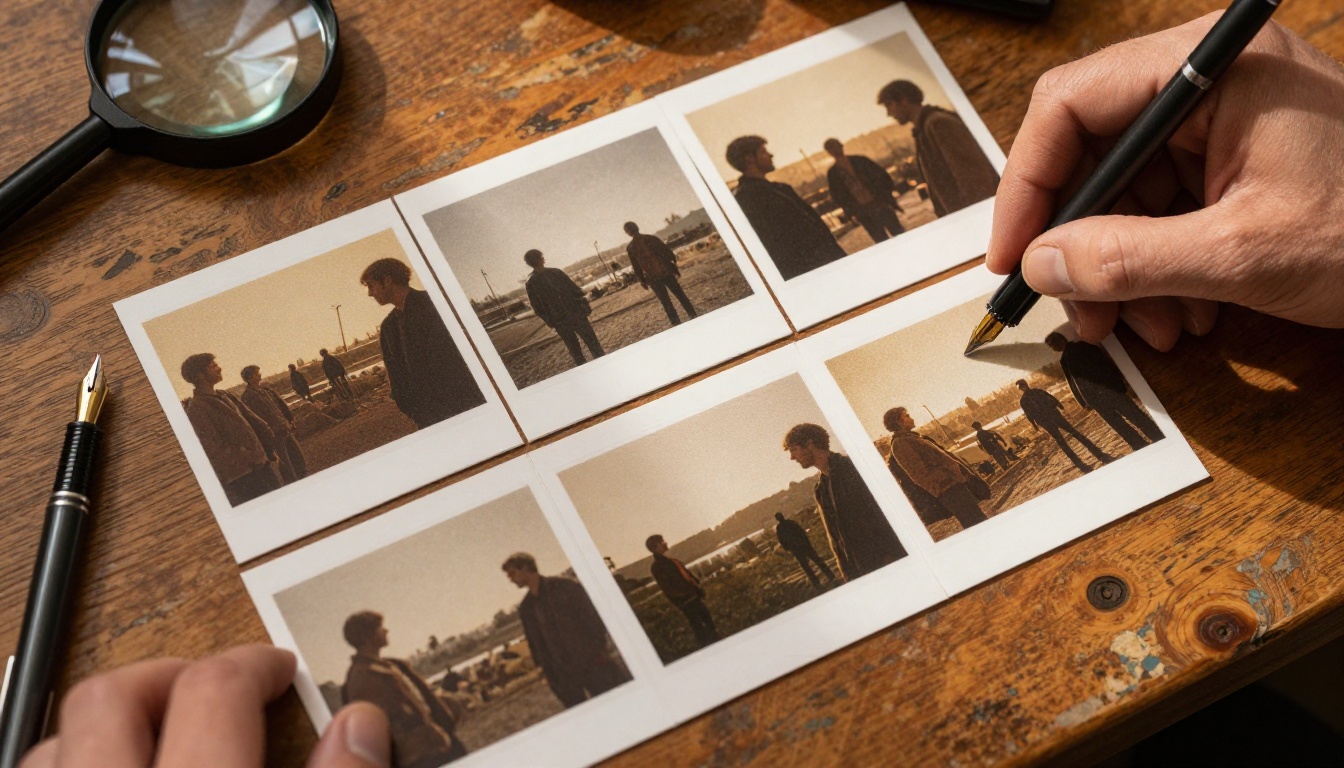
A practical way to audit your own work: strip the audio from your clips and play them as a silent slideshow. If a viewer who has never seen your project can tell which clips belong together and which are outliers, your style system is working. If everything blurs into visual noise, you have work to do.
The Four Pillars of Style
Consistent AI video style rests on four specific attributes. Get these four right and the rest tends to follow.
Lighting Direction and Temperature
Lighting is the single most visible variable across AI video outputs. A simple choice made once ("warm amber light from the left, mid-morning") can anchor every clip in the same visual world. Be specific. "Natural light" tells the model almost nothing. "Warm 5500K volumetric morning light entering from screen left, casting soft parallel shadows" gives the model a precise instruction.
Color Palette
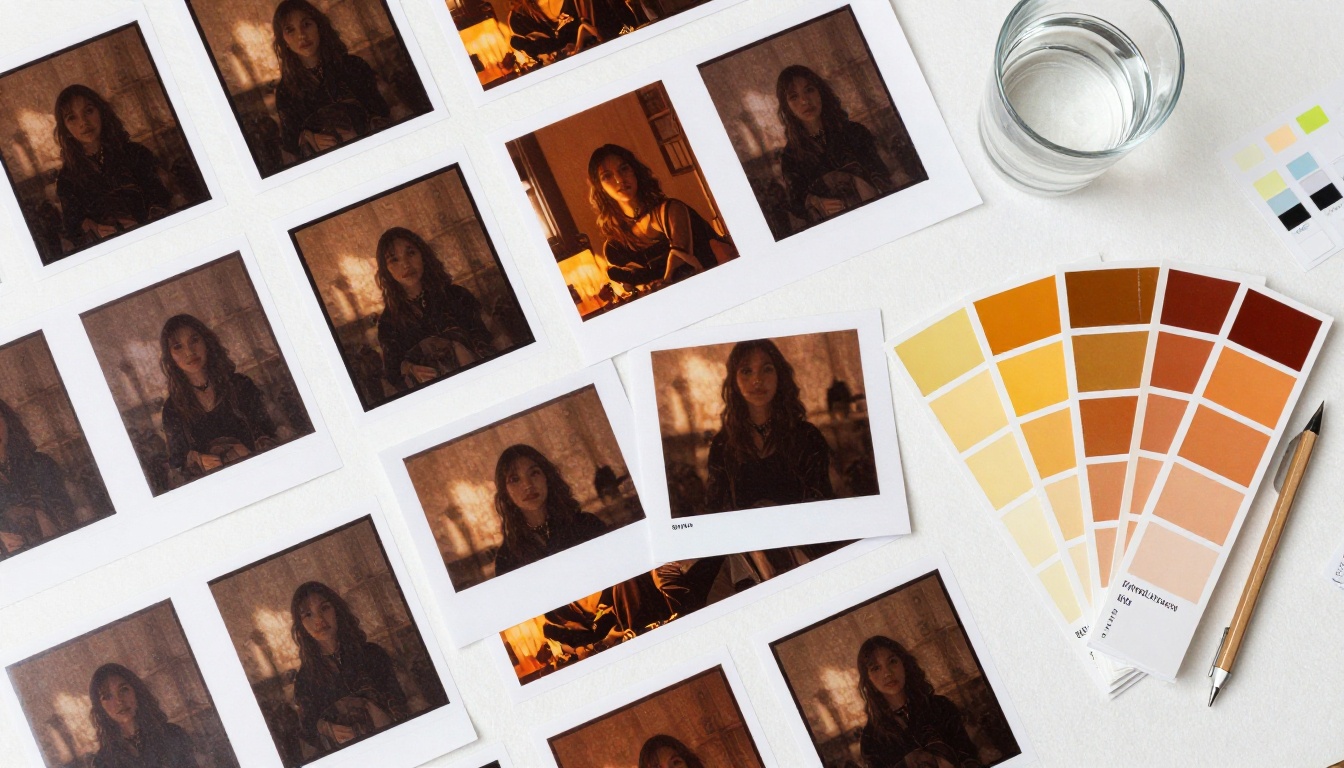
Decide on two or three dominant colors and one accent before you generate anything. Name them in your prompts with deliberate language: "muted earth tones with terracotta and slate grey accents" or "high-contrast monochrome with a single warm amber highlight." The more specific your palette language, the less the model improvises.
Tone and Mood
Tone sits above color. It describes how the scene feels: intimate and quiet, energetic and kinetic, melancholic and still. AI video models respond strongly to cinematic and emotional language. "Shot in the style of a quiet Sunday morning documentary" produces meaningfully different output from "fast-cut editorial energy, dynamic camera movement."
Subject Characteristics
If your video series features a recurring character or object, describe their specific physical characteristics in every prompt. Hair color, clothing texture, skin tone, posture. The more detailed and consistent your subject description, the less the model will reinterpret.
Build a Style Reference Document
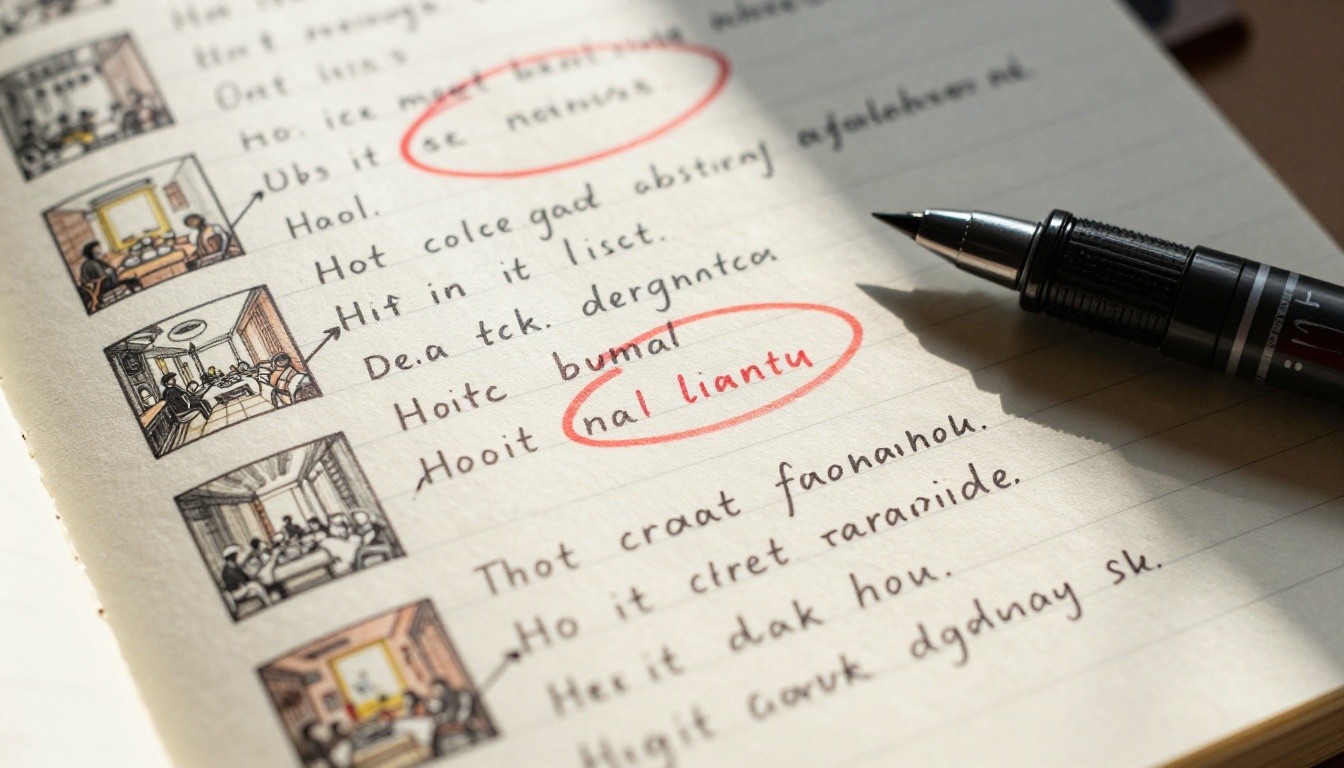
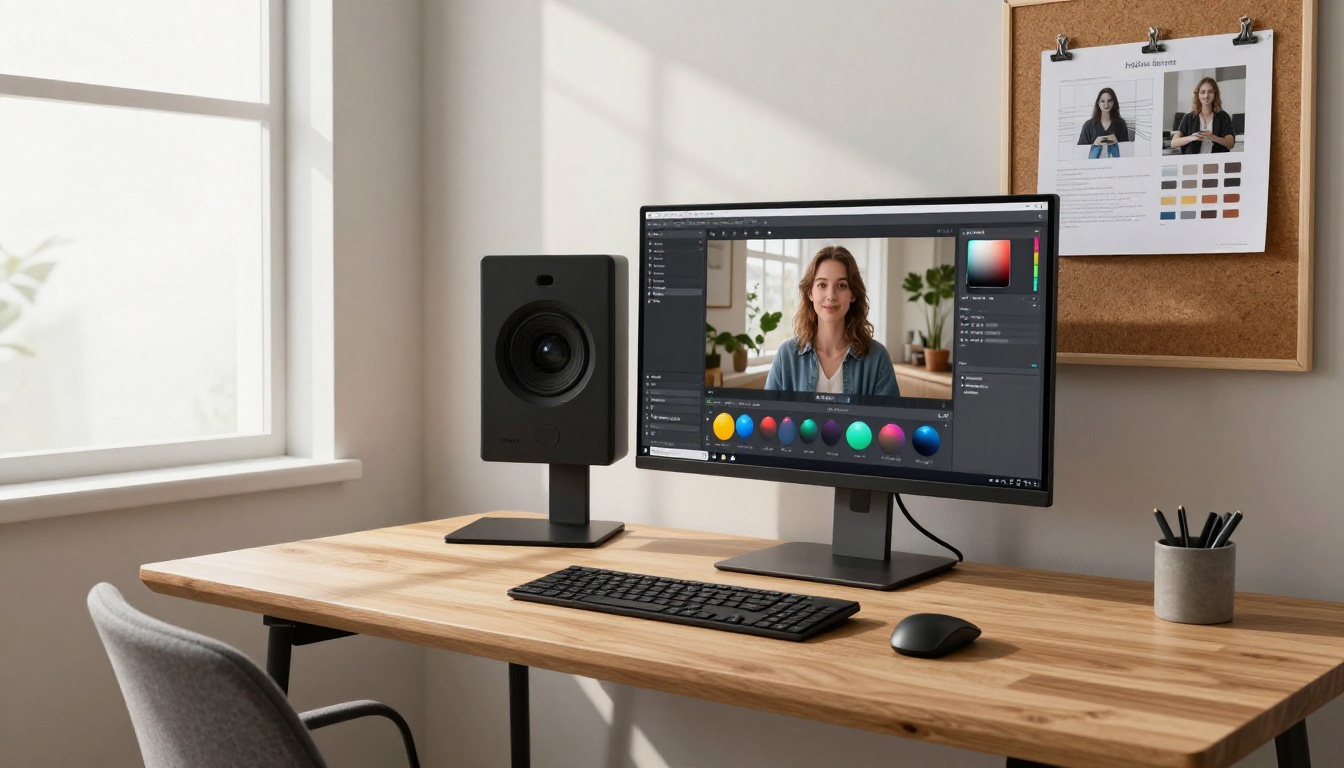
Before generating a single frame, write a style reference document. This can be a text file, a Notion page, or a physical notebook. Its format does not matter. Its existence does.
What to Include
A useful style reference document contains:
Section
What to Capture
Lighting
Direction, temperature (Kelvin or adjective), hardness
Physical description of recurring characters or objects
Camera language
Preferred focal lengths, movement types, depth of field
Forbidden elements
What to explicitly exclude from every prompt
Seed values
Locked seeds that produced reference outputs you want to match
The "forbidden elements" row is underrated. Explicitly excluding things ("no harsh shadows, no wide-angle distortion, no overexposed highlights") is often more effective than adding more positive descriptors.
A Practical Example
Here is a minimal style reference for a documentary-style video series about urban coffee culture:
Lighting: Warm 4800K natural window light from screen left, soft fill from the right, no harsh shadows
Palette: Deep espresso brown, cream white, aged copper accents
Tone: Intimate, slow, observational
Camera: 85mm f/1.8, gentle handheld micro-movements, shallow depth of field
Exclude: Artificial lighting, wide-angle shots, fast cuts, saturated colors
Every clip generated for this series gets this block pasted into the prompt. Every single one.
Prompt Engineering for Consistency
The style reference document becomes useful only when it gets translated into actual prompts. This section covers how to do that well.
The Reusable Prompt Template
Write one master prompt template with placeholder sections. Every scene-specific prompt is this template with the scene description filled in. Here is an example structure:
[SCENE DESCRIPTION HERE] — warm 4800K natural window light from screen left,
soft fill right, no harsh shadows, deep espresso brown and cream color palette
with aged copper accents, 85mm f/1.8 shallow depth of field, gentle handheld
micro-movements, intimate and slow observational tone, photorealistic,
no artificial lighting, no wide-angle distortion
Copy this template. Change only the scene description. Everything else stays locked.
💡 Pro tip: Store your template in a clipboard manager or text expander so you never retype it. Even small variations in how you phrase recurring style descriptors can produce inconsistent outputs.
Seed Locking
Most AI video models accept a seed value. A seed is a number that controls the random starting point of the generation. When you find a generation that perfectly matches your style reference, note the seed. Reusing that seed with the same prompt structure produces outputs in a very similar visual neighborhood.
Seed locking is not a guarantee of identical output, but it dramatically narrows the range of variation. For image-to-video workflows specifically, it is one of the most effective consistency tools available.
Anchoring Lighting and Color in Words
Certain phrases have strong associations in video model training data. Using cinematography-specific language activates those associations more reliably than generic terms:
Instead of "warm lighting," try: "golden hour rim lighting, 3200K tungsten ambient"
Instead of "muted colors," try: "desaturated earth tones, filmic color grading, Kodak Portra simulation"
Precision is not pedantry here. It is the difference between the model guessing what you want and the model receiving a clear signal.
Choosing Your Model and Sticking With It
One of the fastest ways to destroy visual consistency is to use different models for different clips in the same project. Every model has its own aesthetic fingerprint: its default color response, motion style, grain characteristics, and compositional tendencies. Even with identical prompts, Seedance 2.0 and Kling v3 Video will produce visually distinct outputs.
Why Model-Hopping Breaks Style
The reasoning is straightforward: each model was trained on different data, with different aesthetic biases baked in. When you switch models mid-project, you are essentially switching cinematographers. The footage may be beautiful, but it will not look like it was shot on the same day.
Pick one model per project. Commit to it. If you need a different capability for one clip (say, audio sync or specific motion control), use it for that clip and be aware that it will likely require extra color grading or style correction in post.
The Best Models for Visual Continuity
Here is a comparison of top models on PicassoIA with consistency-relevant attributes:
For most series-style workflows, Seedance 2.0 and Wan 2.7 I2V are the two strongest options because they respond well to detailed prompts and maintain character fidelity across generations.
How to Use Seedance 2.0 on PicassoIA for Consistent Videos
Seedance 2.0 is one of the strongest options on PicassoIA for maintaining visual consistency across a video series. Its prompt adherence is tight, its color response is predictable, and it ships with native audio sync, which means your style carries into the sound layer as well.
Step 1: Generate Your Reference Frame First
Before generating any video, generate a single still image that represents your ideal visual style. This is your "north star" frame. Use it as your style reference document's visual anchor. When a video clip looks right, it looks like this frame.
If you use an image-to-video workflow, this reference frame becomes your actual input image, which immediately locks in the color temperature, composition, and subject appearance.
Step 2: Build and Lock Your Prompt Template
Take the style reference document from earlier and write it into a Seedance 2.0-optimized prompt. Seedance responds particularly well to:
Cinematic lighting descriptions with specific direction and quality
Color temperature specified in Kelvin or precise adjective pairs
Write this once. Save it. Reuse it for every clip, appending only the scene-specific action description.
Step 3: Use the Same Seed Across Clips
When Seedance generates an output you love, note the seed value displayed in the generation details. For subsequent clips, enter this same seed value. Combined with your locked prompt template, this significantly reduces style drift between generations.
💡 Workflow tip: Create a folder in your project named "Style Reference" and save your first successful clip there. Every future clip gets compared against it before it is approved. If the new clip would not look natural next to the reference, regenerate before moving on.
Image-to-Video for Tighter Control
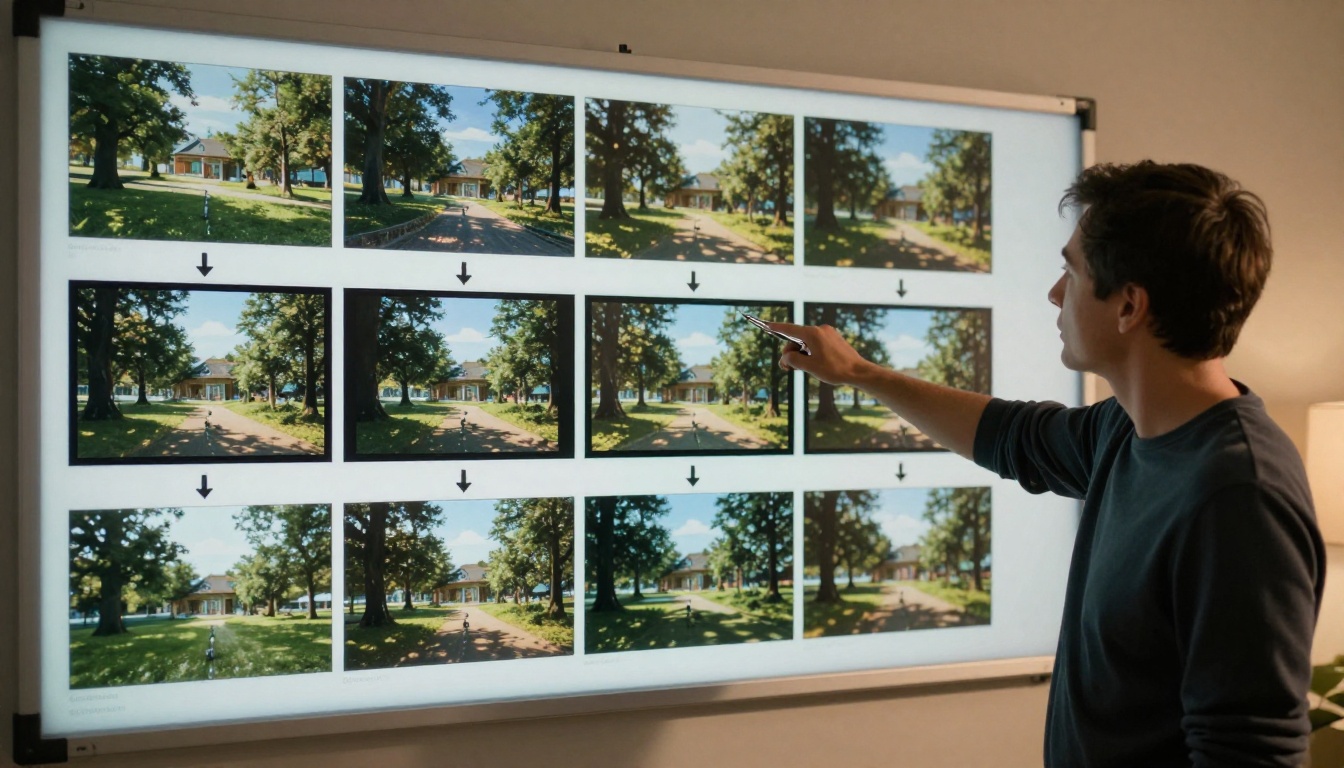
The most reliable way to maintain visual consistency across AI videos is to use image-to-video generation rather than pure text-to-video. When you start from a consistent source image, the model inherits the color, lighting, and subject appearance directly from that image. The prompt then controls the motion and action rather than having to rebuild the entire visual from scratch.
Why I2V Reduces Variation
In a text-to-video workflow, the model interprets your style descriptors independently for every generation. Even with identical prompts, the interpretation will vary. In an image-to-video workflow, the visual baseline is fixed. The model's job is narrower: animate what it sees, in the direction you describe. That is a much tighter constraint, and it produces much more consistent results.
Best I2V Models on PicassoIA
Wan 2.7 I2V: Exceptional fidelity to the source image, strong character retention
Wan 2.6 I2V: Strong motion quality with good color preservation
Hailuo 2.3 Fast: Rapid iteration with consistent color response
For a typical series workflow: generate your style reference image once, then feed it as the source image to every subsequent clip generation. This one change alone will do more for your consistency than any prompt optimization.
4 Mistakes That Destroy Visual Consistency
Even with a good system in place, these four mistakes show up repeatedly in AI video projects.
Vague Lighting Descriptions
"Natural lighting" is not a lighting description. It is an absence of specification. Natural light at noon on a desert is completely different from natural light at 7am in a forest. Be specific every time, and use the same specific language in every prompt.
Switching Models Between Clips
This was covered earlier, but it bears repeating because it is the most common consistency killer. The temptation to try a new model mid-project is strong, especially when a new release promises better quality. Resist it. New model, new project.
Ignoring Aspect Ratio and Resolution
If your series is 16:9, every clip must be 16:9. Mixing portrait clips from a mobile-oriented model with landscape clips from a cinematic model creates an immediate visual break. Decide your aspect ratio before generation begins and do not deviate.
Skipping the Style Document
Most people skip the style document because it feels like overhead before the "real work" starts. It is not overhead. It is the work. Every hour spent on the style document saves three hours of regeneration cycles and post-production corrections. Write it first.
Build a Style Library That Lasts
A single project benefits from the system described above. Multiple projects benefit from a style library. A style library is a collection of saved prompt templates, seed values, and reference images organized by aesthetic.
Saving Presets and Prompt Templates
Keep a simple text file or Notion database with your best-performing style configurations. Each entry should include:
When a new project calls for a visual style similar to a past one, you start from a proven configuration rather than from scratch. Your quality floor rises with every project.
When to Update Your Style Guide
A style guide is a living document within a project, but it should be stable. Update it only when:
You are starting a new project with a deliberately different aesthetic
A model update changes how your prompts are interpreted
Your audience's expectations shift based on feedback
Do not update mid-project. Mid-project changes create exactly the kind of visual discontinuity this entire article is built to prevent.
💡 Final workflow checkpoint: Before generating any clip in a series, read your style reference document. Compare every new output to your reference frame. Only approve clips that would look natural beside every other approved clip. This five-second habit is the difference between a series and a collection of random clips.
Start Building Your Visual System Today
Visual consistency in AI video is a solvable problem. It requires intention before generation, specificity in every prompt, discipline about model choices, and a reference document that sits beside you throughout the project. None of these steps are technically complex. All of them require the habit of deciding your style before the model decides it for you.