If you've ever spent hours building out a character or visual style in AI image generation, only to regenerate and get something totally different, you already know the pain. The model didn't change. The tool didn't break. You just hit the wall that stops most creators dead: AI image consistency.
It's the single biggest frustration in multi-image projects, whether you're creating a comic series, a product campaign, a children's book, or a set of brand visuals. Each image comes out looking slightly different, lighting shifts, facial features change, the color palette drifts. Without a system in place, you're regenerating endlessly and hoping something matches.
This doesn't have to be your workflow. There are proven, repeatable methods to keep AI images consistent across an entire project. Here's exactly how to do it.
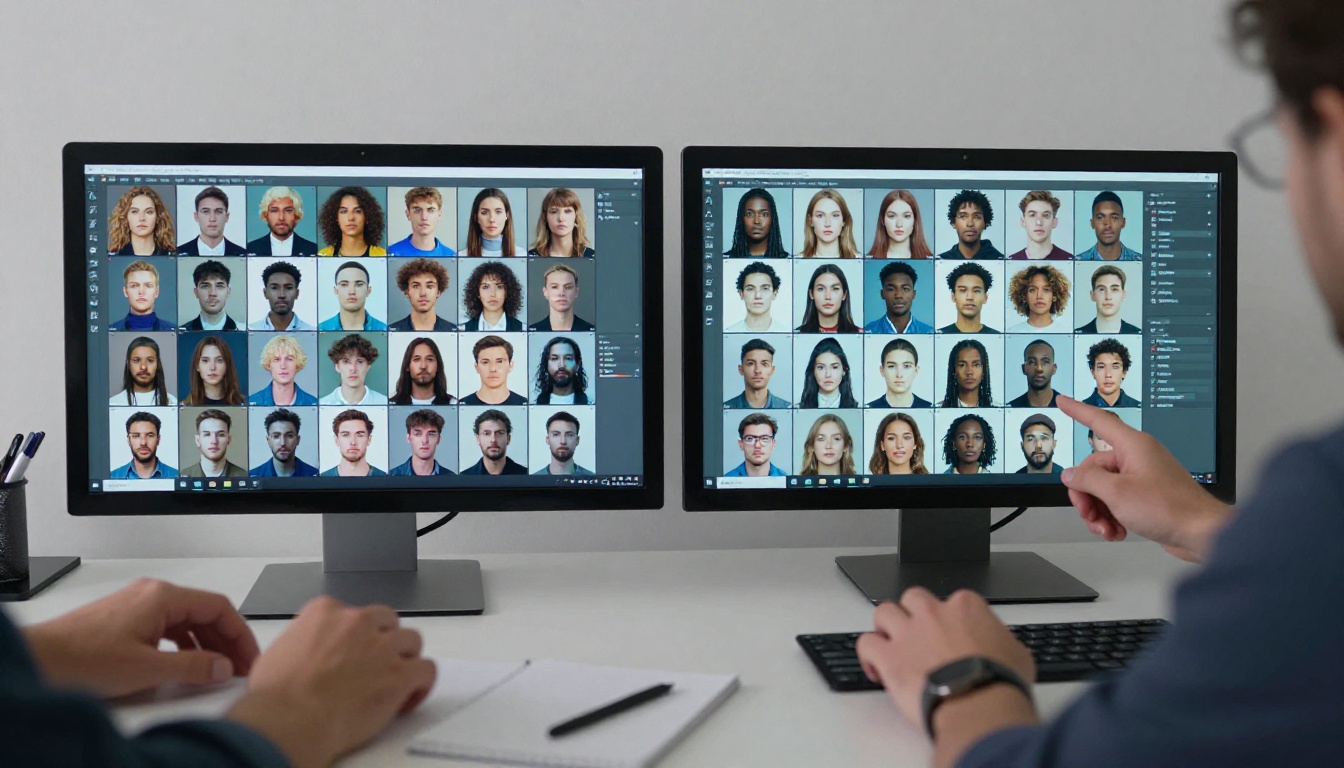
Why Your AI Images Look Different Every Time
Most creators blame the model when consistency breaks down. The model is rarely the problem.
Random seeds are the main culprit
Every AI image generation runs on a random seed, a number that initializes the noise pattern the model uses to build the image. Without a fixed seed, the model picks a new random starting point every single time. Even with an identical prompt, you'll get a completely different result.
This is the number one reason your character's face changes between generations. The hair gets longer, the eye color shifts, the skin tone adjusts slightly. It's not drift in the model, it's just randomness doing what randomness does.
Prompt drift breaks everything
The second culprit is prompt inconsistency. If you describe your character as "a woman with auburn hair and green eyes in a forest" in one image, then "a female figure in natural outdoor lighting" in the next, you've already introduced enough variation for the model to produce a visually different result.
Tiny word changes matter far more than most people realize. Adding or removing a single descriptor like "warm light" vs "natural light" can shift the color grading across the entire image. Without a locked prompt structure, consistency is impossible across more than two or three images.
Lock Your Seed, Lock Your Style
Seed control is the fastest, lowest-effort way to improve consistency without changing anything else about your workflow.
What seeds actually do
A seed is a starting point for the diffusion process. When you use the same seed with the same prompt on the same model, you get a deterministic result. The image won't be pixel-perfect identical every time (guidance scale and other parameters also matter), but the structural elements, face, pose, lighting direction, will stay far more stable.
Think of it like a photograph: the seed determines what angle the camera is pointed, the prompt determines what's in the scene. Change the scene but keep the camera angle and you get visual continuity.
💡 Pro tip: Always generate your first good result, note the seed, then use that seed for every subsequent image in the same project. On PicassoIA, you can enter a specific seed value directly in the generation interface before running.
How to use seed control in practice
The practical workflow looks like this:
- Generate images freely until you get one that captures the character or style you want.
- Note the seed number from that generation.
- Enter that seed manually for every new image in the same project.
- Only vary the parts of the prompt that need to change (pose, expression, background), keep everything else identical.
This one change alone can produce dramatically more consistent results without any additional tools. Paired with PicassoIA Image, which gives you full control over seed values, this becomes a genuinely scalable workflow.
Build a Prompt Template That Never Fails
Seed control solves the randomness problem. Prompt templates solve the drift problem.
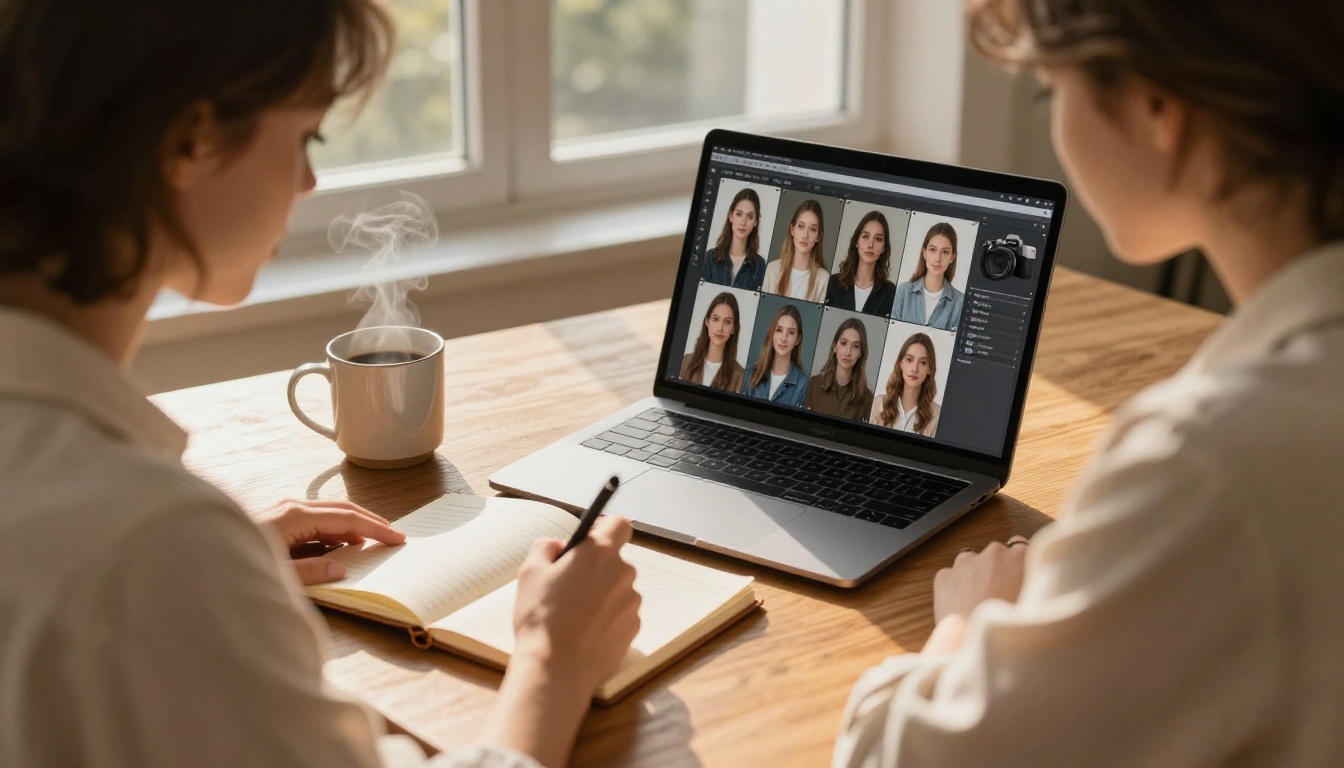
The anatomy of a consistency prompt
A strong consistency prompt has three layers:
Layer 1: Character anchor. This is the part that never changes. It contains everything that defines your subject: physical features, clothing style, color palette, distinguishing details. Write this out once and lock it.
Example: woman, 28 years old, shoulder-length auburn hair, green eyes, light freckles, wearing a navy blue linen jacket
Layer 2: Style and lighting anchor. This covers everything about how the image looks: the color grading, lighting direction, film style, camera specs. Also locked.
Example: warm volumetric morning light from left, shot on 85mm f/1.8, Kodak Portra 400 film grain, shallow depth of field, photorealistic, 8K
Layer 3: Scene variable. This is the only part that changes between images. It specifies what the character is doing, where they are, what expression they have.
Example: sitting at a café table reading a book / walking through a park in autumn / looking directly at camera with a confident expression
What to lock in and what to vary
| Element | Lock It | Vary It |
|---|
| Character features | Yes | Never |
| Clothing colors | Yes | Only if intentional |
| Film style | Yes | Never |
| Lighting direction | Yes | Scene-dependent |
| Camera lens | Yes | Rarely |
| Background setting | No | Every image |
| Character pose | No | Every image |
| Facial expression | No | Every image |
💡 Save your template as a plain text file. Copy-paste the locked portions into every generation. Do not type them from memory; even small typos will shift the output.
Reference Images Change Everything
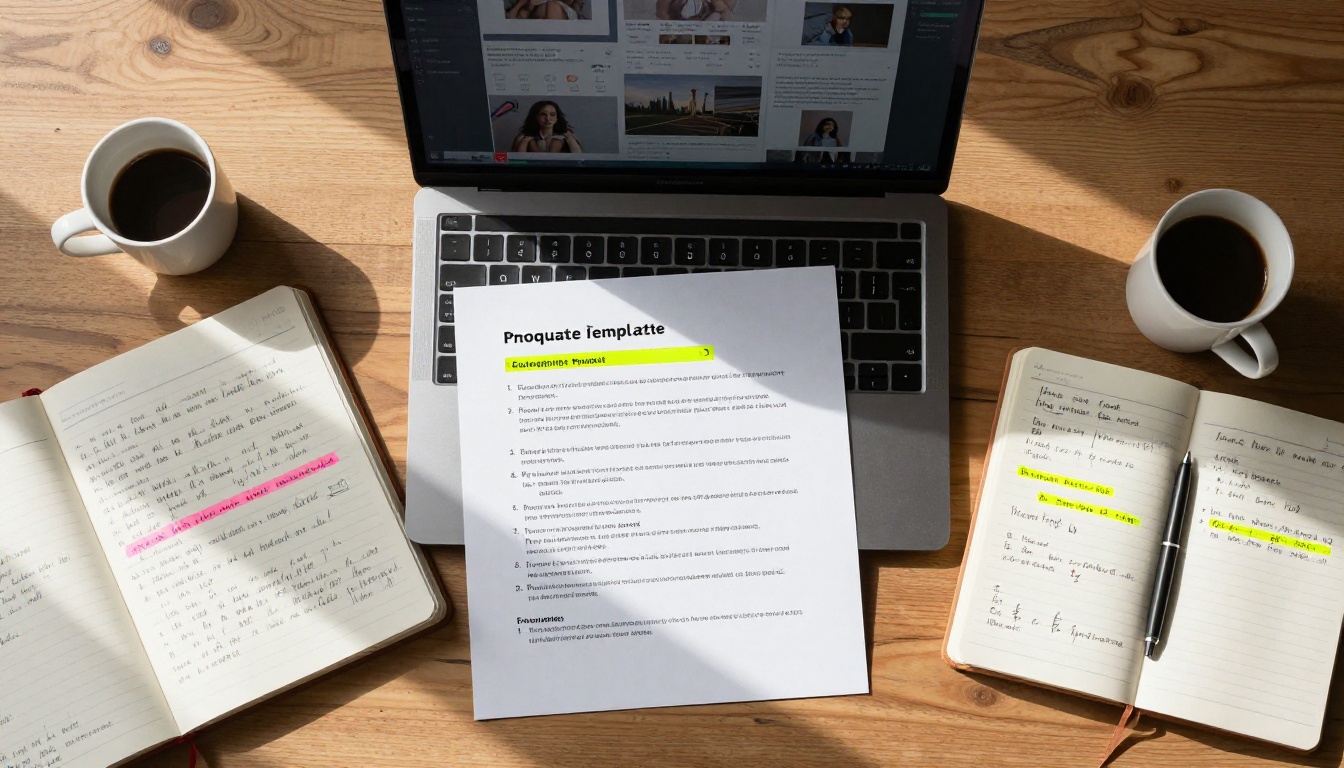
Written prompts can only do so much. For tight visual consistency, especially with face and style, you need visual references.
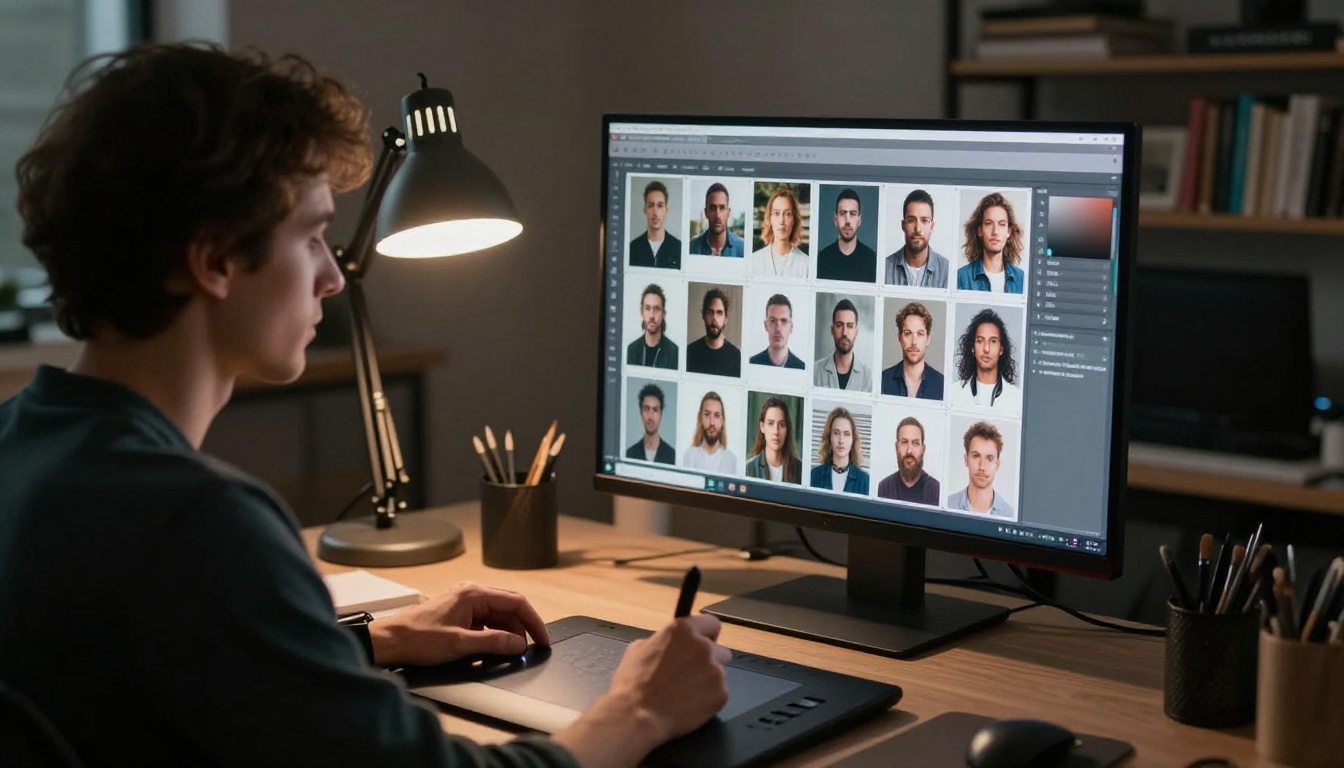
Building a visual style board
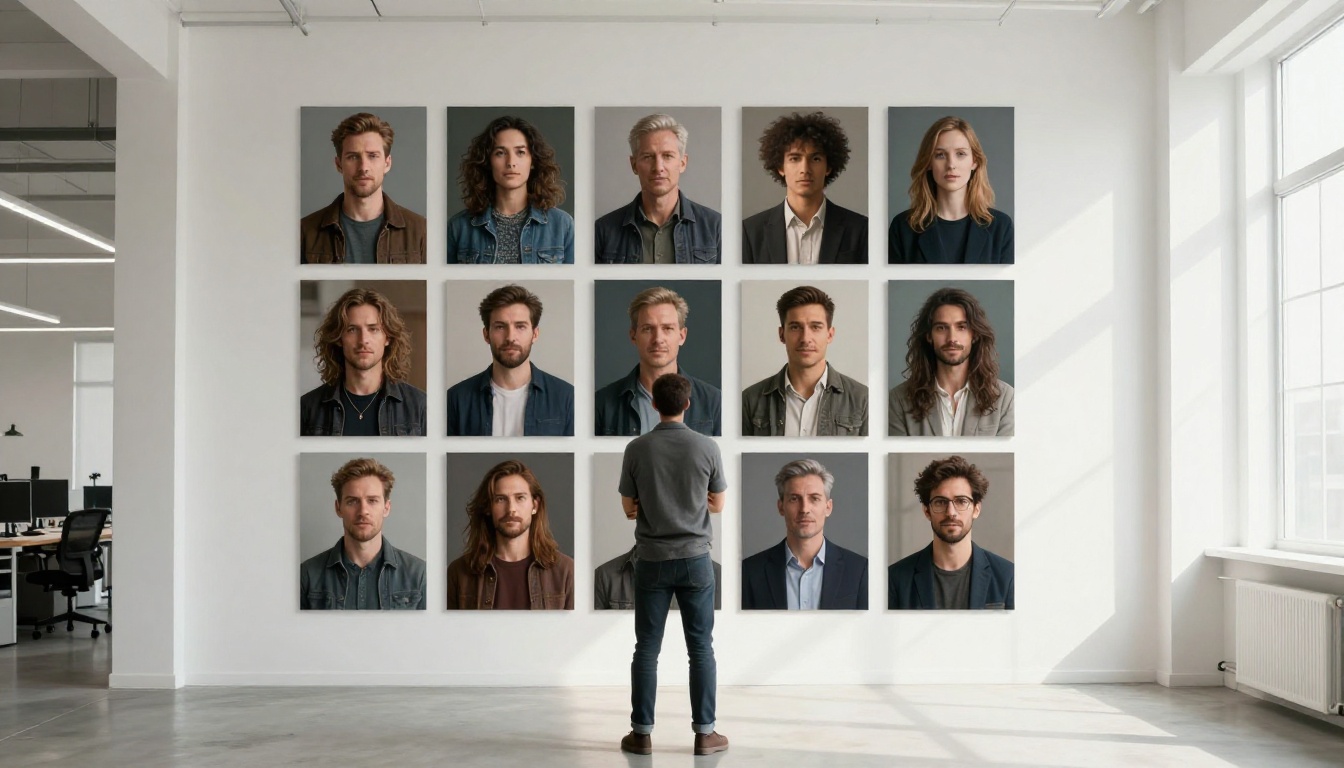
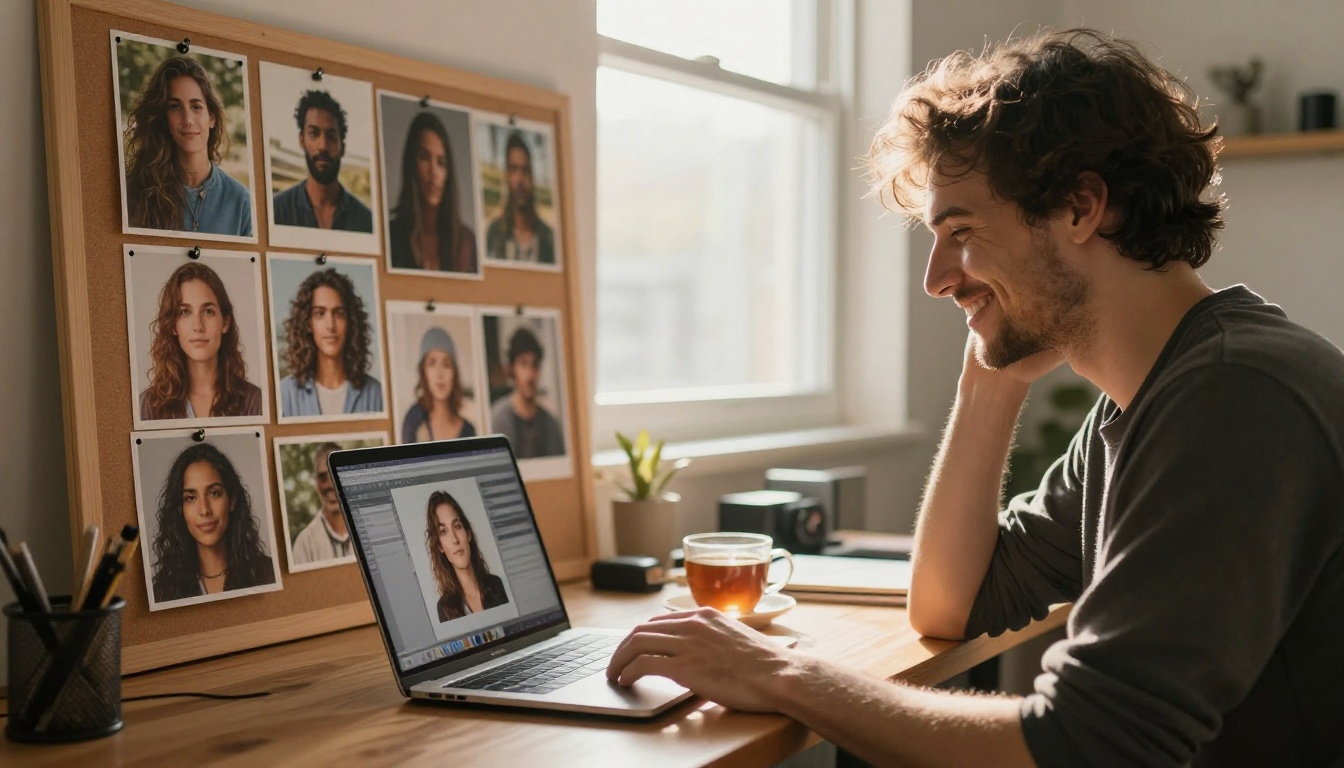
A style board is a curated set of your best generated images that define the look you're building toward. It serves as a visual anchor for every decision in the project.
Build one before you get too far into a project:
- Pick 3 to 5 of your best generations that capture the ideal style, lighting, and character look.
- Organize them in a grid so you can see them all at once while working.
- Reference them constantly. When a new image looks off, compare it directly against the style board. The problem will usually be immediately obvious.
Using Flux Redux Dev for image variations
Flux Redux Dev is one of the most powerful tools for generating consistent image variations. Instead of text prompts alone, it takes an existing image as a style reference and generates new images that inherit the visual characteristics of the source.
This means if you have one perfect image of your character or style, you can generate dozens of variations that maintain the same overall aesthetic. The face may shift slightly (Redux isn't a face-lock tool), but the color palette, lighting mood, and general style will carry through reliably.
Use it when:
- You have one excellent source image and need variations of it.
- You want to change the pose or setting while preserving the visual feel.
- Your prompt-only approach keeps drifting and you need a stronger visual anchor.
Train a Custom LoRA for Character Accuracy
For projects where character consistency is non-negotiable, such as illustrated stories, webtoons, or character design sheets, LoRA training is the most reliable solution available.
When LoRA training makes sense
A LoRA (Low-Rank Adaptation) is a fine-tuned model layer trained on your specific character or style. Once trained, any generation using that LoRA will produce images that inherit the trained visual identity. It's the closest thing to a guaranteed character lock you can get with current AI image tools.
LoRA training makes sense when:
- You're building a character who appears across 20 or more images.
- Seed and prompt control alone aren't producing tight enough consistency.
- The character has very specific, hard-to-describe visual features.
- You're working on a professional project where visual drift is unacceptable.
It doesn't make sense for one-off images or projects with 3 to 5 images total. The training investment only pays off at scale.
P Image Trainer on PicassoIA
P Image Trainer on PicassoIA lets you train a custom LoRA directly in the browser without any local setup. The process works like this:
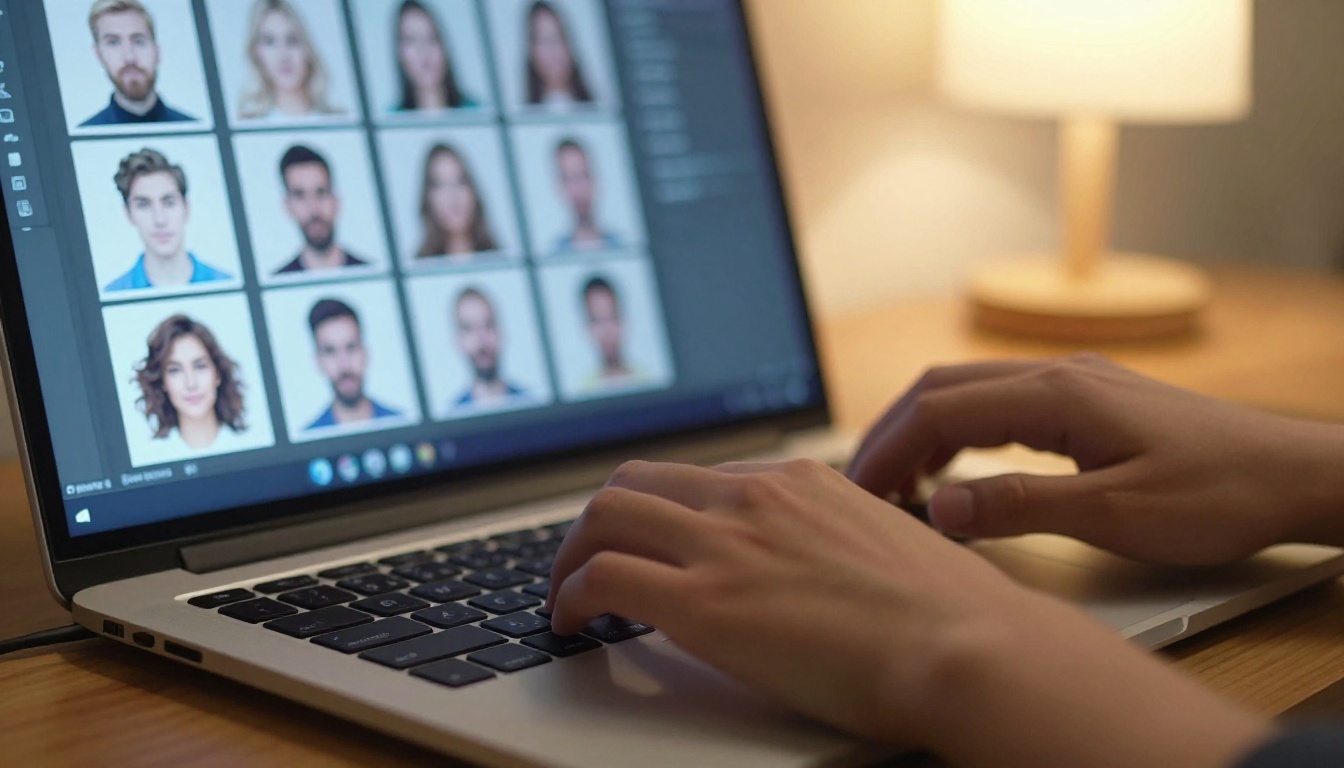
- Prepare your training images: Collect 15 to 25 high-quality images of your character or style. More varied angles and expressions produce a better LoRA.
- Upload and configure: Set the training parameters based on how tightly you want the model to lock in your style.
- Train and download: The LoRA trains in the cloud and becomes available for use in your generations immediately.
- Apply in every generation: Use the trained LoRA in PicassoIA Image alongside your prompt template and locked seed for maximum consistency.
You can also try Qwen Image LoRA Trainer Legacy for an alternative approach to style training, particularly useful if you're working on a specific art style rather than a character.
💡 Combine LoRA with seed control: A trained LoRA handles the character identity, a fixed seed handles the structural composition, and your prompt template handles the scene. All three together produce the most consistent results possible.
Edit Without Breaking Your Visual Style
Even with perfect generation, you'll occasionally need to fix or adjust specific parts of an image without regenerating the whole thing. This is where inpainting becomes essential.
The inpainting method
Inpainting lets you select a specific region of an existing image and regenerate only that area while keeping everything else intact. It's used to:
- Fix a face that looks slightly off while keeping the background perfect.
- Adjust clothing details without regenerating the character.
- Add or remove objects from a scene without touching the rest.
- Correct lighting in one area without affecting the whole composition.
The critical detail when inpainting for consistency: use the same style descriptors in your inpainting prompt as in your original. If your original image was shot in "warm morning light, Kodak Portra 400," your inpainting prompt should carry those same descriptors. Otherwise the inpainted region will look like it belongs to a different image.
PicassoIA Image Editor Pro
PicassoIA Image Editor Pro is the go-to tool for this kind of targeted editing. It supports inpainting, outpainting, object replacement, and AI restoration, all within a single interface.
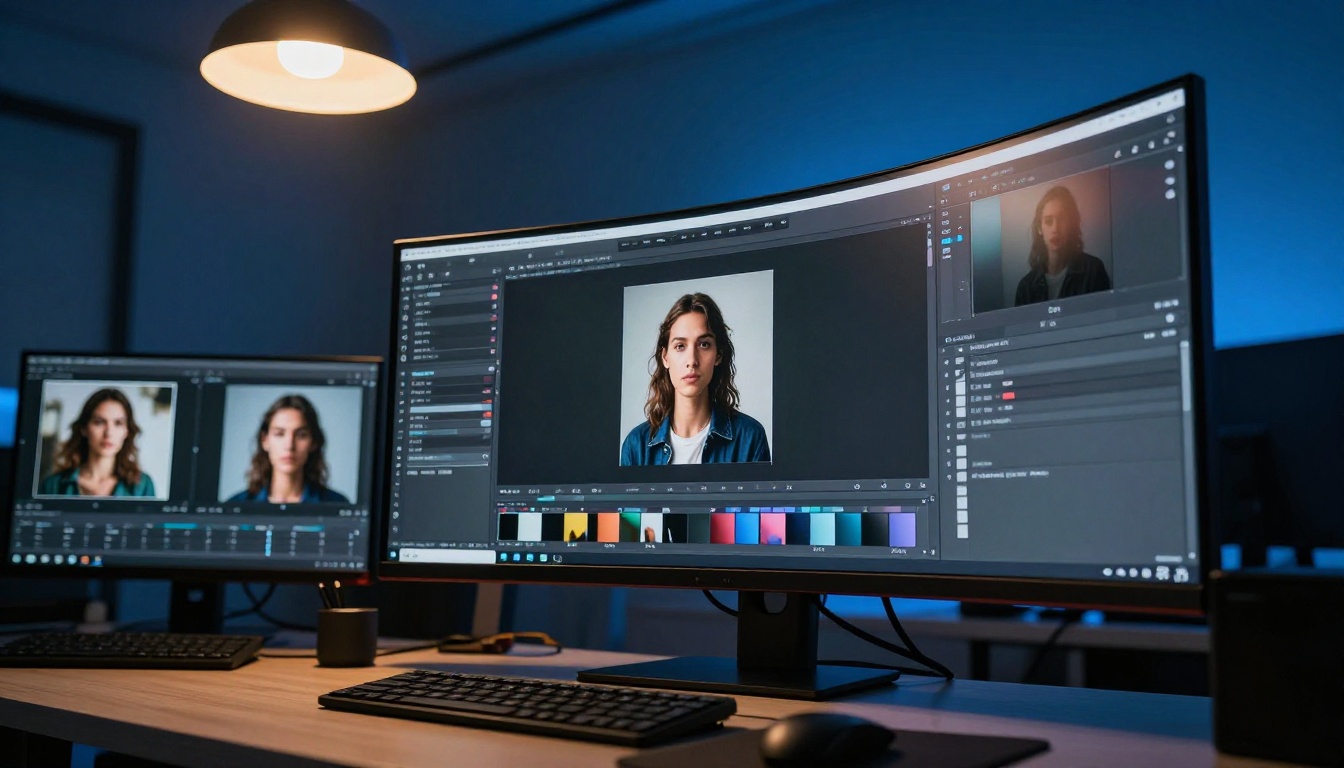
For quick targeted edits, P Image Edit LoRA works particularly well when you have an existing LoRA trained. It applies LoRA-based edits to specific regions, which keeps the style consistent with your trained character while modifying only the selected area.
Qwen Image Edit Plus is another strong option for instruction-based editing, where you describe what change to make in natural language rather than drawing a mask.
Workflow Habits That Scale
The best consistency tools in the world won't save you if your process is chaotic. These habits make the difference between a project that stays visually coherent and one that spirals.
Document everything from day one
The moment you find a look that works, document it:
- Save the full prompt in a text file labeled by project name.
- Note the seed number alongside every good result.
- Archive your best generations in a project folder organized by date and version.
- Write down any parameter changes (model version, guidance scale) that affected the output.
This takes two minutes per session and saves hours of backtracking. A project file with your prompt template, seed, and reference images is the actual asset here. The images themselves can always be regenerated. The recipe for producing them cannot be reconstructed from memory.
Batch smart, review often
Generating a large batch of images all at once and reviewing them at the end is a recipe for discovering that 40 images drifted from your style ten images in. Instead:
- Generate 3 to 5 images, then compare against your style board.
- Adjust anything that drifted before continuing.
- Use Seedream 4.5 for 4K-quality batch generations when your style is locked in and you need volume.
- Check lighting, facial features, and color grading in every review pass.
| Batch Size | Review Frequency | Risk Level |
|---|
| 1 to 5 images | After each batch | Low |
| 6 to 15 images | Every 5 images | Medium |
| 15+ images | Every 5 images, mandatory | High |
💡 Version control your prompts: If you change something, make a copy of the old prompt first. Drifts happen in both directions; sometimes you'll want to roll back to an earlier version of the style.
Start Creating Your Consistent Series
Keeping AI images consistent across a project is a process, not a setting. It takes a locked seed, a disciplined prompt template, smart use of reference images, and when the project demands it, a trained LoRA. None of these steps are complicated. They just need to be applied systematically from the start.
The good news is that every tool in this workflow is available on PicassoIA. From initial generation with PicassoIA Image and style variation with Flux Redux Dev, to custom LoRA training with P Image Trainer and targeted editing with PicassoIA Image Editor Pro, the whole workflow runs in one place.
Pick your project, lock your seed, write your template, and start building. The second image in your series should already look more consistent than anything you've created before.
Try it now at picassoia.com/en/all-models and pick the model that fits your project.


