Making a short film used to mean renting equipment, assembling a crew, and spending weeks in pre-production. Sora 2 Pro changes that math. OpenAI's most capable text-to-video model generates HD clips with cinematic motion, coherent physics, and real temporal consistency from a single prompt. The result is a direct line between your creative vision and finished footage.
But the tool only works as well as the person directing it. This article walks through the entire process of making a short film with Sora 2 Pro: script, shot planning, prompt structure, generation workflow on PicassoIA, and basic post-production. Whether you're building a narrative short, a product story, or a visual demo reel, the same logic applies.

What Sora 2 Pro Actually Does
Before diving into the process, it's worth being precise about what you're working with.
HD Output with Real Motion Physics
Sora 2 Pro generates high-definition video with consistent object motion, camera movement, and spatial coherence across frames. It's not looping a static image or applying a filter. It synthesizes motion from scratch, which means it can produce clips where characters walk through a frame, cameras dolly toward a subject, and objects interact with gravity and inertia realistically.
The clips it generates are typically short, making them ideal as individual shots rather than full sequences. That's the right way to think about the tool: Sora 2 Pro is a shot generator, not a film editor. Your job is to design the shots; the model generates them; you cut them together.
What the Model Won't Do Automatically
Sora 2 Pro does not maintain character consistency between separate prompts by default. If you generate a scene with a woman in a red coat in one clip and try to generate the next scene with the same character, the model will produce a different interpretation unless you're very deliberate with your prompt language. This is the single biggest production constraint to plan around.
It also doesn't add dialogue sync or music by default. Some models on PicassoIA like Seedance 2.0 include native audio generation built in; Sora 2 Pro focuses on visual quality above all else.
Before You Hit Generate
The biggest mistake new AI filmmakers make is jumping straight to the prompt box. That approach produces a collection of disconnected clips with no story logic.
Write the Script First
A short film built on AI generation still needs the same structural bones as any other short film. That means:
- A clear inciting incident (something changes in the world of the story)
- A central conflict or question the film wants to answer
- A resolution that pays off emotionally
Even a 60-second short needs these. Without them, you have visual content, not a film. Write the script in proper scene format, even if it's rough. Give yourself a document you can mark up.
💡 Tip: Keep your short film to 5-8 scenes maximum for your first AI production. More than that and character consistency becomes a serious production challenge.
Break It into Shots, Not Scenes
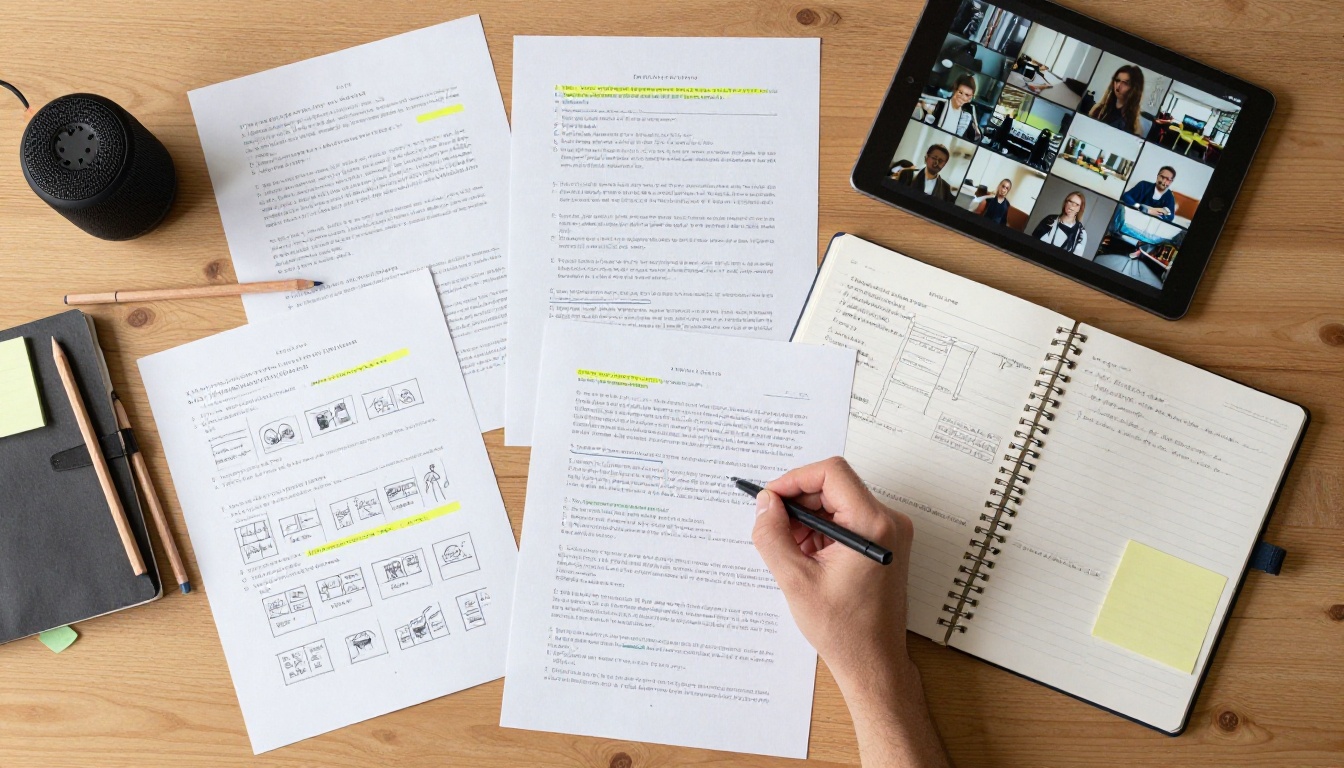
Once your script exists, break each scene into individual shots. This is called a shot list, and it's the document that directly feeds your AI prompts.
For each shot, note:
- Shot size (extreme close-up, close-up, medium, wide, extreme wide)
- Camera angle (eye level, low angle, high angle, aerial)
- Camera movement (static, pan left/right, tilt up/down, dolly in/out, tracking shot)
- Subject action (what the character does during the shot)
- Setting details (time of day, location, weather, mood)
This becomes the backbone of every Sora 2 Pro prompt you write.
How to Structure Your Prompts
Prompt quality is the single biggest variable in your final footage quality. Sora 2 Pro responds to directorial language, and knowing that language pays off more than anything else in this workflow.
Describe the Shot Like a Director
The best prompts for Sora 2 Pro follow a specific structure:
[Subject + action] + [Camera framing] + [Camera movement] + [Setting + lighting] + [Mood + atmosphere]
Weak prompt: A woman walking in a city at night.
Strong prompt: A woman in a dark trench coat walks purposefully across a wet cobblestone street at night, medium shot with a slow tracking movement following from the side, city lights reflecting off rain puddles below, volumetric fog catching the streetlight, overcast sky, cinematic, film grain.
The difference isn't creativity. It's specificity. Every detail you add reduces the model's range of interpretation and increases the probability it generates what you actually want.
Camera Angles and Motion That Work
Sora 2 Pro has strong performance with these camera specifications:
| Motion Type | Prompt Language | Best For |
|---|
| Static | "locked-off camera, static frame" | Dialogue scenes, reveals |
| Dolly in | "slow dolly-in toward subject" | Emotional emphasis |
| Pan | "slow pan left revealing the landscape" | Establishing shots |
| Aerial | "aerial wide shot, camera descending" | Location establishing |
| Tracking | "camera tracks alongside the subject" | Movement shots |
| Handheld | "subtle handheld camera, slight natural movement" | Tension, realism |
Avoid vague motion descriptions like "dynamic camera" or "cinematic movement." The model needs to know specifically what the camera is doing.
Sora 2 Pro Strengths and Weak Spots
Strong outputs:
- Natural environments (forests, beaches, city streets)
- Architectural interiors with mood lighting
- Wide establishing shots with motion
- Weather effects (rain, fog, snow in motion)
- Single-subject tracking shots
Weaker outputs:
- Complex dialogue scenes with two people talking
- Close-up hand interactions with objects
- Maintaining a consistent character face across multiple clips
- Text appearing within the video frame
Knowing this shapes your production design. Structure your film around Sora 2 Pro's strengths. Use wide and medium shots for complex action; use close-ups for atmospheric details rather than character reactions.
Using Sora 2 Pro on PicassoIA
PicassoIA provides direct access to Sora 2 Pro alongside dozens of other video generation models. Here's the step-by-step production workflow.
Step 1: Access the Model
Navigate to the Sora 2 Pro page on PicassoIA. The interface presents a prompt field with optional settings for duration and resolution. You don't need to configure anything complex to start generating.
Step 2: Build Your Shot List
Take your shot list and convert each shot into a Sora 2 Pro prompt. Work through them in story order so you can evaluate visual consistency as you go. For each shot, write the prompt, generate, review the clip, and decide whether to keep it or regenerate with a modified prompt.
Keep a simple spreadsheet with:
- Shot number
- Scene
- Prompt used
- Output clip URL
- Status (approved / needs regeneration)
This is your production tracking document. It keeps the project from becoming a folder of random clips with no context.
Step 3: Handle Character Consistency
Since Sora 2 Pro doesn't lock in characters between separate generations, you have two options:
Option A: Design your film so characters are never seen clearly enough to require consistency. Wide shots, silhouettes, POV shots from the character's perspective, and shots where the camera follows from behind all sidestep the problem entirely.
Option B: Repeat the exact same character description in every prompt that features that character. Use very specific physical details: "a tall woman with short auburn hair, wearing a dark navy wool coat and brown leather boots." Copy-paste this description into every shot that includes her.
Option A is usually the better production choice for first projects. It tends to produce more cinematic results and removes one of the biggest headaches in AI film production.
Step 4: Evaluate and Iterate
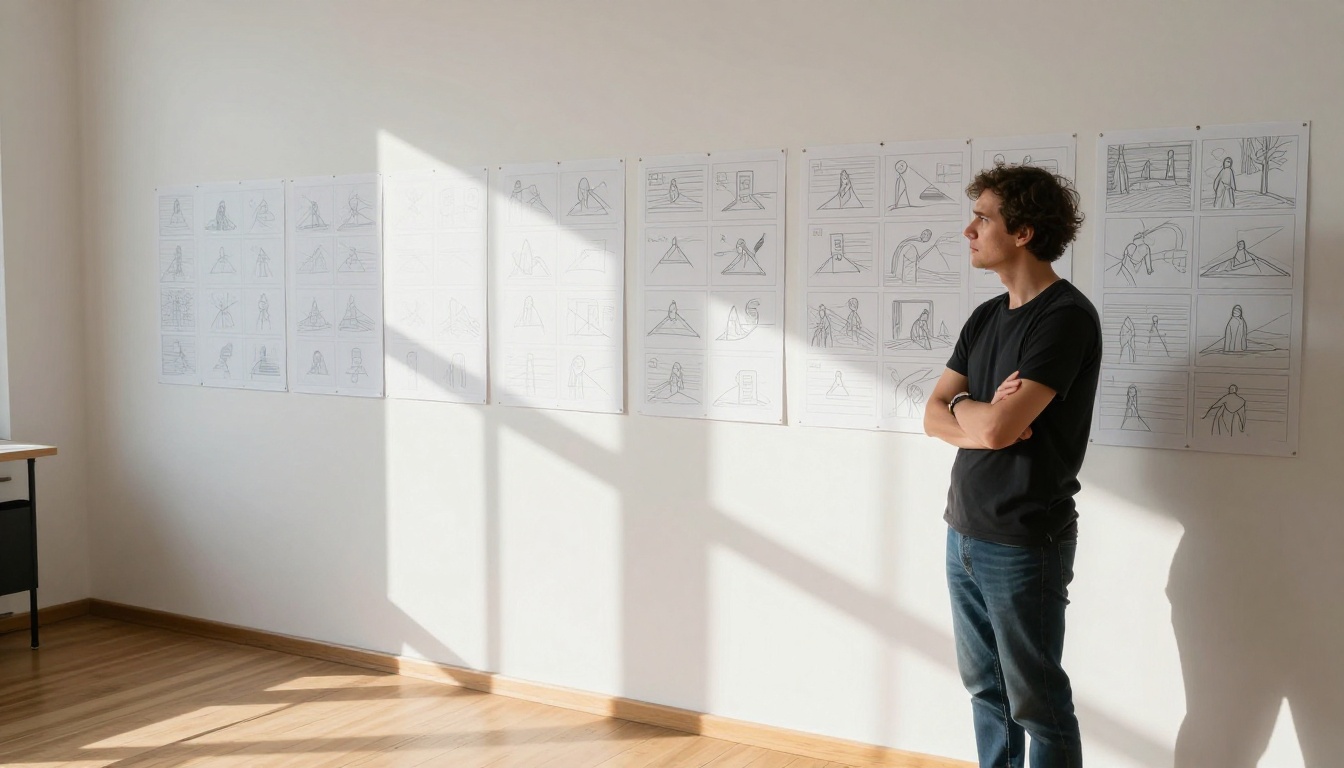
Not every clip will work on the first try. Expect to regenerate 20-40% of your shots. When a clip doesn't work, diagnose why before changing the prompt:
- Wrong framing: Add more specific camera language
- Wrong mood: Add or change lighting descriptors
- Motion too fast or slow: Add "slow motion," "real-time pace," or "time-lapse" language
- Character looks wrong: Be more specific about physical details
Iteration is part of the process. Professional outputs from AI video tools typically require 2-4 generation attempts per shot.
💡 Production note: Always save the URL of every approved clip before moving on. Regeneration produces a different result, and there is no undo once you close a session.
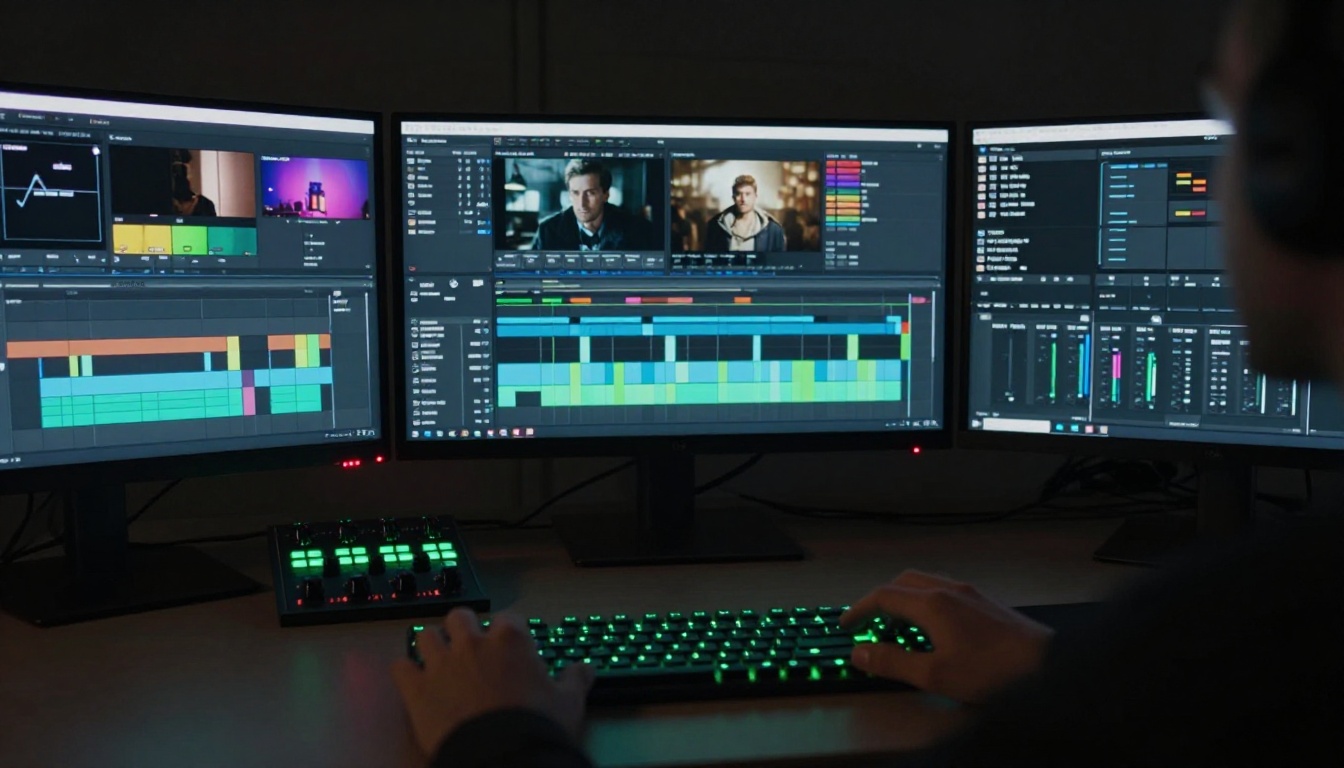
Once you have a set of approved clips, you need to cut them into a film. This is where video editing software takes over from the generation workflow.
Assembly Cut Basics
Import all your clips into a timeline (DaVinci Resolve is free and professional-grade). Arrange them in script order without any cuts yet. Watch it through from start to finish and note:
- Where the pacing drags
- Shots that don't connect visually
- Moments that work better than expected
Then begin trimming. Most AI-generated clips have their best frames somewhere in the middle. The first and last second often contain motion artifacts or setup frames that aren't usable. Trim those and you'll find solid footage at the core of each clip.
Sound Design and Pacing
Sora 2 Pro generates silent video. Your film needs sound, and it's worth thinking about three separate layers:
- Ambient sound: Background noise for each location (street ambiance, wind, indoor room tone)
- Music: Score or licensed tracks that match your film's emotional arc
- Dialogue or narration: If your film has any spoken content, record it separately and sync it in post
Free ambient sound libraries and royalty-free music are widely available. PicassoIA also offers audio tools including text-to-speech and AI music generation models if you want to produce your audio entirely inside AI workflows. Visit picassoia.com/en/all-models to see what's available.
Other Video Models Worth Knowing
Sora 2 Pro is the highest-fidelity choice for many projects, but it's not always the right call. Depending on your shot, a different model might produce better results faster.
When to Pick a Different Model
| Model | Best Use Case |
|---|
| Sora 2 Pro | HD cinematic footage, complex motion, highest visual quality |
| Veo 3.1 | 1080p with native audio, fast turnaround |
| Kling v3 | Cinematic character motion, strong 1080p output |
| Seedance 2.0 | Built-in synchronized audio, fast generation |
| Wan 2.7 T2V | 1080p at lower cost per clip |
| LTX 2 Pro | 4K output for premium production |
| Hailuo 02 | 1080p, strong motion, reliable visual quality |
| Pixverse v5 | Stylized visual effects, strong creative flexibility |
A smart production approach uses multiple models. Generate the hero shots with Sora 2 Pro. Fill in faster B-roll and establishing shots with Wan 2.7 T2V or Kling v3. If you need audio integrated at the generation stage, Seedance 2.0 handles that in a single step.
PicassoIA gives you access to all of these models in one place, which makes multi-model production significantly easier than juggling separate platform accounts and logins.
5 Mistakes First-Timers Make
These show up in almost every first AI short film project, and all of them are preventable:
1. Writing prompts like captions, not shot descriptions
"A woman in a park" is a caption. "A woman sits on a wooden bench in a sunlit park, medium shot, camera slowly drifting left, dappled afternoon light through trees, natural wind moving through her hair, peaceful atmosphere" is a prompt that generates real footage. The difference in output quality is significant.
2. Ignoring character consistency until it's too late
Halfway through generating your clips, you realize your protagonist looks different in every scene. Design around this from the start, not as an afterthought.
3. Not trimming generation artifacts
AI-generated clips often start with a transition frame and end with one. Leaving these in the timeline creates visible jarring cuts. Always trim the first and last 0.5 seconds of each clip before assembling your edit.
4. Building without a script
No script means no structure, which means your 30 clips have no narrative logic connecting them. The film you edit will be a montage, not a story.
5. Using low resolution for final output
For anything that looks like a real film, generate at 1080p or higher. Lower resolutions work for quick tests but not for finished output you'd share publicly or with a client.
💡 Worth knowing: Sora 2 is also available on PicassoIA if you want to compare outputs. For most narrative short film work, Sora 2 Pro produces noticeably sharper and more coherent clips.
Start Making Your Film Today
The barrier to entry for short film production has dropped significantly. Sora 2 Pro on PicassoIA puts HD cinematic video generation inside a prompt box that any filmmaker can access right now, without renting equipment or hiring a crew.
The process is clear: write a script, build a shot list, convert each shot into a well-structured prompt, generate and iterate, then cut and add sound. That's filmmaking, now with AI handling the production side.
Start with a tight concept. Something with 5-6 scenes, strong visual language, and a story told mostly through action rather than dialogue. Generate your first batch of shots. Watch what the model does with your prompts. Refine the ones that don't work. Then cut them together.
PicassoIA gives you access to Sora 2 Pro, Kling v3, Veo 3.1, Seedance 2.0, and over 100 other video models in one platform, alongside image generation, audio tools, and video editing capabilities. Visit picassoia.com/en/all-models to see everything available and start producing your short film today.


