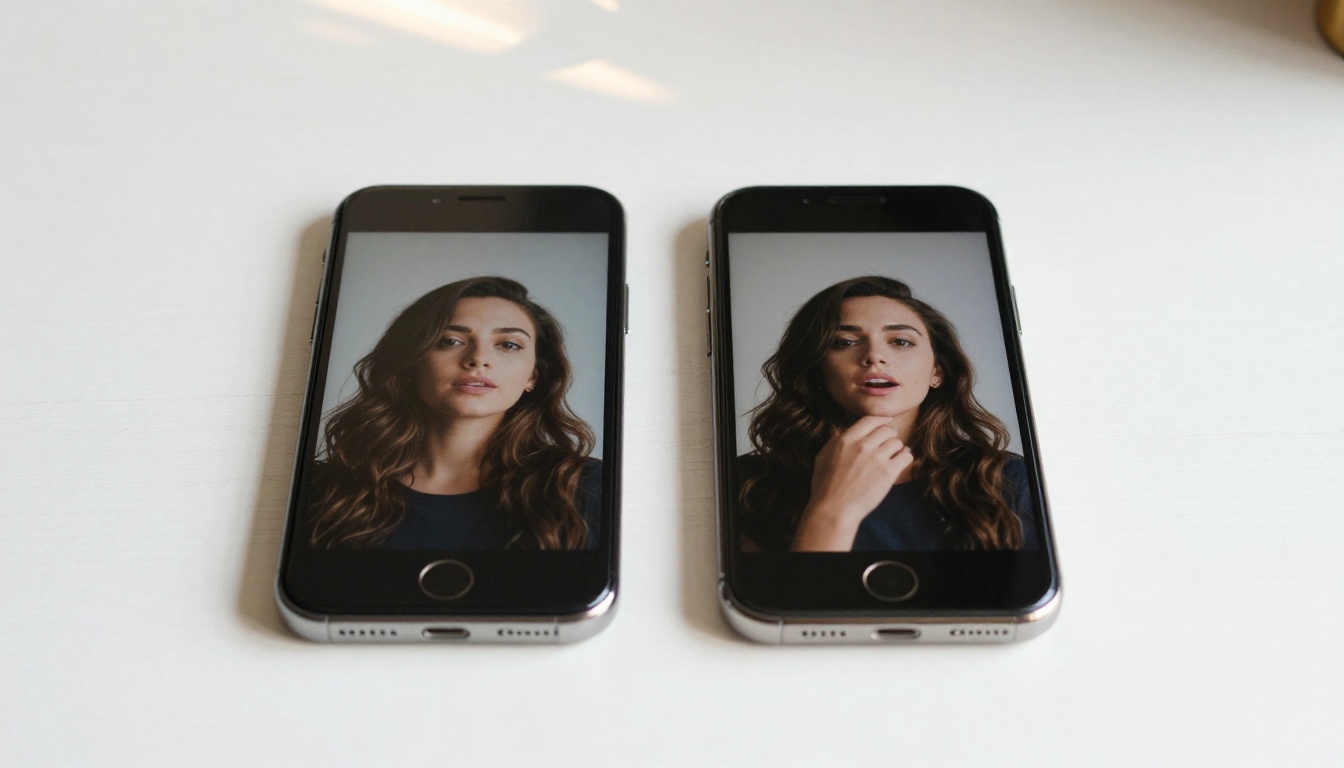
You don't need a camera crew, a recording studio, or any video editing experience. With the right AI tools, you can take a single photo of a real person and have it speak any text you type, with perfectly synchronized lips and a natural voice, in under two minutes. This is not experimental technology anymore. It is running in browsers right now, available to anyone.
What a Talking AI Avatar Actually Is
A talking AI avatar is a video where a person's face (from a still photo or existing video footage) appears to speak words driven by a separate audio track. The AI analyzes mouth shapes, jaw movement, and facial micro-expressions, then generates new frames that match the phonemes in the audio. The result looks like the person in the image is actually speaking.
This technology covers two distinct use cases. The first is lipsync: taking an existing face and syncing it to new audio. The second is full-body animation: generating not just lip movement but head movement, body language, natural blinking, and shoulder shifts from a single portrait photo.
The 3 Parts That Make It Work
Every talking avatar pipeline runs on three components, and each one needs to be solid for the result to look real:
- A face source — a clear, front-facing or slight-angle photo with good lighting and no heavy obstructions (sunglasses, masks, hair fully covering the face)
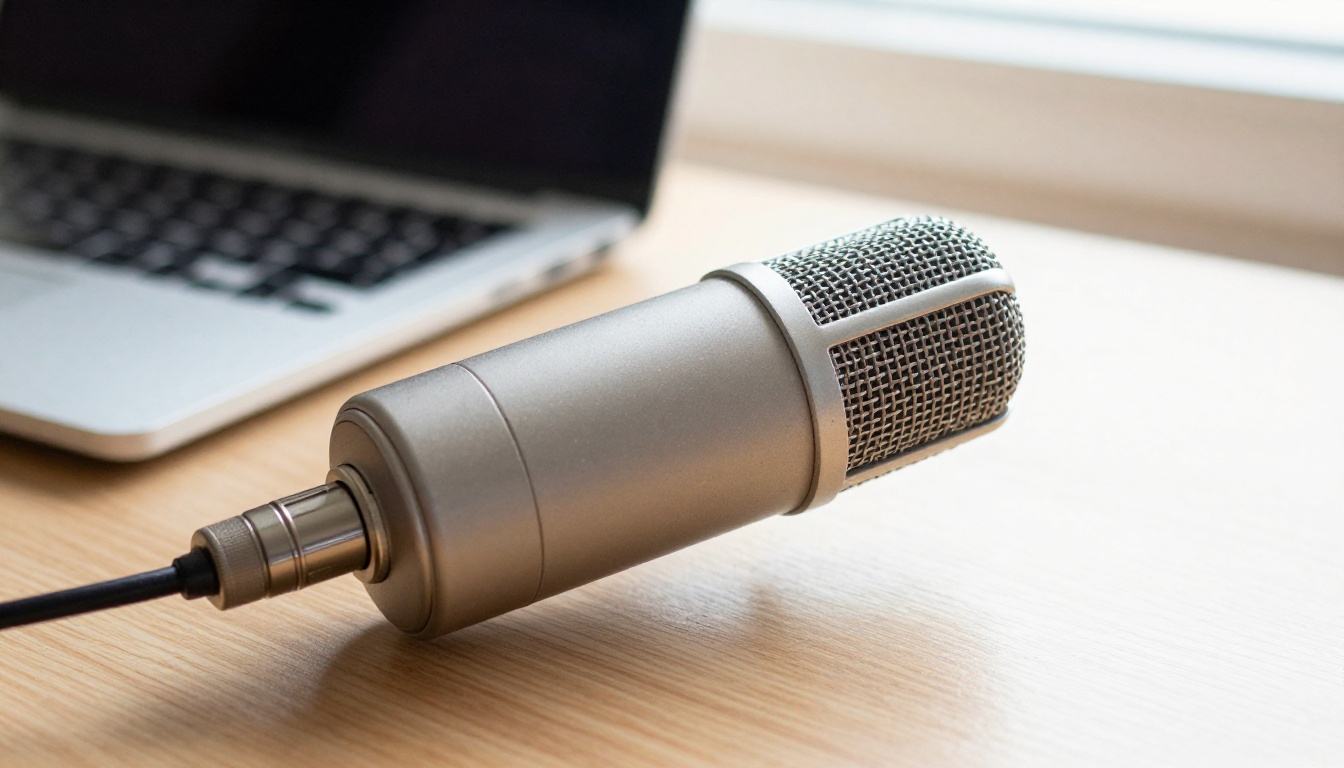
- An audio track — clean speech audio, ideally recorded or generated at 44.1kHz or higher, with no background noise or room reverb
- A lipsync model — the AI that reads the audio waveform and phoneme timestamps, then generates matching lip and facial movement on the source image
If any of these three elements are weak, the result degrades noticeably. A blurry source photo combined with a high-quality audio file will still produce a blurry, unconvincing avatar. All three need to be solid.
Static Photo vs. Full-Body Animation
There is an important distinction between models that animate only the mouth area and models that animate the entire head and upper body. Mouth-only models like Lipsync 2 or React 1 are faster and work on a wider range of input photos. Full-body models like Omni Human 1.5 animate head tilts, blinks, shoulder shifts, and hand gestures, producing a far more natural result that holds up on screen for longer durations.
How to Make a Talking AI Avatar Step by Step
The process is simpler than most people expect. There are three steps, and none of them require special hardware or software installed on your machine.
Step 1: Choose Your Source Photo
Your photo is the foundation. The better the photo, the better the avatar. Here is what works well:
- Front-facing or up to 45-degree angle — anything beyond that starts to distort the generated lip movement
- Well-lit face — flat, even lighting (like overcast daylight or a ring light) gives the model the clearest facial data to work with
- No heavy obstructions — glasses are usually fine, but fully dark sunglasses or masks create problems
- Minimum 512px portrait resolution — most models accept up to 1080p; higher input resolution produces sharper output
- Neutral or slight expression — a fully open-mouthed smile in the source photo can interfere with the lipsync model's starting state
Stock photos, professional headshots, and personal photos all work. You are not limited to your own face.
Step 2: Generate the Voice Audio
Unless you are recording your own voice, you need a text-to-speech tool to create the audio track. The quality of that audio directly determines how natural the lipsync looks, because the AI reads phoneme timing from the waveform itself.
For natural-sounding speech, ElevenLabs v3 is one of the strongest options on PicassoIA, with highly expressive voice options across dozens of styles. For speed at scale, Flash v2.5 from ElevenLabs delivers fast output without sacrificing clarity. If you need multilingual output, v2 Multilingual covers 30+ languages with natural prosody in each.
💡 Tip: Generate your audio first and listen to it carefully before running the lipsync. Fix any mispronunciations or awkward pauses in the text-to-speech output before spending a generation on the avatar.
Step 3: Apply Lipsync to the Photo
With a clean photo and a finalized audio file, open the lipsync model of your choice on PicassoIA. Upload the photo as your face source, attach the audio, and submit. Depending on the model and audio length, generation takes between 30 seconds and 3 minutes.
For the tightest phoneme-to-lip-movement accuracy, use Lipsync 2 Pro. For a fully animated avatar where the whole upper body feels alive and present, use Omni Human 1.5.
The Best Lipsync Models Available Now
PicassoIA hosts 12 lipsync models, ranging from quick dubbing tools to full-body animation engines. Here is a breakdown of the most capable ones:
Omni Human 1.5: Full-Body Realism
Omni Human 1.5 from ByteDance is the most feature-rich option for creating a talking avatar from a single photo. It does not just move the mouth. It generates natural head tilts, eye blinks, micro-expressions, and upper-body movement that tracks the energy of the speech audio. Hand gestures visible in the source photo are also preserved and subtly animated throughout the clip.
The model is particularly effective when the source photo shows the person from the waist up, giving the AI more surface area to animate for natural body movement.
P Video Avatar: Built for Avatars
P Video Avatar is specifically designed for the talking avatar use case. It processes portrait photos and audio files together and outputs a video with synchronized lip movement and natural head motion. It runs faster than Omni Human 1.5 and works well for shorter clips under 60 seconds, making it a good pick for content creators who need quick turnaround.
Fabric 1.0: Any Photo Can Talk
Fabric 1.0 from Veed takes a more accessible approach. Upload any photo, provide audio or text, and get a talking video back. It handles a wider range of photo types and orientations than more specialized models, making it a good choice when your source image is not a perfect headshot.
Precision vs. Speed in Lipsync
For cases where you need to dub an existing video quickly, Lipsync Speed from HeyGen processes audio and video synchronization in seconds. When accuracy matters more than speed, Lipsync Precision produces tighter phoneme alignment and handles complex speech patterns better, particularly with fast speech or heavy consonants.
How to Use Omni Human 1.5 on PicassoIA
Since Omni Human 1.5 produces the most realistic results for photo-to-avatar generation, here is a full walkthrough for using it on PicassoIA.
Upload Your Portrait Photo
Navigate to the Omni Human 1.5 model page. In the input panel, click the image upload area and select your source portrait. The photo should show the face clearly. If the person is shown full-body, the model will animate the visible upper-body region including arms and torso.
Photo requirements for this model:
- JPEG or PNG format, minimum 720p resolution
- Face should occupy at least 30% of the frame
- Avoid photos where the face is in deep shadow on one side
- Frontal or slight angle (up to 45 degrees) gives the best results
Add the Audio File
The model accepts MP3 and WAV audio files. Upload the audio track you generated with your text-to-speech tool of choice. If you recorded your own voice, export it as a clean WAV at 44.1kHz with no background noise.
There is no hard limit on audio length, but clips beyond 2 minutes may require longer processing time. For most use cases (social media content, product explainers, course material), keeping clips to 30-90 seconds produces the sharpest results with the most stable animation.
Set Resolution and Generate
Omni Human 1.5 supports 480p and 720p output. For sharing on social platforms or embedding in a webpage, 480p is fast and visually clean. For presentations or larger-screen playback, 720p is worth the slightly longer wait.
Hit Generate and wait. A 30-second clip typically processes in 60-90 seconds. The model returns a downloadable MP4 that is ready to use directly without post-processing.
The voice quality is half the battle. A robotic or unnatural text-to-speech output will break the immersion of even a perfectly synchronized avatar. These are the tools worth using.
For Natural Speech
ElevenLabs v3 is currently one of the most expressive text-to-speech models available anywhere, with fine-tuned control over emotion, pacing, and delivery style. It consistently produces output that passes for human speech at normal listening speeds.
Speech 2.8 HD from Minimax offers studio-quality voiceovers with excellent tonal variety. For content that needs to sound polished and broadcast-ready, this is a strong pick. Its counterpart, Speech 2.8 Turbo, is the faster option, ideal when you are iterating on content and need quick previews before committing to a final generation.
Gemini 3.1 Flash TTS from Google covers 70+ languages with 30 distinct voices and runs with low latency, making it a solid all-purpose option for international content.
For Voice Cloning
If you want the talking avatar to sound like a specific person (yourself, a brand character, or a fictional persona), Chatterbox from Resemble AI supports voice cloning with emotional control. Provide a short reference audio clip and it matches the speaker's vocal characteristics across any new text input.
Chatterbox Pro goes further with higher fidelity cloning and more stable long-form output. For brands that need a consistent synthetic voice across large volumes of avatar content, this is the right tool.
Qwen3 TTS also supports custom voice design. Instead of uploading a reference clip, you describe the voice you want, and the model constructs it from scratch.
For Multiple Languages
If your talking avatar needs to speak in multiple languages, v2 Multilingual from ElevenLabs covers 30+ languages with natural prosody in each. Pair it with Video Translate from HeyGen to resync the lips to the translated audio, producing a fully dubbed talking avatar in a second language without re-shooting anything.
For dialogue-heavy content, Play Dialog from PlayHT generates two-person conversation audio with separate voice channels, which is particularly useful for interview-style or Q&A avatar videos.
If you need a custom voice cloned at scale, Voice Cloning from Minimax lets you register and reuse a cloned voice across multiple generations without uploading a new reference each time.
5 Tips for Realistic Talking Avatars
Getting the technology working is one thing. Getting results that actually look convincing requires attention to details that most first-timers overlook.
1. Match the photo's mood to the audio's energy
If your source photo shows the person with calm, neutral lighting and a composed expression, and your audio is high-energy and excited, the mismatch reads as strange. Choose or generate your voice audio with an energy level that fits the emotional register of the photo.
2. Trim silences in your audio before uploading
Long silences confuse lipsync models. The AI expects the mouth to be still during pauses, but artifacts appear at extended silence gaps. If your script has natural pauses, trim them to under 0.5 seconds in your audio editor before uploading.
3. Start with a straight-on photo
Slight profile angles work in most models, but for your first avatar, use a photo where the face points within 15 degrees of the camera. Once you know how a specific model handles your source image, you can experiment with more dramatic angles.
4. Use full-body models for anything longer than 15 seconds
Short clips are forgiving. A 5-second talking head with only lip movement looks natural. Anything over 15 seconds starts to look uncanny if the rest of the face is completely static. Full-body animation models like Omni Human 1.5 or Omni Human prevent this effect by continuously animating blinks, micro-expressions, and subtle head movement throughout the clip.
5. Use video-specific lipsync models for existing footage
If you already have a video of a person speaking and want to swap the audio (for dubbing or restyling), use models designed for video-to-video work rather than photo-to-video. Kling Lip Sync and Pixverse Lipsync handle existing video footage with better temporal consistency than models designed for still photos, because they have existing motion data to build on.
What You Can Do With a Talking Avatar
Talking AI avatars are not a novelty. Here is where real creators and businesses are using them today.
Social media and short-form video
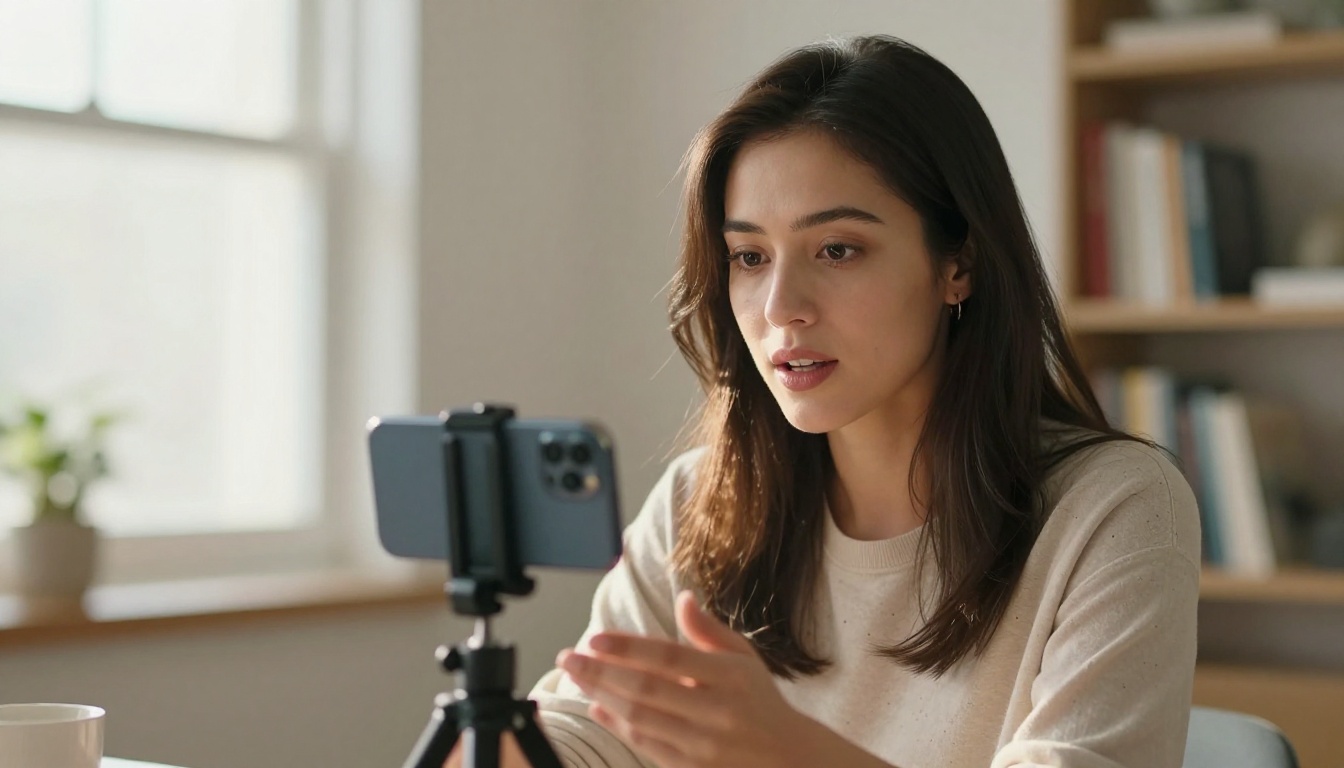
A talking avatar removes the need to appear on camera yourself. For creators who are camera-shy, physically unavailable, or simply want to produce more content faster, an avatar produces a talking-head video in the time it takes to write a script.
Course content and e-learning
Educational platforms increasingly use AI avatars as on-screen instructors. Combine an avatar with a clearly structured script, ElevenLabs v3 voice output, and Omni Human 1.5 animation, and you have a professional-looking video without a single camera or studio rental.
Multilingual content without re-recording
Create a video once in English, then use Video Translate to produce dubbed versions in Spanish, French, German, Portuguese, and dozens more. The avatar's lips resync to each language automatically.
Avatar-first video generation
For creators who want to skip the photo-to-lipsync pipeline entirely, Avatar IV from HeyGen and Kling Avatar v2 generate full talking avatar videos directly from a portrait image, handling voice synthesis and lipsync together in a single step. You provide a photo and a text script, and the model does the rest.
For maximum animation expressiveness, Dreamactor M2.0 from ByteDance animates characters with rich body language and natural motion dynamics from a single reference image, going beyond standard lipsync into full character performance.
Brand characters and virtual presenters
Companies are building branded AI avatars with a consistent appearance, a cloned voice via Voice Cloning from Minimax, and a repeatable personality to use across product demos, customer onboarding, and internal training. The combination of Chatterbox Pro for voice and P Video Avatar for consistent visual output makes this workflow repeatable at scale.
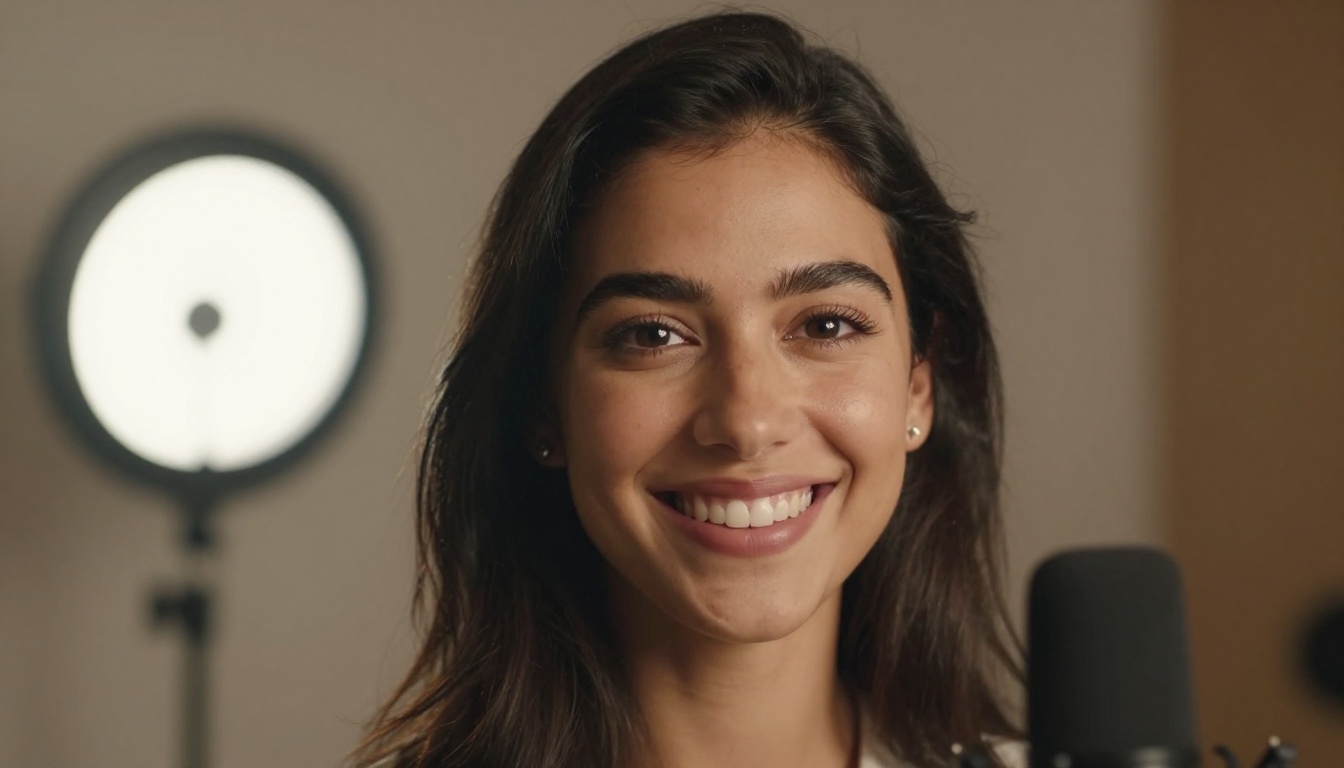
Make Your First Avatar Now
The barrier to entry for talking AI avatars is now lower than it has ever been. A clean portrait photo, a typed script, and two to three minutes of processing time is all it takes to produce a video that would have required a professional production team a few years ago.
Start with Omni Human 1.5 for the most realistic result from a single photo. Pair it with ElevenLabs v3 or Gemini 3.1 Flash TTS for a voice that sounds natural and matches the screen presence of your avatar. If you want to skip the pipeline entirely and go from script to finished video in one step, Avatar IV handles both voice and animation together.
PicassoIA gives you access to all of these models without separate subscriptions or API configurations. Everything runs in your browser.
💡 Browse all lipsync, text-to-speech, and avatar video models at picassoia.com/en/all-models and start generating your first talking avatar today.