The moment you type a sentence and watch it become a full-resolution photograph is genuinely disorienting the first time. With Nano Banana Pro, that moment is free. No subscription to justify, no credit card to enter, no watermarks on your output. What follows is everything you need to make it work, from the first prompt to the finished image ready to share or print.
What Nano Banana Pro Actually Does
Nano Banana Pro operates as a free-access entry point into professional AI image generation. Rather than locking beginners behind a paywall, it provides enough daily credits to run meaningful creative sessions and develop real skill with text-to-image tools. The philosophy is simple: let people create first, and they will stick around.
How the Free Tier Works
Your free credits refresh on a daily or weekly cycle depending on the platform. Each image generation draws a small number of credits, so a standard session of 10 to 20 generations fits comfortably within what the free tier provides. Resolution defaults to standard quality, and upscaling to higher resolutions is handled by separate, often free tools.
What makes the Nano Banana Pro model valuable is not just the credit count. It is the absence of artificial quality restrictions. The free tier runs on the same underlying models as paid tiers. You are not generating at reduced quality to push you toward a subscription. You are generating at full capability within a volume limit.
What Fits Within the Free Tier
The free allocation handles a wide creative range:
- Realistic portraits with detailed facial features, natural skin tones, and accurate lighting
- Architectural renderings showing interior or exterior spaces with precise structural lines
- Nature and landscape photography in cinematic compositions with atmospheric depth
- Product visualization placing items in lifestyle contexts before production begins
- Abstract compositions with controlled palettes and rich textural depth
Where the free tier reaches its natural limit is in volume. Running 200 images in a single sitting is a paid-tier activity. But for a freelancer building a content calendar, a blogger creating article visuals, or a designer testing concepts, the daily free allocation is genuinely sufficient.
Setting Up Your First Session
Setup is faster than registering for most apps. The entire process from zero to your first generated image takes under five minutes.
Account Creation in Minutes
Navigate to the platform, enter your email, and create a password. No payment information is requested at signup. Your free credits activate immediately, and the interface presents three main elements: a text input field, a model selector, and a settings panel for aspect ratio and output quality.
💡 Tip: Use a dedicated email address for AI creative tools. Platforms regularly send promotions with bonus credits to registered users, and a separate inbox keeps those notifications visible without cluttering your primary account.
Picking the Right Starting Model
The model selector is where beginners often stall. There are many options and limited context for choosing between them. This table cuts through the guesswork:
| Use Case | Model Type | What to Look For |
|---|
| Photorealistic portraits | SDXL-based or Realistic Vision | Strong facial detail, natural lighting |
| Creative or stylized art | Flux variants | Artistic latitude, vivid compositions |
| Architecture and interiors | Precision-focused | Sharp lines, accurate proportions |
| Nature and landscapes | General photorealistic | Color depth, atmospheric rendering |
| Product photography | Detail-oriented | Clean surfaces, accurate texture |
Start with the default model. Switch to a specialized one only when you have a specific result in mind that the default is not producing. Most beginners spend too long model-shopping and not enough time refining prompts.
Writing Prompts That Actually Get Results
Prompt quality determines output quality more than any other factor. A strong model with a weak prompt produces mediocre results. A strong model with a well-constructed prompt produces images that genuinely surprise you.
The 3-Part Prompt Formula
Every effective image prompt contains three layers. Missing any one of them degrades the result noticeably.
Part 1: The Subject
Describe who or what is in the image and what they are doing.
"A woman in her late twenties, seated at a sunlit wooden table, reading a book"
Part 2: The Environment and Light
Describe where the scene takes place, how the light behaves, and what the atmosphere feels like.
"Warm golden afternoon light entering from the left, café setting with marble table surface, large windows showing a blurred street, fresh herbs in small pots on the windowsill"
Part 3: Technical Parameters
Specify the camera, lens, film stock, and style modifiers.
"85mm f/1.4, Kodak Portra 400, shallow depth of field, photorealistic 8K, professional photography, film grain"
Assembled: "A woman in her late twenties seated at a sunlit wooden café table reading a book. Warm golden afternoon light from the left, marble surface, large windows with a blurred street outside. 85mm f/1.4, Kodak Portra 400, shallow depth of field, 8K photorealistic, film grain."
The difference between this and "woman in café reading" is the difference between a snapshot and a photograph.
💡 Critical: Mention lighting direction explicitly. "Morning light from the left" versus "overhead studio lighting" produces entirely different shadow behavior, which controls the mood of the entire image. This single detail drives more output variation than almost anything else in the prompt.
Mistakes That Waste Credits
These are the most common errors, ranked by how much they cost:
- Contradictory style signals: "realistic AND stylized AND cinematic AND watercolor" sends conflicting information that produces muddled results. Pick one dominant aesthetic.
- No technical parameters: Omitting camera and film information defaults the model to a generic digital-photography look, which rarely matches a specific creative vision.
- Weak descriptors: Words like "beautiful," "stunning," and "amazing" appear in too much training data to carry meaningful signal. Replace them with specific visual information.
- Generating at high settings before iterating: Test your prompt at standard resolution first. Run 3 to 5 variations, pick the best concept, then upscale. Generating at maximum settings during iteration wastes credits without improving the selection process.
Free Models Worth Using on PicassoIA
PicassoIA gives you access to over 90 text-to-image models through a single interface. Rather than testing all of them, a focused shortlist covers most creative needs.
Portrait and Face Generation
Portrait work is where model choice matters most. The models that perform best for faces tend to be specifically trained on portrait datasets, giving them stronger accuracy on skin texture, eye detail, and the natural variation in human facial structure.
Settings for portrait work regardless of which model you use:
- Include:
photorealistic, 8K resolution, natural skin texture, catchlights in eyes
- Include:
three-quarter lighting, Kodak Portra 400, 85mm f/1.4
- Avoid:
HDR, oversaturated, digital illustration, cartoon
Landscape and Nature
Landscape generation rewards specificity in environmental conditions. Compare these two prompts:
- Generic: "beautiful mountain landscape at sunset"
- Specific: "granite peak in late afternoon side light, autumn foliage covering the lower slopes, thin low fog settled in the valley, 35mm wide angle f/8, photorealistic 8K, volumetric light rays between the peaks"
The second produces something that looks like a photograph taken by someone who was actually there. The generic version produces a postcard.
Abstract and Conceptual Work
For non-representational images, shift from describing a subject to describing a material, palette, and texture:
"Layered wax-resist textures in amber, rust, and aged cream tones, visible brushstroke layers, heavy cold-press paper grain throughout, diffused indirect light from the upper right, no identifiable subject, square composition, fine art photography of original mixed-media artwork, 8K photorealistic rendering"
Upscaling to 4K for Free
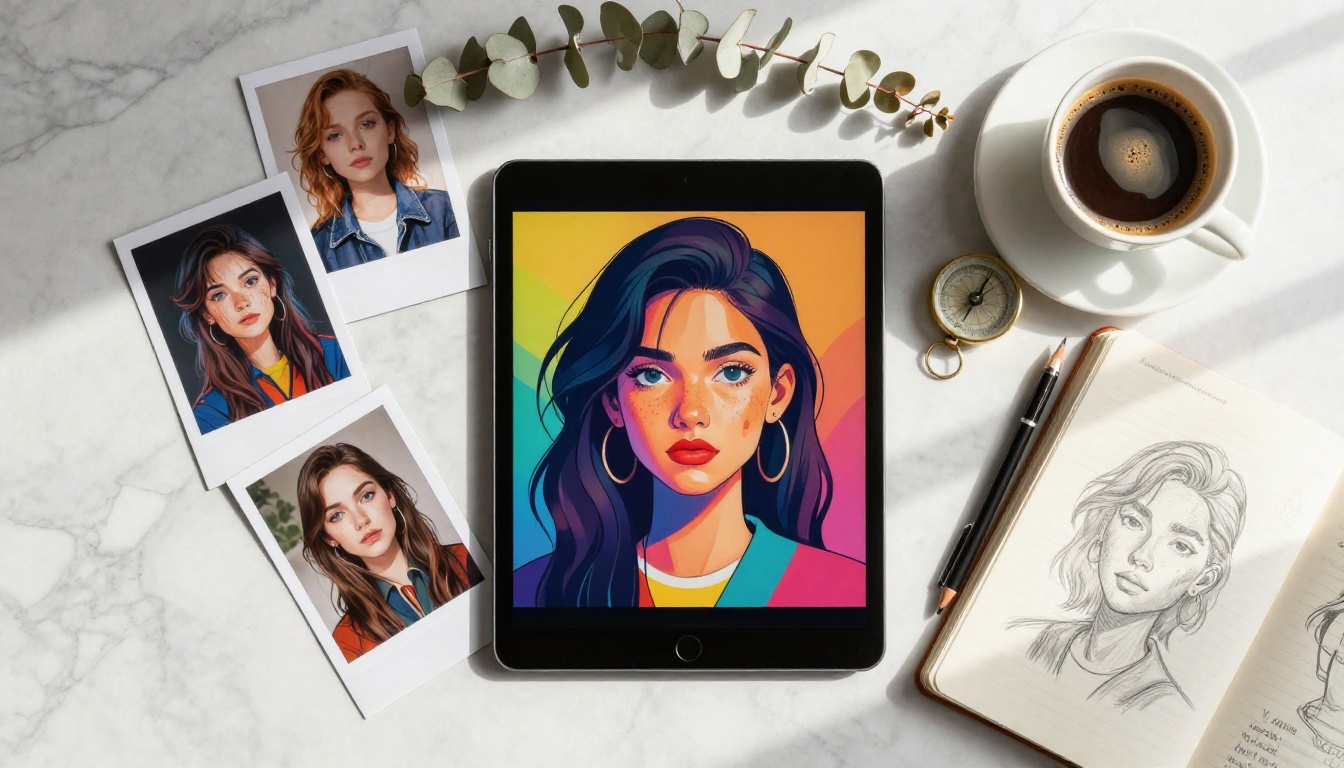
Standard generation produces images at 512x512 or 1024x1024 pixels. For web use this is usually sufficient. For print, large-format display, or professional presentations, you need more resolution. Upscaling handles this, and several dedicated tools do it at no cost.
Three Upscalers Worth Knowing
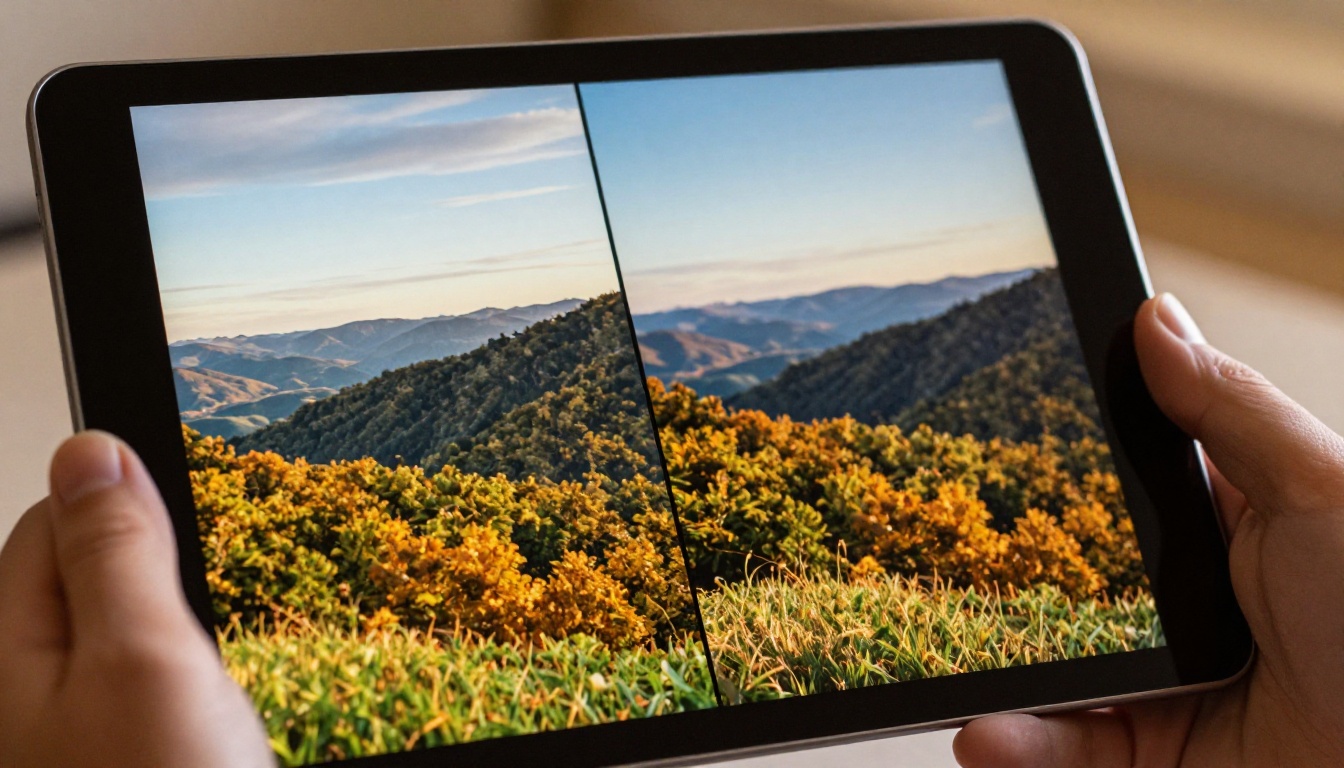
Clarity Pro Upscaler adds genuine structural detail rather than interpolating pixels. Hair, fabric texture, foliage, and architectural elements come out sharper than in the original. This is the best starting point for photorealistic content across all subject types.
Real ESRGAN runs a 4x upscale quickly and handles natural textures particularly well. It is more aggressive with edge sharpening, which works beautifully for landscapes but can sometimes over-process skin in close-up portrait work.
Crystal Upscaler is purpose-built for portrait detail at 4x magnification. If faces and people are central to your work, this is the dedicated tool. It preserves the softness of skin while sharpening eyes, hair, and fabric.
For maximum resolution gain without compromising file quality, Topaz Image Upscale delivers up to 6x enlargement, making it the right option for print-ready files at A2 or larger formats.
Standard vs. Creative Upscaling
Two philosophies exist in the upscaling space:
Standard upscaling, represented by tools like P Image Upscale, preserves the original image as faithfully as possible while adding resolution. Use this when your image is already correct and you only need larger dimensions.
Creative upscaling, represented by Recraft Creative Upscale, generates additional detail that was not present in the original. It can significantly improve the overall image but it also changes it. Use this when the base image is directionally correct but visually thin in the detail areas.
The Recraft Crisp Upscale sits in the middle: it clarifies without inventing, making it the right option for images containing text, precise geometry, or product details where accuracy matters more than artistic interpretation.
💡 Always upscale from your highest-quality source file. Never upscale a JPEG that has already been compressed once. Save the raw output from the generator, then run that file through the upscaler.
Removing Backgrounds and Building Composites
Generated images often come with complex backgrounds that are perfect for standalone display but inconvenient when you need to composite the subject into a different context. Background removal addresses this in seconds rather than hours.
One-Click Subject Isolation
The Remove Background tool handles the cases that used to require manual masking: wispy hair against similar-toned backgrounds, transparent fabric edges, and overlapping elements with colors close to the background. Upload the generated image and within seconds you have a clean PNG with full transparency around the subject.
Practical uses for isolated subjects:
- Brand content: Place AI-generated subjects on color backgrounds matching your brand palette
- Print-on-demand mockups: Drop artwork onto apparel, phone cases, or framed canvas product images
- Presentation assets: Embed subjects over slide backgrounds without visible rectangle borders
- Social media layers: Use subjects as overlays on video content or motion backgrounds
The Full Free Workflow
This four-step process requires no paid subscriptions and produces results comparable to professional stock photography:
- Generate at standard resolution with a fully structured three-part prompt
- Select the best result from 3 to 5 attempts
- Run through Clarity Pro Upscaler or Crystal Upscaler for 4x resolution
- Remove background if the subject needs to be isolated for compositing
Each step fits within the Nano Banana Pro free tier and the supporting tools available on PicassoIA.
Matching your settings to your destination platform saves the frustration of rescaling awkward crops after generation.
| Platform | Ideal Ratio | Minimum Resolution |
|---|
| Instagram Post | 1:1 or 4:5 | 1080x1080px |
| Instagram Stories | 9:16 | 1080x1920px |
| X (Twitter) | 16:9 | 1280x720px |
| YouTube Thumbnail | 16:9 | 1280x720px |
| Pinterest | 2:3 | 1000x1500px |
| LinkedIn Banner | 4:1 | 1584x396px |
| Print A4 at 300 DPI | 1:1.41 | 2480x3508px |
Set your ratio in the image generator before you start, not after. The model uses the ratio as compositional information during generation. Cropping a 1:1 image to 9:16 after the fact removes parts of a composition that was designed as a square. Generating in 9:16 from the start puts the subject where it belongs for that format.

Five Projects to Start Today
The free tier is most useful when you approach it with a specific output in mind rather than open-ended experimentation.
1. A 30-day social media content calendar: Generate 30 unique images using the same prompt structure with one variable changed per image (location, lighting condition, or subject action). The consistency in prompt structure keeps the visual language cohesive across the month without extra effort.
2. Book jacket art for a creative project: Writers frequently spend significant amounts on early concept art. AI generation puts 10 to 15 strong jacket concepts within a single afternoon session, giving you material to brief a final designer from a position of creative clarity.
3. Website hero images: Stock photography is generic by definition. AI-generated images can be specific to your color palette, your subject demographic, and your environmental context. This specificity is visible to visitors and creates stronger brand alignment than stock ever could.
4. Product lifestyle photography: If you are preparing a pre-launch page for a physical product, generate lifestyle images showing the product in use before manufacturing is finalized. Describe the product accurately in the prompt and combine with an isolated product render.
5. Personal branding assets: Profile images, LinkedIn headers, newsletter banners, and podcast artwork all benefit from visual consistency. Generate a set in a single session using the same lighting, color palette, and subject positioning for a cohesive look across every platform.
What Paid Access Adds
The free tier gives you the full creative toolkit. Paid access adds volume, speed, and catalog breadth.
With more credits, you iterate faster. Iteration is where creative quality actually comes from. The difference between the third attempt at a prompt and the fifteenth is often dramatic, and being able to run those attempts without watching a credit counter changes the creative rhythm entirely.
Paid tiers also open access to model categories not available in the free tier: some face-specific models, newer releases during their launch periods, and high-resolution generation without the separate upscaling step. On PicassoIA, the catalog includes over 90 text-to-image models, dedicated face swap tools, video generation, audio synthesis, and the Google Upscaler for detail-preserving 4x enlargement, all accessible from a single account.
The workflow you build on the free tier transfers without modification. Every prompt-writing habit, every upscaling preference, and every format decision carries over when you move to a higher credit allocation. Starting free is not a compromise. It is the correct way to build the skills that make paid access worthwhile.
Try It Right Now
Everything described in this article is available at picassoia.com/en/all-models. Pick one of the photorealistic text-to-image models, write a three-part prompt using the structure above, and generate your first image. When the output is not what you wanted, adjust the lighting description and run again.
The tenth image from an intentional practice session looks nothing like the first. The free tier gives you the credits to run that loop without pressure, and the upscaling and background removal tools to take the result further without spending anything.
Your first genuinely strong AI image is probably two or three prompt iterations away. The only cost is time.


