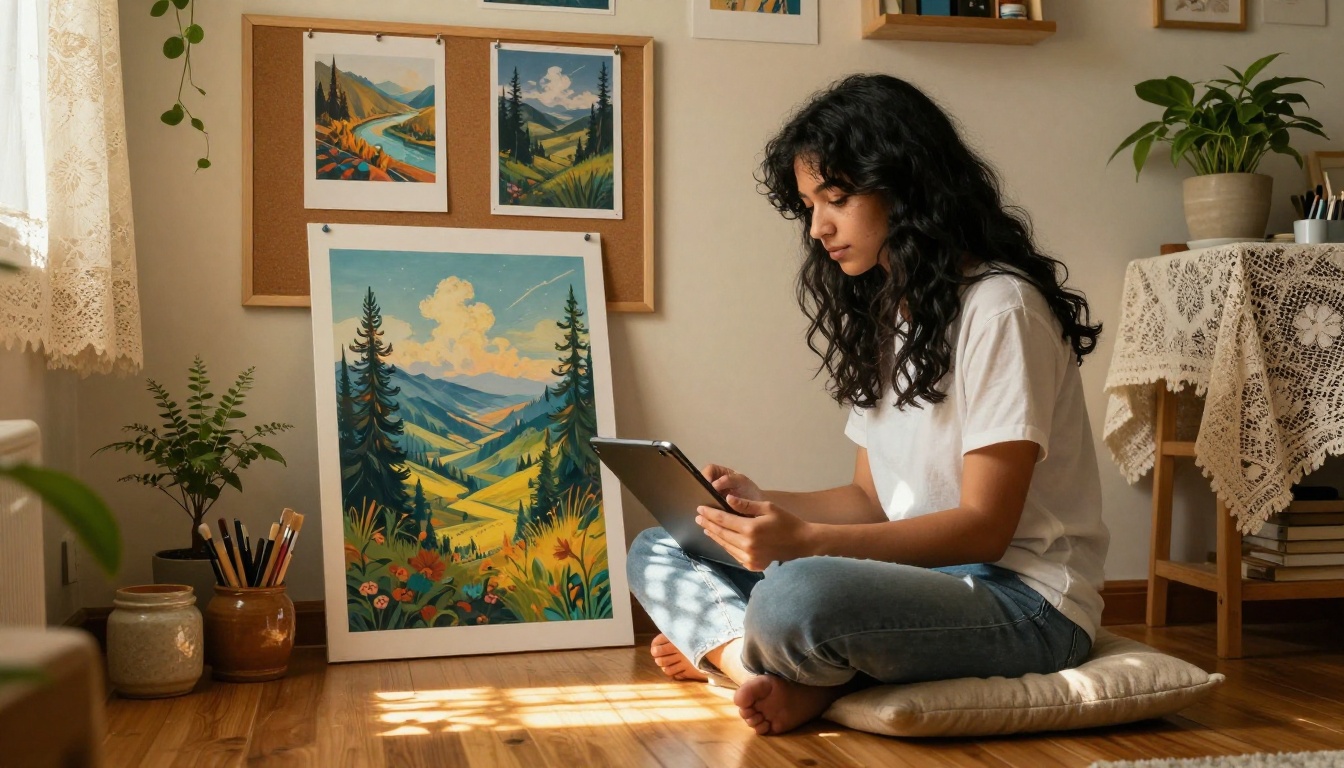
Making AI art used to require knowing Photoshop, owning expensive hardware, or spending weeks building technical skills. None of that is true anymore. Today, you type a sentence, pick a style, and get a finished image in seconds. The real question is not whether you can make AI art. It is whether you know which words to use, which model to choose, and how to get the style you actually want instead of something generic.
This article walks through all of it.
What AI Art Actually Is
From Text to Image in Seconds
AI image generation works by taking your written description and running it through a model trained on millions of images. The model has learned to associate words with visual patterns: "soft morning light" signals a certain quality of illumination, "oil painting texture" signals visible brushstrokes, "85mm portrait lens" signals background compression and subject separation.
When you write a prompt, you are not just describing a picture. You are activating a specific cluster of visual knowledge inside the model. That is why two people can type nearly the same thing and get very different results. The specific words you choose determine which visual associations get triggered.
Text-to-image generation is now the standard approach. You write a prompt, the model synthesizes an image from pure pixels, and you get a result that never existed before. No reference image needed. No drawing skill required. The entire process takes between 1 and 30 seconds depending on the model and settings.
Why Style Matters More Than Tools
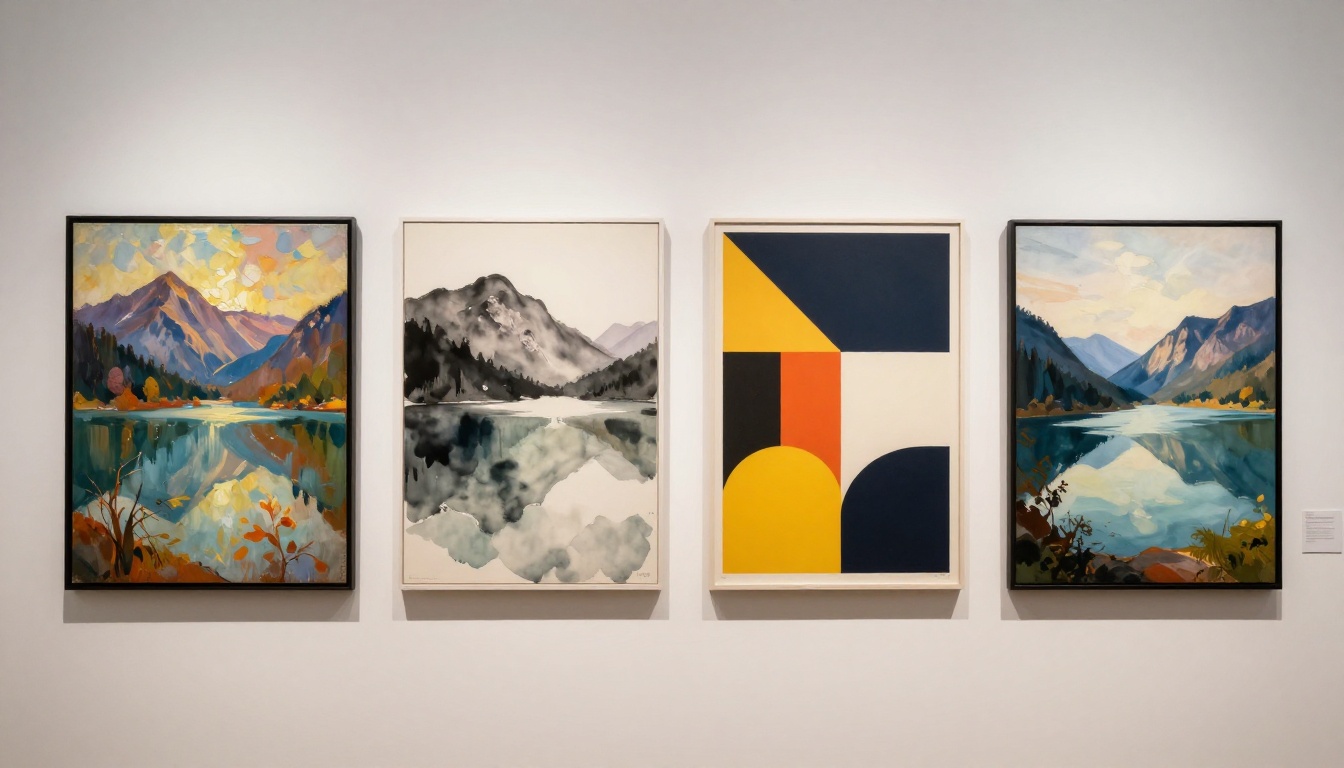
The art style is where most people underinvest. They describe the subject in detail ("a woman standing in a field") but forget to specify how it should look. The model picks a default, and the result feels generic.
Style words do the heavy lifting:
"Rembrandt lighting, oil paint impasto, museum canvas texture" produces something that reads as 17th-century Dutch painting"Fujifilm X100V, golden hour, slight halation, film grain" produces something that reads as authentic film photography"flat vector illustration, bold outlines, limited color palette, mid-century modern" produces something clean and graphic
The subject stays the same. The style words change everything.
Choosing the Right Model for Your Style
Not all AI image models handle styles the same way. Some are optimized for photorealism, others for flexibility, others for speed. Knowing which to pick before you start saves you dozens of wasted generations.
Flux Dev for Detailed Realism
Flux Dev is a 12-billion parameter model built for high-fidelity output. It processes your prompt with more depth than smaller models, which shows up in the texture of skin, the sharpness of fabric weave, and the accuracy of complex lighting conditions.
If you want photorealistic portraits, detailed architectural renders, or complex scene compositions with accurate depth of field, Flux Dev is the right starting point. It also supports img2img mode: upload an existing photo and redirect it with a prompt. That is useful for style transfers where you want to maintain a specific composition while changing the visual treatment entirely.
💡 Tip: Set inference steps to 40+ with Flux Dev for maximum detail in textures and lighting. Fewer steps produce faster results but sacrifice fine surface detail.
Flux Schnell When Speed Is the Priority
Flux Schnell produces images in under 5 seconds using as few as 4 denoising steps. The quality is sharp and usable immediately, making it ideal for rapid iteration across many prompt variations.
The workflow is simple: generate 10 to 15 variations quickly with Flux Schnell, identify which direction is working, then refine the best prompt with Flux Dev for a final high-quality version. This two-phase approach cuts your total generation time while still delivering a polished result at the end.
Seedream 3 for High-Resolution Output
Seedream 3 renders natively at 2K resolution without any post-generation upscaling. If your end use requires large-format printing, high-resolution web banners, or detailed editorial visuals, this is where to start.
The model handles a wide range of aspect ratios and includes a guidance scale parameter that controls how literally it interprets your prompt. A lower guidance scale (around 2.5) gives it creative room. A higher value (4 to 5) produces more literal adherence to your text description.
Stable Diffusion for Flexibility and Control
Stable Diffusion remains one of the most controllable models available. It supports negative prompts (explicitly exclude visual elements you do not want), six different schedulers that affect the generation process, and fully adjustable inference steps. For users who want fine-grained control over the output, Stable Diffusion offers more parameters to tune than most alternatives.
| Model | Best For | Speed | Max Resolution |
|---|
| Flux Dev | Detailed realism, img2img editing | Moderate | 1 megapixel |
| Flux Schnell | Fast iteration, concept drafts | Very fast (under 5s) | 1 megapixel |
| Seedream 3 | Large-format, print-ready output | Fast | Native 2K |
| Stable Diffusion | Fine-grained parameter control | Moderate | Up to 1024px |
How Prompts Control Your Art Style
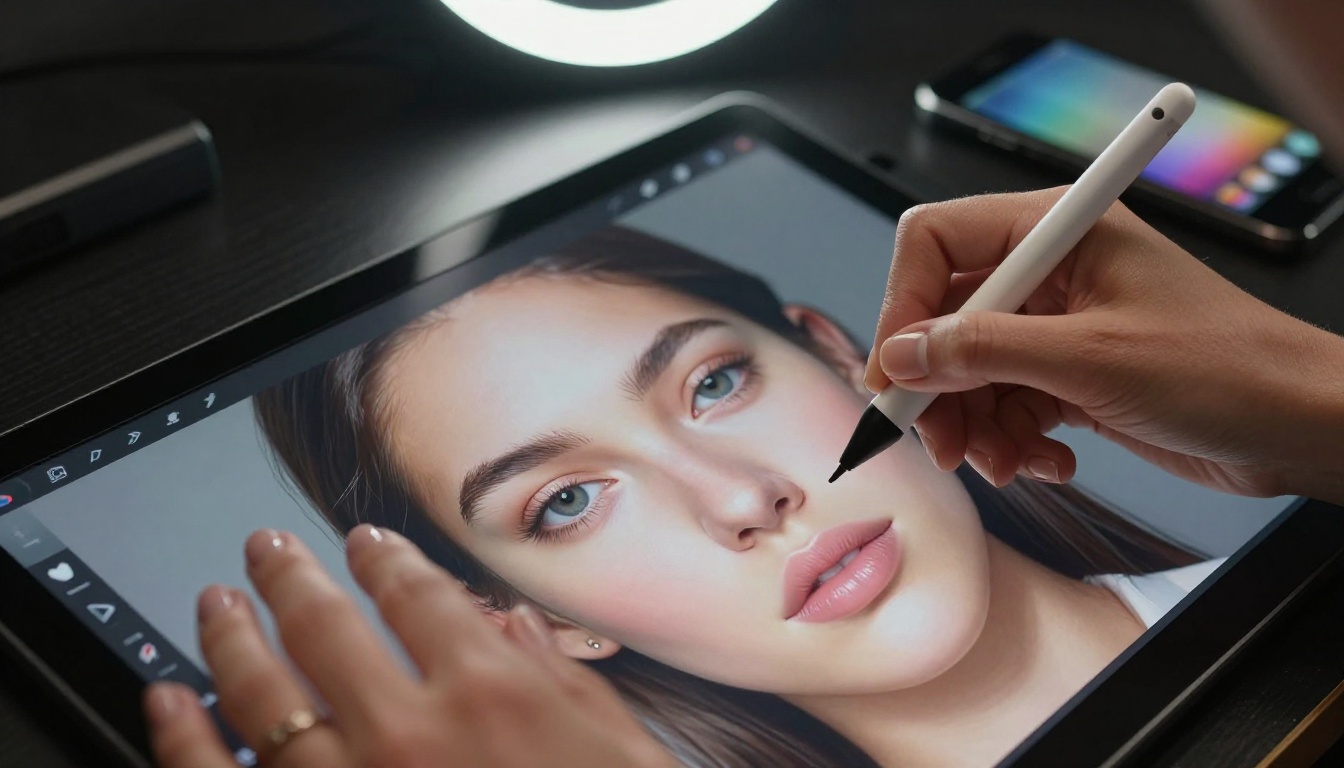
The 3-Part Prompt Formula
Every effective style-specific prompt has three components working together:
- Subject — What is in the image and what is it doing
- Style Layer — The visual treatment, medium, and artistic reference
- Technical Specs — Camera, lighting, resolution, film stock or surface
Write them in order. Subject first gives the model a clear anchor. Style layer redirects the visual processing. Technical specs lock in quality and atmosphere.
Example broken down:
- Subject: "A woman standing at a rain-soaked window at night"
- Style Layer: "impressionist oil painting, loose visible brushstrokes, muted purple and amber palette, reminiscent of Edward Hopper"
- Technical Specs: "large canvas texture, soft ambient light, shallow focal plane, museum painting quality"
Combined: "A woman standing at a rain-soaked window at night, impressionist oil painting, loose visible brushstrokes, muted purple and amber palette, reminiscent of Edward Hopper, large canvas texture, soft ambient light, shallow focal plane, museum painting quality"
That produces something coherent and intentional, not a generic AI output.
Style Words That Actually Work
Some style keywords produce reliably consistent results across models. These are the ones worth remembering:
Photography styles:
35mm film grain, Kodak Portra 400 color paletteanalog disposable camera, light leak, overexposed highlightsdocumentary photography, available light only, no flasheditorial fashion photography, studio strobe, white seamless background
Painting styles:
Baroque oil painting, chiaroscuro lighting, heavy impasto brushworkplein air watercolor, wet-on-wet technique, soft bleeding edgesgouache illustration, flat color fields, visible paper textureink wash painting, sumi-e brush, generous negative space
Graphic and vector styles:
flat vector illustration, clean outlines, mid-century modern color paletterisograph print, two-color halftone, slight misregistrationscreen print aesthetic, bold graphic shapes, limited palette, registration marks
💡 Tip: Pair an artistic movement with a specific artist reference and a technical descriptor. "Winslow Homer watercolor, wet paper texture, nautical scene" beats "watercolor painting" every time. The specificity signals which cluster of the model's training to activate.
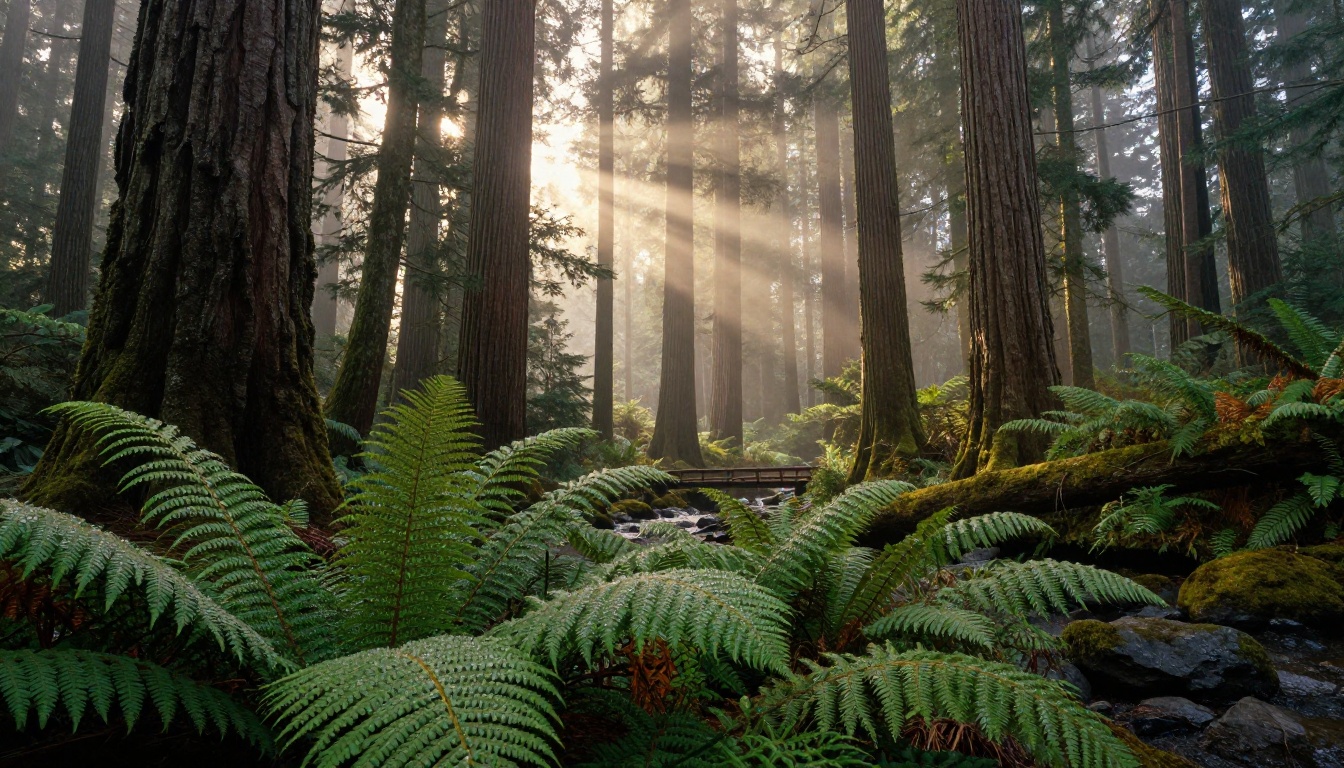
5 Art Styles You Can Make Right Now
1. Photorealism
The most requested style and one of the easiest to achieve with Flux Dev or Seedream 3. Add these to any prompt:
photorealistic, 8K, natural lighting, shallow depth of field, Nikon Z9, f/1.8, skin pore detail visible, RAW photography
The depth-of-field specification is important. It signals that this is a photograph captured with a real lens, not a synthetic render. The model responds by adding the subtle optical characteristics of real glass.
2. Oil Painting
Works across all major models. The two things to specify are the technique and the surface texture:
oil painting on canvas, visible impasto brushwork, linseed oil glazing, palette knife texture in highlights, aged varnish patina
Add an artist reference for stronger stylistic direction: "in the style of John Singer Sargent" pushes toward loose, confident brushwork; "in the style of Vermeer" pushes toward tight realism with luminous interior light effects.
3. Watercolor
Specify the paper and the water behavior to get authentic results rather than a generic illustration look:
watercolor on cold press paper, granulation effect in shadows, backrun blooms at edges, wet-on-wet bleeding, dry brush texture in highlights, unpainted white paper showing through
Stable Diffusion works well here with a guidance scale of 7 to 8 to keep the watercolor characteristics from drifting toward generic illustration.
4. Minimalist Line Art
Simple but requires precision in the prompt so the model does not default to adding shading or color:
minimal line drawing, single weight contour line, white background, no shading, no color fill, clean graphic aesthetic, Saul Bass influence
Keep subject descriptions simple. Minimalist styles break down when the subject is too complex.
5. Vintage Film Photography
One of the most searched-for styles right now. These descriptors produce authentic results:
shot on 1970s Canon AE-1, Kodachrome 64 color shift, slight vignette, warm analog tones, slight chromatic aberration at frame edges, film scratch artifacts, overexposed sky highlights
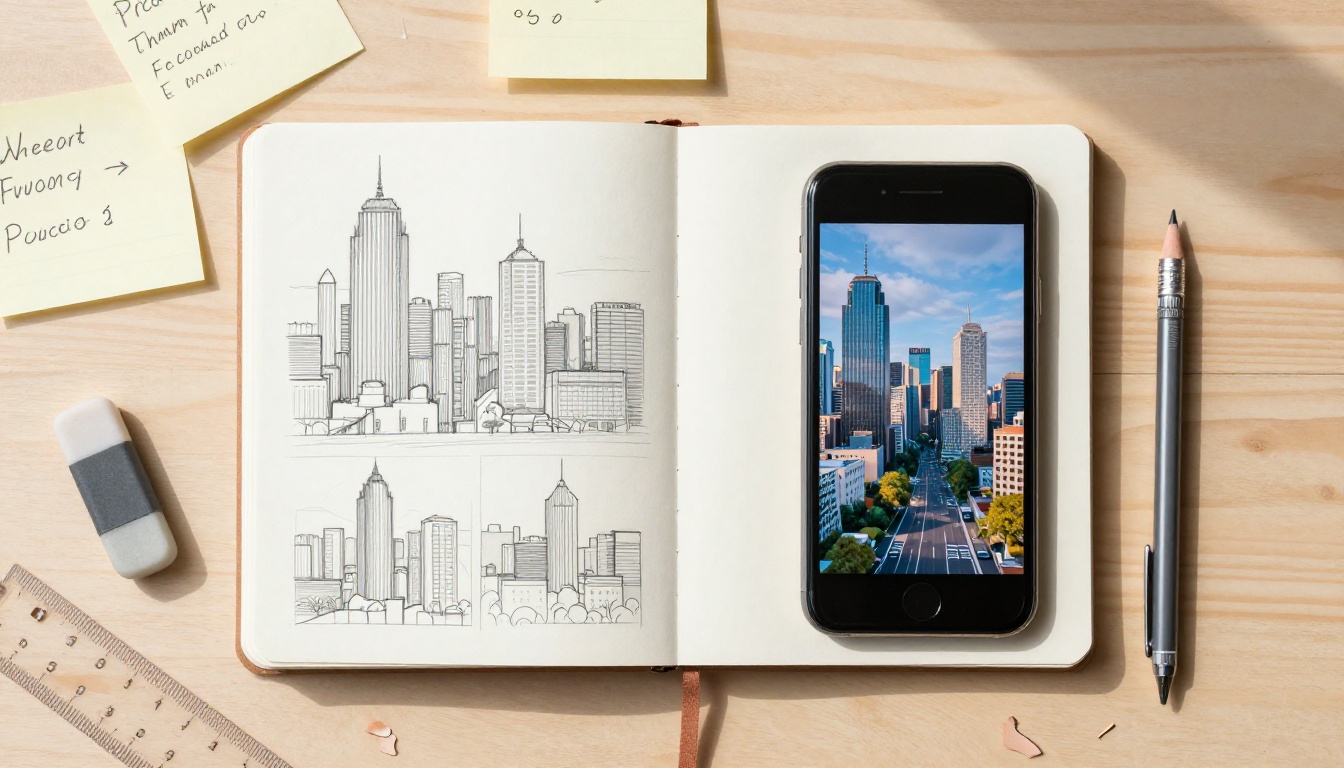
How to Use Flux Dev on PicassoIA
Flux Dev is available directly on PicassoIA with no credits required and no generation limits. Here is exactly how to use it for style-specific generation:
Step 1: Open the Model
Go to Flux Dev on PicassoIA. No account creation or payment required to start generating.
Step 2: Set Your Aspect Ratio
Click the aspect ratio selector and choose 16:9 for landscape compositions, 9:16 for portrait or mobile-first formats, or 1:1 for square social posts.
Step 3: Write Your Prompt
Use the 3-part formula: subject, style layer, technical specs. Aim for 40 to 80 words for the most consistent results. Short prompts under 15 words tend to produce generic output because there is not enough information to activate a specific visual cluster.
Step 4: Set Inference Steps
For maximum quality, set inference steps to 40 to 50. This matters especially when working with painterly or heavily textured styles where surface detail is the point. For quick previews, 28 steps is sufficient.
Step 5: Use img2img for Style Transfers
If you have an existing photo you want to repaint in a different style, upload it via the Image input field and set prompt strength to 0.6 to 0.75. This preserves the composition and subject while allowing the style layer to take full effect. Prompt strength above 0.85 starts destroying the original composition.
Step 6: Lock Winning Prompts with Seeds
When you get a result you like, note the seed number. Changing one element of the prompt while keeping the same seed lets you iterate systematically rather than randomly. This is how you build on a good result instead of starting over each time.
💡 Tip: The go_fast mode is enabled by default on Flux Dev. Disabling it activates the full bf16 precision mode, which produces more accurate color rendering and lighting gradients at the cost of slightly longer generation time. Worth doing for final outputs.

Upscaling Your AI Art
Most text-to-image models generate at 1 megapixel. That works fine for web use, but print, large-format display, or detailed close-up crops often need more. AI upscaling tools add genuine texture and sharpness rather than blurring the way traditional bicubic interpolation does.
When to Upscale
Upscale when:
- Printing larger than 8x10 inches at 300dpi
- Cropping into a specific detail within a larger composition
- Sharing high-resolution versions for editorial or commercial use
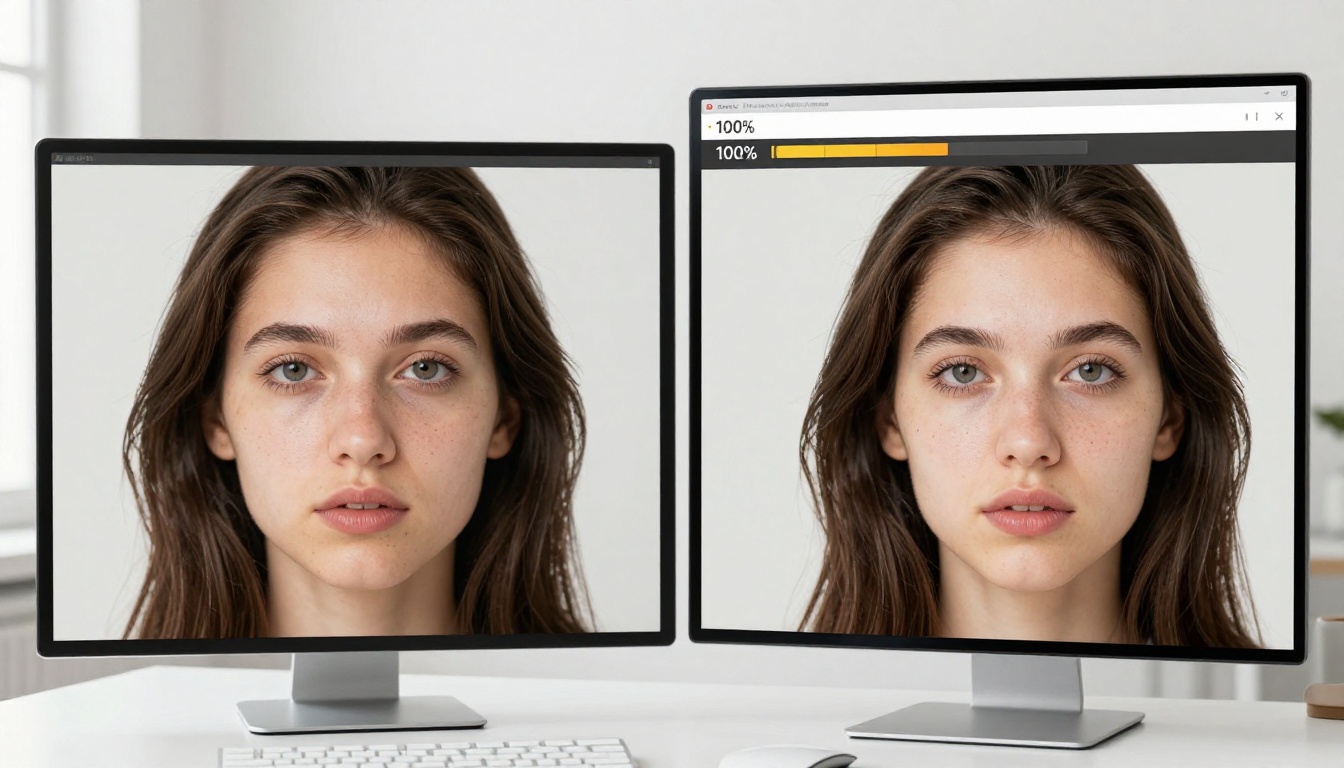
- The initial generation has the right composition but lacks fine surface texture at 100% zoom
Skip upscaling when the image will only appear at web resolution under 1500px wide, or in compressed social media formats where the added detail will not survive encoding.
Best Upscaling Tools on PicassoIA
Clarity Pro Upscaler is optimized for photorealistic images. It adds genuine sharpness and surface texture, including skin pores and hair detail, rather than simply enlarging the pixel grid. Use it for portraits and realistic scenes.
Real ESRGAN upscales 4x with strong edge preservation and fine detail recovery. It handles illustrated and painterly styles particularly well, keeping the character of the original art style intact.
Image Upscale by Topaz goes up to 6x and is the right choice for maximum enlargement with preserved quality. Ideal for print-ready outputs that need to hold up at very large sizes.
Recraft Crisp Upscale is the fastest option when you need a clean enlargement without heavy processing overhead.
Google Upscaler delivers reliable 4x enlargement with consistent results across different image types and styles.
3 Mistakes That Kill Your Results
1. Describing What, Not How
"A sunset over the ocean" is a subject description. It tells the model what to show, not how to show it. The result will be a default AI sunset, which looks like every other AI sunset produced in 2024.
Add the how: "A sunset over the ocean, shot on Fujifilm Velvia 50, extreme color saturation, silhouetted fishing boats, very low horizon line, sun partially below waterline, warm lens flare, deep magenta sky with dark blue clouds in the foreground."
Same subject. Completely different image.
2. Overloading with Contradictions
Some style combinations fight each other. "Photorealistic oil painting" sends mixed signals to the model. "Minimalist and highly detailed" cancels itself out. "Vintage 1970s aesthetic with crisp digital look" pulls the generation in two directions simultaneously.
Pick one dominant style and add supporting details that reinforce it, not compete with it. Everything in the style layer should point the same direction.
3. Ignoring Lighting in the Prompt
Lighting is the single most powerful element in visual style, and most people do not describe it at all. Models default to flat, even lighting when no direction is given, which flattens the image and removes atmosphere.
Always specify: direction ("volumetric light from camera left"), quality ("hard single source, deep shadows"), color temperature ("warm 3200K tungsten glow"), and atmosphere ("golden hour, low angle sun, long horizontal shadows across the ground"). These four elements alone dramatically shift the emotional register of any image.
Try It Yourself
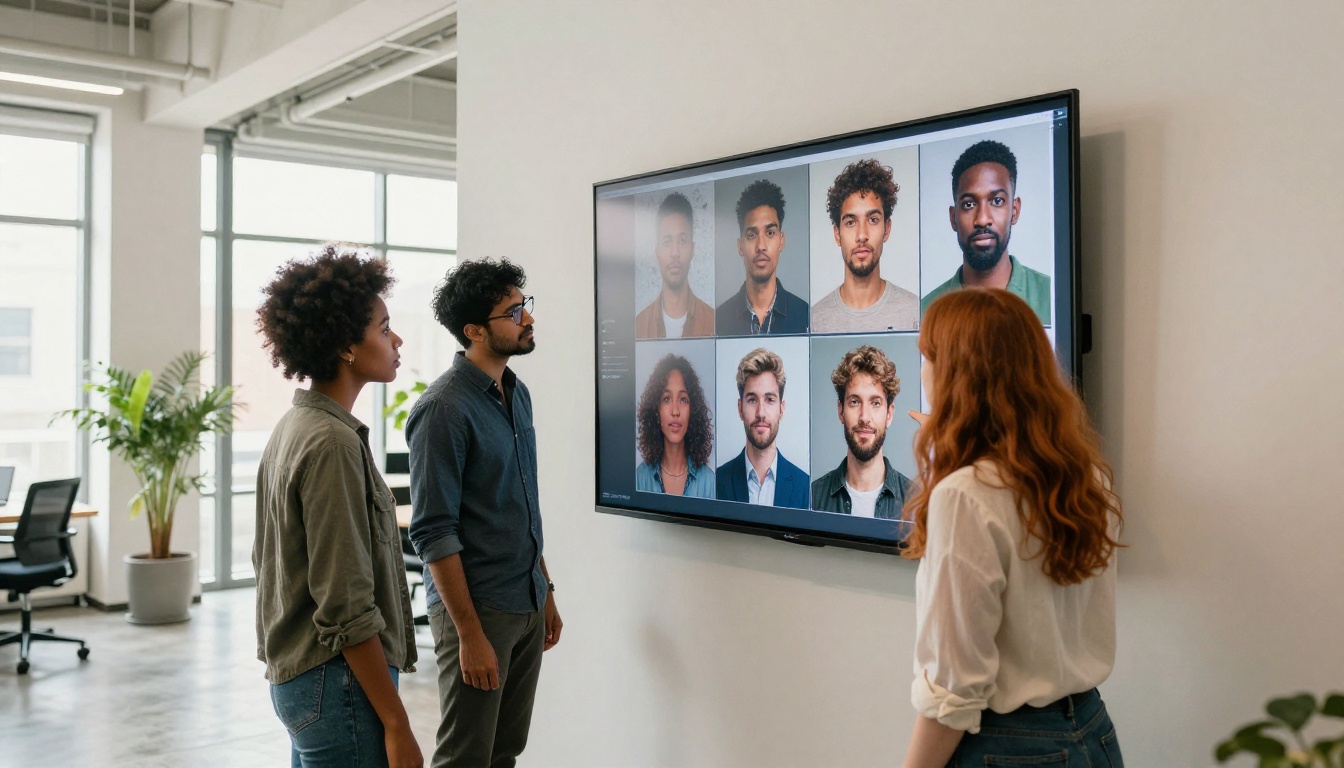
The fastest way to get good at AI art in any style is to run the same subject through five different style descriptors in one session. Pick a simple subject: "a woman reading a book by a window." Then generate it as Baroque oil painting, vintage film photo, Japanese ink wash, flat vector illustration, and photorealistic portrait. Do all five back-to-back.
After five generations, you will have internalized what makes each style work and which keywords produce it reliably. No theory needed. Just the pattern recognition that comes from seeing it happen in real time.
PicassoIA has every model mentioned in this article available in one place with no credit caps or usage limits. Start with Flux Schnell for fast iteration across many prompt variations, move to Flux Dev for your best results, and run the final output through Clarity Pro Upscaler when you need print-ready resolution.
Your first session is the hardest. After that, the style vocabulary builds fast and the results get consistently better with every prompt you write.