There is a specific feeling you get when you look at a hand-drawn portrait, a quality that stops you before your brain has processed what you are seeing. It is warmth, imperfection, and evidence of a human hand. AI-generated images are extraordinary in their own right, but they often lack that quality entirely. The lines are too clean. The gradients are too smooth. The whole thing radiates a kind of digital coldness that makes it instantly recognizable as machine-made. The good news is that getting AI art to look genuinely hand-drawn is completely achievable, and it does not require any Photoshop skills, drawing ability, or expensive plugins. It requires the right prompts, the right models, and an understanding of what makes hand-drawn art feel the way it does.
Why AI Art Feels "Too Digital"
Before fixing the problem, it helps to understand it at a mechanical level. AI image models are trained on millions of photographs and digital images. Their default output reflects the average of that training data: sharp edges, clean color transitions, pixel-perfect gradients, and zero texture variation. None of these properties exist in traditional art.
The Smoothness Problem
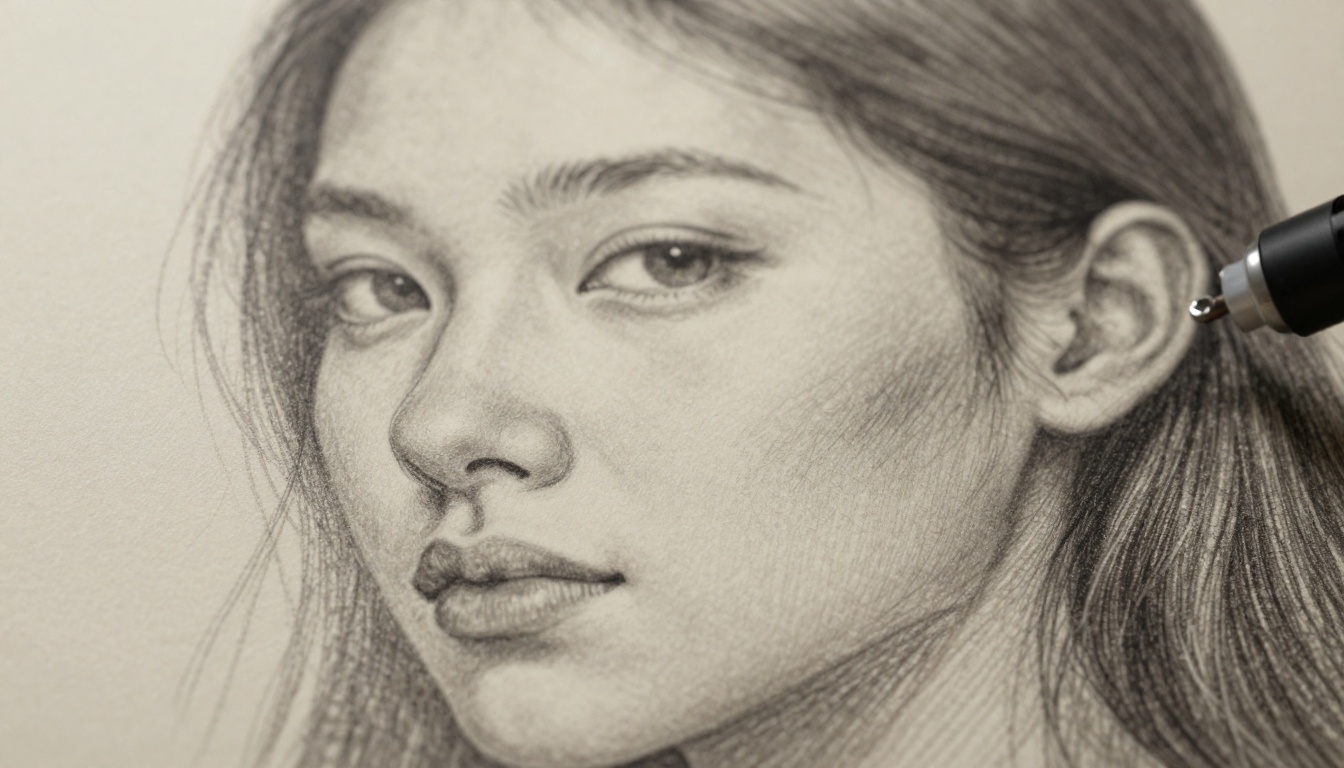
When you look at a pencil sketch, your eye picks up on micro-variations in line weight, tiny pressure changes where the artist lifted or pressed harder. You see gaps where the pencil skipped across paper grain. You see tonal inconsistencies where graphite smeared. These are not flaws. They are the visual signature of physical media. AI art, by default, has none of them, and your visual system notices immediately even if you cannot articulate why.
What Hand-Drawn Art Actually Is
Hand-drawn art is fundamentally about the record of a physical process. Ink has viscosity. Watercolor bleeds. Graphite has particle size. Charcoal smears. Every traditional medium leaves physical evidence of its own material properties on the surface of the paper, and that physical evidence is exactly what makes the work feel real and human. When you are prompting AI for hand-drawn results, you are essentially asking the model to simulate all of that physical evidence convincingly.
The 3 Styles Worth Knowing
Not all hand-drawn aesthetics are the same. Each has a different set of visual properties, and prompting for each requires a slightly different approach.
Pencil Sketching
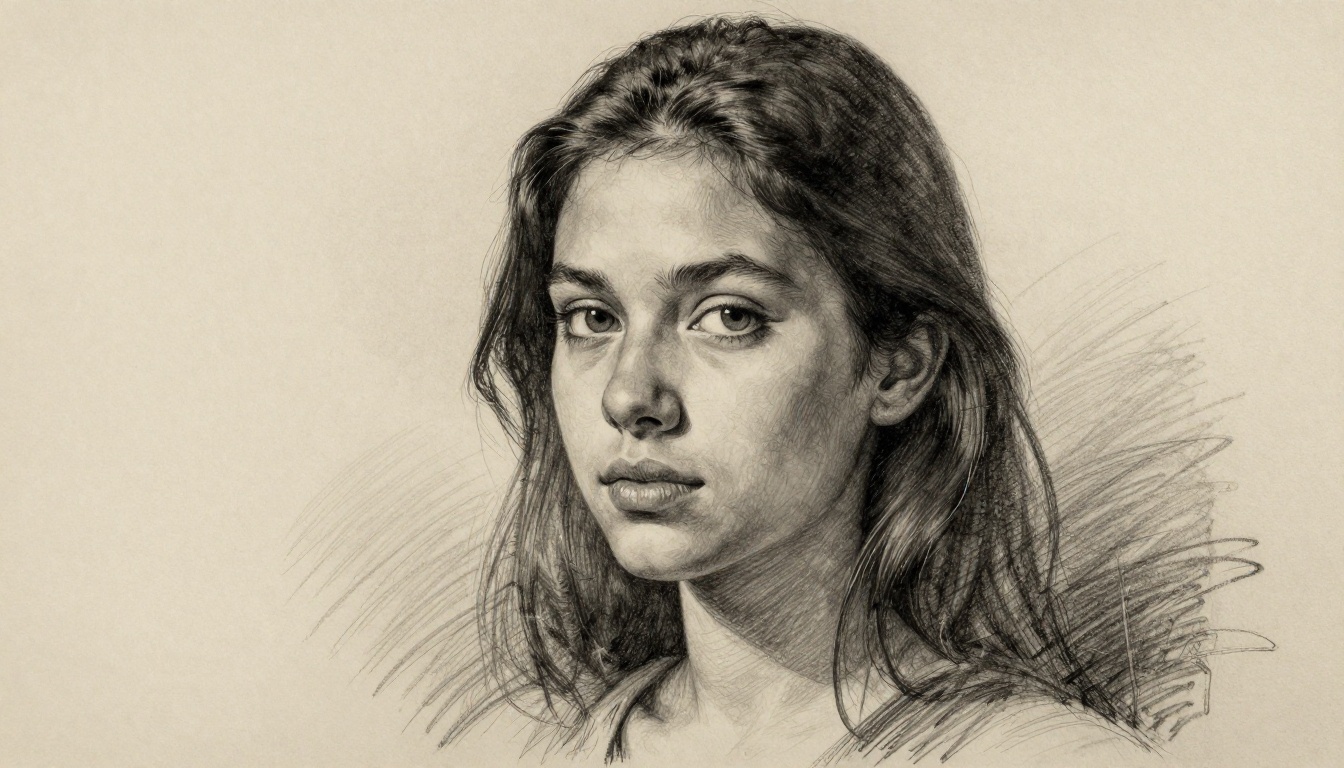
Pencil is the most versatile and the most forgiving of the three main hand-drawn styles. The visual hallmarks are graphite grain, crosshatch shading, line weight variation, and white paper showing through in the highlights. The color palette is almost entirely monochromatic: warm ivory paper, cool grey graphite, with the darkest darks rarely reaching true black. This style works exceptionally well for portraits because the crosshatch lines on facial planes (cheekbones, brow ridge, nose bridge) create a sculptural quality that photographs and digital art rarely replicate.
Watercolor and Ink Wash
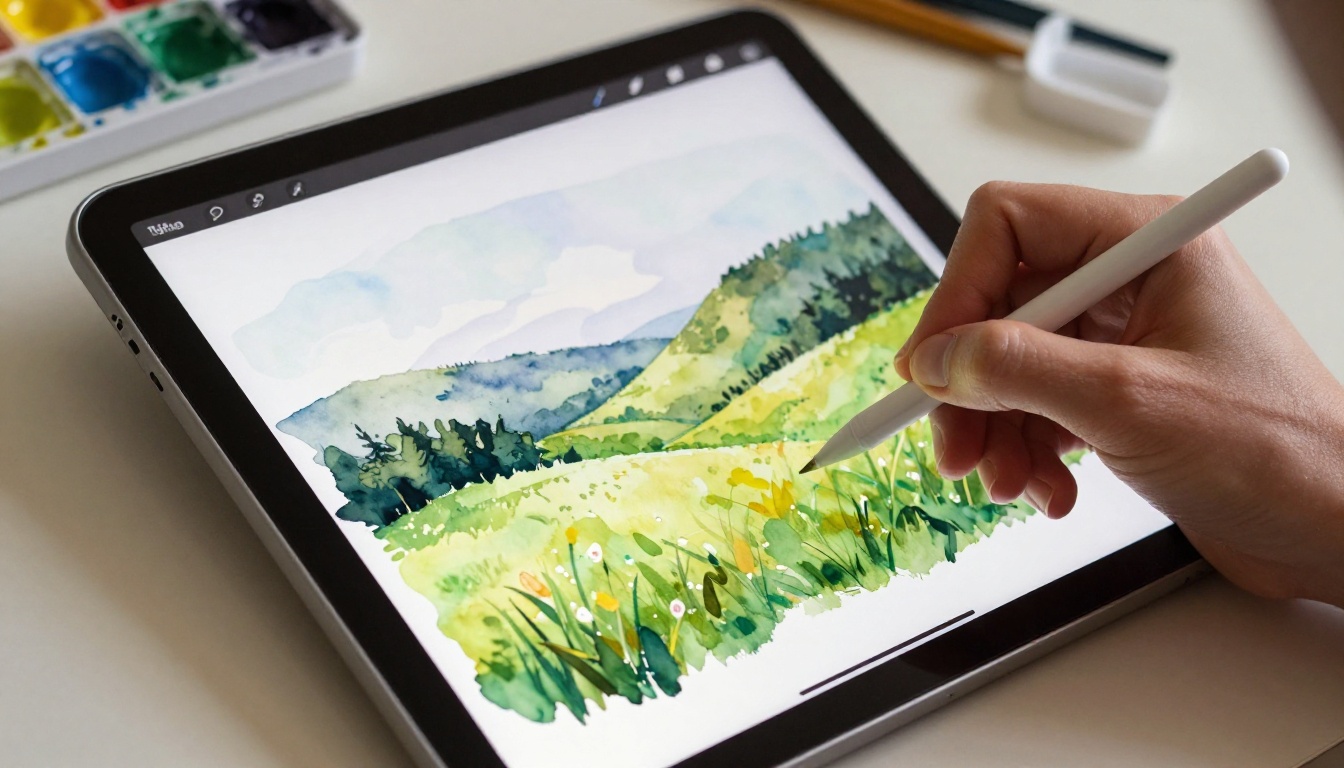
Watercolor is defined by wet-on-wet blooms, soft color bleeds at edges, unpainted white paper acting as light, and the granulation of pigment in recesses of paper tooth. It is the loosest of the traditional media, and its unpredictability is its charm. Ink wash is a close cousin: deeply saturated dark values laid over loose watercolor washes, creating that editorial-illustration quality you see in graphic novels and travel journals. Prompting for either of these requires specific vocabulary around water, paper, and pigment behavior.
Charcoal and Pastel
Charcoal has a matte, powdery quality, with soft blended mid-tones and sharp dramatic darks. The edges of shapes in charcoal work are often lost in smudged transitions. Pastel is similar but with color, characterized by a chalky surface texture and layered color built up in strokes. Both media work beautifully for atmospheric landscape images where soft, unfocused edges are desirable.
Prompts That Actually Work
The single biggest lever you have over your AI art is your prompt. Vague requests like "pencil drawing style" will get you inconsistent results. What you need is a keyword stack: a structured collection of terms that together force the model to simulate the specific material properties of traditional media.
💡 The core rule: Describe the medium, the surface, and the physical behavior of the material. Do not just label the style. Force the model to simulate it.
The Keyword Stack Method
Think of your prompt in layers. The subject layer describes what the image contains. The style layer describes the medium. The texture layer describes the physical surface. The color layer constrains the palette. The quality layer specifies fidelity. Stack them in order and your results improve dramatically.
| Prompt Layer | What to Include |
|---|
| Subject | Portrait of a woman, mountain landscape, city street |
| Medium | Graphite pencil sketch, charcoal drawing, watercolor painting |
| Surface | Cold-press watercolor paper, textured sketchbook, cream paper grain |
| Material Behavior | Hatching lines, wet bloom at edges, smudged mid-tones, pigment granulation |
| Color | Monochromatic warm ivory, muted watercolor palette, sepia ink wash |
| Quality | 8K, high detail, photorealistic rendering of hand-drawn medium |
Pencil Sketch Prompt Blueprint
"Graphite pencil portrait of [subject], crosshatch shading on [facial planes], visible paper grain in highlights, 2B pencil line weight variation, graphite smear texture in mid-tones, cream sketchbook paper background, monochromatic warm grey palette, high-detail rendering of drawing medium, 8K"
The key terms here are crosshatch shading, paper grain, line weight variation, and graphite smear. Each one is a direct description of a physical property of graphite on paper.
Watercolor Prompt Blueprint
"Watercolor painting of [subject], wet-on-wet color blooms at edges, granulated pigment in shadow areas, unpainted white paper showing in highlights, loose brushstrokes, slight paper tooth texture, muted transparent color palette, ink line art outline, cold-press paper surface, 8K"
The critical terms are wet-on-wet color blooms, granulated pigment, and unpainted white paper. These force the model to simulate the optical behavior of actual watercolor pigment.
Charcoal Prompt Blueprint
"Charcoal figure study of [subject], soft blended mid-tones, powdery matte texture, lost edges in shadow transitions, vine charcoal mark quality, white chalk highlights on [specific surfaces], deep dark values in shadowed areas, toned paper background, photorealistic rendering of drawing medium"
Best Models for Hand-Drawn Styles
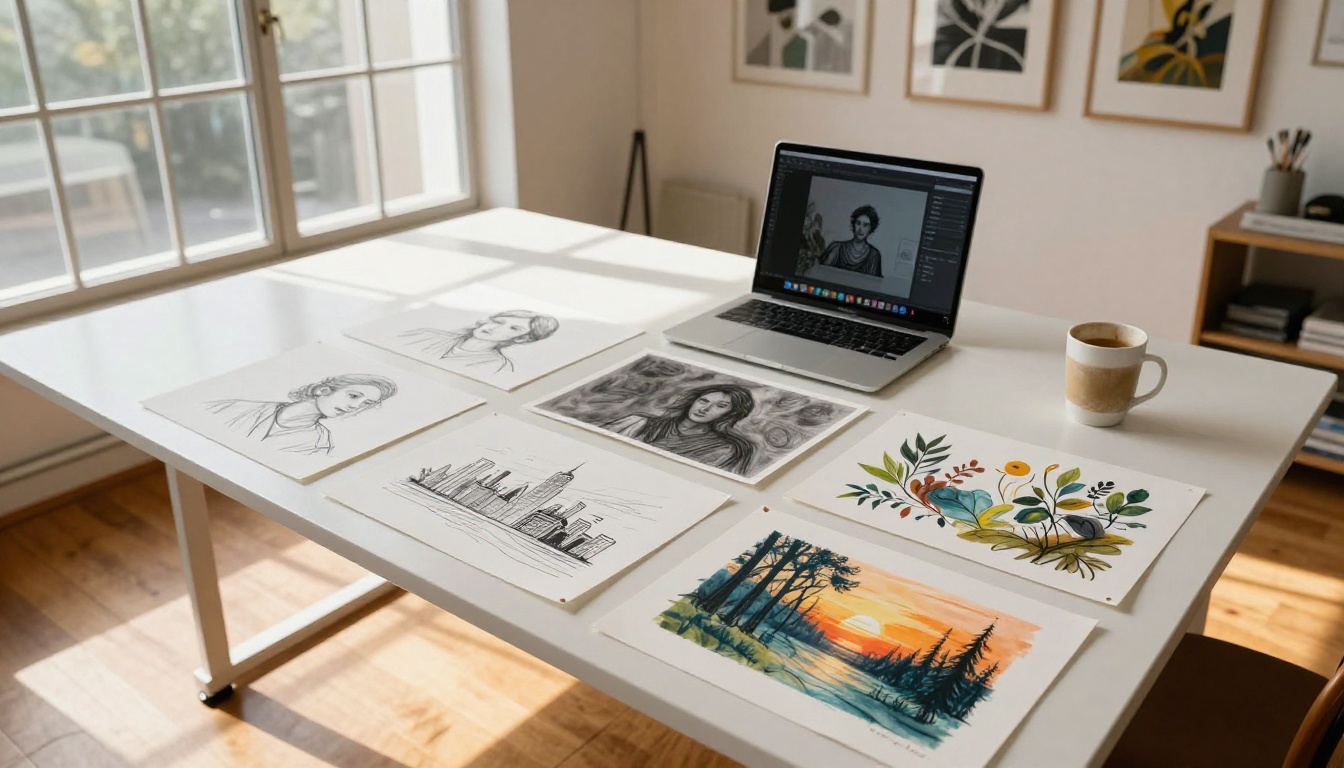
Prompt quality matters enormously, but so does your choice of model. Some models are significantly better at interpreting style-heavy prompts because of how and what they were trained on.
Flux Dev for Detailed Sketches
Flux Dev is one of the strongest general-purpose text-to-image models available on PicassoIA, and it handles detailed style prompts remarkably well. Because it runs more inference steps than Flux Schnell, it has more capacity to build up fine textural detail, which is exactly what you need when simulating the grain of graphite on paper. For portraits with pencil sketch aesthetics, Flux Dev consistently delivers the crosshatch line work that Schnell sometimes oversimplifies.
💡 Quick tip: When using Flux Dev for sketch styles, add "negative space, bare paper showing" to your prompt. This discourages the model from filling every pixel and creates the breathable open feel of real sketching.
DreamShaper XL for Painterly Art
DreamShaper XL Turbo was fine-tuned specifically to produce rich, stylized artistic outputs. It handles watercolor and painterly styles particularly well, producing softer color transitions and more convincing wet-media edge behavior than most base models. If your goal is a loose watercolor botanical or a painterly landscape, DreamShaper XL Turbo is often the most reliable starting point.
Flux Kontext for Style Edits
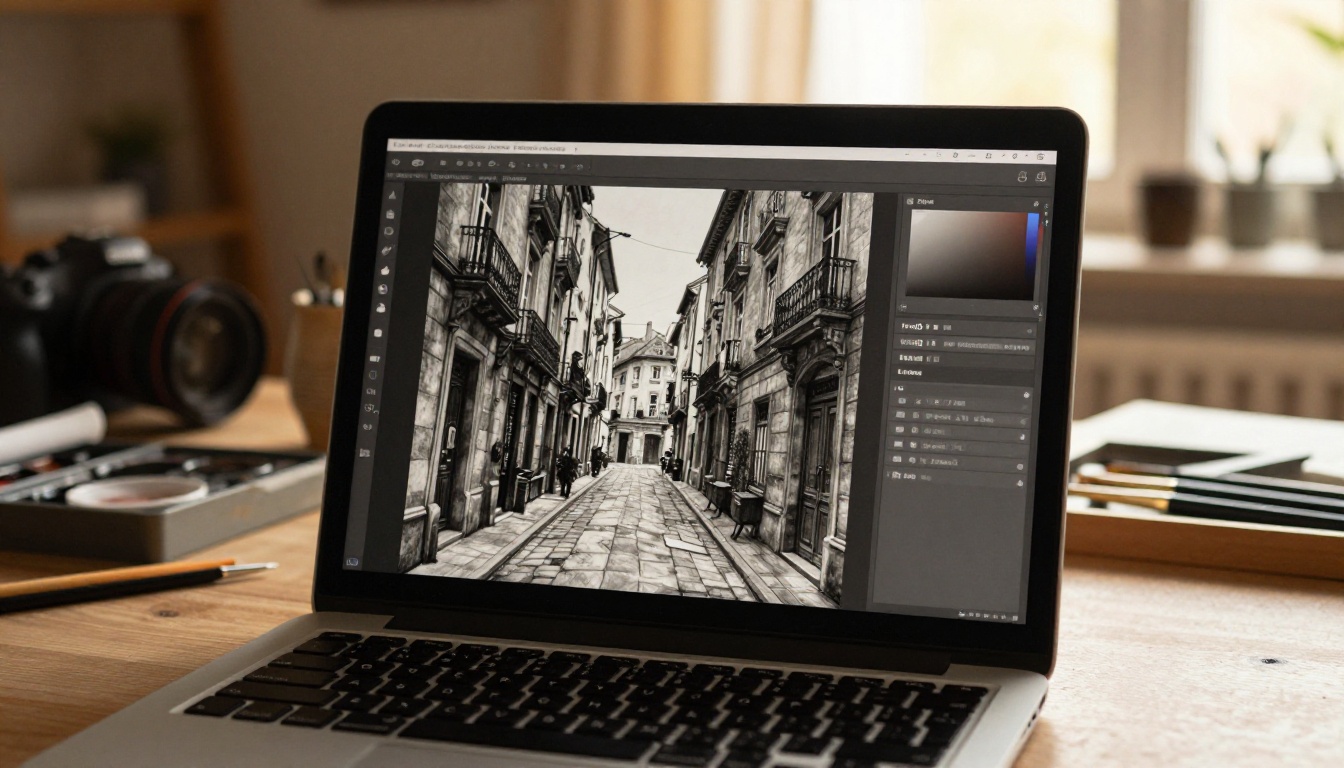
Flux Kontext Dev and Flux Kontext Pro introduce a fundamentally different approach: rather than generating from scratch, you supply an existing image and instruct the model to apply a stylistic transformation. This is the closest AI gets to actually "drawing over" an image. The instruction might be: "Transform this photograph into a graphite pencil sketch with visible crosshatch shading and paper texture." The model maintains the composition and subject of your source image while overlaying the hand-drawn aesthetic you describe.
This is especially powerful because you can start with a photographic reference, get the lighting and composition exactly right, then Kontext-edit it into a sketch or watercolor. The result often looks far more convincing than generating the hand-drawn style from a text prompt alone, because the underlying structure of the image is informed by real photographic data.
For a more playful animated feel rather than traditional media, Flux Cartoonify applies a stylized illustrated look to any input image in a single step.
Seedream 4.5 for Expressive Styles
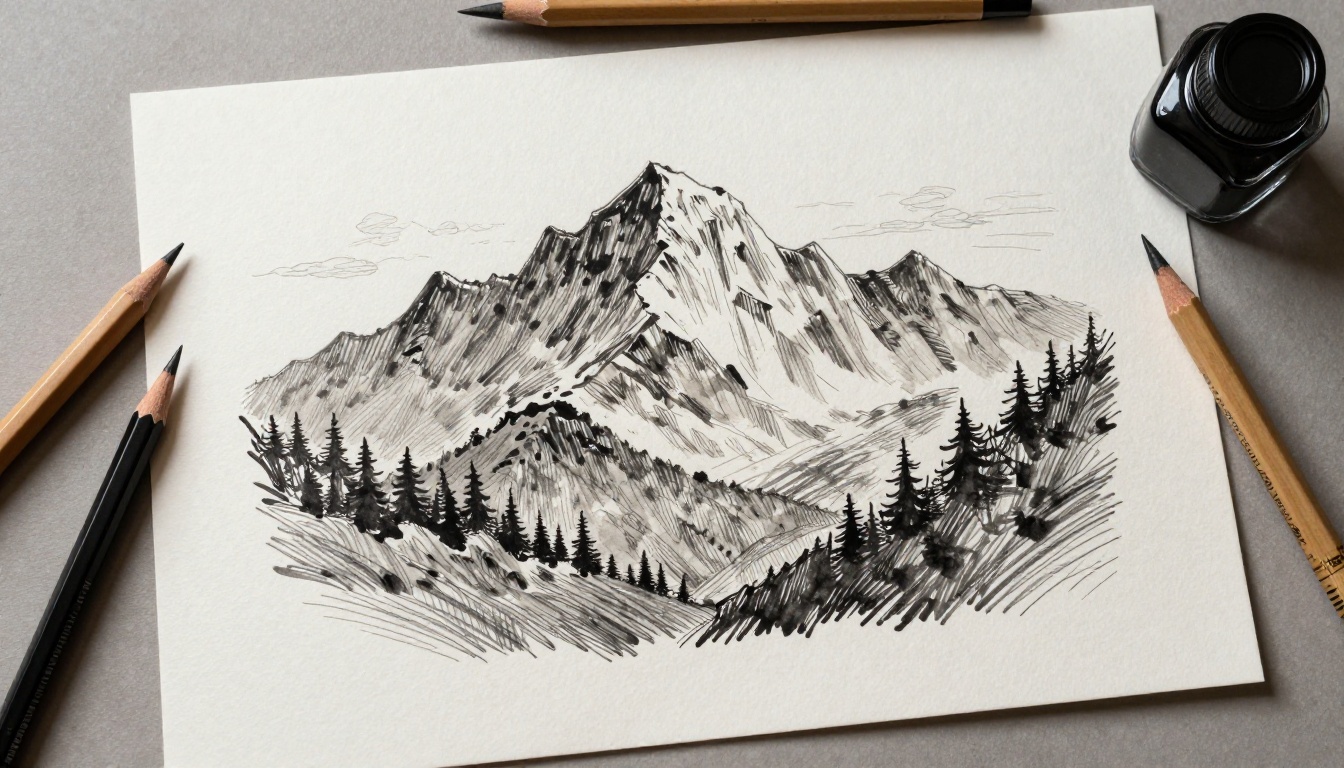
Seedream 4.5 from ByteDance brings a different training distribution that often produces expressive, painterly outputs with rich tonal contrast. It is particularly strong for ink-wash and East Asian brush painting aesthetics, where loose black brushwork on white paper is the goal. It handles the calligraphic quality of ink lines better than most Western-trained models.
Also worth exploring: Stable Diffusion 3 has a broad training set that gives it solid knowledge of traditional art styles, and PicassoIA Image Editor Pro offers unlimited generation capability for iterating through many prompt variations without hitting limits.
Step-by-Step on PicassoIA
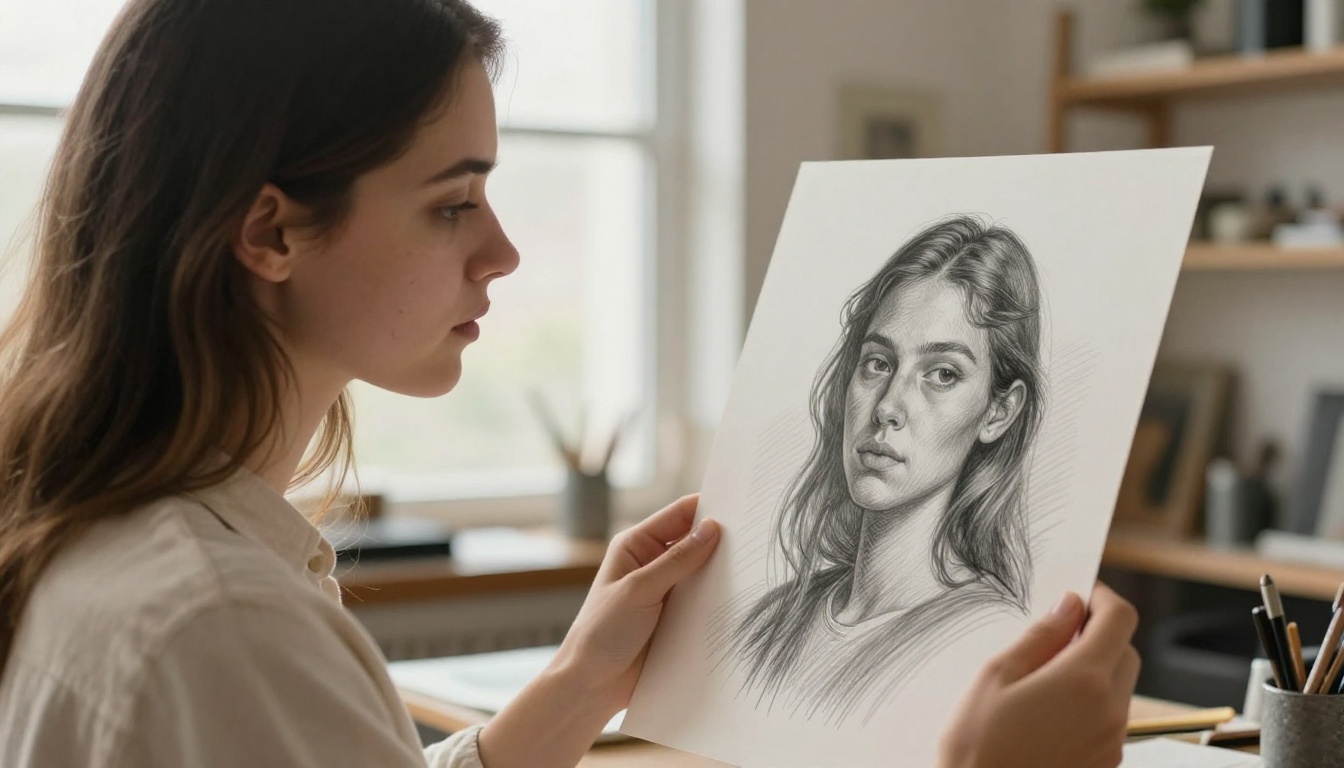
Here is a concrete workflow for producing a pencil sketch portrait using PicassoIA, from first generation through final upscaling.
Generating a Pencil Sketch From Scratch
Step 1. Open Flux Dev on PicassoIA.
Step 2. Enter your prompt using the keyword stack method. A strong starting prompt:
"Graphite pencil portrait of a young woman, three-quarter view, crosshatch shading on cheekbones and brow ridge, visible paper grain in highlights, 2B pencil line weight variation, graphite smear texture in mid-tones, cream sketchbook paper background, warm monochromatic grey palette, high detail, 8K"
Step 3. Set aspect ratio to 1:1 or 4:3 for portrait format. Run the generation.
Step 4. If the output lacks sufficient texture, add the terms "heavy paper tooth", "graphite particle visible" and regenerate.
Step 5. Once you have a result you like, move to upscaling.
Applying Style to Existing Images
If you already have an AI image or photograph and want to apply a hand-drawn look, use Flux Kontext Dev:
Step 1. Upload your source image.
Step 2. Use an instruction prompt like: "Convert this image to a detailed graphite pencil sketch. Add crosshatch shading, paper grain texture, and visible pencil strokes. Keep the composition identical."
Step 3. Adjust the strength parameter. Higher strength = more stylistic change. Lower strength = preserves more of the original image's detail.
Step 4. Iterate. The first result will rarely be perfect. Change one term per iteration so you understand what each keyword is contributing.
For anime-inspired line art, the Photo to Anime LoRA model gives you a clean illustrated line-art conversion in a single step.
Upscaling to Preserve Texture
This step is critical and often skipped. Hand-drawn artwork depends on fine surface detail. When you scale an image for print or high-resolution display, poor upscaling destroys exactly the paper-grain texture and pencil-line detail that makes the effect work.
Use Clarity Pro Upscaler for upscaling that specifically adds and preserves fine detail rather than blurring it. It is trained to enhance micro-detail, which means it understands that the fine grain on your "paper" is meaningful content, not noise to smooth away. Real ESRGAN is a strong alternative for 4x upscaling while maintaining drawn-line sharpness. For the absolute highest quality at 6x scale, Image Upscale by Topaz Labs is the professional-grade option.
💡 Critical note on upscaling: Do not use generic bicubic or Lanczos upscaling on hand-drawn style AI art. These algorithms see the paper-grain texture as compression artifacts and soften it. AI-native upscalers treat that grain as real detail and preserve it.
Texture and Paper: The Secret Ingredient
If there is one concept that separates mediocre hand-drawn AI art from convincing hand-drawn AI art, it is the paper surface. The paper is not background. It is part of the artwork.
Adding Paper Grain to Your Prompts
Traditional artists work on surfaces with physical tooth, the microscopic bumps and valleys in the paper surface that catch and release pigment in specific ways. Graphite sits on top of the high points and skips the recesses, creating the characteristic sparkle of pencil work. Watercolor pigment pools in the low points, creating granulation. To simulate this in AI, you need to describe it explicitly:
- "cold-press watercolor paper grain visible"
- "heavy sketchbook tooth texture"
- "textured paper surface visible between pencil strokes"
- "cellulose fiber texture"
Imperfection Is the Point
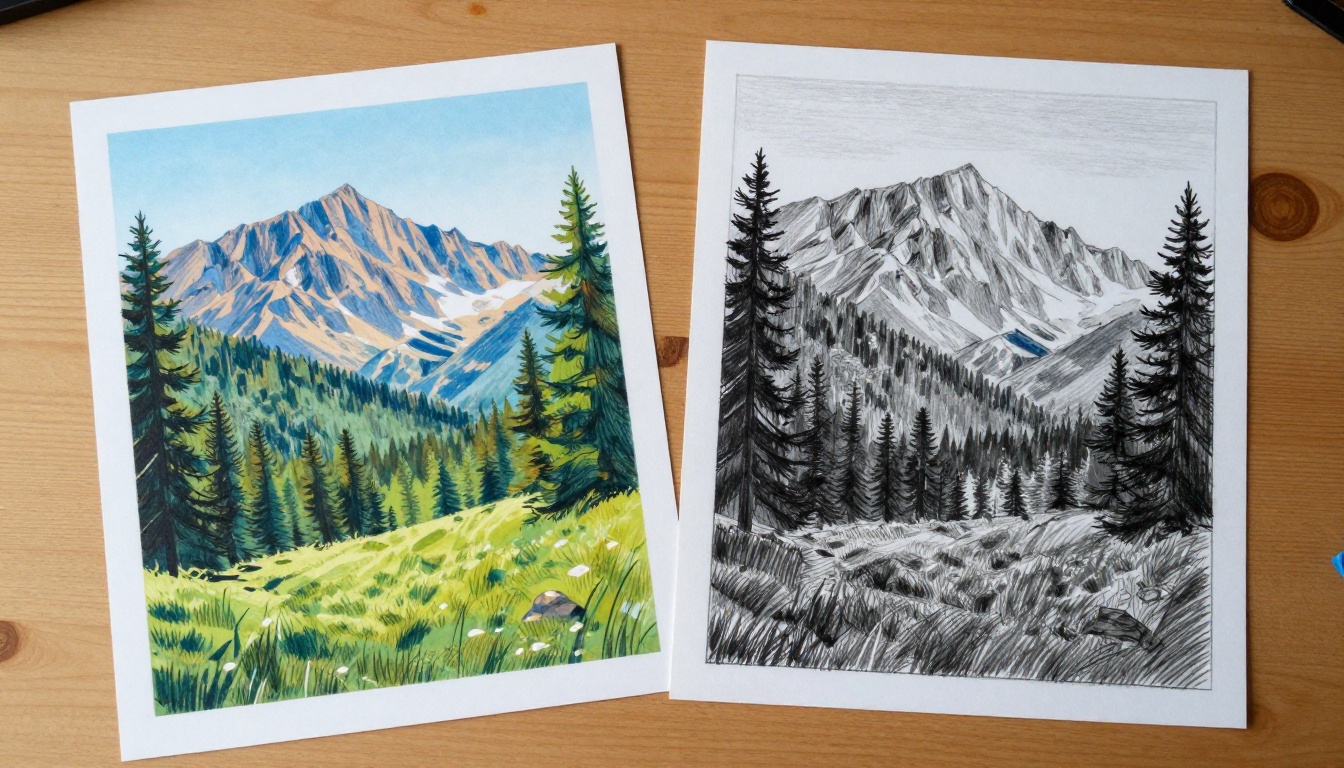
The most consistent mistake people make when prompting for hand-drawn styles is trying to make the result look too good. Real hand-drawn art has wobble, inconsistency, and evidence of correction. A pencil line is not perfectly straight. Watercolor blooms unpredictably. Charcoal smears unevenly. You should be adding terms like "slightly uneven line weight", "natural imperfections", "hand-made quality", "not digitally enhanced" to your prompts. These terms give the model permission to produce output that deviates from the clean perfection it defaults to.
5 Mistakes That Kill the Effect
Even with the right model and a well-structured prompt, certain habits consistently produce disappointing results. Avoid these:
-
Using the style name without describing the medium. "Pencil sketch style" is a label. "Graphite on cream paper, crosshatch shading, paper grain in highlights" is a description of physical reality. Models respond far better to the latter.
-
Keeping the default aspect ratio. Most traditional hand-drawn art is portrait or square format, not 16:9 widescreen. The wrong aspect ratio immediately signals "digital" to the viewer.
-
Not iterating. The first result is a starting point. Add one new texture term per generation until the effect deepens.
-
Skipping upscaling. A 1024x1024 image with beautiful pencil texture looks soft and unconvincing on a monitor. Upscale to 4K minimum with an AI-native upscaler that preserves drawn-line sharpness.
-
Choosing too complex a subject. Highly complex scenes with many elements are harder for the model to render convincingly in a traditional style. Start with a single portrait or simple landscape to nail the aesthetic, then move to more complex compositions.
Real Examples: Before and After
The visual difference between a raw AI image and a properly prompted hand-drawn version is significant. The raw AI output has smooth gradients, perfect edge antialiasing, and a luminous quality that reads immediately as digital. The hand-drawn version has tonal variation within areas that should be uniform, visible line work, paper texture showing through, and edges that lose and find themselves across the picture plane. These are not subtle differences. When you see both side by side, the hand-drawn version reads as human-made at a glance.
The most dramatic transformations happen with portraits, specifically with Flux Kontext Dev or Flux Kontext Pro applied to a photographic face. The underlying facial structure (which comes from real photographic training data) combines with the applied graphite texture to produce a result that even experienced artists sometimes double-take on.
Prompt Combinations That Work
Here are three complete, ready-to-use prompt templates you can take straight into PicassoIA:
Pencil Portrait:
"Graphite pencil portrait, young woman, three-quarter lighting, crosshatch shading on cheekbones and nose bridge, visible paper grain, 2B pencil texture, warm ivory sketchbook paper, monochromatic grey, high detail 8K, natural imperfections, hand-drawn quality"
Watercolor Landscape:
"Watercolor landscape painting, rolling hills at golden hour, wet-on-wet color blooms at cloud edges, granulated pigment in shadow, unpainted white paper highlights, loose brushwork, cold-press paper surface, muted warm palette, ink line details, 8K, hand-painted quality"
Charcoal Figure:
"Charcoal figure study, seated person, soft blended mid-tones, powdery matte texture, lost edges in shadow, white chalk highlights on shoulders and forehead, deep dark values, toned grey paper, natural charcoal smear texture, high detail 8K"
Start Creating on PicassoIA
The gap between cold digital AI art and warm hand-drawn aesthetic is entirely bridgeable with the right approach. You now have the vocabulary (the keyword stacks), the models (Flux Dev, DreamShaper XL Turbo, Flux Kontext Dev), and the workflow (generate, Kontext-edit, upscale with Clarity Pro Upscaler).
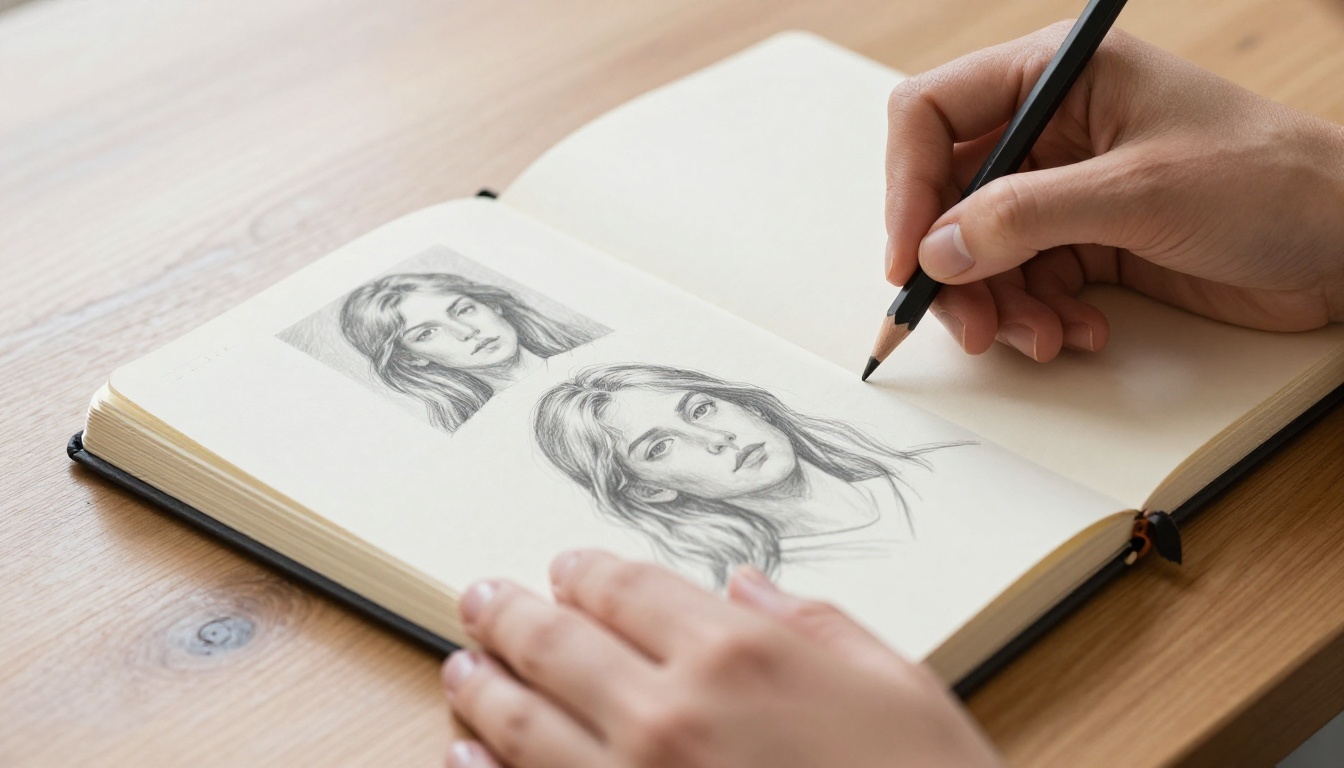
The only thing left is to open PicassoIA and run the first generation. Start with a portrait using the pencil prompt template above. Look at what the model gives you. Identify which specific element feels most digital (too smooth? missing grain? lines too clean?) and add one targeted keyword to address it. By the third or fourth iteration, you will have something that stops people mid-scroll, not because it looks AI-generated, but because it does not.
Browse the full model catalog at picassoia.com/en/all-models to find the model that fits your specific style. Every medium, every aesthetic, and every level of detail is covered. The hand-drawn look you are after is already achievable. It just needs the right prompt.


