Most AI videos reveal themselves in the first two seconds. The motion stutters, the lighting never quite lands, and objects drift rather than move. Viewers notice even when they cannot explain why. If you have been generating clips that feel close but not quite real, the issue usually is not the model: it is the inputs, the prompt structure, and what happens after the generation completes.
Why AI Videos Look Fake
The human visual system is extraordinarily good at detecting motion anomalies. We spend our entire lives watching real physics: the way fabric resists before it moves, how a shadow shifts as a subject turns, the micro-tremors in a handheld camera. AI video models learn to approximate these patterns, but without careful prompting and post-processing, they produce outputs that are statistically plausible but perceptually wrong.
The Motion Problem
The biggest giveaway in AI video is unnatural motion. Objects either move too smoothly, too uniformly, or in directions that do not respect gravity and inertia. Real motion is messy: hair snags, cloth bunches, hands overshoot and correct. When you strip all of that out in favor of clean continuous movement, the result reads as synthetic immediately.
The fix is not always the model. It is what you tell the model to do. Prompts that describe precise, physics-driven actions outperform vague ones. Compare:
- Weak: "a woman walking down the street"
- Strong: "a woman taking quick short steps on wet pavement, slight forward lean, coat edges swaying with each stride, shoulders rotating naturally with arm swing"
The second version gives the model enough constraint that it produces motion anchored to real physics rather than averaged motion blur.
The Lighting Trap
AI models default to even, flattering, studio-quality lighting because that is what most training data rewards. Real footage does not look like that. It has hot spots, deep shadows, colored bounce light from nearby surfaces, and inconsistent exposure across the frame.
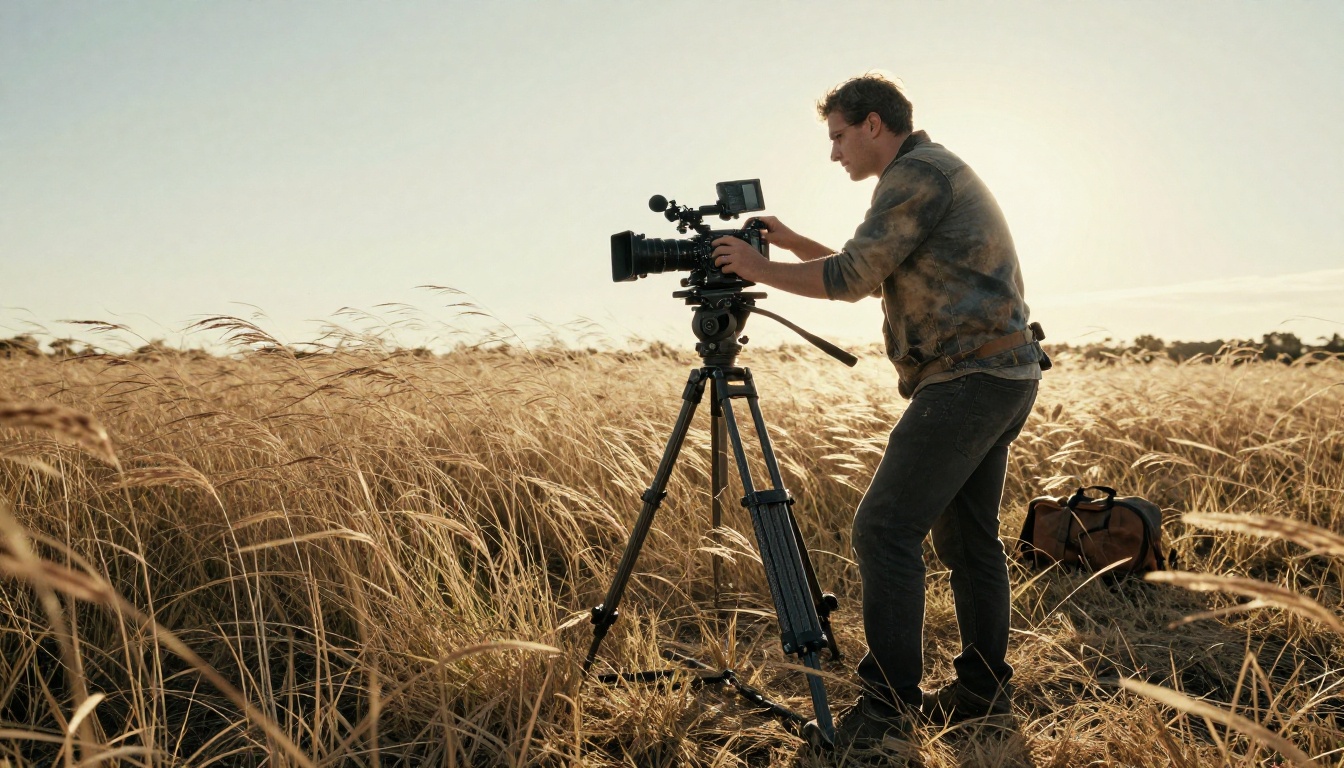
When you specify lighting conditions precisely, such as "overcast diffused light from above with slight cool color temperature, no specular highlights on skin," or "single tungsten practical from camera right, strong shadow falloff, warm 3200K color," you push the model away from its safe defaults and toward something that reads as captured rather than generated.
Prompt Precision Changes Everything
Vague prompts produce vague videos. The models that produce the most realistic footage, including Seedance 2.0, Veo 3, and Kling v3 Video, all respond strongly to specificity. A 40-word prompt will produce a noticeably different result than a 15-word prompt even with the same general subject.
💡 Treat your prompt like a shot list. Describe subject, action, camera position, lens behavior, lighting source, atmosphere, and any secondary motion in the scene.
How to Write Prompts That Produce Realism
Writing prompts for AI video is fundamentally different from writing prompts for AI images. Images are static, so the model only needs to get one frame right. Video requires coherent motion across many frames. That means every element of the prompt needs to describe something that can move in a physically plausible way.
Describe Physics, Not Just Visuals
The most effective video prompts specify what forces are acting on the scene, not just what it looks like. If there is wind, say "wind from the left moving hair and lightweight fabric." If there is water, describe the surface behavior: "gentle rippling with small reflective glints, no foam." If a person is stationary, say so explicitly: "figure standing still, weight distributed slightly to left foot, slight chest movement from breathing."
This approach constrains the generation space and forces the model to produce coherent physics rather than random plausible motion.
Cinematic Language That Works
Borrowing vocabulary from real cinematography dramatically improves results. These terms are embedded in training data from real films:
| Term | What It Does |
|---|
slow dolly-in | Smooth forward camera movement, feels grounded |
shallow depth of field | Background blur that reads as real lens optics |
handheld with slight shake | Organic instability that signals authenticity |
rack focus from foreground to subject | Sequential sharpness shift, very film-like |
natural lens flare | Optical imperfection that sells realism |
anamorphic bokeh | Oval background blur from cinema lenses |
Models like Wan 2.7 T2V and LTX 2.3 Pro respond particularly well to cinematic terminology because they have been trained on high-quality film references.
Choosing the Right Model
Not all AI video models are the same. Each has different strengths for realism. Picking the wrong model for your scene type is one of the most common mistakes.
Best Models for Natural Motion
Seedance 2.0 by ByteDance produces some of the most physically grounded motion available. It handles human movement, fabric dynamics, and fluid surfaces better than most alternatives. It also includes built-in synchronized audio, which removes the need for post-processing audio sync.
Kling v3 Video and Kling v2.6 are strong choices when you need character motion at 1080p. Kling's motion model handles walking, gesturing, and interaction with objects well without the typical AI "floating" artifact.
Wan 2.7 I2V is excellent for animating still photographs. Starting from a real photo as the first frame anchors the color palette, lighting, and subject proportions, making the output feel like captured footage rather than generated content.
Hunyuan Video by Tencent offers strong temporal consistency across frames, reducing the flickering and morphing artifacts that undermine realism in longer sequences.
Best Models for Lighting Accuracy
Veo 3 and Veo 3.1 by Google produce the most photorealistic lighting of any current model. The light behaves like real light: it bounces, it casts soft shadows, it changes color when it reflects off colored surfaces. If lighting accuracy is your priority, Veo 3 is the current standard.
Hailuo 02 by Minimax handles high-contrast lighting well, making it a solid option for dramatic scenes with strong shadows and directional light sources.
LTX 2 Pro generates at 4K resolution, which means lighting detail is preserved at a level that holds up under close inspection. When you are going to display on large screens, starting with a 4K source eliminates compression artifacts that signal AI generation.
💡 Quick selection rule: For human motion, use Seedance 2.0 or Kling. For environmental shots and lighting quality, use Veo 3 or LTX 2 Pro. For animating still images, use Wan 2.7 I2V.
Image-to-Video vs Text-to-Video
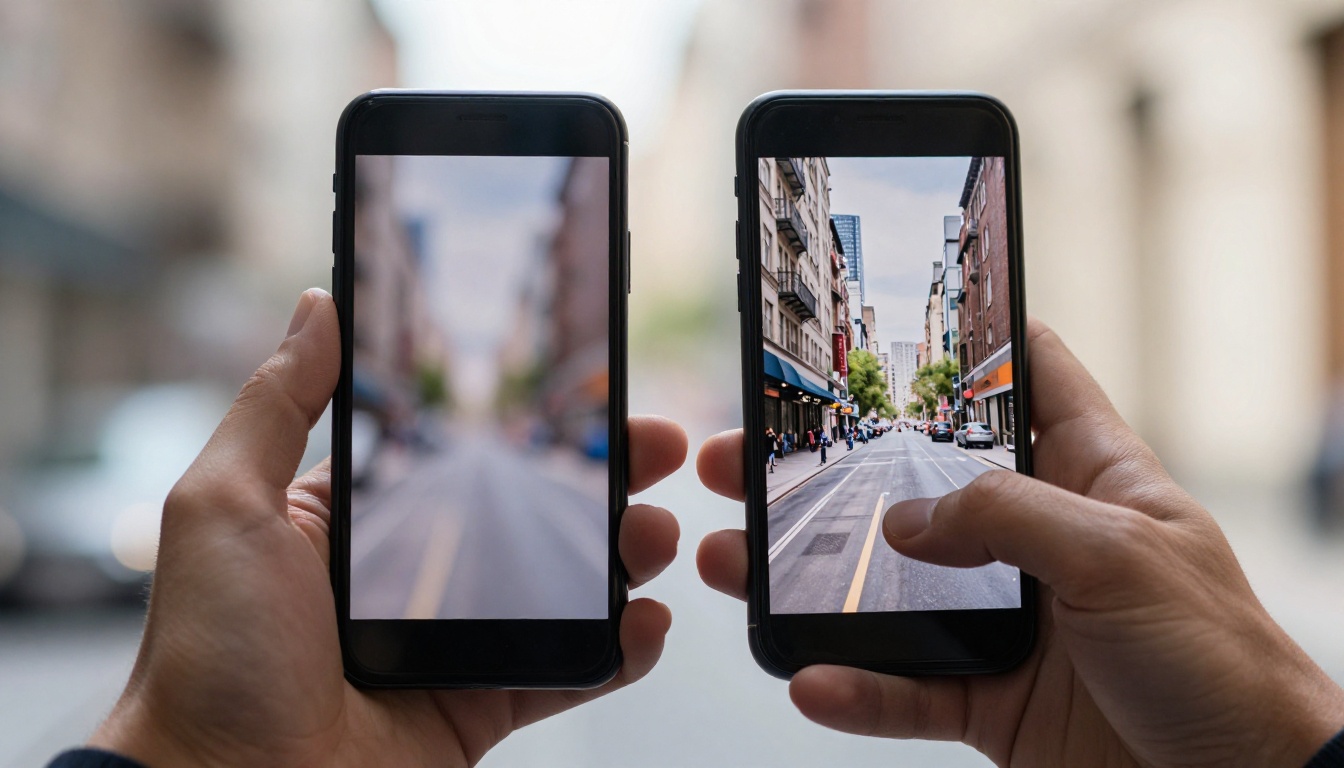
The choice between starting from text or starting from an image affects realism more than most people realize.
When to Start from an Image
Text-to-video gives the model complete creative freedom, which often works against realism. The model has to invent everything: the subject's appearance, the lighting, the environment, the textures. Small inconsistencies in any of these create the uncanny valley effect.
Image-to-video anchors the generation. When the model has a reference frame, it preserves established colors, textures, and proportions across the video's duration. The result feels like someone pressed record on a camera pointed at a real scene, rather than something invented by software.
For maximum realism, generate or source a high-quality photograph that matches the scene you want, then pass it to Wan 2.7 I2V, Kling v2.1, or Ray 2 720p as the source image.
Getting the First Frame Right
The first frame determines the realism ceiling of the entire video. If the source image has AI artifacts, flat lighting, or inconsistent perspective, the video will inherit and amplify all of those problems. Before using any image as an animation source, verify:
- Lighting direction is consistent across all objects in the frame
- Shadows exist and point in the correct direction relative to the light source
- Textures have appropriate noise and grain, not AI smoothness
- The image was generated at or rendered to at least 1024px wide
💡 Tip: Use a real photograph as the source image whenever possible. Even a smartphone photo that matches your target scene will produce more realistic output than an AI-generated source.
Post-Processing for Added Realism
Generating a realistic AI video is only half the work. Post-processing is where you close the gap between "impressive" and "indistinguishable."
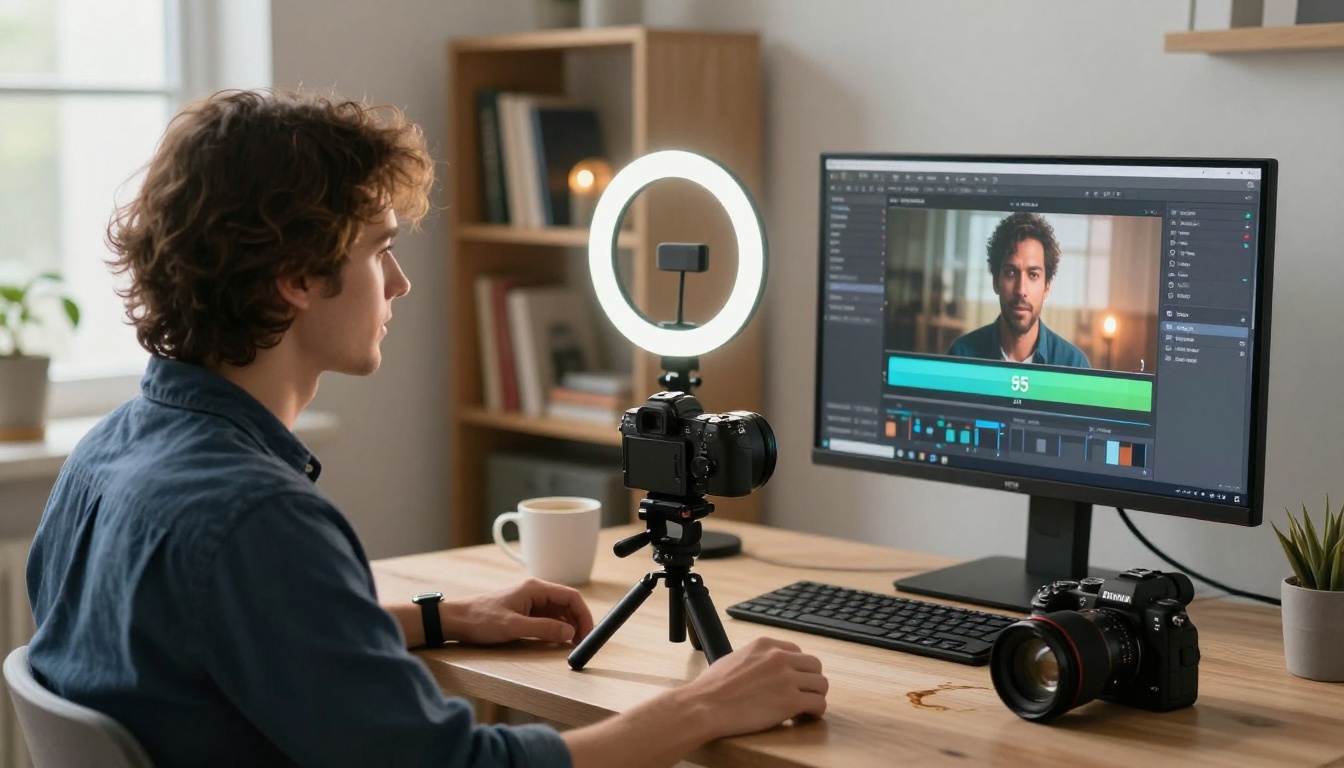
Upscaling Your Output
Most AI video models generate at 480p or 720p by default. At those resolutions, compression artifacts are visible and the output reads as AI-generated when viewed on a 1080p or 4K display. Upscaling with a dedicated video model solves this.
Crystal Video Upscaler and Video Upscale by Topaz Labs both handle AI video upscaling well. They do not just resize: they restore fine detail, reduce temporal flickering, and add the grain structure that high-resolution footage naturally has. The Upscale v1 by Runway is another strong option that processes clips quickly while preserving motion fidelity.
Video Increase Resolution by Bria takes this further, supporting upscaling to 8K, which provides headroom for cropping and reframing without visible quality loss.
Adding Synchronized Audio
Silence or generic background audio is an instant realism killer. Real videos have ambient sound: wind, traffic, footsteps, breathing, fabric movement. The synchronization between visual events and audio cues is something human perception checks automatically.
MMAudio generates contextually aware audio tracks that match the visual content of the clip. It analyzes the video and produces sound effects synchronized to what is happening on screen. For environmental scenes, this single step can push the output from "clearly AI" to "plausibly real."
Thinksound is another solid option for adding realistic ambient sound layers to generated video content.
Editing and Refining
Once you have a generated clip with upscaling applied, Wan 2.7 VideoEdit allows text-guided editing of specific sections without regenerating the entire clip. If a single frame has an artifact or the motion in one section feels wrong, you can target that section and revise it while keeping the rest intact.
Gen 4.5 by Runway also handles targeted video editing effectively, particularly for restyling specific visual elements while maintaining temporal consistency in surrounding frames.
How to Use PicassoIA for Realistic AI Videos
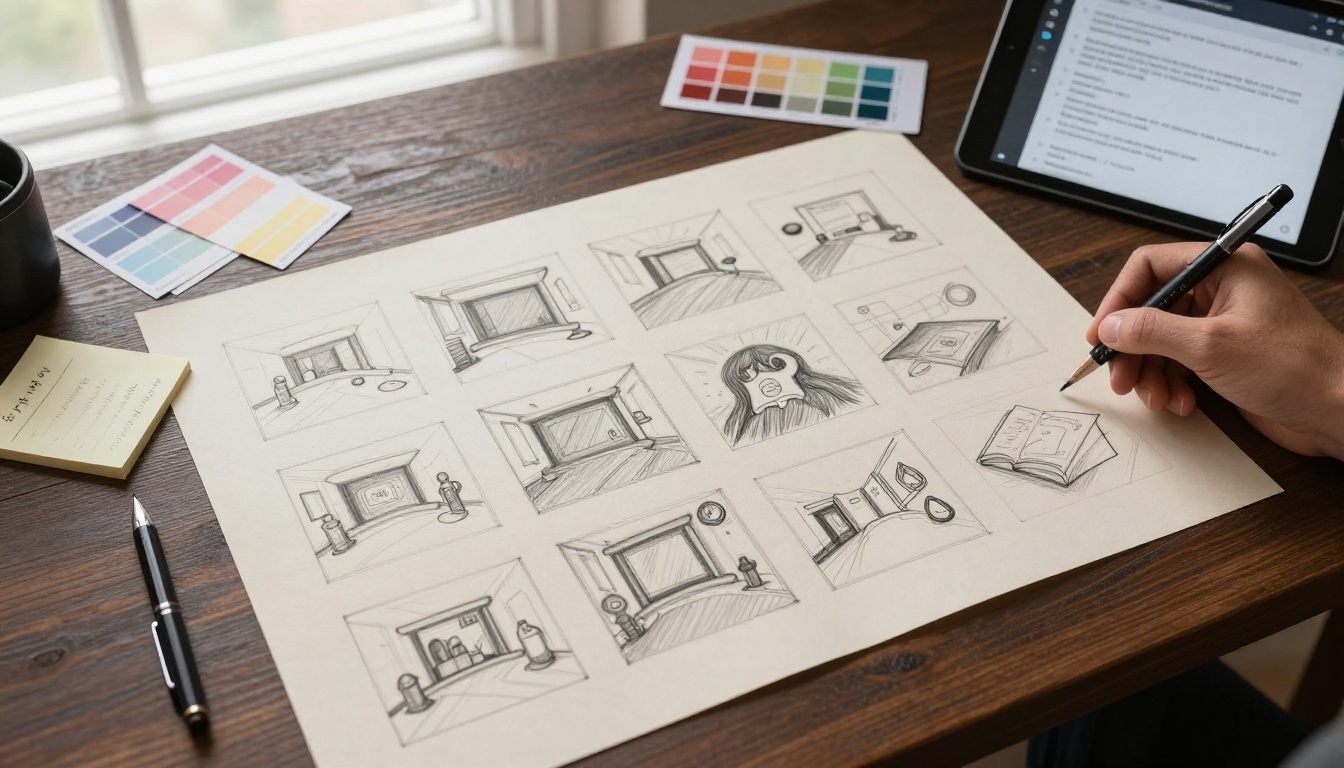
PicassoIA provides access to over 87 text-to-video models and a full suite of video editing and refinement tools, all in one place. The workflow for producing realistic AI video on the platform follows a consistent sequence.
Step-by-Step Workflow
Step 1: Choose your generation method. Decide whether you are generating from text or animating an image. If you have a strong source photograph, start with image-to-video for immediate realism gains.
Step 2: Write a detailed prompt. Apply the cinematic language from earlier in this article. Describe motion physics, lighting direction, camera behavior, and secondary motion. Aim for 40 to 60 words minimum.
Step 3: Select the model. For human subjects with natural motion, start with Seedance 2.0. For environmental and landscape footage, try Veo 3.1 Fast. For cinematic 1080p character-driven scenes, Kling v3 Video is a strong choice.
Step 4: Review and upscale. After generation, pass the output through Crystal Video Upscaler or Topaz Video Upscale.
Step 5: Add audio. Use MMAudio to generate synchronized ambient sound that matches the visual content.
Step 6: Fix problem sections. If specific frames or segments have artifacts, use Wan 2.7 VideoEdit to revise those areas without regenerating the whole clip.
Which Models to Pick First
If you are new to AI video realism, this prioritized list cuts through the noise:
- Best overall for realism: Seedance 2.0 (motion and built-in audio)
- Best for lighting accuracy: Veo 3
- Best for still-image animation: Wan 2.7 I2V
- Best for 4K output: LTX 2 Pro or LTX 2.3 Pro
- Best for character motion at 1080p: Kling v3 Video
3 Mistakes That Kill Realism
Over-Prompting Motion
Asking for too many moving elements at once produces chaotic, implausible motion. If everything is moving simultaneously, the physics become incoherent. Focus each scene on one or two primary motion elements. Secondary elements like background wind or ambient crowd movement can be specified, but they should not compete with the main action for the model's attention.
Ignoring Aspect Ratio
Most realistic footage is 16:9 or wider. Generating in 9:16 (vertical) and then converting creates pillar-boxing or stretching that signals processing and reduces the sense of captured reality. Match your output ratio to the intended platform from the start. For cinematic realism, 16:9 or 2.39:1 anamorphic reads most authentically.
Skipping Post-Production
A raw AI video output is rarely as convincing as the same clip after upscaling, color grading, and audio addition. The generation step is the foundation, not the finished product. Every model, no matter how capable, produces outputs that benefit from at least one post-processing pass. Skipping this step leaves significant realism potential unused.
💡 The minimum post-production stack: upscale to 1080p or higher, color grade to film-like contrast and saturation levels, add ambient audio matched to the scene. These three steps alone close most of the gap between AI-generated and footage-authentic video.
Create Your Own Realistic AI Videos
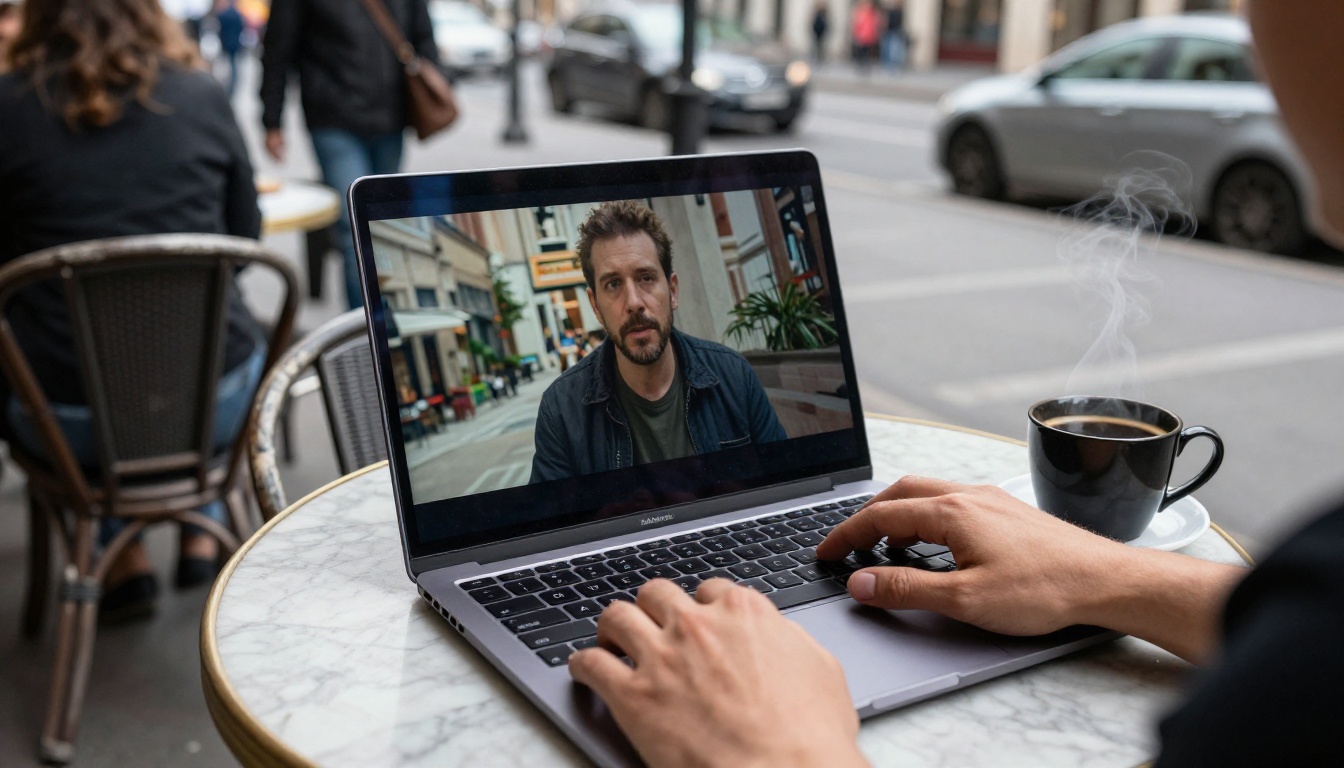
Realistic AI video is not a matter of luck or waiting for models to improve. It is a craft with learnable rules: write physics-driven prompts, pick models matched to your scene type, anchor generations to real-image sources when possible, and invest in post-processing. The gap between an average AI video and one that holds up to scrutiny is almost always in these choices, not in the underlying model.
PicassoIA gives you access to every major video model, plus the upscaling, editing, and audio tools needed to take raw generation all the way to finished content. Whether you are producing short-form social content, product demonstrations, or cinematic sequences, the entire workflow from prompt to polished output lives on one platform.
Start with Seedance 2.0 for your first attempt, apply the prompt structure from this article, and see the difference specificity makes. When you are ready to push further, try Veo 3 for lighting-critical scenes or Wan 2.7 I2V to animate your own photographs into cinematic clips.
All models are available at picassoia.com/en/all-models.


