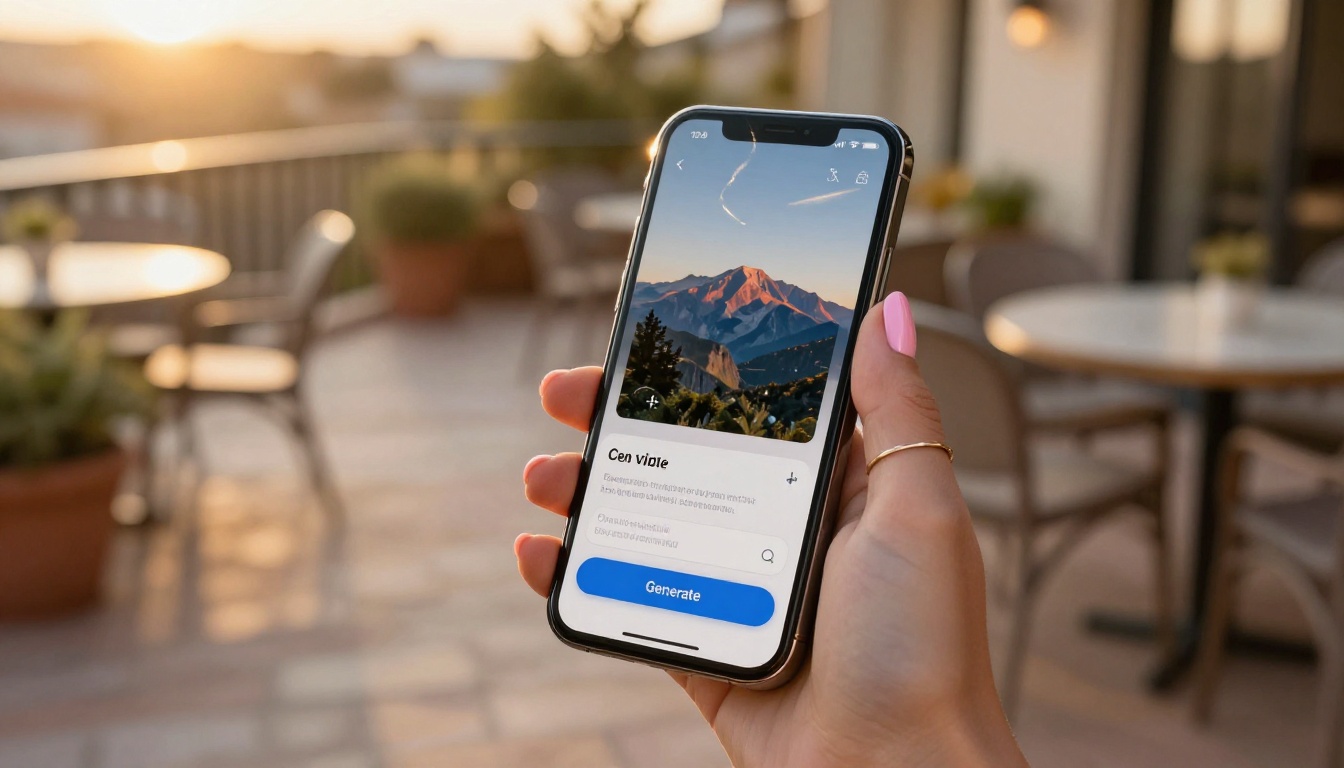
If you've spent any time following the AI space lately, you've probably seen clips so smooth and cinematic they don't immediately register as AI-generated. A lot of those come from Google's Veo 3.1, currently one of the most capable text-to-video models publicly available. This article walks through exactly how to use it, from the first prompt to a finished 1080p clip with synchronized audio, and covers which settings actually matter and which common mistakes cost you the most time.

What Makes Veo 3.1 Different
Most AI video models treat audio as optional. You get a silent clip, then spend time sourcing background music or sound effects that hopefully match the visual rhythm. Veo 3.1 removes that step entirely.
Native Audio in Every Clip
Veo 3.1 generates synchronized audio alongside the video. The model produces ambient sounds, environmental audio, and in some cases dialogue-adjacent speech that matches what's happening on screen. A prompt describing a thunderstorm produces the sound of rain and rolling thunder. A busy market scene comes with the hum and movement of a crowd.
This changes the workflow meaningfully. Instead of spending post-production time stacking audio layers, you get a near-finished output in a single generation step. For social media content, product demos, and storyboarding, that time savings adds up fast.
1080p as the Starting Point
Earlier models often topped out at 720p or required a separate upscaling step. Veo 3.1 outputs at 1080p natively, making footage immediately usable for YouTube, social media, and client presentations without additional processing.
Motion coherence is also noticeably stronger than what earlier text-to-video models could produce. Objects maintain their form across frames, camera movements feel deliberate rather than drifting, and faces retain their structure throughout the clip. These were the exact problems that made earlier AI video output look artificial even when individual frames looked impressive in isolation.

Veo 3.1 vs Earlier Versions
It helps to understand what changed between versions so you can pick the right model for your project.
| Feature | Veo 2 | Veo 3 | Veo 3.1 |
|---|
| Output Resolution | 720p | 1080p | 1080p |
| Native Audio | No | Yes | Yes (improved) |
| Motion Coherence | Good | Better | Best |
| Prompt Following | Moderate | Strong | Very strong |
| Speed Variants | No | No | Fast + Lite available |
| Best For | Quick tests | Full projects | Production-ready output |
Veo 3 was the first version to introduce native audio and 1080p output. Veo 3.1 tightens that foundation: prompts are followed more precisely, audio quality is more consistent, and two speed variants are now available.
Veo 3.1 Fast cuts generation time significantly at a minor quality trade-off. Veo 3.1 Lite is optimized for speed and lower cost when you're generating at volume and fidelity matters less than throughput. All three variants are available on PicassoIA.
How to Use Veo 3.1 on PicassoIA
PicassoIA gives you direct access to Veo 3.1 without API keys, technical setup, or installation. Here's the complete workflow.
Step 1: Open the Model
Navigate to the Text to Video category on PicassoIA and select Veo 3.1, or go directly to the model page. You'll land on the generation interface with a prompt input field and a settings panel on the side.
Step 2: Write Your Prompt
This is where results are made or lost. Veo 3.1 is a strong prompt follower, which means specific and detailed prompts produce dramatically better output than vague ones.
A good prompt covers four things at minimum:
- Subject: who or what is in the shot
- Environment: the setting and its specific details
- Motion: what is moving, and how
- Style/Mood: the visual tone and lighting character
Weak prompt: "a city at night"
Strong prompt: "a busy Tokyo street crossing at night, dozens of pedestrians walking in all directions, rain-slicked pavement reflecting storefronts, wide establishing shot, natural ambient sound, cinematic"
The second version contains specific visual information the model can actually work with. The difference in output quality is substantial.
Step 3: Set Parameters
Before generating, check these settings:
- Duration: Veo 3.1 supports clips up to 8 seconds. For most social content, 4-6 seconds hits the sweet spot.
- Aspect Ratio: 16:9 for YouTube and landscape, 9:16 for Reels and TikTok, 1:1 for square formats.
- Audio: Enabled by default. Make sure it stays on unless you specifically need silent footage.
Step 4: Generate and Download
Hit generate. Veo 3.1 typically takes 60-120 seconds depending on server load. Once the clip appears, preview it in the player, then download the MP4.

💡 Tip: Run 2-3 variations of the same prompt before deciding on an output. The model introduces randomness on each run, and one variation is usually noticeably stronger than the others. The extra wait time is almost always worth it.
Writing Prompts That Actually Work
Most people who get poor results from AI video are writing prompts that are either too short or too abstract. Here's how to fix both problems.
The 4-Part Formula
Structure your prompts with this pattern:
[Subject + Action] + [Environment + Details] + [Camera Movement] + [Style/Mood]
In practice:
"A woman in a yellow raincoat walks slowly along a coastal cliff path, ocean waves crashing far below, overcast sky, slow push-in camera movement, muted tones, cinematic, natural ambient sound"
Each section is doing specific work:
- Subject: woman in yellow raincoat, walking slowly
- Environment: coastal cliff path, waves below, overcast sky
- Camera: slow push-in movement
- Style: muted tones, cinematic
The result is consistently more usable than anything a three-word prompt produces.
Prompts to Try Right Now
These are practical starting points you can adapt directly:
Travel/Nature:
"Sunrise over misty mountains, fog filling the valley floor, golden light cresting the peaks, aerial shot slowly rising, warm color palette, photorealistic"
Urban/City:
"Downtown intersection at dusk, cars and pedestrians in motion, storefront lights flickering on, wide establishing shot, natural ambient sound, cinematic"
Interior/Atmosphere:
"A cozy library at night, rain against tall windows, single lamp casting warm light on bookshelves, slow pan across the room, quiet and still"
Person/Portrait:
"A baker in a white apron kneading dough in a small kitchen, morning light from a side window, flour dust suspended in the air, medium shot, warm and natural"
How Long Should Prompts Be
There's a common assumption that longer prompts always produce better results. That's not quite right. A prompt full of redundant or contradictory instructions can confuse the model as easily as a short vague one.
The goal is specific and clear, not just long. Every phrase should add visual information that isn't already implied by something else. Compare these two approaches to adding style:
Redundant: "cinematic, photorealistic, high quality, beautiful, stunning, vivid, incredible"
Specific: "late afternoon light from the left, slight lens flare, 35mm film look"
Both are similar word counts. The second contains three actionable visual instructions. The first contains almost none.
💡 Tip: For prompts involving people, specify what they are doing rather than just who they are. "A man standing" gives the model nothing to animate. "A man adjusting his jacket and glancing up at the sky" gives it physical motion to render across the clip's full duration.
3 Common Mistakes to Avoid
Even with a strong model, certain patterns reliably produce poor results.
1. Too many subjects in one frame
Veo 3.1 handles complexity well, but scenes with ten visual elements competing for attention create noise. One primary subject with clear supporting context almost always looks cleaner. If your concept requires multiple elements, consider breaking it into two separate clips and cutting between them in post.
2. Skipping the camera instruction
Without a specified camera movement or angle, the model picks one at random. Sometimes that's fine. Often it isn't. Even a simple instruction like "static shot," "slow dolly forward," or "handheld, slight movement" gives you far more predictable results.
3. Using abstract praise instead of concrete description
Words like "beautiful," "amazing," and "stunning" are adjectives about how you feel about the output, not descriptions of what the output should look like. Replace them with specific visual language: "muted earth tones," "hard morning sidelight," "desaturated with warm shadow detail." These give the model something to actually render.
Other Video Models Worth Trying
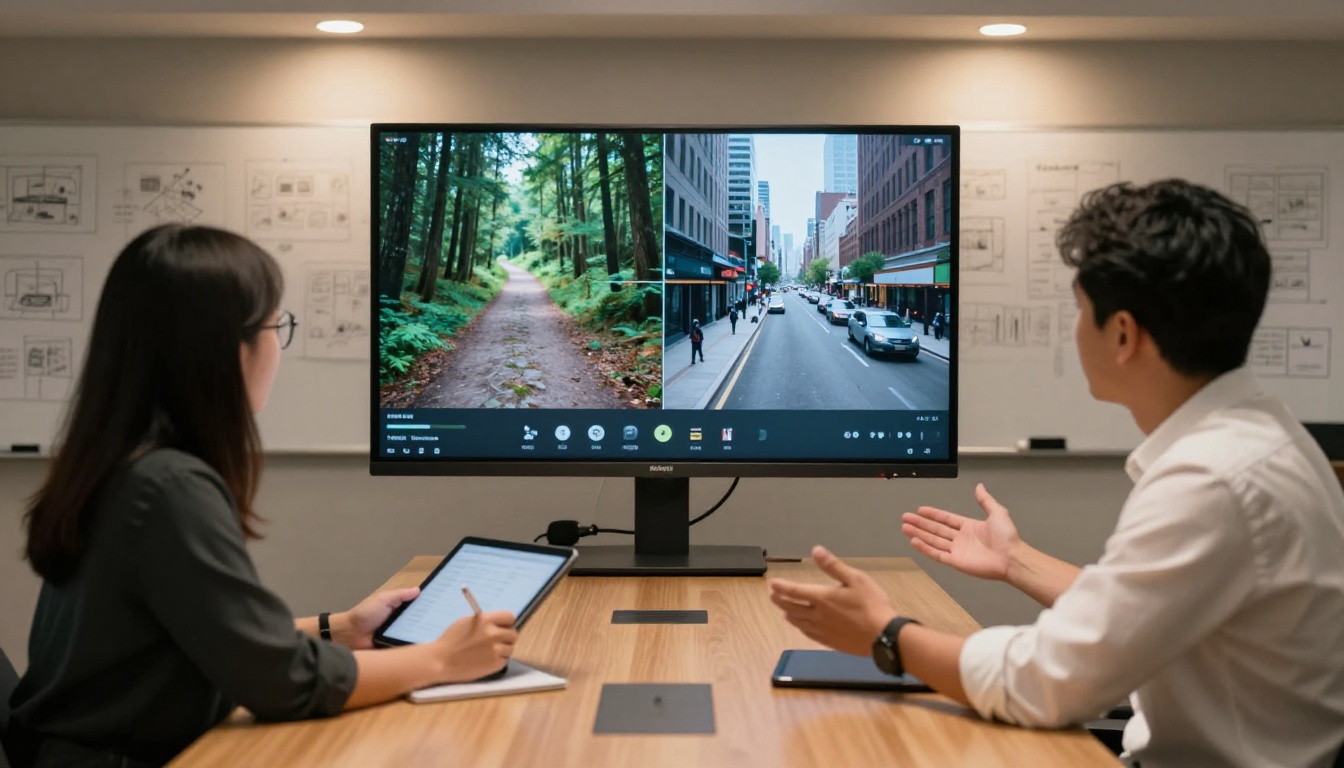
PicassoIA has over 100 text-to-video models available, and some are better suited to specific use cases than Veo 3.1.
For Speed
Veo 3.1 Fast and Seedance 2.0 Fast both prioritize generation time. When you're iterating quickly through ideas or generating at high volume, the fast variants cut wait times without a major drop in quality.
For Cinematic Quality
Kling v3 Video and Ray 3.2 produce clips with strong cinematic character. Kling excels at dynamic action sequences with fast motion, while Ray handles atmospheric and moody scenes particularly well.
For Free Generation
PicassoIA Video offers free unlimited text-to-video generation. Output quality is lower than the premium models, but it's genuinely useful for testing prompts and visual concepts before spending credits on production-grade runs.
For High Resolution
LTX 2.3 Pro generates at 4K, which is more than social media needs but valuable for large-format display or high-end client projects. Wan 2.7 T2V also produces clean 1080p output with strong motion coherence across a wide variety of prompt types.
For Audio Focus
Seedance 2.0 from ByteDance generates audio-first video where sound design is deeply integrated with motion. Pixverse v6 includes cinematic audio generation with strong motion tracking for subjects in action.
Here's how the top models compare by use case:
Beyond Text-to-Video
One workflow worth knowing about is image-to-video: you provide a still image as the starting frame and the model animates it forward in time. This gives you more control over visual content because you can design the first frame precisely using an image generator, then pass it to a video model to add motion.
Several models on PicassoIA specialize in this:
The image-to-video approach pairs well with PicassoIA's text-to-image tools. Generate a still with the exact subject and composition you need, then pass that image to a video model to add motion. This two-step approach often beats trying to specify everything in a text prompt alone, especially for scenes with specific subject structure or exact framing requirements.
💡 Tip: When using image-to-video, leave some visual breathing room around your subject. If the subject fills the entire frame, the model has nowhere to animate the camera toward. A little empty space lets the model choose a camera motion that feels natural rather than cramped.
Where Audio Matters Most
Veo 3.1's native audio generation has the biggest impact in three specific situations:
Social content: Short clips with integrated audio feel noticeably more polished and hold attention longer. Silence or a mismatched stock track signals low effort in a way that audiences pick up on immediately, even if they can't articulate why.
Storyboarding and pre-visualization: When pitching a scene sequence to a client or collaborator, having real audio in the clip makes the mood land immediately without explanation. Silent pre-vis requires a lot more verbal description to fill the gap.
Product and experience demos: If you're showing what a space, product, or experience would feel like, audio bridges the gap between "looks like it could exist" and "feels real enough to want." This is especially true for anything involving nature, cities, or atmospheres.
For situations where you specifically need silent footage, mute the output during download or disable audio generation before you run. But leaving audio on by default and deciding in post is usually the better starting position.
Start Making Your Own Videos
Everything described in this article is accessible right now on PicassoIA. No installation, no API keys, no technical setup. Veo 3.1 is available directly in the browser, alongside Veo 3.1 Fast, Veo 3.1 Lite, and over 100 other text-to-video models ranging from free options to 4K production tools.
If you want to test your prompts before spending credits, start with PicassoIA Video, the platform's free unlimited generator. Use it to sharpen your prompt structure and see how different descriptions affect output, then move to Veo 3.1 when you're ready for production-grade results.
The full model catalog is at picassoia.com/en/all-models. Browse by category to find tools for every part of the video workflow: generation, editing, upscaling, audio, and restoration.
The fastest way to get better at this is to actually run prompts and see what comes back. Write a scene, generate the clip, look at what worked and what didn't, and adjust. That feedback loop teaches you more in 20 minutes of experimenting than hours of reading about it ever will.