Kling 3.0 changed the math on what a solo creator can produce. Where earlier AI video models delivered impressive-but-obvious outputs, Kling's third generation closes the gap between "AI-generated" and "cinematographer-shot" with a physics engine that handles cloth, hair, and fluid motion in a way that actually holds up on a big screen. If you have been waiting for AI video to reach the point where you can stop apologizing for the quality, this is where that starts.
What Kling 3.0 Actually Does Different
Not all AI video models are created equal, and the gap between Kling 3.0 and its predecessors is more than a version number bump. Three core improvements define the release.
Physics and Material Fidelity
The single biggest complaint about AI video through 2024 was material inconsistency: fabric that flows like water, hair that merges with backgrounds, liquid that pours in the wrong direction. Kling 3.0 attacks this directly. Its motion diffusion model has been retrained on a significantly larger dataset of real-world physics scenarios, which means silk behaves like silk, water splashes with credible inertia, and smoke dissipates with the kind of lazy randomness that human eyes immediately recognize as natural.
This is not a small thing. Realism in video lives and dies by secondary motion. When the main subject moves and the environment responds correctly, the brain accepts the footage as real. When it does not, you see "AI video." Kling 3.0 gets secondary motion right far more consistently than any previous open-access model.
Temporal Coherence Across Frames
Earlier Kling versions sometimes drifted: a character's coat would change color between frames, or a background element would pop in and out of existence. Version 3.0's temporal attention layers fix the frame-to-frame identity drift problem across clips up to 10 seconds. Subjects stay consistent. Backgrounds hold. Color grading remains stable from first frame to last. That alone makes the output usable in professional contexts.
Resolution and Motion Control
Kling v3 Video outputs at up to 1080p with a native 24fps cadence that matches film. The Kling v3 Motion Control variant adds explicit camera path control, letting you specify dolly moves, crane lifts, and arc shots with textual cues that the model actually interprets correctly.
Your First Cinematic Prompt
The fastest way to get mediocre Kling output is to write a bad prompt. Most beginners describe a static scene rather than a moving one. Kling 3.0 is a video model: it needs motion, time, and change baked into the input.
The Anatomy of a Strong Prompt
Every cinematic prompt has four layers. Miss any one of them and the output drops a tier.
- Subject and action: Who or what is in the frame, and what are they doing right now.
- Camera angle and movement: Where the camera sits and how it moves over the clip's duration.
- Environmental context: The setting, time of day, weather, and ambient atmosphere.
- Cinematic modifiers: Lens, depth of field, grain, color temperature.
A weak prompt looks like this: "A woman in a field at sunset."
A strong prompt looks like this: "A woman in an ivory silk dress walks slowly through a golden wheat field at dusk, shot from low angle with a slow dolly-in on a 135mm lens, warm backlight creating a rim glow on her silhouette, shallow depth of field blurring the wheat into soft gold bokeh, Kodak Portra 400 film grain."
The second prompt gives Kling enough information to make dozens of consistent decisions about lighting, motion, texture, and composition.

What to Skip in Your Prompt
More words do not always mean better output. Kling 3.0 gets confused by contradiction, so avoid stacking conflicting visual styles. Do not write "cinematic realistic 8K" and then add "stylized illustration" in the same prompt. Do not describe multiple camera angles at once. Do not ask for time-lapses inside a clip that also needs to show character emotion clearly: the model will try to do both and fail at both.
💡 Tip: Write your prompt in chronological order, describing what happens from second one to the end. Kling's attention mechanism follows the sequence of your text to generate the sequence of frames.
Camera Movement That Feels Real
Camera movement is the single most powerful tool for making AI clips feel cinematic rather than generated. A locked-off, static camera screams "demo footage." Motion creates weight, intention, and narrative.
Dolly, Pan, and Crane Language
Kling 3.0 responds to specific cinematic vocabulary. These terms reliably produce the described movement:
| Term | What It Does |
|---|
slow dolly in | Camera moves steadily toward subject, creating intimacy |
slow dolly out | Reveals environment while subject gets smaller, creates scale |
gentle pan left/right | Horizontal scan, works for establishing environments |
crane up | Camera rises, reveals landscape, works for epic opening shots |
arc shot | Camera orbits the subject, adds drama and dimension |
handheld | Subtle shake simulating a real operator, adds documentary realism |
Using these terms in the motion description section of your prompt will produce far more intentional camera behavior than leaving the movement undefined.
Matching Motion to Mood
Fast camera movement on a contemplative scene creates dissonance. Slow camera movement on an action sequence kills energy. Match your camera speed to the emotional register of the scene.
- Intimacy and emotion: slow dolly in, 50-85mm lens
- Scale and environment: crane up or slow pull-back, 24mm wide angle
- Tension: handheld with slight drift, no lock
- Action and speed: fast pan with motion blur, 35mm
The Slow Push Trick
One prompt structure reliably produces cinematic output regardless of subject matter. Start with a medium shot of your subject with a slow dolly in, and end the action with a subtle change in the subject's state: eyes close, head turns, wind picks up. The model interprets this as a narrative arc and generates footage that feels edited, not just generated.
How to Use Kling v3 on PicassoIA
PicassoIA hosts multiple Kling model versions, giving you access to the full Kling 3.0 family without managing API keys or local hardware.
Picking the Right Kling Model
The Kling family on PicassoIA has several variants, each optimized for a different use case:
For most cinematic work, start with Kling v3 Video. Switch to Kling v3 Motion Control when camera movement is the primary creative element.
Step-by-Step Workflow
Step 1: Open PicassoIA and navigate to the Kling v3 Video model.
Step 2: Write your prompt using the four-layer structure described above. Paste it into the prompt field.
Step 3: Set resolution to 1080p for final outputs. Use 720p during the testing phase to save credits.
Step 4: Set duration to 5 or 10 seconds depending on whether your clip is a cutaway or a hero shot.
Step 5: Submit and wait for generation. Kling 3.0 at 1080p typically completes in 60 to 90 seconds on PicassoIA's infrastructure.
Step 6: Review the output. Check for temporal drift in the first and last frames. If a subject changes appearance mid-clip, add a negative prompt specifying the error behavior.
Step 7: Download and bring into your editing timeline.
Settings Worth Adjusting
- CFG Scale: Higher values (7-9) produce outputs that stick closer to your prompt but can look stiff. Lower values (4-6) give the model creative latitude and often produce more natural motion.
- Seed: Set a fixed seed when iterating on a prompt so you can isolate what each change does.
- Negative Prompt: Use
blurry, distorted, morphing, flickering, watermark as a baseline negative prompt for clean cinematic output.
Prompt Recipes That Work
These three prompt structures are production-tested and reliably generate cinematic outputs on Kling 3.0.
The Golden Hour Chase
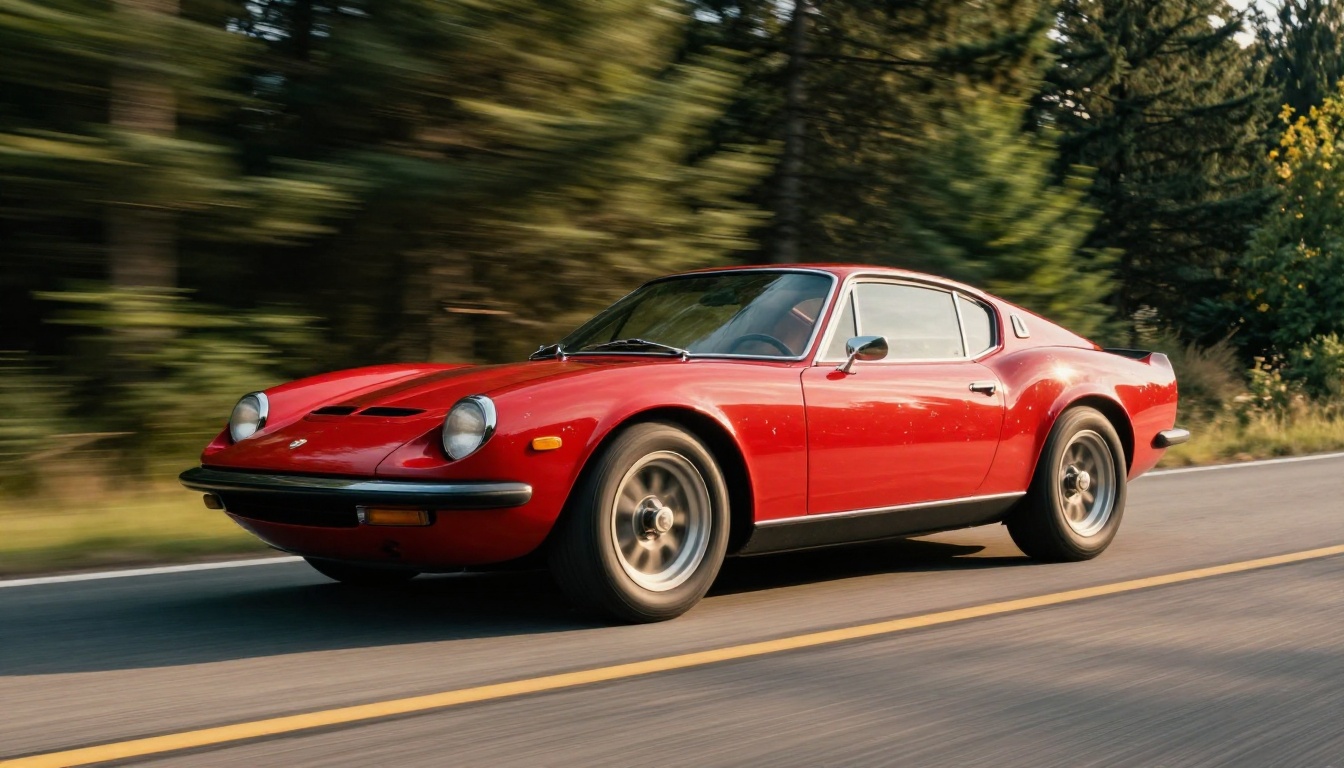
"A vintage red sports car drives along a winding coastal mountain road at golden hour, shot from low side angle with slow tracking motion matching car speed, warm sidelight from left catching chrome trim and sheet metal curves, pine forest blurring into streaked green bokeh at 1/60s equivalent shutter, 70mm f/2.8 lens, Kodak Portra 400 film grain."
This structure works because it specifies lens behavior, light direction, and shutter-equivalent motion blur. The model has enough information to commit to consistent decisions across all 120 frames.
The Contemplative Wide Shot
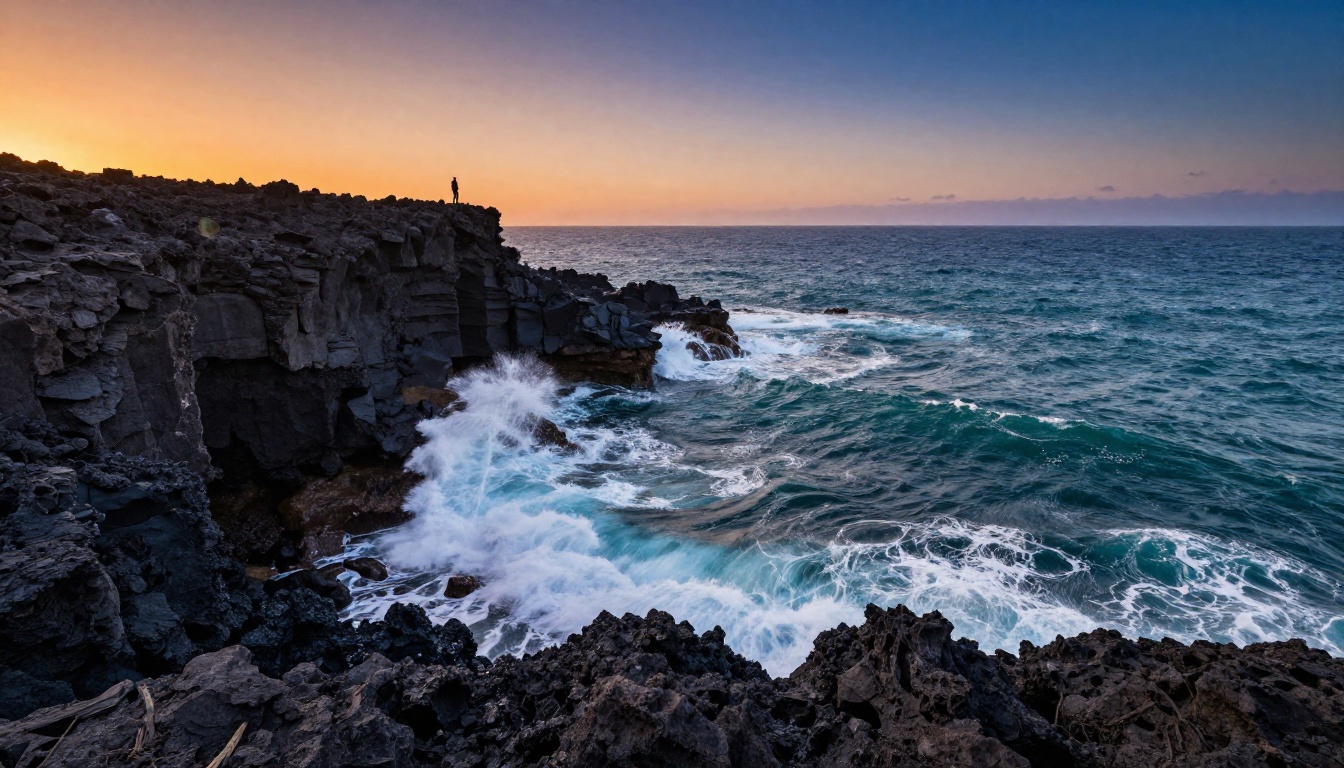
"A lone figure stands at the edge of a coastal cliff at magic hour, wide establishing shot from behind with a slow crane up revealing the full ocean cove below, the sky transitioning from orange to lavender, 24mm wide angle lens, natural wind movement in subject's clothing, photorealistic 8K."
💡 Tip: For wide establishing shots, always describe what the camera reveals as it moves. Kling 3.0 uses this reveal structure to plan the motion path.
The Close-Up Character Moment
"Tight close-up on a woman's face as she looks off frame left with soft afternoon window light from the right, shallow depth of field blurring the background to creamy bokeh, a single slow dolly in starting mid-shot and ending at chin-to-forehead framing, 85mm f/1.4, slight Kodak Portra 400 grain."
Common Mistakes and How to Fix Them
Over-Describing the Scene
Beginners pack every prompt with visual detail: furniture, background characters, specific objects on a table. Kling 3.0 performs better when the prompt is disciplined. More background elements create more opportunities for temporal drift. Describe the essential visual story and leave the rest to the model.
Fix: Cut your first prompt draft by 30%. Remove every detail that does not directly serve the shot's cinematic purpose.
Ignoring Temporal Cues
A prompt with no motion language produces static or erratic footage. The model needs to know what changes across the clip's duration.
Fix: Always include a start state and an end state. "A woman sitting perfectly still... slowly turns her head toward the camera over 5 seconds" gives Kling a clear temporal arc to follow.
Resolution Mismatch
Generating 720p drafts then switching to 1080p for final output sometimes produces noticeably different compositions because the model samples differently at different resolutions.
Fix: Once you find a prompt that works at 720p, note the seed number from that generation and use it in your 1080p run. This gives the model the same starting point and produces a closer compositional match.
Kling 3.0 does not need to work in isolation. The most compelling results come from chaining it with other models available on PicassoIA.
Starting from a Generated Image
Use a text-to-image model to generate your first frame with precise compositional control, then feed that image into Kling's image-to-video mode. This approach lets you lock the composition, lighting, and subject appearance before you generate motion.
Kling v2.6 Motion Control accepts a reference image and applies your specified camera movement to it, giving you direct control over starting conditions.
For alternative video generation when you want to compare outputs, PicassoIA also hosts Seedance 2.0, which produces 1080p video with native audio synthesis, and Pixverse v6, which excels at cinematic motion with built-in audio. Running the same prompt across multiple models is the fastest way to develop intuition about which model handles which scene type best.
Animating a Static Hero Image
If you already have a high-quality photograph or AI image that you want to bring to life, Kling Avatar v2 specializes in animating faces with natural micro-expressions and subtle head movement. The standard Kling v3 Video handles environmental and full-body animation from any source image.
How Kling 3.0 Compares to the Field
Kling 3.0 sits at the top of the cinematic realism category, but knowing where it fits relative to other models helps you pick the right tool for each job.
Start Making Your Own Cinematic Clips
The barrier to cinematic video production has collapsed. What required a crew, a camera department, and a location budget two years ago now requires a well-constructed prompt and access to the right model. Kling 3.0 is that model.
PicassoIA gives you access to Kling v3 Video, Kling v3 Omni Video, Kling v3 Motion Control, and the entire Kling model family in one place, alongside Seedance 2.0, Pixverse v6, and over 100 additional video models. No local GPU required. No API management. Just prompts and results.
Take the prompt recipes from this article, open the Kling v3 Video model on PicassoIA, and run your first clip. Iterate from there. The quality ceiling at this point is not the technology. It is the prompt.


