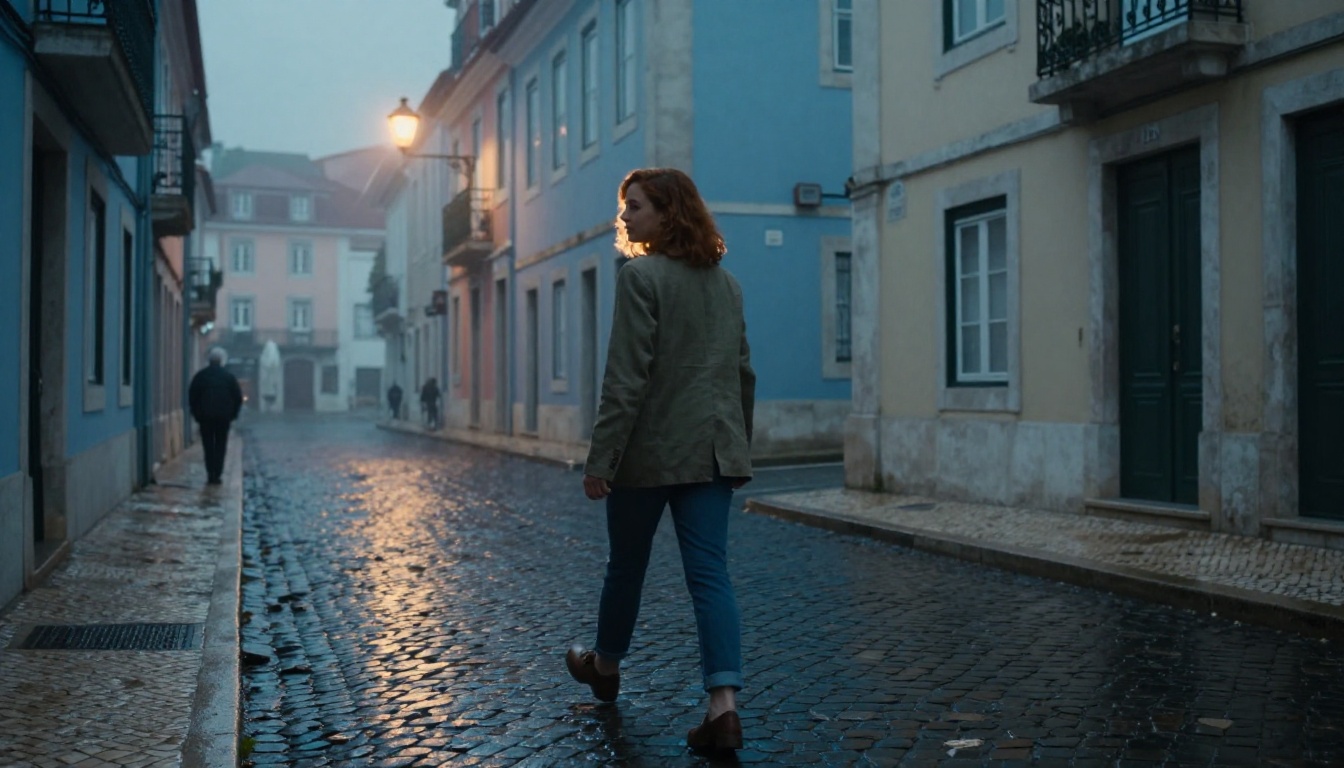
How to Make Consistent AI Characters Across Every Scene
Creating consistent AI characters is the gap between fun image play and real storytelling. This article walks through reference workflows, prompt anchors, and image editing models that lock the same face, outfit, and feel across dozens of scenes on PicassoIA.
You can prompt a stunning AI image in eight seconds. Try to prompt that same person again the next morning and you will get a stranger. Different jaw, different freckles, different eyes. The face that was once unforgettable now belongs to someone else.
That gap between "one beautiful image" and "the same character across forty scenes" is what separates AI art experiments from real storytelling. Brands need a mascot that holds shape. Indie game devs need a protagonist who survives a chapter change. Comic artists need the same hero in panel three and panel thirty.
Below is the workflow, prompt vocabulary, and the specific PicassoIA models that finally make AI character consistency reliable.
💡 Quick rule of thumb: Identity is not held by words alone. It is held by a reference image, locked vocabulary, and an editor that respects the original face.
Why Character Consistency Is So Hard
Diffusion models do not store characters. They reconstruct images from scratch every single time you press generate, sampling from a noisy field of possible faces. The same prompt can pull a slightly different person out of the latent space on every run.
The Same Prompt Gives a New Face
Even when you write a tight description, "freckled woman, auburn hair, green eyes, late twenties, soft jaw", you are giving the model a category rather than a person. There are millions of women that match that description. The sampler picks one at random, lit by the seed.
Change the seed and the woman changes. Push the prompt slightly toward "smiling" and the bone structure shifts. Add "in Tokyo" and suddenly the chin sharpens. Without an anchor image, you are recasting the role on every render.
Diffusion Models Drift on Purpose
This drift is a feature, not a bug. The whole point of diffusion is variety. Models are trained to maximize creativity across prompts, which means tiny differences in wording or seed produce big differences in output. That is great for moodboards and bad for a recurring character.
The fix is to inject a fixed visual signal that overrides the model's natural drift. That signal can come from three places: a reference image, a trained LoRA, or an editing model that preserves identity while only changing the scene around the face.
The Reference Photo Approach
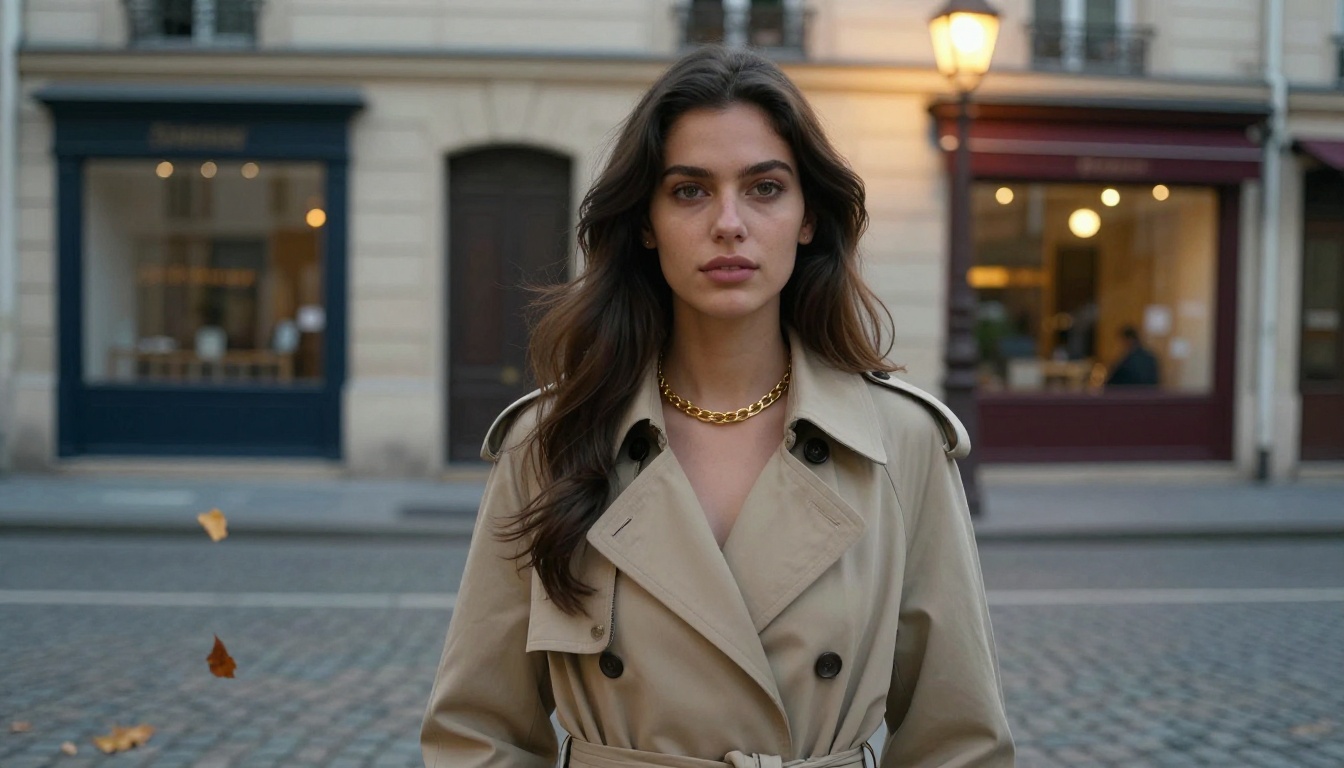
The simplest method works in under a minute. Generate a single portrait of your character that you love, then feed it back into the next generation as a reference. Almost every modern image model on PicassoIA accepts a reference image input, and that one photo does ninety percent of the heavy lifting.
One Hero Shot vs Multi-Angle Sheets
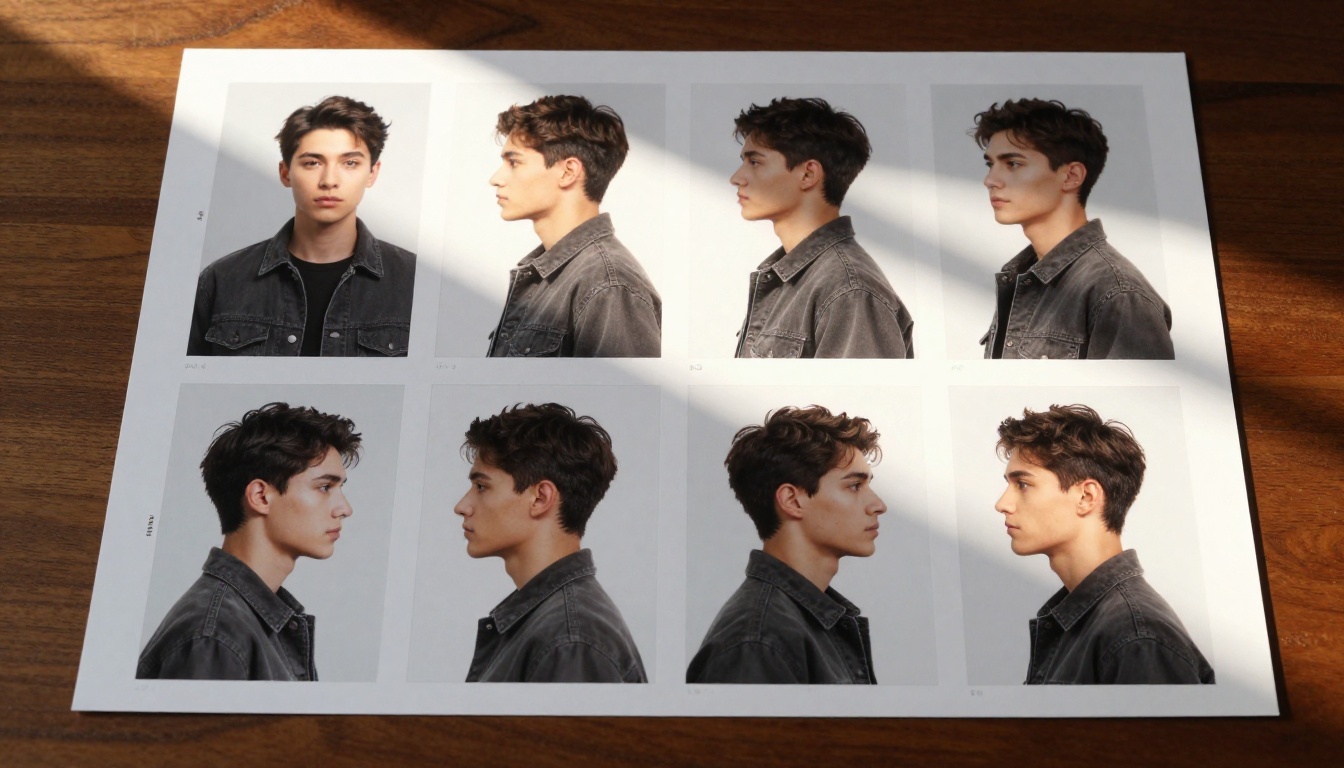
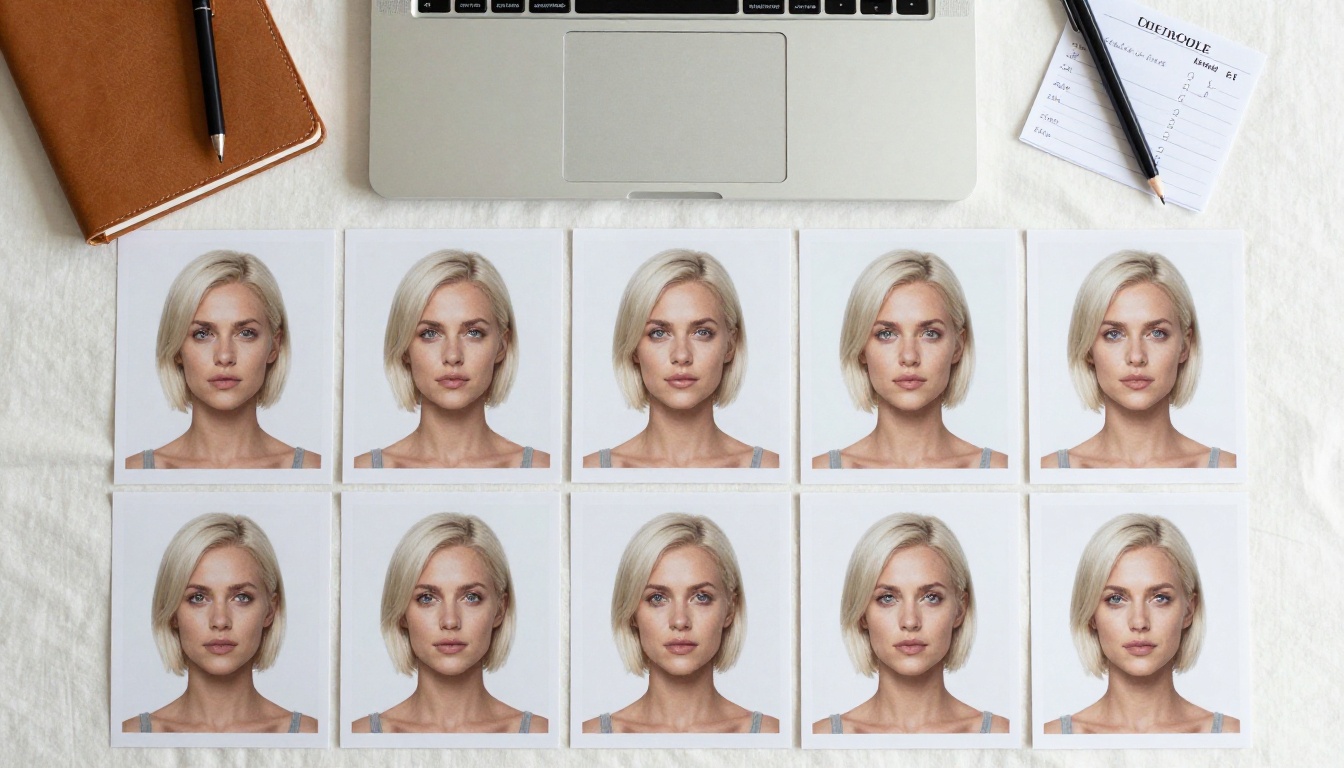
Some workflows want a single front-facing portrait. That is enough for stylized text-to-image work with a strong identity transfer model. For more demanding production, build a real character sheet: front, three-quarter left, profile, slight overhead, slight low angle. Five angles tell a model far more about a face than one.
Use case
Reference setup
Why
Editorial portraits
1 hero shot
Identity transfer models like Gen4 Image hold the face from a single high-resolution photo
Comic panels and games
5 to 9 angle sheet
Multi-angle context helps the model render the same person in poses it has never seen
LoRA training
15 to 30 photos
More data, more lighting variety, more accurate identity recall
What to Capture in the Reference
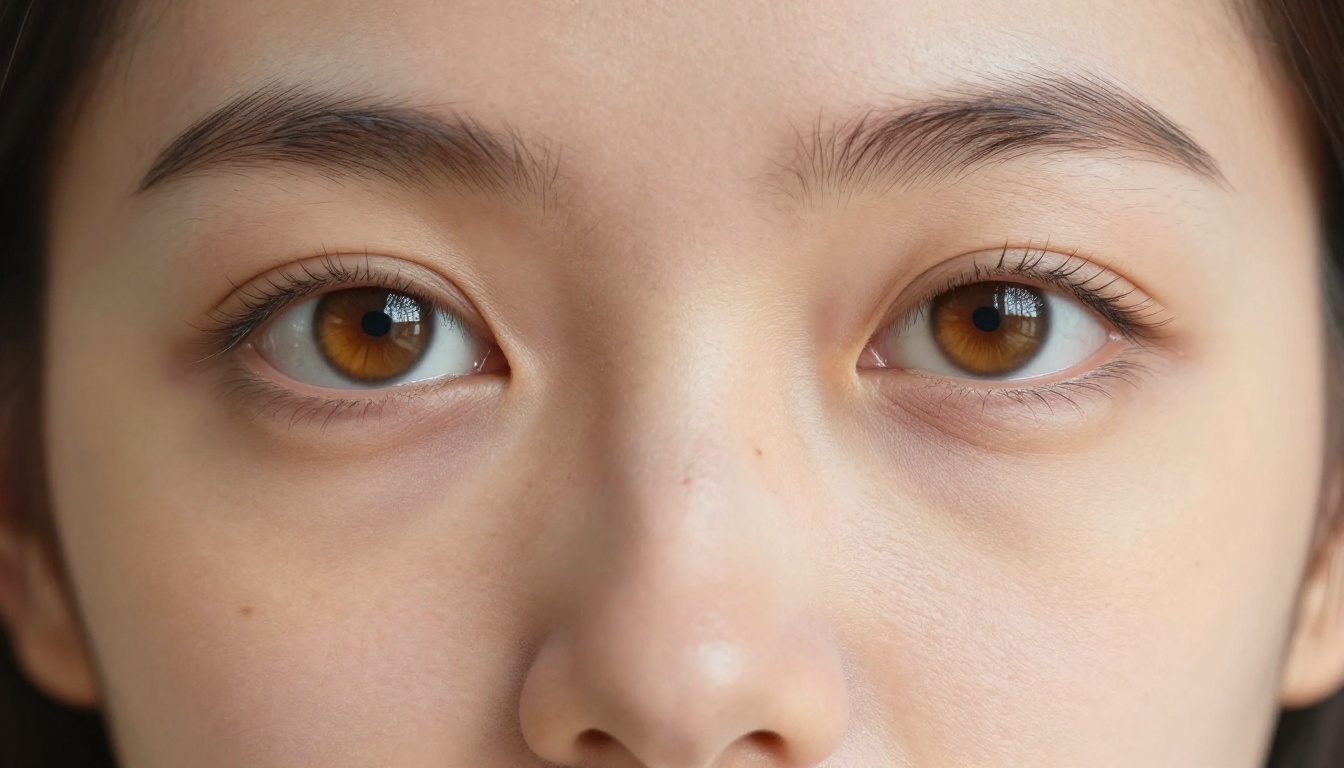
Your reference should isolate the face from any visual noise that does not belong to the character. Clean lighting, neutral background, no heavy makeup, no extreme expression. Closed mouth tends to render more reliably than a wide smile. Eyes should be open and looking near the camera, not at a steep angle.
A close, sharp portrait gives the model the high-frequency detail that defines a face: the curve of the lower lash line, the asymmetry of the nostrils, the exact distance from eye to brow. These tiny features are what make a face feel like a specific person rather than a generic type.
Models That Actually Hold a Face
Not every image model is built for identity work. Some are stunning at composition but treat the face as decoration. The ones below are tuned for character consistency, and they are all hosted on PicassoIA.
Ideogram Character
Ideogram Character is the most literal interpretation of this article. It is purpose-built to keep a character consistent across new scenes from a single reference photo. Upload the face, describe the new setting, and it renders the same person in that setting. It handles outfit changes well and respects skin tone, which is rare in text-to-image models.
MiniMax Image 01
MiniMax Image 01 is marketed by its makers as a consistent-character model, and the performance backs it up. It plays nicely with looser prompts and is forgiving when your reference photo is not perfectly lit. Good for fast iteration when you do not want to babysit the prompt.
Nano Banana Pro and Seedream 4
Google's Nano Banana Pro and its sibling Nano Banana 2 are quietly some of the strongest character-locking models in 2027. The fuse mode accepts a portrait plus a new setting and merges them with the face intact at 4K.
ByteDance's Seedream 4 is the other 4K option worth keeping in rotation. It holds identity tightly when you pass a reference and tends to render fabric and hair texture more believably than most rivals.
Gen4 Image and Flux Kontext
Runway's Gen4 Image explicitly turns reference photos into any scene and is the closest thing to old ControlNet workflows in a clean modern interface. Flux Kontext Pro takes a source character image and lets you describe edits to the scene around them while protecting the face. Both are excellent when you want to place an established character into a story moment.
Prompt Anchors That Lock Identity
A good reference image gets you eighty percent of the way. The last twenty percent comes from how you write the prompt. Identity-locking prompts repeat the same five or six visual tags every single time, like a CSS class for your character.
Naming Your Character
Give your character a fixed internal name, then describe them the same way every time. Even though the model does not "remember" the name across runs, that consistency in your prompt vocabulary stops you from accidentally drifting the description.
Subject anchor: "Nora, 28, auburn shoulder-length wavy hair,
pale green almond eyes, three small freckles across the nose
bridge, slim oval face, olive linen blazer over cream silk
camisole."
Paste that anchor at the top of every prompt for that character. Then add the new scene below it.
Repeating Visual Tags
Pick five to seven visual tags that act as fingerprints. Eye color, hair color and cut, a distinct freckle pattern, a signature accessory, a default outfit, a height descriptor. Repeat them verbatim. Models are surprisingly responsive to exact repetition: if you keep saying "three small freckles on the nose bridge", you will keep getting three freckles.
Outfit and Color Locks
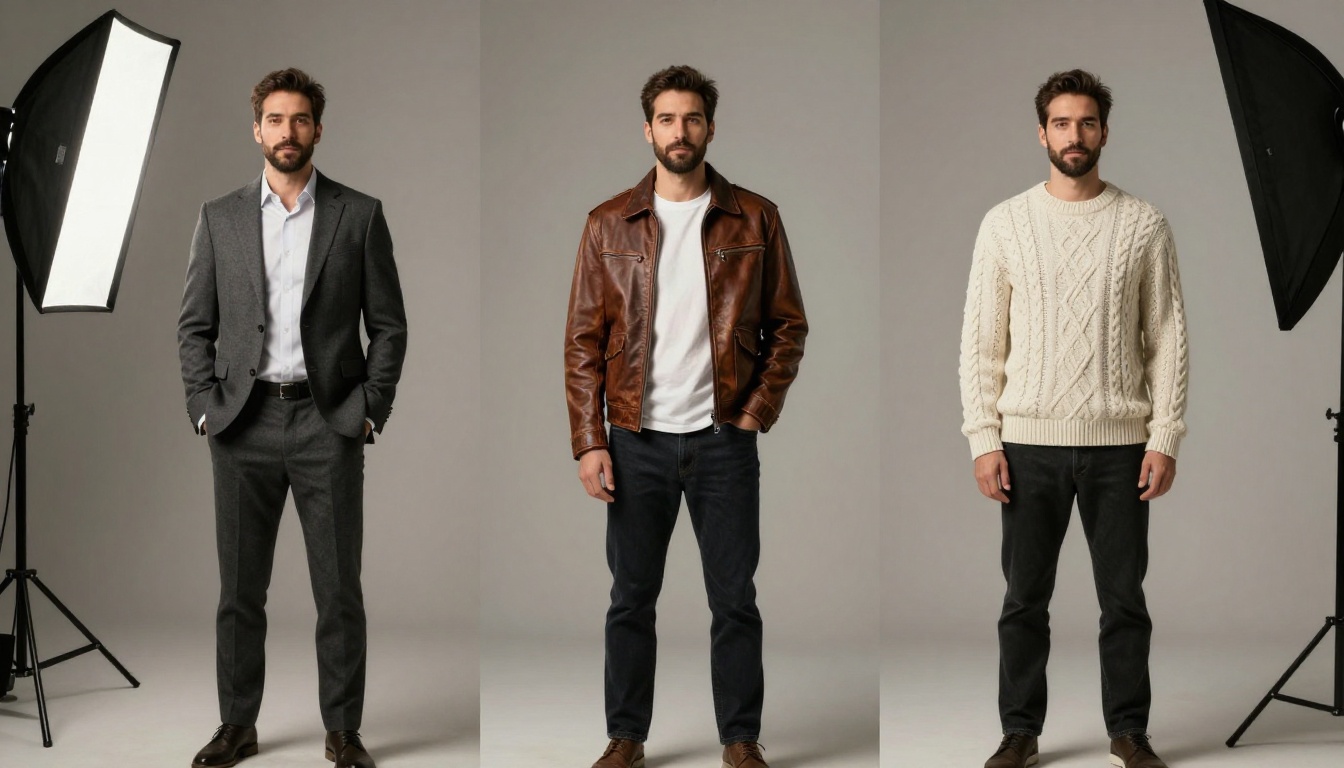
Outfit is the cheapest identity signal you have. A signature outfit means the silhouette tells the audience this is the same person even before they read the face. Lock a base outfit, then describe layers on top of it. Most viewers cannot tell whether a face shifted by five percent. They will definitely notice if your hero's jacket changed colors mid-scene.
Anchor tag
Example
Why it works
Hair
"auburn shoulder-length wavy hair"
Hair is one of the strongest visual features the model latches onto
Eyes
"pale green almond eyes with darker outer ring"
Specific iris detail forces the model to commit to a real eye
Skin marker
"three small freckles across nose bridge"
A countable marker is easy for the model to render and easy to verify
Outfit
"olive linen blazer, cream camisole"
Outfit drives silhouette, the longest-range identity cue
Accessory
"thin gold chain necklace"
A small fixed item gives the audience a memory hook
Training a Custom LoRA on Your Hero
When the reference-plus-prompt workflow is not enough, you can train a small custom model on your character. A LoRA is a lightweight identity weight that plugs into a base image model and tells it "render this specific person."
When a LoRA Beats a Reference Photo
A LoRA wins when you need a character across hundreds of generations in production. Reference photos work scene by scene, but they cost you upload time and prompt complexity. A trained LoRA bakes the face into the model itself. You just type the trigger word and the right person appears.
LoRAs are also superior for non-photographic characters: stylized illustrations, anime protagonists, mascot designs. A reference photo cannot tell a text-to-image model what a stylized character looks like in three-quarter view. A LoRA can.
P Image Trainer Workflow
P Image Trainer on PicassoIA lets you train a character LoRA in minutes. The workflow is straightforward:
Gather 15 to 30 photos of your character. Vary the angles, the lighting, and the expressions. Keep the wardrobe and hair roughly consistent.
Crop tight. The face should fill at least sixty percent of every frame.
Caption each image with a short tag set, including a unique trigger word like nora_v1.
Upload to P Image Trainer and run a short training job.
Plug the resulting LoRA into your image prompts. Every prompt that includes nora_v1 will now render the trained character.
💡 Dataset tip: Diversity in the training set beats raw quantity. Twenty varied photos outperform fifty near-duplicates. Vary lighting, angle, and slight expression while keeping the face the same.
Multi-Image Fusion for Story Scenes
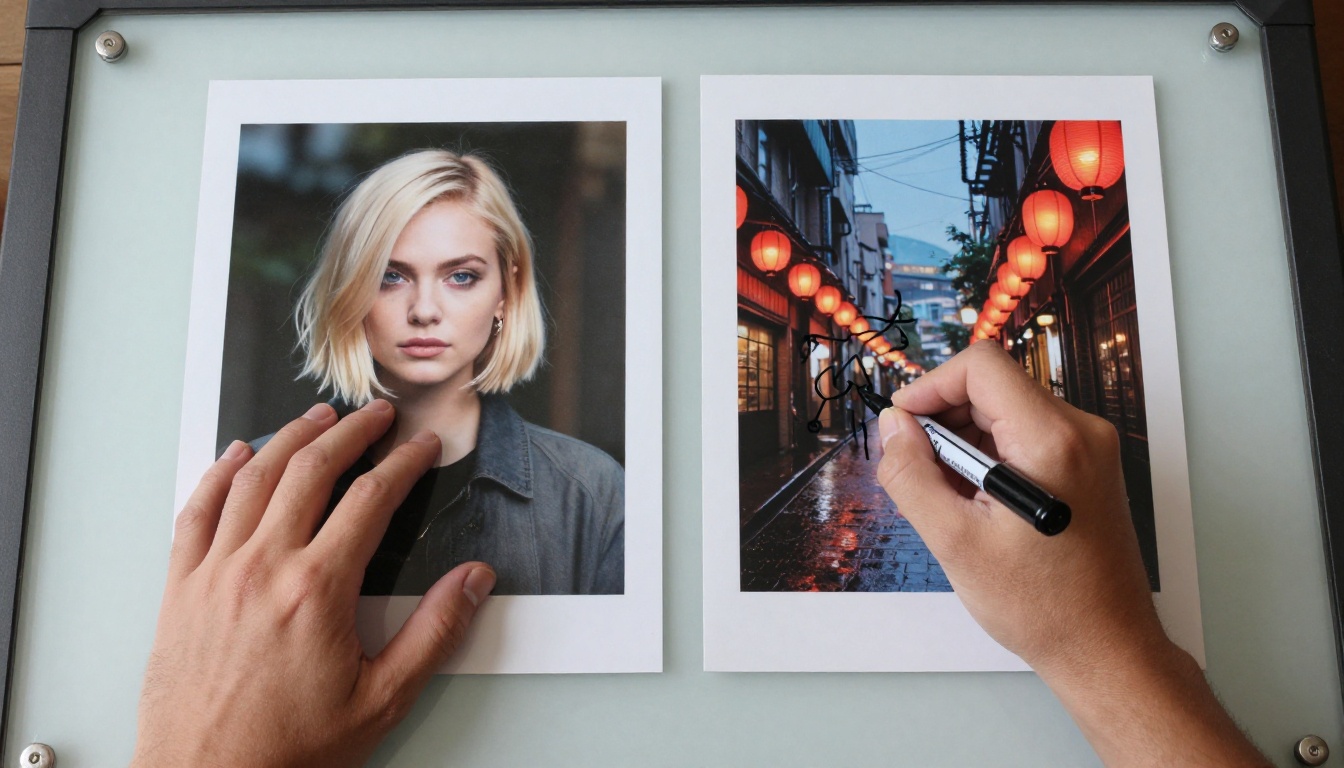
The newest method does not need a LoRA at all. Multi-image fusion models accept two or three images and intelligently blend them: your character on the left, your scene on the right, the output combines them.
Flux Kontext for Pose Changes
Flux Kontext Pro is the modern equivalent of an IP-Adapter face transfer. Feed it a portrait and a prompt that asks for a new pose or a new outfit, and it edits the existing image while preserving the face. It is the most efficient way to take one good portrait and generate twenty believable variations.
Multi Image Kontext Max for New Settings
For brand-new environments, Multi Image Kontext Max accepts two reference photos and combines them. Pass in your character portrait plus a separate location shot, then write a prompt describing the action. The model renders your character believably inside that new world. This is the closest the industry has come to "drop my character into any photo."
Fixing Drift With Image Editor Pro
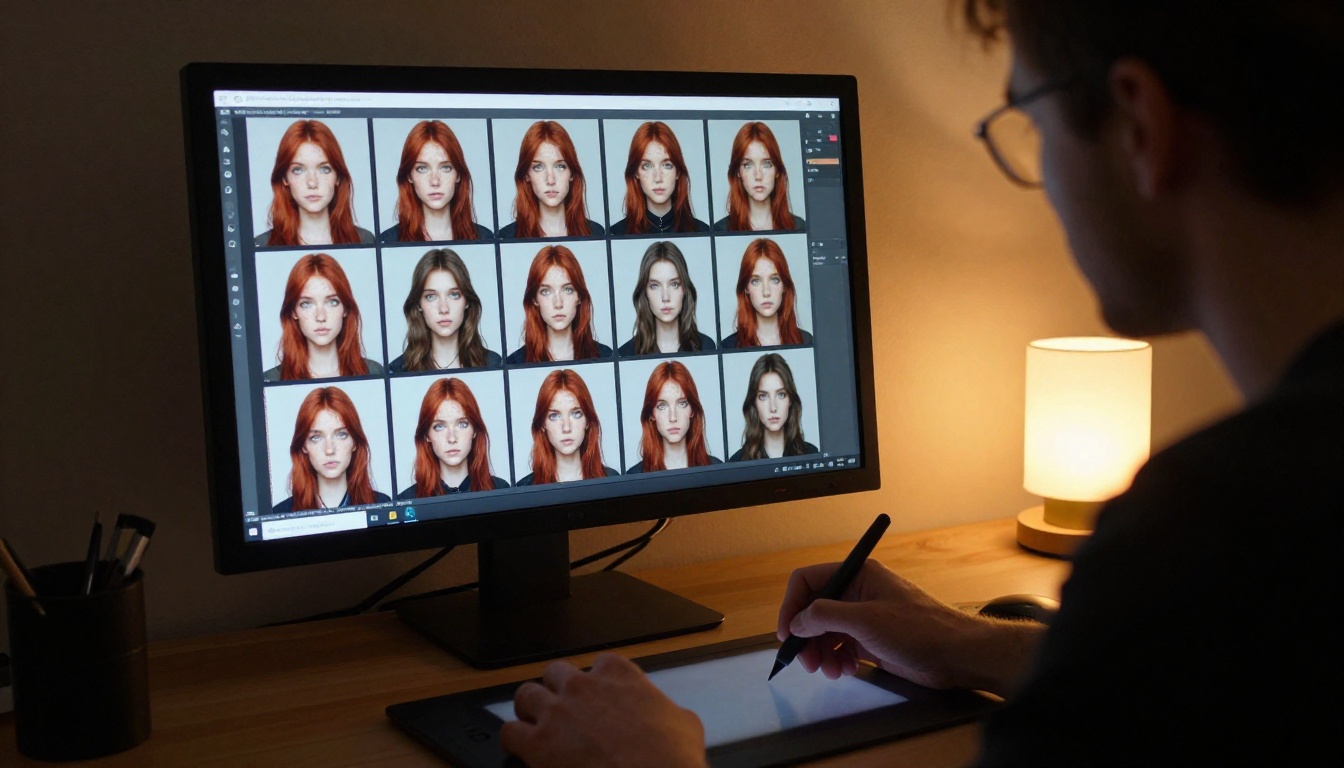
Sometimes ninety-five percent is not enough. The face is almost right but the eyes drifted slightly green when they should be hazel. The freckle pattern reduced from three dots to one. The cheekbones lifted half a millimeter.
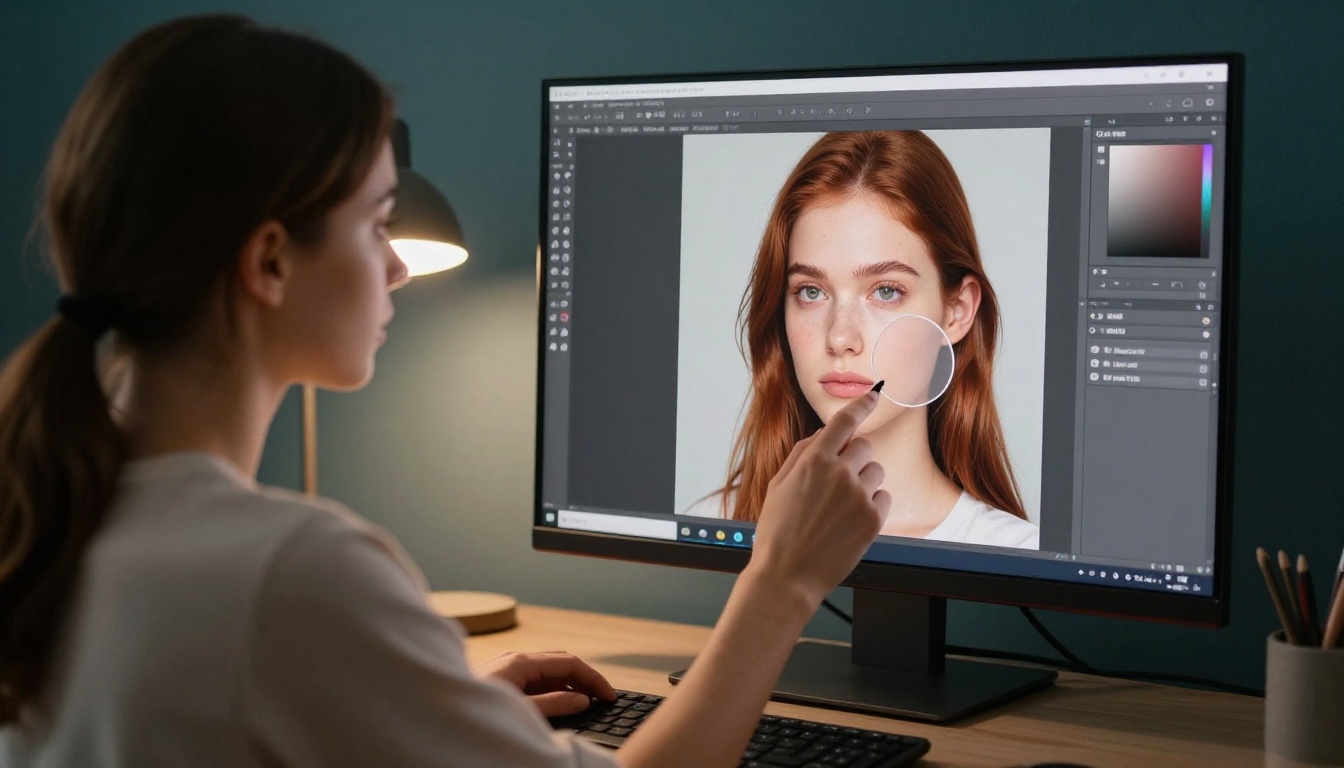
PicassoIA Image Editor Pro is the cleanup tool of choice here. It runs unlimited generations and accepts pinpoint mask edits, so you can fix the iris, restore the freckles, or trim a jawline without re-rolling the whole image. Treat it as the final mile of any character pipeline: render with a fusion model, then polish with the editor.
The pipeline that ships professional work looks like this:
Optionally upscale with a super-resolution model for print or 4K delivery.
💡 Pro tip: Save your hero portrait at a high resolution. Every downstream model can downscale your reference, but none can invent missing detail. Start sharp.
Build Your First Consistent Character on PicassoIA
The hardest part of consistent AI characters is no longer the technology. The tooling is here, the models are mature, and the workflow above is the same one used by film concept artists and indie comic studios in 2026. The remaining work is the part only you can do: pick a face that feels like a person, write down its anchor tags, and commit.
Pick one model from the list above, generate a single portrait you genuinely love, and treat that image as canonical. Then run it through Flux Kontext Pro or Multi Image Kontext Max to place that same character into the rest of your story. When the face drifts, fix it inside PicassoIA Image Editor Pro instead of re-rolling from zero.