Thumbnails are the first impression your content ever makes, and most of them fail in under two seconds. The viewer's eye passes, decides nothing is interesting, and moves on. This article is about stopping that from happening. Using AI image generation, you can produce thumbnail visuals that genuinely pull attention, with photorealistic quality that used to require a full design team and a photography budget.
Why Most Thumbnails Get Ignored
The 2-Second Decision
On any feed, whether YouTube, a search results page, or a social timeline, viewers make click decisions faster than conscious thought. Research consistently shows a viewer spends roughly 1.5 to 2 seconds per thumbnail before either clicking or scrolling past. That window is everything.
A thumbnail that requires the viewer to read, interpret, or figure out what they are looking at has already lost. The best thumbnails communicate a single clear idea visually, before a single word is read.
What Low-Performing Thumbnails Share
Low-performing thumbnails share identifiable traits:
- Low contrast: Dark subject against a dark background, or pale subject against pale space
- Too much text: More than five words means the eye bounces without anchoring
- No clear focal point: The eye wanders and lands nowhere
- Generic stock photo energy: Visuals that look like they could belong to any video on any topic
- No emotional signal: Nothing on the face, in the composition, or in the color palette that creates an emotional reaction
The problem is that fixing these issues traditionally required a professional graphic designer and a photography session. AI has changed that calculation completely.

What Actually Makes a Thumbnail Click-Worthy
Visual Hierarchy in a Small Frame
A thumbnail rarely renders larger than 200 pixels wide on most screens. Every visual decision needs to work at that miniature scale. This means:
- One primary focal point (typically a face, an object, or bold typography)
- One secondary element that adds context (a background scene, a secondary color block)
- Everything else subordinate or removed entirely
The concept is called visual hierarchy: your eye should move through the image in a deliberate order, subject first, context second. AI image generation makes it significantly easier to compose for this because you can specify exactly what should be prominent in the scene and what should fall into soft-focus background.
Color Psychology That Stops the Scroll
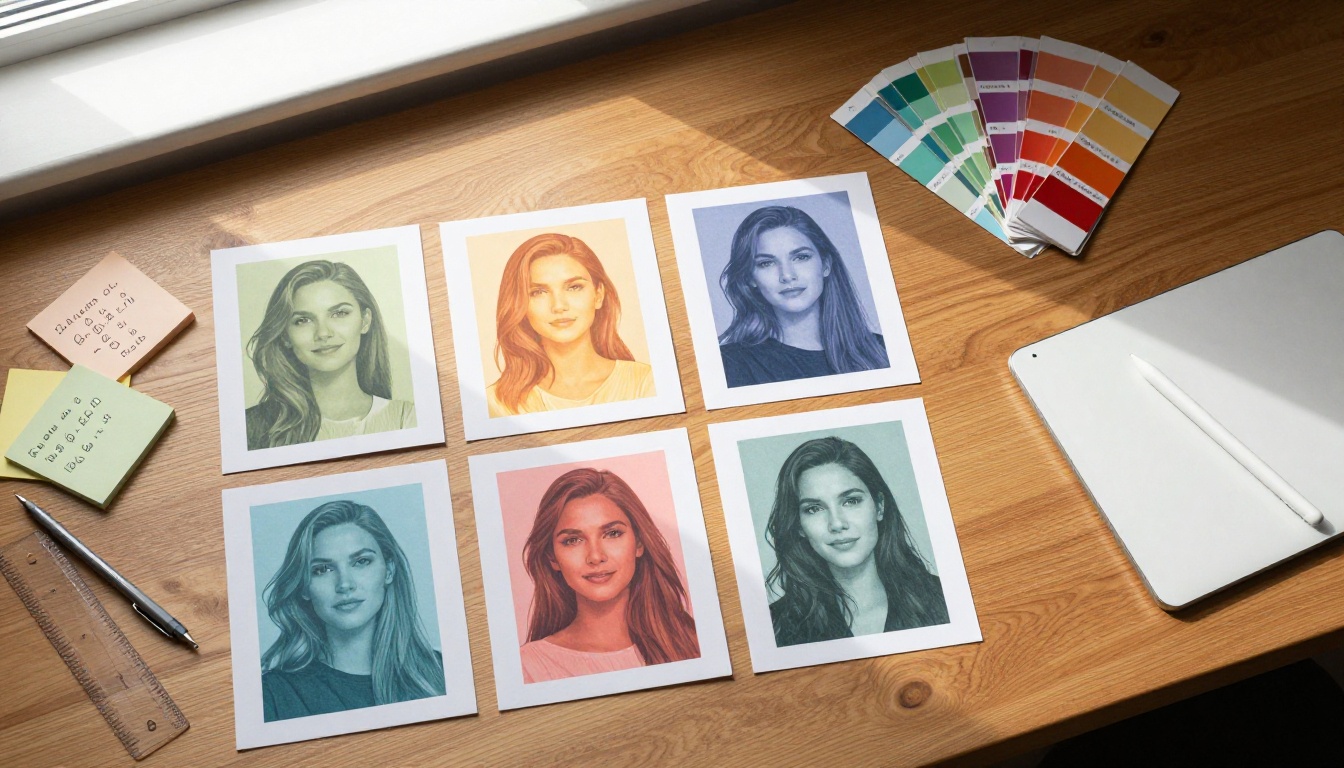
Color is your fastest communication tool in a thumbnail. The highest-performing thumbnails consistently use high-contrast color pairs:
| Color Combination | Psychological Effect | Best For |
|---|
| Deep blue + bright yellow | Trust + energy | Tech, finance, education |
| Crimson red + white | Urgency + clarity | News, reaction, opinion |
| Forest green + coral | Calm + warmth | Lifestyle, wellness, food |
| Black + electric orange | Power + excitement | Gaming, sport, motivation |
| Teal + cream | Sophistication + approachability | Tutorials, design, beauty |
The goal is not just picking attractive colors. It is picking colors that create maximum contrast at small size. A subtle gradient that looks refined at full scale turns into visual mud at thumbnail resolution.
The Face Factor
Faces in thumbnails consistently outperform thumbnails without them. This is a well-documented pattern across YouTube analytics. The reason is neurological: the human brain has dedicated neural pathways for recognizing and responding to faces. An expressive face with a clearly readable emotion (surprise, excitement, concern, joy) creates an immediate emotional hook.
When you use AI to generate thumbnail imagery, you can specify the exact emotional expression, head angle, and lighting you need. You are not limited by what happened to be on someone's face the day you shot the footage.
💡 Pro tip: The most clickable facial expressions in thumbnails tend toward raised eyebrows, wide eyes, or a slightly open mouth. These trigger curiosity and mild social alarm, both of which compel the eye to stop.
How AI Flips the Thumbnail Creation Process
From Concept to Image in Seconds
Traditionally, making a professional thumbnail meant one of three things: using stock photography and hoping something fits, hiring a photographer for custom shots, or using your own footage and spending time in Photoshop extracting the right frame.
AI image generation removes all three bottlenecks. You describe exactly what you want in a text prompt, and the model produces a photorealistic image built to your specifications in under a minute. Want a shocked-looking man in a red shirt against a dark background? Write it. Want a close-up of hands holding a product with soft bokeh and warm afternoon lighting? Write it.
This speed also means you can iterate. You can generate five variations of the same concept, test different color temperatures or subject positions, and pick the strongest one before you ever open design software.
Why AI Image Quality Matters Here
A thumbnail that looks cheap signals cheap content. Viewers make quality judgments about the video based on the quality of its thumbnail. AI models capable of true photorealistic output, with accurate skin textures, believable lighting, and natural depth of field, produce thumbnails that signal production value before the video is even opened.
This is where choosing the right model matters significantly.

Best AI Models for Thumbnail Images on PicassoIA
PicassoIA gives you direct access to the most capable image generation models available, without subscriptions to a dozen different platforms. Here are the ones most relevant to thumbnail creation:
Flux Dev and Flux Pro
Flux Dev is one of the most capable open text-to-image models for generating photorealistic images from detailed prompts. It handles complex lighting scenarios, human subjects with accurate anatomy, and high-detail environments particularly well. For thumbnails requiring a specific mood or precise visual composition, Flux Dev gives you extensive creative control.
Flux Pro raises the bar further, producing professional-grade photorealism with tighter prompt adherence. If your thumbnail concept involves subtle textures, accurate facial expressions, or cinematic depth of field, Flux Pro is the model to reach for.
For rapid iteration where you need multiple thumbnail concepts quickly, Flux Schnell LoRA generates images at significantly higher speed while maintaining solid visual quality.
Seedream 4.5 for 4K Precision
Seedream 4.5 generates images at true 4K resolution, which matters when your thumbnail image needs to scale cleanly from mobile to desktop to television. A 4K source image gives you headroom to crop, reframe, and recompose without losing sharpness. For channel branding where thumbnail consistency and quality are non-negotiable, Seedream 4.5 is a strong choice.
Imagen 4 Ultra for Maximum Realism
Imagen 4 Ultra sets the current benchmark for photorealistic image generation from text prompts. Skin texture, fabric detail, environmental accuracy, and lighting physics are all handled at a level that makes generated images genuinely difficult to distinguish from photography. For thumbnails where the subject absolutely must look real, this is your highest-quality option on the platform.
💡 Model selection tip: For thumbnails featuring human subjects, use Flux Pro or Imagen 4 Ultra. For product-focused or environmental thumbnails, Flux Dev and Seedream 4.5 offer excellent results with slightly faster generation times.

Removing Backgrounds the Right Way
Why Clean Cutouts Win
The most common thumbnail format across high-performing YouTube channels is a clear formula: bold subject cutout placed over a solid color or simple gradient background. The cutout isolates the subject from any visual noise and lets the color and expression do all the work. When the background is removed cleanly, the viewer's attention has nowhere to go except exactly where you want it.
Sloppy background removal is one of the fastest ways to make a professional thumbnail look amateur. Visible halo effects around hair, jagged edges on clothing, or residual background colors all signal low production quality instantly.
AI Background Removal on PicassoIA
Bria Remove Background on PicassoIA delivers clean, accurate edge detection even on complex subjects like hair, transparent objects, or intricate clothing details. It handles the cases that manual selection tools struggle with, producing cutouts ready for direct placement onto your thumbnail background.
The workflow is straightforward: generate your subject image with Flux Pro or Imagen 4 Ultra, then run it through background removal before placing it over your chosen color field.
Composition, Contrast, and the Rule of Thirds
Placing Your Subject for Maximum Impact
The rule of thirds divides your frame into a 3x3 grid. Placing your primary subject along the vertical grid lines, particularly the left third, creates natural visual tension that draws the eye in. Centering your subject works for symmetrical, authoritative compositions. Placing them off-center creates dynamism and leaves space for supporting text or graphic elements.
For thumbnails specifically, the left-to-right reading pattern of most Western audiences means placing your subject on the left side of the frame leaves the right side available for text or a secondary visual element. Viewers naturally scan left first, anchoring on your subject before reading supporting information.
When prompting AI for thumbnail images, specify the composition explicitly. Phrases like "subject positioned in left third of frame," "wide negative space on the right for text overlay," or "low-angle shot with subject slightly off-center" give the model direct composition guidance.
Text Placement Without Clutter
If your thumbnail includes text, follow these rules:
- Maximum five words: Brevity is not a limitation, it is the strategy
- High contrast backing: Text over complex image areas disappears; use a simple background zone or a semi-transparent block
- Single typeface: Two fonts create visual noise at small sizes
- Size over weight: Large, light-weight text is often more readable than small, bold text at thumbnail scale
Flux Fill Pro lets you inpaint or modify specific areas of a generated image, which is useful for creating clean background zones where text will live without disrupting your primary subject.

A Real Thumbnail Workflow with AI
Here is a practical end-to-end workflow that produces a finished, publication-ready thumbnail using PicassoIA's tools.
Step 1: Generate the Base Image
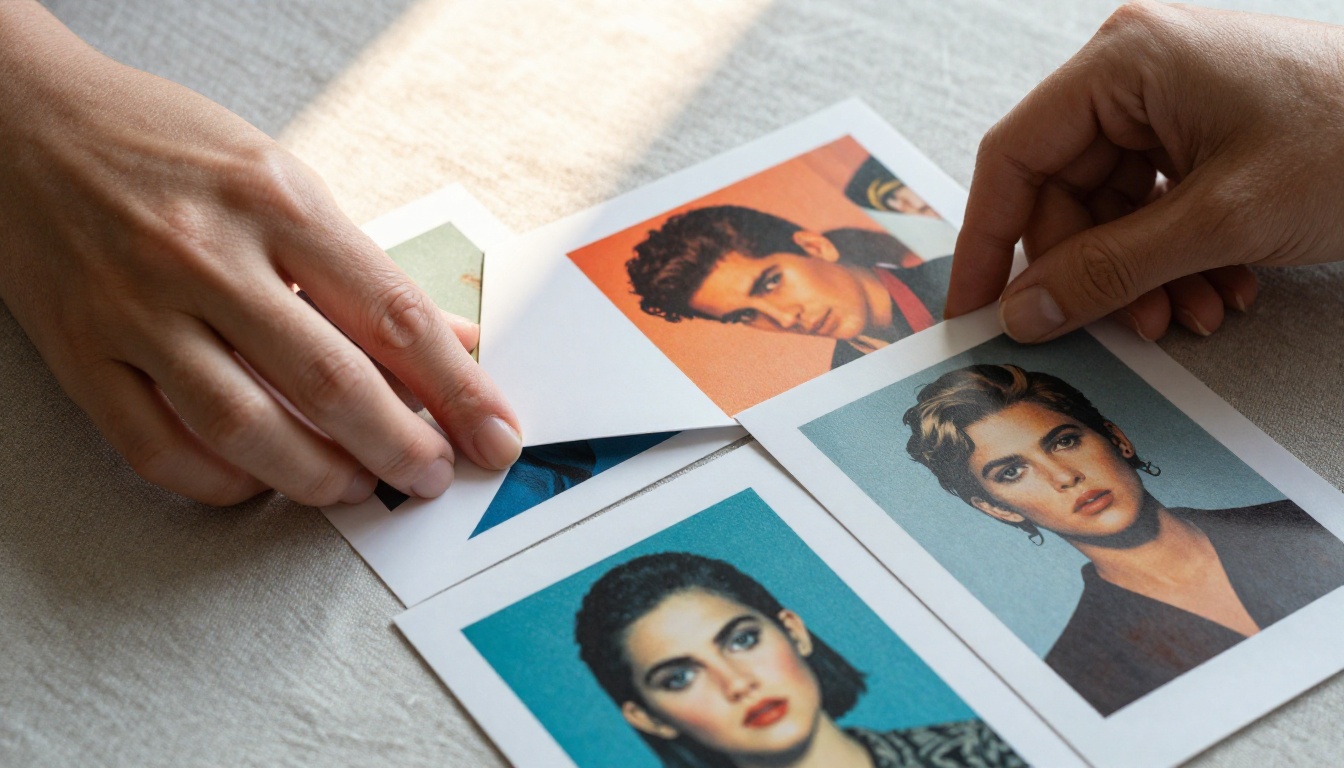
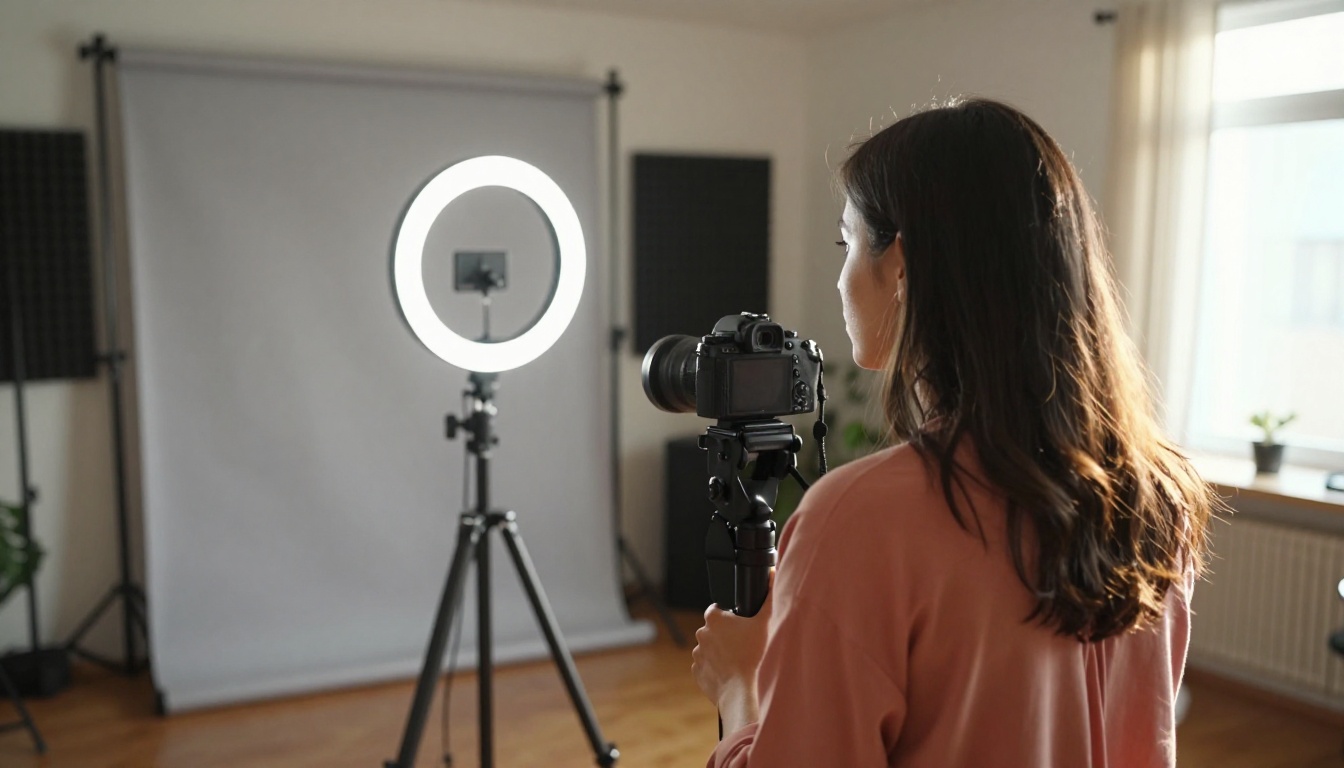
Write a detailed text prompt specifying your subject, emotional expression, lighting direction, camera angle, and color palette. For human subjects, include specifics like "shocked expression with raised eyebrows and wide eyes," "shot from a slightly low angle with 85mm f/1.4 lens creating shallow depth of field," and "warm amber side-lighting from the left, cool shadow fill from the right."
Use Flux Pro or Imagen 4 Ultra for maximum photorealism. Generate at 16:9 aspect ratio. Generate three to five variations and select the strongest composition.
Step 2: Strip the Background
Take your chosen image and run it through Bria Remove Background. The tool returns a clean PNG with the subject isolated. For subjects with complex hair or fine detail edges, the AI edge detection handles accuracy that manual tools routinely miss.
Place the cutout over your chosen background: a solid color that creates maximum contrast with your subject's clothing and skin tone, a simple two-color gradient, or a blurred environmental shot that adds depth without competing for attention.
Step 3: Apply and Test at Scale
Scale your thumbnail down to 200 pixels wide and evaluate it at that size. This is the size most viewers will see it on mobile feeds. If the subject is still immediately readable, the contrast holds, and the emotional signal is clear at that scale, the thumbnail is ready. If anything becomes ambiguous or muddy, adjust contrast, simplify the background, or increase the subject scale within the frame.
For iterating on variations, Flux Redux Dev generates image variations from your best base, allowing you to test different color treatments or lighting conditions while keeping the core composition consistent.
Tracking What Works
A/B testing thumbnails is straightforward with YouTube Studio's built-in test feature, but even informal tracking through audience response can inform your next iteration. Watch these metrics:
| Metric | What It Tells You | Target Benchmark |
|---|
| Click-Through Rate (CTR) | How often people click after seeing the thumbnail | 4% to 10% depending on niche |
| Impressions | How often YouTube is showing your thumbnail | Growing steadily signals positive algorithm response |
| Average View Duration | Whether the thumbnail accurately represents content | Over 50% is a healthy signal |
The combination of a high CTR and a high average view duration signals that your thumbnail not only attracts clicks but accurately represents the content viewers find when they arrive. This combination sends the strongest possible signals to the platform algorithm.
💡 Quick win: Replace the thumbnails on your three lowest-CTR videos with AI-generated alternatives and compare performance over 30 days. Most creators see measurable improvement within the first week.
Build Your Own Thumbnail System with PicassoIA
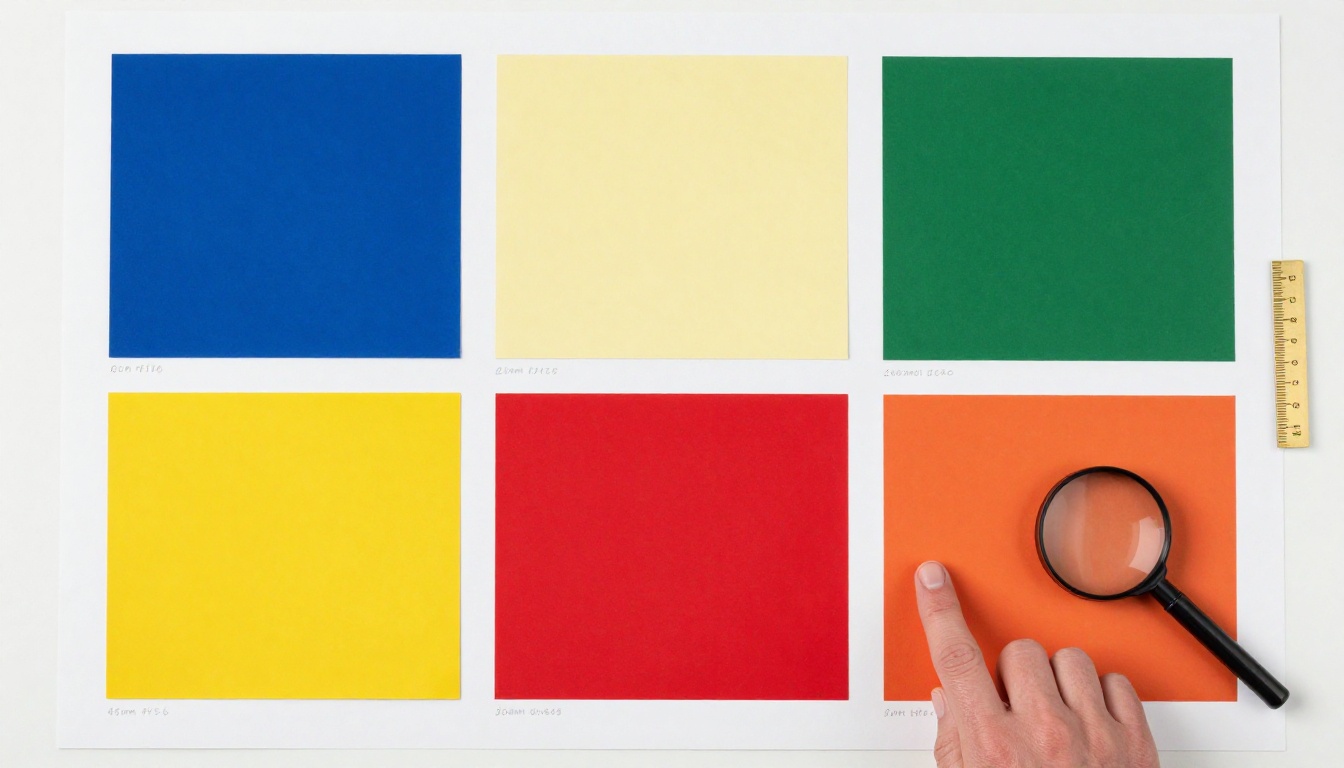
The best thumbnail creators do not approach each video as a one-off design project. They build a visual system: a consistent set of color combinations, composition patterns, and subject framing styles that make every thumbnail instantly recognizable as theirs, while still varying enough to stay fresh video after video.
PicassoIA gives you the tools to build and iterate that system at speed. Flux Dev, Flux Pro, Seedream 4.5, and Imagen 4 Ultra span the full range of image generation needs, from rapid iteration to maximum photorealism. Bria Remove Background handles clean cutouts without manual masking. Flux Fill Pro and Flux Redux Dev let you refine and vary images without starting from scratch every time.
If you have never used AI for thumbnail creation before, the starting point is simple: pick your next video, write a detailed prompt describing exactly the visual you want, generate five variations, pick the best one, strip the background, and place it over a bold solid color. The entire process takes under ten minutes and the results will immediately outperform anything produced manually in the same timeframe.
The tools are ready. Start generating at picassoia.com.


