The difference between an AI face that fools nobody and one that stops you mid-scroll comes down to a handful of technical decisions most people skip. FLUX.2 Max from Black Forest Labs pushed what photorealistic portrait generation looks like at the consumer level, reaching 4 megapixels with reference image support and full control over resolution, aspect ratio, and safety filtering. This article walks through every variable that matters: prompt structure, resolution settings, lighting physics, and the upscaling tools that finish the job.
Why Most AI Faces Look Fake
You have seen them. The slightly too-smooth skin, the eyes that reflect the wrong kind of light, the hair that behaves like a single poured object rather than thousands of individual strands. These are not random failures. They are predictable outputs of generators running at low resolution with generic prompts.
The Plastic Skin Problem
Default AI outputs optimize for aesthetics as interpreted by the model's training data: smooth, even, airbrushed. That bias produces faces that look more like a video game character than a person. Realistic skin has sebum, pores, subtle discoloration, fine vellus hair, and micro-shadows under every surface irregularity. When the prompt contains nothing that asks for this, the model does not produce it.
The fix is not complicated. Specifying "visible pores on the nose bridge", "sebaceous filaments on the forehead", and "peach fuzz along the jawline" in the prompt forces the model to render detail it would otherwise suppress. FLUX.2 Max responds well to these directives because it operates at resolutions high enough to actually render them.
Resolution vs. Detail
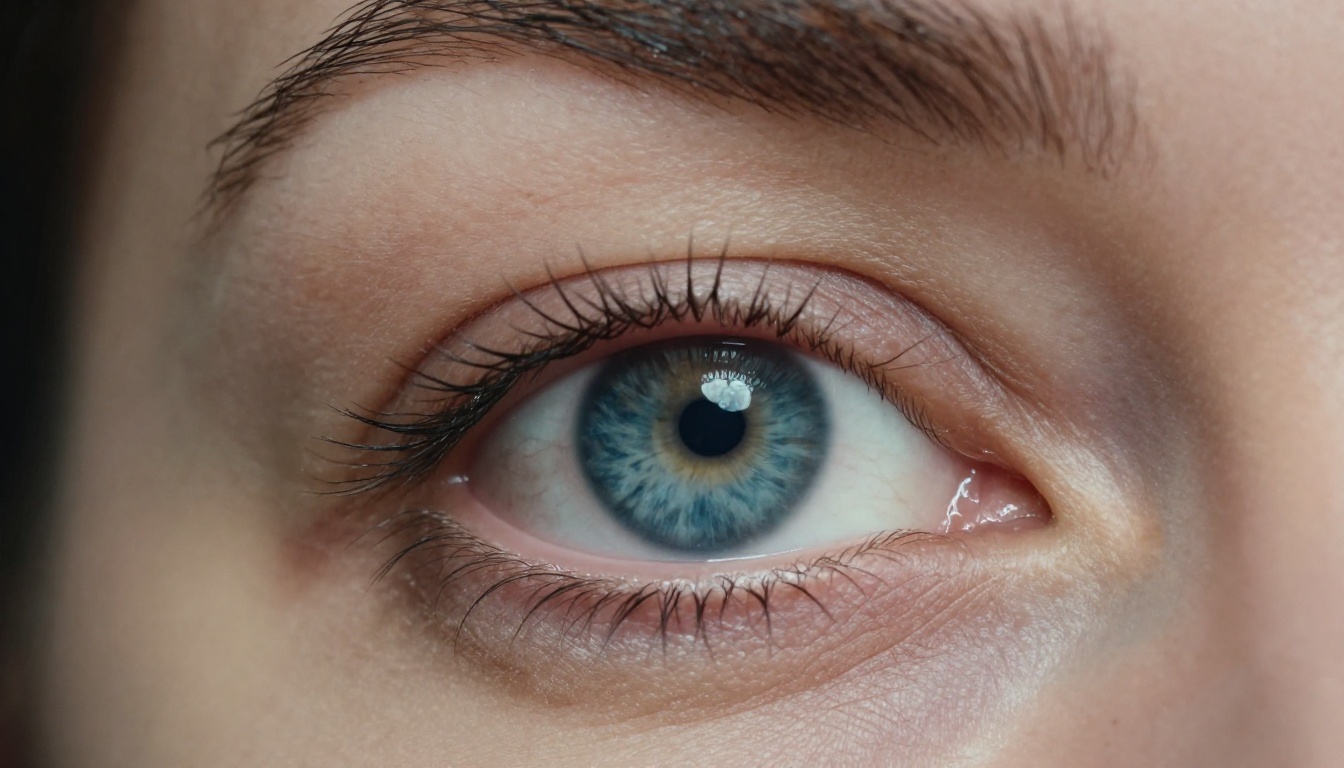
A face generated at 0.5 megapixels does not have room for pores. The pixels are not there. At 1 megapixel, you start to see some structure. At 2 megapixels, facial detail becomes convincing. At 4 megapixels, you get the kind of output where you can zoom in on an eyelid and still find believable texture.
This is the core advantage FLUX.2 Max has over most tools in the category. Running at 4MP is not just about file size. It is about the number of pixels available to represent a cornea, a strand of eyebrow hair, or the faint crease where a lip meets the surrounding skin.
What FLUX.2 Max Does Differently
Black Forest Labs built FLUX.2 Max with a clear emphasis on high-resolution fidelity and controllability. Understanding the specific features helps you use each one with intent rather than guessing.
4MP Output That Holds Up Close
Most text-to-image models cap at 1 megapixel for practical use. FLUX.2 Max allows outputs up to 4 megapixels, with 2MP being the sweet spot for most portrait work: large enough for meaningful detail, fast enough to iterate. 4MP is the right choice when you need a single hero image with maximum detail.
💡 Tip: Start at 2MP for prompt testing. Once your prompt delivers the right composition and expression, switch to 4MP for the final render.
The resolution setting in FLUX.2 Max works in tandem with aspect ratio. For portraits, 3:4 (portrait orientation) or 2:3 maximizes the face area within the pixel budget. A 16:9 landscape crop at 4MP spreads pixels across a wider field, which reduces effective face resolution.
Reference Images as Style Anchors
Up to eight reference images can be fed into FLUX.2 Max to steer the output. For portrait work, this is useful in three scenarios:
- Consistent subject across multiple shots: Feed a reference photo of the person and describe variations in angle, lighting, or expression
- Lighting match: Upload a reference image that has the exact lighting setup you want to replicate
- Style anchoring: Use a photographer's portfolio image as a reference to capture their signature aesthetic
The model reads the visual content of these references without needing them described in the prompt. The prompt then handles the new directions you want to introduce.
Safety Tolerance and What It Changes
The safety tolerance parameter runs from 1 (most strict) to 5 (most permissive). For clean editorial portraits, 2 is the right setting. It allows natural skin tones, swimwear, and expressive facial content without triggering false positives on a worried expression or intense gaze. If your portrait work involves glamour or artistic content that stays non-explicit, setting tolerance to 4 or 5 opens that range.
Building the Perfect Realistic Face Prompt
A prompt for a photorealistic face is not a description of what a face looks like. It is a set of instructions covering physical characteristics, lighting physics, camera optics, and film or sensor response. Each layer adds specificity the model uses to constrain and focus the output.
Start with the Skin
Skin is the most complex surface the model has to render for a portrait. Describing it generically ("smooth skin," "beautiful skin") removes constraints and lets the model default to airbrushed output.
Instead, be specific about the realistic surface characteristics:
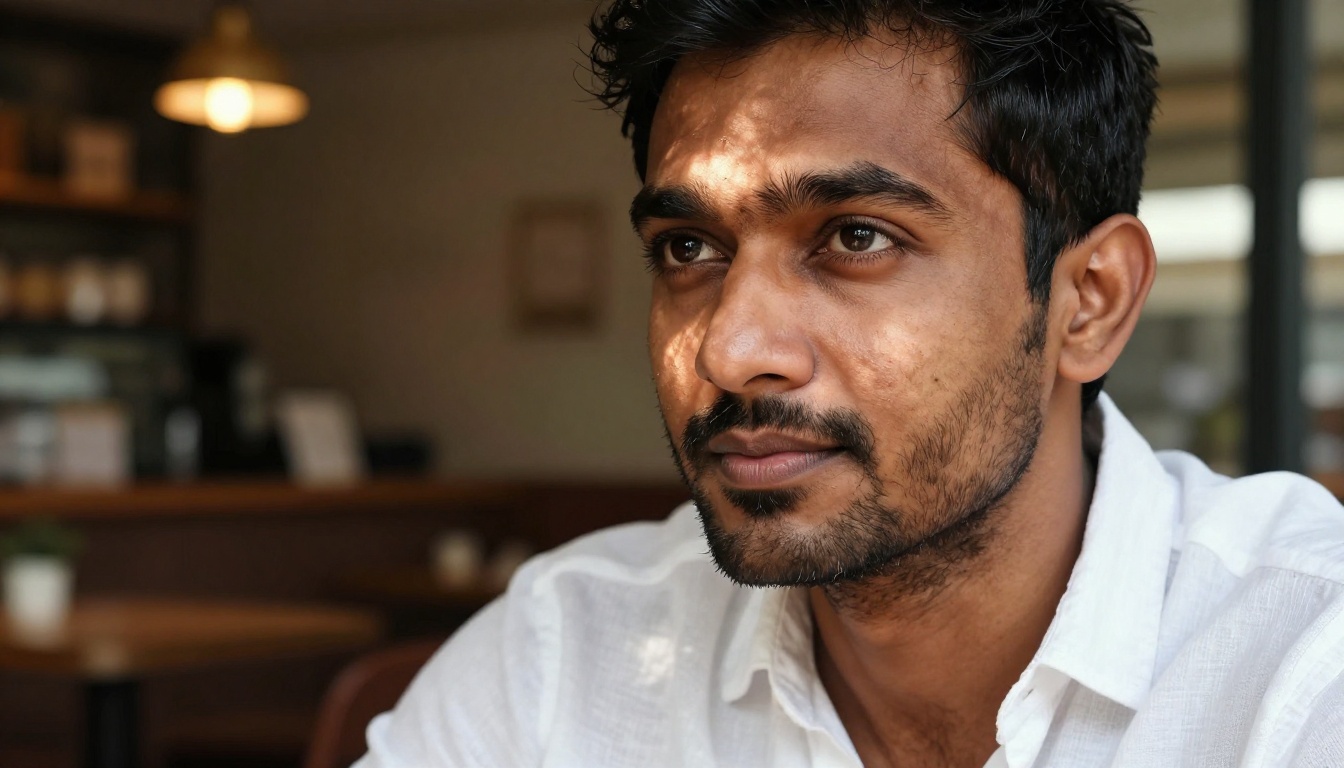
- "visible pores on nose and cheeks"
- "fine laugh lines at the corners of the eyes"
- "light sun freckles scattered across the cheekbones"
- "natural sebum on the T-zone"
- "peach fuzz catching sidelight along the jaw"
None of these make the subject look bad. They make the subject look real. That distinction matters.
Lighting Is Everything
Light is what makes a face three-dimensional in a photograph. Flat frontal lighting collapses the face into something that reads as artificial. Directional lighting with a clear source location forces the model to calculate shadows, highlights, and volumetric shaping.
Specify the light source, its position, and its character:
| Lighting Type | Prompt Phrase | Effect |
|---|
| Rembrandt | single key light at 45 degrees upper-left, shadow triangle on shadow side | Dramatic, editorial, character |
| Window | soft diffused daylight from right, natural soft shadow on left | Intimate, warm, natural |
| Golden Hour | warm sunset light from lower-right, rim light on hair edge | Cinematic, flattering, warm |
| Overcast | even outdoor daylight, no directional shadows, flat illumination | Clinical, honest, fashion |
| Profoto Softbox | large softbox at 45 degrees upper-left, subtle fill light opposite side | Professional studio, commercial |
The time of day also matters. Volumetric morning light behaves differently than late afternoon golden light. Naming it specifically changes the color temperature, the softness of shadows, and the warmth of skin tones.
Camera and Lens Data
Camera and lens specifications are not decoration in a prompt. They act as constraints that reshape how the model renders depth of field, bokeh character, and optical distortion. An 85mm f/1.4 produces a different portrait rendering than a 35mm f/2. The model has seen enough photography to map these specifications to visual outputs.
Effective camera prompt phrases:
- "Canon EOS R5, 85mm f/1.4, shallow depth of field"
- "Hasselblad medium format, 100mm f/2.2"
- "Leica M11, 50mm f/2, documentary style"
- "Nikon Z9, 105mm macro, extreme close-up rendering"
Add film stock references to guide color science:
- "Kodak Portra 400" for warm, creamy skin tones
- "Fujifilm Velvia" for saturated, high-contrast
- "Kodak Tri-X" for black and white with grain
Age, Expression, and Character
A face with no age is an uncanny face. Specifying an approximate age adds the appropriate micro-wrinkles, skin laxity, and eye character that the model uses to build a believable person. Combined with a specific expression, this produces subjects that feel like individuals rather than generics.
Expressions worth specifying:
- "natural resting expression with slight jaw tension"
- "caught mid-laugh, crow's feet visible at eye corners"
- "direct gaze with the intensity of someone mid-thought"
- "serene closed-eye expression, faint smile at lip corners"
Prompt Templates That Deliver
The table below shows six tested prompt templates and the face type each produces reliably with FLUX.2 Max. Use them as starting points and adjust specifics for your subject.
| Use Case | Core Prompt Elements | Resolution |
|---|
| Editorial portrait | Subject description + Rembrandt lighting + 85mm f/1.4 + Kodak Portra 400 + visible pores | 2MP |
| Candid outdoor | Age + expression + golden hour from side + street lens + natural laugh lines | 2MP |
| Studio headshot | Professional setting + softbox two-light setup + plain background + medium format camera | 4MP |
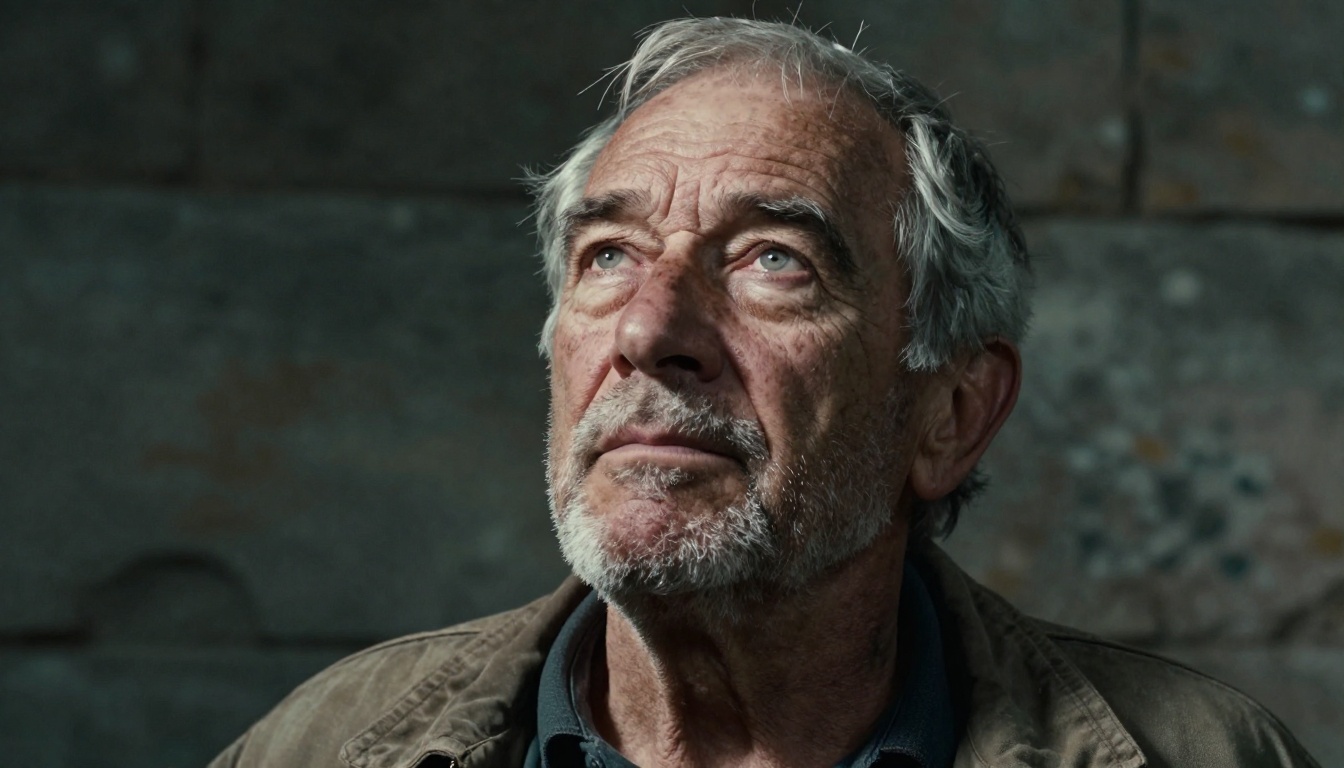
| Character study (elderly) | Age 60s-70s + deep wrinkle description + dramatic single-source light + film grain | 2MP |
| Macro eye detail | Extreme close-up + iris fiber detail + macro lens + dark background + catchlight position | 4MP |
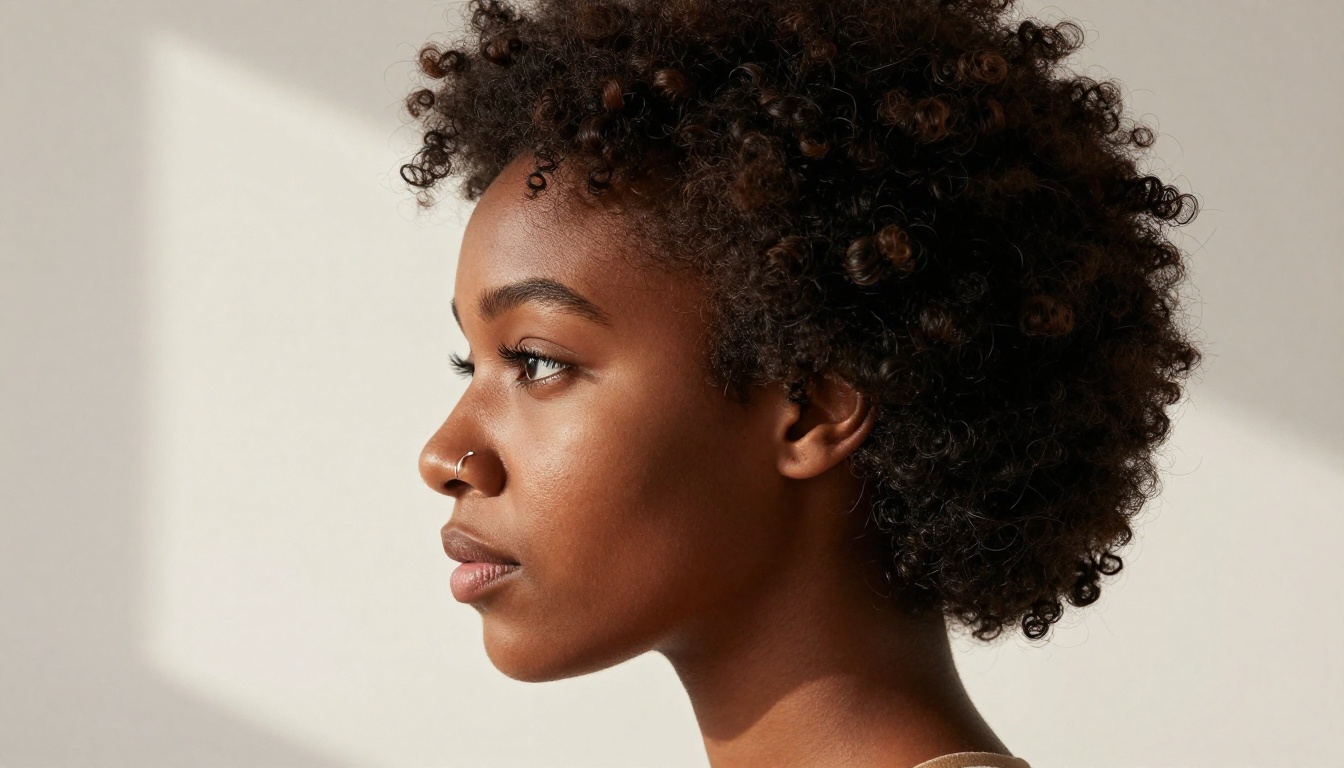
| Side-profile minimal | Profile angle + window light from front + minimalist background + film grain + specific skin tone | 2MP |
💡 Tip: For the macro eye prompt, set aspect ratio to 1:1 and resolution to 4MP. The square crop and maximum pixel density produce iris detail that holds up at very high zoom.
How to Use FLUX.2 Max on PicassoIA
FLUX.2 Max is available directly on PicassoIA with no local install, no API key setup, and no credit counters blocking iteration.
Step 1: Set Your Resolution
On the model page, the Resolution parameter defaults to 1MP. For portrait work:
- 1MP: Fast iteration, quick composition tests
- 2MP: Production-quality portraits with full detail
- 4MP: Hero images, print-ready files, extreme detail work
Set the aspect ratio to 3:4 or 2:3 for vertical portrait orientation. For a subject filling the full frame, this gives the most face pixels per megapixel.
Step 2: Add Reference Images
Click Input Images to upload up to eight source images. For a consistent subject across multiple generations:
- Upload a high-quality photograph of the person
- In the prompt, describe the new scene, lighting, or angle
- Leave the subject description minimal since the reference handles subject consistency
For a lighting reference approach, upload a photo with the exact lighting setup you want, then describe your subject in the prompt without describing the lighting. The model picks up the lighting from the reference automatically.
Step 3: Set Safety Tolerance
For editorial portraits in professional contexts, tolerance 2 is the default. For artistic or glamour work where the image is non-explicit but may include skin, push to 4. The model is not trying to block legitimate portrait work; setting tolerance to 4 removes overly conservative filtering.
Step 4: Lock a Seed for Consistency
Once you have a prompt that produces the right face type, note the seed number from the first successful generation. Running the same prompt with the same seed generates a consistent base face. Change one prompt variable at a time to explore variations while keeping the core subject stable.
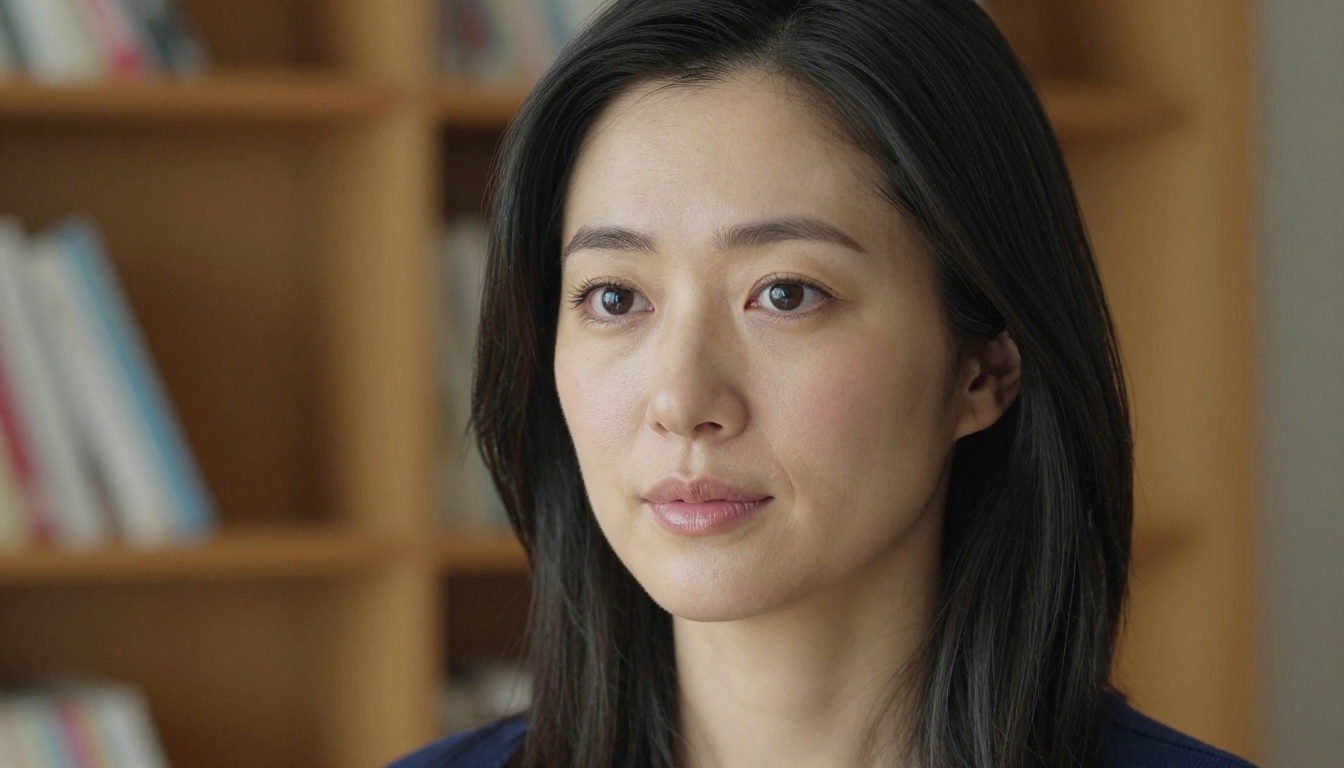
Making Faces Sharper with Upscalers
Even at 4MP, certain portrait applications need more resolution: large-format print, commercial billboards, detailed retouching work. The right upscaler can take a solid FLUX.2 Max output and push it further without creating typical AI upscale artifacts.
Crystal Upscaler for Portrait Detail
Crystal Upscaler is built specifically for portraits. It processes facial regions with awareness of skin texture, preserving pore structure and subtle surface detail while adding genuine resolution rather than interpolated blur. A 4x upscale turns a 2MP portrait into an 8MP image suitable for commercial print.
The model works best when the input portrait is clean and sharp. Start with the best possible FLUX.2 Max generation, then upscale.
Clarity Pro for Skin Texture
Clarity Pro Upscaler operates on a broader definition of image quality: not just resolution, but local contrast, texture recovery, and micro-detail that fills in believable surface information where the source was too low-resolution to record. For portraits, this means skin texture that reads as photographed rather than generated.
For a fast 4x enlargement with solid face handling, Real ESRGAN processes quickly and preserves eye detail with fewer artifacts than general-purpose upscalers.
💡 Workflow: Generate at 2MP in FLUX.2 Max, iterate to nail composition and expression, then run the final through Crystal Upscaler at 4x for a finished 8MP portrait.
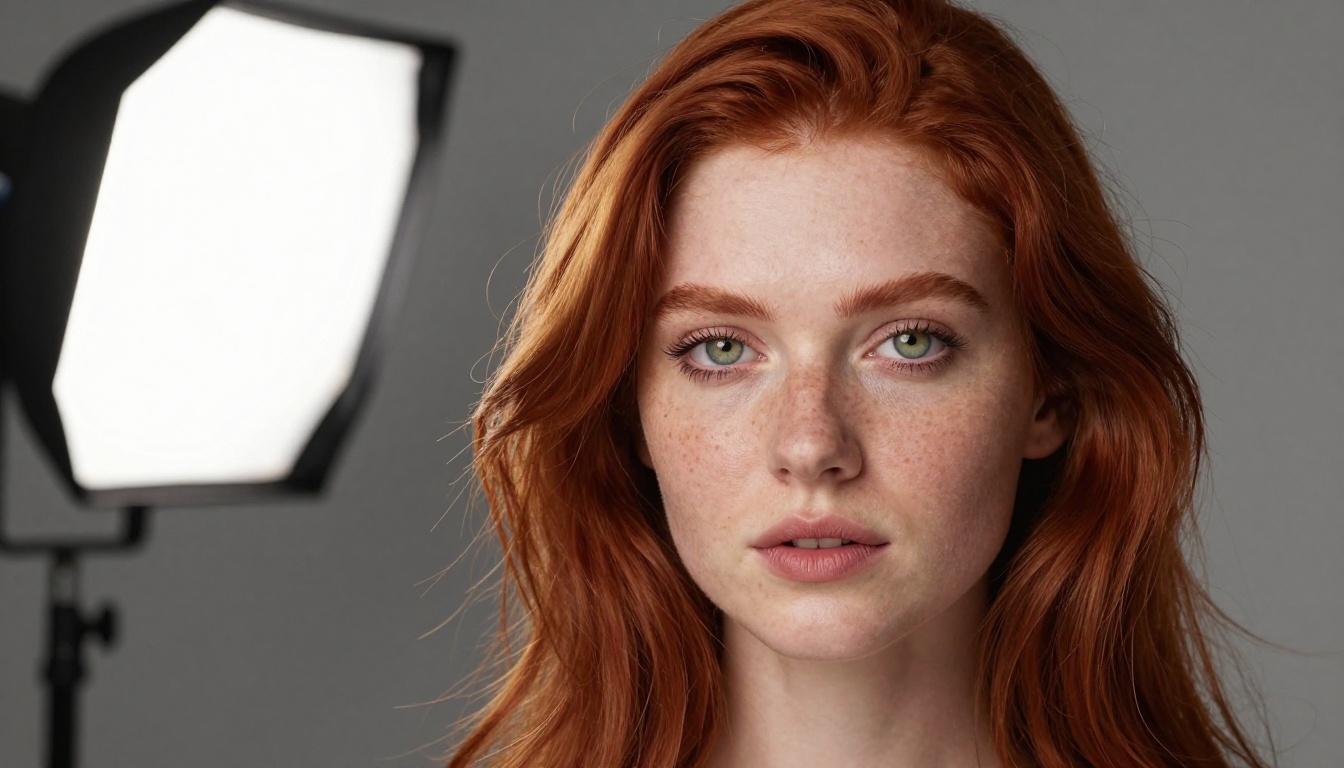
5 Mistakes That Kill Face Realism
These are the most common errors that produce outputs that read as obviously AI-generated, even from a capable model like FLUX.2 Max.
1. Complimenting instead of describing
"Beautiful woman with stunning eyes" tells the model nothing specific. "35-year-old woman, hazel eyes with defined limbal ring, slight asymmetry in left eyebrow" tells it something it can render.
2. Ignoring depth of field
Without a specific aperture in the prompt, the model often defaults to pan-focus rendering where the entire image is equally sharp. Real portrait photographs have a focal plane and falloff. Specifying "85mm f/1.4 shallow depth of field" adds the depth cue that makes subjects pop from backgrounds.
3. Vague light sources
"Well-lit" or "professional lighting" are too vague. "Single softbox at 45 degrees upper-left with no fill, producing Rembrandt shadow pattern on right cheek" gives the model a physical setup to render from.
4. Mismatched resolution and detail requests
Requesting pore-level skin detail at 0.5MP is requesting the impossible. Match your detail requirements to the resolution setting. At 1MP, you get face shape and expression. At 4MP, you get pores and individual lash strands.
5. One prompt for every face type
A prompt tuned for a 25-year-old woman will not produce a convincing 65-year-old man without significant adjustment. Each age group, skin type, and lighting condition benefits from a dedicated prompt structure rather than a one-size template with different names swapped in.
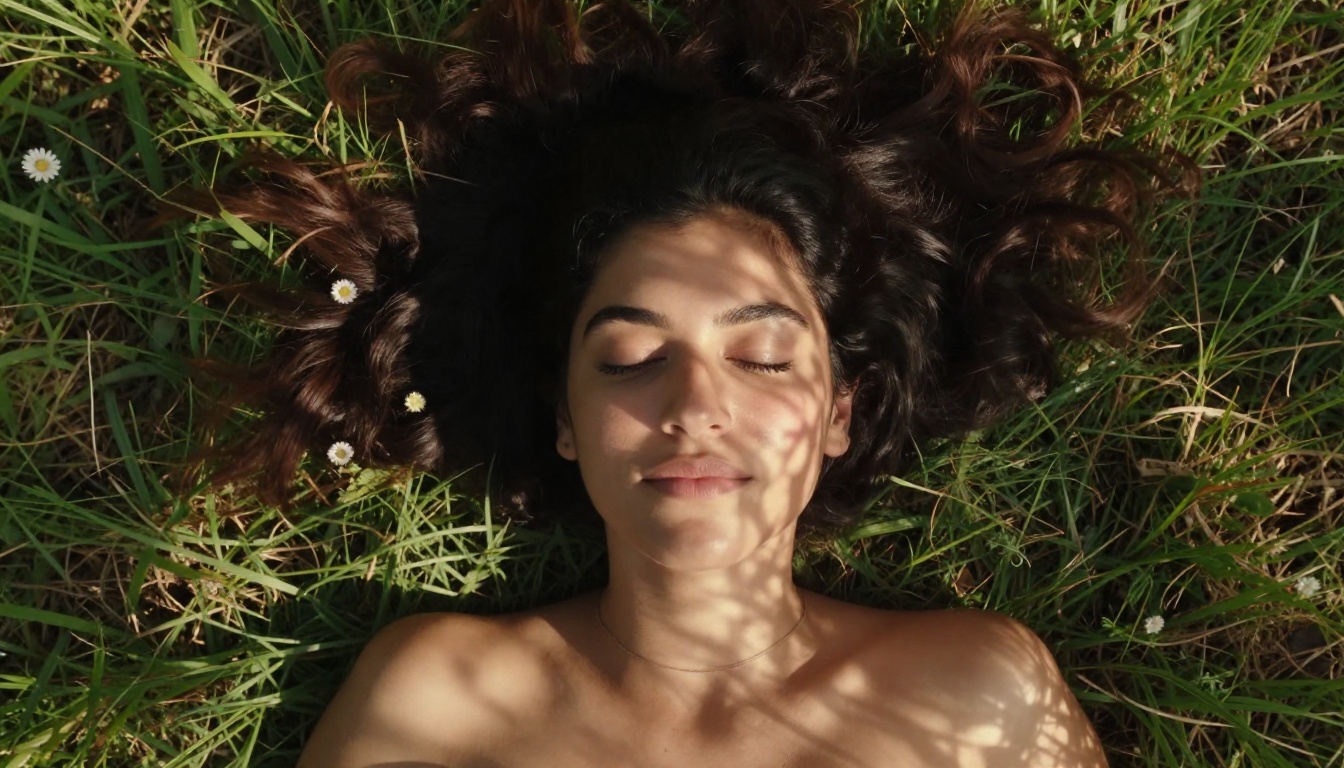
The Prompt Difference in Practice
The fastest way to see how much precision matters is to generate the same subject twice: once with a generic prompt and once with the structure from this article.
A prompt like "photorealistic woman, beautiful face" and the same subject described with skin texture, lighting physics, camera specs, and film grain will produce outputs that look like they came from different models. They did not. The model is the same. The precision is different.
FLUX.2 Max handles prompt complexity well. More detail does not confuse it. It uses the constraints to narrow the solution space, producing more consistent and more convincing results with every additional specific phrase you add.
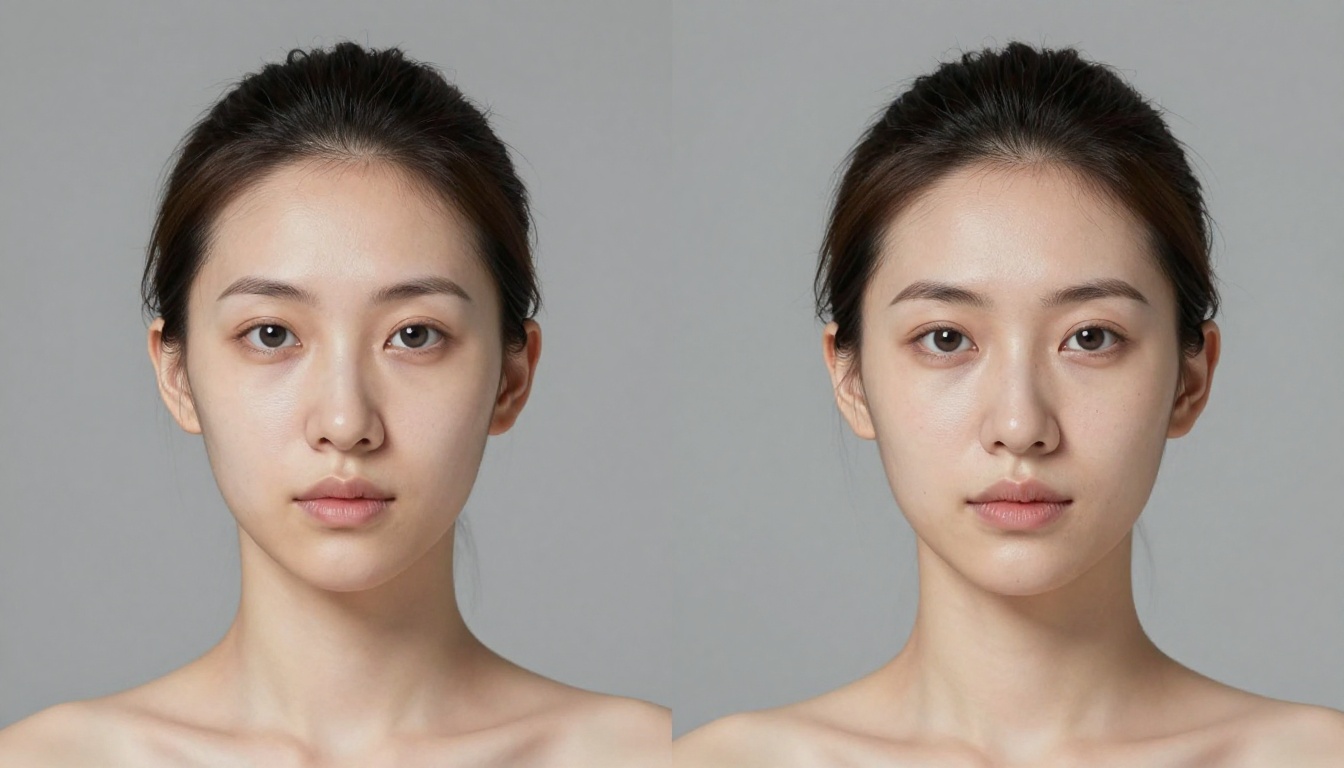

Ready to Generate Your Own Realistic Faces?
The workflow is straightforward once you have the prompt architecture down. Start with a 2MP generation on FLUX.2 Max, lock in skin texture and lighting descriptors, test with FLUX Schnell for rapid previews when you need fast turnaround, then upscale the final result with Crystal Upscaler or Clarity Pro for production output.
PicassoIA runs every one of these models with no generation limits. That means you can spend a session working through twenty prompt variations, compare outputs side by side, and refine down to exactly the face you are after. There is no credit counter cutting off the iteration before you find the right result.
Open FLUX.2 Max on PicassoIA and run your first prompt with the skin texture and lighting structure from this article. The difference between a generic output and a photorealistic portrait starts with the first word of the prompt.


