Slow motion is one of the most persuasive visual formats alive right now. A single well-executed slow-motion clip can stop someone mid-scroll, make an athletic moment feel historic, or turn a simple product shot into something cinematic. The problem is that most slow-motion footage looks terrible, and the creators producing it have no idea why.
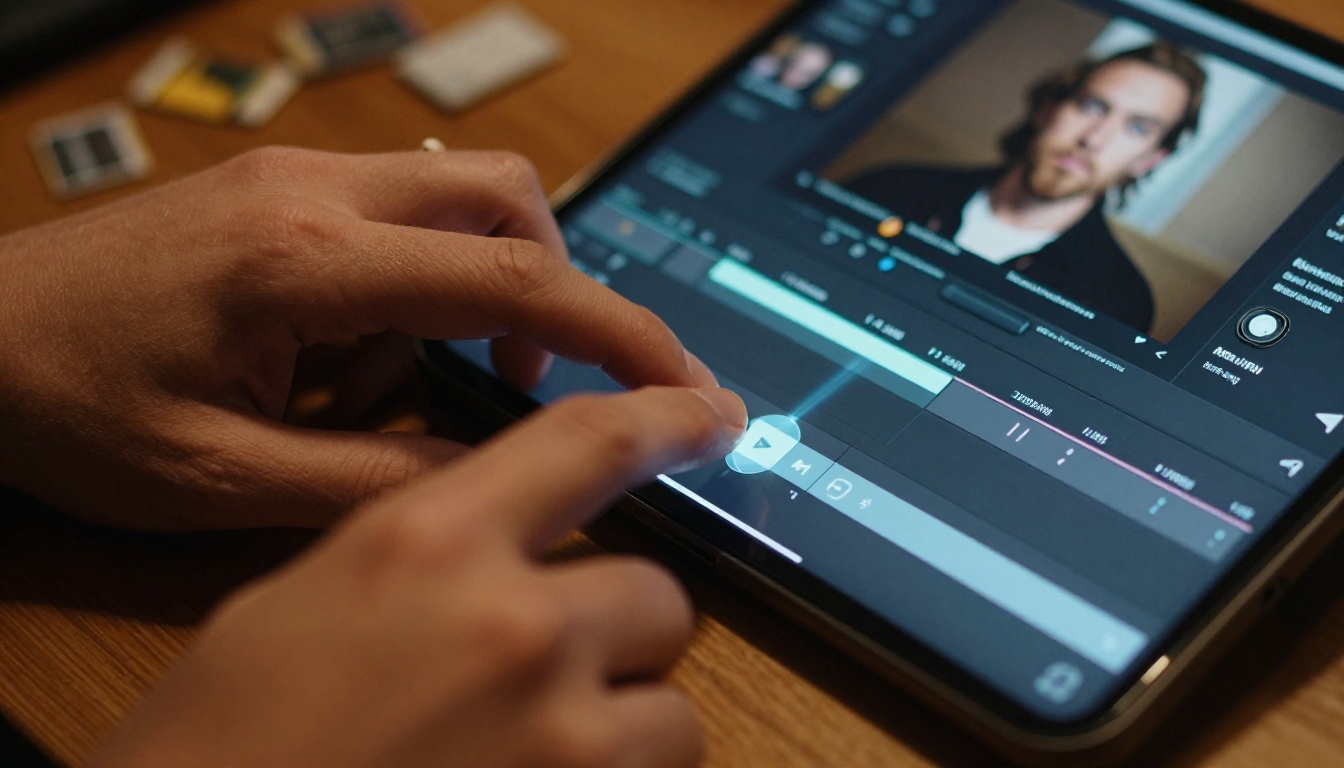
The good news is that AI has fundamentally changed what is possible here. Frame interpolation models, optical flow analysis, and AI video upscaling now let you take footage that was recorded at 30fps and make it play back at 120fps with results that are nearly indistinguishable from true high-frame-rate capture. This article walks you through exactly how to make slow motion look pro with AI, from understanding the core problem to picking the right tools and applying them correctly.
The Frame Rate Problem No One Talks About
When you shoot at 30fps and then slow that footage down to 25% speed in your editing software, you are asking your timeline to play back at roughly 7.5fps. That produces the jarring, almost stop-motion quality that immediately signals to any viewer that this is not real cinematic slow motion.
Professional slow-motion results typically require footage shot at 120fps, 240fps, or even 480fps. Most consumer cameras and smartphones do have a slow-motion mode, but it usually comes with a resolution penalty. The iPhone 15 Pro shoots 4K at 60fps or 1080p at 240fps, not both at once. That tradeoff is where most creators get stuck.
What "Fake" Slow Motion Actually Means
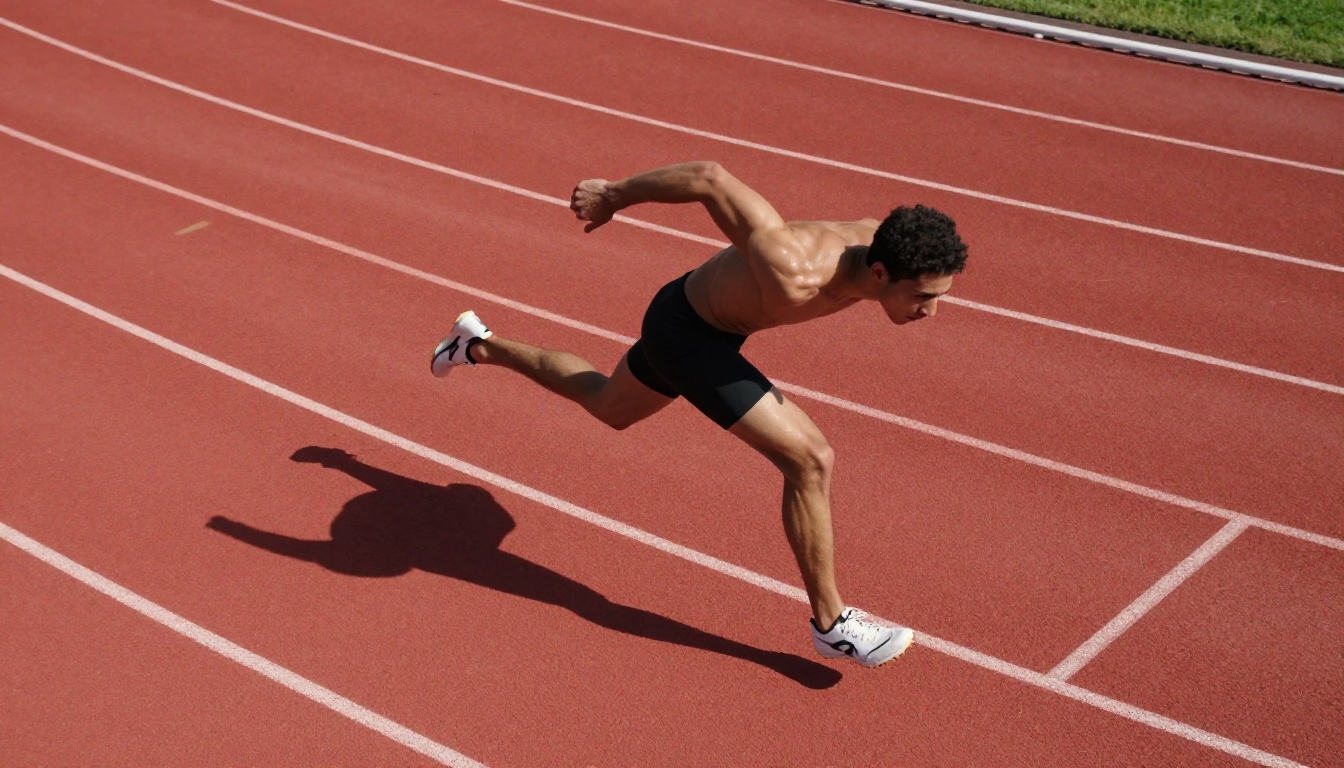
Editing apps like Premiere Pro and CapCut have slow-motion buttons that feel like magic but are actually just duplicating or blending frames. The result is either stuttering (when frames are simply repeated) or an unnatural soap-opera effect (when the app blends adjacent frames in a naive way). Neither approach is doing temporal interpolation the way an AI model does.
True AI frame interpolation works differently. It analyzes the motion vectors between two real frames, predicts where every pixel should logically be in the synthesized intermediate frame, and generates that frame from scratch. The difference in visual quality is not subtle.
How AI Fixes Bad Slow Motion
Frame Interpolation vs. Traditional Methods
| Method | FPS Boost | Quality | Speed |
|---|
| Frame duplication | None (just slower) | Poor | Instant |
| Optical flow (basic) | 2x | Fair | Fast |
| AI frame interpolation | Up to 8x | Excellent | Minutes |
| True high-frame-rate capture | Native | Best | Requires hardware |
AI interpolation sits in a category that simply did not exist for most creators five years ago. Models trained on millions of video clips have learned to predict motion with a precision that rivals true high-frame-rate capture in many practical shooting scenarios.
What AI Actually Does to Your Footage
The core technology is called optical flow estimation. The AI traces the apparent motion of objects between frames and uses that motion map to synthesize new intermediate frames. Newer models go further by applying temporal attention, meaning the model considers several frames at once rather than just two adjacent frames. That contextual awareness prevents the ghosting artifacts that plagued earlier interpolation tools.

The other component is AI video upscaling. Even if your frame rate is correct, playing back 1080p footage on a 4K timeline at slow speed exposes every compression artifact your camera introduced. AI upscalers do not just stretch pixels; they reconstruct detail using learned texture priors, so the final output can genuinely look sharper than the source material.
💡 The real workflow for professional results combines both steps: interpolate first to reach your target frame rate, then upscale to 4K.
Topaz Video AI for 120fps Upscaling
The most directly relevant model for this workflow is Video Upscale by Topaz Labs. This model processes video with a target output resolution of up to 4K at 120fps, which means it handles both the frame rate conversion and the resolution enhancement in a single pass. The model is particularly strong with footage that has consistent, predictable motion, making it excellent for sports, dance, and product videos.
What it does well:
- Converts 30fps footage to smooth 60fps or 120fps
- Upscales from 1080p to 4K while preserving fine detail
- Reduces compression noise without destroying edge sharpness
Crystal Video Upscaler for Detail Recovery
Crystal Video Upscaler is the tool to reach for when your source footage has significant quality issues. It was specifically trained on degraded footage and excels at recovering edge detail, reducing blocking artifacts, and producing clean results from highly compressed source clips. If you are working with footage originally recorded for social media and trying to repurpose it for a more polished edit, this model is the right choice.
Runway Upscale v1 for Consistent Batches
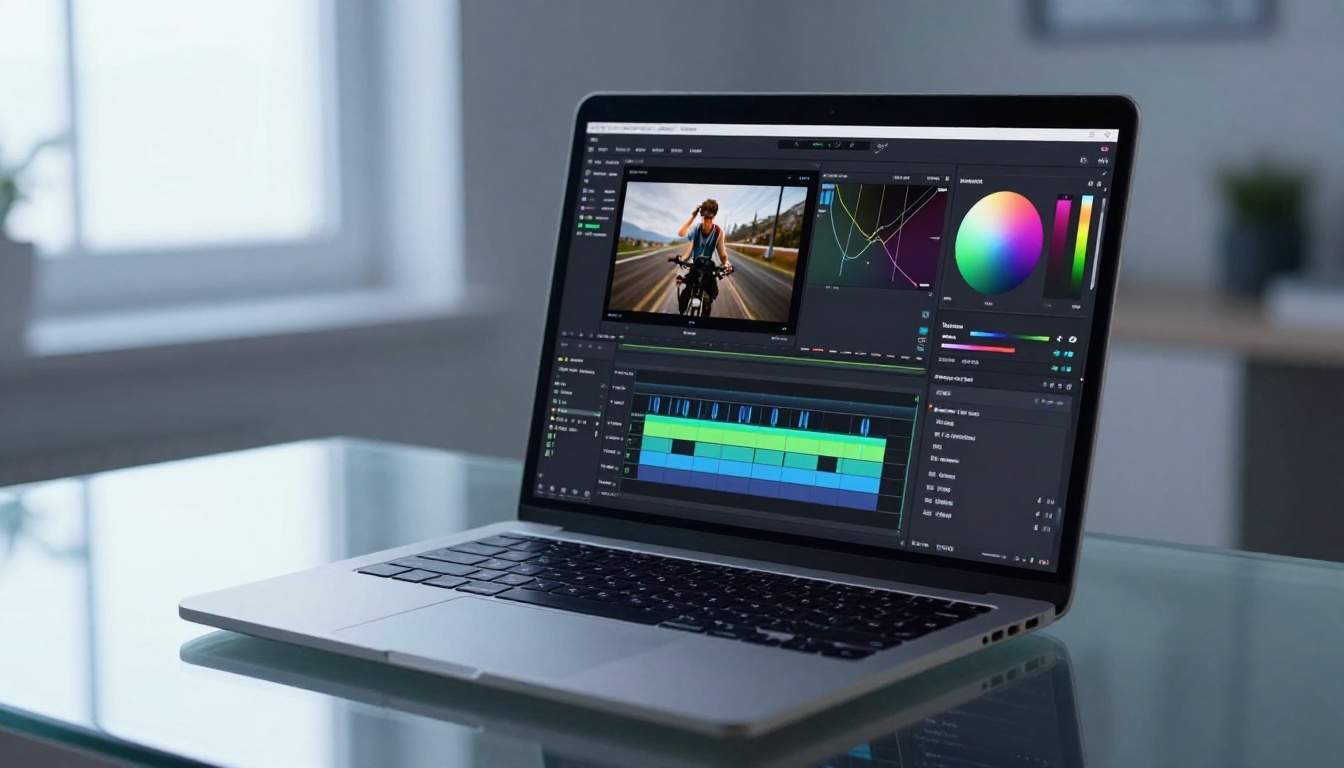
Runway's Upscale v1 produces very consistent results across varied content types. It tends to handle scenes with complex backgrounds and fast-moving foreground subjects better than models optimized purely for sharpness, making it a good fit for creators who work across multiple content categories and need reliable outputs without per-clip finetuning.
AI Video Generators for Cinematic Slow Motion from Scratch
If you are not working with existing footage at all, you can generate slow-motion-ready cinematic video directly from text prompts using models like Kling v3 Video, Pixverse v6, or Veo 3. These models render at cinematic quality natively, meaning you start with high-quality source material that interpolation tools then push into full slow-motion territory without any degradation.
💡 Pro tip: Generate at normal speed using a high-quality model, then apply AI frame interpolation afterward. This two-step approach consistently outperforms asking a generator to produce "slow motion" directly.
How to Use Video Upscale on PicassoIA
The Topaz Labs Video Upscale model on PicassoIA gives you direct access to professional-grade video enhancement without any local hardware requirements. Here is the exact workflow:
Step 1: Prepare your source footage
Export your clip from your editing software as a clean, uncompressed or lightly compressed file. Avoid re-exporting already-compressed social media exports as source material if you can help it. Original camera files or high-bitrate exports from your editor will give the model far more detail to work with.
Step 2: Open the model page
Navigate to Video Upscale by Topaz Labs on PicassoIA. The interface will show you the input parameters available for this model.
Step 3: Set your target resolution and frame rate
Choose your target output resolution (3840x2160 for true 4K) and set the output frame rate to 120fps if your source is 30fps or 60fps. The model handles the interpolation and upscaling simultaneously.
Step 4: Process and download
Once processing completes, download the output file. At this stage you have clean 4K footage at 120fps that you can bring back into your editor and slow down to 25% or 50% speed with zero quality loss.
Step 5: Color grade after enhancement
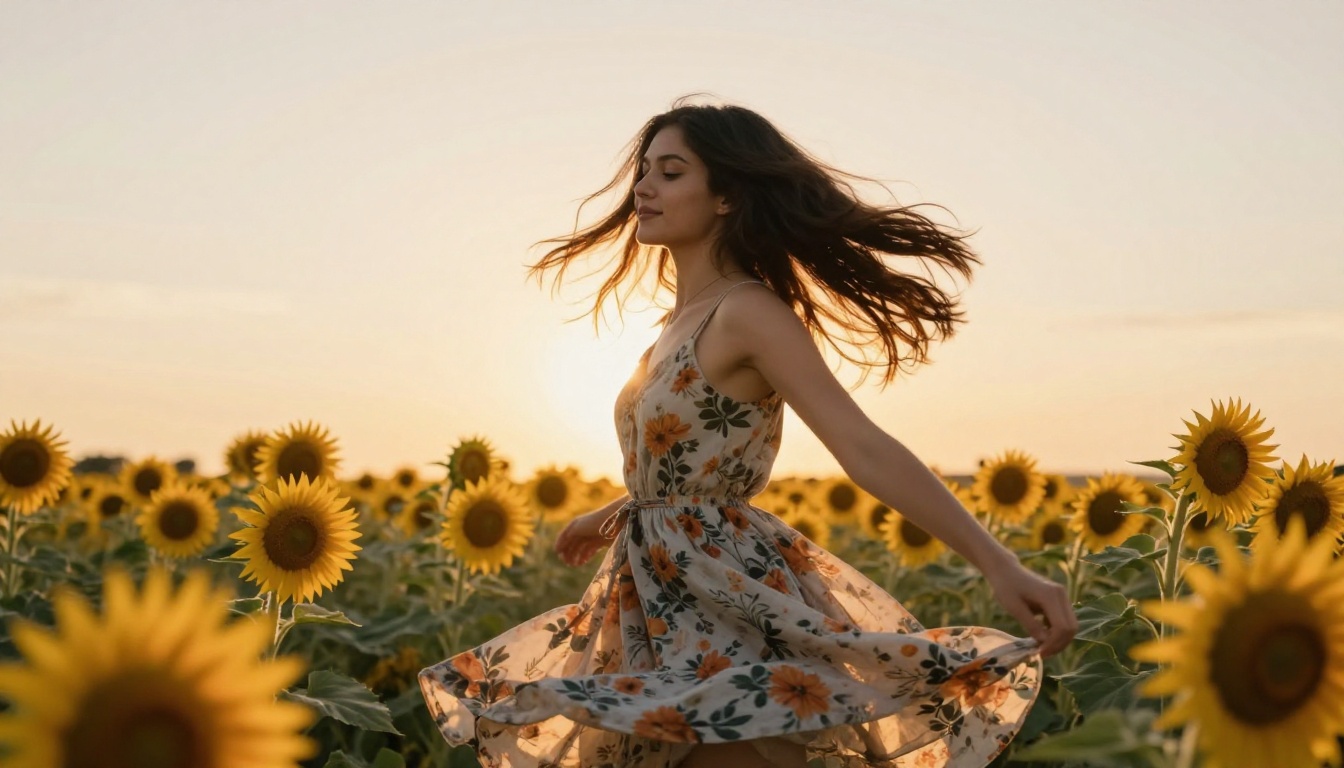
Always apply your color grade after the AI processing, not before. Running color-graded footage through an upscaler can introduce subtle tonal shifts. Process the original, then grade the output for the cleanest results.
Settings That Actually Make a Difference
Frame Rate Targets Worth Using
Not all frame rate targets are equal in practical use. Here is what actually matters:
- 60fps: The minimum for slow playback at 50% speed without visible stutter. Good for casual social media content.
- 120fps: The sweet spot. At 25% speed on a 30fps timeline, 120fps feels genuinely cinematic. This is where most professional social media content sits.
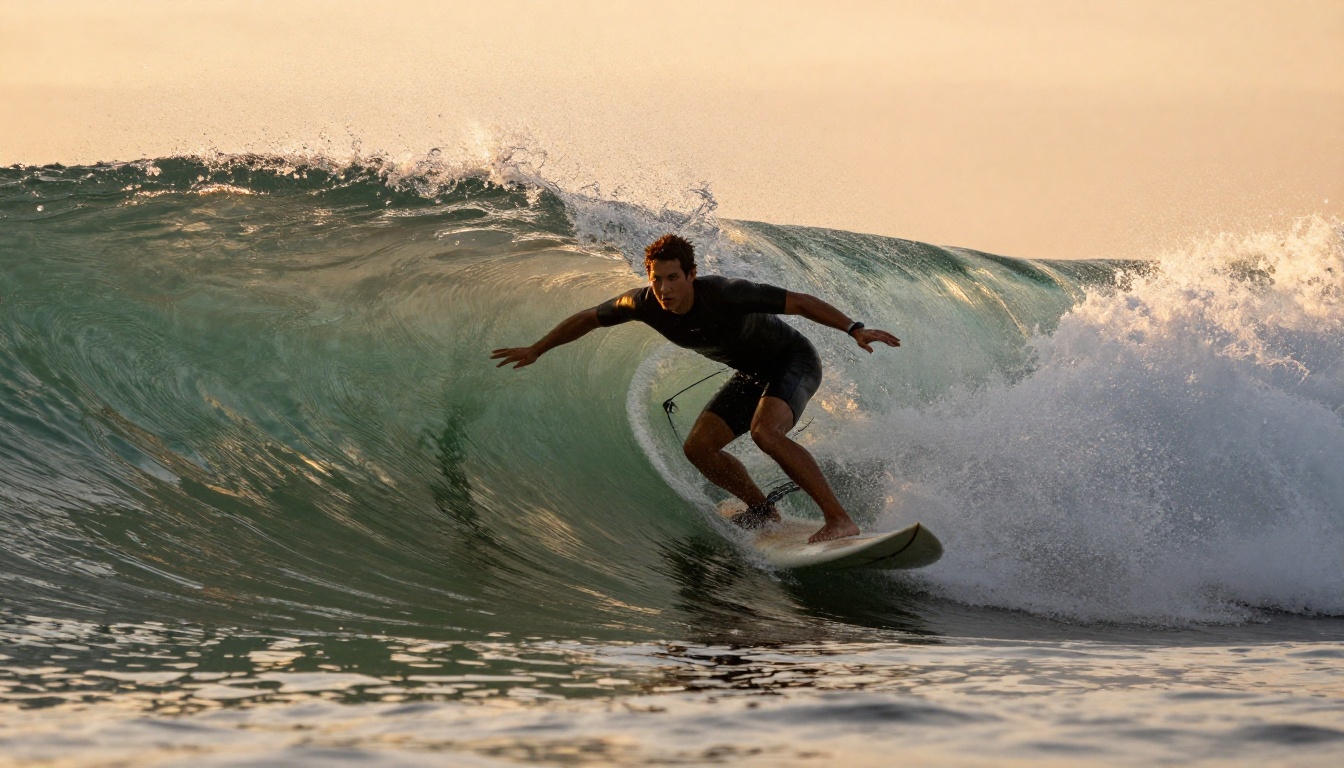
- 240fps: Necessary for dramatic effect shots like water splashes, impacts, or fast athletic movements where you want to push below 15% speed.
💡 If your final output is for a 24fps timeline, target 240fps in your AI interpolation. The math lands cleanly: 240fps at 10% speed plays back at exactly 24fps.
3 Common Mistakes Creators Make
1. Starting with already-compressed footage
Downloaded Instagram clips, screen recordings, and WhatsApp-shared videos are already heavily compressed. Running these through an AI upscaler does not recover lost data. It extrapolates from what remains, which often produces smooth but plasticky results. Always work from originals.
2. Interpolating too aggressively
Jumping from 24fps to 240fps in a single step introduces more synthesis error than going 24fps to 60fps, then 60fps to 120fps, then 120fps to 240fps. Many creators skip the multi-pass approach because it takes longer, but the visual quality difference is significant for high-motion content.
3. Ignoring motion complexity
AI interpolation works best when motion is predictable and contained. A single subject moving against a stationary background is ideal. Multiple overlapping subjects, camera shake, or rapid panning introduces synthesis artifacts. Stabilize your footage before interpolation, not after.
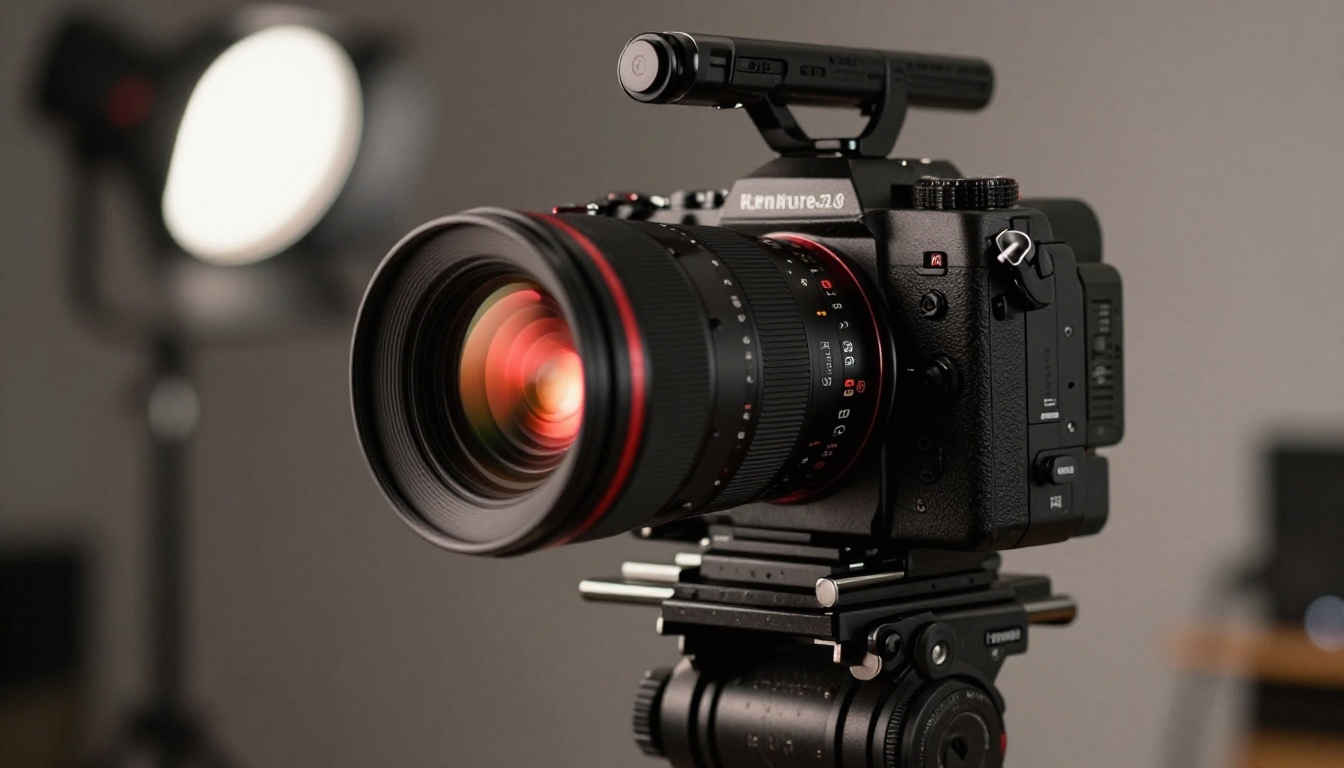
What Platforms Want from Your Footage
Instagram Reels, TikTok, and YouTube Shorts all favor content that retains attention past the three-second mark. Slow motion is one of the most reliable ways to achieve that because it physically slows the viewer's processing time and makes them wait for the payoff moment.
The platforms themselves do not care what frame rate you upload. What they care about is watch time and completion rate. A well-executed slow-motion clip that builds to a satisfying moment tends to score better on both metrics than equivalent real-time footage because viewers feel compelled to watch through to the end.
Platform-specific considerations:
| Platform | Recommended Output | Notes |
|---|
| Instagram Reels | 1080p at 30fps (source: 120fps) | Encode with H.265 for best quality |
| TikTok | 1080p at 30fps | Slow down in-app after upload for creator tools |
| YouTube Shorts | 1080p or 4K at 30fps | Higher resolution rewards with better compression |
| Twitter/X | 720p at 30fps | Aggressive compression, keep clips under 10s |
The 1-Second Rule for Reels and TikTok
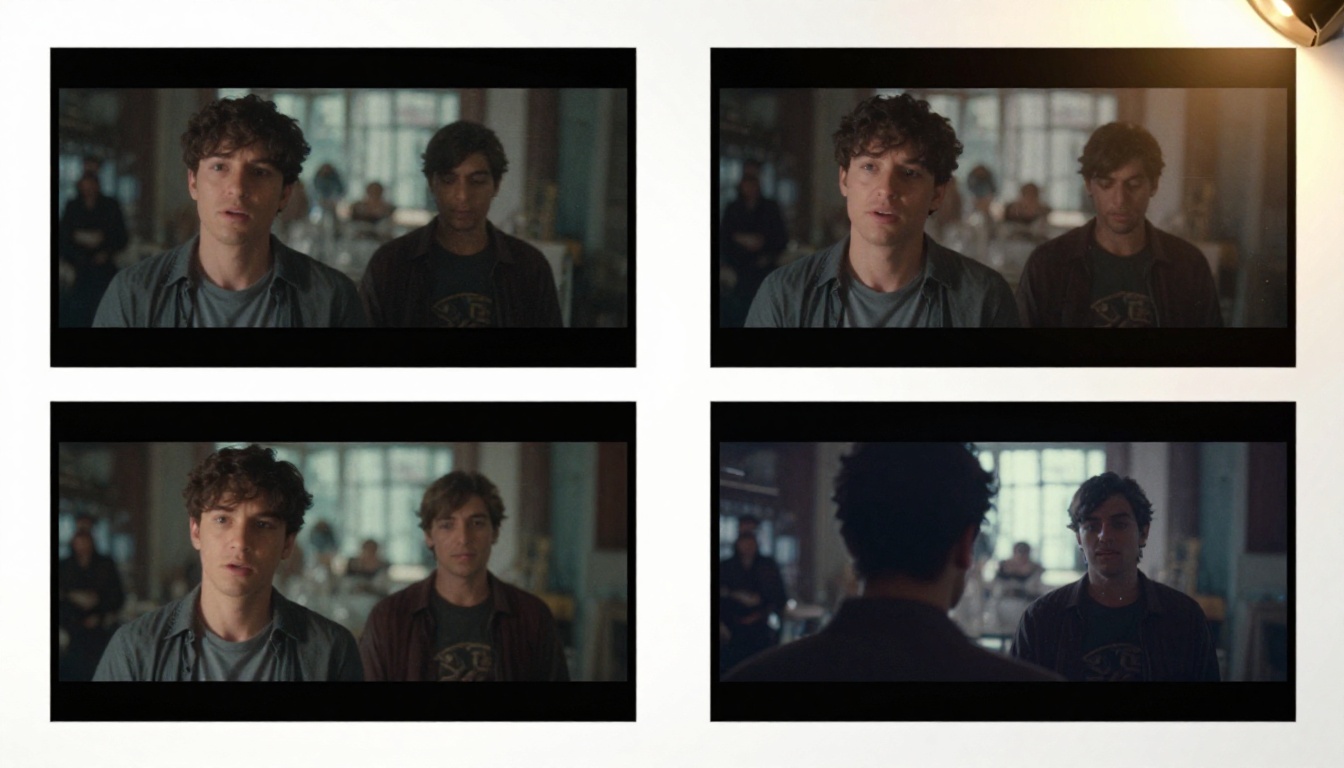
The most effective slow-motion clips for short-form content follow a simple structure: 1 second of context, then the slow-motion payoff. The brief real-time opening tells the viewer what they are watching; the slow-motion expansion delivers the visual reward. Everything after that is diminishing returns for most content types.
Workflows That Work in the Real World
Starting from a Photo or Text Prompt
You do not need a camera to produce professional slow-motion content. Using Kling v2.6 or Wan 2.7 I2V, you can start from a single still image and generate a 5-10 second video clip with realistic natural motion. That clip then goes through your AI frame interpolation workflow to reach 120fps, giving you slow-motion-ready footage that began as a still photograph or a text description.
This workflow is particularly powerful for:
- Product photography: Animate a product shot, then slow it down for cinematic reveals
- Sports and fitness content: Generate an idealized athletic movement, then slow it to show form
- Beauty and lifestyle content: Create smooth hair or fabric movement from a portrait photograph
For text-based generation, LTX 2 Pro and Sora 2 both generate at resolutions and quality levels that hold up well after post-processing enhancement.
The Full Production Workflow
Here is the complete step-by-step process that produces consistently professional results:
- Source material: Either shoot at the highest available frame rate on your device, or generate a clip using a high-quality text-to-video or image-to-video model.
- Stabilization: Apply AI stabilization to remove camera shake before interpolation.
- AI frame interpolation: Use Video Upscale by Topaz Labs to reach your target frame rate.
- AI upscaling: If resolution is insufficient, run a second pass through Crystal Video Upscaler for 4K output.
- Edit and grade: Bring the enhanced footage into your editor, slow it down to the desired percentage, and apply your color grade.
- Export for platform: Encode with the platform-specific settings from the table above.
💡 Save your AI-enhanced source file at full quality before editing. That master file can produce multiple exports for different platforms without any additional processing costs.
What the Best Creators Do Differently
The difference between slow motion that looks like an afterthought and slow motion that stops people mid-scroll comes down to three things: planning the shot around the slow-motion moment, using the right frame rate for the intended effect, and applying AI enhancement to source material that was worth enhancing in the first place.
AI tools like those available on PicassoIA do not fix bad creative decisions. A slow-motion clip of something visually uninteresting, processed at 120fps and upscaled to 4K, is still a slow-motion clip of something uninteresting. What these tools do is remove the technical ceiling that previously kept creators from delivering on good creative instincts.
The shot you planned, the moment you waited for, the lighting you set up: AI enhancement is what lets all of that work land the way you intended, without the frame-rate limitations of your hardware getting in the way.

Try It on Your Next Project
The tools covered in this article are all available directly on PicassoIA, with no software installation required. Whether you are starting with existing footage that needs enhancement or generating entirely new video content from text prompts, the workflow is the same: source quality material, apply AI frame interpolation and upscaling, and deliver at the resolution your platform deserves.
The Video Upscale by Topaz Labs is the most direct starting point for most creators working with existing footage. For those building content from scratch, Kling v3 Video and Pixverse v6 produce cinematic-quality source material that responds exceptionally well to post-processing enhancement.
Pick one clip you have been meaning to work on, run it through the workflow, and see what professional slow motion actually looks like when the tools match the intention.


