Veo 3.1 just changed what people expect from AI video. Google's flagship text-to-video model generates 1080p footage with native synchronized audio baked in, and unlike most competitors, it actually holds subject consistency across motion. If you're looking to create spicy, glamour-forward content that feels cinematic rather than robotic, this is the model worth learning first.
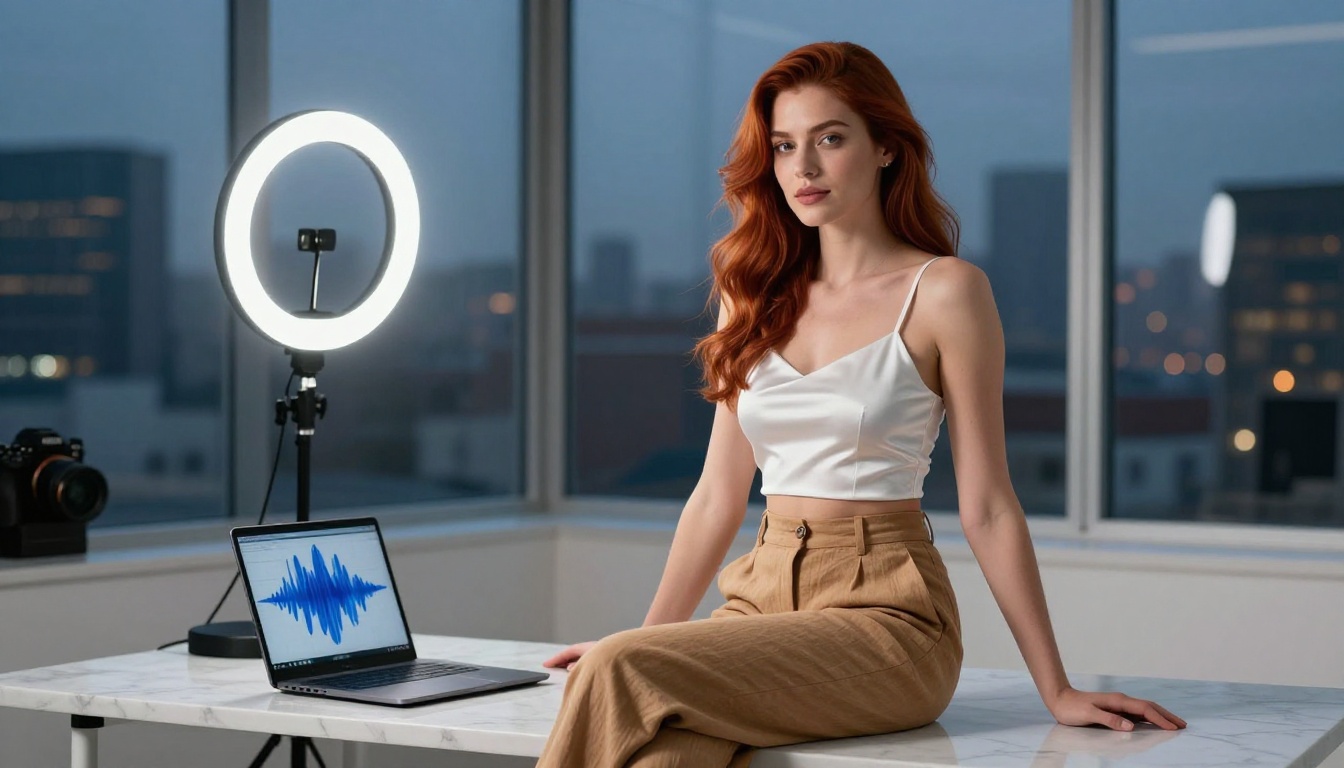
What Veo 3.1 Does That Others Don't
Every major video model can generate motion from text. What separates Veo 3.1 from the pack is the combination of factors that previously required separate tools or expensive post-production pipelines.
Native Audio Without Post-Processing
The single biggest differentiator is synchronized audio generated in the same pass as the video. You don't add sound in editing. The model infers ambient audio, breath sounds, environmental noise, and even subtle dialogue-adjacent vocalizations directly from the visual prompt. For suggestive content, this matters enormously: the difference between a silent clip and one with ambient sound, soft breath, or natural environmental texture is massive for engagement and realism.
Veo 3.1 Fast offers the same native audio pipeline at reduced render time, making it practical for iteration when you're testing multiple prompt variants before committing to a final generation.
Prompt Fidelity That Holds Through Motion
Earlier video models, including Veo 2, could nail the first frame and then drift. Subjects would morph, lighting would shift inconsistently, and anything involving specific clothing or body positioning would degrade within two seconds. Veo 3.1 significantly tightens this. If you specify a scarlet bikini against turquoise water, it stays scarlet and turquoise for the full duration.
This is critical for spicy content specifically because the visual details you're working with (fabric texture, skin tone, lighting angle) are exactly the parameters that earlier models lost control of during motion.
The Model Lineup You Need to Know
PicassoIA hosts the full Veo 3.1 family alongside dozens of competing video models. Here's how to choose without wasting credits.
Veo 3.1 vs. Veo 3.1 Fast vs. Veo 3.1 Lite
| Model | Resolution | Audio | Speed | Best For |
|---|
| Veo 3.1 | 1080p | Native | Standard | Final output, cinematic quality |
| Veo 3.1 Fast | 1080p | Native | 2-3x faster | Rapid iteration, prompt testing |
| Veo 3.1 Lite | 720p | Native | Fastest | Previews, high-volume drafts |
For spicy content production, the recommended workflow is: draft with Veo 3.1 Lite to verify pose, framing, and general motion, then finalize with Veo 3.1 for the polished output you'll actually publish.
When to Pick Something Else
Veo 3.1 is excellent but not always the right tool. Here are honest alternatives to consider:
- Seedance 2.0: ByteDance's flagship produces extremely smooth motion with strong subject tracking. It handles close-up facial expressions and body movement exceptionally well, which is valuable for glamour-focused clips.
- Kling v3: Outstanding for fashion and editorial aesthetics. If your content leans toward high-fashion posing over natural candid motion, Kling v3 often wins on visual polish.
- Pixverse v5: Fastest turnaround for 1080p generation with audio. Great for content requiring volume over maximum quality.
- Hailuo 02: Strong at 1080p with excellent skin tone rendering and natural hair movement. Worth testing for any close-up or portrait-oriented video.
💡 Tip: Don't commit to one model. Run the same prompt through Veo 3.1 and one competitor, then compare. The winning model often depends on your specific subject matter.
Writing Prompts That Actually Work
The quality gap between average and excellent Veo 3.1 output almost always comes down to the prompt. Generic inputs produce generic clips. Here's how to write prompts that produce the kind of content worth keeping.
The Anatomy of a Strong Prompt
A well-structured Veo 3.1 prompt contains four layers:
- Subject and physicality: Who is in the scene, what they look like, what they're wearing
- Setting and lighting: Where, what time of day, what light source, what direction
- Motion and action: What moves, how it moves, over what duration
- Camera behavior: Static, panning, dolly, tilt, focal length
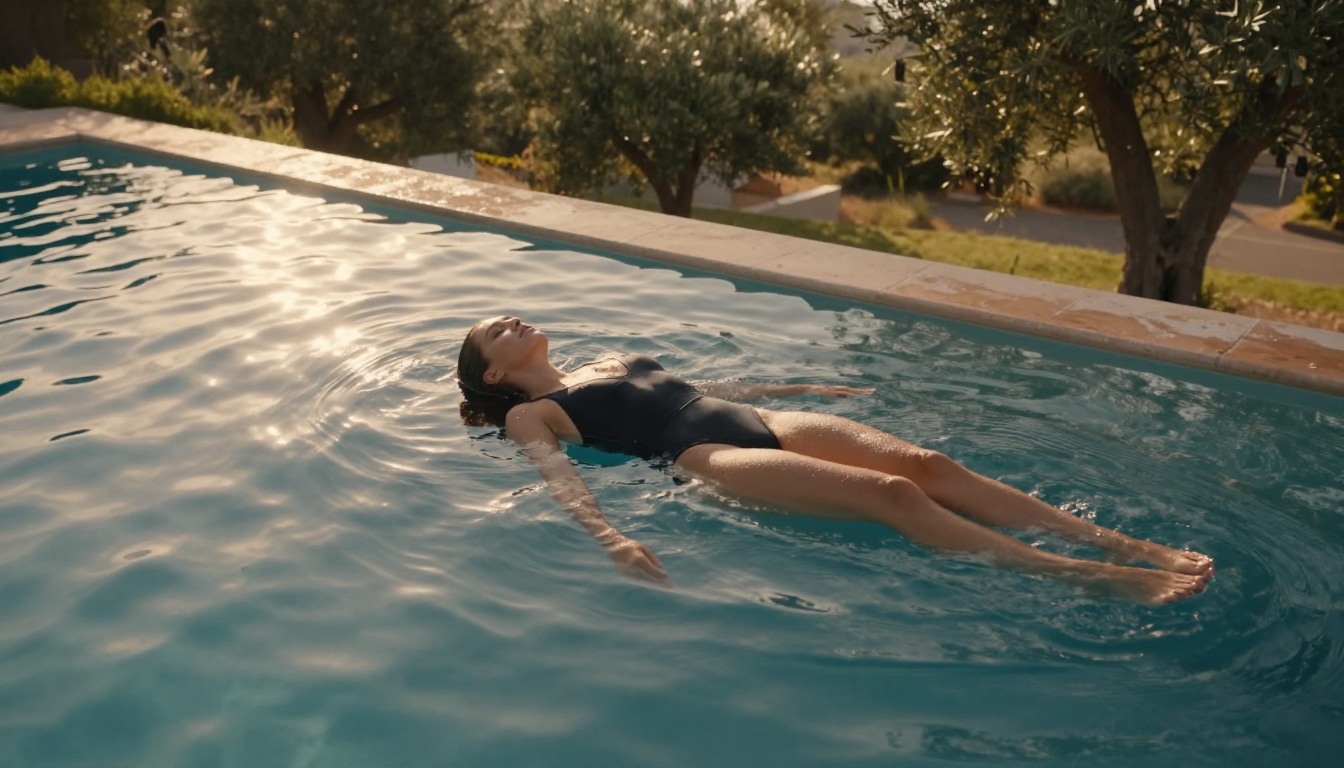
Every layer matters. "A beautiful woman on the beach" will produce something mediocre. "A woman with sun-bleached hair and tanned skin in a white string bikini lying on her back on fine white sand, late afternoon sun from the right casting long shadows across her collarbone, gentle chest motion from breathing, slow dolly from her feet toward her face" will produce something cinematic.
Subject Description: Be Specific
Veo 3.1 responds well to specific physical descriptors. Vague terms like "attractive woman" or "beautiful model" produce average results because the model has no specific visual target to lock onto.
Instead, describe:
- Hair: length, color, texture, movement style (flowing, pinned up, tousled)
- Skin: tone with specific adjectives (warm terracotta, sun-kissed olive, porcelain ivory)
- Clothing: fabric type, color, fit (fitted, draped, sheer), coverage level
- Expression: relaxed, direct gaze, soft parted lips, eyes cast slightly down
The more specific you are, the more the model has to work with. Specificity is not about being restrictive — it's about giving the model the visual information it needs to produce something intentional rather than generic.
Motion Descriptions That Read as Cinematic
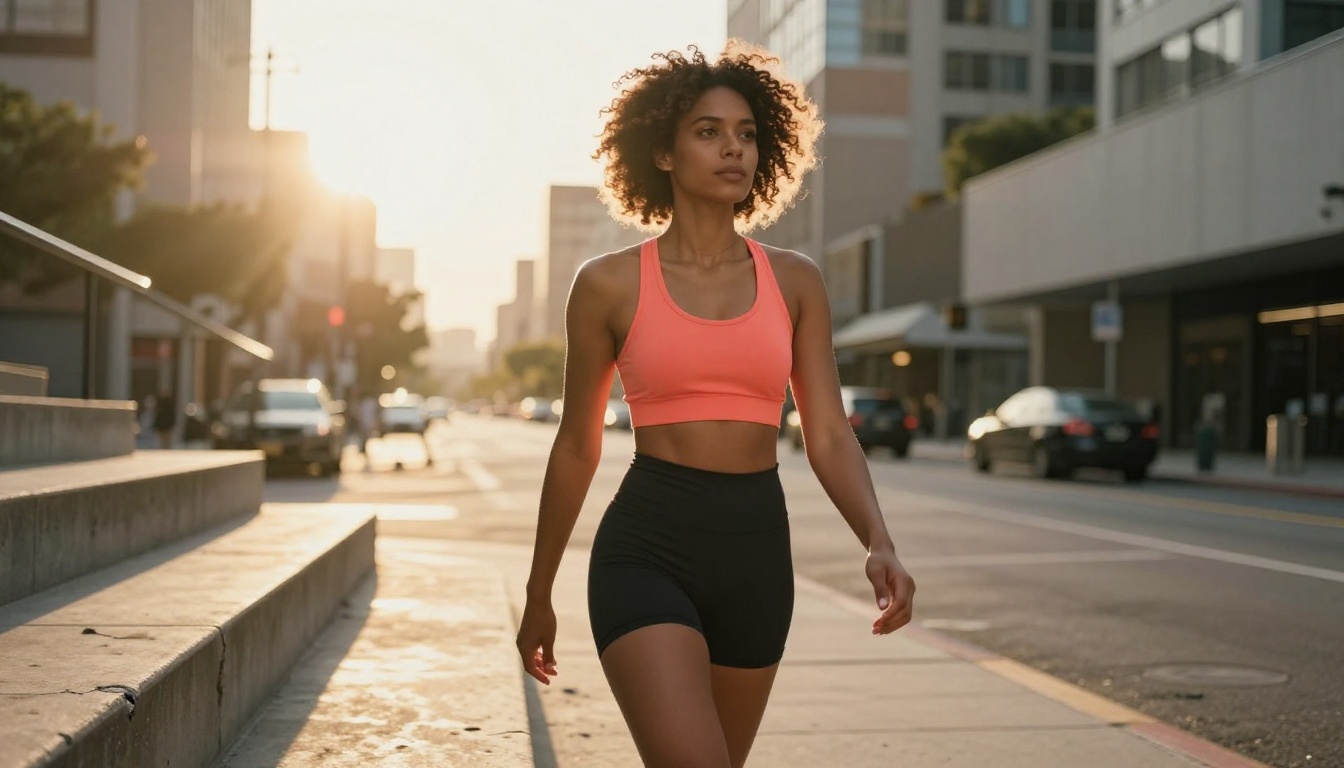
Veo 3.1 takes motion instructions literally, which means vague motion descriptors produce vague motion. Be specific about:
- What moves: hair in wind, fabric shifting, chest rising and falling, fingers trailing through water
- Pace: "slow," "gentle," and "languid" produce meaningfully different tempos
- Camera: "slow push-in," "gentle upward tilt," "static wide shot," "subtle handheld drift"
- Duration arc: describe motion as it evolves ("she turns from looking left to facing camera, hair sweeping across her shoulder as she holds eye contact at clip end")
💡 Tip: Think of your motion description as a cinematographer's shot note, not a caption. You're telling someone how to film something, not just describing what to film.
How to Use Veo 3.1 on PicassoIA
Veo 3.1 is available directly on PicassoIA. The platform gives you access to the full model family plus 100+ other video generators, all in one interface without local GPU requirements.
Step-by-Step Workflow
Step 1: Navigate to Veo 3.1
Go to the Veo 3.1 page on PicassoIA. You'll see the prompt input and parameter controls side by side.
Step 2: Write your prompt
Use the four-layer structure described above. For spicy content, pay extra attention to lighting direction, fabric specifics, and camera behavior. Avoid generic terms that don't give the model visual information.
Step 3: Set your resolution
For final output, select 1080p. If you're testing a prompt variant, use Veo 3.1 Lite at 720p to save credits while validating the composition.
Step 4: Review and iterate
Veo 3.1 generation takes between 60 and 120 seconds depending on server load. Review the clip for prompt adherence, motion quality, and audio sync before committing to additional variants.
Step 5: Combine with image tools if needed
For even tighter control over the initial frame, generate a still image first using PicassoIA's text-to-image pipeline, then animate it using an image-to-video model. This lets you see exactly what the first frame looks like before spending credits on animation.
Pro Settings for Better Output
- Negative framing helps: If the model keeps adding unwanted elements, describe what you don't want as part of the environment description ("isolated subject, no other people visible in frame, minimal background clutter")
- Lighting is the hidden variable: Most disappointing generations are actually lighting failures. Be explicit: "single soft key light from the left at 30 degrees, fill light from the right at 50% intensity, no harsh shadows"
- Always anchor the camera: Specify whether it moves. "Static camera" vs. "slow dolly-in" vs. "gentle handheld drift" produce radically different clips from the same subject prompt.
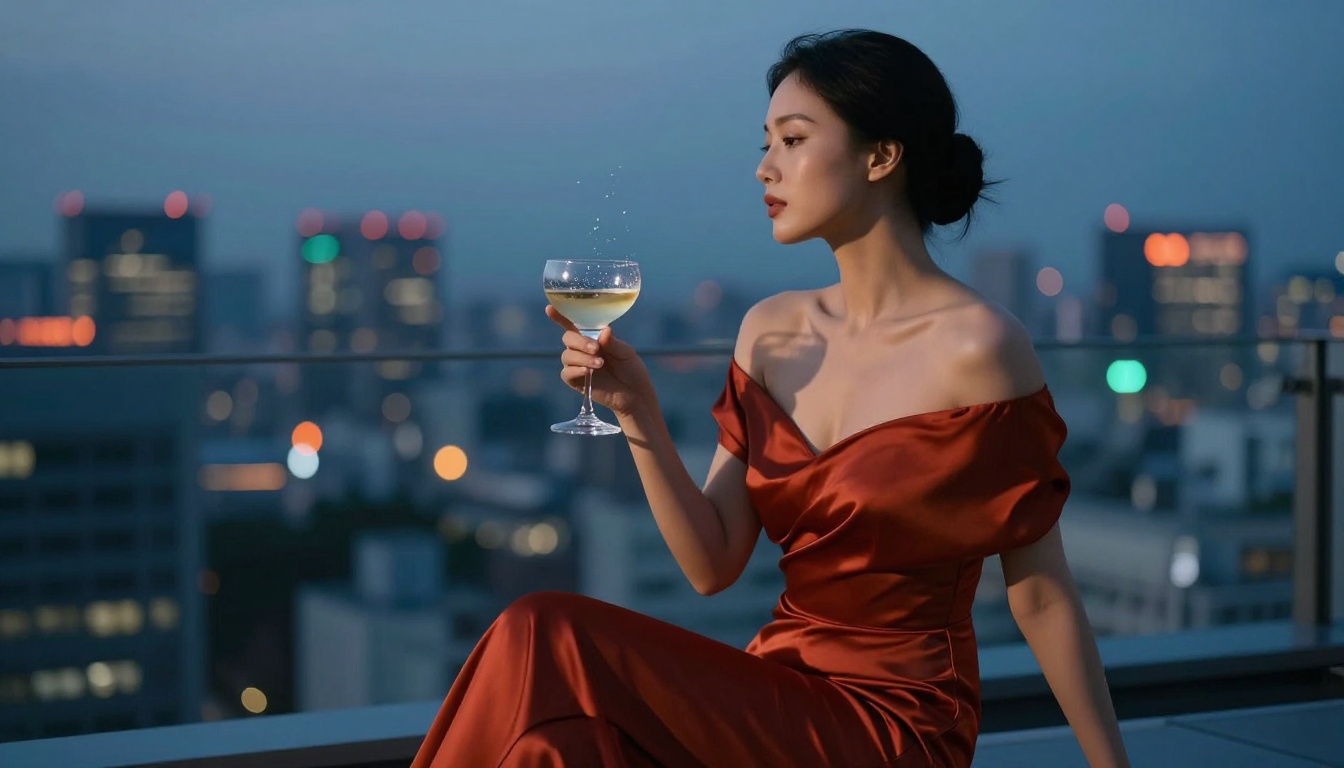
- Audio matters: Veo 3.1's native audio responds to environmental cues in your prompt. Include ambient detail ("outdoor rooftop with soft city traffic below, light breeze audible") and the audio generation will pick up on it.
Spicy Content: What Works and What Doesn't
Veo 3.1 is capable of generating suggestive, glamour-forward content that sits in the artistic space between commercial fashion photography and editorial adult content. The key is understanding where the model's output quality and content policies intersect.
What You Can Generate
Veo 3.1 handles the following content categories well:
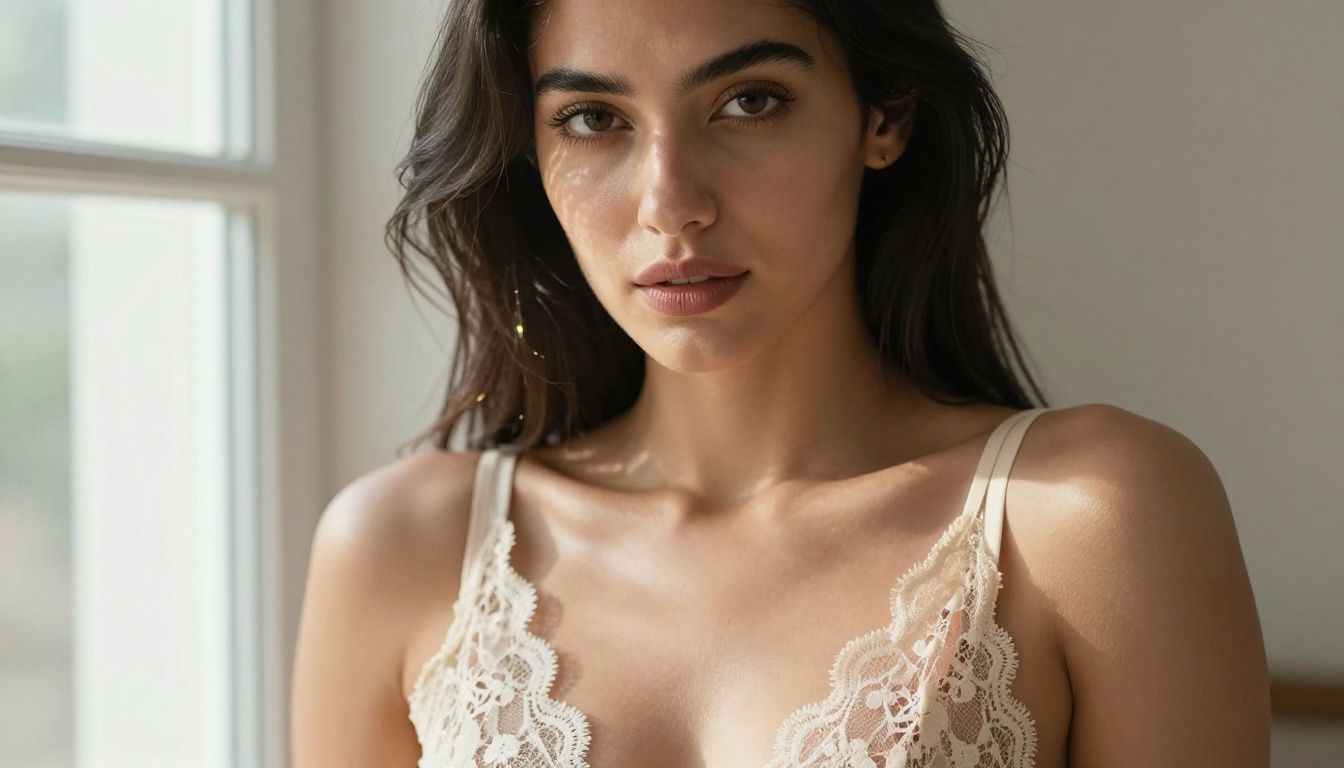
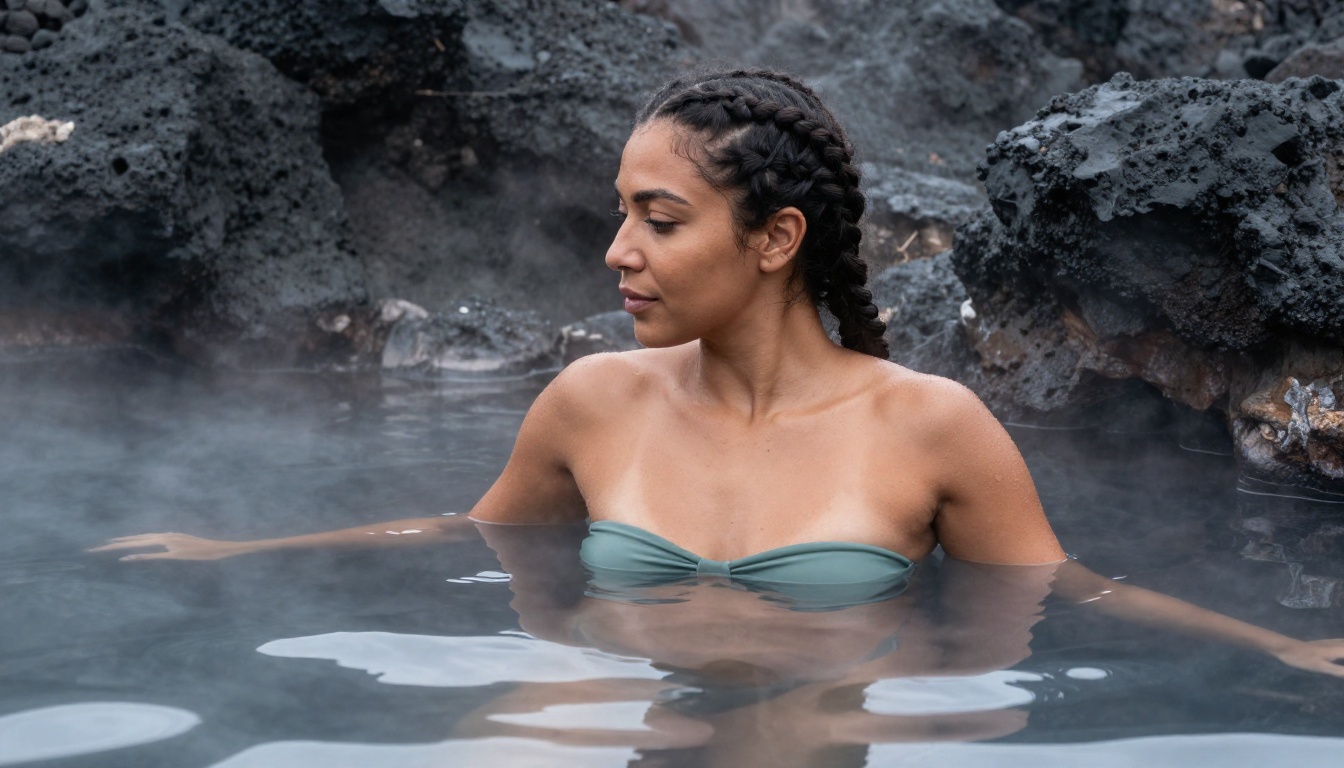
- Swimwear and lingerie: Bikinis, one-piece swimsuits, silk and lace lingerie in natural or studio settings
- Implied nudity: Suggested rather than explicit, with strategic framing (towels, bedding, shadows, camera angles that suggest without showing)
- Glamour motion: Hair movement, confident walking, posing, slow turns and pivots
- Sensual atmosphere: Beach scenes, rooftop settings, candlelit interiors, pool-side environments with warm low light
- Fashion editorial: High-fashion posing with strong lighting and dramatic wardrobe choices
Style Tips for Suggestive Clips
The word "spicy" in a prompt context means pushing toward content that's attractive and visually compelling without crossing into explicit territory. Here's how to get the most from Veo 3.1 in this space:
- Use environmental suggestiveness: Rumpled linen sheets, morning light through curtains, damp hair post-shower. The environment carries the mood without requiring explicit subject matter.
- Specify camera intimacy: "Close-up," "tight medium shot," and "handheld intimate framing" create closer, more personal video than wide establishing shots.
- Lighting signals mood: Warm, low, directional light from one side reads as intimate. Diffused studio light reads as commercial. Candlelight reads as romantic. Choose deliberately based on the tone you want.
- Clothing specificity signals register: Silk robes, lingerie straps, unbuttoned shirts, wet fabric, sheer overlays. Each signals something specific to the model about the tone you're after.
💡 Tip: The gap between generic and genuinely compelling spicy content is almost always about specificity in clothing and lighting rather than explicitness. More detail in your prompt produces more interesting output every time.
Comparing the Top Video Models Right Now
You have access to over 100 video models on PicassoIA. For spicy and glamour content specifically, here's how the top options compare in practice.
The Numbers Side by Side
What Each Model Actually Wins At
Veo 3.1 wins on overall realism and native audio quality. If the final output needs to feel like real footage with natural sound, this is the default choice.
Seedance 2.0 wins on face and body tracking. For content where your subject's face is prominent and you need consistent expression and natural eye movement, Seedance often outperforms Veo 3.1 in close-up scenarios.
Kling v3 wins on visual polish and color. Clips have a cinematic, processed look that requires less post-production. Strong for content that needs to feel like a music video or fashion editorial.
Pixverse v5 wins on throughput. If you're generating 20 prompt variants to find the right one, Pixverse gets you there faster per credit spent.
LTX 2 Pro wins when you need 4K output. Most platforms won't render this at full quality, but for archival or print-adjacent video content, the resolution advantage matters.
More Ways to Push Your Content Further
Veo 3.1 doesn't exist in isolation. The most effective creators on PicassoIA combine multiple tools in sequence to produce output no single model could achieve alone.
Image-to-Video for Full Compositional Control
The cleanest approach for high-stakes content is to separate composition from animation. Generate your perfect still frame using PicassoIA's text-to-image pipeline, then animate it using an image-to-video model. This gives you exact control over the starting composition before committing credits to animation.
Top image-to-video models for glamour content:
- Wan 2.7 I2V: Strong at preserving the source image's lighting and color science during animation
- Wan 2.6 I2V: Slightly faster with comparable quality for simple motion sequences
- Seedance 2.0: Handles image-to-video with excellent subject tracking when provided a reference frame
Stacking Tools for the Full Production Pipeline
A complete production workflow on PicassoIA for spicy AI content might look like this:
- Write a detailed four-layer prompt for your scene
- Generate 3-4 still images to find the right composition and lighting
- Select the best frame and run it through an image-to-video model
- If motion quality isn't right, test the same source image in a different video model
- Use Veo 3.1 Fast for rapid text-to-video iteration when testing new scenes
- Finalize with Veo 3.1 at 1080p for maximum output quality
💡 Tip: Save prompts that work. When you get a generation that nails the look you're going for, document the exact prompt text. Veo 3.1 is consistent enough that small variations from a working prompt produce reliable quality, and you'll want that base to return to.
Try It on PicassoIA Right Now
Everything in this article is live and accessible without specialized setup or a local GPU. Veo 3.1, Veo 3.1 Fast, Veo 3.1 Lite, and 100+ other video models are running on PicassoIA right now.
The full model library at picassoia.com/en/all-models covers text-to-video, image-to-video, video editing, AI video enhancement, lipsync, music generation, and text-to-speech. Every tool referenced in this article is accessible from one account.
Start with a Veo 3.1 Lite test of your first prompt. Iterate fast. When composition and motion feel right, run the final version through Veo 3.1 at 1080p. Then test the same prompt through Seedance 2.0 and compare. That workflow is how you build real intuition for which model suits your specific content style.
The tools are there. The quality is there. The only remaining variable is the prompt you write.


